bluetooth CHEVROLET SPARK 2014 3.G Owner's Manual
[x] Cancel search | Manufacturer: CHEVROLET, Model Year: 2014, Model line: SPARK, Model: CHEVROLET SPARK 2014 3.GPages: 362, PDF Size: 4.94 MB
Page 164 of 362

Black plate (28,1)Chevrolet Spark Owner Manual (GMNA-Localizing-U.S./Canada-5853490) -
2014 - crc - 9/3/13
7-28 Infotainment System
4. Press the number to dial.
Searching for Phone Book Entries
1. Press Phone Book on thetelephone screen.
2. Press
9on the phone book
screen.
3. Use the keypad to input the name to search. For details,
refer to the “Searching for a
Name” later in this section.
4. Select the phone book entry to call.
5. Press the number to dial.
When the Bluetooth device and
infotainment system are
successfully paired, the phone book
will download. Some phones may
not download automatically. If this
happens, connect it again or
proceed with the phone book
download on the phone. Searching for a Name
Select characters by using the
keypad on the phone book screen.
As characters are selected, the
names that include those characters
will display on the phone book
screen. As more characters of the
name are entered, the list of
possible names is shortened.
To search for the name Alex:
1. Press (abc) to select the first
character.
2. Press (jkl) to select the second character.
3. Press (def) to select the third character.
4. Press (wxy) to select the fourth character.
Making a Call from Call History
1. Press Call History on the telephone screen.
2. Press one of the following for:
.2Dialed calls.
.4Missed calls.
.9Received calls.
3. Select the phone book entry to call.
Making a Call with Speed Dial
Numbers
Press and hold the speed dial
number using the keypad on the
telephone screen.
Only speed dial numbers already
stored on the cell phone can be
used for speed dial calls. Up to
two-digit speed dial numbers are
supported.
For two-digit speed dial numbers,
press and hold the second digit to
make a call to the speed dial
number.
Page 165 of 362
Black plate (29,1)Chevrolet Spark Owner Manual (GMNA-Localizing-U.S./Canada-5853490) -
2014 - crc - 9/3/13
Infotainment System 7-29
Downloadable
Applications
Smartphone Link
(Overview)
Before Using Smartphone Link
If equipped, the vehicle can connect
to Pandora
®, Stitcher
SmartRadio™, or other available
applications through the
infotainment system. The
applications must be downloaded to
the device first, then connect the
device to the infotainment system.
Pandora is a free Internet radio
service that streams personalized
radio stations based on artists,
songs, genres, and comedians.
Create stations using the Pandora
website or smartphone application,
then use
-(thumbs up) or,
(thumbs down) to personalize
stations. To set up an account, or for
more information, go to www.pandora.com. Pandora may
not be available in Canada or
Mexico.
Stitcher SmartRadio is an Internet
radio service that streams news,
sports, and entertainment shows
through the audio system. Create
personalized, on-demand stations or
discover new shows through
Stitcher's preset stations. To set up
an account, download the
application from the Android Market
or iTunes Store, or go to
www.stitcher.com.
A phone or tablet with Internet
connection and the application
installed is required. Personal cell
phone data plans are used. Make
sure the latest version is installed
on the device and the volume is
turned up.
Smartphone Supported by
Application
To use Applications:
.Connect an iPod/iPhone using
the USB port.
.Connect Andriod™
phones
through Bluetooth.
iPod/iPhone Error Messages and
Solution
If the system fails to activate the
application on the iPod/iPhone
connected, an error message is
displayed as, “Unable to start
application, possible reasons.”
.Your iPhone is locked. To
resolve, unlock the iPhone.
.You have another active
application open. To resolve,
close the other active
application.
.You have not installed the
application on your iPhone. To
resolve, install the application on
the iPhone.
iOS Version Error
If the iOS version of the iPhone is
less than 4.0, the error message is
displayed as, “Your iPhone does
not allow this application to be
opened on a USB connection.
Please refer to owner ’s manual.”
Page 166 of 362
Black plate (30,1)Chevrolet Spark Owner Manual (GMNA-Localizing-U.S./Canada-5853490) -
2014 - crc - 9/3/13
7-30 Infotainment System
.Activate the application on your
iPhone, then press the desired
application menu on the
infotainment system.
Connecting Application Error
If the infotainment system fails to
activate the application on the
smartphone connected through
Bluetooth wireless technology, the
error message is displayed as,
“Connecting application error.”
.Reset all settings related to the
phone, then press the desired
application menu on the
infotainment system.
.Reconnect the smartphone and
infotainment system through
Bluetooth wireless technology,
then press the desired
application menu on the
infotainment system.
.When the application is stopped
on the smartphone, it usually
takes time to return to normal
operation. Try to activate the
application after 10–20 seconds. To switch to another application
while playing an application and
connected through the USB port,
press the HOME button on the iPod/
iPhone, then press the application
icon on the infotainment system.
Switching Between a USB
Connected Device and a
Bluetooth Device
When the iPhone is connected to
the infotainment system through the
USB port, and the infotainment
system is connected to another
phone through Bluetooth wireless
technology, press iPhone or
bluetooth phone on the smartphone
list menu to switch between the two
applications.
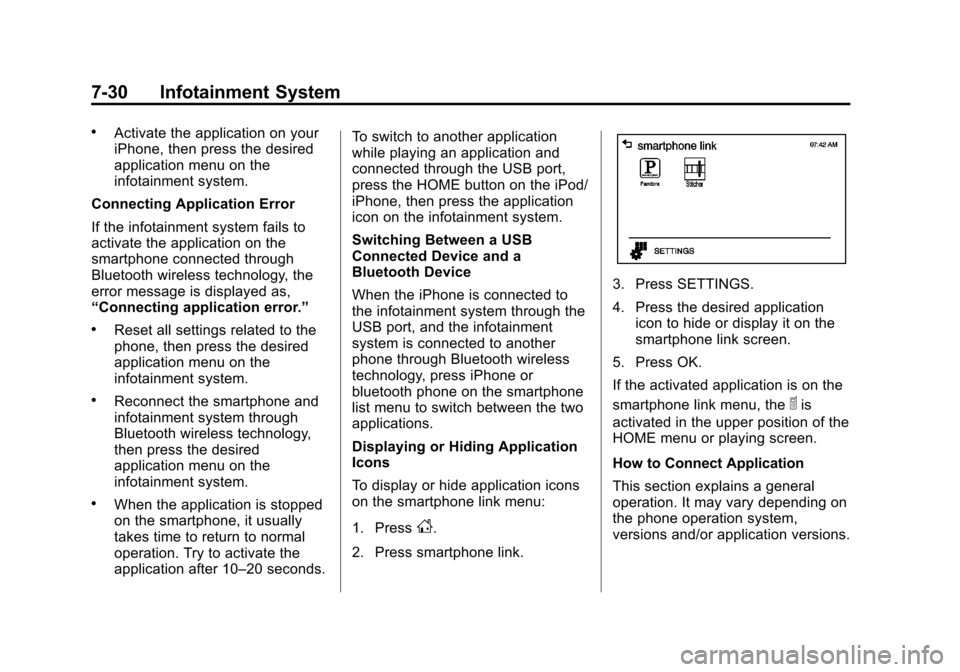
Displaying or Hiding Application
Icons
To display or hide application icons
on the smartphone link menu:
1. Press
D.
2. Press smartphone link.
3. Press SETTINGS.
4. Press the desired application icon to hide or display it on the
smartphone link screen.
5. Press OK.
If the activated application is on the
smartphone link menu, the
^is
activated in the upper position of the
HOME menu or playing screen.
How to Connect Application
This section explains a general
operation. It may vary depending on
the phone operation system,
versions and/or application versions.
Page 167 of 362
Black plate (31,1)Chevrolet Spark Owner Manual (GMNA-Localizing-U.S./Canada-5853490) -
2014 - crc - 9/3/13
Infotainment System 7-31
To connect an application:
1. Install the application on thesmartphone from Appstore or
Playstore.
2. Connect the smartphone to the infotainment system through the
USB port or Bluetooth.
.iPhone: USB port
.Android phone: Bluetooth
3. Activate the application.
4. Press
Dto play the application
through the Infotainment system.
The smartphone link menu is
displayed.
5. Press the application icon.
6. The application screen is displayed.
Smartphone Link
(Pandora)
Some images and explanations may
vary by phone operating systems,
versions, and/or application (App)
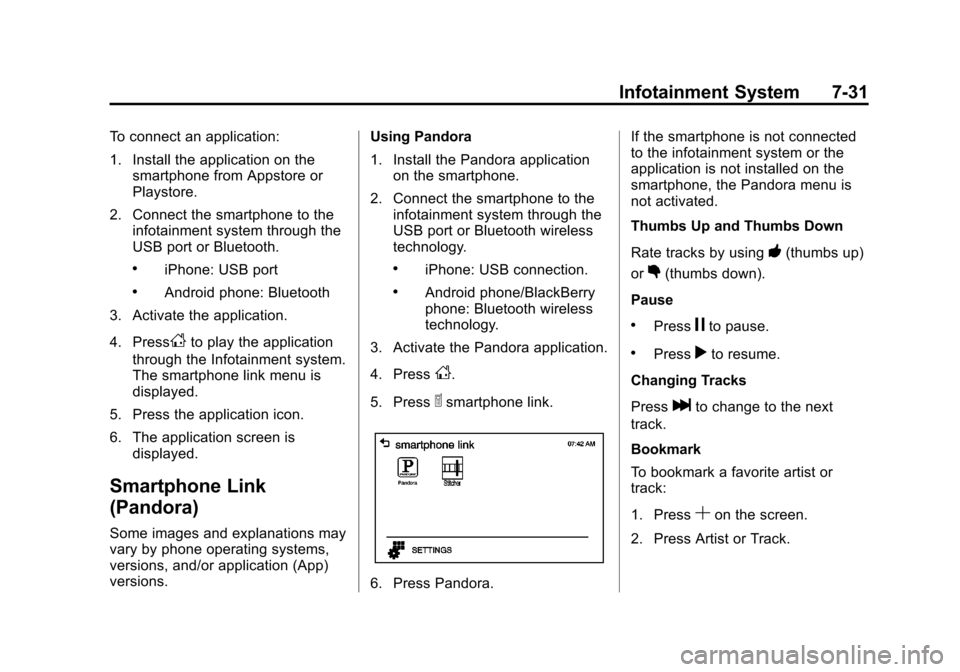
versions. Using Pandora
1. Install the Pandora application
on the smartphone.
2. Connect the smartphone to the infotainment system through the
USB port or Bluetooth wireless
technology.
.iPhone: USB connection.
.Android phone/BlackBerry
phone: Bluetooth wireless
technology.
3. Activate the Pandora application.
4. Press
D.
5. Press
^smartphone link.
6. Press Pandora. If the smartphone is not connected
to the infotainment system or the
application is not installed on the
smartphone, the Pandora menu is
not activated.
Thumbs Up and Thumbs Down
Rate tracks by using
-(thumbs up)
or
,(thumbs down).
Pause
.Pressjto pause.
.Pressrto resume.
Changing Tracks
Press
lto change to the next
track.
Bookmark
To bookmark a favorite artist or
track:
1. Press
Son the screen.
2. Press Artist or Track.
Page 168 of 362

Black plate (32,1)Chevrolet Spark Owner Manual (GMNA-Localizing-U.S./Canada-5853490) -
2014 - crc - 9/3/13
7-32 Infotainment System
Pandora Menus
Creating Stations from Currently
Playing Music
1. Press MENU. The Pandoramenu is displayed.
2. Press create station.
3. Press from currently playing.
4. Press Artist or Track.
5. Press the desired station. The station is added into the
Pandora menu automatically.
Creating Stations by Searching
by Artist or Track
1. Press MENU. The Pandora menu is displayed.
2. Press create station.
3. Press enter artist/track. The keypad is displayed.
4. Enter the artist or track name using the keypad, then press
Create. 5. Press the desired station. The
station is added into the
Pandora menu automatically.
Listening to Stations
1. Press MENU. The Pandora menu is displayed.
2. Press
QorRto scroll through
the list. Select the desired
station.
QuickMix
1. Press MENU. The Pandora menu is displayed.
2. Press QuickMix
Zto listen to a
selection of tracks from your
stations.
Tone Settings
1. Press MENU. The Pandora menu is displayed.
2. Press tone settings. The tone settings menu is displayed. See
“Tone Settings” under“Radio
Controls with Touchscreen” in
Operation on page 7-6.
Smartphone Link
(Stitcher)
Some images and explanations may
vary by phone operating systems,
versions, and/or application (App)
versions.
Using Stitcher
1. Install the Stitcher application on
the smartphone.
2. Connect the smartphone to the infotainment system through the
USB port or Bluetooth wireless
technology.
.iPhone: USB connection.
.Android phone/BlackBerry
phone: Bluetooth wireless
technology.
3. Activate the Stitcher application.
4. Press
D.
5. Press
^smartphone link.
Page 169 of 362

Black plate (33,1)Chevrolet Spark Owner Manual (GMNA-Localizing-U.S./Canada-5853490) -
2014 - crc - 9/3/13
Infotainment System 7-33
6. Press Stitcher.
If the smartphone is not connected
to the infotainment system or the
application is not installed on the
smartphone, the Stitcher menu is
not activated.
Thumbs Up and Thumbs Down
Rate tracks by using
-(thumbs up)
or
,(thumbs down).
Pause
.Pressjto pause.
.Pressrto resume. Changing Stations
Press
lto change to the next
station.
Saving Favorites
To save a station as a favorite,
press
qon the stitcher screen.
Stitcher Menus
The Stitcher Station menu displays
available station data from the
Stitcher server.
1. Press MENU. The Stitcher Station menu is displayed.
2. Press
QorRto scroll through
the list. Select the desired
station.
Tone Settings
1. Press MENU. The Stitcher menu is displayed.
2. Press tone settings. The tone settings menu is displayed. See
“Tone Settings” under“Radio
Controls with Touchscreen” in
Operation on page 7-6.
Bluetooth Phone/
Devices
Pictures and Movies
(Audio System)
The infotainment system can play
the music files contained in the USB
storage device or iPod/iPhone
products.
Audio System Information
Using MP3/WMA/OGG/WAV Files
.Music files with .mp3, .wma,
.ogg, and .wav file name
extensions can be played.
.MP3 files that can be played are:
Bit rate: 8 kbps to 320 kbps -
Sampling frequency: 48 kHz,
44.1 kHz, 32 kHz, 24 kHz, 22.05
kHz, and 16 kHz.
.Files with a bit rate above
128 kbps will result in higher
quality sound.
Page 171 of 362
Black plate (35,1)Chevrolet Spark Owner Manual (GMNA-Localizing-U.S./Canada-5853490) -
2014 - crc - 9/3/13
Infotainment System 7-35
.USB storage device capacity
limit is 2,500 music files, 2,500
photo files, 250 movie files,
2,500 folders, and 10 stages of
folder structure. The iPod/iPhone
can play all music files
supported, but will only display
up to 2,500 files on the screen in
alphabetical order.
.Some iPod/iPhone product
models may not support the
connectivity or functionality of
this product.
.Only connect the iPod/iPhone
with connection cables
supported by iPod/iPhone
products. Other connection
cables cannot be used.
.The iPod/iPhone may be
damaged if it is connected to the
vehicle with the ignition on.
When not in use, disconnect the
iPod/iPhone.
.When the iPod/iPhone is
connected to the USB port by
using the iPod/iPhone cable, the
Bluetooth music is not
supported.
.Connect the iPod/iPhone to the
USB port by using the iPod/
iPhone cable to play the music
files. When the iPod/iPhone is
connected to the AUX input
terminal, the music file will
not play.
.The iPod/iPhone playback
functions and the information
displayed may be different when
played on the infotainment
system.
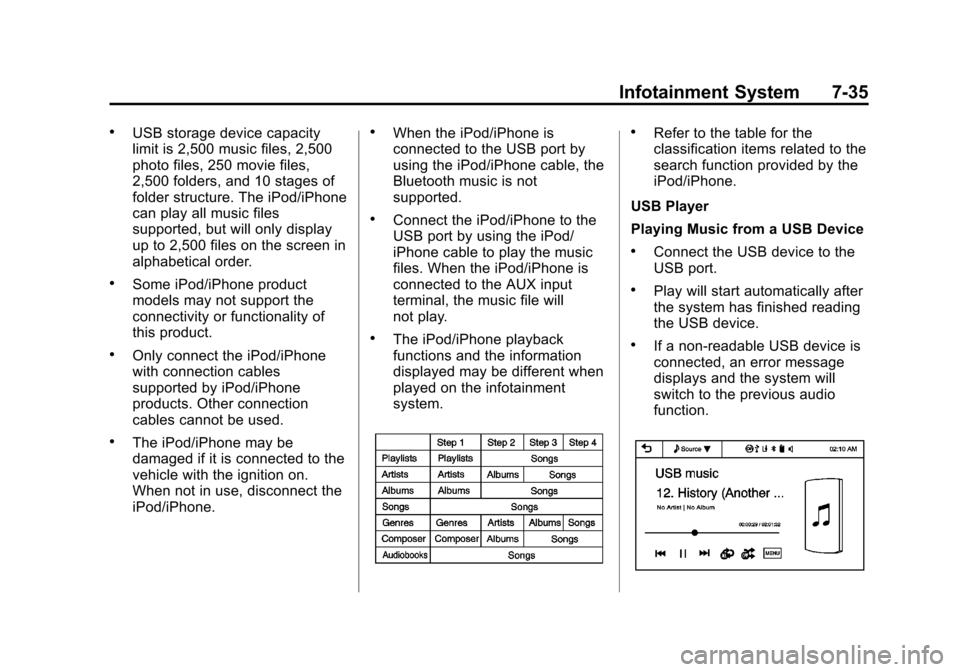
.Refer to the table for the
classification items related to the
search function provided by the
iPod/iPhone.
USB Player
Playing Music from a USB Device
.Connect the USB device to the
USB port.
.Play will start automatically after
the system has finished reading
the USB device.
.If a non-readable USB device is
connected, an error message
displays and the system will
switch to the previous audio
function.
Page 178 of 362

Black plate (42,1)Chevrolet Spark Owner Manual (GMNA-Localizing-U.S./Canada-5853490) -
2014 - crc - 9/3/13
7-42 Infotainment System
Trademarks and
License Agreements
FCC Information
SeeRadio Frequency Statement on
page 13-15.
Bluetooth
®
The Bluetooth word mark and logos
are owned by the Bluetooth®SIG,
Inc. and any use of such marks by
General Motors is under license.
Other trademarks and trade names
are those of their respective owners.
DivX Certified®to play DivX®video,
including premium content.
Covered by one or more of the
following U.S. patents: 7,295,673;
7,460,668; 7,515,710; 7,519,274. DivX
®, DivX Certified®and
associated logos are trademarks of
Rovi Corporation or its subsidiaries
and are used under license.
“Made for iPod” and“Made for
iPhone” mean that an electronic
accessory has been designed to
connect specifically to iPod or
iPhone and has been certified by
the developer to meet Apple
performance standards.
iPod and iPhone are trademarks of
Apple Computer, Inc., registered in
the U.S. and other countries.
Fees and Taxes: Subscription fee,
taxes, one time activation fee, and
other fees may apply. Subscription
fee is consumer only. All fees and
programming subject to change.
Subscriptions subject to Customer
Agreement available at
www.siriusxm.com. SiriusXM
®
service only available in the
48 contiguous United States and
Canada.
In Canada: Some deterioration of
service may occur in extreme
northern latitudes. This is beyond
the control of SiriusXM
®Satellite
Radio.
Page 351 of 362

Black plate (1,1)Chevrolet Spark Owner Manual (GMNA-Localizing-U.S./Canada-5853490) -
2014 - crc - 9/3/13
INDEX i-1
A
Accessories andModifications . . . . . . . . . . . . . . . . . 10-3
Accessory Power . . . . . . . . . . . . . . 9-18
Add-On Electrical Equipment . . . . . . . . . . . . . . . . . . . 9-39
Additional Information
OnStar
®. . . . . . . . . . . . . . . . . . . . . . 14-5
Air Cleaner/Filter, Engine . . . . . 10-11
Air Filter, Passenger Compartment . . . . . . . . . . . . . . . . . 8-4
Air Intake . . . . . . . . . . . . . . . . . . . . . . . 8-4
Air Vents . . . . . . . . . . . . . . . . . . . . . . . 8-3
Airbag System Check . . . . . . . . . . . . . . . . . . . . . . . . 3-30
How Does an AirbagRestrain? . . . . . . . . . . . . . . . . . . . 3-22
Passenger Sensing System . . . . . . . . . . . . . . . . . . . . . . 3-24
What Makes an Airbag
Inflate? . . . . . . . . . . . . . . . . . . . . . . 3-22
What Will You See after an Airbag Inflates? . . . . . . . . . . . . . 3-23
When Should an Airbag Inflate? . . . . . . . . . . . . . . . . . . . . . . 3-21
Where Are the Airbags? . . . . . . 3-19 Airbags
Adding Equipment to the
Vehicle . . . . . . . . . . . . . . . . . . . . . . 3-29
Passenger Status Indicator . . . 5-11
Readiness Light . . . . . . . . . . . . . . 5-10
Servicing Airbag-Equipped Vehicles . . . . . . . . . . . . . . . . . . . . . 3-28
System Check . . . . . . . . . . . . . . . . 3-17
Alarm Vehicle Security . . . . . . . . . . . . . . 2-10
AM-FM Radio . . . . . . . . . . . . . . . . . . . 7-9
Antenna
Multi-band . . . . . . . . . . . . . . . . . . . . 7-16
Antilock Brake System (ABS) . . . . . . . . . . . . . . . . 9-25
Warning Light . . . . . . . . . . . . . . . . . 5-16
Appearance Care Exterior . . . . . . . . . . . . . . . . . . . . . 10-69
Interior . . . . . . . . . . . . . . . . . . . . . . 10-74
Armrest Front Seat . . . . . . . . . . . . . . . . . . . . . 3-5
Assistance Program, Roadside . . . . . . . . . . . . . . . . . . . . . 13-5
Audio System Radio Reception . . . . . . . . . . . . . . 7-15
Theft-Deterrent Feature . . . . . . . . 7-2 Automatic
Door Locks . . . . . . . . . . . . . . . . . . . . 2-7
Headlamp System . . . . . . . . . . . . . 6-2
Transmission . . . . . . . . . . . . . . . . . 9-21
Transmission Fluid . . . . . . . . . 10-10
Automatic Transmission Shift Lock Control
Function Check . . . . . . . . . . . 10-22
Auxiliary Devices . . . . . . . . . . . . . . . . . . . . . . . 7-17
B
Battery . . . . . . . . . . . . . . . . . . . . . . . 10-21Jump Starting . . . . . . . . . . . . . . . 10-64
Power Protection . . . . . . . . . . . . . . 6-6
Blade Replacement, Wiper . . . 10-23
Bluetooth Overview . . . . . . . . . . . . . . . 7-19, 7-21
Brake System Warning Light . . . . . . . . 5-15
Brakes . . . . . . . . . . . . . . . . . . . . . . . . 10-18 Antilock . . . . . . . . . . . . . . . . . . . . . . . 9-25
Assist . . . . . . . . . . . . . . . . . . . . . . . . . 9-26
Fluid . . . . . . . . . . . . . . . . . . . . . . . . 10-19
Parking . . . . . . . . . . . . . . . . . . . . . . . 9-26
Braking . . . . . . . . . . . . . . . . . . . . . . . . . 9-3
Page 357 of 362

Black plate (7,1)Chevrolet Spark Owner Manual (GMNA-Localizing-U.S./Canada-5853490) -
2014 - crc - 9/3/13
INDEX i-7
Mirrors, Interior Rearview . . . . . . 2-13
Monitor System, TirePressure . . . . . . . . . . . . . . . . . . . . 10-43
Movies . . . . . . . . . . . . 7-33, 7-38, 7-40
Multi-band Antenna . . . . . . . . . . . . 7-16
N
Navigation OnStar®. . . . . . . . . . . . . . . . . . . . . . 14-2
Net Cargo . . . . . . . . . . . . . . . . . . . . . . . . . . 4-2
New Vehicle Break-In . . . . . . . . . . 9-13
O
Odometer . . . . . . . . . . . . . . . . . . . . . . . 5-9 Trip . . . . . . . . . . . . . . . . . . . . . . . . . . . . 5-9
Off-Road Recovery . . . . . . . . . . . . . . . . . . . . . . 9-4
Oil Engine . . . . . . . . . . . . . . . . . . . . . . . . 10-7
Engine Oil Life System . . . . . . . 10-9
Messages . . . . . . . . . . . . . . . . . . . . 5-26
Pressure Light . . . . . . . . . . . . . . . . 5-19 Older Children, Restraints . . . . . 3-31
Online Owner Center . . . . . . . . . . 13-4
OnStar
®
System, In Brief . . . . . . . . . . . . . . 1-16
OnStar®Additional
Information . . . . . . . . . . . . . . . . . . . 14-5
OnStar
®Connections . . . . . . . . . . 14-3
OnStar®Diagnostics . . . . . . . . . . . 14-5
OnStar®Emergency . . . . . . . . . . . 14-2
OnStar®Navigation . . . . . . . . . . . . 14-2
OnStar®Overview . . . . . . . . . . . . . 14-1
OnStar®Security . . . . . . . . . . . . . . 14-2
Operation, Infotainment System . . . . . . . . . . . . . . . . . . . . . . . . 7-6
Ordering Service Publications . . . . . . . . .13-11
Outlets Power . . . . . . . . . . . . . . . . . . . . . . . . . 5-6
Overheating, Engine . . . . . . . . . . 10-16
Overview, Infotainment System . . . . . . . . . . . . . . . . . . . . . . . . 7-3
Owner Manual Indicator . . . . . . . 5-15
P
Park Shifting Into . . . . . . . . . . . . . . . . . . . 9-18
Shifting Out of . . . . . . . . . . . . . . . . 9-19
Parking . . . . . . . . . . . . . . . . . . . . . . . . 9-19 Brake . . . . . . . . . . . . . . . . . . . . . . . . . 9-26
Brake and P (Park)Mechanism Check . . . . . . . . 10-23
Over Things That Burn . . . . . . . 9-20
Passenger Airbag Status Indicator . . . . . . . . . . . . . . . . . . . . . 5-11
Passenger Compartment Air Filter . . . . . . . . . . . . . . . . . . . . . . . . . . 8-4
Passenger Sensing System . . . 3-24
Perchlorate Materials Requirements, California . . . . . 10-3
Personalization Vehicle . . . . . . . . . . . . . . . . . . . . . . . 5-27
Phone Bluetooth . . . . . . . . . . . . . . . 7-19, 7-21
Hands-Free . . . . . . . . . . . . . . . . . . . 7-26
Pictures and Movies . . . . . . . . . . . 7-33, 7-38, 7-40