phone CHEVROLET SPARK 2016 4.G Infotainment Manual
[x] Cancel search | Manufacturer: CHEVROLET, Model Year: 2016, Model line: SPARK, Model: CHEVROLET SPARK 2016 4.GPages: 113, PDF Size: 1.4 MB
Page 49 of 113

Chevrolet MyLink Infotainment System (GMNA-Localizing-U.S/Canada-
9085900) - 2016 - CRC - 8/10/15
48 Rear Seat Infotainment
Headphones
1. Power Button
2. Volume Control
3. Channel 1 or 2 Switch
RSE includes two or four 2-channel
wireless headphones, depending on
the vehicle model.
Press the power button to turn on
the headphones. A light on the
headphones comes on. If it does not
come on, check the batteries.
Intermittent sound or static can also
indicate weak batteries. See
“Battery Replacement”later in this
section.
Turn the headphones off when not
in use. Move the channel switch to channel
1 or channel 2. Channel 1 will play
audio from screen 1 and channel 2
will play audio from screen 2. When
a third row screen is available, the
screen will display the selection
related to
“1”on the remote control.
If 1 is not available, press “2”on the
remote control. Channel 2 will
provide audio based on its setting.
. Screen 1 is overhead in the
second row.
. Screen 2 is overhead in the
third row.
Infrared transmitters are on the top
of the second row video screen. The
headphones shut off automatically if
the RSE system is off or if the
headphones are out of range of the
transmitters for more than
three minutes. Moving too far
forward or stepping out of the
vehicle can cause the headphones
to lose the signal or have static.
Use the volume control on the
headphones to adjust the volume. For best audio performance, wear
the headphones as indicated with
L (Left) and R (Right) on the ear
pads. Do not let anything cover the
ear pads.
Caution
Do not store the headphones in
heat or direct sunlight. This could
damage the headphones and
repairs will not be covered by the
warranty. Storage in extreme cold
can weaken the batteries. Keep
the headphones stored in a cool,
dry place.
If the foam ear pads become worn
or damaged, the pads can be
replaced separately. To purchase
replacement ear pads, call
1-888-293-3332 or contact your
dealer.
Battery Replacement
To change the batteries: 1. Loosen the screw to the battery door on the left side of the
headphones.
Page 50 of 113

Chevrolet MyLink Infotainment System (GMNA-Localizing-U.S/Canada-
9085900) - 2016 - CRC - 8/10/15
Rear Seat Infotainment 49
2. Open the battery door.
3. Replace the two AAA batteries.
4. Replace the battery door andtighten the screw.
Auxiliary Inputs
Audio/Video (A/V) Jacks
1. Wired Headphone Volume
Control
2. Wired Headphone Jack
3. A/V Jacks
4. USB Port
5. SD Card Slot
If equipped with RSE, features
above will be in the rear of the
center console. These ports are for
the primary use of the rear
passengers and not all media is
available to the front passengers.
The A/V jacks allow audio or video
cables to be connected from an
auxiliary device such as a
camcorder, video game system,
or Apple device. A cable from Apple
is required.
The A/V jacks are color coded:
. Yellow for video input.
. White for left audio input.
. Red for right audio input.
Power for auxiliary devices is not
supplied by the infotainment system.
To use the auxiliary inputs of the
RSE system:
1. Connect the auxiliary device cables to the A/V jacks.
2. Power on both the auxiliary device and the RSE video
screen. 3. Press Media on the remote
control and use the left or right
arrows to change the source
to AUX.
USB/SD
This allows for video and audio
playback of supported media.
Audio from these ports can only be
heard and controlled by the rear
seat passengers. Video can be
heard, shown, and controlled by the
rear and front passengers.
To use the USB and SD: 1. Insert the device into the appropriate slot.
2. Select the source from the rear screen menu with the remote
control MEDIA button.
3. Select the source from the front by pressing the Video
application on the HOME
screen.
Page 51 of 113
Chevrolet MyLink Infotainment System (GMNA-Localizing-U.S/Canada-
9085900) - 2016 - CRC - 8/10/15
50 Rear Seat Infotainment
Audio Output
Audio from a Blu-ray/DVD/CD
player or auxiliary inputs can be
heard through:
.Wireless headphones: Available
for any source depending on the
selected channel.
. Vehicle speakers: Touch the
VIDEO screen button. Select
any other source to stop the
speaker audio.
. Vehicle wired headphone jack:
See “Wired Headphone Jack”
following.
The RSE system transmits the
audio signal to the wireless
headphones if an audio signal is
available. See “Headphones” earlier
in this section.
Front seat passengers can listen to
playback from the A/V jacks through
the vehicle speakers by selecting
Rear A/V as the source on the radio.
Wired Headphone Jack
Select MENU on the remote control,
then select Settings and then Wired
Headphones to listen to audio on the wired headphones. The
headphone audio plays depending
on which screen is selected. The
default is screen 1 audio.
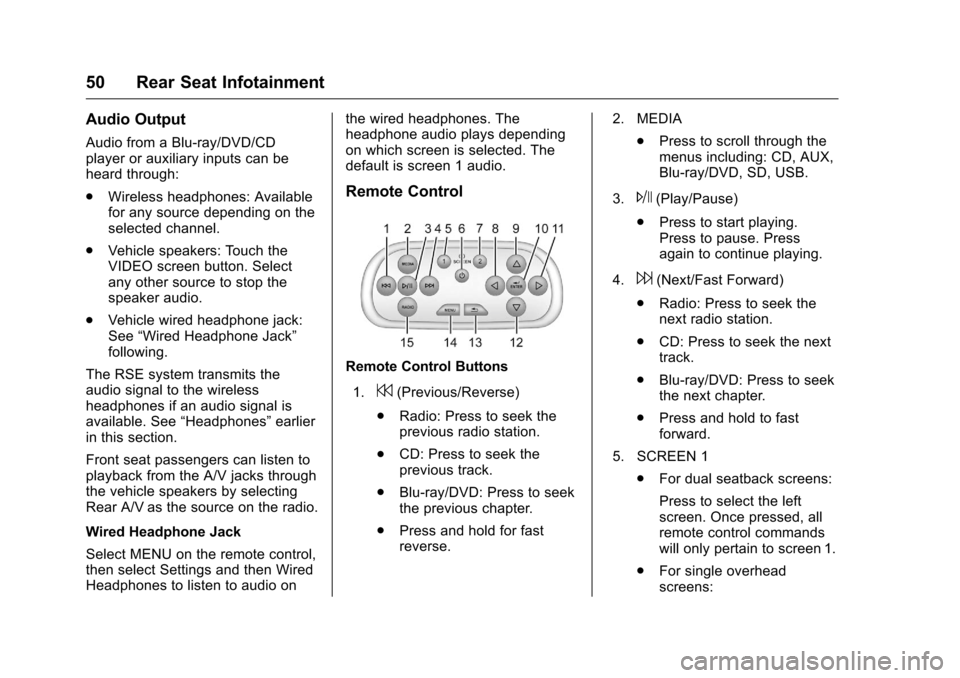
Remote Control
Remote Control Buttons
1.
7(Previous/Reverse)
. Radio: Press to seek the
previous radio station.
. CD: Press to seek the
previous track.
. Blu-ray/DVD: Press to seek
the previous chapter.
. Press and hold for fast
reverse. 2. MEDIA
.Press to scroll through the
menus including: CD, AUX,
Blu-ray/DVD, SD, USB.
3.
J(Play/Pause)
. Press to start playing.
Press to pause. Press
again to continue playing.
4.
6(Next/Fast Forward)
. Radio: Press to seek the
next radio station.
. CD: Press to seek the next
track.
. Blu-ray/DVD: Press to seek
the next chapter.
. Press and hold to fast
forward.
5. SCREEN 1 .For dual seatback screens:
Press to select the left
screen. Once pressed, all
remote control commands
will only pertain to screen 1.
. For single overhead
screens:
Page 52 of 113
Chevrolet MyLink Infotainment System (GMNA-Localizing-U.S/Canada-
9085900) - 2016 - CRC - 8/10/15
Rear Seat Infotainment 51
Press to change the source
displayed on the overhead
screen to SCREEN 1
selected source. Select
audio sources. Only one
video can be played on the
screen at a time. Audio for
both sources will continue
on the headphones. Once
pressed, all remote control
commands will correspond
to SCREEN 1.
. For dual overhead screens:
Press to select the second
row overhead screen. Once
pressed, all remote control
commands will correspond
to SCREEN 1.
6.
O(Power)
. Press to turn the video
screens on and off. 7. SCREEN 2
.For dual seatback screens:
Press to select the right
screen. Once pressed, all
remote control commands
will only pertain to
SCREEN 2.
. For single overhead
screens:
Press to change the source
displayed on the overhead
screen to SCREEN 2
selected source. Only one
video can be played on the
screen at a time. Audio for
both sources will continue
on the headphones. Once
pressed, all remote control
commands will correspond
to SCREEN 2.
. For dual overhead screens:
Press to select the optional
third row overhead screen.
Once pressed, all remote
control commands will
correspond to SCREEN 2. 8.
o(Previous/Reverse/
Decrease)
. Radio and CD: Press to go
to the previous station or
track.
. Press to go to the
previous menu.
. Press to decrease the
brightness of the RSE
screen.
9.
w(Up Arrow)
. Press to scroll up a list.
10.
r/ENTER
. Press to select the
highlighted choice in
any menu.
. Press and hold for
quick play.
11.
p(Next/Forward/Increase)
. Radio and CD: Press to go
to the next station or track.
. Press to go to the
next menu.
Page 54 of 113
Chevrolet MyLink Infotainment System (GMNA-Localizing-U.S/Canada-
9085900) - 2016 - CRC - 8/10/15
Rear Seat Infotainment 53
The remote control does not
work :Check to make sure the
remote control is programmed to the
correct screen. Make sure there is
no obstruction between the remote
control and the transmitter window
and check the batteries to make
sure they are not dead or installed
incorrectly.
There is no sound from the
headphones with the indicator
light on : If the batteries are good,
make sure the headphones are
programmed to the correct screen
and on the correct channel for the
screen being viewed.
The auxiliary source is running
but there is no picture or sound :
Check that the RSE video screen is
in the auxiliary source mode by
pressing the MEDIA button on the
remote control. Check the auxiliary
input connections at both devices. Sometimes the wireless
headphone audio cuts out or
buzzes :
Check for obstructions,
low batteries, reception range, and
interference from cell phone towers
or from cellular telephone use in the
vehicle. Check that the headphones
are on correctly using the L (Left)
and R (Right) on the headphones.
Check that the headphones are
positioned properly with the
headband across the top of
the head.
I lost the remote and/or the
headphones : See your dealer for
assistance.
The Blu-ray/DVD is playing, but
there is no picture or sound :
Check that the RSE video screen is
sourced to the Blu-ray/DVD player
by pressing the MEDIA button on
the remote control.Video Display Error Messages
The video screen may display one
of the following:
Disc Error : There are disc load or
eject problems, the disc is inserted
with the disc label wrong side up,
the disc is damaged, or the disc is
not from the correct region.
No Disc Inserted : No disc is
present.
Disc Player Error : The
temperature is outside the operating
range of the RSE system. If the
temperature is within range, see
your dealer.
Video Distortion
Video distortion can occur when
operating cellular phones, scanners,
CB radios, Global Positioning
Systems (GPS), two-way radios,
mobile faxes, or walkie talkies.
It might be necessary to turn off the
video player when operating one of
these devices in or near the vehicle.
Page 56 of 113
Chevrolet MyLink Infotainment System (GMNA-Localizing-U.S/Canada-
9085900) - 2016 - CRC - 8/10/15
Navigation 55
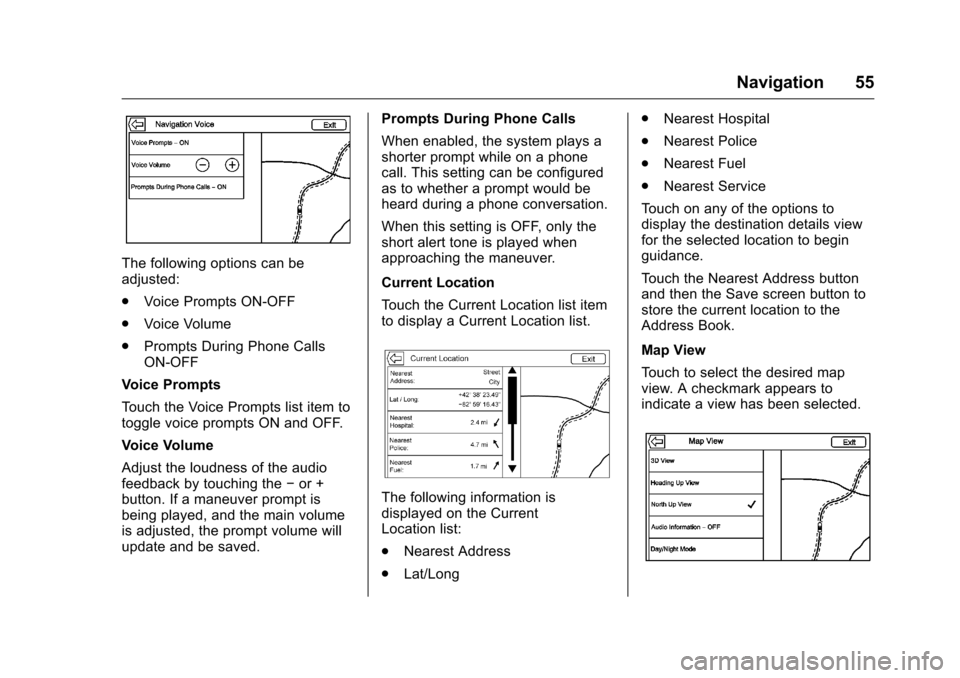
The following options can be
adjusted:
.Voice Prompts ON-OFF
. Voice Volume
. Prompts During Phone Calls
ON-OFF
Voice Prompts
Touch the Voice Prompts list item to
toggle voice prompts ON and OFF.
Voice Volume
Adjust the loudness of the audio
feedback by touching the −or +
button. If a maneuver prompt is
being played, and the main volume
is adjusted, the prompt volume will
update and be saved. Prompts During Phone Calls
When enabled, the system plays a
shorter prompt while on a phone
call. This setting can be configured
as to whether a prompt would be
heard during a phone conversation.
When this setting is OFF, only the
short alert tone is played when
approaching the maneuver.
Current Location
Touch the Current Location list item
to display a Current Location list.
The following information is
displayed on the Current
Location list:
.
Nearest Address
. Lat/Long .
Nearest Hospital
. Nearest Police
. Nearest Fuel
. Nearest Service
Touch on any of the options to
display the destination details view
for the selected location to begin
guidance.
Touch the Nearest Address button
and then the Save screen button to
store the current location to the
Address Book.
Map View
Touch to select the desired map
view. A checkmark appears to
indicate a view has been selected.
Page 65 of 113

Chevrolet MyLink Infotainment System (GMNA-Localizing-U.S/Canada-
9085900) - 2016 - CRC - 8/10/15
64 Navigation
field. If the entire text field has been
deleted, this screen button becomes
an Undo button. Touching Undo will
restore the deleted text.
Exit :Touch to return to the
previous Map view.
Sym : Touch to show the symbol
keyboard.
Space : Touch to enter a space
between characters or the words of
a name.
R(Up Arrow) : Touch to display
the Interaction Selector.
Special Characters
As the characters are typed on the
keyboard, a pop-up of the letter
touched displays above the key that
was touched.
Continue to touch and hold, and any
additional special characters
associated with that letter are
displayed around the current letter.
To select one of the special
characters, slide a finger left or right
to adjust the highlight of the special
character. Special Character List
The following characters have
special characters beneath them:Creating and Downloading
Predefined POIs (My POIs)
In addition to the POIs already
stored in the Infotainment system,
predefined POIs can be created.
While creating a predefined POI, the
GPS coordinates for longitude and
latitude of the POI’s location and a
descriptive name will need to be
entered.
After creating the predefined POIs,
they can be downloaded to the
infotainment system from either a
USB stick or SD card.
Once downloaded, the POI data
becomes a selectable destination in
the My POIs menu.
Creating a Text File with
Information
Create a text file by using a simple
text editor software. Save this file
with a name and extension of .csv,
for example,
“TomsPOI.csv.”
Enter the POI information into the
text file in the following format:
. Longitude coordinate, Latitude
coordinate, “Name of POI,”
“Additional information,” “Phone
number.”
Example: 7.0350000,
50.6318040, “Michaels Home,”
“123 Maple Lane,”
“02379234567.”
. The GPS coordinates must be
expressed in decimal degrees
and can be taken from a
geographical map. The
additional information and phone
number strings are optional.
Page 68 of 113

Chevrolet MyLink Infotainment System (GMNA-Localizing-U.S/Canada-
9085900) - 2016 - CRC - 8/10/15
Navigation 67
contact detail list, to go to the
destination view showing that
address on the map.
Trips from Contacts can be saved
and recalled. The order is based on
when the trip was last used. When
the trips are saved, they are given a
default title of the final destination
name. If there are no saved trips,
this list item is hidden.
Favorite Destinations
.Destinations can be saved as
Favorites for recall later.
Depending on the favorite, when
an address or POI favorite is
recalled, the Destination Details
View is shown. .
When a favorite address is being
routed to, it is shown active.
Touch on the active favorite to
suspend that route.
. Save locations as Favorites for
recall later in the Destination
Details View.
. Save trips from the
Address Book.
Storing Favorites from the Contact
Details List
A contact name or any of the
contact’ s information such as phone
number, e-mail address, or address
from Contact Details can be stored
as a Favorite.
. Touch and drag up on the row of
Interaction Selector buttons to
reveal the Favorite buttons.
. Touch and hold on the favorite
location while viewing a contact
on the Contact Details List. The
contact name and all contact
information can be stored.
. Touch to save as a favorite. The
favorite label will be the name of
the contact. .
Touch on the Favorite to display
the destination view.
Storing Favorites from MapFavorite locations can be stored
from the Map View.
If not under route guidance, the
current vehicle location will be
saved as a Favorite. If under route
guidance, the final destination will
be saved.
Touch and drag up on the row of
Interaction Selector buttons to
reveal the Favorite buttons. Touch
and hold on the favorite location
from the Map View to save it.
Page 77 of 113
Chevrolet MyLink Infotainment System (GMNA-Localizing-U.S/Canada-
9085900) - 2016 - CRC - 8/10/15
76 Navigation
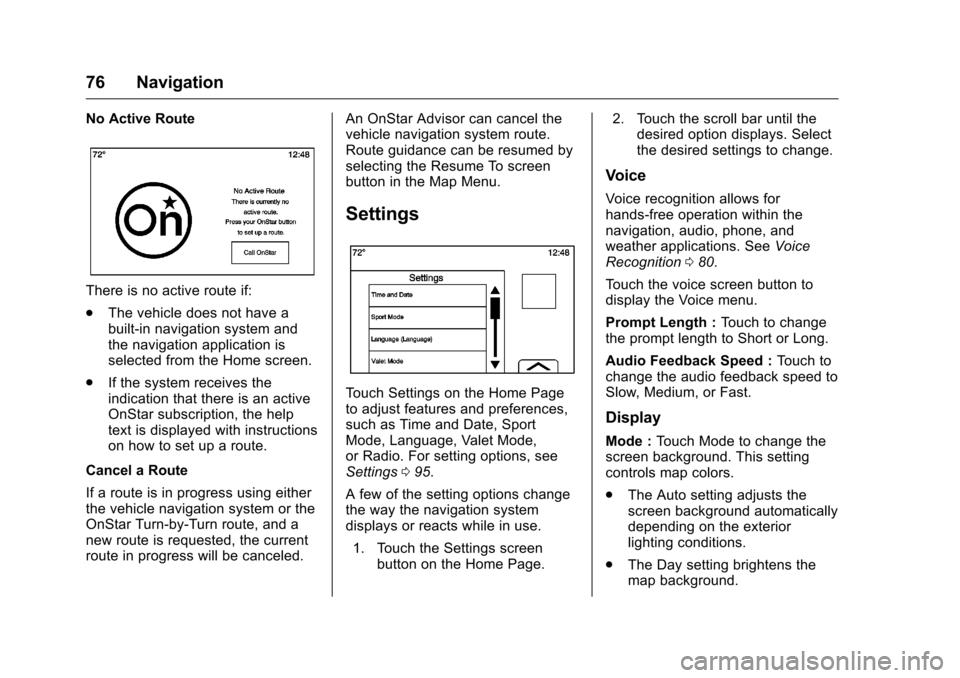
No Active Route
There is no active route if:
.The vehicle does not have a
built-in navigation system and
the navigation application is
selected from the Home screen.
. If the system receives the
indication that there is an active
OnStar subscription, the help
text is displayed with instructions
on how to set up a route.
Cancel a Route
If a route is in progress using either
the vehicle navigation system or the
OnStar Turn-by-Turn route, and a
new route is requested, the current
route in progress will be canceled. An OnStar Advisor can cancel the
vehicle navigation system route.
Route guidance can be resumed by
selecting the Resume To screen
button in the Map Menu.
Settings
Touch Settings on the Home Page
to adjust features and preferences,
such as Time and Date, Sport
Mode, Language, Valet Mode,
or Radio. For setting options, see
Settings
095.
A few of the setting options change
the way the navigation system
displays or reacts while in use. 1. Touch the Settings screen button on the Home Page. 2. Touch the scroll bar until the
desired option displays. Select
the desired settings to change.
Voice
Voice recognition allows for
hands-free operation within the
navigation, audio, phone, and
weather applications. See Voice
Recognition 080.
Touch the voice screen button to
display the Voice menu.
Prompt Length : Touch to change
the prompt length to Short or Long.
Audio Feedback Speed : Touch to
change the audio feedback speed to
Slow, Medium, or Fast.
Display
Mode : Touch Mode to change the
screen background. This setting
controls map colors.
. The Auto setting adjusts the
screen background automatically
depending on the exterior
lighting conditions.
. The Day setting brightens the
map background.
Page 80 of 113
Chevrolet MyLink Infotainment System (GMNA-Localizing-U.S/Canada-
9085900) - 2016 - CRC - 8/10/15
Navigation 79
location that is safe and has a clear
view of the sky and away from large
obstructions.
If the System Needs
Service
If the navigation system needs
service and the steps listed here
have been followed but there are
still problems, seeProblems with
Route Guidance 078.
Map Data Updates
The map data in the vehicle is the
most up-to-date information
available when the vehicle was
produced. The map data is updated
periodically, provided that the map
information has changed.
For questions about the operation of
the navigation system or the update
process, contact the GM Nav Disc
Center toll-free phone number,
1-877-NAV-DISC (1-877-628-3472)
or go to the center ’s website,
www.gmnavdisc.com. If updates are
needed, call the GM Nav Disc
Center or order online. To order, have the vehicle’s Vehicle
Identification Number (VIN)
available ensure the correct and
most up-to-date map data for the
vehicle is sent. See
“Vehicle
Identification Number (VIN)” in the
owner manual.
Database Coverage
Explanations
Coverage areas vary with respect to
the level of map detail available for
any given area. Some areas feature
greater levels of detail than others.
If this happens, it does not mean
there is a problem with the system.
As the map data is updated, more
detail can become available for
areas that previously had limited
detail. See Map Data Updates 079.