page 99 CHEVROLET SPARK 2018 Owner's Manual
[x] Cancel search | Manufacturer: CHEVROLET, Model Year: 2018, Model line: SPARK, Model: CHEVROLET SPARK 2018Pages: 338, PDF Size: 5.66 MB
Page 3 of 338
Chevrolet Spark Owner Manual (GMNA-Localizing-U.S./Canada-11348464) -
2018 - crc - 9/19/17
2 Introduction
Introduction
The names, logos, emblems,
slogans, vehicle model names, and
vehicle body designs appearing in
this manual including, but not limited
to, GM, the GM logo, CHEVROLET,
the CHEVROLET Emblem, and
SPARK are trademarks and/or
service marks of General Motors
LLC, its subsidiaries, affiliates,
or licensors.
For vehicles first sold in Canada,
substitute the name“General
Motors of Canada Company” for
Chevrolet Motor Division wherever it
appears in this manual. This manual describes features that
may or may not be on the vehicle
because of optional equipment that
was not purchased on the vehicle,
model variants, country
specifications, features/applications
that may not be available in your
region, or changes subsequent to
the printing of this owner
’s manual.
Refer to the purchase
documentation relating to your
specific vehicle to confirm the
features.
Keep this manual in the vehicle for
quick reference.
Canadian Vehicle Owners
A French language manual can be
obtained from your dealer, at
www.helminc.com, or from:
Propriétaires Canadiens
On peut obtenir un exemplaire de
ce guide en français auprès du
concessionnaire ou à l'adresse
suivante: Helm, Incorporated
Attention: Customer Service
47911 Halyard Drive
Plymouth, MI 48170
USA
Using this Manual
To quickly locate information about
the vehicle, use the Index in the
back of the manual. It is an
alphabetical list of what is in the
manual and the page number where
it can be found.
Danger, Warning, and
Caution
Warning messages found on vehicle
labels and in this manual describe
hazards and what to do to avoid or
reduce them.
Litho in U.S.A.
Part No. 84091951 B Second Printing©2017 General Motors LLC. All Rights Reserved.
Page 4 of 338
Chevrolet Spark Owner Manual (GMNA-Localizing-U.S./Canada-11348464) -
2018 - crc - 9/19/17
Introduction 3
{Danger
Danger indicates a hazard with a
high level of risk which will result
in serious injury or death.
{Warning
Warning indicates a hazard that
could result in injury or death.
Caution
Caution indicates a hazard that
could result in property or vehicle
damage.
A circle with a slash through it is a
safety symbol which means“Do
Not,” “Do not do this,” or“Do not let
this happen.”
Symbols
The vehicle has components and
labels that use symbols instead of
text. Symbols are shown along with
the text describing the operation or
information relating to a specific
component, control, message,
gauge, or indicator.
M: Shown when the owner ’s
manual has additional instructions
or information.
*: Shown when the service
manual has additional instructions
or information.
0: Shown when there is more
information on another page —
“see page.” Vehicle Symbol Chart
Here are some additional symbols
that may be found on the vehicle
and what they mean. See the
features in this manual for
information.
9:
Airbag Readiness Light
#:Air Conditioning
!:Antilock Brake System (ABS)
$:Brake System Warning Light
":Charging System
I: Cruise Control
`:Do Not Puncture
^:Do Not Service
B:Engine Coolant Temperature
O:Exterior Lamps
_: Flame/Fire Prohibited
.:Fuel Gauge
+: Fuses
3:Headlamp High/Low-Beam
Changer
j: ISOFIX/LATCH System Child
Restraints
Page 17 of 338

Chevrolet Spark Owner Manual (GMNA-Localizing-U.S./Canada-11348464) -
2018 - crc - 9/19/17
16 In Brief
Climate Control System withHeater Only
1. Temperature Control
2. Fan Control
3. Air Delivery Mode Control
4. Rear Window Defogger
5. Recirculation
See Climate Control Systems 0160.
Vehicle Features
Infotainment System
Read the following pages to
become familiar with the features.
{Warning
Taking your eyes off the road for
too long or too often while using
any infotainment feature can
cause a crash. You or others
could be injured or killed. Do not
give extended attention to
infotainment tasks while driving.
Limit your glances at the vehicle
displays and focus your attention
on driving. Use voice commands
whenever possible.
The infotainment system has built-in
features intended to help avoid
distraction by disabling some
functions when driving. These
functions may gray out when they
are unavailable. Many infotainment features are also available through
the instrument cluster and steering
wheel controls.
Before driving:
.
Become familiar with the
operation, faceplate buttons, and
screen buttons.
. Set up the audio by presetting
favorite stations, setting the
tone, and adjusting the
speakers.
. Set up phone numbers in
advance so they can be called
easily by pressing a single
button or by using a single voice
command if equipped with
Bluetooth phone capability.
See Defensive Driving 0166.
To play the infotainment system with
the ignition off, see Retained
Accessory Power (RAP) 0183.
Radio(s)
O
:Press to turn the system on;
press and hold to turn the system
off. Turn to increase or decrease the
volume.
Page 122 of 338
Chevrolet Spark Owner Manual (GMNA-Localizing-U.S./Canada-11348464) -
2018 - crc - 9/19/17
Instruments and Controls 121
.Battery
Engine Power Messages
ENGINE POWER IS REDUCED
This message displays when the
vehicle's propulsion power is
reduced. Reduced propulsion power
can affect the vehicle's ability to
accelerate. If this message is on,
but there is no observed reduction
in performance, proceed to your
destination. The performance may
be reduced the next time the vehicle
is driven. The vehicle may be driven
while this message is on, but
maximum acceleration and speed
may be reduced. Anytime this
message stays on, or displays
repeatedly, the vehicle should be
taken to your dealer for service as
soon as possible.
Vehicle Speed Messages
SPEED LIMITED TO
XXX KM/H (MPH)
This message shows that the
vehicle speed has been limited to
the speed displayed. The limited
speed is a protection for various
propulsion and vehicle systems,
such as lubrication, thermal,
suspension, or tires.
Vehicle
Personalization
Personalization Menu
Settings can be made with the
ignition on and the vehicle not
moving.
The following are all possible
personalization features. Depending
on the vehicle, some may not be
available.
{:Press to access the Home
Page Menu.
QorR: Touch to scroll through the
menus or setup items.
0: Touch to exit or return to the
previous screen or menu.
To access the menu:
1. Press
{.
2. Touch Settings.
Touch the menu item to select it.
Each of the menus is detailed in the
following information.
Settings menus and functions may
vary depending on vehicle options.
Page 123 of 338

Chevrolet Spark Owner Manual (GMNA-Localizing-U.S./Canada-11348464) -
2018 - crc - 9/19/17
122 Instruments and Controls
The following list of menu items may
be available:
.Time and Date
. Language
. Radio
. Vehicle
. Bluetooth
. Apple CarPlay
. Android Auto
. USB Auto Launch
. Turn Display Off
. Rear Camera
. Return to Factory Settings
. Software Information
Time and Date
Select Time and Date to adjust the
clock. See Clock097.
Language
Select Language, then select from
the available language(s).
Radio
Select and the following may
display:
.
Manage Favorites
. Audible Touch Feedback
. Text Scroll
. Tone Settings
. Auto Volume
. Maximum Startup Volume
Manage Favorites
This allows favorites to be edited.
See “Manage Favorites” in“Radio
Setup” underHome Page 0137.
Audible Touch Feedback
This allows Audible Touch
Feedback to be turned on or off.
Select to enable or disable.
Text Scroll
Select to see text scroll on the
screen.
Select to enable or disable. Tone Settings
Select to adjust the radio tone. See
Operation
0137.
Auto Volume
This feature adjusts the volume
based on vehicle speed and
ambient noise.
Select Off, Low, Medium-Low,
Medium, Medium-High, or High.
Maximum Startup Volume
This feature sets the maximum
startup volume. If the vehicle is
started and the volume is greater
than this level, the volume is
adjusted to this level. To set the
maximum startup volume, touch +
or −to increase or decrease.
Vehicle
Select and the following may
display:
.
Collision/Detection Systems
. Comfort and Convenience
. Lighting
. Power Door Locks
Page 135 of 338
Chevrolet Spark Owner Manual (GMNA-Localizing-U.S./Canada-11348464) -
2018 - crc - 9/19/17
134 Infotainment System
Infotainment
System
Introduction
Infotainment . . . . . . . . . . . . . . . . . . 134
Theft-Deterrent Feature . . . . . . 135
Overview . . . . . . . . . . . . . . . . . . . . . 136
Home Page . . . . . . . . . . . . . . . . . . 137
Operation . . . . . . . . . . . . . . . . . . . . . 137
Software Updates . . . . . . . . . . . . 138
Radio
AM-FM Radio . . . . . . . . . . . . . . . . 139
Satellite Radio . . . . . . . . . . . . . . . . 140
Radio Reception . . . . . . . . . . . . . . 141
Multi-Band Antenna . . . . . . . . . . 142
Audio Players
Avoiding Untrusted MediaDevices . . . . . . . . . . . . . . . . . . . . . 143
USB Port . . . . . . . . . . . . . . . . . . . . . 143
Auxiliary Devices . . . . . . . . . . . . . 149
Phone
Bluetooth (Overview) . . . . . . . . . 149
Bluetooth (Infotainment Controls) . . . . . . . . . . . . . . . . . . . . 151
Apple CarPlay and Android Auto . . . . . . . . . . . . . . . . 155 Hands-Free Phone . . . . . . . . . . . 156
Trademarks and License
Agreements
Trademarks and License
Agreements . . . . . . . . . . . . . . . . . 158
Introduction
Infotainment
Read the following pages to
become familiar with the
infotainment system features.
{Warning
Taking your eyes off the road for
too long or too often while using
any infotainment feature can
cause a crash. You or others
could be injured or killed. Do not
give extended attention to
infotainment tasks while driving.
Limit your glances at the vehicle
displays and focus your attention
on driving. Use voice commands
whenever possible.
The infotainment system has built-in
features intended to help avoid
distraction by disabling some
functions when driving. These
functions may gray out when they
are unavailable. Many infotainment
Page 137 of 338
Chevrolet Spark Owner Manual (GMNA-Localizing-U.S./Canada-11348464) -
2018 - crc - 9/19/17
136 Infotainment System
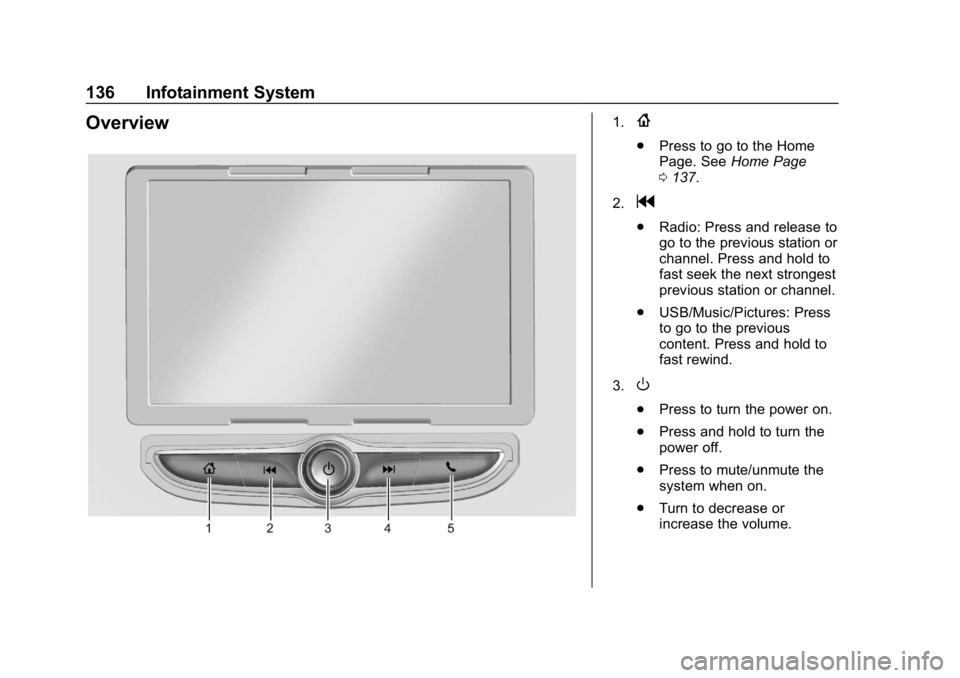
Overview1.{
.Press to go to the Home
Page. See Home Page
0 137.
2.
g
. Radio: Press and release to
go to the previous station or
channel. Press and hold to
fast seek the next strongest
previous station or channel.
. USB/Music/Pictures: Press
to go to the previous
content. Press and hold to
fast rewind.
3.
O
. Press to turn the power on.
. Press and hold to turn the
power off.
. Press to mute/unmute the
system when on.
. Turn to decrease or
increase the volume.
Page 138 of 338
Chevrolet Spark Owner Manual (GMNA-Localizing-U.S./Canada-11348464) -
2018 - crc - 9/19/17
Infotainment System 137
4.d
.Radio: Press and release to
go to the next station or
channel. Press and hold to
fast seek the next track or
strongest station or
channel.
. USB/Music/Pictures: Press
to go to the next content.
Press and hold to fast
forward.
5.
5
. Press and release to
access the phone screen,
answer an incoming call,
or access the device home
screen.
Home Page
Infotainment Display Controls
Infotainment display controls show
on the screen when available. When
a function is unavailable, the
controls may gray out. When a
function is selected, the controls
may highlight.
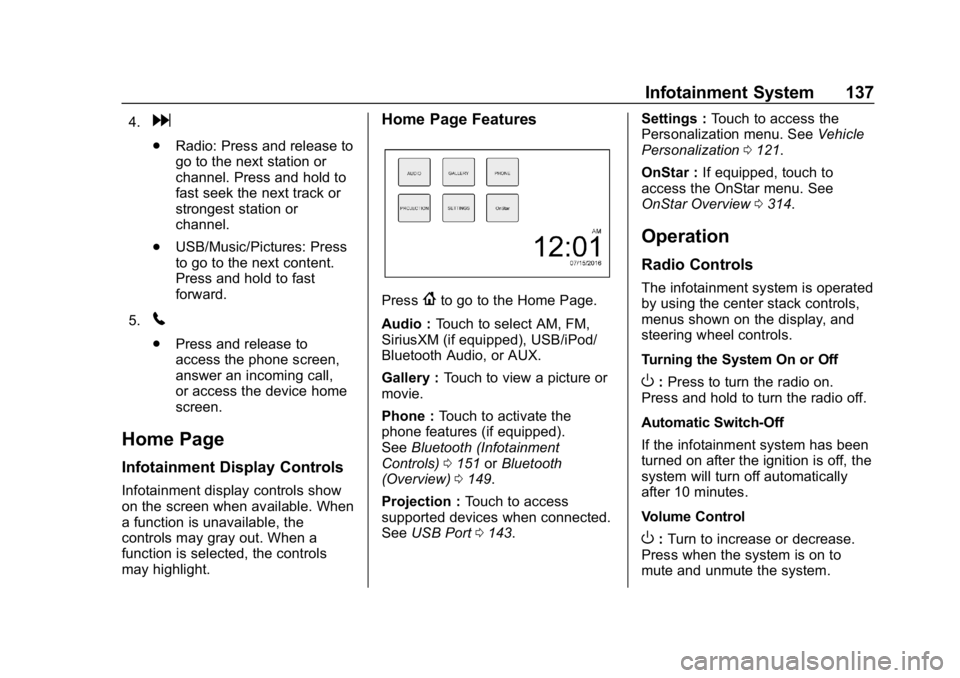
Home Page Features
Press{to go to the Home Page.
Audio : Touch to select AM, FM,
SiriusXM (if equipped), USB/iPod/
Bluetooth Audio, or AUX.
Gallery : Touch to view a picture or
movie.
Phone : Touch to activate the
phone features (if equipped).
See Bluetooth (Infotainment
Controls) 0151 orBluetooth
(Overview) 0149.
Projection : Touch to access
supported devices when connected.
See USB Port 0143. Settings :
Touch to access the
Personalization menu. See Vehicle
Personalization 0121.
OnStar : If equipped, touch to
access the OnStar menu. See
OnStar Overview 0314.
Operation
Radio Controls
The infotainment system is operated
by using the center stack controls,
menus shown on the display, and
steering wheel controls.
Turning the System On or Off
O:Press to turn the radio on.
Press and hold to turn the radio off.
Automatic Switch-Off
If the infotainment system has been
turned on after the ignition is off, the
system will turn off automatically
after 10 minutes.
Volume Control
O: Turn to increase or decrease.
Press when the system is on to
mute and unmute the system.
Page 139 of 338
Chevrolet Spark Owner Manual (GMNA-Localizing-U.S./Canada-11348464) -
2018 - crc - 9/19/17
138 Infotainment System
System Settings
Auto Volume
This feature automatically adjusts
the radio volume to compensate for
road and wind noise.
The level of volume compensation
can be selected, or the feature can
be turned off.
Auto Volume Settings1. Touch SETTINGS on the Home Page.
2. Select Radio.
3. Select Auto Volume and choose between selections.
4. Touch Back on the infotainment display to go back to the
source screen.
Tone Settings
The tone settings can be set for
each radio band and each audio
player source.
Custom Tone Settings 1. Touch SETTINGS on the Home Page. 2. Select Radio.
3. Select Tone Settings.
.Bass, Midrange, or Treble:
Touch −or +.
. Fader or Balance: Adjust
the front/rear or left/right
speakers by dragging the
dot in the vehicle image on
the display.
4. Touch Back on the infotainment display to go back to the
source screen.
Software Updates
Over-the-Air Software Updates
If equipped, the infotainment system
can download and install select
software updates over a wireless
connection. The system will prompt
for certain updates to be
downloaded and installed. There is
also an option to check for updates
manually.
To manually check for updates,
touch SETTINGS on the Home
Page, followed by Software
Information, and then System Update. Follow the on-screen
prompts. Steps for downloading and
installing updates may vary by
vehicle.
Downloading Over-the-Air vehicle
software updates requires Internet
connectivity, which can be accessed
through the vehicle’
s built-in OnStar
4G LTE connection, if equipped and
active. If required, data plans are
provided by a third party. Optionally,
a secure Wi-Fi hotspot such as a
compatible mobile device hotspot,
home hotspot or public hotspot can
be used. Applicable data rates may
apply.
To connect the infotainment system
to a secured mobile device hotspot,
home hotspot, or a public hotspot,
touch SETTINGS on the Home
Page, followed by Wi-Fi, and then
Manage Wi-Fi Networks. Select the
appropriate Wi-Fi network, and
follow the on-screen prompts.
Download speeds may vary.
Page 140 of 338

Chevrolet Spark Owner Manual (GMNA-Localizing-U.S./Canada-11348464) -
2018 - crc - 9/19/17
Infotainment System 139
On most compatible mobile devices,
activation of the Wi-Fi hotspot is in
the Settings menu under Mobile
Network Sharing, Personal Hotspot,
Mobile Hotspot or similar.
Availability of Over-the-Air vehicle
software updates varies by vehicle
and country. For more information
on this feature, see
my.chevrolet.com/learn.Radio
AM-FM Radio
Playing the Radio
Audio Source Menu
{:Press to go to the Home Page.
O:Press to turn on, mute,
or unmute the system. Press and
hold to turn off the system.
Selecting a Band
1. Press{.
2. Touch AUDIO.
3. Touch Source.
4. Select AM or FM.
The last station that was playing
starts playing again.
Selecting a Station
Seek Tuning
If the radio station is not known:
Press
gordto automatically
search for available radio stations. Direct Tune
From the AM or FM menu:
1. Touch Tune.
2. Enter the station number.
3. Touch Go.
Favorites
1. Touch
SorTto scroll through
the favorite pages.
2. Touch the station to select it.
Update Station List
. From the AM or FM menu, touch
Menu, then touch Update Station
List. The broadcasting list
updating will begin.
. During the AM or FM
broadcasting list update, touch
Cancel to stop the updates.
Station List 1. From the AM or FM menu, touch Menu.
2. Select Station List.