Disable CHEVROLET SPARK 2019 User Guide
[x] Cancel search | Manufacturer: CHEVROLET, Model Year: 2019, Model line: SPARK, Model: CHEVROLET SPARK 2019Pages: 343, PDF Size: 5.08 MB
Page 136 of 343

Chevrolet Spark Owner Manual (GMNA-Localizing-U.S./Canada-12146335) -
2019 - CRC - 4/27/18
Infotainment System 135
4.d
.Radio: Press and release to
go to the next strongest
station or channel. Press
and hold to fast seek the
next strongest station.
. USB/Music/Pictures: Press
to go to the next content.
Press and hold to fast
forward.
5.
5
. Press and release to
access the phone screen,
answer an incoming call,
or access the device home
screen.
Home Page
The Home Page is where
application icons are accessed.
Some features are disabled when
the vehicle is moving.
Slide a finger left/right across the
screen to access the pages of
icons. Managing Home Page Icons
1. Touch and hold any of the Home Page icons to edit
that icon.
2. Drag the icon to a new location on the Home Page.
Using the System
Infotainment Display Icons
Infotainment display icons show
when available. When a function is
unavailable, the icon may gray out.
When a function is selected, the
icon may highlight.
Audio
Touch the Audio icon to display the
active audio source page. Examples
of available sources are AM, FM,
SXM, MyMedia, USB, AUX, and
Bluetooth.
Phone
Touch the Phone icon to display the
Phone main page. See Bluetooth
(Overview) 0146 orBluetooth
(Pairing and Using a Phone) 0147.
Settings
Touch the Settings icon to display
the Settings menu. See Settings
0 153.
Apple CarPlay
Touch the Apple CarPlay icon to
activate Apple CarPlay (if equipped)
after a supported device is
connected. See Apple CarPlay and
Android Auto 0151.
Android Auto
Touch the Android Auto icon to
activate Android Auto (if equipped)
after a supported device is
connected. See Apple CarPlay and
Android Auto 0151.
OnStar Services
If equipped, touch the OnStar icon
to display the OnStar Services and
Account pages. See OnStar
Overview 0319.
Page 148 of 343
Chevrolet Spark Owner Manual (GMNA-Localizing-U.S./Canada-12146335) -
2019 - CRC - 4/27/18
Infotainment System 147
the center stack. The adjusted
volume level remains in memory for
later calls. The volume cannot be
lowered beyond a certain level.
Bluetooth (Pairing and
Using a Phone)
Pairing
A Bluetooth-enabled cell phone
must be paired to the Bluetooth
system and then connected to the
vehicle before it can be used. See
the cell phone manufacturer's user
guide for Bluetooth functions before
pairing the cell phone.
Pairing Information
.If no mobile device has been
connected, the Phone main
page on the infotainment display
will show the Connect Phone
option. Touch this option to
connect. Another way to connect
is to touch the Phones tab at the
top right of the display and then
touch Add Phone. .
A Bluetooth phone with music
capability can be paired to the
vehicle as a phone and a music
player at the same time.
. Up to 10 devices can be paired
to the Bluetooth system.
. The pairing process is disabled
when the vehicle is moving.
. Pairing only needs to be
completed once, unless the
pairing information on the cell
phone changes or the cell phone
is deleted from the system.
. If multiple paired cell phones are
within range of the system, the
system connects to the paired
cell phone that is set to First to
Connect. If there is no phone set
to First to Connect, it will link to
the device which was used last.
To link to a different paired
phone, see “Linking to a
Different Phone” later in this
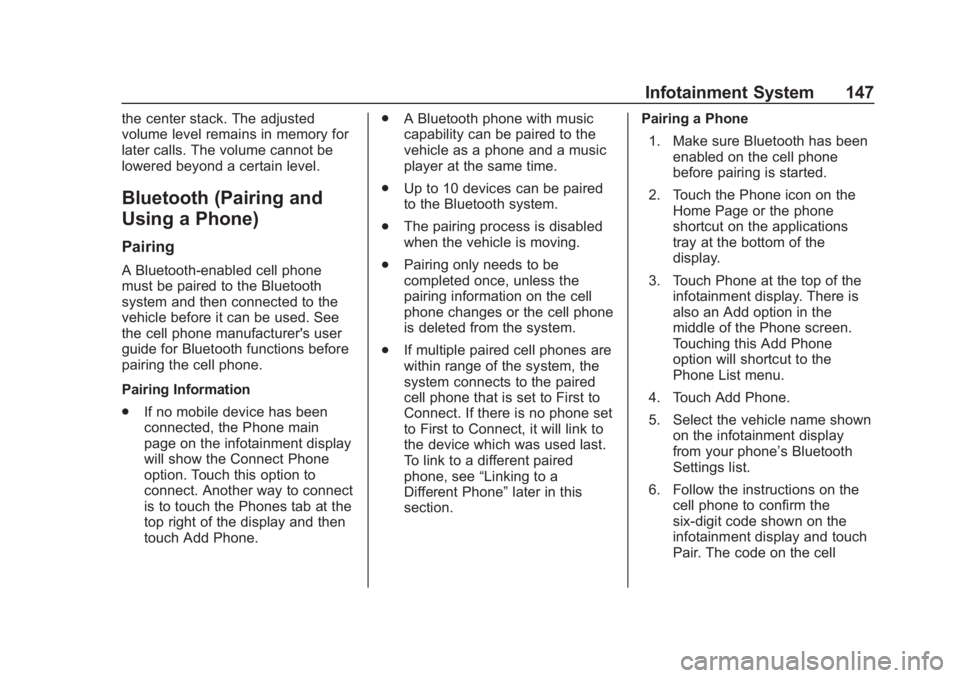
section. Pairing a Phone
1. Make sure Bluetooth has been enabled on the cell phone
before pairing is started.
2. Touch the Phone icon on the Home Page or the phone
shortcut on the applications
tray at the bottom of the
display.
3. Touch Phone at the top of the infotainment display. There is
also an Add option in the
middle of the Phone screen.
Touching this Add Phone
option will shortcut to the
Phone List menu.
4. Touch Add Phone.
5. Select the vehicle name shown on the infotainment display
from your phone’ s Bluetooth
Settings list.
6. Follow the instructions on the cell phone to confirm the
six-digit code shown on the
infotainment display and touch
Pair. The code on the cell
Page 153 of 343
Chevrolet Spark Owner Manual (GMNA-Localizing-U.S./Canada-12146335) -
2019 - CRC - 4/27/18
152 Infotainment System
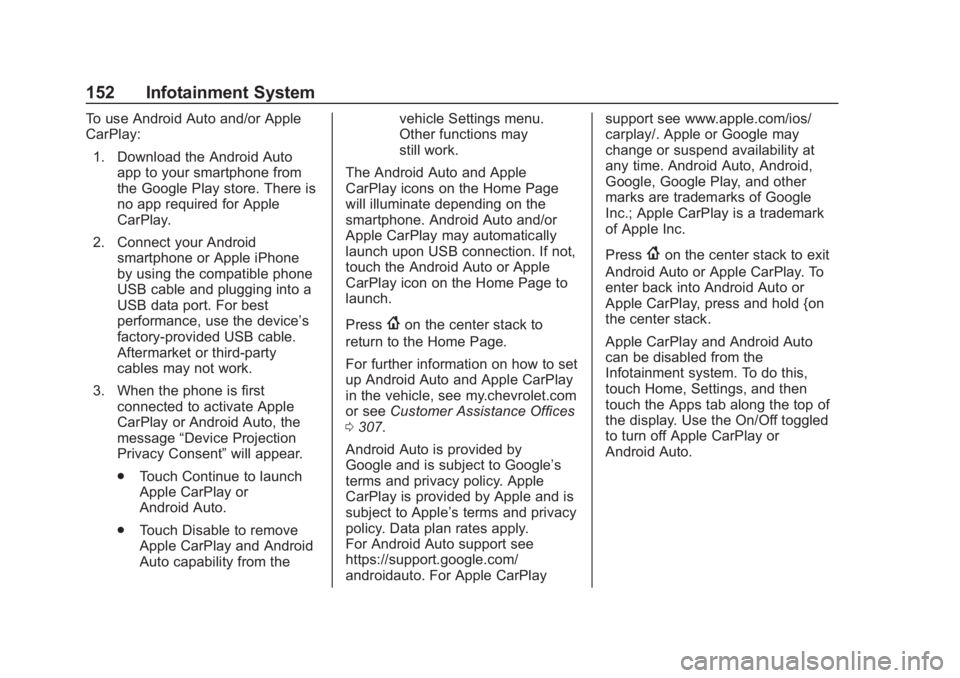
To use Android Auto and/or Apple
CarPlay:1. Download the Android Auto app to your smartphone from
the Google Play store. There is
no app required for Apple
CarPlay.
2. Connect your Android smartphone or Apple iPhone
by using the compatible phone
USB cable and plugging into a
USB data port. For best
performance, use the device’ s
factory-provided USB cable.
Aftermarket or third-party
cables may not work.
3. When the phone is first connected to activate Apple
CarPlay or Android Auto, the
message “Device Projection
Privacy Consent” will appear.
. Touch Continue to launch
Apple CarPlay or
Android Auto.
. Touch Disable to remove
Apple CarPlay and Android
Auto capability from the vehicle Settings menu.
Other functions may
still work.
The Android Auto and Apple
CarPlay icons on the Home Page
will illuminate depending on the
smartphone. Android Auto and/or
Apple CarPlay may automatically
launch upon USB connection. If not,
touch the Android Auto or Apple
CarPlay icon on the Home Page to
launch.
Press
{on the center stack to
return to the Home Page.
For further information on how to set
up Android Auto and Apple CarPlay
in the vehicle, see my.chevrolet.com
or see Customer Assistance Offices
0 307.
Android Auto is provided by
Google and is subject to Google’ s
terms and privacy policy. Apple
CarPlay is provided by Apple and is
subject to Apple’ s terms and privacy
policy. Data plan rates apply.
For Android Auto support see
https://support.google.com/
androidauto. For Apple CarPlay support see www.apple.com/ios/
carplay/. Apple or Google may
change or suspend availability at
any time. Android Auto, Android,
Google, Google Play, and other
marks are trademarks of Google
Inc.; Apple CarPlay is a trademark
of Apple Inc.
Press
{on the center stack to exit
Android Auto or Apple CarPlay. To
enter back into Android Auto or
Apple CarPlay, press and hold {on
the center stack.
Apple CarPlay and Android Auto
can be disabled from the
Infotainment system. To do this,
touch Home, Settings, and then
touch the Apps tab along the top of
the display. Use the On/Off toggled
to turn off Apple CarPlay or
Android Auto.
Page 155 of 343
Chevrolet Spark Owner Manual (GMNA-Localizing-U.S./Canada-12146335) -
2019 - CRC - 4/27/18
154 Infotainment System
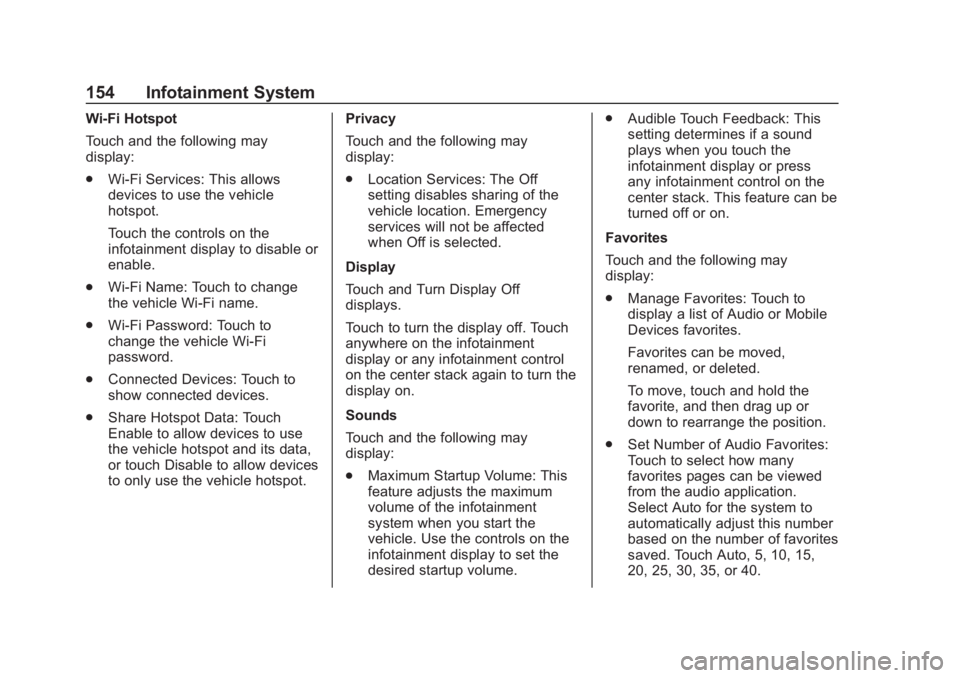
Wi-Fi Hotspot
Touch and the following may
display:
.Wi-Fi Services: This allows
devices to use the vehicle
hotspot.
Touch the controls on the
infotainment display to disable or
enable.
. Wi-Fi Name: Touch to change
the vehicle Wi-Fi name.
. Wi-Fi Password: Touch to
change the vehicle Wi-Fi
password.
. Connected Devices: Touch to
show connected devices.
. Share Hotspot Data: Touch
Enable to allow devices to use
the vehicle hotspot and its data,
or touch Disable to allow devices
to only use the vehicle hotspot. Privacy
Touch and the following may
display:
.
Location Services: The Off
setting disables sharing of the
vehicle location. Emergency
services will not be affected
when Off is selected.
Display
Touch and Turn Display Off
displays.
Touch to turn the display off. Touch
anywhere on the infotainment
display or any infotainment control
on the center stack again to turn the
display on.
Sounds
Touch and the following may
display:
. Maximum Startup Volume: This
feature adjusts the maximum
volume of the infotainment
system when you start the
vehicle. Use the controls on the
infotainment display to set the
desired startup volume. .
Audible Touch Feedback: This
setting determines if a sound
plays when you touch the
infotainment display or press
any infotainment control on the
center stack. This feature can be
turned off or on.
Favorites
Touch and the following may
display:
. Manage Favorites: Touch to
display a list of Audio or Mobile
Devices favorites.
Favorites can be moved,
renamed, or deleted.
To move, touch and hold the
favorite, and then drag up or
down to rearrange the position.
. Set Number of Audio Favorites:
Touch to select how many
favorites pages can be viewed
from the audio application.
Select Auto for the system to
automatically adjust this number
based on the number of favorites
saved. Touch Auto, 5, 10, 15,
20, 25, 30, 35, or 40.
Page 156 of 343

Chevrolet Spark Owner Manual (GMNA-Localizing-U.S./Canada-12146335) -
2019 - CRC - 4/27/18
Infotainment System 155
Updates
If equipped, the infotainment system
can download and install select
software updates over a wireless
connection. The system will prompt
for certain updates to be
downloaded and installed. There is
also an option to check for updates
manually.
To manually check for updates,
touch Settings on the Home Page,
followed by Software Information,
and then System Update. Follow the
on-screen prompts. The steps to
check for, download and install
updates may vary by vehicle.
Downloading Over-the-Air vehicle
software updates requires internet
connectivity, which can be accessed
through the vehicle’s built-in 4G LTE
connection, if equipped and active.
If required, data plans are provided
by a third party. Optionally, a secure
Wi-Fi hotspot such as a compatible
mobile device hotspot, home
hotspot or public hotspot can be
used. Applicable data rates may
apply. To connect the infotainment system
to a secured mobile device hotspot,
home hotspot, or a public hotspot,
touch Settings on the Home Page,
select the System tab, followed by
Wi-Fi Networks. Select the
appropriate Wi-Fi network, and
follow the on-screen prompts.
Download speeds may vary.
On most compatible mobile devices,
activation of the Wi-Fi hotspot is in
the Settings menu under Mobile
Network Sharing, Personal Hotspot,
Mobile Hotspot or similar.
Availability of Over-the-Air software
updates varies by vehicle and
country. For more information on
this feature, see my.chevrolet.com/
learn.
Preferences
Touch the controls on the
infotainment display to disable or
enable the download of new
updates in the background.
About
Touch to view the infotainment
system software information.Return to Factory Settings
Touch and the following may
display:
.
Reset Vehicle Settings: Resets
all vehicle settings for the
current user.
Touch Cancel or Reset.
. Erase Settings and Personal
Data: Erases app data settings,
user profiles, and personal data
including mobile device data.
Touch Cancel or Erase.
Apps
The menu may contain the
following:
Android Auto
This feature allows you to interact
directly with your phone on the
infotainment display. See Apple
CarPlay and Android Auto 0151.
Touch Off or On.
Page 158 of 343
Chevrolet Spark Owner Manual (GMNA-Localizing-U.S./Canada-12146335) -
2019 - CRC - 4/27/18
Infotainment System 157
.Re-sync Device Contacts:
This allows the device contacts
to re-sync if you are having
difficulty accessing all of the
contacts on your cell phone.
. Delete All Vehicle Contacts:
Touch to delete all vehicle stored
contacts.
. OnStar Phone TTY Mode: This
enables OnStar cell phone
TTY mode.
Touch Disable or Enable.
Vehicle
This menu allows adjustment of
different vehicle features. See
Vehicle Personalization 0121.
Trademarks and
License Agreements
FCC Information
See Radio Frequency Statement
0 315.
Bluetooth
The Bluetooth word mark and logos
are owned by the Bluetooth
®SIG,
Inc. and any use of such marks by
General Motors is under license.
Other trademarks and trade names
are those of their respective owners.
"Made for iPod," and "Made for
iPhone," mean that an electronic
accessory has been designed to
connect specifically to iPod or
iPhone, respectively, and has been
certified by the developer to meet
Apple performance standards. Apple is not responsible for the
operation of this device or its
compliance with safety and
regulatory standards. Please note
that the use of this accessory with
iPod or iPhone may affect wireless
performance. iPhone, iPod, iPod
classic, iPod nano, iPod shuffle, and
iPod touch are trademarks of Apple
Inc., registered in the U.S. and other
countries.
Fees and Taxes: Subscription fee,
taxes, one time activation fee, and
other fees may apply. Subscription
fee is consumer only. All fees and
programming subject to change.
Subscriptions subject to Customer
Agreement available at
www.siriusxm.com or
www.siriusxm.ca. SiriusXM service
only available in the 48 contiguous
United States and Canada.
Page 177 of 343

Chevrolet Spark Owner Manual (GMNA-Localizing-U.S./Canada-12146335) -
2019 - CRC - 4/30/18
176 Driving and Operating
The Remote Keyless Entry (RKE)
transmitter must be in the vehicle for
the system to operate. If the
pushbutton start is not working, the
vehicle may be near a strong radio
antenna signal causing interference
to the Keyless Access system.
SeeRemote Keyless Entry (RKE)
System Operation (Key Access)
0 27 orRemote Keyless Entry
(RKE) System Operation (Keyless
Access) 029.
To shift out of P (Park), the vehicle
must be in ACC/ACCESSORY or
ON/RUN and the brake pedal must
be applied.
Stopping the Engine/OFF (No
Indicator Lights) : When the
vehicle is stopped, press ENGINE
START/STOP once to turn the
engine off.
If the vehicle is in P (Park), the
ignition will turn off, and Retained
Accessory Power (RAP) will remain
active. See Retained Accessory
Power (RAP) 0183. If the vehicle is not in P (Park), the
ignition will return to ACC/
ACCESSORY and the Driver
Information Center (DIC) will display
the message SHIFT TO PARK.
When the vehicle is shifted into
P (Park), the ignition system will
switch to OFF.
Do not turn the engine off when the
vehicle is moving. This will cause a
loss of power assist in the brake
and steering systems and disable
the airbags.
If the vehicle must be shut off in an
emergency:
1. Brake using a firm and steady pressure. Do not pump the
brakes repeatedly. This may
deplete power assist, requiring
increased brake pedal force.
2. Shift the vehicle to N (Neutral). This can be done while the
vehicle is moving. After shifting
to N (Neutral), firmly apply the
brakes and steer the vehicle to
a safe location. 3. Come to a complete stop. Shift
to P (Park) with an automatic
transmission, or Neutral with a
manual transmission. Turn the
ignition to OFF.
4. Set the parking brake. See Parking Brake 0191.
{Warning
Turning off the vehicle while
moving may cause loss of power
assist in the brake and steering
systems and disable the airbags.
While driving, only shut the
vehicle off in an emergency.
If the vehicle cannot be pulled over,
and must be shut off while driving,
press and hold ENGINE START/
STOP for longer than two seconds,
or press twice in five seconds.
ACC/ACCESSORY (Amber
Indicator Light) : This mode allows
you to use some electrical
accessories when the engine is off.
Page 179 of 343

Chevrolet Spark Owner Manual (GMNA-Localizing-U.S./Canada-12146335) -
2019 - CRC - 4/30/18
178 Driving and Operating
To turn off the vehicle:1. Make sure that the vehicle is stopped.
2. Shift to P (Park) with an automatic transmission,
or Neutral with a manual
transmission.
3. Continue to hold the brake pedal, then set the parking
brake. See Parking Brake
0 191.
4. Push the key all the way in toward the steering column (1),
then turn the key to
LOCK/OFF (2).
5. Remove the key.
6. Release the brake pedal.
See your dealer if the key can be
removed in any other position.
Retained Accessory Power (RAP)
will remain active. See Retained
Accessory Power (RAP) 0183.
A warning chime will sound when
the driver door is opened and the
key is in the ignition. If equipped with a locking steering
column, the steering can bind with
the front wheels turned off center,
which may prevent key rotation out
of LOCK/OFF. If this happens, move
the steering wheel from right to left
while turning the key to ACC/
ACCESSORY. If this does not work,
then the vehicle needs service.
{Warning
Turning off the vehicle while
moving may cause loss of power
assist in the brake and steering
systems and disable the airbags.
While driving, turn off the vehicle
only in an emergency.
In an emergency, if the vehicle
cannot be pulled over and must be
turned off while driving: 1. Push the key all the way in toward the steering column,
then turn the key to ACC/
ACCESSORY. 2. Brake using firm and steady
pressure. Do not pump the
brakes repeatedly. This may
deplete power assist, requiring
increased brake pedal force.
3. Shift the vehicle to N (Neutral). This can be done while the
vehicle is moving. Continue
braking and steer the vehicle to
a safe location.
4. Come to a complete stop.
5. Shift to P (Park) with an automatic transmission,
or Neutral with a manual
transmission.
6. Continue to hold the brake pedal, then set the parking
brake. See Parking Brake
0 191.
7. Push the key all the way in toward the steering column,
then turn the ignition to
LOCK/OFF.
8. Remove the key.
9. Release the brake pedal.
Page 203 of 343

Chevrolet Spark Owner Manual (GMNA-Localizing-U.S./Canada-12146335) -
2019 - CRC - 4/30/18
202 Driving and Operating
If the above conditions do not exist,
take the vehicle to your dealer to
repair the system.
Forward Collision Alert
(FCA) System
If equipped, the FCA system may
help to avoid or reduce the harm
caused by front-end crashes. When
approaching a vehicle ahead too
quickly, FCA provides a red flashing
alert on the windshield and rapidly
beeps. FCA also lights an amber
visual alert if following another
vehicle much too closely.
FCA detects vehicles within a
distance of approximately 60 m
(197 ft) and operates at speeds
above 8 km/h (5 mph).
{Warning
FCA is a warning system and
does not apply the brakes. When
approaching a slower-moving or
stopped vehicle ahead too rapidly,
or when following a vehicle too(Continued)
Warning (Continued)
closely, FCA may not provide a
warning with enough time to help
avoid a crash. It also may not
provide any warning at all. FCA
does not warn of pedestrians,
animals, signs, guardrails,
bridges, construction barrels,
or other objects. Be ready to take
action and apply the brakes. See
Defensive Driving0165.
FCA can be disabled through
vehicle personalization. See Vehicle
Personalization 0121.
Detecting the Vehicle Ahead
FCA warnings will not occur unless
the FCA system detects a vehicle
ahead. When a vehicle is detected, the vehicle ahead indicator will
display green. Vehicles may not be
detected on curves, highway exit
ramps, or hills, due to poor visibility;
or if a vehicle ahead is partially
blocked by pedestrians or other
objects. FCA will not detect another
vehicle ahead until it is completely
in the driving lane.
{Warning
FCA does not provide a warning
to help avoid a crash, unless it
detects a vehicle. FCA may not
detect a vehicle ahead if the FCA
sensor is blocked by dirt, snow,
or ice, or if the windshield is
damaged. It may also not detect a
vehicle on winding or hilly roads,
or in conditions that can limit
visibility such as fog, rain,
or snow, or if the headlamps or
windshield are not cleaned or in
proper condition. Keep the
windshield, headlamps, and FCA
sensors clean and in good repair.
Page 206 of 343

Chevrolet Spark Owner Manual (GMNA-Localizing-U.S./Canada-12146335) -
2019 - CRC - 4/30/18
Driving and Operating 205
{Warning
FAB may automatically brake the
vehicle suddenly in situations
where it is unexpected and
undesired. It could respond to a
turning vehicle ahead, guardrails,
signs, and other non-moving
objects. To override FAB, firmly
press the accelerator pedal, if it is
safe to do so.
FAB can be disabled through
vehicle personalization. See
“Collision/Detection Systems” under
Vehicle Personalization 0121.
Lane Departure
Warning (LDW)
If equipped, LDW may help avoid
crashes due to unintentional lane
departures. It may provide an alert if
the vehicle is crossing a lane
without using a turn signal in that
direction. LDW uses a camera
sensor to detect the lane markings
at speeds of 56 km/h (35 mph) or
greater.
{Warning
The LDW system does not steer
the vehicle. The LDW system
may not:
. Provide enough time to
avoid a crash.
. Detect lane markings under
poor weather or visibility
conditions. This can occur if
the windshield or
headlamps are blocked by
dirt, snow, or ice; if they are
not in proper condition; or if
the sun shines directly into
the camera.
. Detect road edges.
. Detect lanes on winding or
hilly roads.
If LDW only detects lane
markings on one side of the road,
it will only warn you when
departing the lane on the side
where it has detected a lane
marking. Always keep your (Continued)
Warning (Continued)
attention on the road and
maintain proper vehicle position
within the lane, or vehicle
damage, injury, or death could
occur. Always keep the
windshield, headlamps, and
camera sensors clean and in
good repair. Do not use LDW in
bad weather conditions.
How the System Works
The LDW camera sensor is on the
windshield ahead of the rearview
mirror.
To turn LDW on and off, press
@on
the instrument panel to the left of
the steering wheel. The control
indicator will light when LDW
is on.