Acc CHEVROLET SPARK 2020 Service Manual
[x] Cancel search | Manufacturer: CHEVROLET, Model Year: 2020, Model line: SPARK, Model: CHEVROLET SPARK 2020Pages: 329, PDF Size: 5.06 MB
Page 106 of 329
Chevrolet Spark Owner Manual (GMNA-Localizing-U.S./Canada-13556236) -
2020 - CRC - 4/23/19
Instruments and Controls 105
Vehicle Speed Messages
SPEED LIMITED TO
XXX KM/H (MPH)
This message shows that the
vehicle speed has been limited to
the speed displayed. The limited
speed is a protection for various
propulsion and vehicle systems,
such as lubrication, thermal, brakes,
suspension, Teen Driver if
equipped, or tires.
Vehicle
Personalization
The following are all possible
vehicle personalization features.
Depending on the vehicle, some
may not be available.
For System and Apps features and
functions, seeSettings0137.
To access the vehicle
personalization menu: 1. Touch the Settings icon on the Home Page of the infotainment
display.
2. Touch Vehicle to display a list of available options.
3. Touch to select the desired feature setting.
4. Touch
9orRto turn a feature
off or on.
5. Touch
zto go to the top level
of the Settings menu. The menu may contain the
following:
Vehicle
The menu may contain the
following:
Rear Seat Reminder
This allows for a chime and a
message when the rear door has
been opened before or during
operation of the vehicle.
Touch Off or On.
Collision / Detection Systems
Touch and the following may
display:
.
Park Assist
. Forward Collision System
Park Assist
This feature can assist in backing
up and parking the vehicle. See
Park Assist 0185.
Touch Off or On.
Page 108 of 329
Chevrolet Spark Owner Manual (GMNA-Localizing-U.S./Canada-13556236) -
2020 - CRC - 4/23/19
Instruments and Controls 107
Auto Door Unlock
This allows selection of which of the
doors will automatically unlock when
the vehicle is shifted into P (Park)
with an automatic transmission or
when the vehicle is turned off with a
manual transmission.
Touch Off, All Doors, or Driver Door.
Delayed Door Lock
When on, this feature will delay the
locking of the doors. To override the
delay, press the power door lock
switch on the door.
Touch Off or On.
Remote Lock, Unlock, Start
Touch and the following may
display:
.Remote Unlock Light Feedback
. Remote Lock Feedback
. Remote Door Unlock
. Passive Door Unlock
. Passive Door Lock
. Remote Left in Vehicle Alert Remote Unlock Light Feedback
When on, the exterior lamps will
flash when unlocking the vehicle
with the RKE transmitter
Touch Off or Flash Lights.
Remote Lock Feedback
This allows selection of what type of
feedback is given when locking the
vehicle with the RKE transmitter.
Touch Off, Lights and Horn, Lights
Only, or Horn Only.
Remote Door Unlock
This allows selection of which doors
will unlock when pressing
Kon the
RKE transmitter.
Touch All Doors or Driver Door.
Passive Door Unlock
This allows the selection of what
doors will unlock when using the
button on the driver door to unlock
the vehicle.
Touch All Doors or Driver Door. Passive Door Lock
This feature specifies if the vehicle
will automatically lock, or lock and
alert you after all the doors are
closed, and you walk away from the
vehicle with RKE transmitter. See
Remote Keyless Entry (RKE)
System Operation (Key Access)
0
10 or
Remote Keyless Entry (RKE)
System Operation (Keyless Access)
0 13.
Touch Off, On with Horn
Chirp, or On.
Remote Left in Vehicle Alert
This feature sounds an alert when
the RKE transmitter is left in the
vehicle. This menu also enables
Remote No Longer in Vehicle Alert.
Touch Off or On.
Valet Mode
This will lock the infotainment
system and steering wheel controls.
It may also limit access to vehicle
storage locations, if equipped.
Page 115 of 329
Chevrolet Spark Owner Manual (GMNA-Localizing-U.S./Canada-13556236) -
2020 - CRC - 4/23/19
114 Lighting
+:Press to turn on the dome
lamps.
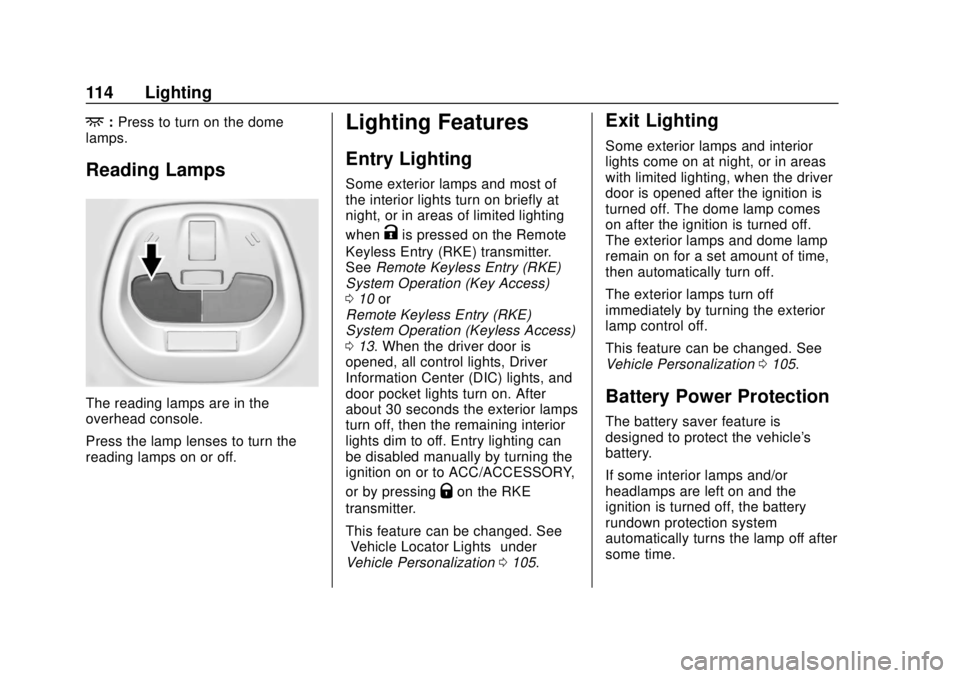
Reading Lamps
The reading lamps are in the
overhead console.
Press the lamp lenses to turn the
reading lamps on or off.
Lighting Features
Entry Lighting
Some exterior lamps and most of
the interior lights turn on briefly at
night, or in areas of limited lighting
when
Kis pressed on the Remote
Keyless Entry (RKE) transmitter.
See Remote Keyless Entry (RKE)
System Operation (Key Access)
0 10 or
Remote Keyless Entry (RKE)
System Operation (Keyless Access)
0 13. When the driver door is
opened, all control lights, Driver
Information Center (DIC) lights, and
door pocket lights turn on. After
about 30 seconds the exterior lamps
turn off, then the remaining interior
lights dim to off. Entry lighting can
be disabled manually by turning the
ignition on or to ACC/ACCESSORY,
or by pressing
Qon the RKE
transmitter.
This feature can be changed. See
“Vehicle Locator Lights” under
Vehicle Personalization 0105.
Exit Lighting
Some exterior lamps and interior
lights come on at night, or in areas
with limited lighting, when the driver
door is opened after the ignition is
turned off. The dome lamp comes
on after the ignition is turned off.
The exterior lamps and dome lamp
remain on for a set amount of time,
then automatically turn off.
The exterior lamps turn off
immediately by turning the exterior
lamp control off.
This feature can be changed. See
Vehicle Personalization 0105.
Battery Power Protection
The battery saver feature is
designed to protect the vehicle's
battery.
If some interior lamps and/or
headlamps are left on and the
ignition is turned off, the battery
rundown protection system
automatically turns the lamp off after
some time.
Page 116 of 329
Chevrolet Spark Owner Manual (GMNA-Localizing-U.S./Canada-13556236) -
2020 - CRC - 4/23/19
Lighting 115
Exterior Lighting Battery
Saver
The exterior lamps turn off about
10 minutes after the ignition is
turned off, if the parking lamps or
headlamps have been manually left
on. This protects against draining
the battery. To restart the 10-minute
timer, turn the exterior lamp control
to the
Oposition and then back to
the
;or2position.
To keep the lamps on for more than
10 minutes, the ignition must be on
or in ACC/ACCESSORY.
Page 118 of 329
Chevrolet Spark Owner Manual (GMNA-Localizing-U.S./Canada-13556236) -
2020 - CRC - 4/23/19
Infotainment System 117
The infotainment system has built-in
features intended to help avoid
distraction by disabling some
functions when driving. These
functions may gray out when they
are unavailable. Many infotainment
features are also available through
the instrument cluster and steering
wheel controls.
Before driving:
.Become familiar with the
operation, center stack controls,
and infotainment display
controls.
. Set up the audio by presetting
favorite stations, setting the
tone, and adjusting the
speakers. .
Set up phone numbers in
advance so they can be called
easily by pressing a single
control or by using a single voice
command if equipped with
Bluetooth phone capability.
See Defensive Driving 0150.
To play the infotainment system with
the ignition off, see Retained
Accessory Power (RAP) 0167.
Active Noise Cancellation (ANC)
If equipped, ANC reduces engine
noise in the vehicle’s interior. ANC
requires the factory-installed audio
system, radio, speakers, amplifier (if
equipped), induction system, and
exhaust system to work properly.
Deactivation is required by your
dealer if related aftermarket
equipment is installed.Overview
Customer Assistance
Assistance is available to help with
Bluetooth pairing, other mobile
device interface, and operation
support of the infotainment system.
See Customer Assistance Offices
0 293.
Page 120 of 329
Chevrolet Spark Owner Manual (GMNA-Localizing-U.S./Canada-13556236) -
2020 - CRC - 4/23/19
Infotainment System 119
4.d
.Radio: Press and release to
go to the next strongest
station or channel. Press
and hold to fast seek the
next strongest station.
. USB/Music/Pictures: Press
to go to the next content.
Press and hold to fast
forward.
5.
5
. Press and release to
access the phone screen,
answer an incoming call,
or access the device home
screen.
Home Page
The Home Page is where
application icons are accessed.
Some features are disabled when
the vehicle is moving.
Slide a finger left/right across the
screen to access the pages of
icons. Managing Home Page Icons
1. Touch and hold any of the Home Page icons to edit
that icon.
2. Drag the icon to a new location on the Home Page.
Using the System
Infotainment Display Icons
Infotainment display icons show
when available. When a function is
unavailable, the icon may gray out.
When a function is selected, the
icon may highlight.
Audio
Touch the Audio icon to display the
active audio source page. Examples
of available sources are AM, FM,
SXM, MyMedia, USB, AUX, and
Bluetooth.
Phone
Touch the Phone icon to display the
Phone main page. See Bluetooth
(Overview) 0130 or
Bluetooth (Pairing and Using a
Phone) 0131.
Settings
Touch the Settings icon to display
the Settings menu. See Settings
0 137.
Apple CarPlay
Touch the Apple CarPlay icon to
activate Apple CarPlay (if equipped)
after a supported device is
connected. See Apple CarPlay and
Android Auto 0135.
Android Auto
Touch the Android Auto icon to
activate Android Auto (if equipped)
after a supported device is
connected. See Apple CarPlay and
Android Auto 0135.
OnStar Services
If equipped, touch the OnStar icon
to display the OnStar Services and
Account pages. See OnStar
Overview 0305.
Page 121 of 329
Chevrolet Spark Owner Manual (GMNA-Localizing-U.S./Canada-13556236) -
2020 - CRC - 4/23/19
120 Infotainment System
Camera
If equipped, touch the Camera icon
to access the camera application.
SeeRear Vision Camera (RVC)
0 183.
Shortcut Tray
The shortcut tray is at the bottom of
the display. It shows up to four
applications.
Infotainment Gestures
Use the following finger gestures to
control the infotainment system.
Touch/Tap
Touch/Tap is used to select an icon
or option, or activate an application. Touch and Hold
Touch and hold can be used to start
another gesture, or to move or
delete an application.
Drag
Drag is used to move applications
on the Home Page. To drag the
item, it must be held and movedalong the screen to the new
location. This can be done up,
down, right, or left.
Nudge
Nudge is used to move items a
short distance on a list. To nudge,
hold and move the selected item up
or down to a new location.
Fling or Swipe
Page 123 of 329
Chevrolet Spark Owner Manual (GMNA-Localizing-U.S./Canada-13556236) -
2020 - CRC - 4/23/19
122 Infotainment System
If equipped, touch Update Station
List to update the active stations in
your area.
Direct Tune
Access Direct Tune by touching the
Tune icon on the AM, FM, or SXM
screen to bring up the keypad.
Navigate up and down through all
frequencies using
7or6. Directly
enter a station or channel using the
keypad. When a new station or
channel is entered, the information
about that station or channel
displays on the right side. This
information will update with each
new valid frequency tuned to. The keypad will gray out entries that
do not contribute to a valid
frequency and will automatically
place a decimal point within the
frequency number.
Touch (X) to delete one character at
a time. Touch and hold (X) to delete
all numbers.
A valid AM or FM station will
automatically tune to the new
frequency but will not close the
direct tune display. When listening
to SXM, touch Go after entering the
channel. Touch
Sorzto exit out of
Direct Tune.
The tune arrows on the right side of
the Direct Tune display tune through
the complete station list one station
step at a time per touch. A touch
and hold advances through stations
quickly.
FM and SXM Categories
From the FM or SXM display, touch
Categories at the top of the Browse
menu to access the categories list.
The list contains names associated
with the FM stations or SXM
channels. Touch a category name to
display a list of stations or channels
for that category. Selecting a station
from the list tunes the radio to that
channel.
Page 124 of 329
Chevrolet Spark Owner Manual (GMNA-Localizing-U.S./Canada-13556236) -
2020 - CRC - 4/23/19
Infotainment System 123
Storing Radio Station
Favorites
Favorites are displayed in the area
at the top of the display.
AM, FM, and SXM Radio
Stations :Touch and hold a preset
to store the current station or
channel as a favorite. Touch a
saved favorite to recall a favorite
station or channel.
Favorites can also be stored by
touching
Hin a station or channel
list. This will highlight indicating that
it is now stored as a favorite.
The number of favorites displayed is
automatically adjusted by default,
but can be manually adjusted in
Settings in the System tab under
Favorites and then Set Number of
Audio Favorites. It can also be
adjusted in Settings in the Apps tab
under Audio and then Set Number
of Audio Favorites.
Satellite Radio
If equipped, vehicles with a valid
SiriusXM satellite radio subscription
can receive SXM programming.
SiriusXM satellite radio has a wide
variety of programming and
commercial-free music, coast to
coast, and in digital-quality sound.
In the U.S., see www.siriusxm.com
or call 1-888-601-6296. In Canada,
see www.siriusxm.ca or call
1-877-438-9677.
When SXM is active, the channel
name, number, song title, and artist
display on the screen.
Radio Reception
Unplug electronic devices from the
accessory power outlets if there is
interference or static in the radio.
FM
FM signals only reach about 16 to
65 km (10 to 40 mi). Although the
radio has a built-in electronic circuit
that automatically works to reduce
interference, some static can occur, especially around tall buildings or
hills, causing the sound to fade in
and out.
AM
The range for most AM stations is
greater than for FM, especially at
night. The longer range can cause
station frequencies to interfere with
each other. Static can also occur
when things like storms and power
lines interfere with radio reception.
When this happens, try reducing the
treble on the radio.
SiriusXM Satellite Radio
Service
If equipped, SiriusXM Satellite
Radio Service provides digital radio
reception. Tall buildings or hills can
interfere with satellite radio signals,
causing the sound to fade in and
out. In addition, traveling or standing
under heavy foliage, bridges,
garages, or tunnels may cause loss
of the SiriusXM signal for a period
of time.
Page 125 of 329
Chevrolet Spark Owner Manual (GMNA-Localizing-U.S./Canada-13556236) -
2020 - CRC - 4/23/19
124 Infotainment System
Cell Phone Usage
Cell phone usage, such as making
or receiving phone calls, charging,
or just having the phone on may
cause static interference in the
radio. Unplug the phone or turn it off
if this happens.
Multi-Band Antenna
The roof antenna is for SXM, AM,
FM, OnStar and GPS (Global
Positioning System). Keep clear of
obstructions for clear reception.
If the vehicle has a sunroof, and it is
open, reception can also be
affected.
Audio Players
Avoiding Untrusted Media
Devices
When using media devices such as
CDs, DVDs, Blu-ray Discs, SD
cards, USB devices, and mobile
devices, consider the source.
Untrusted media devices could
contain files that affect system
operation or performance. Avoid use
if the content or origin cannot be
trusted.
USB Port
Audio stored on a USB device may
be listened to.
This vehicle has two USB ports in
the center stack. These ports are for
data and charging.
Playing from a USB
A USB mass storage device can be
connected to the USB port.Audio extensions supported by
the USB:
.
FLAC
. MP3
. WMA
. AAC
. OGG
. 3GPP
My Media Library
My Media is only available when
more than one indexed device is
connected. It allows access to
content from all indexed media
sources. My Media will show as an
available source in the
Source page.
USB MP3 Player and USB Drives
The USB MP3 players and USB
drives connected must comply with
the USB Mass Storage Class
specification (USB MSC).
To play a USB device: 1. Connect the USB.