Acc CHEVROLET SPARK 2020 Workshop Manual
[x] Cancel search | Manufacturer: CHEVROLET, Model Year: 2020, Model line: SPARK, Model: CHEVROLET SPARK 2020Pages: 329, PDF Size: 5.06 MB
Page 130 of 329
Chevrolet Spark Owner Manual (GMNA-Localizing-U.S./Canada-13556236) -
2020 - CRC - 4/23/19
Infotainment System 129
be done using the app. To open the
app, select the OnStar icon on the
Home Page. Features vary by
region and model. Features are
subject to change. For more
information on this feature, see
my.chevrolet.com/learn.
Services
The Services tab displays the
default view for the app. Use this
page to launch the available OnStar
services. Select a service to open
its display. Touch Wi-Fi to launch
the connections manager.
Account
The Account tab displays a
snapshot of the account linked with
the vehicle. If there is no such
account, this tab will show all values
as——. The
#will be active even if
there is no active account. Advisor Call
Selecting Advisor Call is the same
as pressing
Qor calling 1-888-
4ONSTAR (1-888-466-7827). The X
option in the upper right corner of
the screen does not end the call, but
returns to the previous display.
Turn-by-Turn Directions
With a connected plan, an OnStar
Advisor can download a destination
to the vehicle or its embedded
navigation system, if equipped.
Touch Turn-by-Turn Directions from
the main page of the OnStar app
and follow the display prompts.
A destination transfer from OnStar
will show the detail view of the
destination when it is transferred
from OnStar to the Navigation
application. Touch OK to go back to the previous menu. An ABS and
Guidance or Navigation Add-On
Plan is required. See
www.onstar.com for a coverage
map. Services vary by model. Map
coverage is available in the United
States, Puerto Rico, and Canada.
Wi-Fi Hotspot
Touch to display the Settings page,
which shows the configurations for
the vehicle hotspot and allows them
to be changed.
For more information, see
www.onstar.com.
Page 131 of 329
Chevrolet Spark Owner Manual (GMNA-Localizing-U.S./Canada-13556236) -
2020 - CRC - 4/23/19
130 Infotainment System
Phone
Bluetooth (Overview)
The Bluetooth-capable system can
interact with many cell phones,
allowing:
.Placement and receipt of calls in
a hands-free mode.
. Sharing of the cell phone’s
address book or contact list with
the vehicle.
To minimize driver distraction,
before driving, and with the vehicle
parked:
. Become familiar with the
features of the cell phone.
Organize the phone book and
contact lists clearly and delete
duplicate or rarely used entries.
If possible, program speed dial
or other shortcuts.
. Review the controls and
operation of the infotainment
system. .
Pair cell phone(s) to the vehicle.
The system may not work with
all cell phones. See “Pairing”
later in this section.
Vehicles with a Bluetooth system
can use a Bluetooth-capable cell
phone with a Hands-Free Profile to
make and receive phone calls. The
infotainment system and voice
recognition are used to control the
system. The system can be used
when the ignition is on or in ACC/
ACCESSORY. The range of the
Bluetooth system can be up to 9.1 m
(30 ft). Not all phones support all
functions and not all phones work
with the Bluetooth system. See
my.chevrolet.com for more
information about compatible
phones.
Controls
Use the controls on the center stack
and the steering wheel to operate
the Bluetooth system. Steering Wheel Controls
b/g:
Press to answer incoming
calls. Hold to start voice recognition
on your connected Bluetooth phone,
for example Siri and Google.
$/i: Press to end a call,
decline a call, or cancel an
operation. Press to mute or unmute
the infotainment system when not
on a call.
Infotainment System Controls
For information about how to
navigate the menu system using the
infotainment controls, see
Introduction 0116.
Phone
Touch the Phone icon on the Home
Page to enter the phone
main menu.
Audio System
When using the Bluetooth phone
system, sound comes through the
vehicle's front audio system
speakers and overrides the audio
system. The volume level while on a
phone call can be adjusted by
Page 133 of 329
Chevrolet Spark Owner Manual (GMNA-Localizing-U.S./Canada-13556236) -
2020 - CRC - 4/23/19
132 Infotainment System
phone and infotainment display
will need to be acknowledged
for a successful pair.
7. Start the pairing process on the cell phone to be paired to the
vehicle. See the cell phone
manufacturer's user guide for
information on this process.
Once the cell phone is paired,
it will show under Connected.
8. If the vehicle does not appear on your phone, there are a few
ways to start the pairing
process over.
.Turn the phone off and then
back on.
. Go back to the beginning of
the Phone menus on the
infotainment display and
restart the pairing process.
. Reset the phone, but this
step should be done as a
last-effort.
9. If the phone prompts to accept connection or allow phone
book download, select Always Accept and Allow. The phone
book may not be available if
not accepted.
10. Repeat Steps 1−8 to pair additional phones.
First to Connect Paired Phones
If multiple paired cell phones are
within the range of the system, the
system connects to the paired cell
phone that is set as First to
Connect. To enable a paired phone
as the First to Connect phone: 1. Make sure the cell phone is turned on.
2. Touch Settings, then touch System.
3. Touch Phones to access all paired and all connected cell
phones and mobile devices.
4. Touch the information icon to the right of the cell phone to
open the cell phone’s
settings menu.
5. Touch the First to Connect option, to enable the setting for
that device. Cell phones and mobile devices can
be added, removed, connected, and
disconnected. A sub-menu will
display whenever a request is made
to add or manage cell phones and
mobile devices.
Secondary Phone
A phone can be enabled as a
Secondary Phone by touching the
information icon to the right of the
paired phone name to open the
phone’s settings menu. If a phone is
enabled as a Secondary Phone, it
can connect simultaneously
alongside another Bluetooth device.
In doing so, the Secondary Phone
will be labeled as Incoming Calls.
This means the device can only
receive calls. The Address Book of
a Secondary Phone will not be
available and hands-free outgoing
calls cannot be placed using this
phone.
If needed, touch the Secondary
Phone while in the Devices list, to
swap it into the Outgoing and
Incoming role, making it possible to
place outgoing calls from the
Contacts and Recents list. This
Page 135 of 329
Chevrolet Spark Owner Manual (GMNA-Localizing-U.S./Canada-13556236) -
2020 - CRC - 4/23/19
134 Infotainment System
The Contacts menu accesses the
phone book stored in the cell phone.
The Recents menu accesses the
recent call list(s) from your cell
phone.
To make a call using the
Contacts menu:1. Touch the Phone icon on the Home Page.
2. Touch Contacts.
3. The Contacts list can be searched by using the first
character. Touch A-Z on the
infotainment display to scroll
through the list of names.
Select the name to call.
4. Select the desired contact number to call.
To make a call using the Recent
Calls menu: 1. Touch the Phone icon on the Home Page.
2. Touch Recents.
3. Select the name or number to call.Making a Call Using the
Keypad
To make a call by dialing the
numbers:
1. Touch the Phone icon on the Home Page.
2. Touch Keypad and enter a phone number.
3. Touch
#on the infotainment
display to start dialing the
number.
Searching Contacts Using the
Keypad
To search for contacts using the
keypad:
1. Touch the Phone icon on the Home Page.
2. Touch Keypad and enter partial phone numbers or contact
names using the digits on the
keypad to search.
Results will show on the right
side of the display. Select one
to place a call.
Accepting or Declining a Call
When an incoming call is received,
the infotainment system mutes and
a ring tone is heard in the vehicle.
Accepting a Call
There are three ways to accept
a call:
.Press
b/gon the steering
wheel controls.
. Touch Answer on the
infotainment display.
. Select Answer on the instrument
cluster using the select control.
Declining a Call
There are three ways to decline
a call:
. Press
$/ion the steering
wheel controls.
. Touch Ignore on the infotainment
display.
. Select Ignore on the instrument
cluster using the select control.
Page 136 of 329
Chevrolet Spark Owner Manual (GMNA-Localizing-U.S./Canada-13556236) -
2020 - CRC - 4/23/19
Infotainment System 135
Call Waiting
Call waiting must be supported on
the Bluetooth phone and enabled by
the wireless service carrier to work.
Accepting a Call
There are three ways to accept a
call-waiting call:
.Press
b/gon the steering
wheel controls.
. Touch Switch on the
infotainment display.
. Select Switch on the instrument
cluster using the select control.
Declining a Call
There are three ways to decline a
call-waiting call:
. Press
$/ion the steering
wheel controls.
. Touch Ignore on the infotainment
display.
. Select Ignore on the instrument
cluster using the select control. Switching Between Calls (Call
Waiting Calls Only)
To switch between calls, press the
Phone icon on the Home Page to
display Call View. While in Call
View, touch the call information of
the call on hold to change calls.
Three-Way Calling
Three-way calling must be
supported on the Bluetooth phone
and enabled by the wireless service
carrier to work.
To start a three-way call while in a
current call:
1. In the Call View, touch Add Call to add another call.
2. Initiate the second call by selecting from Recents,
Contacts, or Keypad.
3. When the second call is active, touch the merge icon to
conference the three-way call
together.
Ending a Call
.Press$/ion the steering
wheel controls.
. Touch
#on the infotainment
display, next to a call to end only
that call.
. Select End on the instrument
cluster using the select control.
Dual Tone Multi-Frequency
(DTMF) Tones
The in-vehicle Bluetooth system can
send numbers during a call. This is
used when calling a menu-driven
phone system. Use the Keypad to
enter the number.
Apple CarPlay and
Android Auto
If equipped, Android Auto and/or
Apple CarPlay capability may be
available through a compatible
smartphone. If available, the
Android Auto and Apple CarPlay
icons will appear on the Home Page
of the infotainment display.
Page 138 of 329
Chevrolet Spark Owner Manual (GMNA-Localizing-U.S./Canada-13556236) -
2020 - CRC - 4/23/19
Infotainment System 137
Settings
The Settings menu may be
organized into three categories.
Select the desired category by
touching System, Apps, or Vehicle.
To access the menus:1. Touch the Settings icon on the Home Page on the
infotainment display.
2. Touch the desired category to display a list of available
options.
3. Touch to select the desired feature setting.
4. Touch
9orRto turn off or on a
feature.
5. Touch
zto go to the top level
of the Settings menu.
The menu may contain the
following:
System
The menu may contain the
following: Time / Date
Use the following features to set the
clock:
.
Automatic Time and Date: Touch
On to have the time and date
automatically set. When this
feature is off, the time and date
can be manually set.
. Set Time: Touch to manually set
the time using the controls on
the infotainment display.
. Set Date: Touch to manually set
the date using the controls on
the infotainment display.
. Use 24-hour Format: Touch to
specify the clock format shown.
Touch Off or On.
Language
This will set the display language
used on the infotainment display.
Touch Language and select the
appropriate language. Phones
Touch to connect to a different cell
phone or mobile device source,
disconnect a cell phone or media
device, or delete a cell phone or
media device.
Wi-Fi Networks
This will show connected and
available Wi-Fi networks.
If a 4G LTE data package is not
active on the vehicle, the
infotainment system can be
connected to an external protected
Wi-Fi network, such as a mobile
device or home hotspot, to utilize
connected services.
Wi-Fi Hotspot
Touch and the following may
display:
.
Wi-Fi Services: This allows
devices to use the vehicle
hotspot.
Touch the controls on the
infotainment display to disable or
enable.
Page 140 of 329
Chevrolet Spark Owner Manual (GMNA-Localizing-U.S./Canada-13556236) -
2020 - CRC - 4/23/19
Infotainment System 139
To manually check for updates,
touch Settings on the Home Page,
followed by Software Information,
and then System Update. Follow the
on-screen prompts. The steps to
check for, download and install
updates may vary by vehicle.
Downloading Over-the-Air vehicle
software updates requires internet
connectivity, which can be accessed
through the vehicle’s built-in 4G LTE
connection, if equipped and active.
If required, data plans are provided
by a third party. Optionally, a secure
Wi-Fi hotspot such as a compatible
mobile device hotspot, home
hotspot or public hotspot can be
used. Applicable data rates may
apply.
To connect the infotainment system
to a secured mobile device hotspot,
home hotspot, or a public hotspot,
touch Settings on the Home Page,
select the System tab, followed by
Wi-Fi Networks. Select the
appropriate Wi-Fi network, and
follow the on-screen prompts.
Download speeds may vary. On most compatible mobile devices,
activation of the Wi-Fi hotspot is in
the Settings menu under Mobile
Network Sharing, Personal Hotspot,
Mobile Hotspot or similar.
Availability of Over-the-Air software
updates varies by vehicle and
country. For more information on
this feature, see my.chevrolet.com/
learn.
Preferences
Touch the controls on the
infotainment display to disable or
enable the download of new
updates in the background.
About
Touch to view the infotainment
system software information.
Return to Factory Settings
Touch and the following may
display:
.
Reset Vehicle Settings: Resets
all vehicle settings for the
current user.
Touch Cancel or Reset. .
Erase Settings and Personal
Data: Erases app data settings,
user profiles, and personal data
including mobile device data.
Touch Cancel or Erase.
Apps
The menu may contain the
following:
Android Auto
This feature allows you to interact
directly with your phone on the
infotainment display. See Apple
CarPlay and Android Auto 0135.
Touch Off or On.
Apple CarPlay
This feature allows you to interact
directly with your phone on the
infotainment display. See Apple
CarPlay and Android Auto 0135.
Touch Off or On.
Audio
Depending on the current audio
source, different options will be
available.
Page 141 of 329

Chevrolet Spark Owner Manual (GMNA-Localizing-U.S./Canada-13556236) -
2020 - CRC - 4/23/19
140 Infotainment System
Touch and the following may
display:
.Tone Settings: Touch to adjust
Equalizer, Fade/Balance,
or Sound Mode. See
“Infotainment System Sound
Menu” inAM-FM Radio 0121.
. Auto Volume: This feature
adjusts the volume based on the
vehicle speed.
Touch Off, Low, Medium-Low,
Medium, Medium-High, or High.
. Manage Favorites: Touch to
display a list of Audio or Mobile
Devices favorites.
Favorites can be moved,
renamed, or deleted.
To move, touch and hold the
favorite, and then drag up or
down to rearrange the position.
. Set Number of Audio Favorites:
Touch to select how many
favorites pages can be viewed
from the audio application. The
Auto setting will automatically
adjust this number based on the number of favorites saved.
Touch Auto, 5, 10, 15, 20, 25,
30, 35, or 40.
. RDS: This allows RDS to be
turned off or on.
Touch Off or On.
. Explicit Content Filter: This
allows Explicit Content Filter to
be turned off or on.
Touch Off or On.
. Manage Phones: Select to
connect to a different phone
source, disconnect a phone,
or delete a phone.
. Reset Music Index: This allows
the music index to be reset if
you are having difficulty
accessing all of the media
content on your device.
Touch YES or NO.
Phone
Touch and the following may
display:
. My Number: Displays the cell
phone number of the Bluetooth
connected device. .
Active Call View: Shows active
call display when answering
a call.
Touch Off or On.
. Privacy: Only shows call alerts in
the instrument cluster.
Touch Off or On.
. Sort Contacts: Touch to sort by
first or last name.
. Re-sync Device Contacts:
This allows the device contacts
to re-sync if you are having
difficulty accessing all of the
contacts on your cell phone.
. Delete All Vehicle Contacts:
Touch to delete all vehicle stored
contacts.
. OnStar Phone TTY Mode: This
enables OnStar cell phone
TTY mode.
Touch Disable or Enable.
Vehicle
This menu allows adjustment of
different vehicle features. See
Vehicle Personalization 0105.
Page 142 of 329

Chevrolet Spark Owner Manual (GMNA-Localizing-U.S./Canada-13556236) -
2020 - CRC - 4/23/19
Infotainment System 141
Trademarks and
License Agreements
FCC Information
SeeRadio Frequency Statement
0 301.
Bluetooth
The Bluetooth word mark and logos
are owned by the Bluetooth
®SIG,
Inc. and any use of such marks by
General Motors is under license.
Other trademarks and trade names
are those of their respective owners.
"Made for iPod," and "Made for
iPhone," mean that an electronic
accessory has been designed to
connect specifically to iPod or
iPhone, respectively, and has been
certified by the developer to meet
Apple performance standards. Apple is not responsible for the
operation of this device or its
compliance with safety and
regulatory standards. Please note
that the use of this accessory with
iPod or iPhone may affect wireless
performance. iPhone, iPod, iPod
classic, iPod nano, iPod shuffle, and
iPod touch are trademarks of Apple
Inc., registered in the U.S. and other
countries.
Fees and Taxes: Subscription fee,
taxes, one time activation fee, and
other fees may apply. Subscription
fee is consumer only. All fees and
programming subject to change.
Subscriptions subject to Customer
Agreement available at
www.siriusxm.com or
www.siriusxm.ca. SiriusXM service
only available in the 48 contiguous
United States and Canada.
In Canada: Some deterioration of
service may occur in extreme
northern latitudes. This is beyond
the control of SiriusXM Satellite
Radio.
Explicit Language Notice: Channels
with frequent explicit language are
indicated with an
“XL”preceding the
channel name. Channel blocking is
available for SiriusXM Satellite
Radio receivers by notifying
SiriusXM:
. USA Customers —See
www.siriusxm.com or call
1-888-601–6296.
. Canada Customers —See
www.siriusxm.ca or call
1-877-438-9677.
It is prohibited to copy, decompile,
disassemble, reverse engineer,
hack, manipulate, or otherwise
make available any technology or
software incorporated in receivers
compatible with the SiriusXM
Satellite Radio System or that
support the SiriusXM website, the
Online Service or any of its content.
Furthermore, the AMBER voice
Page 146 of 329
Chevrolet Spark Owner Manual (GMNA-Localizing-U.S./Canada-13556236) -
2020 - CRC - 4/23/19
Climate Controls 145
Rear Window and Outside
Mirror Defogger
1:Press to turn the rear window
and outside mirror defogger on or
off. An indicator light comes on to
show that the feature is on.
The rear window defogger can
be turned off by pressing
1again
or by turning the ignition off or to
ACC/ACCESSORY.
If equipped with heated outside
mirrors, they turn on with the rear
window defogger and help to clear
fog or frost from the surface of the
mirror. See Heated Mirrors 025.
Caution
Using a razor blade or sharp
object to clear the inside rear
window can damage the rear
window defogger. Repairs would
not be covered by the vehicle
warranty. Do not clear the inside
rear window with sharp objects.
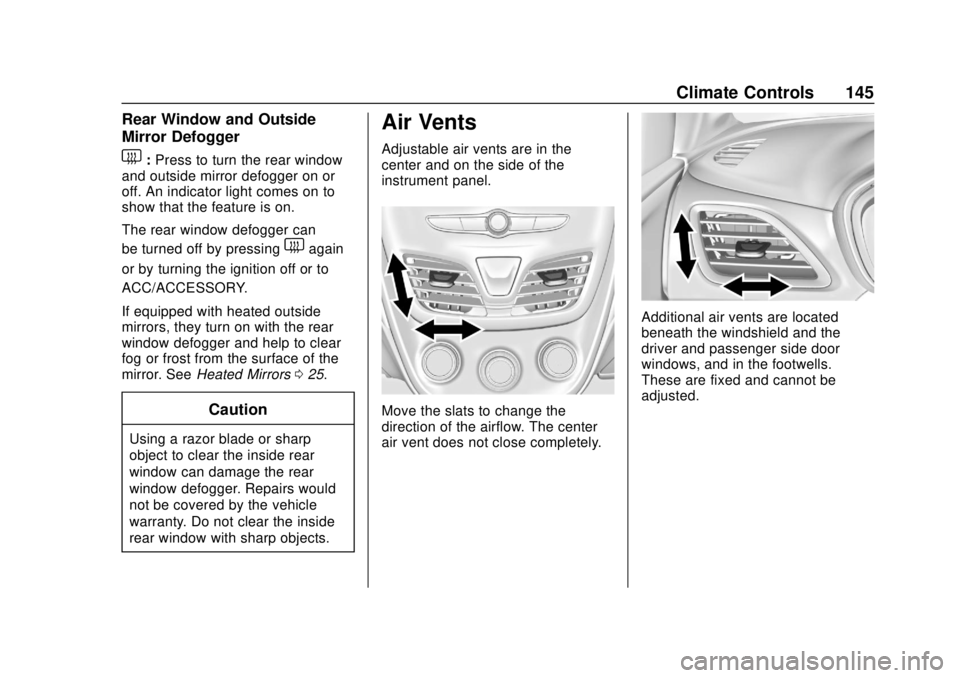
Air Vents
Adjustable air vents are in the
center and on the side of the
instrument panel.
Move the slats to change the
direction of the airflow. The center
air vent does not close completely.
Additional air vents are located
beneath the windshield and the
driver and passenger side door
windows, and in the footwells.
These are fixed and cannot be
adjusted.