buttons CHEVROLET SS 2014 User Guide
[x] Cancel search | Manufacturer: CHEVROLET, Model Year: 2014, Model line: SS, Model: CHEVROLET SS 2014Pages: 422, PDF Size: 6.18 MB
Page 142 of 422
Black plate (6,1)Chevrolet SS Sedan Owner Manual (GMNA-Localizing-U.S.-6014851) - 2014 -
1st Edition - 8/22/13
7-6 Infotainment System
.If a destination has already been
entered, press to access the
Destination Menu. See
Destination on page 7-48.
RPT (Repeat): Press to repeat the
last voice guidance prompt.
Touch Screen Buttons
Touch screen buttons are on the
screen and highlighted when a
feature is available. Some toggle
screen buttons highlight when active
and gray out when inactive.
Using the System
The infotainment system is
controlled by touching the screen,
and by using the knobs and other
buttons.
Voice recognition, through the
steering wheel controls, can be
used to control the infotainment
features. Press
b/gon the steering wheel
controls to begin voice recognition.
See Voice Recognition on
page 7-68.
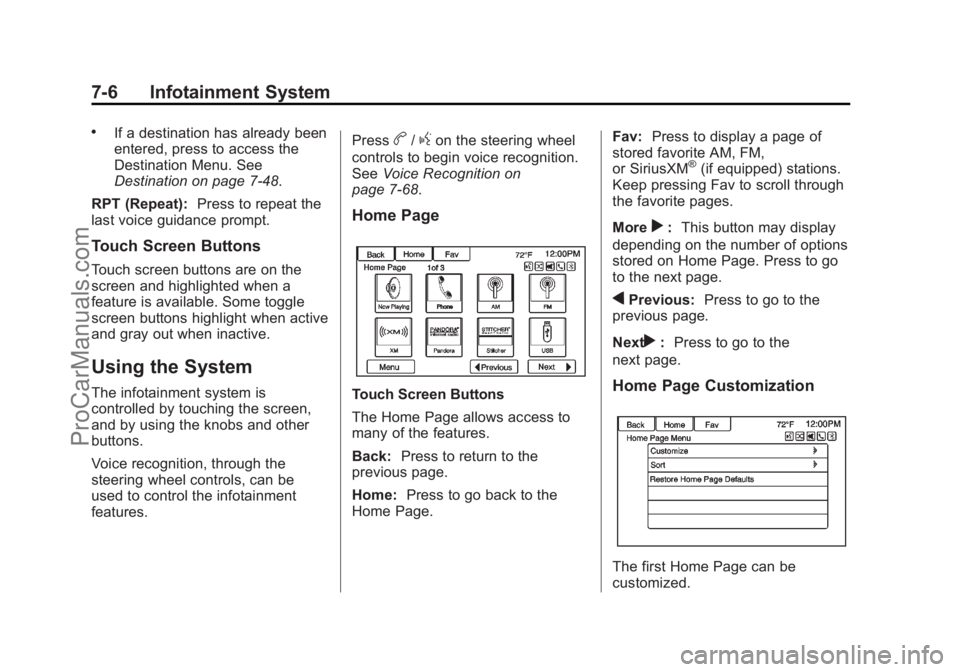
Home Page
Touch Screen Buttons
The Home Page allows access to
many of the features.
Back: Press to return to the
previous page.
Home: Press to go back to the
Home Page. Fav:
Press to display a page of
stored favorite AM, FM,
or SiriusXM
®(if equipped) stations.
Keep pressing Fav to scroll through
the favorite pages.
More
r: This button may display
depending on the number of options
stored on Home Page. Press to go
to the next page.
qPrevious: Press to go to the
previous page.
Next
r: Press to go to the
next page.
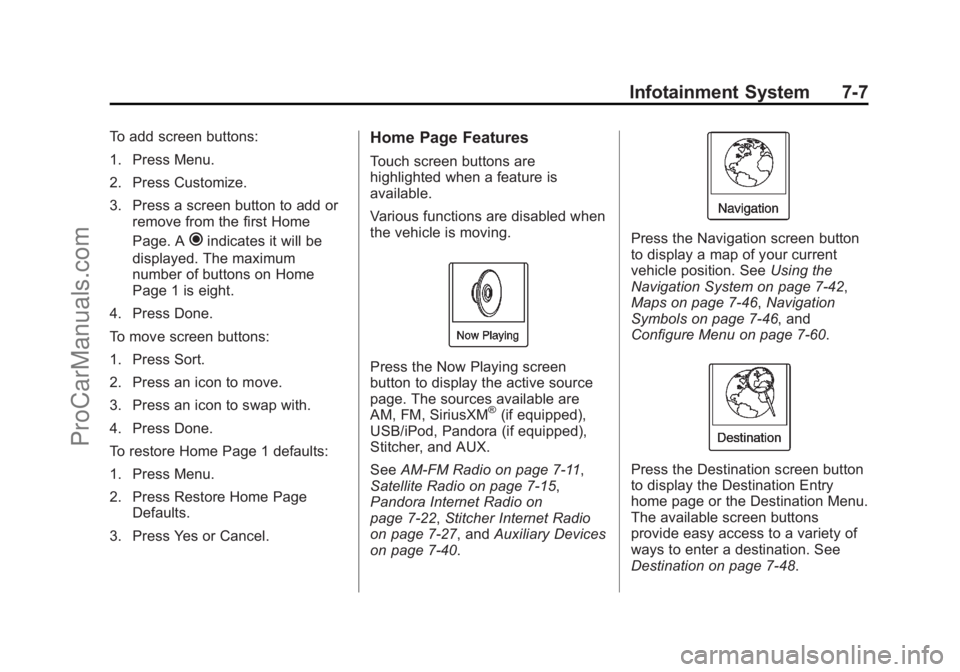
Home Page Customization
The first Home Page can be
customized.
ProCarManuals.com
Page 143 of 422
Black plate (7,1)Chevrolet SS Sedan Owner Manual (GMNA-Localizing-U.S.-6014851) - 2014 -
1st Edition - 8/22/13
Infotainment System 7-7
To add screen buttons:
1. Press Menu.
2. Press Customize.
3. Press a screen button to add orremove from the first Home
Page. A
hindicates it will be
displayed. The maximum
number of buttons on Home
Page 1 is eight.
4. Press Done.
To move screen buttons:
1. Press Sort.
2. Press an icon to move.
3. Press an icon to swap with.
4. Press Done.
To restore Home Page 1 defaults:
1. Press Menu.
2. Press Restore Home Page Defaults.
3. Press Yes or Cancel.
Home Page Features
Touch screen buttons are
highlighted when a feature is
available.
Various functions are disabled when
the vehicle is moving.
Press the Now Playing screen
button to display the active source
page. The sources available are
AM, FM, SiriusXM
®(if equipped),
USB/iPod, Pandora (if equipped),
Stitcher, and AUX.
See AM-FM Radio on page 7-11,
Satellite Radio on page 7-15,
Pandora Internet Radio on
page 7-22, Stitcher Internet Radio
on page 7-27, and Auxiliary Devices
on page 7-40.
Press the Navigation screen button
to display a map of your current
vehicle position. See Using the
Navigation System on page 7-42,
Maps on page 7-46, Navigation
Symbols on page 7-46, and
Configure Menu on page 7-60.
Press the Destination screen button
to display the Destination Entry
home page or the Destination Menu.
The available screen buttons
provide easy access to a variety of
ways to enter a destination. See
Destination on page 7-48.
ProCarManuals.com
Page 144 of 422
Black plate (8,1)Chevrolet SS Sedan Owner Manual (GMNA-Localizing-U.S.-6014851) - 2014 -
1st Edition - 8/22/13
7-8 Infotainment System
Press the Phone screen button to
display the Phone main page. See
Bluetooth on page 7-75.
Press the Config screen button to
display the Config main page. From
this display, adjust features such as
time and date, radio, phone,
navigation, vehicle, and display. See
Configure Menu on page 7-60.
Press the Tone screen button to
display the Tone main page. Adjust
the tone and speakers by pressing
the screen buttons to change the
levels of sound for treble, midrange,
bass, fade, and balance. See
AM-FM Radio on page 7-11.
Press the Pictures screen button to
view pictures on your USB drive or
SD card. Pictures on the SD card
can only be viewed through a USB
adapter.
Press the FM screen button to
display the FM main page and play
the current or last tuned FM station.
SeeAM-FM Radio on page 7-11.
Press the AM screen button to
display the AM main page and play
the current or last tuned AM station.
SeeAM-FM Radio on page 7-11.
ProCarManuals.com
Page 150 of 422
Black plate (14,1)Chevrolet SS Sedan Owner Manual (GMNA-Localizing-U.S.-6014851) - 2014 -
1st Edition - 8/22/13
7-14 Infotainment System
Storing Radio Station Presets
Up to 36 preset stations can be
stored. AM, FM, and XM can be
mixed.
1. From the AM, FM, or XM mainpage, press and hold any of the
1–6 buttons or one of the preset
screen buttons at the bottom of
the screen. After a few seconds,
a beep is heard and the new
preset information displays on
that screen button.
2. Repeat for each preset.
Mixed-Band Presets
Each favorite page can store
six preset stations. The presets
within a page can be different radio
bands.
To scroll through the pages, press
the Fav screen button on the top
bar. The current page number
displays above the preset buttons.
The stored stations for each favorite
page display on the preset buttons. To change the number of favorite
pages displayed:
1. Press Config on the
Home Page.
2. Press Radio Settings.
3. Press Number of Favorite Pages.
Recalling a Preset Station
To recall a preset station from a
favorites page, do one of the
following:
.Press the Fav screen button at
the top bar to display the preset
pop-up. Press one of the preset
screen buttons to go to the
selected preset station.
.In the AM, FM, or XM main
page, press one of the preset
screen buttons to go to the
selected preset station.
Radio Data System (RDS)
RDS features are available for use
only on FM stations that broadcast
RDS information. With RDS, the
radio can:
.Seek to stations broadcasting
the selected type of
programming.
.Receive announcements
concerning local and national
emergencies.
.Display messages from radio
stations.
This system relies on receiving
specific information from these
stations and only works when the
information is available. It is
possible that a radio station could
broadcast incorrect information that
causes the radio features to work
improperly. If this happens, contact
the radio station.
When information is broadcast from
the current FM station, the station
name or call letters display on the
audio screen. RDS can provide a
ProCarManuals.com
Page 162 of 422
Black plate (26,1)Chevrolet SS Sedan Owner Manual (GMNA-Localizing-U.S.-6014851) - 2014 -
1st Edition - 8/22/13
7-26 Infotainment System
This is not required for Android
devices. SeeStitcher Internet Radio
on page 7-27.
Pandora Troubleshooting
Unable to Connect Device to
Vehicle
If the device is unable to connect to
the USB or Bluetooth:
1. Turn the vehicle off.
2. Remove the key from the ignition.
3. Open and close the driver door, wait about 30 seconds, and try
to connect the device again.
Unable to Start Pandora
If the device is unable to launch
Pandora:
.Check that the latest version of
Pandora is installed.
.Check that there is an active
account logged into Pandora.
.Have at least one station
created.
.For Android and BlackBerry
devices, check that the device is
paired with the vehicle, and the
Bluetooth icon on the display is
highlighted.
.For iPhone, iPod touch, or iPad
devices, check that the USB
cable is connected to the USB
port and the screen is unlocked.
.Close Pandora on the device
and launch again. Devices that
allow multitasking may require
an extra step to quit the Pandora
application. See the cell phone
manufacturer's user guide.
Thumbs Up or Thumbs Down
Error
If there is an error trying to rate a
track with the
,or-buttons, an
error message will display. Press
OK to retry.
Loss of Audio
Loss of Pandora audio can happen
in different ways:
.Weak or lost data connection.
.Device needs to be charged.
.Application needs to be
relaunched.
.Connection between phone and
radio lost.
.If any iPhone, iPod touch,
or iPad is connected to
Bluetooth and the dock
connector, go to the Airplay icon
on the device and select dock
connector or disconnect and
reconnect the dock connector on
the device.
.The volume is too low. Turn up
the volume on the device.
.The battery saver and task
manager applications on the
phone can cause Pandora to
function incorrectly. Remove
those apps from the phone or
remove Pandora and Bluetooth
from the task lists.
ProCarManuals.com
Page 178 of 422

Black plate (42,1)Chevrolet SS Sedan Owner Manual (GMNA-Localizing-U.S.-6014851) - 2014 -
1st Edition - 8/22/13
7-42 Infotainment System
playback. This may happen
depending on how the device
communicates over Bluetooth.
Some phones support sending
Bluetooth music information to
display on the radio. When the radio
receives this information, it will
check to see if any album art is
available and display it.
When playing music on the radio
from a Bluetooth device, make sure
the Bluetooth device is unlocked
and the intended music application
is showing on the home screen.
For iPhone/iPod touch and iPad
devices, Bluetooth Audio will not
work if the device is connected
through the USB and Bluetooth at
the same time.Navigation
Using the Navigation
System
Use the NAV button on the
faceplate or Navigation on the
Home Page to access the
navigation map.
Press the NAV button again to
change between alternative views of
the normal split and full map views.
The Menu screen button at the
bottom right side of the display
accesses the Navigation Menu.
The touch-sensitive buttons
available are:
ProCarManuals.com
Page 196 of 422
Black plate (60,1)Chevrolet SS Sedan Owner Manual (GMNA-Localizing-U.S.-6014851) - 2014 -
1st Edition - 8/22/13
7-60 Infotainment System
Route Guidance Not Active
If an OnStar destination is
downloaded while route guidance is
not active, the navigation system
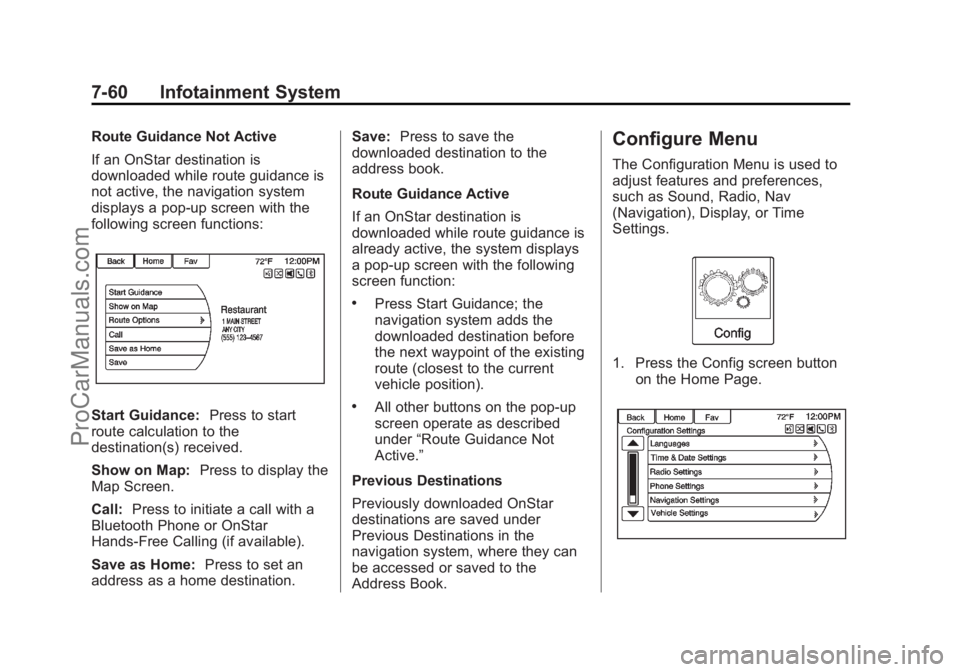
displays a pop-up screen with the
following screen functions:
Start Guidance:Press to start
route calculation to the
destination(s) received.
Show on Map: Press to display the
Map Screen.
Call: Press to initiate a call with a
Bluetooth Phone or OnStar
Hands-Free Calling (if available).
Save as Home: Press to set an
address as a home destination. Save:
Press to save the
downloaded destination to the
address book.
Route Guidance Active
If an OnStar destination is
downloaded while route guidance is
already active, the system displays
a pop-up screen with the following
screen function:
.Press Start Guidance; the
navigation system adds the
downloaded destination before
the next waypoint of the existing
route (closest to the current
vehicle position).
.All other buttons on the pop-up
screen operate as described
under “Route Guidance Not
Active.”
Previous Destinations
Previously downloaded OnStar
destinations are saved under
Previous Destinations in the
navigation system, where they can
be accessed or saved to the
Address Book.
Configure Menu
The Configuration Menu is used to
adjust features and preferences,
such as Sound, Radio, Nav
(Navigation), Display, or Time
Settings.
1. Press the Config screen button on the Home Page.
ProCarManuals.com
Page 201 of 422
Black plate (65,1)Chevrolet SS Sedan Owner Manual (GMNA-Localizing-U.S.-6014851) - 2014 -
1st Edition - 8/22/13
Infotainment System 7-65
Delete Saved Destinations
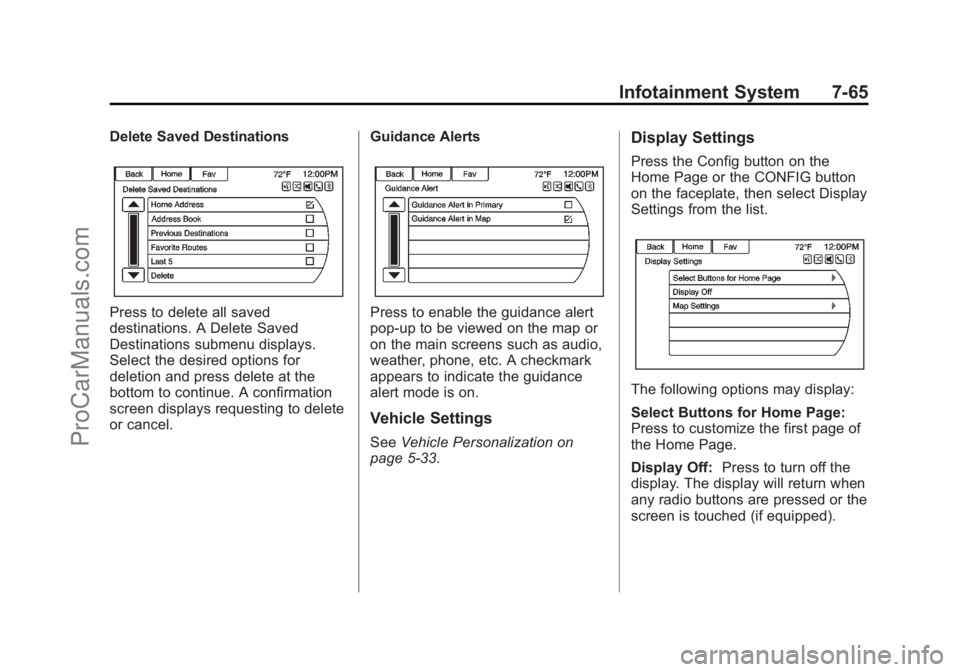
Press to delete all saved
destinations. A Delete Saved
Destinations submenu displays.
Select the desired options for
deletion and press delete at the
bottom to continue. A confirmation
screen displays requesting to delete
or cancel.Guidance AlertsPress to enable the guidance alert
pop-up to be viewed on the map or
on the main screens such as audio,
weather, phone, etc. A checkmark
appears to indicate the guidance
alert mode is on.
Vehicle Settings
See
Vehicle Personalization on
page 5-33.
Display Settings
Press the Config button on the
Home Page or the CONFIG button
on the faceplate, then select Display
Settings from the list.
The following options may display:
Select Buttons for Home Page:
Press to customize the first page of
the Home Page.
Display Off: Press to turn off the
display. The display will return when
any radio buttons are pressed or the
screen is touched (if equipped).
ProCarManuals.com
Page 211 of 422
Black plate (75,1)Chevrolet SS Sedan Owner Manual (GMNA-Localizing-U.S.-6014851) - 2014 -
1st Edition - 8/22/13
Infotainment System 7-75
.Virtual Advisor
Virtual Advisor
Choose this option to connect to a
live Advisor.
Voice Pass-Thru
Voice pass-thru allows access to the
voice recognition commands on the
cell phone, i.e. Siri or Voice
Command. See the cell phone
manufacturer's user guide to see if
the cell phone supports this feature.
To activate phone voice recognition
system, press and hold
b/gon
the steering wheel for approximately
two seconds.
Bluetooth Phone/
Devices
Bluetooth
Overview
For vehicles equipped with
Bluetooth capability, the system can
interact with many cell phones and
devices, allowing:
.Placing and receiving hands-free
calls.
.Sharing of the cell phone’s
address book or contact list with
the vehicle. The phone book will
only display when that phone is
connected.
.Placing outgoing calls by voice
recognition.
The system can be used while in
ON/RUN, ACC/ACCESSORY,
or Retained Accessory Power
(RAP). The range of the Bluetooth
system can be up to 9.1 m (30 ft).
The radio can connect to most Bluetooth-enabled phones.
Available features and functions
may be dependent on the device.
On a current phone call screen, an
image of the contact from your
phone's contact list can be
displayed. Not all phones are
compatible with this feature.
Bluetooth Controls
Use the buttons on the infotainment
system and the steering wheel to
operate the Bluetooth system.
Steering Wheel Controls
b/g(Push to Talk):
Press to
answer incoming calls and start
voice recognition.
$/i(Mute/End Call): Press to
end a call, decline an incoming call,
or cancel voice recognition.
+
x− (Volume): Press + or−to
increase or decrease the volume.
ProCarManuals.com
Page 268 of 422
Black plate (36,1)Chevrolet SS Sedan Owner Manual (GMNA-Localizing-U.S.-6014851) - 2014 -
1st Edition - 8/22/13
9-36 Driving and Operating
Assistance Systems for
Parking or Backing
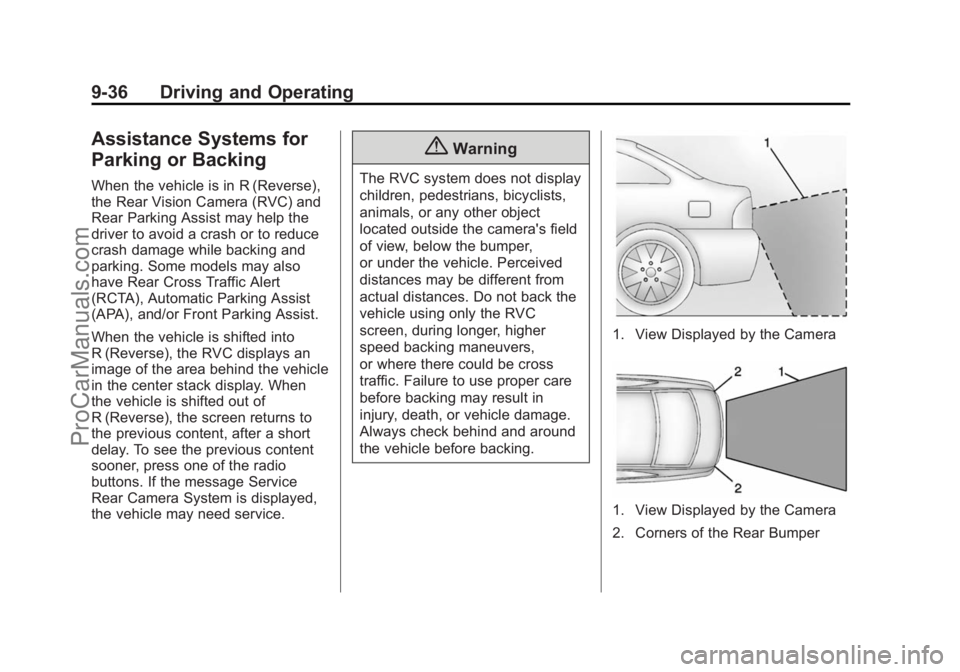
When the vehicle is in R (Reverse),
the Rear Vision Camera (RVC) and
Rear Parking Assist may help the
driver to avoid a crash or to reduce
crash damage while backing and
parking. Some models may also
have Rear Cross Traffic Alert
(RCTA), Automatic Parking Assist
(APA), and/or Front Parking Assist.
When the vehicle is shifted into
R (Reverse), the RVC displays an
image of the area behind the vehicle
in the center stack display. When
the vehicle is shifted out of
R (Reverse), the screen returns to
the previous content, after a short
delay. To see the previous content
sooner, press one of the radio
buttons. If the message Service
Rear Camera System is displayed,
the vehicle may need service.
{Warning
The RVC system does not display
children, pedestrians, bicyclists,
animals, or any other object
located outside the camera's field
of view, below the bumper,
or under the vehicle. Perceived
distances may be different from
actual distances. Do not back the
vehicle using only the RVC
screen, during longer, higher
speed backing maneuvers,
or where there could be cross
traffic. Failure to use proper care
before backing may result in
injury, death, or vehicle damage.
Always check behind and around
the vehicle before backing.
1. View Displayed by the Camera
1. View Displayed by the Camera
2. Corners of the Rear Bumper
ProCarManuals.com