sat nav CHEVROLET SS 2014 Owners Manual
[x] Cancel search | Manufacturer: CHEVROLET, Model Year: 2014, Model line: SS, Model: CHEVROLET SS 2014Pages: 422, PDF Size: 6.18 MB
Page 116 of 422
Black plate (24,1)Chevrolet SS Sedan Owner Manual (GMNA-Localizing-U.S.-6014851) - 2014 -
1st Edition - 8/22/13
5-24 Instruments and Controls
{Caution
If you try to use the HUD image
as a parking aid, you may
misjudge the distance and
damage your vehicle. Do not use
the HUD image as a parking aid.
The HUD may display some of the
following alerts or information for
vehicles equipped with these
features:
.Speedometer
.Tachometer
.High Beam Indicator Symbol
.Forward Collision Alert Warnings
.Audio Functions
.Navigation
.Transmission Position
.Shift Up Meter
.Cruise Control Active
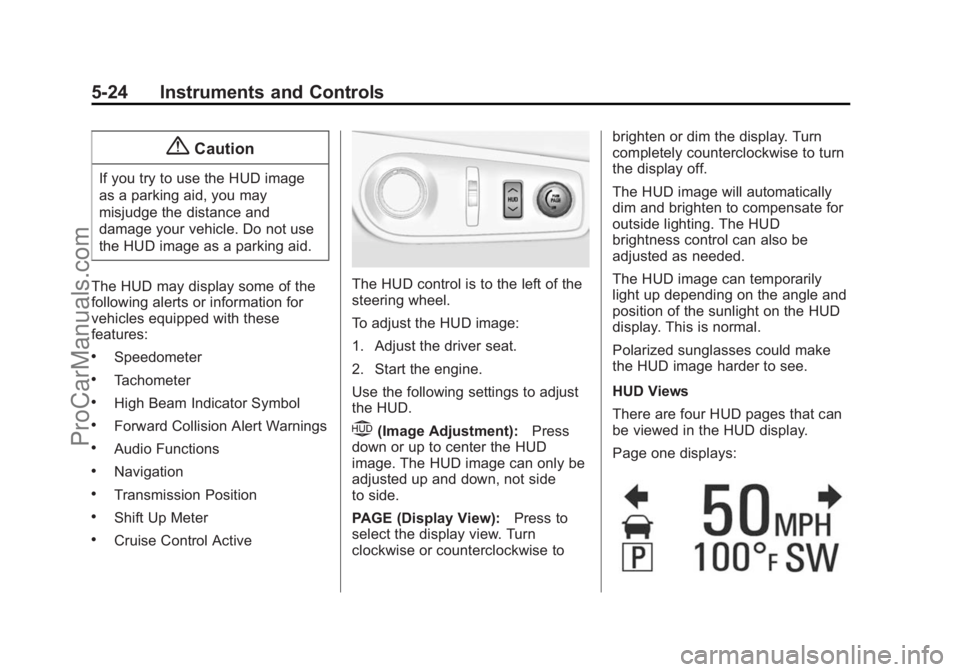
The HUD control is to the left of the
steering wheel.
To adjust the HUD image:
1. Adjust the driver seat.
2. Start the engine.
Use the following settings to adjust
the HUD.
$(Image Adjustment): Press
down or up to center the HUD
image. The HUD image can only be
adjusted up and down, not side
to side.
PAGE (Display View): Press to
select the display view. Turn
clockwise or counterclockwise to brighten or dim the display. Turn
completely counterclockwise to turn
the display off.
The HUD image will automatically
dim and brighten to compensate for
outside lighting. The HUD
brightness control can also be
adjusted as needed.
The HUD image can temporarily
light up depending on the angle and
position of the sunlight on the HUD
display. This is normal.
Polarized sunglasses could make
the HUD image harder to see.
HUD Views
There are four HUD pages that can
be viewed in the HUD display.
Page one displays:
ProCarManuals.com
Page 137 of 422
Black plate (1,1)Chevrolet SS Sedan Owner Manual (GMNA-Localizing-U.S.-6014851) - 2014 -
1st Edition - 8/22/13
Infotainment System 7-1
Infotainment
System
Introduction
Infotainment . . . . . . . . . . . . . . . . . . . 7-2
Overview . . . . . . . . . . . . . . . . . . . . . . 7-2
Using the System . . . . . . . . . . . . . 7-6
Software Updates . . . . . . . . . . . . 7-11
Radio
AM-FM Radio . . . . . . . . . . . . . . . . 7-11
Radio Data System (RDS) . . . 7-14
Satellite Radio . . . . . . . . . . . . . . . 7-15
Radio Reception . . . . . . . . . . . . . 7-20
Backglass Antenna . . . . . . . . . . 7-21
Multi-Band Antenna . . . . . . . . . . 7-21
Quick Info . . . . . . . . . . . . . . . . . . . 7-22Pandora Internet Radio . . . . . . 7-22
Stitcher Internet Radio . . . . . . . 7-27
Pictures . . . . . . . . . . . . . . . . . . . . . . 7-31
Audio Players
CD Player . . . . . . . . . . . . . . . . . . . 7-32
USB . . . . . . . . . . . . . . . . . . . . . . . . . 7-34
Auxiliary Devices . . . . . . . . . . . . 7-40
Bluetooth Audio . . . . . . . . . . . . . . 7-41
Navigation
Using the Navigation
System . . . . . . . . . . . . . . . . . . . . . 7-42
Maps . . . . . . . . . . . . . . . . . . . . . . . . 7-46
Navigation Symbols . . . . . . . . . 7-46
Destination . . . . . . . . . . . . . . . . . . 7-48
OnStar
®Destination
Download . . . . . . . . . . . . . . . . . . 7-59
Configure Menu . . . . . . . . . . . . . 7-60
Global Positioning System (GPS) . . . . . . . . . . . . . . 7-66 Vehicle Positioning . . . . . . . . . . 7-66
Problems with Route
Guidance . . . . . . . . . . . . . . . . . . . 7-67
If the System Needs Service . . . . . . . . . . . . . . . . . . . . . 7-68
Map Data Updates . . . . . . . . . . . 7-68
Database Coverage Explanations . . . . . . . . . . . . . . . 7-68
Voice Recognition
Voice Recognition . . . . . . . . . . . 7-68
Bluetooth Phone/Devices
Bluetooth . . . . . . . . . . . . . . . . . . . . 7-75
Text Messaging . . . . . . . . . . . . . . 7-82
Trademarks and License
Agreements
Trademarks and LicenseAgreements . . . . . . . . . . . . . . . . 7-85
ProCarManuals.com
Page 143 of 422
Black plate (7,1)Chevrolet SS Sedan Owner Manual (GMNA-Localizing-U.S.-6014851) - 2014 -
1st Edition - 8/22/13
Infotainment System 7-7
To add screen buttons:
1. Press Menu.
2. Press Customize.
3. Press a screen button to add orremove from the first Home
Page. A
hindicates it will be
displayed. The maximum
number of buttons on Home
Page 1 is eight.
4. Press Done.
To move screen buttons:
1. Press Sort.
2. Press an icon to move.
3. Press an icon to swap with.
4. Press Done.
To restore Home Page 1 defaults:
1. Press Menu.
2. Press Restore Home Page Defaults.
3. Press Yes or Cancel.
Home Page Features
Touch screen buttons are
highlighted when a feature is
available.
Various functions are disabled when
the vehicle is moving.
Press the Now Playing screen
button to display the active source
page. The sources available are
AM, FM, SiriusXM
®(if equipped),
USB/iPod, Pandora (if equipped),
Stitcher, and AUX.
See AM-FM Radio on page 7-11,
Satellite Radio on page 7-15,
Pandora Internet Radio on
page 7-22, Stitcher Internet Radio
on page 7-27, and Auxiliary Devices
on page 7-40.
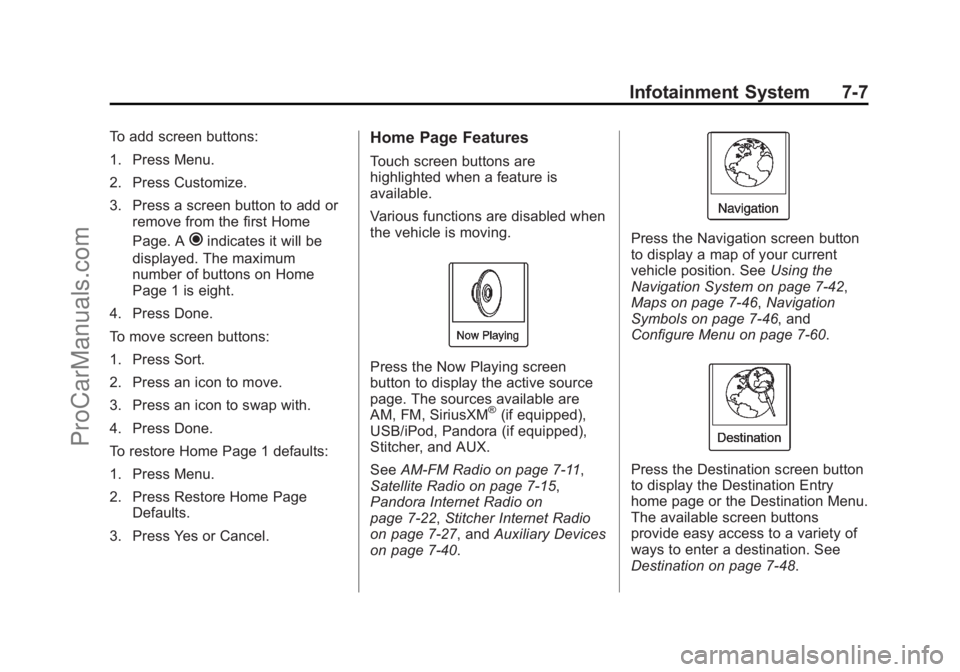
Press the Navigation screen button
to display a map of your current
vehicle position. See Using the
Navigation System on page 7-42,
Maps on page 7-46, Navigation
Symbols on page 7-46, and
Configure Menu on page 7-60.
Press the Destination screen button
to display the Destination Entry
home page or the Destination Menu.
The available screen buttons
provide easy access to a variety of
ways to enter a destination. See
Destination on page 7-48.
ProCarManuals.com
Page 152 of 422
Black plate (16,1)Chevrolet SS Sedan Owner Manual (GMNA-Localizing-U.S.-6014851) - 2014 -
1st Edition - 8/22/13
7-16 Infotainment System
To delete TuneSelect Alerts:
1. Press Menu when in XM.
2. Press Manage TuneSelect.
3. Press Delete Alerts.
4. Select the alert to delete.
5. Press OK to confirm.
SiriusXM Categories
SiriusXM channels are organized in
categories.
Adding or Removing XM
Categories
To customize which SiriusXM
categories are used and displayed
in the system:
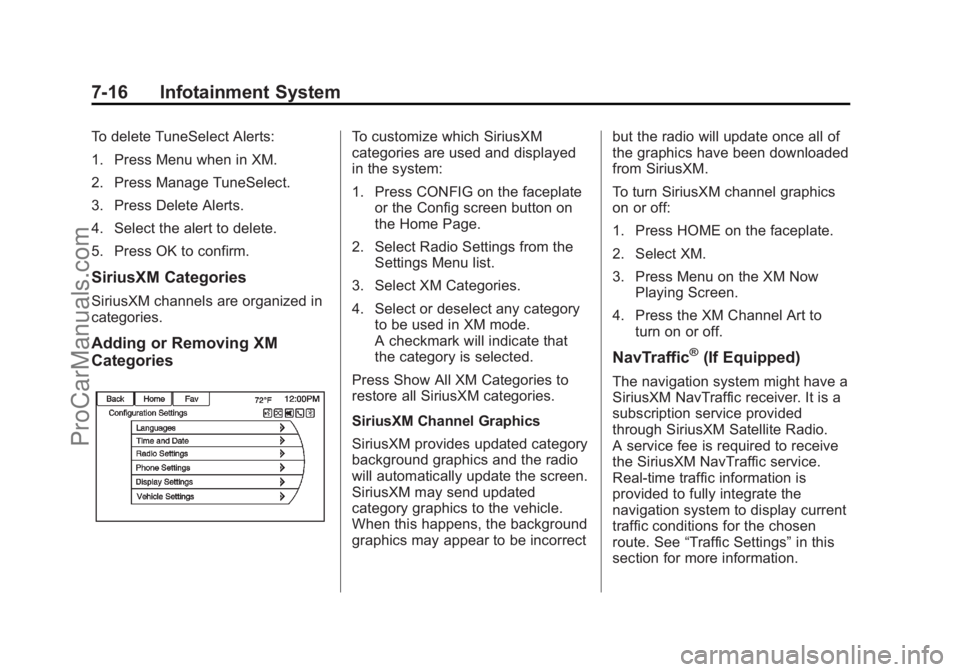
1. Press CONFIG on the faceplateor the Config screen button on
the Home Page.
2. Select Radio Settings from the Settings Menu list.
3. Select XM Categories.
4. Select or deselect any category to be used in XM mode.
A checkmark will indicate that
the category is selected.
Press Show All XM Categories to
restore all SiriusXM categories.
SiriusXM Channel Graphics
SiriusXM provides updated category
background graphics and the radio
will automatically update the screen.
SiriusXM may send updated
category graphics to the vehicle.
When this happens, the background
graphics may appear to be incorrect but the radio will update once all of
the graphics have been downloaded
from SiriusXM.
To turn SiriusXM channel graphics
on or off:
1. Press HOME on the faceplate.
2. Select XM.
3. Press Menu on the XM Now
Playing Screen.
4. Press the XM Channel Art to turn on or off.
NavTraffic®(If Equipped)
The navigation system might have a
SiriusXM NavTraffic receiver. It is a
subscription service provided
through SiriusXM Satellite Radio.
A service fee is required to receive
the SiriusXM NavTraffic service.
Real-time traffic information is
provided to fully integrate the
navigation system to display current
traffic conditions for the chosen
route. See “Traffic Settings” in this
section for more information.
ProCarManuals.com
Page 153 of 422
Black plate (17,1)Chevrolet SS Sedan Owner Manual (GMNA-Localizing-U.S.-6014851) - 2014 -
1st Edition - 8/22/13
Infotainment System 7-17
A screen displays to indicate that
the SiriusXM NavTraffic subscription
is not activated.
If activated, traffic information
displays:
.Unscheduled traffic incident
data, such as accidents and
disabled vehicles.
.Scheduled traffic incident data,
such as road construction and
road closures.
.Traffic flow information (rate of
speed data). Flow data might not
be available in all markets.
Traffic information is delivered to the
vehicle by the SiriusXM Radio
satellites. SiriusXM NavTraffic
provides continuously updated
traffic information.
SiriusXM NavTraffic currently
broadcasts the traffic information for
many markets nationally. The
service may be available in more
cities in the future. Visit
www.xmnavtraffic.com for more
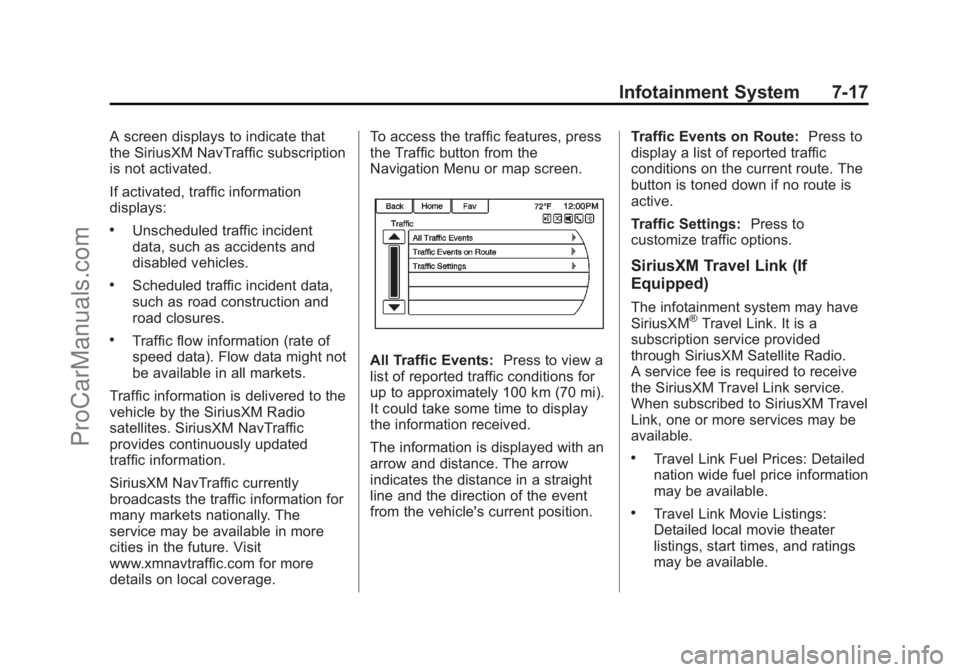
details on local coverage. To access the traffic features, press
the Traffic button from the
Navigation Menu or map screen.
All Traffic Events:
Press to view a
list of reported traffic conditions for
up to approximately 100 km (70 mi).
It could take some time to display
the information received.
The information is displayed with an
arrow and distance. The arrow
indicates the distance in a straight
line and the direction of the event
from the vehicle's current position. Traffic Events on Route:
Press to
display a list of reported traffic
conditions on the current route. The
button is toned down if no route is
active.
Traffic Settings: Press to
customize traffic options.
SiriusXM Travel Link (If
Equipped)
The infotainment system may have
SiriusXM®Travel Link. It is a
subscription service provided
through SiriusXM Satellite Radio.
A service fee is required to receive
the SiriusXM Travel Link service.
When subscribed to SiriusXM Travel
Link, one or more services may be
available.
.Travel Link Fuel Prices: Detailed
nation wide fuel price information
may be available.
.Travel Link Movie Listings:
Detailed local movie theater
listings, start times, and ratings
may be available.
ProCarManuals.com
Page 197 of 422
Black plate (61,1)Chevrolet SS Sedan Owner Manual (GMNA-Localizing-U.S.-6014851) - 2014 -
1st Edition - 8/22/13
Infotainment System 7-61
2. Touch-tap the scroll bar until thedesired option displays. Select
the desired settings to change.
See the owner manual for
information on adjusting most
vehicle settings. See “Navigation
Settings” and“Navigation
Settings Button” in this section.
Languages
Press the Config button on the
Home Page or the CONFIG button
on the faceplate to enter the menu
options. Turn the TUNE/MENU knob
or touch-tap the scroll bar to scroll
through the available options. Press
the TUNE/MENU knob or press
Languages to display the
languages. Select the desired
language.
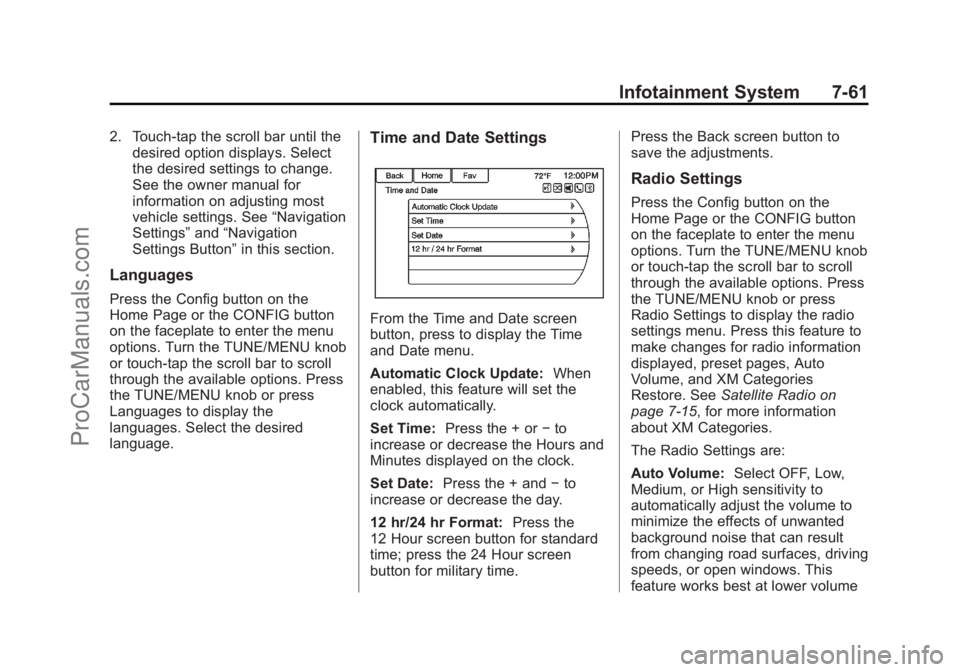
Time and Date Settings
From the Time and Date screen
button, press to display the Time
and Date menu.
Automatic Clock Update: When
enabled, this feature will set the
clock automatically.
Set Time: Press the + or −to
increase or decrease the Hours and
Minutes displayed on the clock.
Set Date: Press the + and −to
increase or decrease the day.
12 hr/24 hr Format: Press the
12 Hour screen button for standard
time; press the 24 Hour screen
button for military time. Press the Back screen button to
save the adjustments.
Radio Settings
Press the Config button on the
Home Page or the CONFIG button
on the faceplate to enter the menu
options. Turn the TUNE/MENU knob
or touch-tap the scroll bar to scroll
through the available options. Press
the TUNE/MENU knob or press
Radio Settings to display the radio
settings menu. Press this feature to
make changes for radio information
displayed, preset pages, Auto
Volume, and XM Categories
Restore. See
Satellite Radio on
page 7-15, for more information
about XM Categories.
The Radio Settings are:
Auto Volume: Select OFF, Low,
Medium, or High sensitivity to
automatically adjust the volume to
minimize the effects of unwanted
background noise that can result
from changing road surfaces, driving
speeds, or open windows. This
feature works best at lower volume
ProCarManuals.com
Page 202 of 422
Black plate (66,1)Chevrolet SS Sedan Owner Manual (GMNA-Localizing-U.S.-6014851) - 2014 -
1st Edition - 8/22/13
7-66 Infotainment System
Map Settings:Press to enter the
submenu to change Automatic
Zoom, enable Speed Limit display
on map, and change Map Display
settings.
.Map Display: Press to change
the screen background.
‐ The Automatic setting adjusts
the screen background
automatically depending on
the exterior lighting conditions.
‐ The Day setting brightens the
map background.
‐ The Night setting darkens the
map background.
To change the overall brightness
setting for the display, use the
vehicle interior lighting instrument
panel illumination control.
Global Positioning
System (GPS)
The position of the vehicle is
determined by using satellite
signals, various vehicle signals, and
map data.
At times, other interference such as
the satellite condition, road
configuration, condition of the
vehicle, and/or other circumstances
can affect the navigation system's
ability to determine the accurate
position of the vehicle.
The GPS shows the current position
of the vehicle using signals sent by
the GPS Satellites. When the
vehicle is not receiving signals from
the satellites, a symbol appears on
the map screen. See Navigation
Symbols on page 7-46.
This system might not be available
or interference can occur if any of
the following are true:
.Signals are obstructed by tall
buildings, trees, large trucks,
or a tunnel.
.Satellites are being repaired or
improved.
For more information if the GPS is
not functioning properly, see
Problems with Route Guidance on
page 7-67 andIf the System Needs
Service on page 7-68.
Vehicle Positioning
At times, the position of the vehicle
on the map could be inaccurate due
to one or more of the following
reasons:
.The road system has changed.
.The vehicle is driving on slippery
road surfaces such as sand,
gravel, or snow.
.The vehicle is traveling on
winding roads or long straight
roads.
.The vehicle is approaching a tall
building or a large vehicle.
.The surface streets run parallel
to a freeway.
ProCarManuals.com
Page 222 of 422
Black plate (86,1)Chevrolet SS Sedan Owner Manual (GMNA-Localizing-U.S.-6014851) - 2014 -
1st Edition - 8/22/13
7-86 Infotainment System
It is prohibited to copy, decompile,
disassemble, reverse engineer,
hack, manipulate, or otherwise
make available any technology or
software incorporated in receivers
compatible with the SiriusXM
®
Satellite Radio System or that
support the SiriusXM website, the
Online Service or any of its content.
Furthermore, the AMBER voice
compression software included in
this product is protected by
intellectual property rights including
patent rights, copyrights, and trade
secrets of Digital Voice
Systems, Inc.
General Requirements:
.A License Agreement from
SiriusXM®is required for any
product that incorporates
SiriusXM Technology and/or for
use of any of the SiriusXM
marks to be manufactured,
distributed, or marketed in the
SiriusXM Service Area.
Gracenote
Gracenote®, Gracenote logo and
logotype, and the "Powered by
Gracenote" logo are either a
registered trademark or a trademark
of Gracenote, Inc. in the United
States and/or other countries.
Bluetooth
The Bluetooth®word mark and
logos are owned by the Bluetooth®
SIG, Inc. and any use of such marks
by General Motors is under license.
Other trademarks and trade names
are those of their respective owners.
Pandora (If Equipped)
Pandora is a registered trademark
of Pandora Media, Inc., used under
license.
Manufactured under license from
Dolby Laboratories. Dolby and the
double-D symbol are trademarks of
Dolby Laboratories.
Map End User License
Agreement (Optional
Equipment Applies Where
Equipped)
END USER TERMS
The data (“Data”) is provided for
your personal, internal use only and
not for resale. It is protected by
copyright, and is subject to the
following terms and conditions
which are agreed to by you, on the
one hand, and Panasonic
Automotive Systems Company of
America (“PANASONIC”) and its
licensors (including their licensors
and suppliers) on the other hand.
© 2013 NAVTEQ. All rights
reserved.
The Data includes certain
information and related content
provided under license to NT from
third parties and is subject to the
ProCarManuals.com
Page 234 of 422
Black plate (2,1)Chevrolet SS Sedan Owner Manual (GMNA-Localizing-U.S.-6014851) - 2014 -
1st Edition - 8/22/13
9-2 Driving and Operating
Trailer Towing
Trailer Towing . . . . . . . . . . . . . . . . 9-50
Conversions and Add-Ons
Add-On ElectricalEquipment . . . . . . . . . . . . . . . . . 9-50
Driving Information
Distracted Driving
Distraction comes in many forms
and can take your focus from the
task of driving. Exercise good
judgment and do not let other
activities divert your attention away
from the road. Many local
governments have enacted laws
regarding driver distraction. Become
familiar with the local laws in
your area.
To avoid distracted driving, always
keep your eyes on the road, hands
on the wheel, and mind on the drive.
.Do not use a phone in
demanding driving situations.
Use a hands-free method to
place or receive necessary
phone calls.
.Watch the road. Do not read,
take notes, or look up
information on phones or other
electronic devices.
.Designate a front seat
passenger to handle potential
distractions.
.Become familiar with vehicle
features before driving, such as
programming favorite radio
stations and adjusting climate
control and seat settings.
Program all trip information into
any navigation device prior to
driving.
.Wait until the vehicle is parked
to retrieve items that have fallen
to the floor.
.Stop or park the vehicle to tend
to children.
.Keep pets in an appropriate
carrier or restraint.
.Avoid stressful conversations
while driving, whether with a
passenger or on a cell phone.
ProCarManuals.com
Page 405 of 422
Black plate (5,1)Chevrolet SS Sedan Owner Manual (GMNA-Localizing-U.S.-6014851) - 2014 -
1st Edition - 8/22/13
OnStar 14-5
Verify Minutes and Expiration
Press=and say“Minutes” then
“Verify” to check how many minutes
remain and their expiration date.
Diagnostics
OnStar Vehicle Diagnostics will
perform a vehicle check every
month. It will check the engine,
transmission, antilock brakes, and
major vehicle systems. It also
checks the tire pressures, if the
vehicle is equipped with the Tire
Pressure Monitoring System. If an
On-Demand Diagnostics check is
needed between e-mails, press
Q,
and an Advisor can run a check.
OnStar Additional
Information
Transferring Service
PressQto request account transfer
eligibility information. The Advisor
can assist in canceling or removing
account information. If OnStar
receives information that vehicle
ownership has changed, OnStar
may send a voice message to the
vehicle, requesting updated account
information.
Reactivation for Subsequent
Owners
PressQand follow the prompts to
speak to an Advisor as soon as
possible after acquiring the vehicle.
The Advisor will update vehicle
records and will explain the OnStar
service offers and options available.
How OnStar Service Works
Automatic Crash Response,
Emergency Services, Crisis Assist,
Stolen Vehicle Assistance, Vehicle
Diagnostics, Remote Door Unlock,
Roadside Assistance, Turn-by-Turn
Navigation, and Hands-Free Calling
are available on most vehicles. Not
all OnStar services are available
everywhere or on all vehicles. For
more information, a full description
of OnStar services, system
limitations, and OnStar terms and
conditions:
.Call 888-4-ONSTAR
(888-466-7827).
.See www.onstar.com (U.S.).
.See www.onstar.ca (Canada).
.Call TTY 1-877-248-2080.
.PressQto speak with an
Advisor.
OnStar services require a vehicle
electrical system, wireless service,
and GPS satellite technologies to be
available and operating for features
ProCarManuals.com