change time CHEVROLET SS 2015 User Guide
[x] Cancel search | Manufacturer: CHEVROLET, Model Year: 2015, Model line: SS, Model: CHEVROLET SS 2015Pages: 435, PDF Size: 6.27 MB
Page 152 of 435
Black plate (11,1)Chevrolet SS Sedan Owner Manual (GMNA-Localizing-U.S.-7707491) - 2015 -
crc - 9/11/14
Infotainment System 7-11
Radio
AM-FM Radio
Playing the Radio
VOL/O(Volume/Power):
.Press to turn the radio on or off.
.Turn to increase or decrease the
volume of the active source.
The steering wheel controls can
also be used to adjust the volume.
See Steering Wheel Controls on
page 7-5.
Radio Operation
The radio will work when the key is
in ON/RUN or ACC/
ACCESSORY. When the key is
turned from ON/RUN to LOCK/OFF,
the radio will continue to work for
10 minutes or until the driver door is
opened.
The radio can be turned on by
pressing the power button on the
radio and will stay on for 10 minutes. Opening the driver door
will not turn the radio off when
pressing the power button.
Some radios may stay on longer
and reset the time for 10 minutes if
there are any additional presses of
any radio button.
The radio can be turned off at any
time by pressing the power button.
Audio Source
Press SRCE or SRC on the steering
wheel controls to display and scroll
through the available sources AM,
FM, XM (if equipped), Pandora (if
equipped), Stitcher, USB, AUX, and
Bluetooth Audio.
Infotainment System Settings
Tone Settings
To access the tone settings, press
the Tone Settings button on the
Home Page. Tone settings are
specific to each source.
To adjust the settings:
.Bass: Press + or
−to change
the level.
.Mid (Midrange): Press + or −to
change the level.
.Treble: Press + or −to change
the level.
.EQ: Press or turn the TUNE/
MENU knob to cycle through the
preset EQ options.
.Fade: Press the F or R button
for more sound from the front or
rear speakers. The middle
position balances the sound
between the front and rear
speakers.
ProCarManuals.com
Page 158 of 435
Black plate (17,1)Chevrolet SS Sedan Owner Manual (GMNA-Localizing-U.S.-7707491) - 2015 -
crc - 9/11/14
Infotainment System 7-17
SiriusXM Travel Link (If
Equipped)
The infotainment system may have
SiriusXM®Travel Link. It is a
subscription service provided
through SiriusXM Satellite Radio.
A service fee is required to receive
the SiriusXM Travel Link service.
When subscribed to SiriusXM Travel
Link, one or more services may be
available.
.Travel Link Fuel Prices: Detailed
nation wide fuel price information
may be available.
.Travel Link Movie Listings:
Detailed local movie theater
listings, start times, and ratings
may be available.
.Travel Link Weather: National
and Local Weather gives current
and forecasted weather.
For more detailed information and
coverage details on SiriusXM Travel
Link go to www.siriusxm.com. SiriusXM Travel Link Fuel Prices
When SiriusXM Travel Link
information is available, the system
will display a list of fuel stations
close to the vehicle location. The list
will include fuel station name,
direction, distance and price. The
list can be sorted by distance or
price and there are four different
fuel types to choose from. As the
vehicle is moving a direction arrow
and distance to fuel station will
update. The arrow represents the
direction to the gas station from the
current vehicle position. The
distance represents the straight line
distance between the vehicle
location and the fuel station.
From the Home Page, press the
SiriusXM®Fuel button. The system
displays the current weather page.
To change the fuel information on
screen press the Fuel Menu
Button to:
.Sort Fuel Stations By Price or By
Distance: The default sort
method is by distance.
.Choose Fuel Type: The fuel
available fuel types are Regular
(unleaded), Mid-Range,
Premium, and Diesel.
For more information on the fuel
station, select the fuel station name.
The screen will show the fuel station
name, address, phone number,
distance, amenities and the last
time the fuel price was updated. If a
fuel station does not appear in the
list it may be new or the price may
not have been updated in the past
24 hours.
If equipped with Navigation when
the fuel station is selected, see
Destination on page 7-49 for more
information of navigation routing
features.
Allow up to five minutes after turning
on the vehicle for the fuel
information to appear.
SiriusXM Travel Link Movie
Listings
When SiriusXM Travel Link
information is available the movie
feature provides movie showtimes
ProCarManuals.com
Page 165 of 435
Black plate (24,1)Chevrolet SS Sedan Owner Manual (GMNA-Localizing-U.S.-7707491) - 2015 -
crc - 9/11/14
7-24 Infotainment System
Unlock the phone, close the app,
and then restart the app to ensure
proper communication.
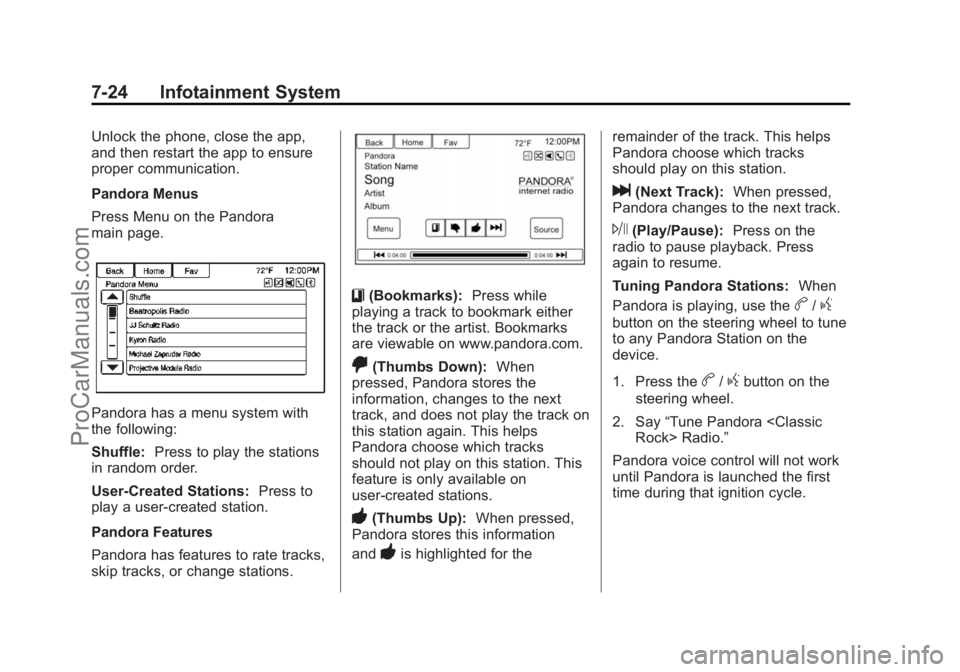
Pandora Menus
Press Menu on the Pandora
main page.
Pandora has a menu system with
the following:
Shuffle:Press to play the stations
in random order.
User-Created Stations: Press to
play a user-created station.
Pandora Features
Pandora has features to rate tracks,
skip tracks, or change stations.
}(Bookmarks): Press while
playing a track to bookmark either
the track or the artist. Bookmarks
are viewable on www.pandora.com.
,(Thumbs Down): When
pressed, Pandora stores the
information, changes to the next
track, and does not play the track on
this station again. This helps
Pandora choose which tracks
should not play on this station. This
feature is only available on
user-created stations.
-(Thumbs Up): When pressed,
Pandora stores this information
and
-is highlighted for the remainder of the track. This helps
Pandora choose which tracks
should play on this station.
l(Next Track):
When pressed,
Pandora changes to the next track.
J(Play/Pause): Press on the
radio to pause playback. Press
again to resume.
Tuning Pandora Stations: When
Pandora is playing, use the
b/g
button on the steering wheel to tune
to any Pandora Station on the
device.
1. Press the
b/gbutton on the
steering wheel.
2. Say “Tune Pandora
Pandora voice control will not work
until Pandora is launched the first
time during that ignition cycle.
ProCarManuals.com
Page 176 of 435
Black plate (35,1)Chevrolet SS Sedan Owner Manual (GMNA-Localizing-U.S.-7707491) - 2015 -
crc - 9/11/14
Infotainment System 7-35
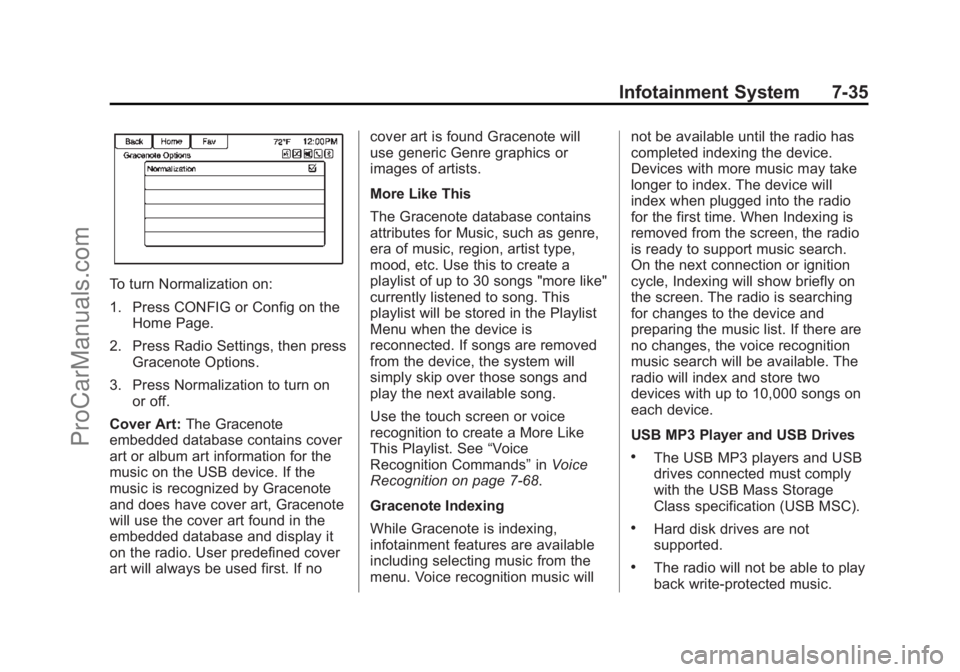
To turn Normalization on:
1. Press CONFIG or Config on theHome Page.
2. Press Radio Settings, then press Gracenote Options.
3. Press Normalization to turn on or off.
Cover Art: The Gracenote
embedded database contains cover
art or album art information for the
music on the USB device. If the
music is recognized by Gracenote
and does have cover art, Gracenote
will use the cover art found in the
embedded database and display it
on the radio. User predefined cover
art will always be used first. If no cover art is found Gracenote will
use generic Genre graphics or
images of artists.
More Like This
The Gracenote database contains
attributes for Music, such as genre,
era of music, region, artist type,
mood, etc. Use this to create a
playlist of up to 30 songs "more like"
currently listened to song. This
playlist will be stored in the Playlist
Menu when the device is
reconnected. If songs are removed
from the device, the system will
simply skip over those songs and
play the next available song.
Use the touch screen or voice
recognition to create a More Like
This Playlist. See
“Voice
Recognition Commands” inVoice
Recognition on page 7-68.
Gracenote Indexing
While Gracenote is indexing,
infotainment features are available
including selecting music from the
menu. Voice recognition music will not be available until the radio has
completed indexing the device.
Devices with more music may take
longer to index. The device will
index when plugged into the radio
for the first time. When Indexing is
removed from the screen, the radio
is ready to support music search.
On the next connection or ignition
cycle, Indexing will show briefly on
the screen. The radio is searching
for changes to the device and
preparing the music list. If there are
no changes, the voice recognition
music search will be available. The
radio will index and store two
devices with up to 10,000 songs on
each device.
USB MP3 Player and USB Drives
.The USB MP3 players and USB
drives connected must comply
with the USB Mass Storage
Class specification (USB MSC).
.Hard disk drives are not
supported.
.The radio will not be able to play
back write-protected music.
ProCarManuals.com
Page 186 of 435
Black plate (45,1)Chevrolet SS Sedan Owner Manual (GMNA-Localizing-U.S.-7707491) - 2015 -
crc - 9/11/14
Infotainment System 7-45
Switch Route Time/Destination
Press to customize the Arrival/
Travel time and Waypoint/
Destination information displayed in
the main map screen.
Current Position Info
Press to display a split screen
showing detailed information about
the vehicle position. This feature
can also be accessed by pressing
the vehicle information tab on the
lower center of the display. The
location can be saved to the
Address Book by pressing Save in
the split screen.
Destination Position Info
Press to display a split map screen
showing the final destination. The
location can be saved to the
Address Book by pressing Save in
the split screen.Map Adjustments
The system lets you adjust the scale
of view on the map. Also, as you
drive, the map scrolls automatically
based on the direction of travel.
Map Scales
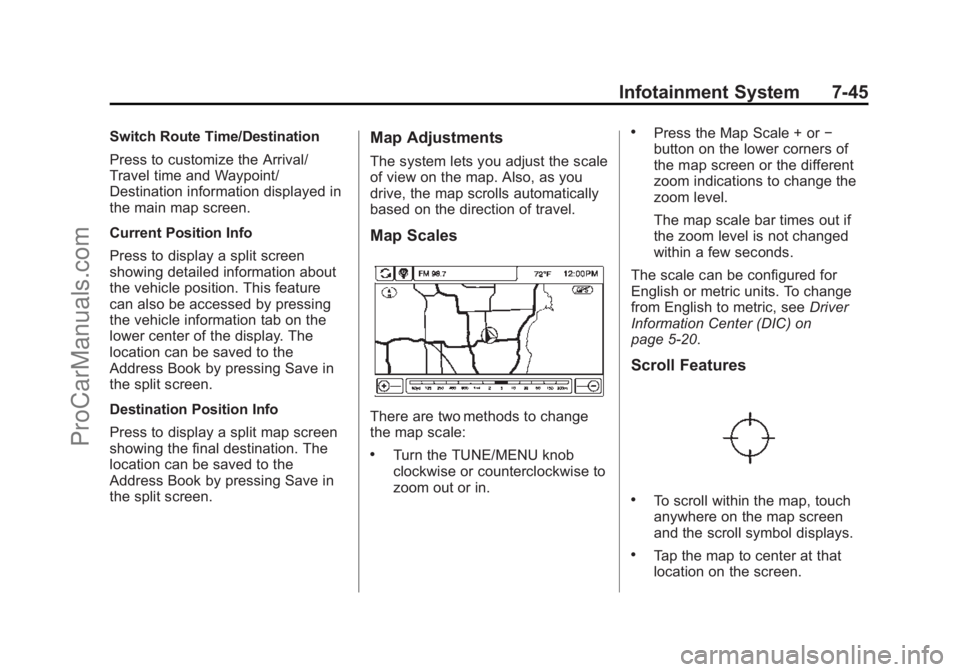
There are two methods to change
the map scale:
.Turn the TUNE/MENU knob
clockwise or counterclockwise to
zoom out or in.
.Press the Map Scale + or−
button on the lower corners of
the map screen or the different
zoom indications to change the
zoom level.
The map scale bar times out if
the zoom level is not changed
within a few seconds.
The scale can be configured for
English or metric units. To change
from English to metric, see Driver
Information Center (DIC) on
page 5-20.
Scroll Features
.To scroll within the map, touch
anywhere on the map screen
and the scroll symbol displays.
.Tap the map to center at that
location on the screen.
ProCarManuals.com
Page 188 of 435
Black plate (47,1)Chevrolet SS Sedan Owner Manual (GMNA-Localizing-U.S.-7707491) - 2015 -
crc - 9/11/14
Infotainment System 7-47
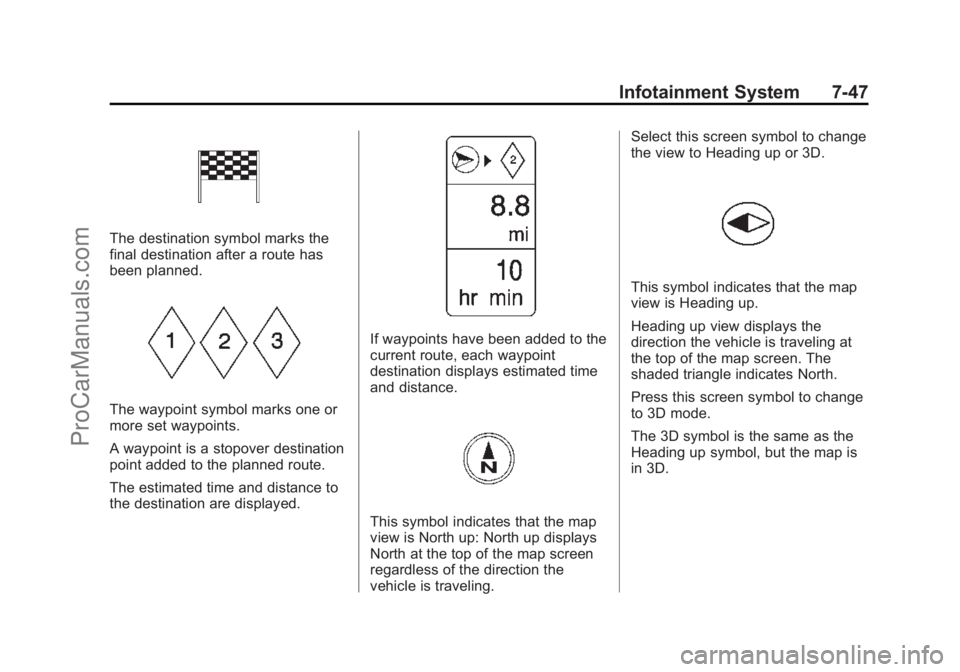
The destination symbol marks the
final destination after a route has
been planned.
The waypoint symbol marks one or
more set waypoints.
A waypoint is a stopover destination
point added to the planned route.
The estimated time and distance to
the destination are displayed.
If waypoints have been added to the
current route, each waypoint
destination displays estimated time
and distance.
This symbol indicates that the map
view is North up: North up displays
North at the top of the map screen
regardless of the direction the
vehicle is traveling.Select this screen symbol to change
the view to Heading up or 3D.
This symbol indicates that the map
view is Heading up.
Heading up view displays the
direction the vehicle is traveling at
the top of the map screen. The
shaded triangle indicates North.
Press this screen symbol to change
to 3D mode.
The 3D symbol is the same as the
Heading up symbol, but the map is
in 3D.
ProCarManuals.com
Page 191 of 435
Black plate (50,1)Chevrolet SS Sedan Owner Manual (GMNA-Localizing-U.S.-7707491) - 2015 -
crc - 9/11/14
7-50 Infotainment System
City:Enter a city name.
Street: Enter a street name.
House No.: Enter a valid address
number.
Junction: Enter a street name that
intersects with the selected street.
Entering the city name first:
1. Enter the city name.
2. Enter the street name. Use the
Delete screen button to delete
an incorrectly entered character.
A list displays if six or fewer
names are available. If there are
more than six, there is a match
counter with a number of
available streets. Press the List
screen button to view the list and
select the street.
3. Enter the house number.
4. Press the Done screen button at any time and the system tries to
resolve a destination based on
the entered information, then
displays it on the screen.
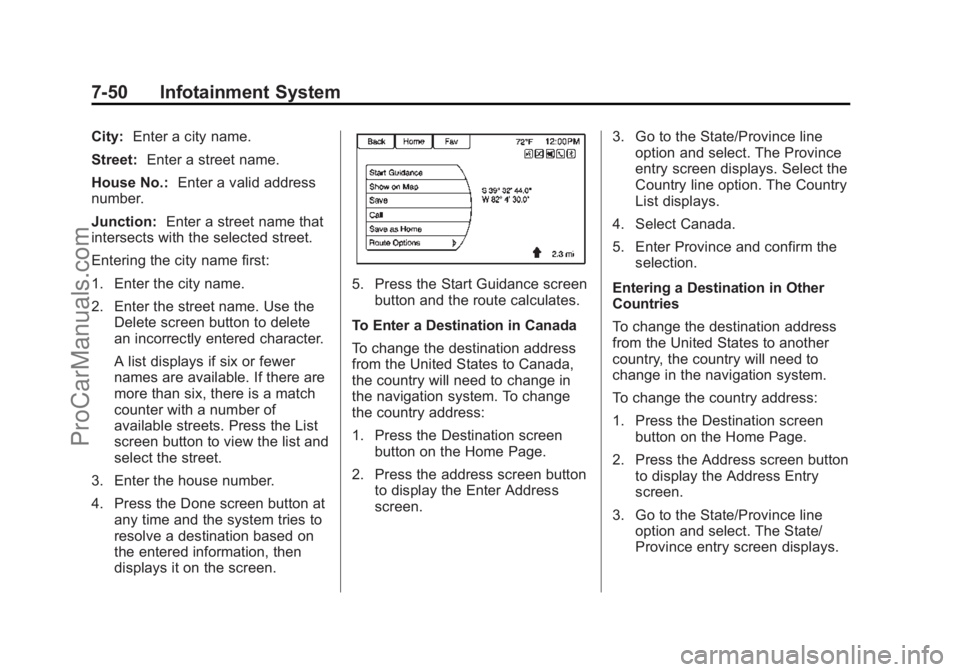
5. Press the Start Guidance screenbutton and the route calculates.
To Enter a Destination in Canada
To change the destination address
from the United States to Canada,
the country will need to change in
the navigation system. To change
the country address:
1. Press the Destination screen button on the Home Page.
2. Press the address screen button to display the Enter Address
screen. 3. Go to the State/Province line
option and select. The Province
entry screen displays. Select the
Country line option. The Country
List displays.
4. Select Canada.
5. Enter Province and confirm the selection.
Entering a Destination in Other
Countries
To change the destination address
from the United States to another
country, the country will need to
change in the navigation system.
To change the country address:
1. Press the Destination screen button on the Home Page.
2. Press the Address screen button to display the Address Entry
screen.
3. Go to the State/Province line option and select. The State/
Province entry screen displays.
ProCarManuals.com
Page 201 of 435
Black plate (60,1)Chevrolet SS Sedan Owner Manual (GMNA-Localizing-U.S.-7707491) - 2015 -
crc - 9/11/14
7-60 Infotainment System
.All other buttons on the pop-up
screen operate as described
under“Route Guidance Not
Active.”
Previous Destinations
Previously downloaded OnStar
destinations are saved under
Previous Destinations in the
navigation system, where they can
be accessed or saved to the
Address Book.
Configure Menu
The Configuration Menu is used to
adjust features and preferences,
such as Sound, Radio, Nav
(Navigation), Display, or Time
Settings.
1. Press the Config screen button on the Home Page.
2. Touch-tap the scroll bar until thedesired option displays. Select
the desired settings to change.
See the owner manual for
information on adjusting most
vehicle settings. See “Navigation
Settings” and“Navigation
Settings Button” in this section.
Languages
Press the Config button on the
Home Page or the CONFIG button
on the faceplate to enter the menu
options. Turn the TUNE/MENU knob
or touch-tap the scroll bar to scroll
through the available options. Press
the TUNE/MENU knob or press Languages to display the
languages. Select the desired
language.
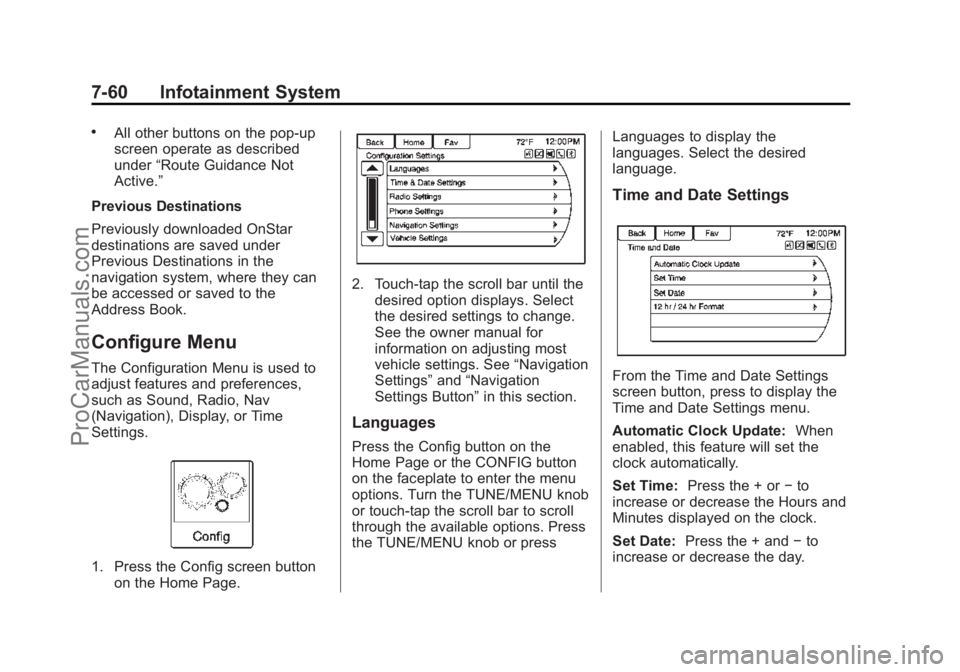
Time and Date Settings
From the Time and Date Settings
screen button, press to display the
Time and Date Settings menu.
Automatic Clock Update:
When
enabled, this feature will set the
clock automatically.
Set Time: Press the + or −to
increase or decrease the Hours and
Minutes displayed on the clock.
Set Date: Press the + and −to
increase or decrease the day.
ProCarManuals.com
Page 202 of 435
Black plate (61,1)Chevrolet SS Sedan Owner Manual (GMNA-Localizing-U.S.-7707491) - 2015 -
crc - 9/11/14
Infotainment System 7-61
Set Time Format:Press the 12
Hour screen button for standard
time; press the 24 Hour screen
button for military time.
Press the Back screen button to
save the adjustments.
Radio Settings
Press the Config button on the
Home Page or the CONFIG button
on the faceplate to enter the menu
options. Turn the TUNE/MENU knob
or touch-tap the scroll bar to scroll
through the available options. Press
the TUNE/MENU knob or press
Radio Settings to display the radio
settings menu. Press this feature to
make changes for radio information
displayed, preset pages, Auto
Volume Control, and XM Categories
Restore. See Satellite Radio on
page 7-14, for more information
about XM Categories.
The Radio Settings are:
Auto Volume: Select OFF, Low,
Medium, or High sensitivity to
automatically adjust the volume to minimize the effects of unwanted
background noise that can result
from changing road surfaces, driving
speeds, or open windows. This
feature works best at lower volume
settings where background noise is
typically louder than the sound
system volume.
Gracenote Options:
Press to
enable/disable Normalization used
to improve voice recognition and
media groupings. See USB on
page 7-34, Auxiliary Devices on
page 7-40, and Bluetooth Audio on
page 7-40.
XM Channel Graphics: Press to
enable/disable the XM Audio page
background on the XM Channel
display.
Startup Volume: Press to set the
maximum volume level for startup
that will be used even if a higher
volume had been set when the radio
was turned off.
Number of Favorite Pages: Press
to select the number of FAV pages
to be displayed. XM Categories:
Press to
customize which available XM
Categories are used and displayed.
Software Version Information:
Press to display information about
the system and update software if
available.Phone Settings
See Bluetooth on page 7-74 in the
“Phone” section for more
information on phone settings.
Navigation Settings
Press the Config button on the
Home Page to enter the setup
menu. Turn the TUNE/MENU knob
or touch-tap the scroll bar until the
Navigation Settings option displays.
Select this feature to make changes
to Voice Prompt, Traffic Settings,
Route Options, and Home Address.
ProCarManuals.com
Page 206 of 435
Black plate (65,1)Chevrolet SS Sedan Owner Manual (GMNA-Localizing-U.S.-7707491) - 2015 -
crc - 9/11/14
Infotainment System 7-65
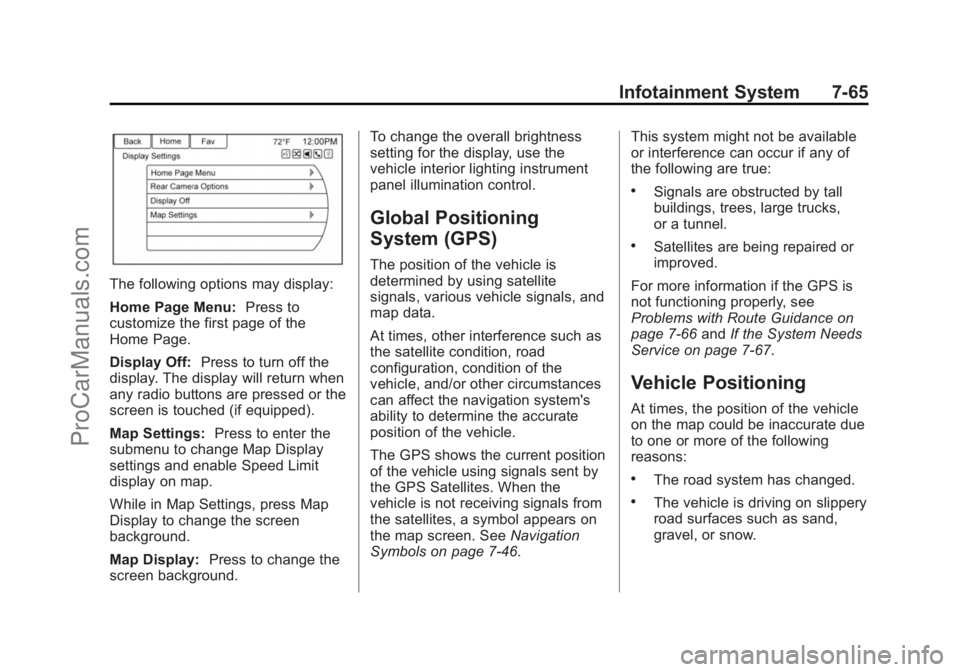
The following options may display:
Home Page Menu:Press to
customize the first page of the
Home Page.
Display Off: Press to turn off the
display. The display will return when
any radio buttons are pressed or the
screen is touched (if equipped).
Map Settings: Press to enter the
submenu to change Map Display
settings and enable Speed Limit
display on map.
While in Map Settings, press Map
Display to change the screen
background.
Map Display: Press to change the
screen background. To change the overall brightness
setting for the display, use the
vehicle interior lighting instrument
panel illumination control.
Global Positioning
System (GPS)
The position of the vehicle is
determined by using satellite
signals, various vehicle signals, and
map data.
At times, other interference such as
the satellite condition, road
configuration, condition of the
vehicle, and/or other circumstances
can affect the navigation system's
ability to determine the accurate
position of the vehicle.
The GPS shows the current position
of the vehicle using signals sent by
the GPS Satellites. When the
vehicle is not receiving signals from
the satellites, a symbol appears on
the map screen. See
Navigation
Symbols on page 7-46. This system might not be available
or interference can occur if any of
the following are true:
.Signals are obstructed by tall
buildings, trees, large trucks,
or a tunnel.
.Satellites are being repaired or
improved.
For more information if the GPS is
not functioning properly, see
Problems with Route Guidance on
page 7-66 andIf the System Needs
Service on page 7-67.
Vehicle Positioning
At times, the position of the vehicle
on the map could be inaccurate due
to one or more of the following
reasons:
.The road system has changed.
.The vehicle is driving on slippery
road surfaces such as sand,
gravel, or snow.
ProCarManuals.com