wheel CHEVROLET SS 2015 Owner's Manual
[x] Cancel search | Manufacturer: CHEVROLET, Model Year: 2015, Model line: SS, Model: CHEVROLET SS 2015Pages: 435, PDF Size: 6.27 MB
Page 121 of 435
Black plate (24,1)Chevrolet SS Sedan Owner Manual (GMNA-Localizing-U.S.-7707491) - 2015 -
crc - 9/18/14
5-24 Instruments and Controls
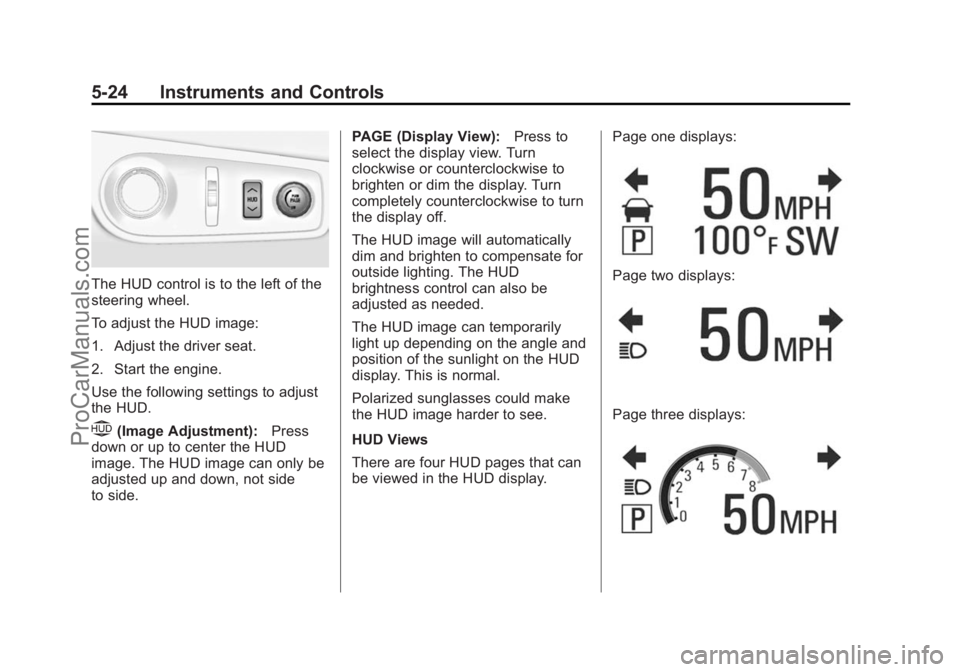
The HUD control is to the left of the
steering wheel.
To adjust the HUD image:
1. Adjust the driver seat.
2. Start the engine.
Use the following settings to adjust
the HUD.
$(Image Adjustment):Press
down or up to center the HUD
image. The HUD image can only be
adjusted up and down, not side
to side. PAGE (Display View):
Press to
select the display view. Turn
clockwise or counterclockwise to
brighten or dim the display. Turn
completely counterclockwise to turn
the display off.
The HUD image will automatically
dim and brighten to compensate for
outside lighting. The HUD
brightness control can also be
adjusted as needed.
The HUD image can temporarily
light up depending on the angle and
position of the sunlight on the HUD
display. This is normal.
Polarized sunglasses could make
the HUD image harder to see.
HUD Views
There are four HUD pages that can
be viewed in the HUD display. Page one displays:
Page two displays:
Page three displays:
ProCarManuals.com
Page 136 of 435

Black plate (1,1)Chevrolet SS Sedan Owner Manual (GMNA-Localizing-U.S.-7707491) - 2015 -
crc - 9/11/14
Lighting 6-1
Lighting
Exterior Lighting
Exterior Lamp Controls . . . . . . . . 6-1
Headlamp High/Low-BeamChanger . . . . . . . . . . . . . . . . . . . . . 6-1
Flash-to-Pass . . . . . . . . . . . . . . . . . 6-1
Daytime Running Lamps (DRL) . . . . . . . . . . . . . . . . 6-2
Automatic Headlamp System . . . . . . . . . . . . . . . . . . . . . . 6-2
Hazard Warning Flashers . . . . . 6-3
Turn and Lane-Change Signals . . . . . . . . . . . . . . . . . . . . . . 6-3
Fog Lamps . . . . . . . . . . . . . . . . . . . . 6-3
Interior Lighting
Instrument Panel Illumination Control . . . . . . . . . . . . . . . . . . . . . . 6-4
Dome Lamps . . . . . . . . . . . . . . . . . 6-4
Reading Lamps . . . . . . . . . . . . . . . 6-4
Lighting Features
Entry Lighting . . . . . . . . . . . . . . . . . 6-5
Exit Lighting . . . . . . . . . . . . . . . . . . . 6-5
Battery Power Protection . . . . . . 6-5
Exterior Lighting
Exterior Lamp Controls
The exterior lamp control is on the
instrument panel to the left of the
steering wheel.
There are four positions:
O(Off): Briefly turn to this position
to turn the automatic light control off
or on again.
AUTO (Automatic): Automatic
operation of the headlamps at
normal brightness and other exterior
lamps.
;(Parking Lamps): Turns on the
parking lamps including all lamps,
except the headlamps.
5(Headlamps): Turns on the
headlamps together with the parking
lamps and instrument panel lights.
Headlamp High/
Low-Beam Changer
The headlamps must be on for this
feature to work.
Push the turn signal lever away
from you to turn the high beams on.
The
3indicator light turns on in the
instrument cluster when the
high-beam headlamps are on.
Push the lever away from you to
return to low beams.
Flash-to-Pass
To flash the high beams, pull the
lever toward you. The lamps remain
on high beam as long as the lever
is held.
ProCarManuals.com
Page 139 of 435

Black plate (4,1)Chevrolet SS Sedan Owner Manual (GMNA-Localizing-U.S.-7707491) - 2015 -
crc - 9/11/14
6-4 Lighting
Interior Lighting
Instrument Panel
Illumination Control
This feature controls the brightness
of the instrument panel controls and
infotainment display screen. The
thumbwheel is to the left of the
steering column on the instrument
panel.
D(Instrument Panel
Brightness): Move the
thumbwheel up or down to brighten
or dim the instrument panel controls
and infotainment display screen.
Dome Lamps
The dome lamps are in the
overhead console.
+(On/Off): Press to turn the lamp
on or off.
4(Door): Press to automatically
turn on the lamps when a door is
opened, the vehicle is unlocked,
or the ignition is turned off.
When the interior lamps are set to
door activated, they operate
automatically only when it is dark. The lamps dim to off after all doors
are closed. They turn off about
10 minutes after the ignition is
turned off. They turn off immediately
if the ignition is turned on and all
doors are closed.
Reading Lamps
Front Reading Lamps
The front reading lamps are in the
overhead console.
Press
(or)to turn the lamp
on or off.
ProCarManuals.com
Page 142 of 435
Black plate (1,1)Chevrolet SS Sedan Owner Manual (GMNA-Localizing-U.S.-7707491) - 2015 -
crc - 9/11/14
Infotainment System 7-1
Infotainment
System
Introduction
Infotainment . . . . . . . . . . . . . . . . . . . 7-2
Overview . . . . . . . . . . . . . . . . . . . . . . 7-3
Steering Wheel Controls . . . . . . 7-5
Using the System . . . . . . . . . . . . . 7-5
Software Updates . . . . . . . . . . . . 7-10
Radio
AM-FM Radio . . . . . . . . . . . . . . . . 7-11
Radio Data System (RDS) . . . 7-14
Satellite Radio . . . . . . . . . . . . . . . 7-14
Radio Reception . . . . . . . . . . . . . 7-20
Backglass Antenna . . . . . . . . . . 7-20
Multi-Band Antenna . . . . . . . . . . 7-21
Quick Info . . . . . . . . . . . . . . . . . . . 7-21Pandora Internet Radio . . . . . . 7-22
Stitcher Internet Radio . . . . . . . 7-27
Pictures . . . . . . . . . . . . . . . . . . . . . . 7-31
Audio Players
CD Player . . . . . . . . . . . . . . . . . . . 7-32
USB . . . . . . . . . . . . . . . . . . . . . . . . . 7-34
Auxiliary Devices . . . . . . . . . . . . 7-40
Bluetooth Audio . . . . . . . . . . . . . . 7-40
OnStar System
OnStar System . . . . . . . . . . . . . . 7-42
Navigation
Using the Navigation
System . . . . . . . . . . . . . . . . . . . . . 7-42
Maps . . . . . . . . . . . . . . . . . . . . . . . . 7-46
Navigation Symbols . . . . . . . . . 7-46
Destination . . . . . . . . . . . . . . . . . . 7-49
OnStar
®Destination
Download . . . . . . . . . . . . . . . . . . 7-59
Configure Menu . . . . . . . . . . . . . 7-60 Global Positioning
System (GPS) . . . . . . . . . . . . . . 7-65
Vehicle Positioning . . . . . . . . . . 7-65
Problems with Route Guidance . . . . . . . . . . . . . . . . . . . 7-66
If the System Needs Service . . . . . . . . . . . . . . . . . . . . . 7-67
Map Data Updates . . . . . . . . . . . 7-67
Database Coverage Explanations . . . . . . . . . . . . . . . 7-67
Voice Recognition
Voice Recognition . . . . . . . . . . . 7-68
Bluetooth Phone/Devices
Bluetooth . . . . . . . . . . . . . . . . . . . . 7-74
Text Messaging . . . . . . . . . . . . . . 7-82
Trademarks and License
Agreements
Trademarks and LicenseAgreements . . . . . . . . . . . . . . . . 7-84
ProCarManuals.com
Page 143 of 435
Black plate (2,1)Chevrolet SS Sedan Owner Manual (GMNA-Localizing-U.S.-7707491) - 2015 -
crc - 9/11/14
7-2 Infotainment System
Introduction
Infotainment
Read the following pages to
become familiar with these features.
{Warning
Taking your eyes off the road for
too long or too often while using
any infotainment feature can
cause a crash. You or others
could be injured or killed. Do not
give extended attention to
infotainment tasks while driving.
Limit your glances at the vehicle
displays and focus your attention
on driving. Use voice commands
whenever possible.The infotainment system has built-in
features intended to help avoid
distraction by disabling some
functions when driving. These
functions may gray out when they
are unavailable. Many infotainment
features are also available through
the instrument cluster and steering
wheel controls.
Before driving:
.Become familiar with the
operation, faceplate buttons, and
screen buttons.
.Set up the audio by presetting
favorite stations, setting the
tone, and adjusting the
speakers.
.Set up phone numbers in
advance so they can be called
easily by pressing a single
button or by using a single voice
command if equipped with
Bluetooth phone capability.
See Defensive Driving on page 9-3
To play the infotainment system with
the ignition off, see Retained
Accessory Power (RAP) on
page 9-19.
ProCarManuals.com
Page 144 of 435
Black plate (3,1)Chevrolet SS Sedan Owner Manual (GMNA-Localizing-U.S.-7707491) - 2015 -
crc - 9/11/14
Infotainment System 7-3
Overview
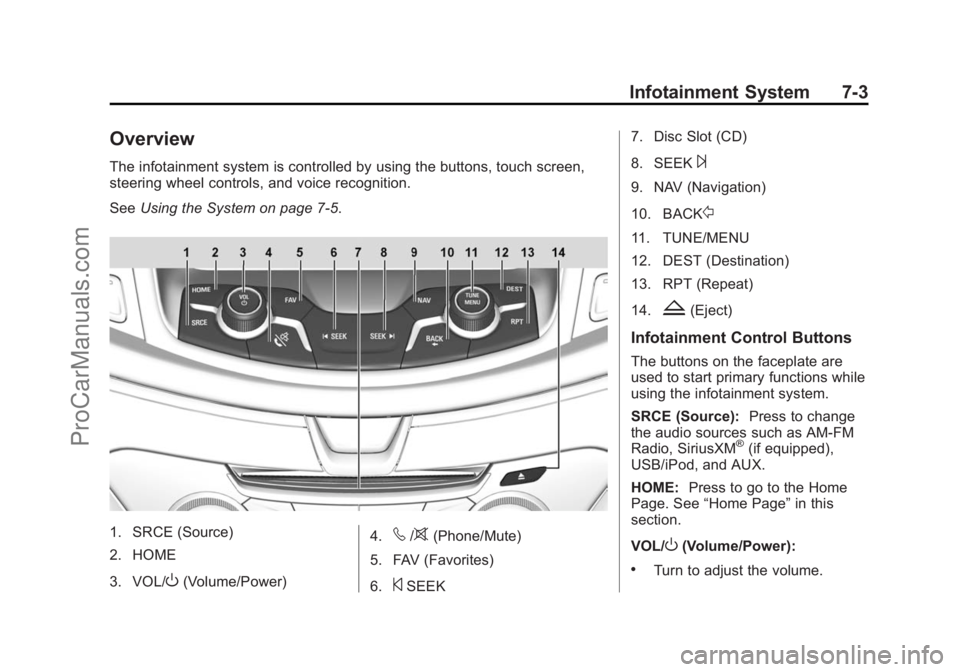
The infotainment system is controlled by using the buttons, touch screen,
steering wheel controls, and voice recognition.
SeeUsing the System on page 7-5.
1. SRCE (Source)
2. HOME
3. VOL/
O(Volume/Power) 4.
v/>(Phone/Mute)
5. FAV (Favorites)
6.
©SEEK 7. Disc Slot (CD)
8. SEEK
¨
9. NAV (Navigation)
10. BACK
/
11. TUNE/MENU
12. DEST (Destination)
13. RPT (Repeat)
14.
Z(Eject)
Infotainment Control Buttons
The buttons on the faceplate are
used to start primary functions while
using the infotainment system.
SRCE (Source):
Press to change
the audio sources such as AM-FM
Radio, SiriusXM
®(if equipped),
USB/iPod, and AUX.
HOME: Press to go to the Home
Page. See “Home Page” in this
section.
VOL/
O(Volume/Power):
.Turn to adjust the volume.
ProCarManuals.com
Page 146 of 435
Black plate (5,1)Chevrolet SS Sedan Owner Manual (GMNA-Localizing-U.S.-7707491) - 2015 -
crc - 9/11/14
Infotainment System 7-5
Steering Wheel Controls
Depending on the vehicle options,
some audio functions can be
controlled through the steering
wheel controls.
b/g(Push to Talk):Press to
answer an incoming call, interact
with Bluetooth, or start a voice
recognition session. See Bluetooth
on page 7-74 orVoice Recognition
on page 7-68.
$/i(Mute/End Call): Press to
decline an incoming call, or to end a
current call. Press to silence the
vehicle speakers while using the
infotainment system. Press again to
turn the sound on. Press to cancel
voice recognition.
_SRC^(Thumbwheel Control):
Press to select an audio source.
Use the thumbwheel to select the
next or previous favorite radio
station, MP3 track, USB, and
Bluetooth Audio. Use
_SRC to skip to the next song
or show using Stitcher. See Stitcher
Internet Radio on page 7-27.
+
x− (Volume): Press + to
increase the volume. Press −to
decrease.
Using the System
The infotainment system is
controlled by touching the screen,
and by using the knobs and other
buttons.
Voice recognition, through the
steering wheel controls, can be
used to control the infotainment
features.
Press
b/gon the steering wheel
controls to begin voice recognition.
See Voice Recognition on
page 7-68.
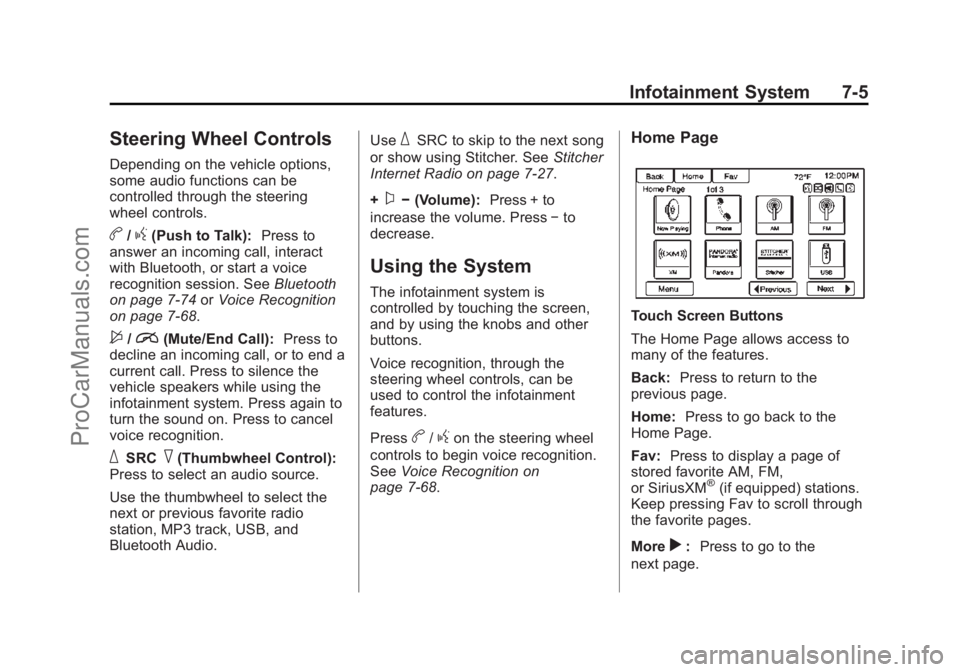
Home Page
Touch Screen Buttons
The Home Page allows access to
many of the features.
Back: Press to return to the
previous page.
Home: Press to go back to the
Home Page.
Fav: Press to display a page of
stored favorite AM, FM,
or SiriusXM
®(if equipped) stations.
Keep pressing Fav to scroll through
the favorite pages.
More
r: Press to go to the
next page.
ProCarManuals.com
Page 152 of 435
Black plate (11,1)Chevrolet SS Sedan Owner Manual (GMNA-Localizing-U.S.-7707491) - 2015 -
crc - 9/11/14
Infotainment System 7-11
Radio
AM-FM Radio
Playing the Radio
VOL/O(Volume/Power):
.Press to turn the radio on or off.
.Turn to increase or decrease the
volume of the active source.
The steering wheel controls can
also be used to adjust the volume.
See Steering Wheel Controls on
page 7-5.
Radio Operation
The radio will work when the key is
in ON/RUN or ACC/
ACCESSORY. When the key is
turned from ON/RUN to LOCK/OFF,
the radio will continue to work for
10 minutes or until the driver door is
opened.
The radio can be turned on by
pressing the power button on the
radio and will stay on for 10 minutes. Opening the driver door
will not turn the radio off when
pressing the power button.
Some radios may stay on longer
and reset the time for 10 minutes if
there are any additional presses of
any radio button.
The radio can be turned off at any
time by pressing the power button.
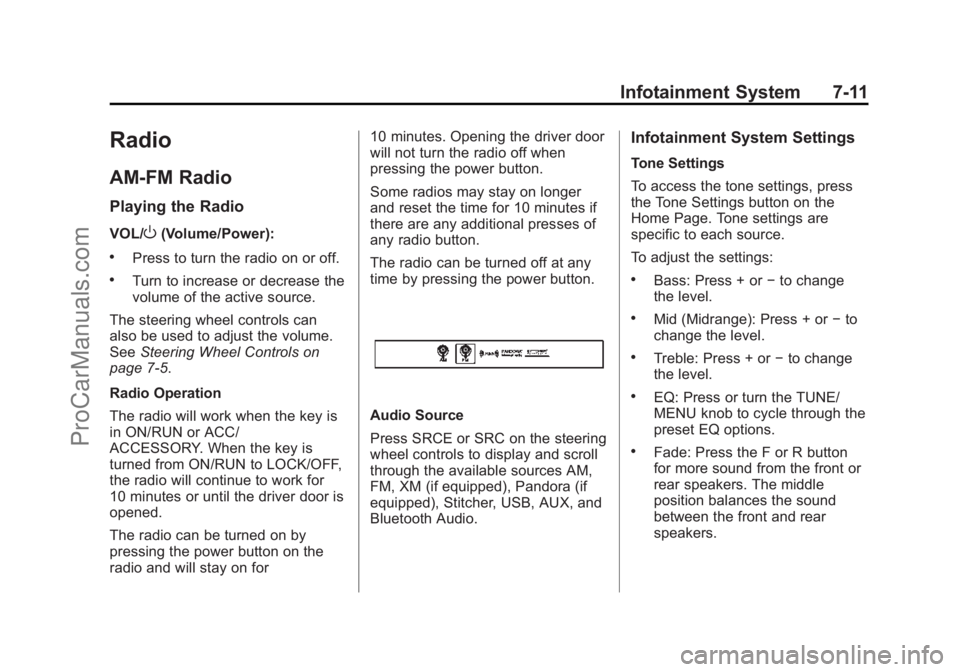
Audio Source
Press SRCE or SRC on the steering
wheel controls to display and scroll
through the available sources AM,
FM, XM (if equipped), Pandora (if
equipped), Stitcher, USB, AUX, and
Bluetooth Audio.
Infotainment System Settings
Tone Settings
To access the tone settings, press
the Tone Settings button on the
Home Page. Tone settings are
specific to each source.
To adjust the settings:
.Bass: Press + or
−to change
the level.
.Mid (Midrange): Press + or −to
change the level.
.Treble: Press + or −to change
the level.
.EQ: Press or turn the TUNE/
MENU knob to cycle through the
preset EQ options.
.Fade: Press the F or R button
for more sound from the front or
rear speakers. The middle
position balances the sound
between the front and rear
speakers.
ProCarManuals.com
Page 153 of 435
Black plate (12,1)Chevrolet SS Sedan Owner Manual (GMNA-Localizing-U.S.-7707491) - 2015 -
crc - 9/11/14
7-12 Infotainment System
.Balance: Press the L or R button
for more sound from the left or
right speakers. The middle
position balances the sound
between the left and right
speakers.
Finding a Station
Press SRCE or SRC on the steering
wheel controls to select AM, FM,
XM, Pandora (if equipped), Stitcher,
USB, AUX, and Bluetooth Audio.
Turn the TUNE/MENU knob to find
a radio station. To select a preset
station, press FAV to scroll through
the favorite pages and then press a
preset button on the radio or the
screen button.
Seeking a Station
Press
©SEEK or SEEK¨to search
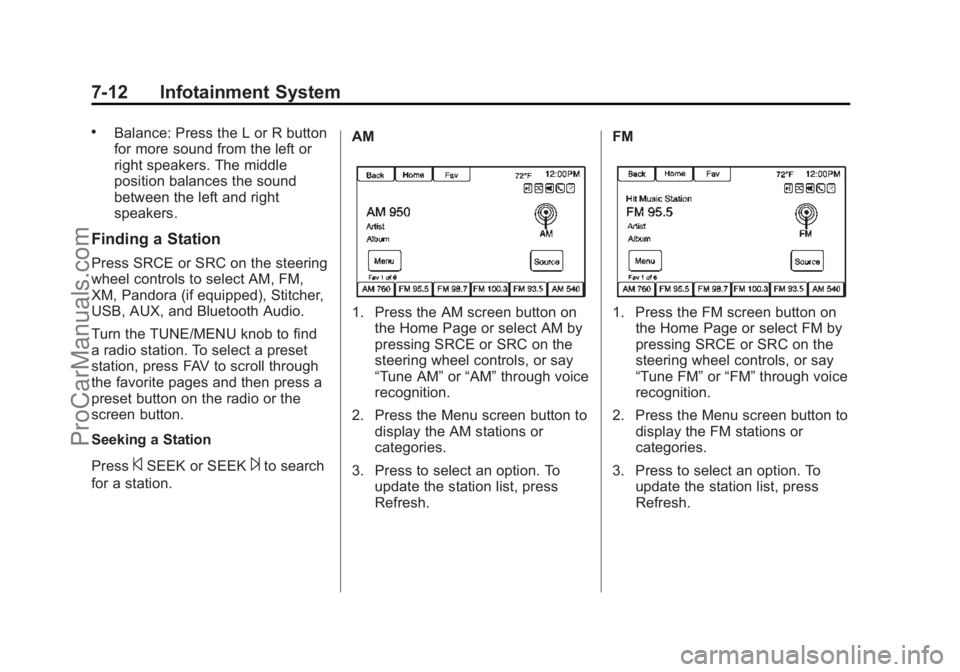
for a station. AM
1. Press the AM screen button on
the Home Page or select AM by
pressing SRCE or SRC on the
steering wheel controls, or say
“Tune AM” or“AM” through voice
recognition.
2. Press the Menu screen button to display the AM stations or
categories.
3. Press to select an option. To update the station list, press
Refresh. FM1. Press the FM screen button on
the Home Page or select FM by
pressing SRCE or SRC on the
steering wheel controls, or say
“Tune FM” or“FM” through voice
recognition.
2. Press the Menu screen button to display the FM stations or
categories.
3. Press to select an option. To update the station list, press
Refresh.
ProCarManuals.com
Page 154 of 435
Black plate (13,1)Chevrolet SS Sedan Owner Manual (GMNA-Localizing-U.S.-7707491) - 2015 -
crc - 9/11/14
Infotainment System 7-13
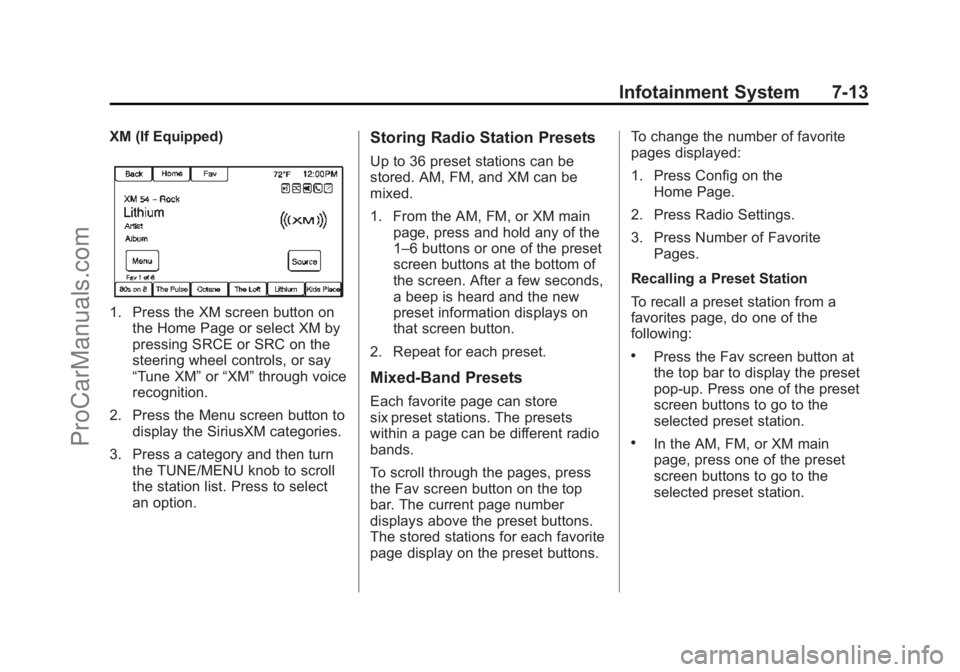
XM (If Equipped)
1. Press the XM screen button onthe Home Page or select XM by
pressing SRCE or SRC on the
steering wheel controls, or say
“Tune XM” or“XM” through voice
recognition.
2. Press the Menu screen button to display the SiriusXM categories.
3. Press a category and then turn the TUNE/MENU knob to scroll
the station list. Press to select
an option.
Storing Radio Station Presets
Up to 36 preset stations can be
stored. AM, FM, and XM can be
mixed.
1. From the AM, FM, or XM mainpage, press and hold any of the
1–6 buttons or one of the preset
screen buttons at the bottom of
the screen. After a few seconds,
a beep is heard and the new
preset information displays on
that screen button.
2. Repeat for each preset.
Mixed-Band Presets
Each favorite page can store
six preset stations. The presets
within a page can be different radio
bands.
To scroll through the pages, press
the Fav screen button on the top
bar. The current page number
displays above the preset buttons.
The stored stations for each favorite
page display on the preset buttons. To change the number of favorite
pages displayed:
1. Press Config on the
Home Page.
2. Press Radio Settings.
3. Press Number of Favorite Pages.
Recalling a Preset Station
To recall a preset station from a
favorites page, do one of the
following:
.Press the Fav screen button at
the top bar to display the preset
pop-up. Press one of the preset
screen buttons to go to the
selected preset station.
.In the AM, FM, or XM main
page, press one of the preset
screen buttons to go to the
selected preset station.
ProCarManuals.com