audio CHEVROLET SS 2016 User Guide
[x] Cancel search | Manufacturer: CHEVROLET, Model Year: 2016, Model line: SS, Model: CHEVROLET SS 2016Pages: 397, PDF Size: 7.17 MB
Page 131 of 397
Chevrolet SS Sedan Owner Manual (GMNA-Localizing-U.S.-9234782) - 2016 -
CRC - 8/24/15
130 Infotainment System
9. BACK}
10. TUNE/MENU
11. DEST (Destination)
12. RPT (Repeat)
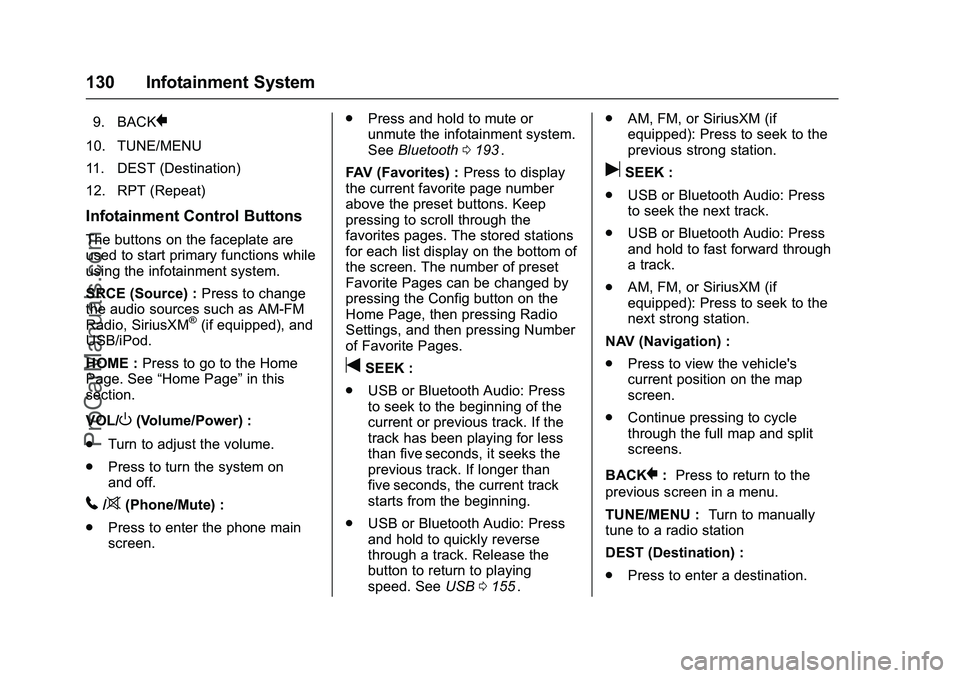
Infotainment Control Buttons
The buttons on the faceplate are
used to start primary functions while
using the infotainment system.
SRCE (Source) :Press to change
the audio sources such as AM-FM
Radio, SiriusXM
®(if equipped), and
USB/iPod.
HOME : Press to go to the Home
Page. See “Home Page” in this
section.
VOL/
O(Volume/Power) :
. Turn to adjust the volume.
. Press to turn the system on
and off.
5/>(Phone/Mute) :
. Press to enter the phone main
screen. .
Press and hold to mute or
unmute the infotainment system.
See Bluetooth 0193
ii.
FAV (Favorites) : Press to display
the current favorite page number
above the preset buttons. Keep
pressing to scroll through the
favorites pages. The stored stations
for each list display on the bottom of
the screen. The number of preset
Favorite Pages can be changed by
pressing the Config button on the
Home Page, then pressing Radio
Settings, and then pressing Number
of Favorite Pages.
tSEEK :
. USB or Bluetooth Audio: Press
to seek to the beginning of the
current or previous track. If the
track has been playing for less
than five seconds, it seeks the
previous track. If longer than
five seconds, the current track
starts from the beginning.
. USB or Bluetooth Audio: Press
and hold to quickly reverse
through a track. Release the
button to return to playing
speed. See USB0155
ii. .
AM, FM, or SiriusXM (if
equipped): Press to seek to the
previous strong station.
uSEEK :
. USB or Bluetooth Audio: Press
to seek the next track.
. USB or Bluetooth Audio: Press
and hold to fast forward through
a track.
. AM, FM, or SiriusXM (if
equipped): Press to seek to the
next strong station.
NAV (Navigation) :
. Press to view the vehicle's
current position on the map
screen.
. Continue pressing to cycle
through the full map and split
screens.
BACK
}: Press to return to the
previous screen in a menu.
TUNE/MENU : Turn to manually
tune to a radio station
DEST (Destination) :
. Press to enter a destination.
ProCarManuals.com
Page 132 of 397
Chevrolet SS Sedan Owner Manual (GMNA-Localizing-U.S.-9234782) - 2016 -
CRC - 8/24/15
Infotainment System 131
.If a destination has already been
entered, press to access the
Destination Menu. See
Destination 0169
ii.
RPT (Repeat) : Press to repeat the
last voice guidance prompt.
Touch Screen Buttons
Touch screen buttons are on the
screen and highlighted when a
feature is available. Some toggle
screen buttons highlight when active
and gray out when inactive.
Steering Wheel Controls
Depending on the vehicle options,
some audio functions can be
controlled through the steering
wheel controls.
b/g(Push to Talk) : Press to
answer an incoming call, interact
with Bluetooth, or start a voice
recognition session. See Bluetooth
0 193
iior Voice Recognition 0187ii.
$/i(Mute/End Call) : Press to
decline an incoming call, or to end a
current call. Press to silence the
vehicle speakers while using the infotainment system. Press again to
turn the sound on. Press to cancel
voice recognition.
_SRC^(Thumbwheel Control) :
Press to select an audio source.
Use the thumbwheel to select the
next or previous favorite radio
station, MP3 track, USB, and
Bluetooth Audio.
Use
_SRC to skip to the next song
or show using Stitcher. See Stitcher
Internet Radio 0150
ii.
+
x− (Volume) : Press + to
increase the volume. Press −to
decrease.
Using the System
The infotainment system is
controlled by touching the screen,
and by using the knobs and other
buttons.
Voice recognition, through the
steering wheel controls, can be
used to control the infotainment
features. Press
b/gon the steering wheel
controls to begin voice recognition.
See Voice Recognition 0187
ii.
Home Page
Touch Screen Buttons
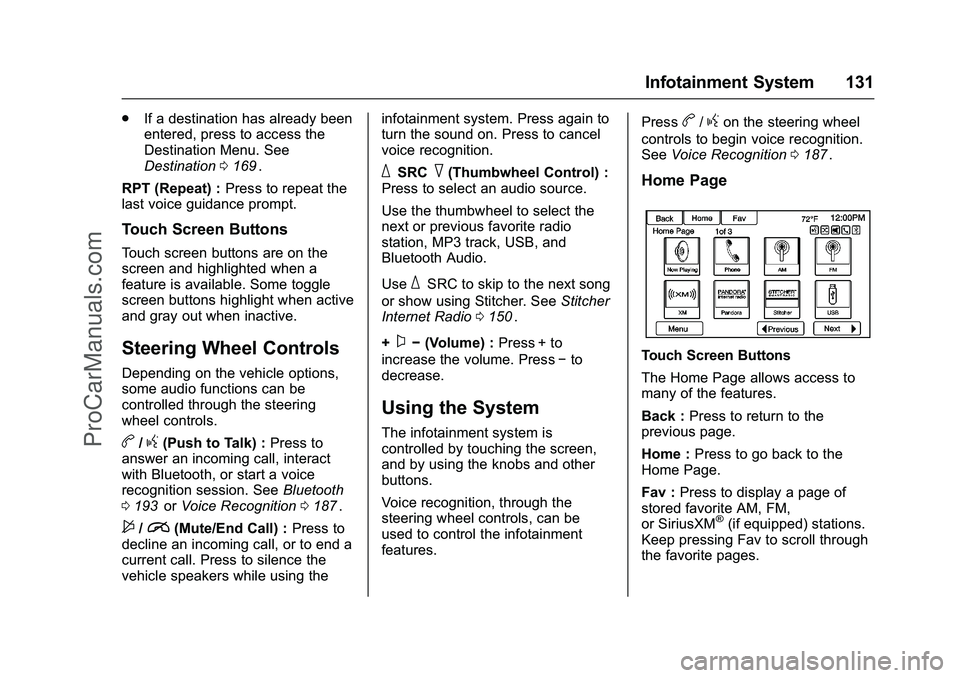
The Home Page allows access to
many of the features.
Back : Press to return to the
previous page.
Home : Press to go back to the
Home Page.
Fav : Press to display a page of
stored favorite AM, FM,
or SiriusXM
®(if equipped) stations.
Keep pressing Fav to scroll through
the favorite pages.
ProCarManuals.com
Page 133 of 397
Chevrolet SS Sedan Owner Manual (GMNA-Localizing-U.S.-9234782) - 2016 -
CRC - 8/24/15
132 Infotainment System
Morer:This button may display
depending on the number of options
stored on the Home Page. Press to
go to the next page.
qPrevious : Press to go to the
previous page.
Next
r: Press to go to the
next page.
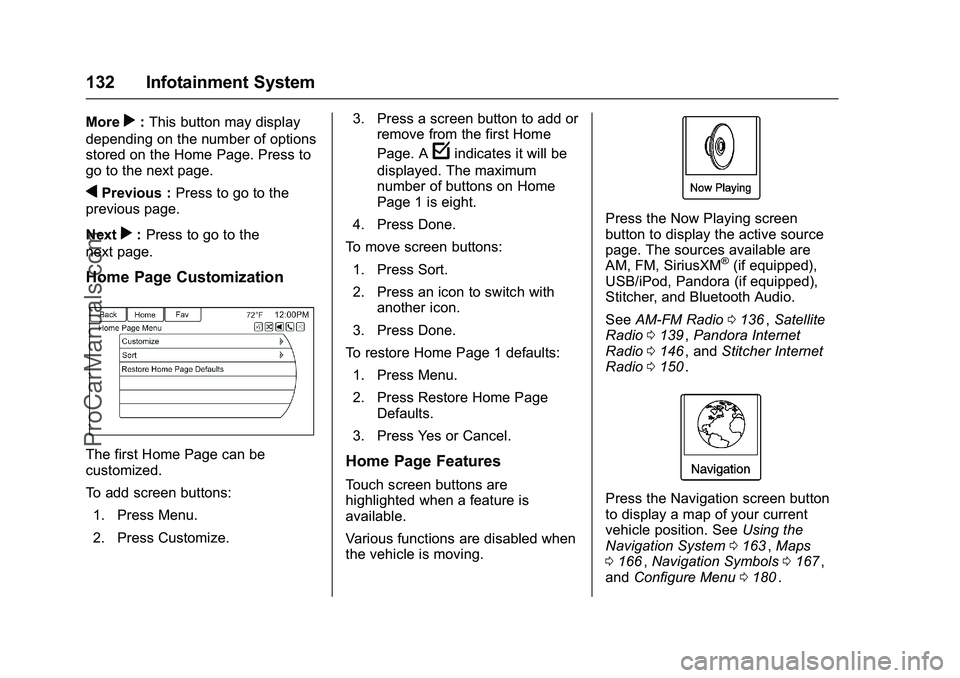
Home Page Customization
The first Home Page can be
customized.
To add screen buttons:
1. Press Menu.
2. Press Customize. 3. Press a screen button to add or
remove from the first Home
Page. A
findicates it will be
displayed. The maximum
number of buttons on Home
Page 1 is eight.
4. Press Done.
To move screen buttons:
1. Press Sort.
2. Press an icon to switch with another icon.
3. Press Done.
To restore Home Page 1 defaults: 1. Press Menu.
2. Press Restore Home Page Defaults.
3. Press Yes or Cancel.
Home Page Features
Touch screen buttons are
highlighted when a feature is
available.
Various functions are disabled when
the vehicle is moving.
Press the Now Playing screen
button to display the active source
page. The sources available are
AM, FM, SiriusXM
®(if equipped),
USB/iPod, Pandora (if equipped),
Stitcher, and Bluetooth Audio.
See AM-FM Radio 0136
ii,Satellite
Radio 0139ii,Pandora Internet
Radio 0146ii, and Stitcher Internet
Radio 0150ii.
Press the Navigation screen button
to display a map of your current
vehicle position. See Using the
Navigation System 0163
ii,Maps
0 166ii,Navigation Symbols 0167ii,
and Configure Menu 0180ii.
ProCarManuals.com
Page 135 of 397
Chevrolet SS Sedan Owner Manual (GMNA-Localizing-U.S.-9234782) - 2016 -
CRC - 8/24/15
134 Infotainment System
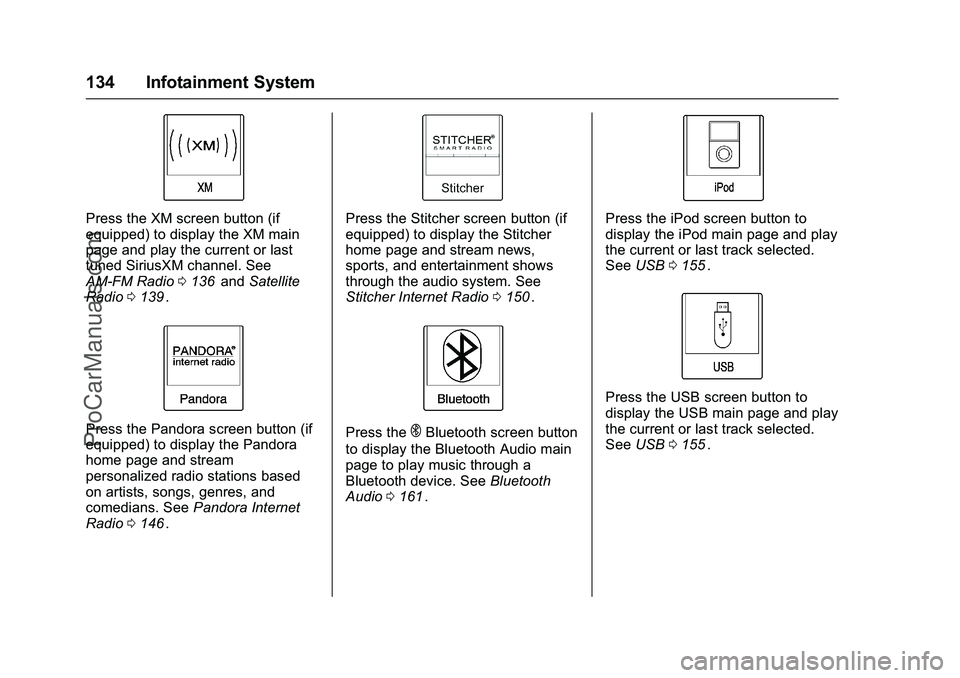
Press the XM screen button (if
equipped) to display the XM main
page and play the current or last
tuned SiriusXM channel. See
AM-FM Radio0136
iiand Satellite
Radio 0139ii.
Press the Pandora screen button (if
equipped) to display the Pandora
home page and stream
personalized radio stations based
on artists, songs, genres, and
comedians. See Pandora Internet
Radio 0146
ii.
Press the Stitcher screen button (if
equipped) to display the Stitcher
home page and stream news,
sports, and entertainment shows
through the audio system. See
Stitcher Internet Radio 0150
ii.
Press theEBluetooth screen button
to display the Bluetooth Audio main
page to play music through a
Bluetooth device. See Bluetooth
Audio 0161
ii.
Press the iPod screen button to
display the iPod main page and play
the current or last track selected.
See USB 0155
ii.
Press the USB screen button to
display the USB main page and play
the current or last track selected.
See USB 0155
ii.
ProCarManuals.com
Page 136 of 397
Chevrolet SS Sedan Owner Manual (GMNA-Localizing-U.S.-9234782) - 2016 -
CRC - 8/24/15
Infotainment System 135
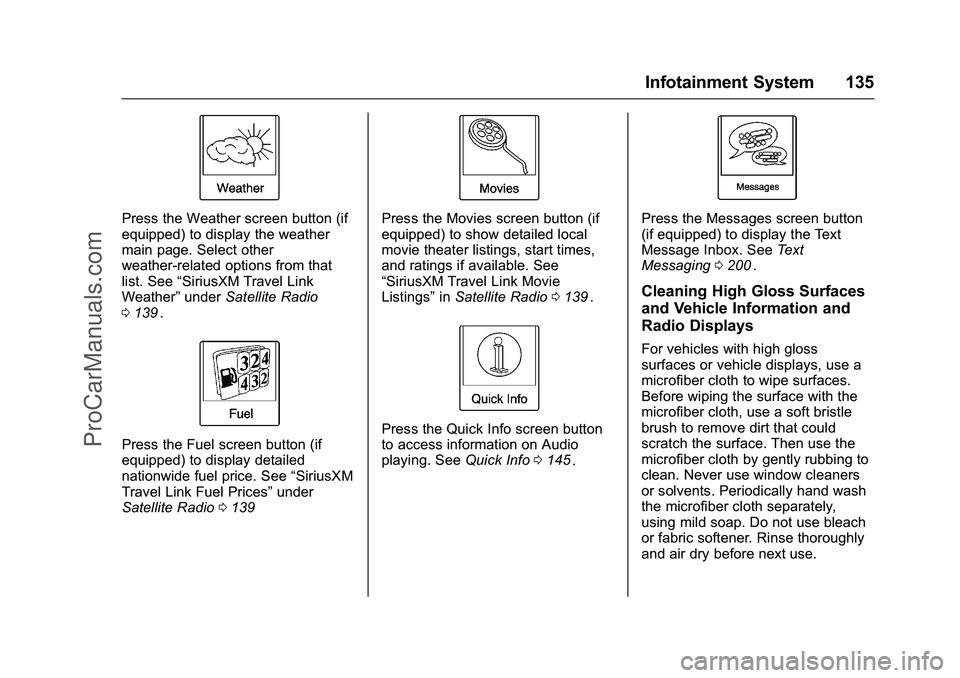
Press the Weather screen button (if
equipped) to display the weather
main page. Select other
weather-related options from that
list. See“SiriusXM Travel Link
Weather” underSatellite Radio
0 139
ii.
Press the Fuel screen button (if
equipped) to display detailed
nationwide fuel price. See “SiriusXM
Travel Link Fuel Prices” under
Satellite Radio 0139
ii
Press the Movies screen button (if
equipped) to show detailed local
movie theater listings, start times,
and ratings if available. See
“SiriusXM Travel Link Movie
Listings” inSatellite Radio 0139
ii.
Press the Quick Info screen button
to access information on Audio
playing. See Quick Info0145
ii.
Press the Messages screen button
(if equipped) to display the Text
Message Inbox. See Text
Messaging 0200
ii.
Cleaning High Gloss Surfaces
and Vehicle Information and
Radio Displays
For vehicles with high gloss
surfaces or vehicle displays, use a
microfiber cloth to wipe surfaces.
Before wiping the surface with the
microfiber cloth, use a soft bristle
brush to remove dirt that could
scratch the surface. Then use the
microfiber cloth by gently rubbing to
clean. Never use window cleaners
or solvents. Periodically hand wash
the microfiber cloth separately,
using mild soap. Do not use bleach
or fabric softener. Rinse thoroughly
and air dry before next use.
ProCarManuals.com
Page 137 of 397
Chevrolet SS Sedan Owner Manual (GMNA-Localizing-U.S.-9234782) - 2016 -
CRC - 8/24/15
136 Infotainment System
Caution
Do not attach a device with a
suction cup to the display. This
may cause damage and would
not be covered by the warranty.
Software Updates
See the websites for more
information.
Website Information
In the U.S., see www.chevrolet.com
Radio
AM-FM Radio
Playing the Radio
VOL/O(Volume/Power) :
. Press to turn the radio on or off.
. Turn to increase or decrease the
volume of the active source.
The steering wheel controls can
also be used to adjust the volume.
See Steering Wheel Controls 0131
ii.
Radio Operation
The radio will work when the key is
in ON/RUN or ACC/ACCESSORY.
When the key is turned from ON/
RUN to LOCK/OFF, the radio will
continue to work for 10 minutes or
until the driver door is opened.
The radio can be turned on by
pressing the power button on the
radio and will stay on for
10 minutes. Opening the driver door
will not turn the radio off when
pressing the power button. Some radios may stay on longer
and reset the time for 10 minutes if
there are any additional presses of
any radio button.
The radio can be turned off at any
time by pressing the power button.
Audio Source
Press SRCE or SRC on the steering
wheel controls to display and scroll
through the available sources AM,
FM, XM (if equipped), Pandora (if
equipped), Stitcher, USB, and
Bluetooth Audio.
Infotainment System Settings
Tone Settings
To access the tone settings, press
the Tone Settings button on the
Home Page. Tone settings are
specific to each source.
To adjust the settings:
.
Bass: Press + or −to change
the level.
. Mid (Midrange): Press + or −to
change the level.
. Treble: Press + or −to change
the level.
ProCarManuals.com
Page 138 of 397
Chevrolet SS Sedan Owner Manual (GMNA-Localizing-U.S.-9234782) - 2016 -
CRC - 8/24/15
Infotainment System 137
.EQ: Press or turn the TUNE/
MENU knob to cycle through the
preset EQ options.
. Fade: Press the F or R button
for more sound from the front or
rear speakers. The middle
position balances the sound
between the front and rear
speakers.
. Balance: Press the L or R button
for more sound from the left or
right speakers. The middle
position balances the sound
between the left and right
speakers.
Finding a Station
Press SRCE or SRC on the steering
wheel controls to select AM, FM,
XM, Pandora (if equipped), Stitcher,
USB, and Bluetooth Audio.
Turn the TUNE/MENU knob to find
a radio station. To select a preset
station, press FAV to scroll through
the favorite pages and then press a
preset button on the radio or the
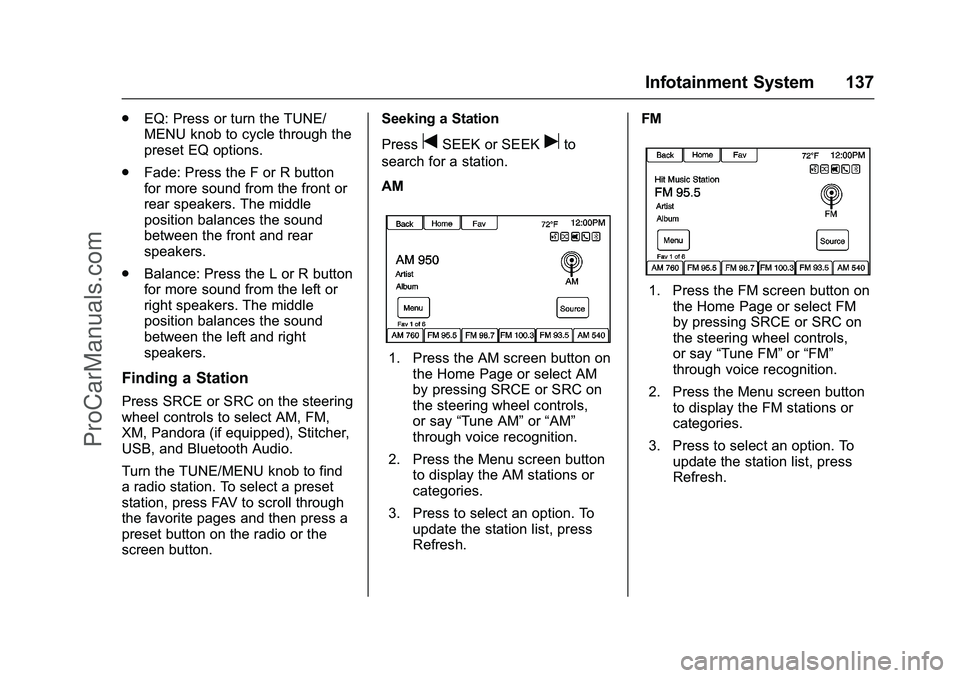
screen button. Seeking a Station
Press
tSEEK or SEEKuto
search for a station.
AM
1. Press the AM screen button on the Home Page or select AM
by pressing SRCE or SRC on
the steering wheel controls,
or say “Tune AM” or“AM”
through voice recognition.
2. Press the Menu screen button to display the AM stations or
categories.
3. Press to select an option. To update the station list, press
Refresh. FM
1. Press the FM screen button on
the Home Page or select FM
by pressing SRCE or SRC on
the steering wheel controls,
or say “Tune FM” or“FM”
through voice recognition.
2. Press the Menu screen button to display the FM stations or
categories.
3. Press to select an option. To update the station list, press
Refresh.
ProCarManuals.com
Page 140 of 397
Chevrolet SS Sedan Owner Manual (GMNA-Localizing-U.S.-9234782) - 2016 -
CRC - 8/24/15
Infotainment System 139
This system relies on receiving
specific information from these
stations and only works when the
information is available. It is
possible that a radio station could
broadcast incorrect information that
causes the radio features to work
improperly. If this happens, contact
the radio station.
When information is broadcast from
the current FM station, the station
name or call letters display on the
audio screen. RDS can provide a
program type (PTY) for current
programming and the name of the
program being broadcasted.
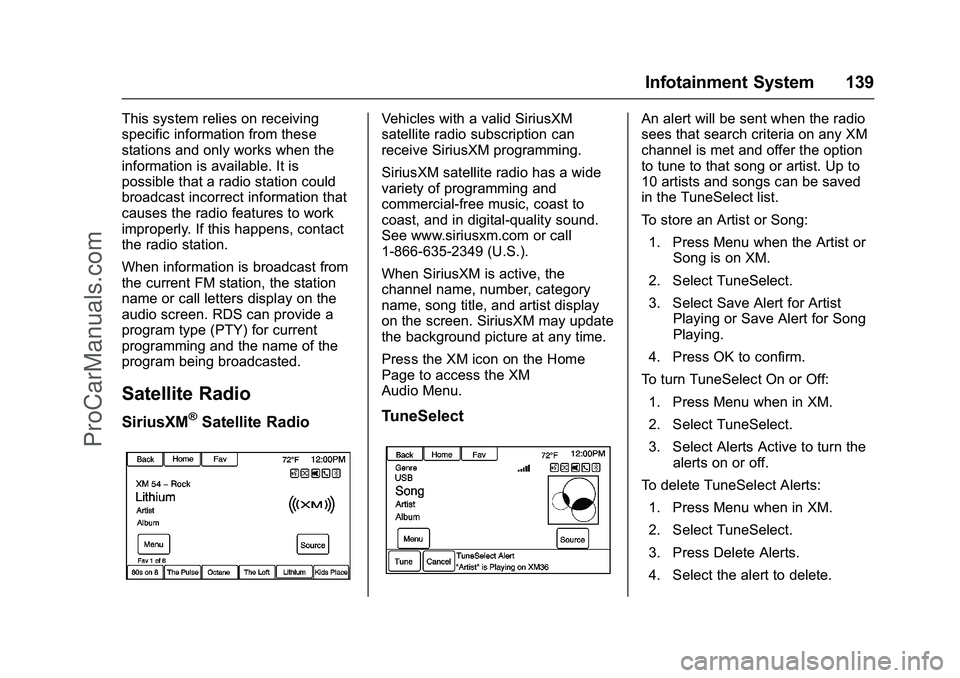
Satellite Radio
SiriusXM®Satellite Radio
Vehicles with a valid SiriusXM
satellite radio subscription can
receive SiriusXM programming.
SiriusXM satellite radio has a wide
variety of programming and
commercial-free music, coast to
coast, and in digital-quality sound.
See www.siriusxm.com or call
1-866-635-2349 (U.S.).
When SiriusXM is active, the
channel name, number, category
name, song title, and artist display
on the screen. SiriusXM may update
the background picture at any time.
Press the XM icon on the Home
Page to access the XM
Audio Menu.
TuneSelect
An alert will be sent when the radio
sees that search criteria on any XM
channel is met and offer the option
to tune to that song or artist. Up to
10 artists and songs can be saved
in the TuneSelect list.
To store an Artist or Song:1. Press Menu when the Artist or Song is on XM.
2. Select TuneSelect.
3. Select Save Alert for Artist Playing or Save Alert for Song
Playing.
4. Press OK to confirm.
To turn TuneSelect On or Off: 1. Press Menu when in XM.
2. Select TuneSelect.
3. Select Alerts Active to turn the alerts on or off.
To delete TuneSelect Alerts:
1. Press Menu when in XM.
2. Select TuneSelect.
3. Press Delete Alerts.
4. Select the alert to delete.
ProCarManuals.com
Page 146 of 397
Chevrolet SS Sedan Owner Manual (GMNA-Localizing-U.S.-9234782) - 2016 -
CRC - 8/24/15
Infotainment System 145
Cellular Phone Usage
Cellular phone usage can cause
interference with the vehicle's radio.
Backglass Antenna
The AM-FM antenna is integrated
with the rear window defogger in the
rear window. Do not scratch the
inside surface or damage the lines
in the glass. If the inside surface is
damaged, it could interfere with
radio reception. For proper radio
reception, the antenna connector
needs to be properly attached to the
post on the glass.
If attaching a cell phone antenna to
the glass, attach it between the grid
lines.
Caution
Using a razor blade or sharp
object to clear the inside rear
window can damage the rear
window antenna and/or the rear
window defogger. Repairs would(Continued)
Caution (Continued)
not be covered by the vehicle
warranty. Do not clear the inside
rear window with sharp objects.
Caution
Do not apply aftermarket glass
tinting with metallic film. The
metallic film in some tinting
materials will interfere with or
distort the incoming radio
reception. Any damage caused to
the backglass antenna due to
metallic tinting materials will not
be covered by the vehicle
warranty.
Multi-Band Antenna
The multi-band antenna is located
on the roof of the vehicle. It is used
for OnStar
®(if equipped), SiriusXM
Satellite Radio, and GPS (Global
Positioning System). Keep clear of
obstructions for clear reception. If the vehicle has a sunroof, and it is
open, reception can also be
affected.
Quick Info
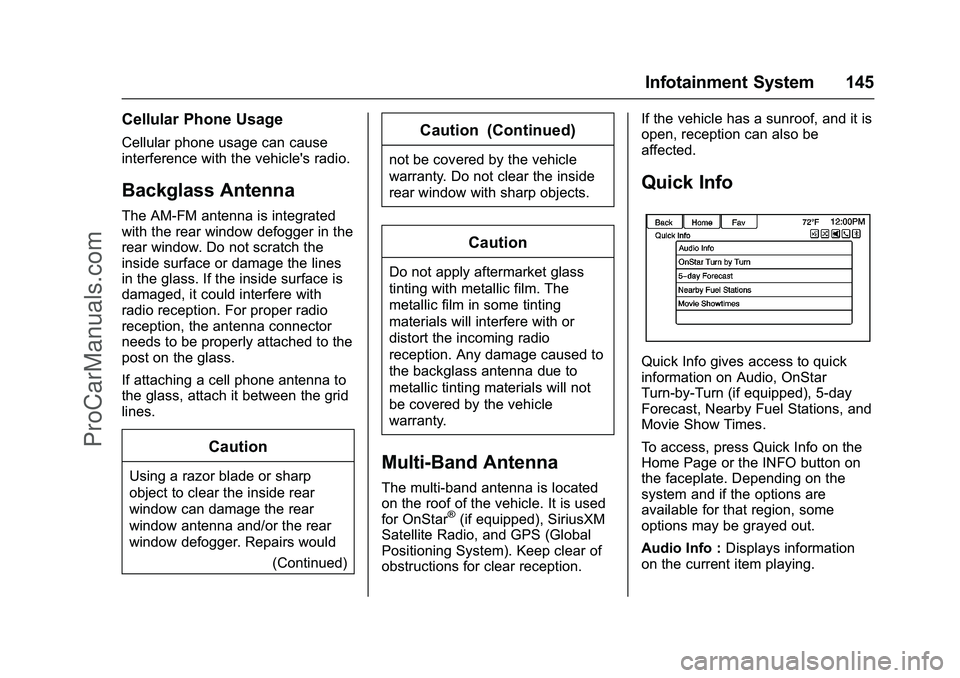
Quick Info gives access to quick
information on Audio, OnStar
Turn-by-Turn (if equipped), 5-day
Forecast, Nearby Fuel Stations, and
Movie Show Times.
To access, press Quick Info on the
Home Page or the INFO button on
the faceplate. Depending on the
system and if the options are
available for that region, some
options may be grayed out.
Audio Info :
Displays information
on the current item playing.
ProCarManuals.com
Page 148 of 397
Chevrolet SS Sedan Owner Manual (GMNA-Localizing-U.S.-9234782) - 2016 -
CRC - 8/24/15
Infotainment System 147
.Accept any notification on
the screen of the device.
To relaunch Pandora, press SRCE
or SRC on the steering wheel
controls.
If nothing happens when the
available Pandora screen button is
pressed, download the latest
Pandora application and retry.
Pandora will always be highlighted
on the Home Page when an iPhone,
iPad, or iPod touch is connected
using the USB port. To use, log into
your account.
If the “Please See Device” message
is shown, the login screen may
display on the device.
If the “Please unlock your phone or
restart the app” message is shown,
then the phone may be locked.
Unlock the phone, close the app,
then restart the app and make sure
the Home Page is visible on the
phone/device.
If Pandora is shut down on the
phone or another audio app is used,
Pandora may not start on the next ignition cycle. If iPod source is
selected, it may show iPod and then
switch to Pandora.
Using an Android Phone
1. Pair the Android phone using Bluetooth.
2. Use one of the following to launch:
.Launch the application on
the device.
. Press Pandora on the
Home Page.
. Press
b/gand say
“Pandora” or“Tune
Pandora.”
After Pandora has been launched,
press SRCE or SRC on the steering
wheel controls to access Pandora
features.
If nothing happens when the
available Pandora screen button is
pressed, download the latest
Pandora application and retry.
If the “Please See Device” message
is shown, the login screen may
display on the device. If the "Please unlock your phone or
restart the app" message is shown,
then the phone may be locked.
Unlock the phone, close the app,
then restart the app to ensure
proper communication.
Using a BlackBerry Phone
The phone must be unlocked. To
launch Pandora service:
1. Pair the BlackBerry phone using Bluetooth.
2. Use one of the following to launch:
.Launch the application on
the device.
. Press Pandora on the
Home Page.
. Press
b/gand say
“Pandora” or“Tune
Pandora.”
After Pandora has been launched,
press SRCE or SRC on the steering
wheel controls to access Pandora
features.
ProCarManuals.com