change wheel CHEVROLET SS 2016 User Guide
[x] Cancel search | Manufacturer: CHEVROLET, Model Year: 2016, Model line: SS, Model: CHEVROLET SS 2016Pages: 397, PDF Size: 7.17 MB
Page 158 of 397
Chevrolet SS Sedan Owner Manual (GMNA-Localizing-U.S.-9234782) - 2016 -
CRC - 8/24/15
Infotainment System 157
Use the touch screen or voice
recognition to create a More Like
This Playlist. See“Voice
Recognition Commands” inVoice
Recognition 0187
ii.
Gracenote Indexing
While Gracenote is indexing,
infotainment features are available
including selecting music from the
menu. Voice recognition music will
not be available until the radio has
completed indexing the device.
Devices with more music may take
longer to index. The device will
index when plugged into the radio
for the first time. When Indexing is
removed from the screen, the radio
is ready to support music search.
On the next connection or ignition
cycle, Indexing will show briefly on
the screen. The radio is searching
for changes to the device and
preparing the music list. If there are
no changes, the voice recognition
music search will be available. The
radio will index and store two
devices with up to 10,000 songs on
each device. USB MP3 Player and USB Drives
.
The USB MP3 players and USB
drives connected must comply
with the USB Mass Storage
Class specification (USB MSC).
. Hard disk drives are not
supported.
. The radio will not be able to play
back write-protected music.
. File systems supported: FAT32,
NTFS, Linux, and HFS+.
. The following restrictions apply
for the data stored on a USB
MP3 player or USB device:
‐Maximum folder structure
depth: eight levels.
‐ Maximum number of MP3/
WMA files that can be
displayed: 10,000.
‐ Playlist entries must be in the
form of relative paths.
‐ The system attribute for
folders/files that contain audio
data must not be set. To play a USB device, do one of the
following:
.
Connect the USB and it begins
to play.
. Press the Now Playing screen
button on the Home Page.
. Press SRCE to scroll until the
USB source screen is available.
. Press
b/gon the steering
wheel controls to select songs
by Artist, Album, Song Title,
or Song Genre. See Voice
Recognition 0187
ii.
The following playlist formats are
supported:
. M3U (Standard and Extended)
. iTunes
. PLS (Standard)
. WAX
. ASX
. RMP
ProCarManuals.com
Page 189 of 397
Chevrolet SS Sedan Owner Manual (GMNA-Localizing-U.S.-9234782) - 2016 -
CRC - 8/24/15
188 Infotainment System
.When the system does not
recognize the command, the
system says “pardon.”
. If experiencing difficulty with the
system recognizing a command,
confirm that the command is
correct. Try saying the command
clearly or wait for a brief moment
after the tone.
. Background noise such as a
climate control fan positioned on
high, open windows, and very
loud outside noises, even if the
windows are closed, can cause
voice commands to be
misunderstood.
. The system is able to recognize
commands in different
languages, such as English,
Canadian French, and Spanish.
The system only recognizes
commands based on the
language selected.
. To increase or decrease the
voice volume during a voice
recognition session, turn the
volume knob of the radio,
or press the volume steering
wheel control. If the volume is adjusted during a voice
recognition session, a Volume
bar appears on the screen
showing the voice volume level
as it is being adjusted. This also
changes the volume of the
guidance prompts.
. When using navigation
commands, take the time to
become familiar with the
address. Long delays when
giving the address can result in
the system not recognizing the
address or routing to different
location than intended.
. When providing the house
number portion of the address,
the system recognizes both digit
format and numerical text. An
example would be to say,
“3-0-0-0-1” or“Thirty
Thousand One.”
. If the system provides
destination in another country on
several attempts, say the
“Change Country” command and
say the country of interest. The
country default is the United
States. To enter a destination in Canada or Mexico, the country
will first have to be changed in
the system.
Voice Recognition Help
To enter the help playback session,
clearly speak one of the help
commands.
Help :
The system plays back more
specific help commands such as
Radio Settings for the user to
choose from.
Radio : Use this command to learn
about how to select a band (AM,
FM, or XM), and how to change
radio stations by speaking
frequency numbers.
Phone : Use this command to learn
about how to dial, pair a device,
or delete a device.
My Media : Use this command to
learn how to play specific tracks,
artists, albums, devices connected
to the USB port, or to change
sources.
Settings : Use this command to
learn about how to turn Verbose on
or off, or set the language.
ProCarManuals.com
Page 192 of 397
Chevrolet SS Sedan Owner Manual (GMNA-Localizing-U.S.-9234782) - 2016 -
CRC - 8/24/15
Infotainment System 191
No, Nope, Na, No way, Wrong,
Incorrect, Negative, Not really, No
I said, No I Did Not, No I Do Not :
These can be used to say“No.”
Next Page, Page Down : Instructs
the system to scroll forward one
page in a list.
Previous Page, Page Up : Instructs
the system to scroll back one page
in a list.
Navigation Commands (If
Equipped)
To activate the navigation voice
recognition:
1. Press
b/gon the steering
wheel. The audio system
mutes. A voice prompt says,
“Please say a command.” Wait
until the tone is heard before
speaking.
If there is no tone, make sure
the volume is turned up.
While voice recognition is
active, the system displays a
symbol in the top right of the
screen. 2. Clearly speak the command
“Navigation.”
3. Clearly speak one of the commands in this section.
The following commands only apply
once the Navigation command is
given.
Change Country : Changes the
country origin to input a destination
from that region. The system will
accept United States, Canada,
or Mexico.
Address or Destination : Allows
an address to be stated as a
one-shot method. The system will
recognize the address if stated all at
once or say a city center. An
example is to say, “200
Renaissance Street, Detroit,
Michigan” or“Detroit, Michigan.”
Directed Address : Allows an
address to be stated one step at a
time. The format will be State, City,
Street, then House Number.
Intersection : Allows an
Intersection to be stated as the
destination. The format will be
State, City, Street, then Intersection. Home :
Instructs the system to start
guidance to address saved as
My Home.
Contact : When a phone is paired
to the system, which contains
Address Information stored for
contacts, the address associated
with that contact can become a
route. If the system cannot resolve
the address, an error displays.
Points of Interest or POI : Allows a
Point of Interest to be stated as a
destination.
Say the name or list item number of
the category and subcategory to
return a list of POIs. Say the item
number to select a POI from the list.
POI commands for Nearby, Along
Route, and Around Destination will
be available if route guidance is
active.
Add Waypoint : Allows addition of
individual waypoints or the
destination. The system will ask for
the choice of entry method to
continue. An example is to say, “POI
Along Route” or“Intersection.”
⁐⁃⁍⁵
Page 193 of 397
Chevrolet SS Sedan Owner Manual (GMNA-Localizing-U.S.-9234782) - 2016 -
CRC - 8/24/15
192 Infotainment System
Delete Waypoint :When guidance
is active, this command allows the
deletion of individual waypoints or
the destination. If guidance is not
active, the system will indicate the
destination list is empty.
Where Am I?, My Location,
or Current Position : Instructs the
system to give the current position
of the vehicle.
Help : The system plays back more
specific help commands associated
with Navigation or a Navigation
sub-feature.
Cancel Guidance or Cancel
Route : Instructs the system to
cancel guidance.
Entering a Destination in Other
Countries
For the voice recognition to respond
to a local address, the
corresponding country needs to be
set in the navigation system.
The country can also be set using
voice commands. However, the
country will change back to the
default country when the vehicle is
keyed off. 1. Pressb/gon the steering
wheel.
2. Say “Navigation.”
3. Say “Change Country.”
4. Say the country name. For example, say “Canada.”
OnStar Command (If Equipped)
To activate OnStar voice
recognition, press
Qon the mirror
or press
b/gon the steering
wheel and say “OnStar”after the
beep. This will activate the OnStar
voice control. See OnStar Overview
0 375
ii.
Help Commands
. Help
. Hands-Free Calling (If Equipped)
. Turn-by-Turn Directions
. OnStar Info
After each list of help commands,
the following are available:
. Go Back
. Repeat .
Cancel
. Help
. Goodbye
Hands-Free Calling
. Call
. Store
. Commands
‐Call
‐ Store
‐ My Number
‐ Minutes
‐ Store Last Number
‐ Digit Dial
‐ Redial
‐ Dial
‐ Number Recall
‐ Directory
‐ Digit Store
Turn-by-Turn Directions
. Directory
. Plan Route
ProCarManuals.com
Page 195 of 397
Chevrolet SS Sedan Owner Manual (GMNA-Localizing-U.S.-9234782) - 2016 -
CRC - 8/24/15
194 Infotainment System
Bluetooth-enabled phones.
Available features and functions
may be dependent on the device.
On a current phone call screen, an
image of the contact from your
phone's contact list can be
displayed. Not all phones are
compatible with this feature.
Bluetooth Controls
Use the buttons on the infotainment
system and the steering wheel to
operate the Bluetooth system.
Steering Wheel Controls
b/g(Push to Talk) :Press to
answer incoming calls and start
voice recognition.
$/i(Mute/End Call) : Press to
end a call, decline an incoming call,
or cancel voice recognition.
+
x− (Volume) : Press + or−to
increase or decrease the volume.
Infotainment System Controls
For information about how to
navigate the menu system using the
infotainment controls, see Overview
0 129
ii.
5/>(Phone/Mute) : Press to enter
the Phone main menu. Press and
hold to mute or unmute.
Voice Recognition
The voice recognition system uses
commands to control the system
and dial phone numbers.
When using voice recognition:
. The system may not recognize
voice commands if there is too
much background noise.
. A tone sounds to indicate that
the system is ready for a voice
command. Wait for the tone and
then speak.
. Speak clearly in a calm and
natural voice.
See Voice Recognition 0187
ii.
Audio System
Sound comes through the vehicle's
front audio system speakers and
overrides the audio system. Use the
VOL/
Oknob during a call to change
the volume level. The adjusted volume level remains in memory for
later calls. The system maintains a
minimum volume level.
See
Voice Recognition 0187
ii.
Bluetooth Audio
See Bluetooth Audio 0161
ii.
Pairing with Infotainment
Controls
A Bluetooth-enabled cell phone
must be paired and then connected
to the vehicle before it can be used.
See your cell phone manufacturer's
user guide for Bluetooth functions
before pairing the cell phone. If a
Bluetooth phone is not connected,
calls will be made using OnStar
Hands-Free Calling, if available.
See OnStar Overview 0375
ii.
Pairing Information
. A Bluetooth-enabled phone and
an audio playback device can be
paired to the system at the
same time.
. Up to five devices can be paired
to the Bluetooth system.
ProCarManuals.com
Page 200 of 397
Chevrolet SS Sedan Owner Manual (GMNA-Localizing-U.S.-9234782) - 2016 -
CRC - 8/24/15
Infotainment System 199
Muting a Call
During a call, all sounds from inside
the vehicle can be muted so that the
person on the other end of the call
cannot hear them.
Using the Infotainment Controls
Turn and press the TUNE/MENU
knob and select Mute Call. Press
again to cancel mute.
Transferring a Call
Audio can be transferred between
the Bluetooth system and the cell
phone.
The cell phone must be paired and
connected with the Bluetooth
system before a call can be
transferred.
To Transfer Audio from the
Bluetooth System to a Cell Phone
During a call with the audio in the
vehicle, press the Transfer Call
button on the screen or press and
hold the
b/gbutton on the
steering wheel. To Transfer Audio to the Bluetooth
System from a Cell Phone
Use the audio transfer feature on
the cell phone. See your cell phone
manufacturer's user guide for more
information. Press the Transfer call
button on the screen or press and
hold the
b/gbutton on the
steering wheel.
Dual Tone Multi-Frequency
(DTMF) Tones
The in-vehicle Bluetooth system can
send numbers during a call. This is
used when calling a menu-driven
phone system.
Using the Infotainment Controls
1. Turn and press the TUNE/ MENU knob and select Enter
Number.
2. Enter the phone number, or select Enter Number on the
screen and select digits, then
press OK.
Hands-Free Phone
Using Bluetooth Voice
Recognition
To use voice recognition, press the
b/gbutton on the steering wheel.
Use the commands below for the
various voice features. For
additional information, say “Help”
while in a voice recognition menu.
Making a Call
Calls can be made using the
following commands.
Dial or Call : These commands can
be used interchangeably to dial a
phone number.
Digit Dial : This command allows a
phone number to be dialed by
entering the digits one at a time.
Re-dial : This command dials the
last number used on the cell phone.
Using the “Dial”or“Call”
Command
To call a number:
1. Press
b/g. The system
responds “Please say a
command,” followed by a tone.
ProCarManuals.com
Page 213 of 397
Chevrolet SS Sedan Owner Manual (GMNA-Localizing-U.S.-9234782) - 2016 -
CRC - 8/24/15
212 Climate Controls
Quick Cool Down
When entering the vehicle on a hot
day, open the windows for a short
time to allow the hot air to escape.
Automatic Transmission
If the vehicle is stopped for a long
time in hot weather and the engine
is running and the air conditioning is
operating, move the shift lever to
N (Neutral) or P (Park).
A/C Sound
A slight hissing sound when the air
conditioning is turned off is normal.
Water Condensation
Water may drip from underneath the
vehicle; this is normal.Unsealed Dusty Roads
To help prevent dust from entering
your vehicle:
.
When following other vehicles
on dusty roads and the dust is
airborne, select
h.
. If the dust is not airborne, select
outside air and set the fan
control to high speed.
. Close all windows.
. Do not use recirculation for long
periods of time.
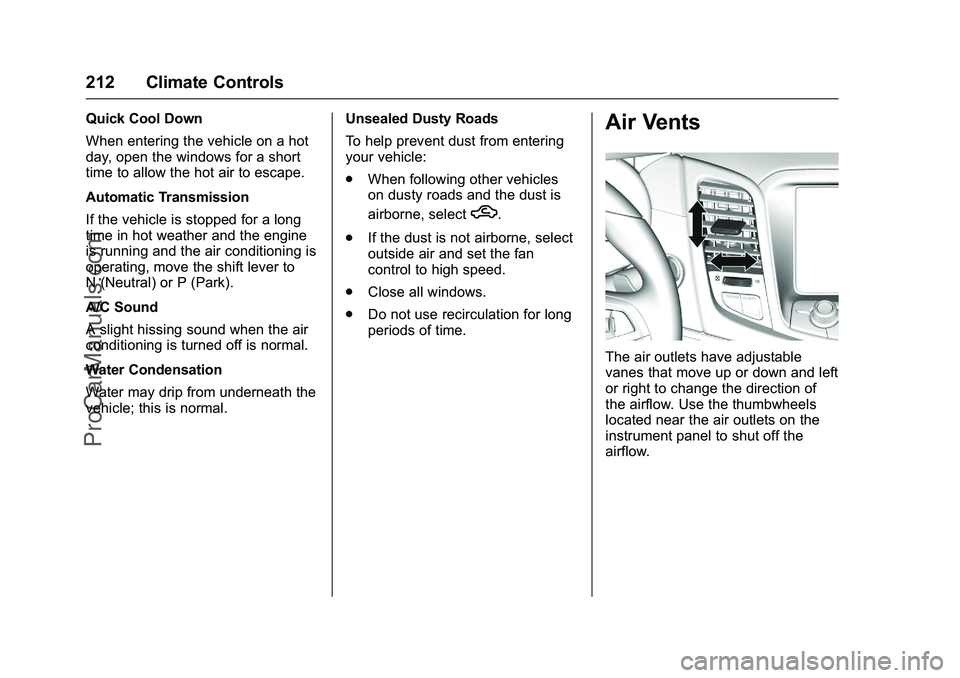
Air Vents
The air outlets have adjustable
vanes that move up or down and left
or right to change the direction of
the airflow. Use the thumbwheels
located near the air outlets on the
instrument panel to shut off the
airflow.
ProCarManuals.com
Page 235 of 397
Chevrolet SS Sedan Owner Manual (GMNA-Localizing-U.S.-9234782) - 2016 -
CRC - 8/24/15
234 Driving and Operating
Running the Vehicle
While Parked
It is better not to park with the
engine running.
If the vehicle is left with the engine
running, follow the proper steps to
be sure the vehicle will not move.
SeeShifting Into Park (Automatic
Transmission) 0230
iiand Engine
Exhaust 0233ii.
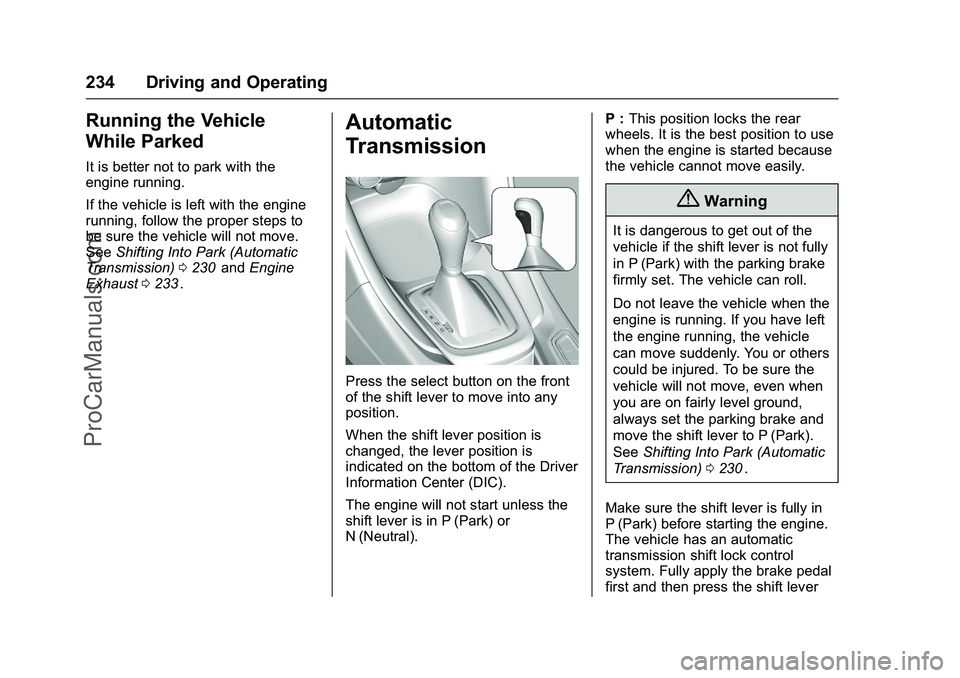
Automatic
Transmission
Press the select button on the front
of the shift lever to move into any
position.
When the shift lever position is
changed, the lever position is
indicated on the bottom of the Driver
Information Center (DIC).
The engine will not start unless the
shift lever is in P (Park) or
N (Neutral). P :
This position locks the rear
wheels. It is the best position to use
when the engine is started because
the vehicle cannot move easily.
{Warning
It is dangerous to get out of the
vehicle if the shift lever is not fully
in P (Park) with the parking brake
firmly set. The vehicle can roll.
Do not leave the vehicle when the
engine is running. If you have left
the engine running, the vehicle
can move suddenly. You or others
could be injured. To be sure the
vehicle will not move, even when
you are on fairly level ground,
always set the parking brake and
move the shift lever to P (Park).
See Shifting Into Park (Automatic
Transmission) 0230
ii.
Make sure the shift lever is fully in
P (Park) before starting the engine.
The vehicle has an automatic
transmission shift lock control
system. Fully apply the brake pedal
first and then press the shift lever
ProCarManuals.com
Page 241 of 397
Chevrolet SS Sedan Owner Manual (GMNA-Localizing-U.S.-9234782) - 2016 -
CRC - 8/24/15
240 Driving and Operating
avoid a sudden obstacle, a
computer senses the wheels are
slowing down. If one of the wheels
is about to stop rolling, the computer
will separately work the brakes at
each wheel.
ABS can change the brake pressure
to each wheel, as required, faster
than any driver could. This can help
you steer around the obstacle while
braking hard.
As the brakes are applied, the
computer keeps receiving updates
on wheel speed and controls
braking pressure accordingly.
Remember: ABS does not change
the time needed to get a foot up to
the brake pedal or always decrease
stopping distance. If you get too
close to the vehicle in front of you,
there will not be enough time to
apply the brakes if that vehicle
suddenly slows or stops. Always
leave enough room up ahead to
stop, even with ABS.Using ABS
Do not pump the brakes. Just hold
the brake pedal down firmly and let
ABS work. You may hear the ABS
pump or motor operating and feel
the brake pedal pulsate. This is
normal.
Braking in Emergencies
ABS allows you to steer and brake
at the same time. In many
emergencies, steering can help
more than even the very best
braking.
Electric Parking Brake
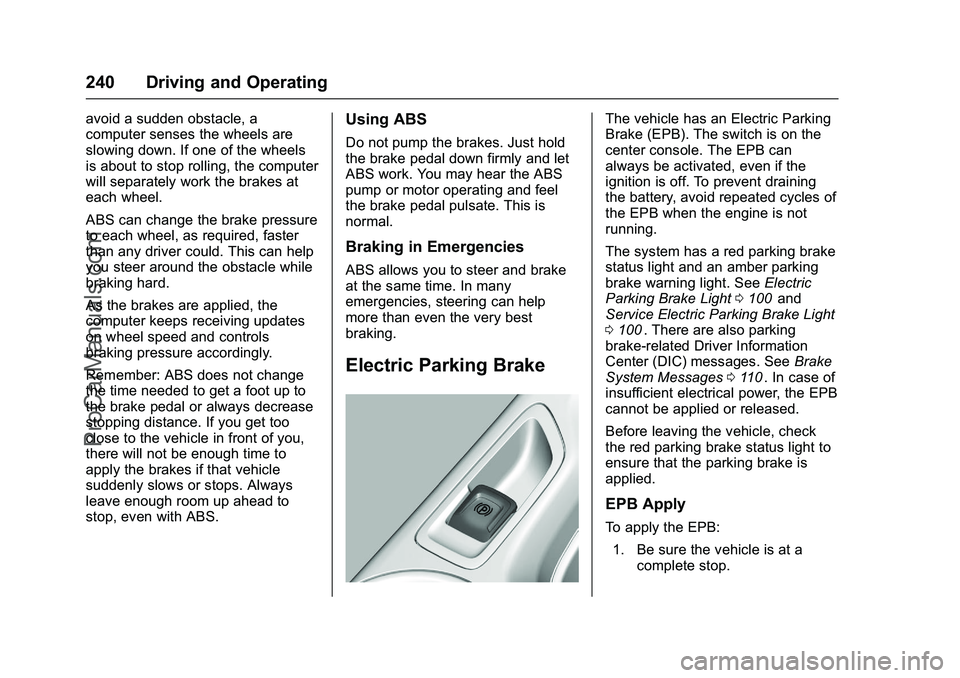
The vehicle has an Electric Parking
Brake (EPB). The switch is on the
center console. The EPB can
always be activated, even if the
ignition is off. To prevent draining
the battery, avoid repeated cycles of
the EPB when the engine is not
running.
The system has a red parking brake
status light and an amber parking
brake warning light. SeeElectric
Parking Brake Light 0100
iiand
Service Electric Parking Brake Light
0 100
ii. There are also parking
brake-related Driver Information
Center (DIC) messages. See Brake
System Messages 0110
ii. In case of
insufficient electrical power, the EPB
cannot be applied or released.
Before leaving the vehicle, check
the red parking brake status light to
ensure that the parking brake is
applied.
EPB Apply
To apply the EPB:
1. Be sure the vehicle is at a complete stop.
ProCarManuals.com
Page 245 of 397
Chevrolet SS Sedan Owner Manual (GMNA-Localizing-U.S.-9234782) - 2016 -
CRC - 8/24/15
244 Driving and Operating
To turn off only TCS, press and
release the TCS/StabiliTrak button.
The traction off light
idisplays in
the instrument cluster.
To turn TCS on again, press and
release the TCS/StabiliTrak button.
The traction off light
idisplayed in
the instrument cluster will turn off.
If TCS is limiting wheel spin when
the TCS/StabiliTrak button is
pressed, the system will not turn off
until the wheels stop spinning.
To turn off both TCS and StabiliTrak,
press and hold the TCS/StabiliTrak
button until the traction off light
i
and StabiliTrak OFF lightgcome
on and stay on in the instrument
cluster.
To turn TCS and StabiliTrak on
again, press and release the TCS/
StabiliTrak button. The traction off
light
iand StabiliTrak OFF lightg
in the instrument cluster turn off. Adding accessories can affect the
vehicle performance. See
Accessories and Modifications
0
268
ii.
Driver Mode Control
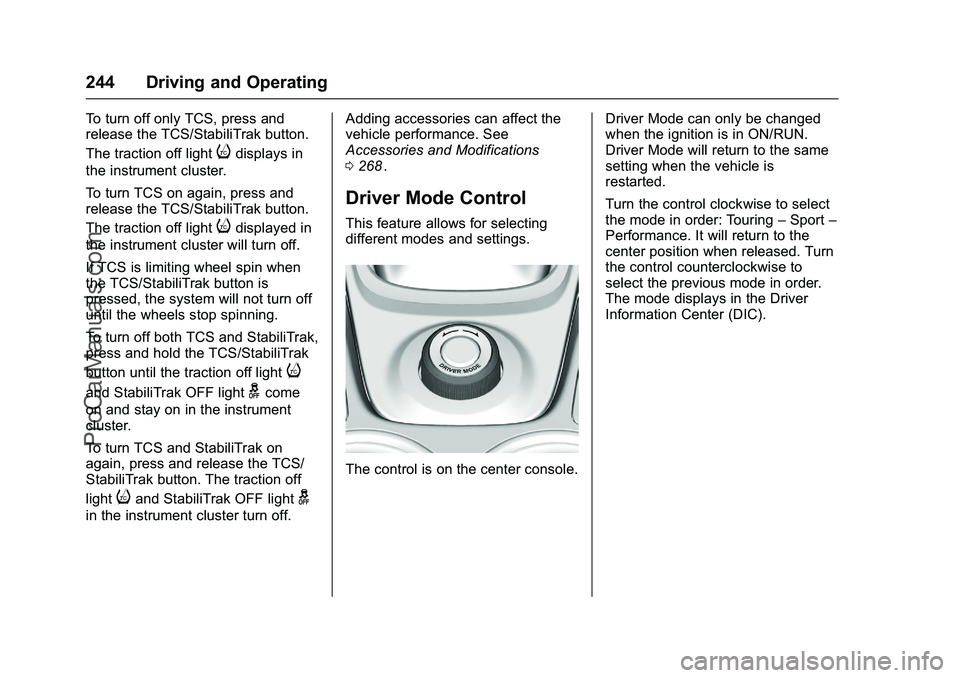
This feature allows for selecting
different modes and settings.
The control is on the center console. Driver Mode can only be changed
when the ignition is in ON/RUN.
Driver Mode will return to the same
setting when the vehicle is
restarted.
Turn the control clockwise to select
the mode in order: Touring
–Sport –
Performance. It will return to the
center position when released. Turn
the control counterclockwise to
select the previous mode in order.
The mode displays in the Driver
Information Center (DIC).
ProCarManuals.com