steering wheel CHEVROLET SS 2016 Owner's Manual
[x] Cancel search | Manufacturer: CHEVROLET, Model Year: 2016, Model line: SS, Model: CHEVROLET SS 2016Pages: 397, PDF Size: 7.17 MB
Page 130 of 397
Chevrolet SS Sedan Owner Manual (GMNA-Localizing-U.S.-9234782) - 2016 -
CRC - 8/24/15
Infotainment System 129
features are also available through
the instrument cluster and steering
wheel controls.
Before driving:
.Become familiar with the
operation, faceplate buttons, and
screen buttons.
. Set up the audio by presetting
favorite stations, setting the
tone, and adjusting the
speakers.
. Set up phone numbers in
advance so they can be called
easily by pressing a single
button or by using a single voice
command if equipped with
Bluetooth phone capability.
See Defensive Driving 0215
ii.
To play the infotainment system with
the ignition off, see Retained
Accessory Power (RAP) 0230
ii.
Overview
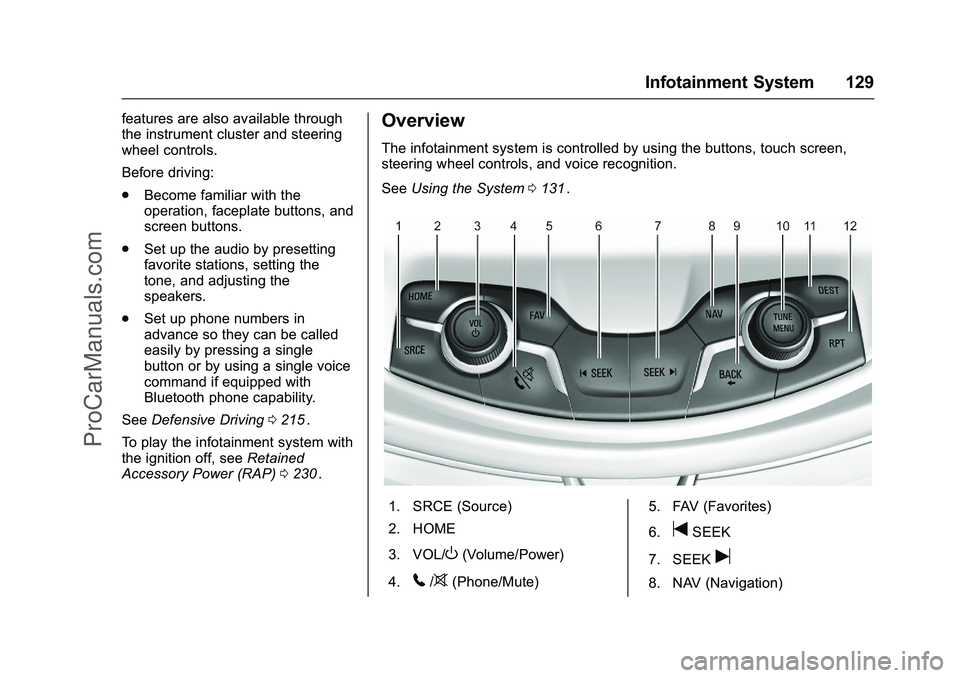
The infotainment system is controlled by using the buttons, touch screen,
steering wheel controls, and voice recognition.
See Using the System 0131
ii.
1. SRCE (Source)
2. HOME
3. VOL/
O(Volume/Power)
4.
5/>(Phone/Mute) 5. FAV (Favorites)
6.
tSEEK
7. SEEK
u
8. NAV (Navigation)
ProCarManuals.com
Page 132 of 397
Chevrolet SS Sedan Owner Manual (GMNA-Localizing-U.S.-9234782) - 2016 -
CRC - 8/24/15
Infotainment System 131
.If a destination has already been
entered, press to access the
Destination Menu. See
Destination 0169
ii.
RPT (Repeat) : Press to repeat the
last voice guidance prompt.
Touch Screen Buttons
Touch screen buttons are on the
screen and highlighted when a
feature is available. Some toggle
screen buttons highlight when active
and gray out when inactive.
Steering Wheel Controls
Depending on the vehicle options,
some audio functions can be
controlled through the steering
wheel controls.
b/g(Push to Talk) : Press to
answer an incoming call, interact
with Bluetooth, or start a voice
recognition session. See Bluetooth
0 193
iior Voice Recognition 0187ii.
$/i(Mute/End Call) : Press to
decline an incoming call, or to end a
current call. Press to silence the
vehicle speakers while using the infotainment system. Press again to
turn the sound on. Press to cancel
voice recognition.
_SRC^(Thumbwheel Control) :
Press to select an audio source.
Use the thumbwheel to select the
next or previous favorite radio
station, MP3 track, USB, and
Bluetooth Audio.
Use
_SRC to skip to the next song
or show using Stitcher. See Stitcher
Internet Radio 0150
ii.
+
x− (Volume) : Press + to
increase the volume. Press −to
decrease.
Using the System
The infotainment system is
controlled by touching the screen,
and by using the knobs and other
buttons.
Voice recognition, through the
steering wheel controls, can be
used to control the infotainment
features. Press
b/gon the steering wheel
controls to begin voice recognition.
See Voice Recognition 0187
ii.
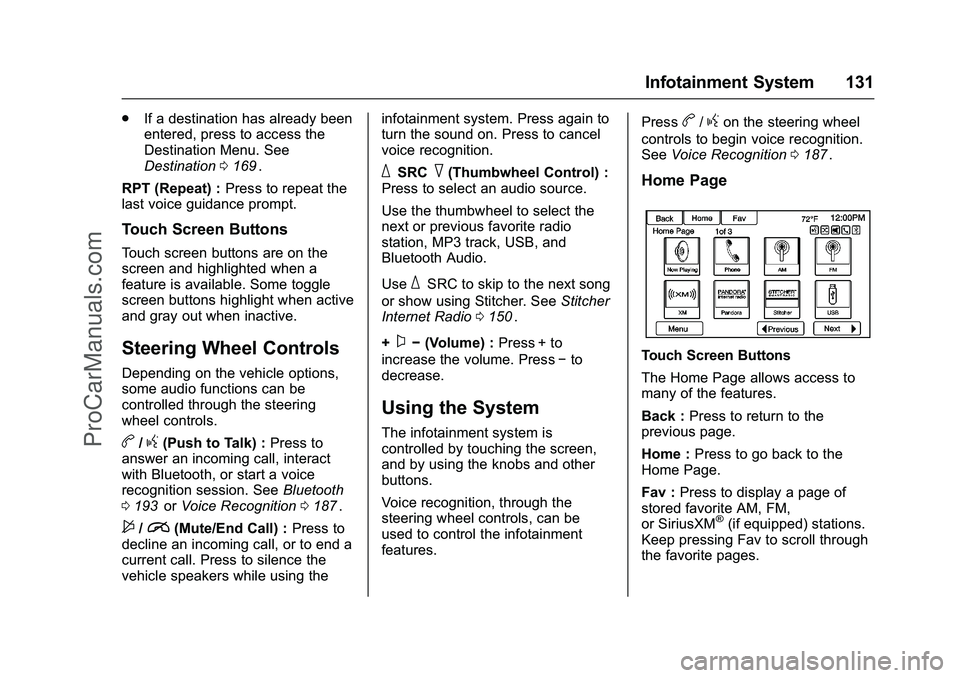
Home Page
Touch Screen Buttons
The Home Page allows access to
many of the features.
Back : Press to return to the
previous page.
Home : Press to go back to the
Home Page.
Fav : Press to display a page of
stored favorite AM, FM,
or SiriusXM
®(if equipped) stations.
Keep pressing Fav to scroll through
the favorite pages.
ProCarManuals.com
Page 137 of 397
Chevrolet SS Sedan Owner Manual (GMNA-Localizing-U.S.-9234782) - 2016 -
CRC - 8/24/15
136 Infotainment System
Caution
Do not attach a device with a
suction cup to the display. This
may cause damage and would
not be covered by the warranty.
Software Updates
See the websites for more
information.
Website Information
In the U.S., see www.chevrolet.com
Radio
AM-FM Radio
Playing the Radio
VOL/O(Volume/Power) :
. Press to turn the radio on or off.
. Turn to increase or decrease the
volume of the active source.
The steering wheel controls can
also be used to adjust the volume.
See Steering Wheel Controls 0131
ii.
Radio Operation
The radio will work when the key is
in ON/RUN or ACC/ACCESSORY.
When the key is turned from ON/
RUN to LOCK/OFF, the radio will
continue to work for 10 minutes or
until the driver door is opened.
The radio can be turned on by
pressing the power button on the
radio and will stay on for
10 minutes. Opening the driver door
will not turn the radio off when
pressing the power button. Some radios may stay on longer
and reset the time for 10 minutes if
there are any additional presses of
any radio button.
The radio can be turned off at any
time by pressing the power button.
Audio Source
Press SRCE or SRC on the steering
wheel controls to display and scroll
through the available sources AM,
FM, XM (if equipped), Pandora (if
equipped), Stitcher, USB, and
Bluetooth Audio.
Infotainment System Settings
Tone Settings
To access the tone settings, press
the Tone Settings button on the
Home Page. Tone settings are
specific to each source.
To adjust the settings:
.
Bass: Press + or −to change
the level.
. Mid (Midrange): Press + or −to
change the level.
. Treble: Press + or −to change
the level.
ProCarManuals.com
Page 138 of 397
Chevrolet SS Sedan Owner Manual (GMNA-Localizing-U.S.-9234782) - 2016 -
CRC - 8/24/15
Infotainment System 137
.EQ: Press or turn the TUNE/
MENU knob to cycle through the
preset EQ options.
. Fade: Press the F or R button
for more sound from the front or
rear speakers. The middle
position balances the sound
between the front and rear
speakers.
. Balance: Press the L or R button
for more sound from the left or
right speakers. The middle
position balances the sound
between the left and right
speakers.
Finding a Station
Press SRCE or SRC on the steering
wheel controls to select AM, FM,
XM, Pandora (if equipped), Stitcher,
USB, and Bluetooth Audio.
Turn the TUNE/MENU knob to find
a radio station. To select a preset
station, press FAV to scroll through
the favorite pages and then press a
preset button on the radio or the
screen button. Seeking a Station
Press
tSEEK or SEEKuto
search for a station.
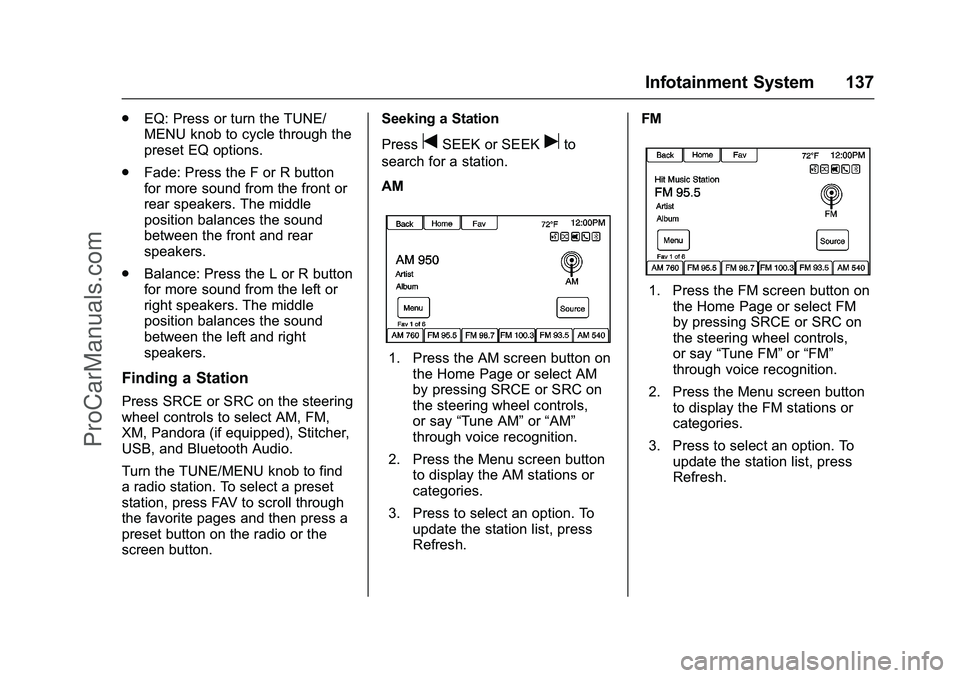
AM
1. Press the AM screen button on the Home Page or select AM
by pressing SRCE or SRC on
the steering wheel controls,
or say “Tune AM” or“AM”
through voice recognition.
2. Press the Menu screen button to display the AM stations or
categories.
3. Press to select an option. To update the station list, press
Refresh. FM
1. Press the FM screen button on
the Home Page or select FM
by pressing SRCE or SRC on
the steering wheel controls,
or say “Tune FM” or“FM”
through voice recognition.
2. Press the Menu screen button to display the FM stations or
categories.
3. Press to select an option. To update the station list, press
Refresh.
ProCarManuals.com
Page 139 of 397
Chevrolet SS Sedan Owner Manual (GMNA-Localizing-U.S.-9234782) - 2016 -
CRC - 8/24/15
138 Infotainment System
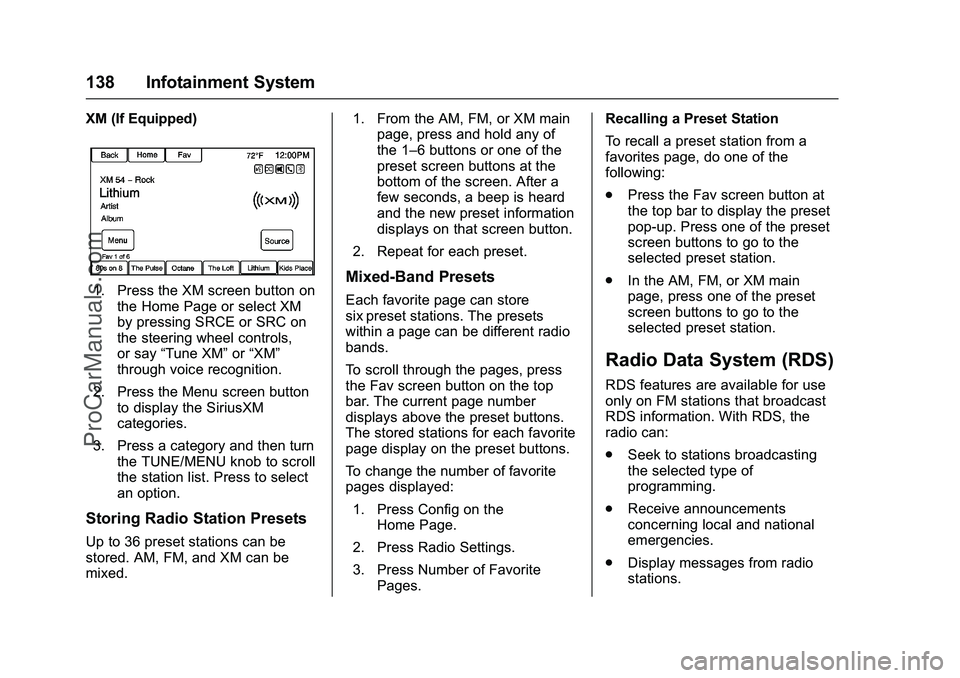
XM (If Equipped)
1. Press the XM screen button onthe Home Page or select XM
by pressing SRCE or SRC on
the steering wheel controls,
or say “Tune XM” or“XM”
through voice recognition.
2. Press the Menu screen button to display the SiriusXM
categories.
3. Press a category and then turn the TUNE/MENU knob to scroll
the station list. Press to select
an option.
Storing Radio Station Presets
Up to 36 preset stations can be
stored. AM, FM, and XM can be
mixed. 1. From the AM, FM, or XM main
page, press and hold any of
the 1–6 buttons or one of the
preset screen buttons at the
bottom of the screen. After a
few seconds, a beep is heard
and the new preset information
displays on that screen button.
2. Repeat for each preset.
Mixed-Band Presets
Each favorite page can store
six preset stations. The presets
within a page can be different radio
bands.
To scroll through the pages, press
the Fav screen button on the top
bar. The current page number
displays above the preset buttons.
The stored stations for each favorite
page display on the preset buttons.
To change the number of favorite
pages displayed: 1. Press Config on the Home Page.
2. Press Radio Settings.
3. Press Number of Favorite Pages. Recalling a Preset Station
To recall a preset station from a
favorites page, do one of the
following:
.
Press the Fav screen button at
the top bar to display the preset
pop-up. Press one of the preset
screen buttons to go to the
selected preset station.
. In the AM, FM, or XM main
page, press one of the preset
screen buttons to go to the
selected preset station.
Radio Data System (RDS)
RDS features are available for use
only on FM stations that broadcast
RDS information. With RDS, the
radio can:
.Seek to stations broadcasting
the selected type of
programming.
. Receive announcements
concerning local and national
emergencies.
. Display messages from radio
stations.
ProCarManuals.com
Page 148 of 397
Chevrolet SS Sedan Owner Manual (GMNA-Localizing-U.S.-9234782) - 2016 -
CRC - 8/24/15
Infotainment System 147
.Accept any notification on
the screen of the device.
To relaunch Pandora, press SRCE
or SRC on the steering wheel
controls.
If nothing happens when the
available Pandora screen button is
pressed, download the latest
Pandora application and retry.
Pandora will always be highlighted
on the Home Page when an iPhone,
iPad, or iPod touch is connected
using the USB port. To use, log into
your account.
If the “Please See Device” message
is shown, the login screen may
display on the device.
If the “Please unlock your phone or
restart the app” message is shown,
then the phone may be locked.
Unlock the phone, close the app,
then restart the app and make sure
the Home Page is visible on the
phone/device.
If Pandora is shut down on the
phone or another audio app is used,
Pandora may not start on the next ignition cycle. If iPod source is
selected, it may show iPod and then
switch to Pandora.
Using an Android Phone
1. Pair the Android phone using Bluetooth.
2. Use one of the following to launch:
.Launch the application on
the device.
. Press Pandora on the
Home Page.
. Press
b/gand say
“Pandora” or“Tune
Pandora.”
After Pandora has been launched,
press SRCE or SRC on the steering
wheel controls to access Pandora
features.
If nothing happens when the
available Pandora screen button is
pressed, download the latest
Pandora application and retry.
If the “Please See Device” message
is shown, the login screen may
display on the device. If the "Please unlock your phone or
restart the app" message is shown,
then the phone may be locked.
Unlock the phone, close the app,
then restart the app to ensure
proper communication.
Using a BlackBerry Phone
The phone must be unlocked. To
launch Pandora service:
1. Pair the BlackBerry phone using Bluetooth.
2. Use one of the following to launch:
.Launch the application on
the device.
. Press Pandora on the
Home Page.
. Press
b/gand say
“Pandora” or“Tune
Pandora.”
After Pandora has been launched,
press SRCE or SRC on the steering
wheel controls to access Pandora
features.
ProCarManuals.com
Page 149 of 397
Chevrolet SS Sedan Owner Manual (GMNA-Localizing-U.S.-9234782) - 2016 -
CRC - 8/24/15
148 Infotainment System
If nothing happens when the
available Pandora screen button is
pressed, download the latest
Pandora application and retry.
If the“Please See Device” message
is shown, the login screen may
display on the device.
If the "Please unlock your phone or
restart the app" message is shown,
then the phone may be locked.
Unlock the phone, close the app,
and then restart the app to ensure
proper communication.
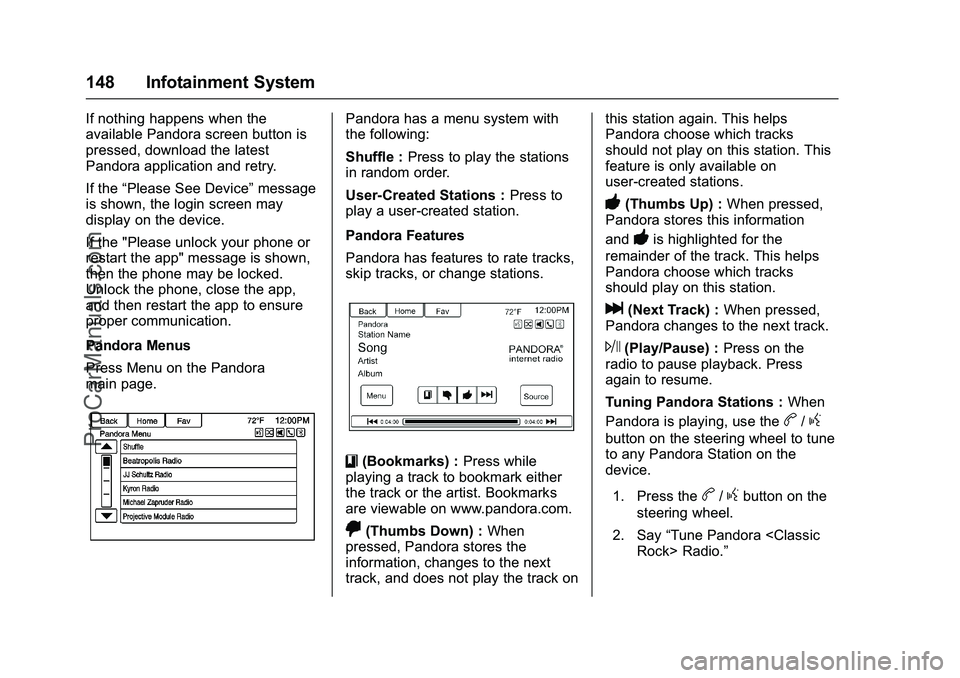
Pandora Menus
Press Menu on the Pandora
main page.Pandora has a menu system with
the following:
Shuffle : Press to play the stations
in random order.
User-Created Stations : Press to
play a user-created station.
Pandora Features
Pandora has features to rate tracks,
skip tracks, or change stations.
}(Bookmarks) : Press while
playing a track to bookmark either
the track or the artist. Bookmarks
are viewable on www.pandora.com.
,(Thumbs Down) : When
pressed, Pandora stores the
information, changes to the next
track, and does not play the track on this station again. This helps
Pandora choose which tracks
should not play on this station. This
feature is only available on
user-created stations.
-(Thumbs Up) :
When pressed,
Pandora stores this information
and
-is highlighted for the
remainder of the track. This helps
Pandora choose which tracks
should play on this station.
l(Next Track) : When pressed,
Pandora changes to the next track.
J(Play/Pause) : Press on the
radio to pause playback. Press
again to resume.
Tuning Pandora Stations : When
Pandora is playing, use the
b/g
button on the steering wheel to tune
to any Pandora Station on the
device.
1. Press the
b/gbutton on the
steering wheel.
2. Say “Tune Pandora
⁐⁃⁍⁵
Page 152 of 397
Chevrolet SS Sedan Owner Manual (GMNA-Localizing-U.S.-9234782) - 2016 -
CRC - 8/24/15
Infotainment System 151
To install Stitcher:
.On an Android phone or Tablet
with Internet connection, go to
the Android Play Store, search
for Stitcher, and install to the
phone, not to the SD card.
. On an iPhone, iPad, or iPod
touch, go to the iTunes Store
and search for Stitcher.
Launching Stitcher
Connect the iPhone, iPad, or iPod
touch to the USB port, or connect
Android through Bluetooth. See
USB 0155
iior Bluetooth 0193ii. For
first-time use, set up the stations
before connecting to the vehicle.
The Stitcher icon will be available
on the Home Page and source
pop-up displays if the latest
application is installed on the
device.
Using the iPhone, iPod touch,
or iPad
1. Plug the device into the USB port. The phone screen must
be unlocked. 2. Use one of the following to
launch:
.Press the application on the
device.
. Press Stitcher on the
Home Page.
. Press
b/gand say
“Stitcher” or“Tune Stitcher.”
. Accept any notification on
the screen of the device.
3. If Stitcher does not begin playing, select a category and
then a station.
After Stitcher has been launched,
press SRCE or SRC on the steering
wheel controls to access Stitcher
features.
If nothing happens when the
available Stitcher screen button is
pressed, download the latest
Stitcher application and retry.
Stitcher will always be highlighted
on the Home Page when an iPhone,
iPad, or iPod touch is connected
using the USB port. To use, log into
your account. If the
“Please See Device” message
is shown, the login screen may
display on the device.
If the "Please unlock your phone or
restart the app" message is shown,
then the phone may be locked.
Unlock the phone, close the app,
then restart the app to make sure
the Home Page is visible on the
phone/device.
Using an Android Phone
1. Pair the Android phone using Bluetooth.
2. Use one of the following to launch:
.Press the application on the
device.
. Press Stitcher on the
Home Page.
. Press
b/gand say
“Stitcher” or“Tune Stitcher.”
3. If Stitcher does not begin playing, select a category and
then a station.
ProCarManuals.com
Page 153 of 397
Chevrolet SS Sedan Owner Manual (GMNA-Localizing-U.S.-9234782) - 2016 -
CRC - 8/24/15
152 Infotainment System
After Stitcher has been launched,
press SRCE or SRC on the steering
wheel controls to access Stitcher
features.
If nothing happens when the
available Stitcher screen button is
pressed, download the latest
Stitcher application and retry.
If the“Please See Device” message
is shown, the login screen may
display on the device.
If the “Please unlock your phone or
restart the app” message is shown,
then the phone may be locked.
Unlock the phone, close the app,
then restart the app to ensure
proper communication.
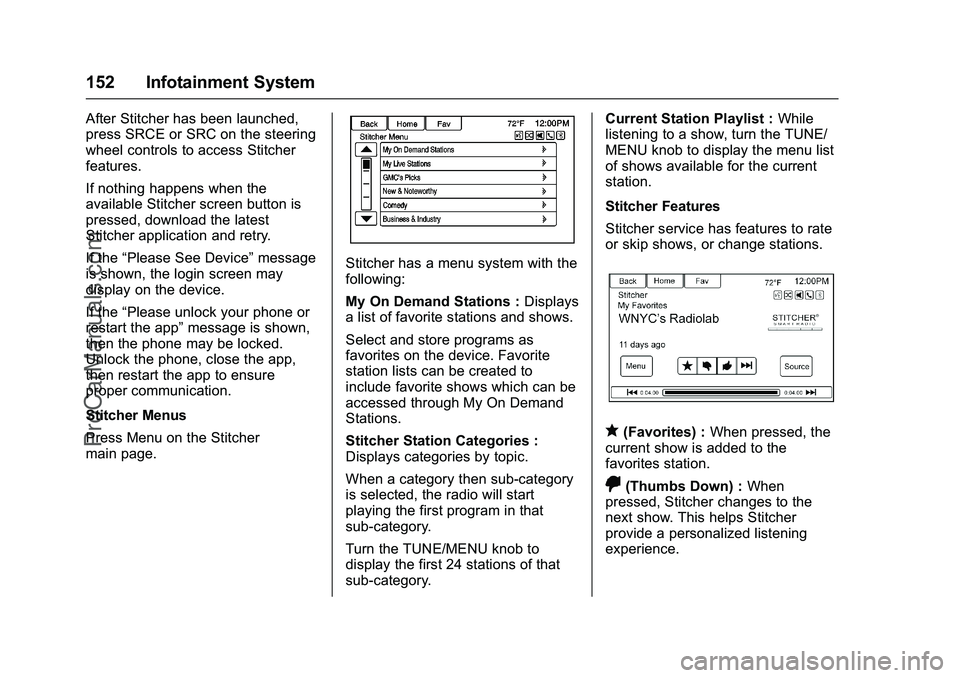
Stitcher Menus
Press Menu on the Stitcher
main page.
Stitcher has a menu system with the
following:
My On Demand Stations : Displays
a list of favorite stations and shows.
Select and store programs as
favorites on the device. Favorite
station lists can be created to
include favorite shows which can be
accessed through My On Demand
Stations.
Stitcher Station Categories :
Displays categories by topic.
When a category then sub-category
is selected, the radio will start
playing the first program in that
sub-category.
Turn the TUNE/MENU knob to
display the first 24 stations of that
sub-category. Current Station Playlist :
While
listening to a show, turn the TUNE/
MENU knob to display the menu list
of shows available for the current
station.
Stitcher Features
Stitcher service has features to rate
or skip shows, or change stations.
q(Favorites) : When pressed, the
current show is added to the
favorites station.
,(Thumbs Down) : When
pressed, Stitcher changes to the
next show. This helps Stitcher
provide a personalized listening
experience.
ProCarManuals.com
Page 158 of 397
Chevrolet SS Sedan Owner Manual (GMNA-Localizing-U.S.-9234782) - 2016 -
CRC - 8/24/15
Infotainment System 157
Use the touch screen or voice
recognition to create a More Like
This Playlist. See“Voice
Recognition Commands” inVoice
Recognition 0187
ii.
Gracenote Indexing
While Gracenote is indexing,
infotainment features are available
including selecting music from the
menu. Voice recognition music will
not be available until the radio has
completed indexing the device.
Devices with more music may take
longer to index. The device will
index when plugged into the radio
for the first time. When Indexing is
removed from the screen, the radio
is ready to support music search.
On the next connection or ignition
cycle, Indexing will show briefly on
the screen. The radio is searching
for changes to the device and
preparing the music list. If there are
no changes, the voice recognition
music search will be available. The
radio will index and store two
devices with up to 10,000 songs on
each device. USB MP3 Player and USB Drives
.
The USB MP3 players and USB
drives connected must comply
with the USB Mass Storage
Class specification (USB MSC).
. Hard disk drives are not
supported.
. The radio will not be able to play
back write-protected music.
. File systems supported: FAT32,
NTFS, Linux, and HFS+.
. The following restrictions apply
for the data stored on a USB
MP3 player or USB device:
‐Maximum folder structure
depth: eight levels.
‐ Maximum number of MP3/
WMA files that can be
displayed: 10,000.
‐ Playlist entries must be in the
form of relative paths.
‐ The system attribute for
folders/files that contain audio
data must not be set. To play a USB device, do one of the
following:
.
Connect the USB and it begins
to play.
. Press the Now Playing screen
button on the Home Page.
. Press SRCE to scroll until the
USB source screen is available.
. Press
b/gon the steering
wheel controls to select songs
by Artist, Album, Song Title,
or Song Genre. See Voice
Recognition 0187
ii.
The following playlist formats are
supported:
. M3U (Standard and Extended)
. iTunes
. PLS (Standard)
. WAX
. ASX
. RMP
ProCarManuals.com