radio controls CHEVROLET SS 2017 1.G User Guide
[x] Cancel search | Manufacturer: CHEVROLET, Model Year: 2017, Model line: SS, Model: CHEVROLET SS 2017 1.GPages: 400, PDF Size: 7.31 MB
Page 141 of 400
Chevrolet SS Sedan Owner Manual (GMNA-Localizing-U.S.-10122752) -2017 - crc - 8/31/16
140 Infotainment System
Finding a Station
Press SRCE on the center stack orSRC on the steering wheel controlsto select AM, FM, SiriusXM (ifequipped), Pandora (if equipped),Stitcher, USB, and Bluetooth Audio.
Turn the TUNE/MENU knob to findaradiostation.Toselectapresetstation, press FAV to scroll throughthe favorite pages and then touch apreset on the radio or touch a preseticon on the infotainment display.
Seeking a Station
PresstSEEK or SEEKuto
search for a station.
AM
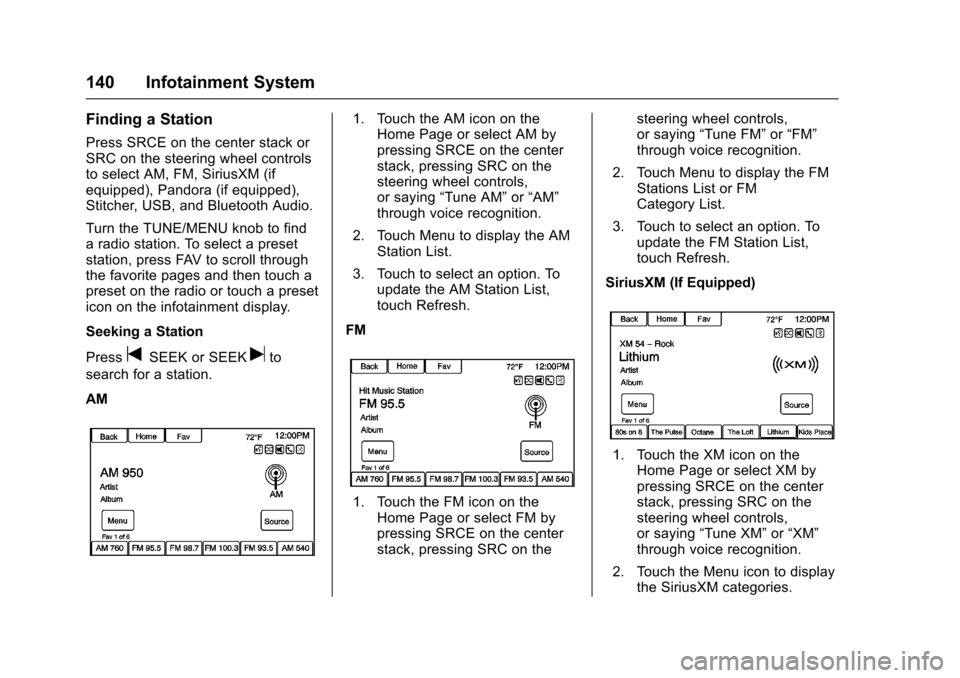
1. Touch the AM icon on theHome Page or select AM bypressing SRCE on the centerstack, pressing SRC on thesteering wheel controls,or saying“Tune AM”or“AM”through voice recognition.
2. Touch Menu to display the AMStation List.
3. Touch to select an option. Toupdate the AM Station List,touch Refresh.
FM
1. Touch the FM icon on theHome Page or select FM bypressing SRCE on the centerstack, pressing SRC on the
steering wheel controls,or saying“Tune FM”or“FM”through voice recognition.
2. Touch Menu to display the FMStations List or FMCategory List.
3. Touch to select an option. Toupdate the FM Station List,touch Refresh.
SiriusXM (If Equipped)
1. Touch the XM icon on theHome Page or select XM bypressing SRCE on the centerstack, pressing SRC on thesteering wheel controls,or saying“Tune XM”or“XM”through voice recognition.
2. Touch the Menu icon to displaythe SiriusXM categories.
Page 150 of 400
Chevrolet SS Sedan Owner Manual (GMNA-Localizing-U.S.-10122752) -2017 - crc - 8/31/16
Infotainment System 149
5-day Forecast :Displays the5-day forecast for the weatherstation closest to the currentlocation. See“SiriusXM Travel LinkWeather”inSatellite Radio0142.
Nearby Fuel Stations :Displaysfuel prices and distances for closefuel stations. See“SiriusXM TravelLink Weather”under“SiriusXMTravel Link (If Equipped)”inSatelliteRadio0142.
Movie Showtimes :Displays a listof movies playing in the theatersclosest to current location. See“SiriusXM Travel Link MovieListings”inSatellite Radio0142.
Pandora Internet Radio
Pandora (if equipped) is a freeInternet radio service that streamspersonalized radio stations basedon artists, songs, genres, andcomedians. Create stations usingthe Pandora website or smartphone
application, then use-(thumbs up)
or,(thumbs down) to personalize
stations. To set up an account, or formore information, go towww.pandora.com.
AphoneortabletwithInternetconnection and the Pandoraapplication installed is required.Personal cell phone data plans areused. Make sure the latest versionis installed on the device and thevolume is turned up.
To i n s t a l l P a n d o r a :
.On an Android™phone orAndroid Tablet, go to the AndroidPlay Store, and search forPandora. Install to the phone,not to the SD card.
.On a BlackBerry®phone, go tothe BlackBerry App World™andsearch for Pandora.
.On an iPhone®,iPad®,oriPodtouch®,gototheiTunes®Storeand search for Pandora.
Launching Pandora
Connect the iPhone, iPad, or iPodtouch to the USB port, or connectan Android or BlackBerry throughBluetooth. SeeUSB0158
orBluetooth0195.Forfirst-timeuse, set up stations beforeconnecting to the vehicle. ThePandora icon will be available onthe Home Page and the sourcepop-up displays if the latestapplication is installed on thedevice.
Using the iPhone, iPod touch,or iPad
1. Plug the device into the USBport. The phone screen mustbe unlocked.
2. To launch, do one of thefollowing:
.Launch the application onthe device.
.To u c h t h e P a n d o r a i c o n o nthe Home Page.
.Pressb/gand say
“Pandora”or“TunePandora.”
.Accept any notification onthe screen of the device.
To r e l a u n c h P a n d o r a , p r e s s S R C Eon the center stack or press SRC onthe steering wheel controls.
Page 161 of 400
Chevrolet SS Sedan Owner Manual (GMNA-Localizing-U.S.-10122752) -2017 - crc - 8/31/16
160 Infotainment System
.Pressb/gon the steering
wheel controls to select songsby Artist, Album, Song Title,or Song Genre. SeeVoiceRecognition0189.
The following playlist formats aresupported:
.M3U (Standard and Extended)
.iTunes
.PLS (Standard)
.WAX
.ASX
.RMP
The radio supports plugging a cellphone in as a USB drive as long asthe cell phone supports USB massstorage class or has USB disc drivesupport enabled.
While the USB source is active, usethe following to operate USBfunction:
TUNE/MENU :Turn to scrollthrough the list. Turn quickly to fastscroll alphabetically through largelists.
J:To u c h t h i s i c o n o n t h einfotainment display to start, pause,or resume play of the current mediasource.
tSEEK:
.Press to seek to the beginning ofthe current or previous track.If the track has been playing forless than five seconds, theprevious track plays. If playinglonger than five seconds, thecurrent track restarts.
.Press and hold to reversequickly through playback.Release to return to playingspeed. Elapsed time displays.
uSEEK:
.Press to seek to the next track.
.Press and hold to advancequickly through playback.Release to return to playingspeed. Elapsed time displays.
USB Menu
The following are available throughthe USB Menu:
Shuffle :To u c h t o p l a y t h e t r a c k srandomly. Touch again to stopshuffle.
Play More Like This:
1. Touch to automatically create aplaylist of songs that are likethe song currently playing.
2. The radio will show“PlaylistCreation Succeeded”andcontinue playing thecurrent song.
Playlist Creation Failed mayappear if a song is not found inthe Gracenote Database.
Delete Automatic Playlist :To u c hto delete a More Like This playlist.
Folders :To u c h t o o p e n a f o l d e r l i s tto access the files within the folderstructure.
Playlists:
1. Touch to view the playlists onthe USB.
Page 165 of 400
Chevrolet SS Sedan Owner Manual (GMNA-Localizing-U.S.-10122752) -2017 - crc - 8/31/16
164 Infotainment System
.Press SRCE until BluetoothAudio is selected.
.Press SRC on the steeringwheel controls untilBluetooth Audio is selected.SeeSteering WheelControls0134.
.Use voice recognition. SeeVoice Recognition0189.
The music can be controlled byeither the infotainment controls orthe controls on the device.
When a phone is connected to thesystem through Bluetooth Audio thephone notifications and sounds maynot be heard on the phone untilBluetooth is disconnected.Notification features may vary basedon the phone. Check the phone’smanufacture information fornotification support.
Bluetooth Audio Menu
To u c h M e n u o n t h e i n f o t a i n m e n tdisplay and the following maydisplay:
Shuffle :Press the TUNE/MENUknob to turn shuffle on or off. Not alldevices support the shuffle feature.
When selecting Bluetooth audio, theBluetooth device internal musicplayer may not open depending onthe status of the device. All deviceslaunch and play back audiodifferently. Make sure the correctaudio source is playing on thedevice for Bluetooth audio playbackon the radio. When the vehicle isnot moving, use the device to beginplayback.
When selecting Bluetooth audio asasource,theradiomaysourcetoBluetooth Audio Paused display andno audio playing. Touch play on the
device or touchJto begin
playback. This may happendepending on how the devicecommunicates over Bluetooth.
Some phones support sendingBluetooth music information todisplay on the radio. When the radioreceives this information, it willcheck to see if any album art isavailable and display it.
When playing music on the radiofrom a Bluetooth device, make surethe Bluetooth device is unlockedand the intended music applicationis showing on the home page.
For iPhone/iPod touch and iPaddevices, Bluetooth Audio will notwork if the device is connectedthrough the USB and Bluetooth atthe same time.
Page 196 of 400
Chevrolet SS Sedan Owner Manual (GMNA-Localizing-U.S.-10122752) -2017 - crc - 8/31/16
Infotainment System 195
Voice Pass-Thru
Voice pass-thru allows access to thevoice recognition commands on thecell phone, i.e. Siri or VoiceCommand. See the cell phonemanufacturer's user guide to see ifthe cell phone supports this feature.
To a c t i v a t e p h o n e v o i c e r e c o g n i t i o n
system, press and holdb/gon
the steering wheel for approximatelytwo seconds.
Bluetooth Phone/
Devices
Bluetooth
Overview
For vehicles equipped withBluetooth capability, the system caninteract with many cell phones anddevices, allowing:
.Placing and receiving hands-freecalls.
.Sharing of the cell phone’saddress book or contact list withthe vehicle. The phone book willonly display when that phone isconnected.
.Placing outgoing calls by voicerecognition.
The system can be used while inON/RUN, ACC/ACCESSORY,or Retained Accessory Power(RAP). The range of the Bluetoothsystem can be up to 9.1 m (30 ft).The radio can connect to most
Bluetooth-enabled phones.Available features and functionsmay be dependent on the device.
On a current phone call display, animage of the contact from yourphone's contact list can bedisplayed. Not all phones arecompatible with this feature.
Bluetooth Controls
Use the controls on the infotainmentsystem and the steering wheel tooperate the Bluetooth system.
Steering Wheel Controls
b/g:Press to answer incomingcalls and start voice recognition.
$/i:Press to end a call,decline an incoming call, or cancelvoice recognition.
+x✓:Press + or✓to increase or
decrease the volume.
Infotainment System Controls
For information about how tonavigate the menu system using theinfotainment controls, seeOverview0132.
Page 197 of 400
Chevrolet SS Sedan Owner Manual (GMNA-Localizing-U.S.-10122752) -2017 - crc - 8/31/16
196 Infotainment System
5/>:Press to enter the Phonemain menu. Press and hold to muteor unmute.
Voice Recognition
The voice recognition system usescommands to control the systemand dial phone numbers.
When using voice recognition:
.The system may not recognizevoice commands if there is toomuch background noise.
.Atonesoundstoindicatethatthe system is ready for a voicecommand. Wait for the tone andthen speak.
.Speak clearly in a calm andnatural voice.
SeeVoice Recognition0189.
Audio System
Sound comes through the vehicle'sfront audio system speakers andoverrides the audio system. Use the
VOL/Oknob during a call to change
the volume level. The adjusted
volume level remains in memory forlater calls. The system maintains aminimum volume level.
SeeVoice Recognition0189.
Bluetooth Audio
SeeBluetooth Audio0163.
Pairing with Infotainment
Controls
ABluetooth-enabledcellphonemust be paired and then connectedto the vehicle before it can be used.See your cell phone manufacturer'suser guide for Bluetooth functionsbefore pairing the cell phone. If aBluetooth phone is not connected,calls will be made using OnStarHands-Free Calling, if available.SeeOnStar Overview0378.
Pairing Information
.ABluetooth-enabledphoneandan audio playback device can bepaired to the system at thesame time.
.Up to five devices can be pairedto the Bluetooth system.
.The pairing process is disabledwhen the vehicle is moving.
.Pairing only needs to becompleted once, unless thepairing information on the cellphone changes or the cell phoneis deleted from the system.
.Only one paired cell phone canbe connected to the Bluetoothsystem at a time.
.If multiple paired cell phones arewithin range of the system, theradio will connect to the firstphone in the list or to the phonethat was previously connected.
Pairing a Phone/Device
1. Press CONFIG on the center
stack or press5/>on the
steering wheel controls.
2. Select Phone Settings.
3. Select Pair Device (Phone).The radio displays“Pleasestart Bluetooth search on yourphone. Confirm or enternumber:.”If the devicesupports a four-digit Personal
Page 200 of 400
Chevrolet SS Sedan Owner Manual (GMNA-Localizing-U.S.-10122752) -2017 - crc - 8/31/16
Infotainment System 199
Making a Call Using Phone
Book and Infotainment
Controls
For cell phones that support thephone book feature, the Bluetoothsystem can use the contacts storedon the cell phone to make calls. Seethe cell phone manufacturer‘suserguide or contact the wirelessprovider to find out if this feature issupported.
When a cell phone supports thephone book feature, the PhoneBook and Call Lists menus areautomatically available.
The Phone Book menu allowsaccess to the phone book stored inthe cell phone to make a call.
The Call Lists menu allows accessto the phone numbers from theIncoming Calls, Outgoing Calls, andMissed Calls menus on the cellphone to make a call.
The radio will display the first 1,000contacts and the phone numbers foreach contact including Home, Work,Mobile, and Other.
To m a k e a c a l l u s i n g t h e P h o n eBook menu:
1. Press5/>once on the radio
or touch the Phone icon on theHome Page.
2. Select Phone Book.
3. Select the letter group of thephone book entry to scrollthrough the list of names/numbers.
4. Select the name.
5. Select the number to call.
To m a k e a c a l l u s i n g t h e C a l lLists menu:
1. Press5/>once on the radio
or touch the Phone icon on theHome Page.
2. Select Call Lists.
3. Select the Incoming Calls,Outgoing Calls, or MissedCalls list.
4. Select the name or numberto call.
Making a Call Using the
Infotainment Controls
To m a k e a c a l l :
1. Press5/>once on the radio
or touch the Phone icon on theHome Page.
2. Press Enter Number.
3. Enter the phone number.
4. Select OK to start dialing thenumber.
5. Select Call to place the call.
To m a k e a c a l l u s i n g v o i c erecognition, see“Making a Call”underBluetooth0195.
Accepting or Declining a Call
When an incoming call is received,the infotainment system mutes andaringtoneisheardinthevehicle.
Using the Infotainment Controls
Turn the TUNE/MENU knob to“Answer”or“Decline”and press theTUNE/MENU knob or touch Acceptor Decline on the infotainmentdisplay.
Page 392 of 400

Chevrolet SS Sedan Owner Manual (GMNA-Localizing-U.S.-10122752) -2017 - crc - 9/1/16
Index 391
Driving (cont'd)
Vehicle Load Limits . . . . . . . . . . . 226
Wet Roads . . . . . . . . . . . . . . . . . . . 222
Winter . . . . . . . . . . . . . . . . . . . . . . . . 224
Dual Automatic Climate
Control System . . . . . . . . . . . . . . . . 210
E
Electric Parking Brake . . . . . . . . . . 242
Electric Parking Brake Light . . . . 103
Electrical Equipment,
Add-On . . . . . . . . . . . . . . . . . . . . . . . 268
Electrical System
Engine Compartment Fuse
Block . . . . . . . . . . . . . . . . . . . . . . . . 295
Fuses . . . . . . . . . . . . . . . . . . . . . . . . 295
Instrument Panel Fuse
Block . . . . . . . . . . . . . . . . . . . . . . . . 298
Overload . . . . . . . . . . . . . . . . . . . . . 294
Rear Compartment Fuse
Block . . . . . . . . . . . . . . . . . . . . . . . . 300
Emergency
OnStar®...................... 379
Engine
Air Cleaner/Filter . . . . . . . . . . . . . 279
Check and Service Engine
Soon Light . . . . . . . . . . . . . . . . . . 100
Compartment Overview . . . . . . . 274
Coolant . . . . . . . . . . . . . . . . . . . . . . . 281
Engine (cont'd)
Coolant Temperature Gauge . . . . 98
Cooling System . . . . . . . . . . . . . . . 280
Cooling System Messages . . . .114
Drive Belt Routing . . . . . . . . . . . . 363
Exhaust . . . . . . . . . . . . . . . . . . . . . . 235
Oil Life System . . . . . . . . . . . . . . . 277
Oil Messages . . . . . . . . . . . . . . . . . .115
Oil Pressure Light . . . . . . . . . . . . 106
Overheating . . . . . . . . . . . . . . . . . . 284
Power Messages . . . . . . . . . . . . . .115
Running While Parked . . . . . . . . 236
Starting . . . . . . . . . . . . . . . . . . . . . . . 231
Entry Lighting . . . . . . . . . . . . . . . . . . . 130
Event Data Recorders . . . . . . . . . . 376
Exit Lighting . . . . . . . . . . . . . . . . . . . . 130
Extended Parking . . . . . . . . . . . . . . . 235
Extender, Safety Belt . . . . . . . . . . . . 56
Exterior Lamp Controls . . . . . . . . . 126
F
Features
Memory . . . . . . . . . . . . . . . . . . . . . . . . . 11
Filter,
Engine Air Cleaner . . . . . . . . . . . 279
Flash-to-Pass . . . . . . . . . . . . . . . . . . . 126
Flashers, Hazard Warning . . . . . . 127
Flat Tire . . . . . . . . . . . . . . . . . . . . . . . . 322
Changing . . . . . . . . . . . . . . . . . . . . . 329
Floor Mats . . . . . . . . . . . . . . . . . . . . . . 346
Fluid
Automatic Transmission . . . . . . 278
Brakes . . . . . . . . . . . . . . . . . . . . . . . . 287
Washer . . . . . . . . . . . . . . . . . . . . . . . 286
Folding Mirrors . . . . . . . . . . . . . . . . . . 39
Forward Collision Alert
(FCA) System . . . . . . . . . . . . . . . . . 259
Frequency Statement
Radio . . . . . . . . . . . . . . . . . . . . . . . . . 374
Front Seats
Heated and Ventilated . . . . . . . . . . 49
Fuel . . . . . . . . . . . . . . . . . . . . . . . . . . . . 264
Additives . . . . . . . . . . . . . . . . . . . . . 266
Economy Driving . . . . . . . . . . . . . . . 22
Filling a Portable Fuel
Container . . . . . . . . . . . . . . . . . . . 267
Filling the Tank . . . . . . . . . . . . . . . 266
Foreign Countries . . . . . . . . . . . . 266
Gauge . . . . . . . . . . . . . . . . . . . . . . . . . . 97
Low Fuel Warning Light . . . . . . . 106
Requirements, California . . . . . 265
System Messages . . . . . . . . . . . . .115
Full-Size Spare Tire . . . . . . . . . . . . 334
Fuses . . . . . . . . . . . . . . . . . . . . . . . . . . 295
Engine Compartment Fuse
Block . . . . . . . . . . . . . . . . . . . . . . . . 295
Page 398 of 400

Chevrolet SS Sedan Owner Manual (GMNA-Localizing-U.S.-10122752) -2017 - crc - 9/1/16
Index 397
Shift Lock Control Function
Check, Automatic
Transmission . . . . . . . . . . . . . . . . . . 290
Shifting
Into Park . . . . . . . . . . . . . . . . . . . . . . 232
Out of Park . . . . . . . . . . . . . . . . . . . 233
Side Blind Zone Alert (SBZA) . . . 261
Signals, Turn and
Lane-Change . . . . . . . . . . . . . . . . . 128
Software Updates . . . . . . . . . . . . . . 139
Special Application Services . . . . 355
Specifications and
Capacities . . . . . . . . . . . . . . . . . . . . . 362
Speedometer . . . . . . . . . . . . . . . . . . . . 97
StabiliTrak
OFF Light . . . . . . . . . . . . . . . . . . . . . 105
Start Assist, Hill . . . . . . . . . . . . . . . . . 244
Start Vehicle, Remote . . . . . . . . . . . 30
Starter Switch Check . . . . . . . . . . . 290
Starting the Engine . . . . . . . . . . . . . 231
Starting the Vehicle
Messages . . . . . . . . . . . . . . . . . . . . . 118
Steering . . . . . . . . . . . . . . . . . . . . . . . . 218
Wheel Adjustment . . . . . . . . . . . . . . 91
Wheel Controls . . . . . . . . . . . . . . . . . 91
Steering Wheel Controls . . . . . . . . 134
Stitcher Internet Radio . . . . . . . . . . 153
Storage Areas
Center Console . . . . . . . . . . . . . . . . . 87
Convenience Net . . . . . . . . . . . . . . . 88
Glove Box . . . . . . . . . . . . . . . . . . . . . . 87
Roof Rack System . . . . . . . . . . . . . . 89
Storage Compartments . . . . . . . . . . 87
Storing the Tire Sealant and
Compressor Kit . . . . . . . . . . . . . . . 329
Stuck Vehicle . . . . . . . . . . . . . . . . . . . 225
Summer Tires . . . . . . . . . . . . . . . . . . 304
Sun Visors . . . . . . . . . . . . . . . . . . . . . . . 42
Sunroof . . . . . . . . . . . . . . . . . . . . . . . . . . 42
Symbols . . . . . . . . . . . . . . . . . . . . . . . . . . 3
Navigation . . . . . . . . . . . . . . . . . . . . 169
System
Forward Collision
Alert (FCA) . . . . . . . . . . . . . . . . . . 259
Global Positioning . . . . . . . . . . . . 186
Infotainment . . . . . . . . . . . . . 131, 377
Roof Rack . . . . . . . . . . . . . . . . . . . . . . 89
Systems
Driver Assistance . . . . . . . . . . . . . 253
T
Ta c h o m e t e r . . . . . . . . . . . . . . . . . . . . . . 9 7
Te x t M e s s a g i n g . . . . . . . . . . . . . . . . . 2 0 2
Te x t Te l e p h o n e ( T T Y ) U s e r s . . . . 3 6 7
Theft-Deterrent Systems . . . . . . . . . 37
Immobilizer . . . . . . . . . . . . . . . . . . . . . 37
Time . . . . . . . . . . . . . . . . . . . . . . . . . . . . . 93
Tires . . . . . . . . . . . . . . . . . . . . . . . . . . . . 303
Buying New Tires . . . . . . . . . . . . . 317
Chains . . . . . . . . . . . . . . . . . . . . . . . . 321
Changing . . . . . . . . . . . . . . . . . . . . . 329
Designations . . . . . . . . . . . . . . . . . 306
Different Size . . . . . . . . . . . . . . . . . 318
Full-Size Spare . . . . . . . . . . . . . . . 334
If a Tire Goes Flat . . . . . . . . . . . . 322
Inspection . . . . . . . . . . . . . . . . . . . . 315
Low Profile . . . . . . . . . . . . . . . . . . . 304
Messages . . . . . . . . . . . . . . . . . . . . .118
Pressure . . . . . . . . . . . . . . . . . 309, 310
Pressure Light . . . . . . . . . . . . . . . . 106
Pressure Monitor Operation . . 312
Pressure Monitor System . . . . . .311
Rotation . . . . . . . . . . . . . . . . . . . . . . 315
Sealant and
Compressor Kit . . . . . . . . . . . . . 323
Sealant and Compressor
Kit, Storing . . . . . . . . . . . . . . . . . . 329
Sidewall Labeling . . . . . . . . . . . . . 305
Te r m i n o l o g y a n d D e f i n i t i o n s . . 3 0 7
Uniform Tire Quality
Grading . . . . . . . . . . . . . . . . . . . . . 319
Wheel Alignment and Tire
Balance . . . . . . . . . . . . . . . . . . . . . 320
Wheel Replacement . . . . . . . . . . 320