audio CHEVROLET SS 2017 1.G Owner's Manual
[x] Cancel search | Manufacturer: CHEVROLET, Model Year: 2017, Model line: SS, Model: CHEVROLET SS 2017 1.GPages: 400, PDF Size: 7.31 MB
Page 151 of 400
Chevrolet SS Sedan Owner Manual (GMNA-Localizing-U.S.-10122752) -2017 - crc - 8/31/16
150 Infotainment System
If nothing happens when theavailable Pandora icon is touched,download the latest Pandoraapplication and retry.
Pandora will always be highlightedon the Home Page when an iPhone,iPad, or iPod touch is connectedusing the USB port. To use, log intoyour account.
If the“Please See Device”messageis shown, the login screen maydisplay on the device.
If the“Please unlock your phone orrestart the app”message is shown,then the phone may be locked.Unlock the phone, close the app,then restart the app and make surethe Home Page is visible on thephone/device.
If Pandora is shut down on thephone or another audio app is used,Pandora may not start on the nextignition cycle. If iPod source isselected, it may show iPod and thenswitch to Pandora.
Using an Android Phone
1. Pair the Android phone usingBluetooth.
2. Use one of the following tolaunch:
.Launch the application onthe device.
.To u c h t h e P a n d o r a i c o n o nthe Home Page.
.Pressb/gand say
“Pandora”or“TunePandora.”
After Pandora has been launched,press SRCE on the center stack orpress SRC on the steering wheelcontrols to access Pandorafeatures.
If nothing happens when theavailable Pandora icon is touched,download the latest Pandoraapplication and retry.
If the“Please See Device”messageis shown, the login screen maydisplay on the device.
If the "Please unlock your phone orrestart the app" message is shown,then the phone may be locked.Unlock the phone, close the app,then restart the app to ensureproper communication.
Using a BlackBerry Phone
The phone must be unlocked. Tolaunch Pandora service:
1. Pair the BlackBerry phoneusing Bluetooth.
2. Use one of the following tolaunch:
.Launch the application onthe device.
.To u c h t h e P a n d o r a i c o n o nthe Home Page.
.Pressb/gand say
“Pandora”or“TunePandora.”
After Pandora has been launched,press SRCE on the center stack orpress SRC on the steering wheelcontrols to access Pandorafeatures.
If nothing happens when theavailable Pandora icon is touched,download the latest Pandoraapplication and retry.
If the“Please See Device”messageis shown, the login screen maydisplay on the device.
Page 153 of 400
Chevrolet SS Sedan Owner Manual (GMNA-Localizing-U.S.-10122752) -2017 - crc - 8/31/16
152 Infotainment System
Switching Between Pandora andStitcher
To s w i t c h b e t w e e n P a n d o r a a n dStitcher, touch the application iconon the iPhone, iPod touch, or iPad.This is not required for Androiddevices. SeeStitcher Internet Radio0153.
Pandora Troubleshooting
Unable to Connect Device toVehicle
If the device is unable to connect tothe USB or Bluetooth:
1. Turn the vehicle off.
2. Open and close the driver door,wait about 30 seconds, and tryto connect the device again.
Unable to Start Pandora
If the device is unable to launchPandora:
.Check that the latest version ofPandora is installed.
.Check that there is an activeaccount logged into Pandora.
.Have at least one stationcreated.
.For Android and BlackBerrydevices, check that the device ispaired with the vehicle, and theBluetooth icon on the display ishighlighted.
.For iPhone, iPod touch, or iPaddevices, check that the USBcable is connected to the USBport and the screen is unlocked.
.Close Pandora on the deviceand launch again. Devices thatallow multitasking may requirean extra step to quit the Pandoraapplication. See the cell phonemanufacturer's user guide.
Thumbs Up or Thumbs DownError
If there is an error trying to rate a
track with the,or-icons, the
message“Thumbs Down Error”or“Thumbs Up Error”will display.To u c h O K t o r e t r y.
Loss of Audio
Loss of Pandora audio can happenin different ways:
.Weak or lost data connection.
.Device needs to be charged.
.Application needs to berelaunched.
.Connection between phone andradio lost.
.If any iPhone, iPod touch,or iPad is connected toBluetooth and the dockconnector, go to the Airplay iconon the device and select dockconnector or disconnect andreconnect the dock connector onthe device.
.The volume is too low. Turn upthe volume on the device.
.The battery saver and taskmanager applications on thephone can cause Pandora tofunction incorrectly. Removethose apps from the phone orremove Pandora and Bluetoothfrom the task lists.
Page 154 of 400
Chevrolet SS Sedan Owner Manual (GMNA-Localizing-U.S.-10122752) -2017 - crc - 8/31/16
Infotainment System 153
If the connection is lost between theapplication and device, a message“Please unlock your phone or restartthe phone app and try again”willdisplay. Touch OK to retry.
If touching OK does not clear theissue on the phone, see“PleaseUnlock Your Phone or RestartPhone App and Try Again”under"Common Pandora Messages"following.
Common Pandora Messages
Please See Device :When notlogged in or when authenticationfailed, see the device. Touch OK tocontinue.
Paused or Audio Paused :Playback is paused on the radio or
the device. TouchJor play on the
device.
No Stations Found :Logged in butno stations have been created.To u c h O K t o c o n t i n u e .
Please Unlock Your Phone orRestart Phone App and TryAgain :Communication failurebetween the radio and the phoneapplication, or the device is locked.
Devices that allow multitasking mayrequire an extra step to quit thePandora application. Close Pandoraon the device and launch again.
Unlock the phone and check thatHome Page is displayed on thephone/device.
See the cell phone manufacturer'suser guide.
See www.pandora.com/help formore information. If the service willnot work, see your dealer forassistance.
Stitcher Internet Radio
Stitcher SmartRadio®is an Internetradio service that streams news,sports, and entertainment showsthrough the audio system. Createpersonalized, on-demand stations ordiscover new shows throughStitcher's preset stations. To set upan account, download theapplication from the Android Marketor iTunes Store, or go towww.stitcher.com.
AphoneortabletwithInternetconnection is required for thisapplication. Personal cell phonedata plans are used. Make sure thelatest version is installed on thedevice and the volume on thedevice is turned up.
BlackBerry phones are notsupported for this application.
To i n s t a l l S t i t c h e r :
.On an Android phone or Tabletwith Internet connection, go tothe Android Play Store, searchfor Stitcher, and install to thephone, not to the SD card.
.On an iPhone, iPad, or iPodtouch, go to the iTunes Storeand search for Stitcher.
Launching Stitcher
Connect the iPhone, iPad, or iPodtouch to the USB port, or connectAndroid through Bluetooth. SeeUSB0158orBluetooth0195.Forfirst-time use, set up the stationsbefore connecting to the vehicle.The Stitcher icon will be availableon the Home Page and source
Page 157 of 400
Chevrolet SS Sedan Owner Manual (GMNA-Localizing-U.S.-10122752) -2017 - crc - 8/31/16
156 Infotainment System
The battery saver and task managerapplications on the phone cancause Stitcher to functionincorrectly. Remove those appsfrom the phone or remove Stitcherand Bluetooth from the task lists.
Unable to Start Stitcher
If the device is unable to launchStitcher:
.Check that the latest version ofStitcher is installed.
.Check that there is an activeaccount logged into Stitcher.
.For Android devices, check thatthe device is paired with thevehicle, and the Bluetooth iconon the display is highlighted.
.For iPhone, iPod touch, or iPaddevices, check that the USBcable is connected to the USBport and the screen is unlockedand the Home Page is showing.
.Close Stitcher on the device andlaunch again. Devices that allowmultitasking may require an
extra step to quit the Stitcherapplication. See the cell phonemanufacturer's user guide.
Loss of Audio
Loss of Stitcher audio can happendue to:
.Weak or lost data connection.
.Device needs to be charged.
.Application needs to berelaunched.
.Connection between phone andradio is lost.
.If any iPhone, iPod touch,or iPad is connected toBluetooth and the dockconnector, go to the Airplay iconon the device and select dockconnector or disconnect andreconnect the dock connector onthe device.
.The volume is too low. Turn upthe volume on the device.
If the connection is lost between theapplication and device, a message“Please unlock your phone or restartthe phone app and try again”willdisplay. Touch OK to retry.
If touching OK does not clear theissue, see“Please Unlock YourPhone or Restart Phone App andTry Again”under“Common StitcherMessages”following.
Common Stitcher Messages
Please Try Again Later :Ageneralerror has occurred. A dataconnection may be unavailable dueto a weak or lost signal or theStitcher service being temporarilydown. Touch OK to continue.
Paused or Audio Paused :Playback is paused on the radio or
the device. TouchJor play on the
device.
Please See Device :When the useris not logged in or whenauthentication failed, see thedevice. Touch OK to continue.Disconnect the phone from the radioand follow the Stitcher account loginprocess on the phone.
No Stations Found :Logged in butno stations have been created.To u c h O K t o c o n t i n u e .
Page 159 of 400
Chevrolet SS Sedan Owner Manual (GMNA-Localizing-U.S.-10122752) -2017 - crc - 8/31/16
158 Infotainment System
Audio Players
USB
Playing from a USB
AUSBmassstorageorCertifiedWindows Vista®/Media TransferProtocol (MTP) device can beconnected to the USB port.
The USB port is in the centerconsole under the armrest.
The USB icon displays when a USBdevice is connected.
USB Media Formats
The USB port will support thefollowing media formats:
.MP3
.Unprotected WMA
.Unprotected AAC
Other formats may be supported.
Gracenote®
Gracenote technology embeddedinto the radio helps manage andnavigate the USB device musiccollection. When a USB device is
connected to the radio, Gracenoteidentifies the music collection anddelivers the correct album, artistname, genres, and cover art on thedisplay. If information is missing,Gracenote will fill it in.
Searching Music Library UsingVoice Recognition
Vo i c e R e c o g n i t i o n :Gracenoteimproves music search andnavigation by identifying bands,artists, and albums names that maybe hard to pronounce, irregularspellings, and nicknames. Forexample, Gracenote helps thesystem understand artist names like“INXS”or“Mötley Crüe.”It alsoallows the use of names like:“TheBoss,”“G.N.R,”“The Fab Four,”andthousands of other famous artistnicknames as voice commands toaccess music. SeeVoiceRecognition0189.
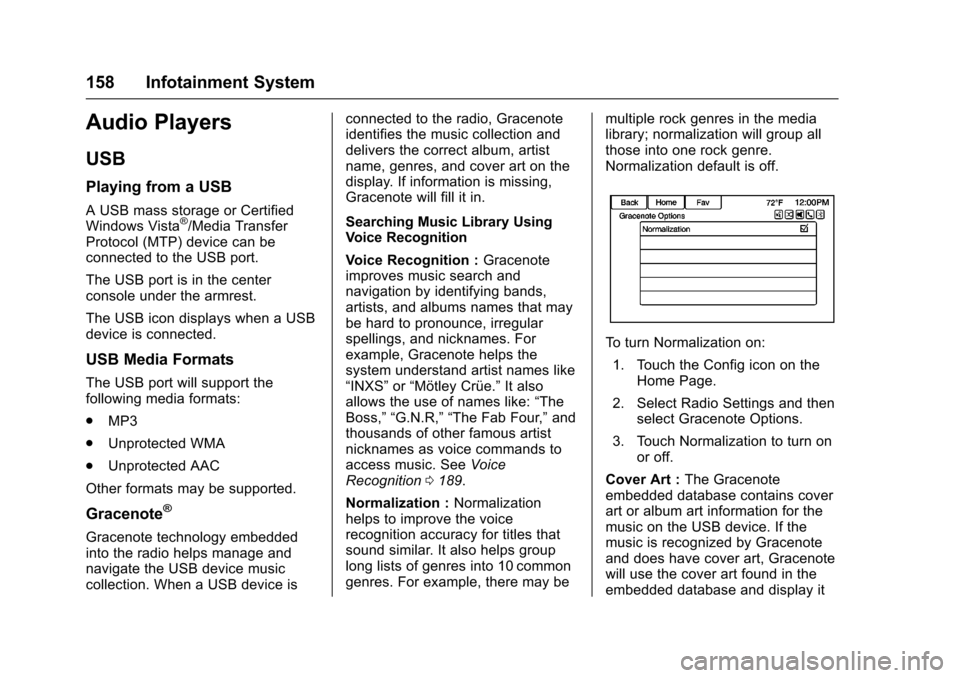
Normalization :Normalizationhelps to improve the voicerecognition accuracy for titles thatsound similar. It also helps grouplong lists of genres into 10 commongenres. For example, there may be
multiple rock genres in the medialibrary; normalization will group allthose into one rock genre.Normalization default is off.
To t u r n N o r m a l i z a t i o n o n :
1. Touch the Config icon on theHome Page.
2. Select Radio Settings and thenselect Gracenote Options.
3. Touch Normalization to turn onor off.
Cover Art :The Gracenoteembedded database contains coverart or album art information for themusic on the USB device. If themusic is recognized by Gracenoteand does have cover art, Gracenotewill use the cover art found in theembedded database and display it
Page 160 of 400
Chevrolet SS Sedan Owner Manual (GMNA-Localizing-U.S.-10122752) -2017 - crc - 8/31/16
Infotainment System 159
on the radio. User predefined coverart will always be used first. If nocover art is found Gracenote willuse generic genre graphics orimages of artists.
More Like This
The Gracenote database containsattributes for Music, such as genre,era of music, region, artist type,mood, etc. Use this to create aplaylist of up to 30 songs "more like"currently listened to song. Thisplaylist will be stored in the Playlistmenu when the device isreconnected. If songs are removedfrom the device, the system willsimply skip over those songs andplay the next available song.
Use the infotainment display orvoice recognition to create a MoreLike This Playlist. See“VoiceRecognition Commands”inVoiceRecognition0189.
Gracenote Indexing
While Gracenote is indexing,infotainment features are availableincluding selecting music from themenu. Voice recognition music will
not be available until the radio hascompleted indexing the device.Devices with more music may takelonger to index. The device willindex when plugged into the radiofor the first time. When Indexing isremoved from the display, the radiois ready to support music search.On the next connection or ignitioncycle, Indexing will show briefly onthe display. The radio is searchingfor changes to the device andpreparing the music list. If there areno changes, the voice recognitionmusic search will be available. Theradio will index and store twodevices with up to 10,000 songs oneach device.
USB MP3 Player and USB Drives
.The USB MP3 players and USBdrives connected must complywith the USB Mass StorageClass specification (USB MSC).
.Hard disk drives are notsupported.
.The radio will not be able to playback write-protected music.
.File systems supported: FAT32,NTFS, Linux, and HFS+.
.The following restrictions applyfor the data stored on a USBMP3 player or USB device:
⇣Maximum folder structuredepth: eight levels.
⇣Maximum number of MP3/WMA files that can bedisplayed: 10,000.
⇣Playlist entries must be in theform of relative paths.
⇣The system attribute forfolders/files that contain audiodata must not be set.
To p l a y a U S B d e v i c e , d o o n e o f t h efollowing:
.Connect the USB and it beginsto play.
.To u c h t h e N o w P l a y i n g i c o n o nthe Home Page.
.Press SRCE on the center stackto scroll until the USB sourcedisplay is available.
Page 162 of 400
Chevrolet SS Sedan Owner Manual (GMNA-Localizing-U.S.-10122752) -2017 - crc - 8/31/16
Infotainment System 161
2. Select a playlist to view the listof all songs in that playlist.
3. Select a song from the list tobegin playback.
Artists:
1. Touch to view the list of artistson the USB.
2. Select an artist name to view alist of all albums by the artist.
3. To select a song, touch AllSongs or touch an album andthen select a song from the list.
Albums:
1. Touch to view the albums onthe USB.
2. Select the album to view a listof all songs on the album.
3. Select a song from the list tobegin playback.
Genres:
1. Touch to view the genres onthe USB.
2. Select a genre to view a list ofall songs of that genre.
3. Select a song from the list tobegin playback.
Songs:
1. Touch to display a list of allsongs on the USB.
2. Songs are displayed as theyare stored on the disc. To beginplayback, select a song fromthe list.
File System and Naming
The songs, artists, albums, andgenres are taken from the file’ssong information and are onlydisplayed if present. The radiodisplays the file name as the trackname if the song information is notavailable.
Playing from an iPod®
This feature supports the followingiPod models:
.iPod classic®(6th generation)
.iPod nano®(3G, 4G, 5G,and 6G)
.iPod touch®(1G, 2G, 3G,and 4G)
There may be problems with theoperation and function in thefollowing situations:
.When connecting an iPod onwhich a more recent version ofthe firmware is installed than issupported by the infotainmentsystem.
.When connecting an iPod onwhich firmware from otherproviders is installed.
To c o n n e c t a n i P o d :
1. Connect one end of thestandard iPod USB cable to theiPod's dock connector.
2. Connect the other end to theUSB port in the center console.
iPod music information displays onthe radio’sdisplayandbeginsplaying through the vehicle’saudiosystem.
The iPod battery rechargesautomatically while the vehicle is on.The iPod shuts off and stopscharging when the vehicle isshut off.
Page 164 of 400
Chevrolet SS Sedan Owner Manual (GMNA-Localizing-U.S.-10122752) -2017 - crc - 8/31/16
Infotainment System 163
Composers:
1. Touch to view the composerson the iPod.
2. Select the composer to view alist of songs by that composer.
3. Select a song from the list tobegin playback.
Audiobooks:
1. Touch to view the audiobookson the iPod.
2. Select the audiobook from thelist to begin playback.
Playing from an iPhone or iPad
This feature supports the followingiPhone or iPad models:
.iPhone®(2G, 3G, 3GS, 4, 4S,and 5)
.iPad®(1G, 2G)
Follow the same instructions asstated earlier for using an iPod. Touse voice recognition to play music,say“Play USB,”“Play Artist,”“PlayAlbum,”“Play Song,”or“PlayGenre.”SeeVoice Recognition0189.
iPhone, iPod touch and iPadTroubleshooting
When an iPhone, iPod touch,or iPad are connected through USBand Bluetooth, the audio may not beheard when the iPod source on theradio is selected. If a phone call isreceived while listening to the iPodsource and there is no audio for theiPod after the source, then go to theAirplay icon on the device andselect dock connector or disconnectand reconnect the dock connectoron the device.
Some functionality may differ basedon operating system version ondevice.
USB Troubleshooting
If the device is not being recognizedor the music is missing displayinformation, restore the radiodefaults:
1. Touch Config.
2. Touch Radio Settings.
3. Touch SoftwareVersions Menu.
4. Touch Clear and Reset Radio.
5. Touch Yes.
Pair the phone again and the devicewill have to index again.
Bluetooth Audio and VoiceRecognition
SeeBluetooth Audio0163andVoice Recognition0189forinformation using voice recognitionwith Bluetooth audio.
Make sure all devices have thelatest software downloaded.
Bluetooth Audio
If equipped, music may be playedfrom a paired Bluetooth device. See“Pairing a Phone/Device”underBluetooth0195.
To p l a y m u s i c t h r o u g h a B l u e t o o t hdevice:
1. Power on the device, pair, andconnect the device.
2. Music can be launched bydoing one of the following:
.To u c h t h e B l u e t o o t h i c o n o nthe Home Page.
Page 165 of 400
Chevrolet SS Sedan Owner Manual (GMNA-Localizing-U.S.-10122752) -2017 - crc - 8/31/16
164 Infotainment System
.Press SRCE until BluetoothAudio is selected.
.Press SRC on the steeringwheel controls untilBluetooth Audio is selected.SeeSteering WheelControls0134.
.Use voice recognition. SeeVoice Recognition0189.
The music can be controlled byeither the infotainment controls orthe controls on the device.
When a phone is connected to thesystem through Bluetooth Audio thephone notifications and sounds maynot be heard on the phone untilBluetooth is disconnected.Notification features may vary basedon the phone. Check the phone’smanufacture information fornotification support.
Bluetooth Audio Menu
To u c h M e n u o n t h e i n f o t a i n m e n tdisplay and the following maydisplay:
Shuffle :Press the TUNE/MENUknob to turn shuffle on or off. Not alldevices support the shuffle feature.
When selecting Bluetooth audio, theBluetooth device internal musicplayer may not open depending onthe status of the device. All deviceslaunch and play back audiodifferently. Make sure the correctaudio source is playing on thedevice for Bluetooth audio playbackon the radio. When the vehicle isnot moving, use the device to beginplayback.
When selecting Bluetooth audio asasource,theradiomaysourcetoBluetooth Audio Paused display andno audio playing. Touch play on the
device or touchJto begin
playback. This may happendepending on how the devicecommunicates over Bluetooth.
Some phones support sendingBluetooth music information todisplay on the radio. When the radioreceives this information, it willcheck to see if any album art isavailable and display it.
When playing music on the radiofrom a Bluetooth device, make surethe Bluetooth device is unlockedand the intended music applicationis showing on the home page.
For iPhone/iPod touch and iPaddevices, Bluetooth Audio will notwork if the device is connectedthrough the USB and Bluetooth atthe same time.
Page 169 of 400
Chevrolet SS Sedan Owner Manual (GMNA-Localizing-U.S.-10122752) -2017 - crc - 8/31/16
168 Infotainment System
Map Scales
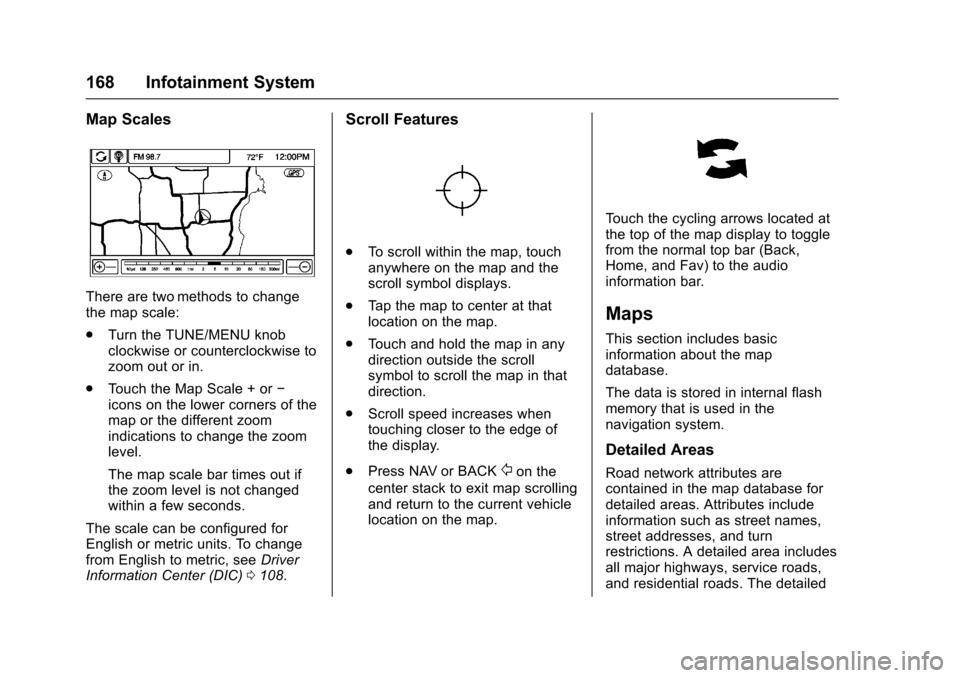
There are two methods to changethe map scale:
.Turn the TUNE/MENU knobclockwise or counterclockwise tozoom out or in.
.To u c h t h e M a p S c a l e + o r✓icons on the lower corners of themap or the different zoomindications to change the zoomlevel.
The map scale bar times out ifthe zoom level is not changedwithin a few seconds.
The scale can be configured forEnglish or metric units. To changefrom English to metric, seeDriverInformation Center (DIC)0108.
Scroll Features
.To s c r o l l w i t h i n t h e m a p , t o u c hanywhere on the map and thescroll symbol displays.
.Ta p t h e m a p t o c e n t e r a t t h a tlocation on the map.
.To u c h a n d h o l d t h e m a p i n a n ydirection outside the scrollsymbol to scroll the map in thatdirection.
.Scroll speed increases whentouching closer to the edge ofthe display.
.Press NAV or BACK/on the
center stack to exit map scrollingand return to the current vehiclelocation on the map.
To u c h t h e c y c l i n g a r r o w s l o c a t e d a tthe top of the map display to togglefrom the normal top bar (Back,Home, and Fav) to the audioinformation bar.
Maps
This section includes basicinformation about the mapdatabase.
The data is stored in internal flashmemory that is used in thenavigation system.
Detailed Areas
Road network attributes arecontained in the map database fordetailed areas. Attributes includeinformation such as street names,street addresses, and turnrestrictions. A detailed area includesall major highways, service roads,and residential roads. The detailed