reset CHEVROLET SSR 2003 1.G Owners Manual
[x] Cancel search | Manufacturer: CHEVROLET, Model Year: 2003, Model line: SSR, Model: CHEVROLET SSR 2003 1.GPages: 374, PDF Size: 2.55 MB
Page 90 of 374
Using HomeLink®
Press and hold the appropriate HomeLink®button for at
least half of a second. The indicator light will come
on while the signal is being transmitted.
Erasing HomeLink®Buttons
To erase programming from the three buttons do the
following:
1. Press and hold down the two outside buttons until
the indicator light begins to ash, after 20 seconds.
Do not hold the two outside buttons for longer
than 30 seconds.
2. Release both buttons.
HomeLink
®is now in the train (learning) mode and can
be programmed at any time beginning with Step 2
under “Programming HomeLink
®” shown earlier in
this section.
Individual buttons cannot be erased, but they can be
reprogrammed. See “Reprogramming a Single
HomeLink
®Button” following this section.
Reprogramming a Single
HomeLink®Button
To program a device to HomeLink®using a HomeLink®
button previously trained, follow these steps:
1. Press and hold the desired HomeLink
®button. Do
not release the button.
2. The indicator light will begin to ash after
20 seconds. While still holding the HomeLink
®
button, proceed with Step 2 under “Programming
HomeLink®” shown earlier in this section.
Resetting Defaults
To reset HomeLink®to default settings do the following:
1. Hold down the two outside buttons for about
20 seconds until the indicator light begins to ash.
2. Continue to hold both buttons until the HomeLink
®
indicator light turns off.
3. Release both buttons.
For questions or comments, contact HomeLink
®at
1-800-355-3515, or on the Internet at
www.homelink.com.
2-30
Page 104 of 374
Vehicle Personalization
Memory Seat
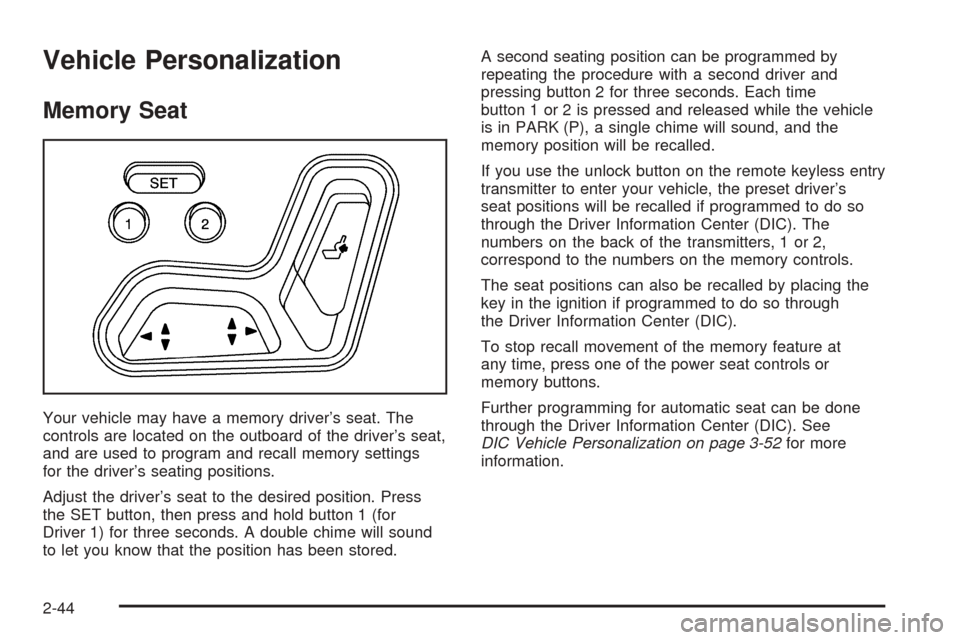
Your vehicle may have a memory driver’s seat. The
controls are located on the outboard of the driver’s seat,
and are used to program and recall memory settings
for the driver’s seating positions.
Adjust the driver’s seat to the desired position. Press
the SET button, then press and hold button 1 (for
Driver 1) for three seconds. A double chime will sound
to let you know that the position has been stored.A second seating position can be programmed by
repeating the procedure with a second driver and
pressing button 2 for three seconds. Each time
button 1 or 2 is pressed and released while the vehicle
is in PARK (P), a single chime will sound, and the
memory position will be recalled.
If you use the unlock button on the remote keyless entry
transmitter to enter your vehicle, the preset driver’s
seat positions will be recalled if programmed to do so
through the Driver Information Center (DIC). The
numbers on the back of the transmitters, 1 or 2,
correspond to the numbers on the memory controls.
The seat positions can also be recalled by placing the
key in the ignition if programmed to do so through
the Driver Information Center (DIC).
To stop recall movement of the memory feature at
any time, press one of the power seat controls or
memory buttons.
Further programming for automatic seat can be done
through the Driver Information Center (DIC). See
DIC Vehicle Personalization on page 3-52for more
information.
2-44
Page 111 of 374
Windshield Wipers
N
(Windshield Wipers):To use the windshield
wipers, turn the band with the wiper symbol on it.
8(Mist):For a single wiping cycle, turn the band to
mist. Hold it there until the wipers start. Then let go.
The wipers will stop after one wipe. If you want
more wipes, hold the band on mist longer.
Delayed Wipers:You can set the wiper speed for a
long or short delay between wipes. This can be
very useful in light rain or snow. Turn the band to one of
the dashed marks on the lever to choose the delay
time. The closer to the top of the lever, the shorter
the delay.
6(Low Speed):For steady wiping at low speed,
turn the band away from you to the rst solid band past
the delay settings.
1(High Speed):For high-speed wiping, turn the
band further, to the second solid band past the
delay settings.
9(Off):Turn the band to this symbol to turn of your
windshield wipers.
{CAUTION:
In freezing weather, do not use your washer
until the windshield is warmed. Otherwise the
washer uid can form ice on the windshield,
blocking your vision.
LQ(Windshield Washer):To spray washer uid on
the windshield, press the paddle. The wipers will
clear the window and then either stop or return to your
preset speed.
3-7
Page 113 of 374
R(On):Move the switch to this position to turn the
cruise control system on.
S(Resume/Accelerate):Move the switch to this
position to resume a set speed or to accelerate.
T(Set):Press this button, located at the end of
the lever, to set a speed.
9(Off):This position turns the cruise control
system off and cancels memory of a set speed.
1. Move the cruise control switch to on.
2. Get up to the speed you want.
3. Press in the set button at the end of the lever
and release it.
4. Take your foot off the accelerator pedal.
The accelerator pedal will not go down.
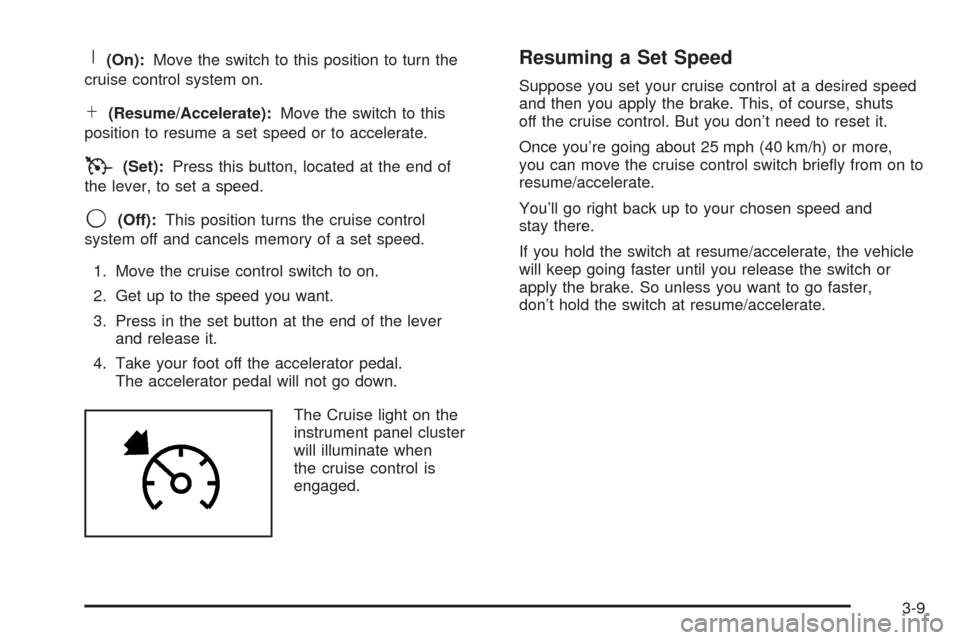
The Cruise light on the
instrument panel cluster
will illuminate when
the cruise control is
engaged.
Resuming a Set Speed
Suppose you set your cruise control at a desired speed
and then you apply the brake. This, of course, shuts
off the cruise control. But you don’t need to reset it.
Once you’re going about 25 mph (40 km/h) or more,
you can move the cruise control switch briey from on to
resume/accelerate.
You’ll go right back up to your chosen speed and
stay there.
If you hold the switch at resume/accelerate, the vehicle
will keep going faster until you release the switch or
apply the brake. So unless you want to go faster,
don’t hold the switch at resume/accelerate.
3-9
Page 133 of 374
Anti-Lock Brake System
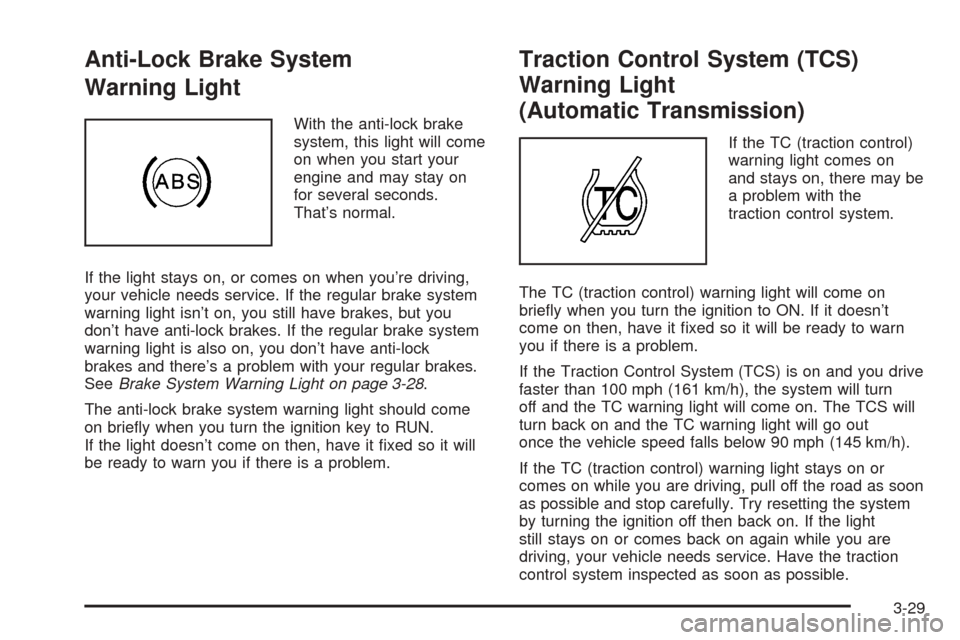
Warning Light
With the anti-lock brake
system, this light will come
on when you start your
engine and may stay on
for several seconds.
That’s normal.
If the light stays on, or comes on when you’re driving,
your vehicle needs service. If the regular brake system
warning light isn’t on, you still have brakes, but you
don’t have anti-lock brakes. If the regular brake system
warning light is also on, you don’t have anti-lock
brakes and there’s a problem with your regular brakes.
SeeBrake System Warning Light on page 3-28.
The anti-lock brake system warning light should come
on briey when you turn the ignition key to RUN.
If the light doesn’t come on then, have it xed so it will
be ready to warn you if there is a problem.
Traction Control System (TCS)
Warning Light
(Automatic Transmission)
If the TC (traction control)
warning light comes on
and stays on, there may be
a problem with the
traction control system.
The TC (traction control) warning light will come on
briey when you turn the ignition to ON. If it doesn’t
come on then, have it xed so it will be ready to warn
you if there is a problem.
If the Traction Control System (TCS) is on and you drive
faster than 100 mph (161 km/h), the system will turn
off and the TC warning light will come on. The TCS will
turn back on and the TC warning light will go out
once the vehicle speed falls below 90 mph (145 km/h).
If the TC (traction control) warning light stays on or
comes on while you are driving, pull off the road as soon
as possible and stop carefully. Try resetting the system
by turning the ignition off then back on. If the light
still stays on or comes back on again while you are
driving, your vehicle needs service. Have the traction
control system inspected as soon as possible.
3-29
Page 139 of 374
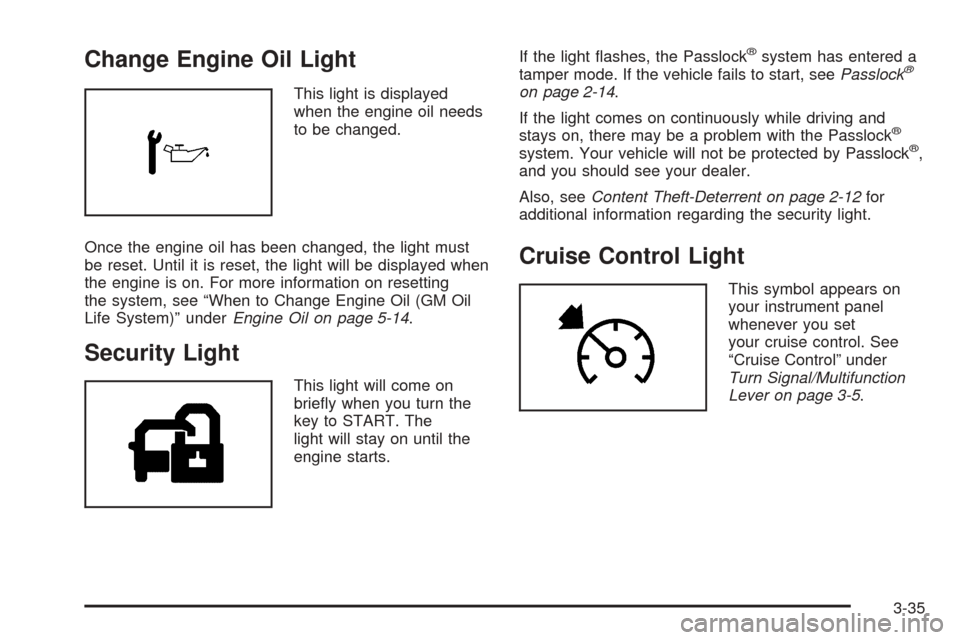
Change Engine Oil Light
This light is displayed
when the engine oil needs
to be changed.
Once the engine oil has been changed, the light must
be reset. Until it is reset, the light will be displayed when
the engine is on. For more information on resetting
the system, see “When to Change Engine Oil (GM Oil
Life System)” underEngine Oil on page 5-14.
Security Light
This light will come on
briey when you turn the
key to START. The
light will stay on until the
engine starts.If the light ashes, the Passlock
®system has entered a
tamper mode. If the vehicle fails to start, seePasslock®
on page 2-14.
If the light comes on continuously while driving and
stays on, there may be a problem with the Passlock
®
system. Your vehicle will not be protected by Passlock®,
and you should see your dealer.
Also, seeContent Theft-Deterrent on page 2-12for
additional information regarding the security light.
Cruise Control Light
This symbol appears on
your instrument panel
whenever you set
your cruise control. See
“Cruise Control” under
Turn Signal/Multifunction
Lever on page 3-5.
3-35
Page 145 of 374
Driver Information Center (DIC)
The Driver Information Center (DIC) gives you the
status of many of your vehicle’s systems. It is also
used to display driver personalization features and
warning/status messages. The DIC display is located
on the instrument panel cluster. The DIC buttons
are located on the steering wheel.
The DIC comes on when the ignition is on. After a short
delay the DIC will display the current driver and the
information that was last displayed before the engine
was turned off.
If a problem is detected, a warning message will appear
on the display. Be sure to take any message that
appears on the display seriously and remember that
clearing the message will only make the message
disappear, not correct the problem.
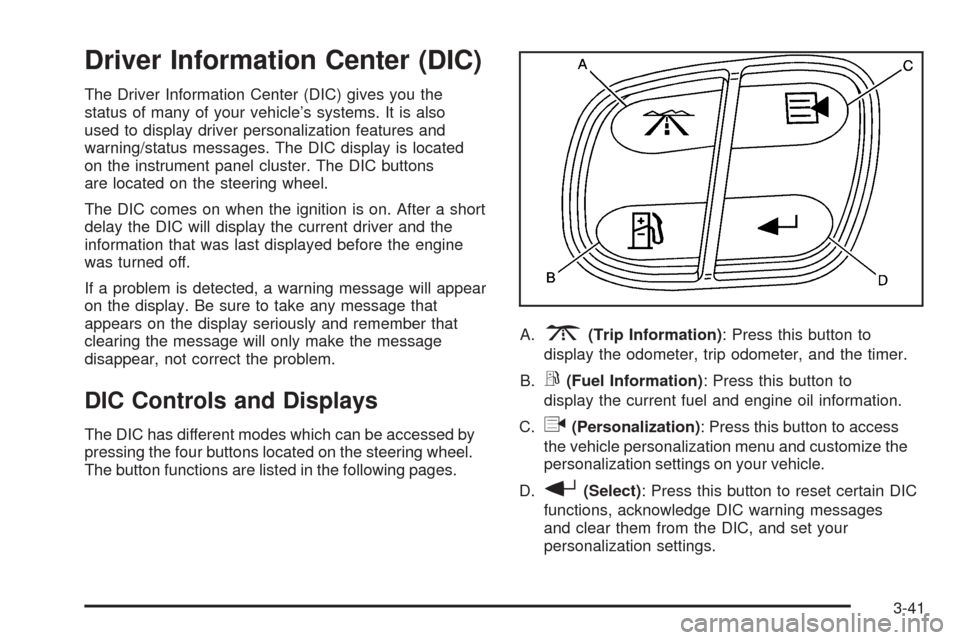
DIC Controls and Displays
The DIC has different modes which can be accessed by
pressing the four buttons located on the steering wheel.
The button functions are listed in the following pages.A.
3(Trip Information): Press this button to
display the odometer, trip odometer, and the timer.
B.
r(Fuel Information): Press this button to
display the current fuel and engine oil information.
C.
q(Personalization): Press this button to access
the vehicle personalization menu and customize the
personalization settings on your vehicle.
D.
r(Select): Press this button to reset certain DIC
functions, acknowledge DIC warning messages
and clear them from the DIC, and set your
personalization settings.
3-41
Page 146 of 374
Trip Information
3
(Trip Information):Press this button to scroll
through the odometer, TRIP A, TRIP B, and TIMER.
Odometer
Press the trip information button until the odometer
appears on the display. This shows the total distance
the vehicle has been driven in either miles or kilometers.
Trip Odometer
Press the trip information button until TRIP A or TRIP B
is displayed. This shows the current distance traveled
since the last reset for each trip odometer in either miles
or kilometers. Both odometers can be used at the
same time.
Each trip odometer can be reset to zero separately by
pressing and holding the select button while the desired
trip odometer is displayed.
Timer
The DIC can be used as a stopwatch. Press the trip
information button until TIMER is displayed. Press the
select button to start the timer. The display will show
the amount of time that has passed since the timer
was last reset (not including time the ignition is
off). Time will continue to be counted as long as the
ignition is on, even if another display is being shown on
the DIC. The timer will record up to 99 hours,
59 minutes and 59 seconds (99:59:59) after which the
display will roll back to zero.
To stop the counting of time, press the select button
briey while TIMER is displayed.
To reset the timer to zero, press and hold the select
button while TIMER is displayed.
3-42
Page 147 of 374
Fuel Information
r
(Fuel Information):Press this button to scroll
through the range, average fuel economy, instant fuel
economy and engine oil life.
Fuel Range
Press the fuel information button until RANGE appears
to display the remaining distance you can drive
without refueling. It’s based on fuel economy and the
fuel remaining in the tank. The display will show
FUEL LEVEL LOW if the fuel level is low and a chime
will sound. The check gages warning light on the
instrument panel cluster will also be illuminated.
SeeCheck Gages Warning Light on page 3-36for more
information.
The fuel economy data used to determine fuel range
is an average of recent driving conditions. As your
driving conditions change, this data is gradually updated.
Fuel range cannot be reset.
Average Fuel Economy
Press the fuel information button until AVG. ECON
appears in the display. Average fuel economy is how
many miles per gallon your vehicle is getting based on
current and past driving conditions.
Press and hold the select button while AVG. ECON is
displayed to reset the average fuel economy. Average
fuel economy will then be calculated starting from
that point. If the average fuel economy is not reset,
it will be continually updated each time you drive.
Instant Fuel Economy
Press the fuel information button until INST. ECON
appears in the display. Instant fuel economy is
how many miles per gallon your vehicle is at the
particular moment in time. The instant fuel economy
cannot be reset.
3-43
Page 148 of 374
Engine Oil Life
Press the fuel information button until ENGINE OIL LIFE
appears in the display. The GM Oil Life System™
shows an estimate of the oil’s remaining useful life.
It will show 100% when the system is reset after
an oil change. It will alert you to change your oil on a
schedule consistent with your driving conditions.
Always reset the engine oil life after an oil change.
To reset the engine oil life system, press and hold the
select button while ENGINE OIL LIFE is displayed.
The engine oil life reading in the DIC does not replace
the need to maintain your vehicle as recommended
in the Maintenance Schedule in this manual. SeeEngine
Oil on page 5-14,Change Engine Oil Light on
page 3-35, andScheduled Maintenance on page 6-5.
Personalization
q
(Personalization):Press this button to access
the vehicle personalization menu and customize
the personalization settings on your vehicle. SeeDIC
Vehicle Personalization on page 3-52for more
information.
Select
r
(Select):Press this button to reset certain DIC
functions, acknowledge DIC warning messages
and clear them from the DIC, and set your
personalization settings.
3-44