reset CHEVROLET SUBURBAN 2010 10.G Owner's Guide
[x] Cancel search | Manufacturer: CHEVROLET, Model Year: 2010, Model line: SUBURBAN, Model: CHEVROLET SUBURBAN 2010 10.GPages: 608, PDF Size: 6.53 MB
Page 294 of 608
APPROACH LIGHTING
This feature allows you to select whether or not to have
the exterior lights turn on briefly during low light periods
after unlocking the vehicle using the Remote Keyless
Entry (RKE) transmitter.
Press the customization button until APPROACH
LIGHTING appears on the DIC display. Press the
set/reset button once to access the settings for this
feature. Then press the customization button to scroll
through the following settings:
OFF:The exterior lights will not turn on when you
unlock the vehicle with the RKE transmitter.
ON (default): If it is dark enough outside, the exterior
lights will turn on briefly when you unlock the vehicle
with the RKE transmitter.
The lights will remain on for 20 seconds or until the lock
button on the RKE transmitter is pressed, or the vehicle
is no longer off. See Remote Keyless Entry (RKE)
System Operation
on page 3‑4for more information.
NO CHANGE : No change will be made to this feature.
The current setting will remain.
To select a setting, press the set/reset button while the
desired setting is displayed on the DIC.
CHIME VOLUME
This feature allows you to select the volume level of the
chime.
Press the customization button until CHIME VOLUME
appears on the DIC display. Press the set/reset button
once to access the settings for this feature. Then press
the customization button to scroll through the following
settings:
NORMAL: The chime volume will be set to a normal
level.
LOUD: The chime volume will be set to a loud level.
NO CHANGE: No change will be made to this feature.
The current setting will remain.
There is no default for chime volume. The volume will
stay at the last known setting.
To select a setting, press the set/reset button while the
desired setting is displayed on the DIC.
PARK TILT MIRRORS
If your vehicle has this feature, it allows you to select
whether or not the outside mirror(s) will automatically tilt
down when the vehicle is shifted into R (Reverse). See
Park Tilt Mirrors
on page 3‑55for more information.
4-76
Page 295 of 608
Press the customization button until PARK TILT
MIRRORS appears on the DIC display. Press the
set/reset button once to access the settings for this
feature. Then press the customization button to scroll
through the following settings:
OFF (default):Neither outside mirror will be tilted down
when the vehicle is shifted into R (Reverse).
DRIVER MIRROR: The driver's outside mirror will be
tilted down when the vehicle is shifted into R (Reverse).
PASSENGER MIRROR: The passenger's outside
mirror will be tilted down when the vehicle is shifted into
R (Reverse).
BOTH MIRRORS: The driver's and passenger's outside
mirrors will be tilted down when the vehicle is shifted
into R (Reverse).
NO CHANGE: No change will be made to this feature.
The current setting will remain.
To select a setting, press the set/reset button while the
desired setting is displayed on the DIC.
EASY EXIT RECALL
If your vehicle has this feature, it allows you to select
your preference for the automatic easy exit seat feature.
See Memory Seat, Mirrors, and Pedals
on page 2‑10for more information. Press the customization button until EASY EXIT
RECALL appears on the DIC display. Press the
set/reset button once to access the settings for this
feature. Then press the customization button to scroll
through the following settings:
DOOR BUTTON ONLY:
No automatic seat exit recall
will occur. The recall will only occur after pressing the
easy exit seat button.
BUTTON & KEY OUT (default): If the features are
enabled through the EASY EXIT SETUP menu, the
driver's seat will move back when the key is removed
from the ignition or after pressing the easy exit seat
button.
The automatic easy exit seat movement will only occur
one time after the key is removed from the ignition.
If the automatic movement has already occurred, and
you put the key back in the ignition and remove it again,
the seat will stay in the original exit position, unless a
memory recall took place prior to removing the key
again.
NO CHANGE: No change will be made to this feature.
The current setting will remain.
To select a setting, press the set/reset button while the
desired setting is displayed on the DIC.
4-77
Page 296 of 608
EASY EXIT SETUP
If your vehicle has this feature, it allows you to select
which areas will recall with the automatic easy exit seat
feature. It also allows you to turn off the automatic easy
exit feature. SeeMemory Seat, Mirrors, and Pedals
on
page 2‑10and “EASY EXIT RECALL” earlier for more
information.
Press the customization button until EASY EXIT SETUP
appears on the DIC display. Press the set/reset button
once to access the settings for this feature. Then press
the menu up/down button to scroll through the following
settings:
OFF: No automatic seat exit will recall.
SEAT ONLY (Default): The driver's seat will recall.
NO CHANGE: No change will be made to this feature.
The current setting will remain.
To select a setting, press the set/reset button while the
desired setting is displayed on the DIC.
MEMORY SEAT RECALL
If your vehicle has this feature, it allows you to select
your preference for the remote memory seat recall
feature. See Memory Seat, Mirrors, and Pedals
on
page 2‑10for more information. Press the customization button until MEMORY SEAT
RECALL appears on the DIC display. Press the
set/reset button once to access the settings for this
feature. Then press the customization button to scroll
through the following settings:
OFF (default):
No remote memory seat recall will
occur.
ON: The driver's seat and, on some vehicles, the
outside mirrors will automatically move to the stored
driving position when the unlock button on the Remote
Keyless Entry (RKE) transmitter is pressed. On some
vehicles with the adjustable throttle and brake pedal
feature, the pedals will also automatically move. See
“Relearn Remote Key” underDIC Operation and
Displays (With DIC Buttons)
on page 4‑47or DIC
Operation and Displays (Without DIC Buttons)on
page 4‑55for more information on matching
transmitters to driver ID numbers.
NO CHANGE: No change will be made to this feature.
The current setting will remain.
To select a setting, press the set/reset button while the
desired setting is displayed on the DIC.
4-78
Page 297 of 608
REMOTE START
If your vehicle has this feature, it allows you to turn
the remote start off or on. The remote start feature
allows you to start the engine from outside of the
vehicle using the Remote Keyless Entry (RKE)
transmitter. SeeRemote Vehicle Start
on page 3‑7for more information.
Press the customization button until REMOTE START
appears on the DIC display. Press the set/reset button
once to access the settings for this feature. Then press
the customization button to scroll through the following
settings:
OFF:The remote start feature will be disabled.
ON (default): The remote start feature will be enabled.
NO CHANGE: No change will be made to this feature.
The current setting will remain.
To select a setting, press the set/reset button while the
desired setting is displayed on the DIC.
FACTORY SETTINGS
This feature allows you to set all of the customization
features back to their factory default settings.
Press the customization button until FACTORY
SETTINGS appears on the DIC display. Press the
set/reset button once to access the settings for this
feature. Then press the customization button to scroll
through the following settings:
RESTORE ALL (default): The customization features
will be set to their factory default settings.
DO NOT RESTORE: The customization features will
not be set to their factory default settings.
To select a setting, press the set/reset button while the
desired setting is displayed on the DIC.
4-79
Page 298 of 608
EXIT FEATURE SETTINGS
This feature allows you to exit the feature
settings menu.
Press the customization button until PRESS
VTO EXIT
FEATURE SETTINGS appears in the DIC display.
Press the set/reset button once to exit the menu.
If you do not exit, pressing the customization button
again will return you to the beginning of the feature
settings menu.
Exiting the Feature Settings Menu
The feature settings menu will be exited when any of
the following occurs:
.The vehicle is no longer in ON/RUN.
.The trip/fuel or vehicle information DIC buttons are
pressed.
.The end of the feature settings menu is reached
and exited.
.A 40 second time period has elapsed with no
selection made.
Audio System(s)
Determine which radio the vehicle has and read the
following pages to become familiar with its features.
{WARNING:
Taking your eyes off the road for extended periods
could cause a crash resulting in injury or death to
you or others. Do not give extended attention to
entertainment tasks while driving.
This system provides access to many audio and non
audio listings.
To minimize taking your eyes off the road while driving,
do the following while the vehicle is parked:
.Become familiar with the operation and controls of
the audio system.
.Set up the tone, speaker adjustments, and preset
radio stations.
For more information, see Defensive Driving
on
page 5‑2.
4-80
Page 332 of 608
Channel Unavail:This previously assigned channel is
no longer assigned. Tune to another station. If this
station was one of the presets, choose another station
for that preset button.
No Artist Info: No artist information is available at this
time on this channel. The system is working properly.
No Title Info: No song title information is available at
this time on this channel. The system is working
properly.
No CAT Info: No category information is available at
this time on this channel. The system is working
properly.
No Information: No text or informational messages are
available at this time on this channel. The system is
working properly.
CAT Not Found: There are no channels available for
the selected category. The system is working properly.
XM Theftlocked: The XM receiver in the vehicle could
have previously been in another vehicle. For security
purposes, XM receivers cannot be swapped between
vehicles. If this message is received after having the
vehicle serviced, check with your dealer.
XM Radio ID: If tuned to channel 0, this message
alternates with the XM™ Radio 8 digit radio ID label.
This label is needed to activate the service. Unknown:
If this message is received when tuned to
channel 0, there could be a receiver fault. Consult with
your dealer.
Check Antenna: If this message does not clear within
a short period of time, the receiver or antenna could
have a fault. Consult with your dealer.
Check XM Receivr: If this message does not clear
within a short period of time, the receiver could have a
fault. Consult with your dealer.
XM Not Available: If this message does not clear
within a short period of time, the receiver could have a
fault. Consult with your dealer.
Navigation/Radio System
For vehicles with a navigation radio system, see the
separate Navigation System manual.
Bluetooth®
Vehicles with a Bluetooth system can use a Bluetooth
capable cell phone with a Hands Free Profile to make
and receive phone calls. The system can be used while
the key is in ON/RUN or ACC/ACCESSORY position.
The range of the Bluetooth system can be up to 9.1 m
(30 ft). Not all phones support all functions, and not all
phones are guaranteed to work with the in-vehicle
Bluetooth system. See www.gm.com/bluetooth for more
information on compatible phones.
4-114
Page 353 of 608
© ¨(Seek):When listening to FM, AM, or XM™
(if equipped), press the left
©or right¨seek arrow to
go to the previous or to the next station or channel and
stay there. This function is inactive, with some radios,
if the front seat passengers are listening to the radio.
Press and hold the left
©or right¨seek arrow until
the display flashes, to tune to an individual station. The
display stops flashing after the buttons have not been
pushed for more than two seconds. This function is
inactive, with some radios, if the front seat passengers
are listening to the radio.
While listening to a disc, press the left
©seek arrow
to go back to the start of the current track or chapter
(if more than ten seconds have played). Press the
right
¨seek arrow to go to the next track or chapter
on the disc. This function is inactive, with some radios,
if the front seat passengers are listening to the disc.
When a DVD video menu is being displayed, press the
left
©or right¨seek arrow to perform a cursor up or
down on the menu. Hold the left
©or right¨arrow to
perform a cursor left or right on the menu. PROG (Program):
Press this button to go to the next
preset radio station or channel set on the main radio.
This function is inactive, with some radios, if the front
seat passengers are listening to the radio.
When a CD or DVD audio disc is playing, press this
button to go to the beginning of the CD or DVD audio.
This function is inactive, with some radios, if the front
seat passengers are listening to the disc.
When a disc is playing in the CD or DVD changer, press
this button to select the next disc, if multiple discs are
loaded. This function is inactive, with some radios, if the
front seat passengers are listening to the disc.
When a DVD video menu is being displayed, press the
PROG button to perform the menu function, enter.
Theft-Deterrent Feature
THEFTLOCK®is designed to discourage theft of the
vehicle's radio by learning a portion of the Vehicle
Identification Number (VIN). The radio does not operate
if it is stolen or moved to a different vehicle.
4-135
Page 354 of 608
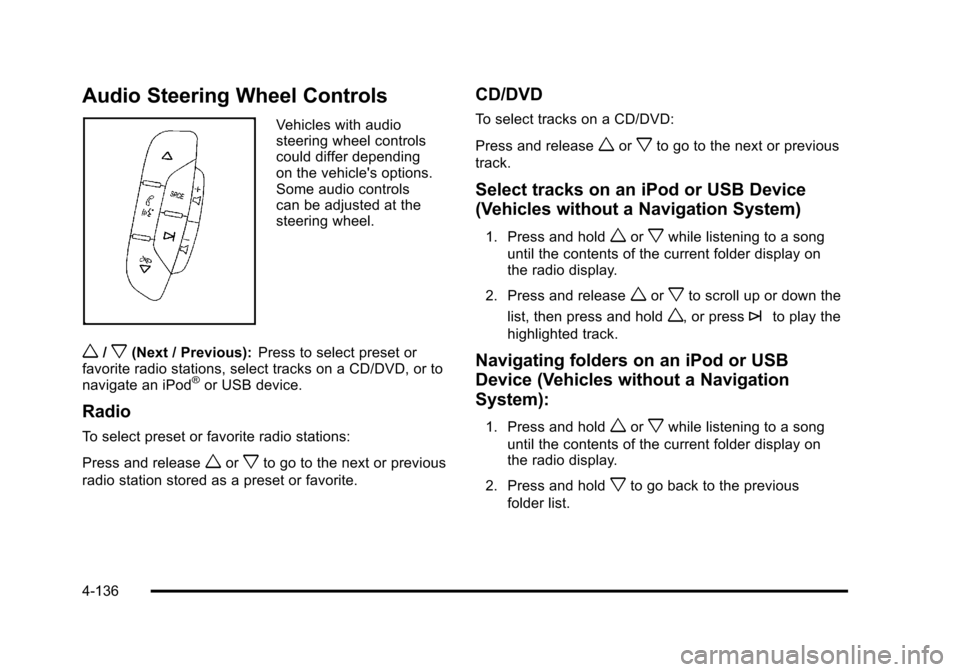
Audio Steering Wheel Controls
Vehicles with audio
steering wheel controls
could differ depending
on the vehicle's options.
Some audio controls
can be adjusted at the
steering wheel.
w/x(Next / Previous):Press to select preset or
favorite radio stations, select tracks on a CD/DVD, or to
navigate an iPod
®or USB device.
Radio
To select preset or favorite radio stations:
Press and release
worxto go to the next or previous
radio station stored as a preset or favorite.
CD/DVD
To select tracks on a CD/DVD:
Press and release
worxto go to the next or previous
track.
Select tracks on an iPod or USB Device
(Vehicles without a Navigation System)
1. Press and holdworxwhile listening to a song
until the contents of the current folder display on
the radio display.
2. Press and release
worxto scroll up or down the
list, then press and hold
w, or press¨to play the
highlighted track.
Navigating folders on an iPod or USB
Device (Vehicles without a Navigation
System):
1. Press and holdworxwhile listening to a song
until the contents of the current folder display on
the radio display.
2. Press and hold
xto go back to the previous
folder list.
4-136
Page 364 of 608
StabiliTrak®System
The vehicle has a vehicle stability enhancement system
called StabiliTrak. It is an advanced computer controlled
system that assists the driver with directional control of
the vehicle in difficult driving conditions.
StabiliTrak activates when the computer senses a
discrepancy between the intended path and the
direction the vehicle is actually traveling. StabiliTrak
selectively applies braking pressure at any one of the
vehicle's brakes to assist the driver with keeping the
vehicle on the intended path.
When the vehicle is started and begins to move, the
system performs several diagnostic checks to insure
there are no problems. The system may be heard or felt
while it is working. This is normal and does not mean
there is a problem with the vehicle. The system should
initialize before the vehicle reaches 20 mph (32 km/h).
In some cases, it may take approximately two miles of
driving before the system initializes.
If cruise control is being used when StabiliTrak
activates, the cruise control automatically disengages.
The cruise control can be re-engaged when road
conditions allow. SeeCruise Control on page 4‑8. If the system fails to turn on or activate, the StabiliTrak
light along with one of the following messages will be
displayed on the Driver Information Center (DIC):
TRACTION CONTROL OFF, SERVICE TRACTION
CONTROL, STABILITRAK OFF, SERVICE
STABILITRAK. If these DIC messages appear,
make sure the StabiliTrak system has not been
turned off using the StabiliTrak on/off button. Then turn
the steering wheel clockwise from the nine o'clock
position to the three o'clock position. If this clears the
message(s), the vehicle does not need servicing. If this
does not clear the message(s), then turn the vehicle off,
wait 15 seconds, and then turn it back on again to reset
the system. If any of these messages still appear on the
Driver Information Center (DIC), the vehicle should be
taken in for service. For more information on the DIC
messages, see
Driver Information Center (DIC)
on
page 4‑47.
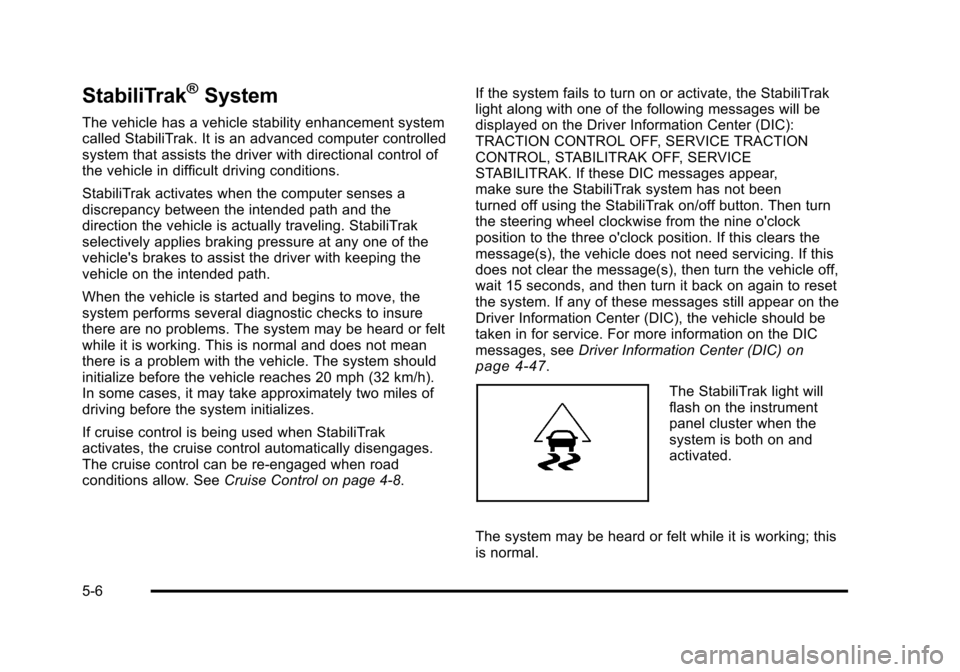
The StabiliTrak light will
flash on the instrument
panel cluster when the
system is both on and
activated.
The system may be heard or felt while it is working; this
is normal.
5-6
Page 446 of 608
Engine Oil Life System
When to Change Engine Oil
This vehicle has a computer system that indicates when
to change the engine oil and filter. This is based on
engine revolutions and engine temperature, and not on
mileage. Based on driving conditions, the mileage at
which an oil change is indicated can vary considerably.
For the oil life system to work properly, the system must
be reset every time the oil is changed.
On some vehicles, when the system has calculated
that oil life has been diminished, a CHANGE ENGINE
OIL SOON message comes on to indicate that an oil
change is necessary. SeeDIC Warnings and Messages
on page 4‑61. Change the oil as soon as possible
within the next 1 000 km (600 miles). It is possible that,
if driving under the best conditions, the oil life system
might not indicate that an oil change is necessary for
over a year. However, the engine oil and filter must
be changed at least once a year and at this time the
system must be reset. For vehicles without the
CHANGE ENGINE OIL SOON message, an oil change
is needed when the OIL LIFE REMAINING percentage
is near 0%. Your dealer has trained service people who
will perform this work using genuine parts and reset the
system. It is also important to check the oil regularly
and keep it at the proper level. If the system is ever reset accidentally, the oil must be
changed at 5 000 km (3,000 miles) since the last oil
change. Remember to reset the oil life system
whenever the oil is changed.
How to Reset the Engine Oil Life
System
The Engine Oil Life System calculates when to
change the engine oil and filter based on vehicle use.
Whenever the oil is changed, reset the system so it can
calculate when the next oil change is required. If a
situation occurs where the oil is changed prior to a
CHANGE ENGINE OIL SOON message coming on,
reset the system.
Always reset the engine oil life to 100% after every oil
change. It will not reset itself. To reset the Engine Oil
Life System on most vehicles:
1. Display the OIL LIFE REMAINING on the DIC. If the vehicle does not have DIC buttons, the
vehicle must be in P (Park) to access this display.
See DIC Operation and Displays (With DIC
Buttons)
on page 4‑47or DIC Operation and
Displays (Without DIC Buttons) on page 4‑55.
2. Press and hold the SET/RESET button on the DIC, or the trip odometer reset stem if the vehicle does
not have DIC buttons, for more than five seconds.
The oil life will change to 100%.
6-20