USB CHEVROLET SUBURBAN 2012 10.G Owners Manual
[x] Cancel search | Manufacturer: CHEVROLET, Model Year: 2012, Model line: SUBURBAN, Model: CHEVROLET SUBURBAN 2012 10.GPages: 514, PDF Size: 7.54 MB
Page 26 of 514
Black plate (20,1)Chevrolet Tahoe/Suburban Owner Manual - 2012
1-20 In Brief
N (Neutral):Vehicles with a
two speed transfer case have a
N (Neutral) position. Shift the
transfer case to N (Neutral) only
when towing the vehicle. See
Recreational Vehicle Towing on
page 10‑87 orTowing the Vehicle
on page 10‑87.
See Four-Wheel Drive (Two Speed
Automatic Transfer Case) on
page 9‑36 orFour-Wheel Drive
(Single Speed Automatic Transfer
Case) on page 9‑41.Vehicle Features
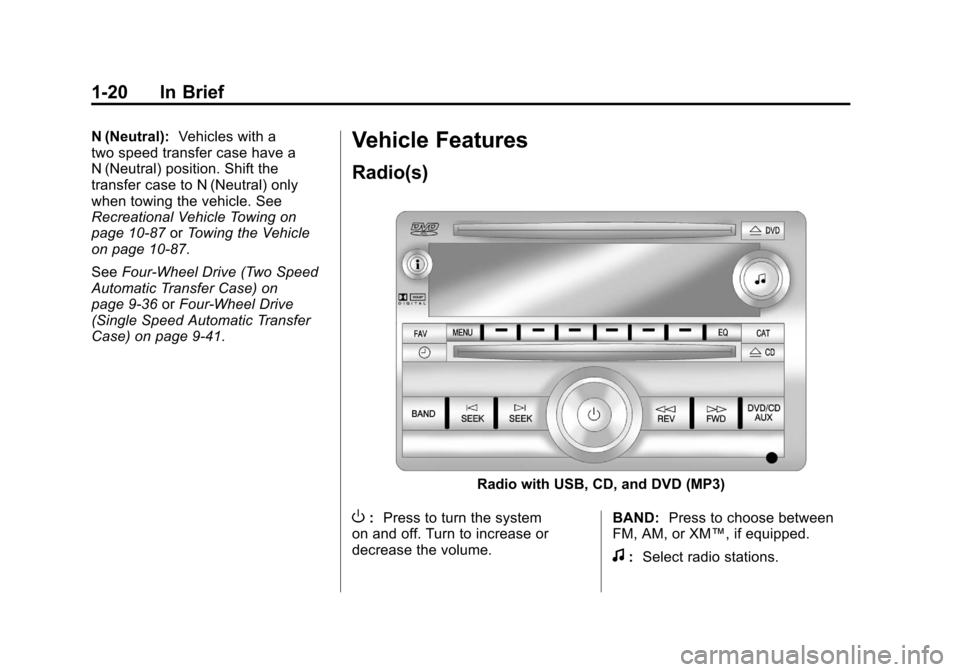
Radio(s)
Radio with USB, CD, and DVD (MP3)
O: Press to turn the system
on and off. Turn to increase or
decrease the volume. BAND:
Press to choose between
FM, AM, or XM™, if equipped.
f: Select radio stations.
Page 28 of 514
Black plate (22,1)Chevrolet Tahoe/Suburban Owner Manual - 2012
1-22 In Brief
Satellite Radio
XM is a satellite radio service
based in the 48 contiguous
United States and 10 Canadian
provinces. XM satellite radio has a
wide variety of programming and
commercial-free music, coast to
coast, and in digital-quality sound.
A fee is required to receive the
XM service.
For more information, refer to:
.www.xmradio.com or call
1-800-929-2100 (U.S.)
.www.xmradio.ca or call
1-877-438-9677 (Canada)
See Satellite Radio on page 7‑9.
Portable Audio Devices
This vehicle has an auxiliary input,
located on the audio faceplate,
and a USB port located on the
instrument panel or in the center
console. External devices such
as iPod
®, laptop computers,
MP3 players, CD changers, USB storage device, etc. can be
connected to the auxiliary port
using a 3.5 mm (1/8 in) input jack
or the USB port depending on the
audio system.
See
Auxiliary Devices on page 7‑30
for further information.
Bluetooth®
For vehicles with a Bluetooth
system, it allows users with a
Bluetooth‐enabled cell phone to
make and receive hands-free calls
using the vehicle’ s audio system
and controls.
The Bluetooth‐enabled cell phone
must be paired with the Bluetooth
system before it can be used in the
vehicle. Not all phones will support
all functions. For more information,
visit www.gm.com/bluetooth.
For more information, see Bluetooth
on page 7‑47.
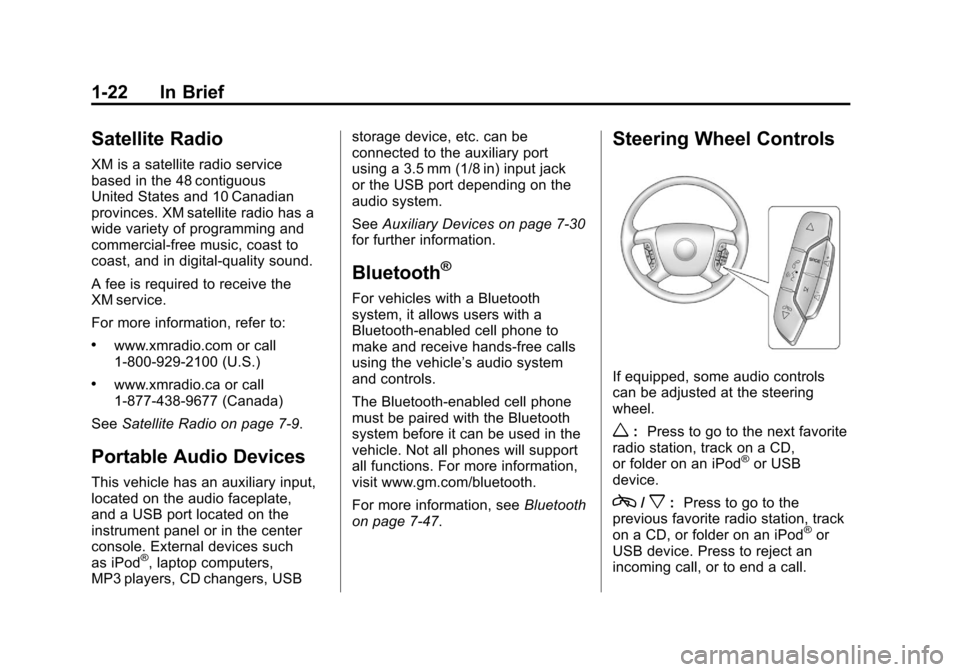
Steering Wheel Controls
If equipped, some audio controls
can be adjusted at the steering
wheel.
w: Press to go to the next favorite
radio station, track on a CD,
or folder on an iPod
®or USB
device.
c/x: Press to go to the
previous favorite radio station, track
on a CD, or folder on an iPod
®or
USB device. Press to reject an
incoming call, or to end a call.
Page 29 of 514
Black plate (23,1)Chevrolet Tahoe/Suburban Owner Manual - 2012
In Brief 1-23
b/g:Press to silence the vehicle
speakers only. Press again to turn
the sound on. Press and hold longer
than two seconds to interact with
OnStar
®or Bluetooth systems,
if equipped.
+
e: Press to increase volume.
−
e: Press to decrease volume.
SRCE: Press to switch between
the radio and CD, and for equipped
vehicles, the DVD, front auxiliary,
and rear auxiliary.
¨: Press to seek the next radio
station, the next track or chapter
while sourced to the CD or DVD
slot, or to select tracks and folders
on an iPod or USB device.
For more information, see Steering
Wheel Controls on page 5‑2.
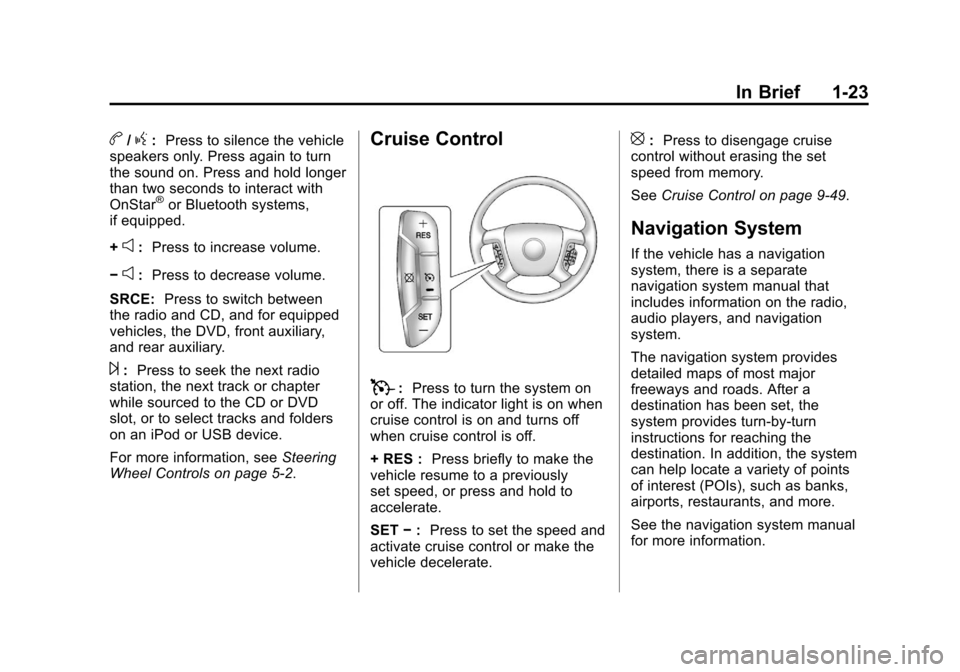
Cruise Control
T: Press to turn the system on
or off. The indicator light is on when
cruise control is on and turns off
when cruise control is off.
+ RES : Press briefly to make the
vehicle resume to a previously
set speed, or press and hold to
accelerate.
SET −: Press to set the speed and
activate cruise control or make the
vehicle decelerate.
[: Press to disengage cruise
control without erasing the set
speed from memory.
See Cruise Control on page 9‑49.
Navigation System
If the vehicle has a navigation
system, there is a separate
navigation system manual that
includes information on the radio,
audio players, and navigation
system.
The navigation system provides
detailed maps of most major
freeways and roads. After a
destination has been set, the
system provides turn-by-turn
instructions for reaching the
destination. In addition, the system
can help locate a variety of points
of interest (POIs), such as banks,
airports, restaurants, and more.
See the navigation system manual
for more information.
Page 128 of 514
Black plate (2,1)Chevrolet Tahoe/Suburban Owner Manual - 2012
5-2 Instruments and Controls
Vehicle Personalization
Vehicle Personalization (WithDIC Buttons) . . . . . . . . . . . . . . . 5-45
Universal Remote System
Universal Remote System . . . 5-53
Universal Remote SystemProgramming . . . . . . . . . . . . . . . 5-53
Universal Remote System Operation . . . . . . . . . . . . . . . . . . 5-58
Controls
Steering Wheel
Adjustment
The tilt lever is located on the lower
left side of the steering column.
To adjust the steering wheel:
1. Hold the steering wheel and pull
the lever.
2. Move the steering wheel up or down. 3. Release the lever to lock the
wheel in place.
Do not adjust the steering wheel
while driving.
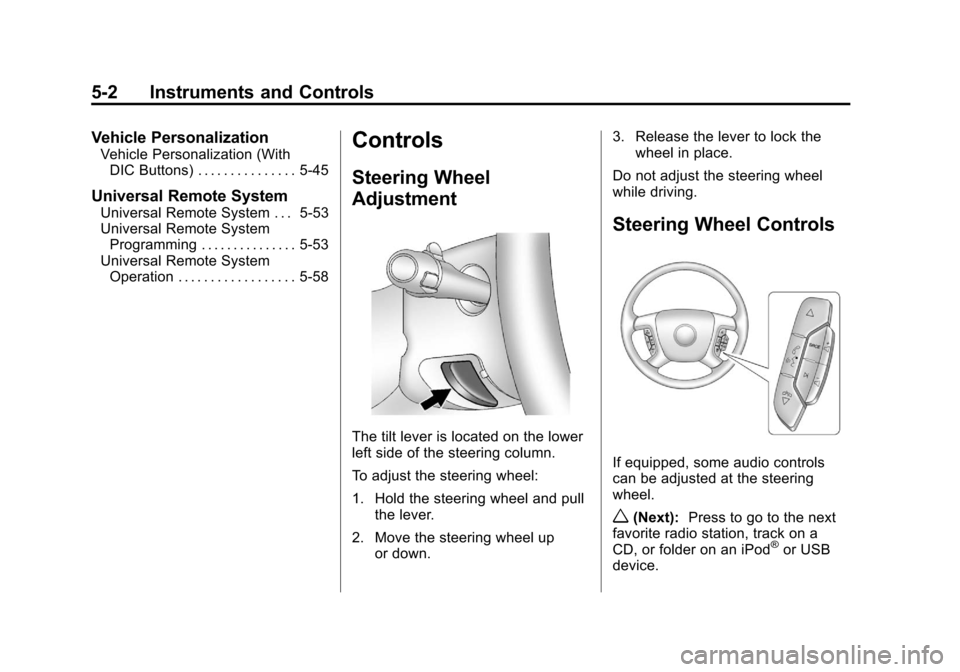
Steering Wheel Controls
If equipped, some audio controls
can be adjusted at the steering
wheel.
w(Next): Press to go to the next
favorite radio station, track on a
CD, or folder on an iPod
®or USB
device.
Page 129 of 514
Black plate (3,1)Chevrolet Tahoe/Suburban Owner Manual - 2012
Instruments and Controls 5-3
c/x(Phone On Hook):Press
to go to the previous favorite radio
station, track on a CD, or folder on
an iPod
®or USB device. Press to
reject an incoming call, or end a
current call.
Radio
To select preset or favorite radio
stations:
Press and release
worc/xto
go to the next or previous radio
station stored as a preset or
favorite.
CD/DVD
To select tracks on a CD/DVD:
Press and release
worc/xto
go to the next or previous track. Selecting Tracks on an iPod or
USB Device (Vehicles without a
Navigation System)
1. Press and hold
worc/x
while listening to a song until the
contents of the current folder
display on the radio display.
2. Press and release
worc/x
to scroll up or down the list, then
press and hold
w, or press¨to
play the highlighted track.
Navigating Folders on an iPod or
USB Device (Vehicles without a
Navigation System):
1. Press and hold
worc/x
while listening to a song until the
contents of the current folder
display on the radio display.
2. Press and hold
c/xto go
back to the previous folder list. 3. Press and release
worc/x
to scroll up or down the list.
.To select a folder,
press and hold
w, or
press
¨when the folder is
highlighted.
.To go back further in
the folder list, press and
hold
c/x.
Navigating an iPod or USB Device
on the Main Audio Screen
(Vehicles with a Navigation
System)
1. Press and release
worc/x
to select the next or previous
track within the selected
category.
2. Press and hold
worc/xto
move quickly through the tracks.
3. Press and release
¨to move up
one track within the selected
category.
Page 130 of 514
Black plate (4,1)Chevrolet Tahoe/Suburban Owner Manual - 2012
5-4 Instruments and Controls
Navigating an iPod or USB Device
on the Music Navigator Screen
(Vehicles with a Navigation
System)
1. Press and release
worc/x
to select the next or previous
track within the selected
category.
2. Press and hold
worc/xto
move quickly through the tracks
within the selected category.
3. Press and release
¨to move up
one track within the selected
category.
b/g(Mute/Push to Talk): Press
to silence the vehicle speakers only.
Press again to turn the sound on.
For vehicles with Bluetooth or
OnStar systems, press and hold for
longer than two seconds to interact
with those systems. See Bluetooth
on page 7‑47 andOnStar Overview
on page 14‑1 for more information. SRCE (Source/Voice
Recognition):
Press to switch
between the radio and CD, and for
equipped vehicles, the DVD, front
auxiliary, and rear auxiliary.
For vehicles with the navigation
system, press and hold this button
for longer than one second to
initiate voice recognition. See “Voice
Recognition” in the Navigation
System manual for more
information.
¨(Seek): Press to go to the
next radio station while in AM,
FM, or XM™.
For vehicles with or without a
navigation system:
Press
¨to go to the next track or
chapter while sourced to the CD or
DVD slot.
Press
¨to select a track or a folder
when navigating folders on an iPod
or USB device. For vehicles with a navigation
system:
1. Press and hold
¨until a beep is
heard, to place the radio into
SCAN mode. A station will play
for five seconds before moving
to the next station.
2. To stop the SCAN function, press
¨again.
While listening to a CD/DVD, press
and hold
¨to quickly move forward
through the tracks. Release to stop
on the desired track.
+
e: Press to increase volume.
−
e: Press to decrease volume.
Horn
To sound the horn, press the center
pad on the steering wheel.
Page 197 of 514
Black plate (3,1)Chevrolet Tahoe/Suburban Owner Manual - 2012
Infotainment System 7-3
Theft-Deterrent Feature
TheftLock®is designed to
discourage theft of the vehicle's
radio by learning a portion of the
Vehicle Identification Number (VIN).
The radio does not operate if it is
stolen or moved to a different
vehicle.
Operation
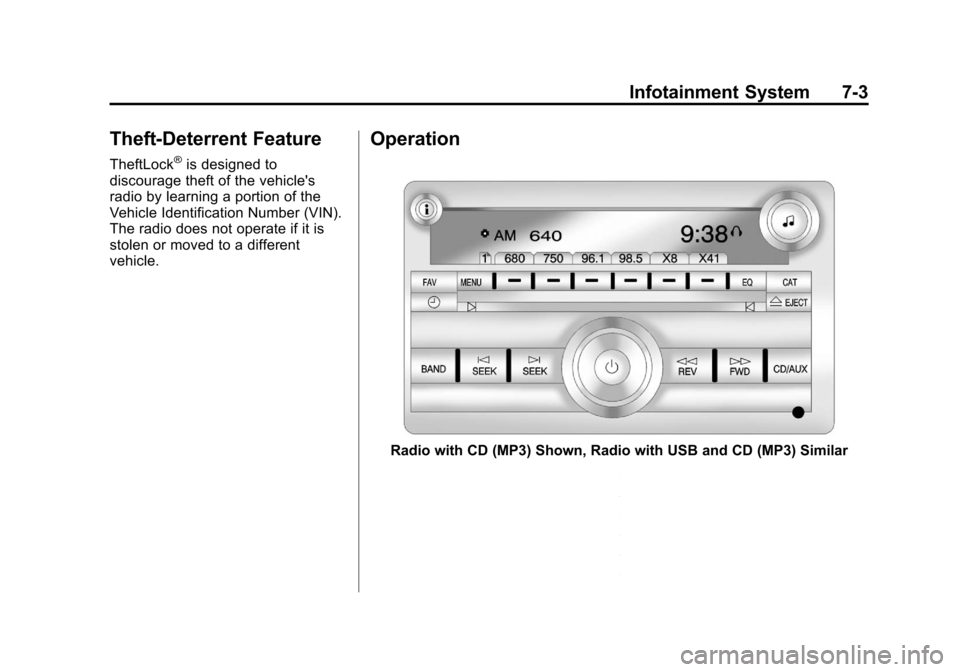
Radio with CD (MP3) Shown, Radio with USB and CD (MP3) Similar
Page 198 of 514
Black plate (4,1)Chevrolet Tahoe/Suburban Owner Manual - 2012
7-4 Infotainment System
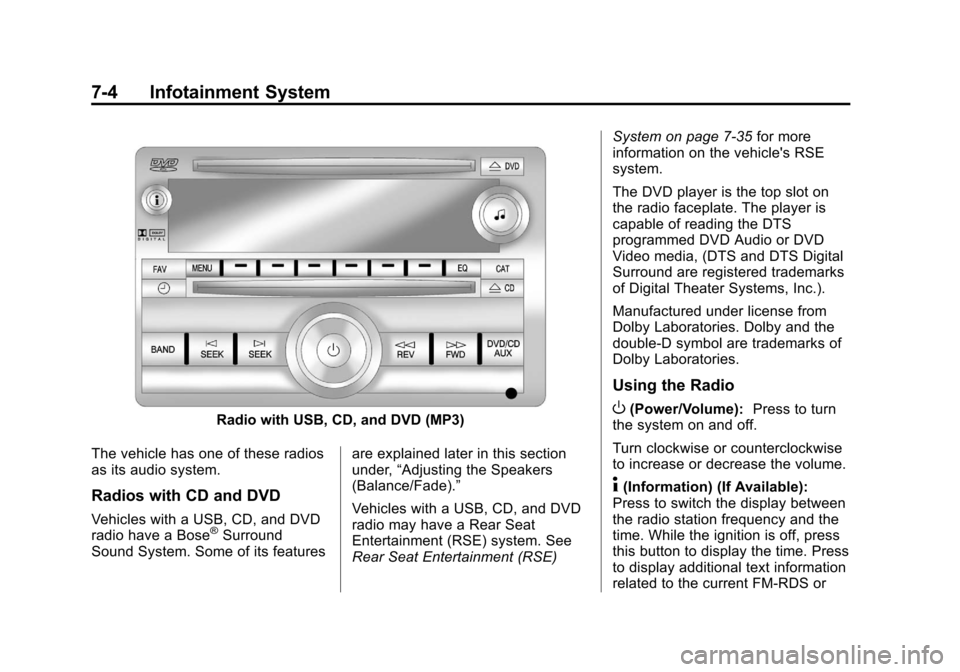
Radio with USB, CD, and DVD (MP3)
The vehicle has one of these radios
as its audio system.
Radios with CD and DVD
Vehicles with a USB, CD, and DVD
radio have a Bose®Surround
Sound System. Some of its features are explained later in this section
under,
“Adjusting the Speakers
(Balance/Fade).”
Vehicles with a USB, CD, and DVD
radio may have a Rear Seat
Entertainment (RSE) system. See
Rear Seat Entertainment (RSE) System on page 7‑35
for more
information on the vehicle's RSE
system.
The DVD player is the top slot on
the radio faceplate. The player is
capable of reading the DTS
programmed DVD Audio or DVD
Video media, (DTS and DTS Digital
Surround are registered trademarks
of Digital Theater Systems, Inc.).
Manufactured under license from
Dolby Laboratories. Dolby and the
double-D symbol are trademarks of
Dolby Laboratories.
Using the Radio
O(Power/Volume): Press to turn
the system on and off.
Turn clockwise or counterclockwise
to increase or decrease the volume.
4(Information) (If Available):
Press to switch the display between
the radio station frequency and the
time. While the ignition is off, press
this button to display the time. Press
to display additional text information
related to the current FM-RDS or
Page 210 of 514
Black plate (16,1)Chevrolet Tahoe/Suburban Owner Manual - 2012
7-16 Infotainment System
CD/AUX (CD/Auxiliary):Press to
cycle through CD or Auxiliary when
listening to the radio. The CD icon
and a message showing the disc
and/or track number displays when
a CD is in the player. Press again
and the system automatically
searches for an auxiliary input
device, see, Auxiliary Devices on
page 7‑30 for more information.
If a portable audio player is not
connected, “No Input Device Found”
displays.
4(Information): Press to display
additional text information related to
the current song. If information is
available, the song title information
displays on the top line of the
display and artist information
displays on the bottom line. When
information is not available, “NO
INFO” displays.
f(Tune): Turn to select tracks on
the CD that is currently playing.
©SEEK: Press to go to the start of
the current track, if more than ten
seconds on the CD have played. Press to go to the previous track if
less than ten seconds on the CD
have played.
Press and hold, or press multiple
times to continue moving backward
through the tracks on the CD.
¨SEEK:
Press to go to the next
track.
Press and hold, or press multiple
times to continue moving forward
through the tracks on the CD.
sREV (Fast Reverse): Press
and hold to reverse playback quickly
within a track.
\FWD (Fast Forward): Press
and hold to advance playback
quickly within a track.
RDM (Random): Press to listen
to tracks in random, rather than
sequential order. To use random:
1. Press the softkey positioned under the RDM tab until Random
Current Disc displays.
2. Press the softkey again to turn off random play.
MP3 Supported Files
The Radio with CD (MP3) and the
Radio with USB and CD (MP3),
have the capability of playing an
MP3 CD-R or CD-RW disc.
Format
Radios that have the capability of
playing MP3s can play .mp3 or .wma
files that were recorded onto a
CD-R or CD-RW disc. The files can
be recorded with the following fixed
bit rates: 32 kbps, 40 kbps, 56 kbps,
64 kbps, 80 kbps, 96 kbps, 112 kbps,
128 kbps, 160 kbps, 192 kbps,
224 kbps, 256 kbps, and 320 kbps or
a variable bit rate.
Compressed Audio or Mixed Mode
Discs
The radio can play discs that
contain both uncompressed CD
audio and MP3 files. If both formats
are on the disc, the radio reads
all MP3 files first, then the
uncompressed CD audio files.
Page 212 of 514
Black plate (18,1)Chevrolet Tahoe/Suburban Owner Manual - 2012
7-18 Infotainment System
Playlists that have an .m3u or .pls
file extension and are stored on a
USB device may be supported by
the radio with a USB port.
Playlists can be changed by using
the softkeys below the
Scand
c Ttabs, thefknob, the©SEEK button or the¨SEEK
button. An MP3 CD-R or CD-RW
that has been recorded without
using file folders can be played.
If a CD-R or CD-RW contains more
than the maximum of 50 folders,
15 playlists, and 512 folders and
files, the player allows access and
navigates up to the maximum, but
all items over the maximum are not
accessible.
Playing an MP3
4(Information): Press to display
additional text information related to
the current song. If information is
available, the song title information
displays on the top line of the
display and artist information displays on the bottom line.
When information is not available,
“NO INFO”
displays.
f(Tune):Turn to select MP3 files
on the CD currently playing.
©SEEK: Press to go to the start of
the track, if more than ten seconds
have played. Press and hold or
press multiple times to continue
moving backward through tracks.
¨SEEK: Press to go to the next
track. Press and hold or press
multiple times to continue moving
forward through tracks.
sREV (Reverse): Press and hold
to reverse playback quickly. Sound
is heard at a reduced volume and
the elapsed time of the file displays.
Release
sREV to resume playing.
\FWD (Fast Forward): Press
and hold to advance playback
quickly. Sound is heard at a reduced
volume and the elapsed time of the
file displays. Release
\FWD to
resume playing. The elapsed time of
the file displays.
S c(Previous Folder): Press
the softkey below the
S ctab to
go to the first track in the previous
folder.
c T(Next Folder): Press the
softkey below the
c Ttab to go to
the first track in the next folder.
RDM (Random): Press to listen to
tracks in random, rather than
sequential order. To use random:
1. Press the softkey positioned
under the RDM tab until Random
Current Disc displays.
2. Press the softkey again to turn off random play.
h(Music Navigator): Press the
softkey below the
htab to have
the files played in order by artist or
album. The player scans the disc
to sort the files by artist and album
ID3 tag information. It can take
several minutes to scan the disc
depending on the number of files on