navigation system CHEVROLET SUBURBAN 2012 10.G Owners Manual
[x] Cancel search | Manufacturer: CHEVROLET, Model Year: 2012, Model line: SUBURBAN, Model: CHEVROLET SUBURBAN 2012 10.GPages: 514, PDF Size: 7.54 MB
Page 7 of 514
Black plate (1,1)Chevrolet Tahoe/Suburban Owner Manual - 2012
In Brief 1-1
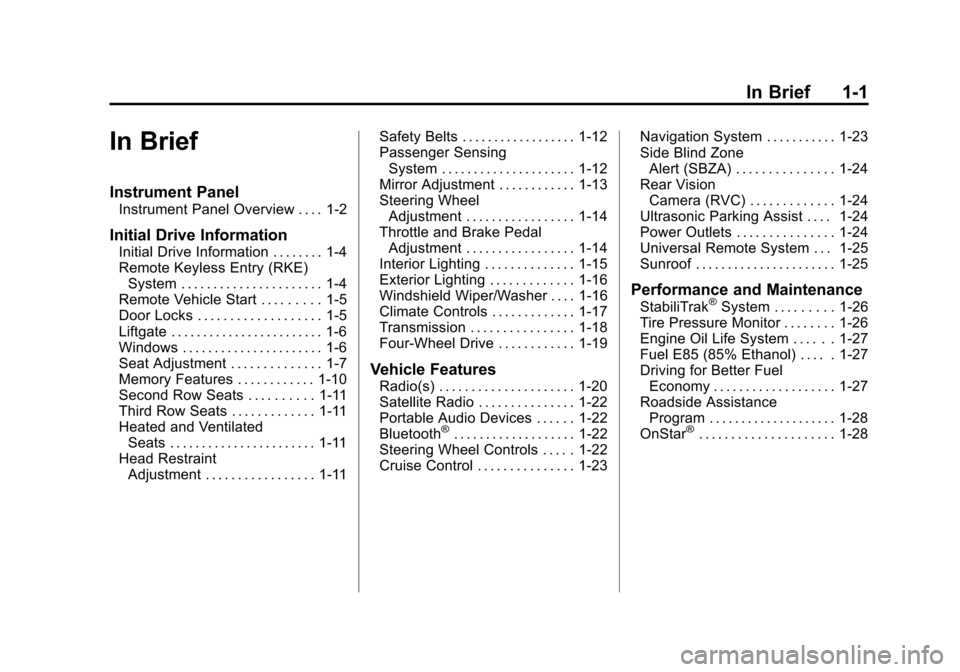
In Brief
Instrument Panel
Instrument Panel Overview . . . . 1-2
Initial Drive Information
Initial Drive Information . . . . . . . . 1-4
Remote Keyless Entry (RKE)System . . . . . . . . . . . . . . . . . . . . . . 1-4
Remote Vehicle Start . . . . . . . . . 1-5
Door Locks . . . . . . . . . . . . . . . . . . . 1-5
Liftgate . . . . . . . . . . . . . . . . . . . . . . . . 1-6
Windows . . . . . . . . . . . . . . . . . . . . . . 1-6
Seat Adjustment . . . . . . . . . . . . . . 1-7
Memory Features . . . . . . . . . . . . 1-10
Second Row Seats . . . . . . . . . . 1-11
Third Row Seats . . . . . . . . . . . . . 1-11
Heated and Ventilated Seats . . . . . . . . . . . . . . . . . . . . . . . 1-11
Head Restraint Adjustment . . . . . . . . . . . . . . . . . 1-11 Safety Belts . . . . . . . . . . . . . . . . . . 1-12
Passenger Sensing
System . . . . . . . . . . . . . . . . . . . . . 1-12
Mirror Adjustment . . . . . . . . . . . . 1-13
Steering Wheel Adjustment . . . . . . . . . . . . . . . . . 1-14
Throttle and Brake Pedal Adjustment . . . . . . . . . . . . . . . . . 1-14
Interior Lighting . . . . . . . . . . . . . . 1-15
Exterior Lighting . . . . . . . . . . . . . 1-16
Windshield Wiper/Washer . . . . 1-16
Climate Controls . . . . . . . . . . . . . 1-17
Transmission . . . . . . . . . . . . . . . . 1-18
Four-Wheel Drive . . . . . . . . . . . . 1-19
Vehicle Features
Radio(s) . . . . . . . . . . . . . . . . . . . . . 1-20
Satellite Radio . . . . . . . . . . . . . . . 1-22
Portable Audio Devices . . . . . . 1-22
Bluetooth
®. . . . . . . . . . . . . . . . . . . 1-22
Steering Wheel Controls . . . . . 1-22
Cruise Control . . . . . . . . . . . . . . . 1-23 Navigation System . . . . . . . . . . . 1-23
Side Blind Zone
Alert (SBZA) . . . . . . . . . . . . . . . 1-24
Rear Vision Camera (RVC) . . . . . . . . . . . . . 1-24
Ultrasonic Parking Assist . . . . 1-24
Power Outlets . . . . . . . . . . . . . . . 1-24
Universal Remote System . . . 1-25
Sunroof . . . . . . . . . . . . . . . . . . . . . . 1-25
Performance and Maintenance
StabiliTrak®System . . . . . . . . . 1-26
Tire Pressure Monitor . . . . . . . . 1-26
Engine Oil Life System . . . . . . 1-27
Fuel E85 (85% Ethanol) . . . . . 1-27
Driving for Better Fuel Economy . . . . . . . . . . . . . . . . . . . 1-27
Roadside Assistance Program . . . . . . . . . . . . . . . . . . . . 1-28
OnStar
®. . . . . . . . . . . . . . . . . . . . . 1-28
Page 29 of 514
Black plate (23,1)Chevrolet Tahoe/Suburban Owner Manual - 2012
In Brief 1-23
b/g:Press to silence the vehicle
speakers only. Press again to turn
the sound on. Press and hold longer
than two seconds to interact with
OnStar
®or Bluetooth systems,
if equipped.
+
e: Press to increase volume.
−
e: Press to decrease volume.
SRCE: Press to switch between
the radio and CD, and for equipped
vehicles, the DVD, front auxiliary,
and rear auxiliary.
¨: Press to seek the next radio
station, the next track or chapter
while sourced to the CD or DVD
slot, or to select tracks and folders
on an iPod or USB device.
For more information, see Steering
Wheel Controls on page 5‑2.
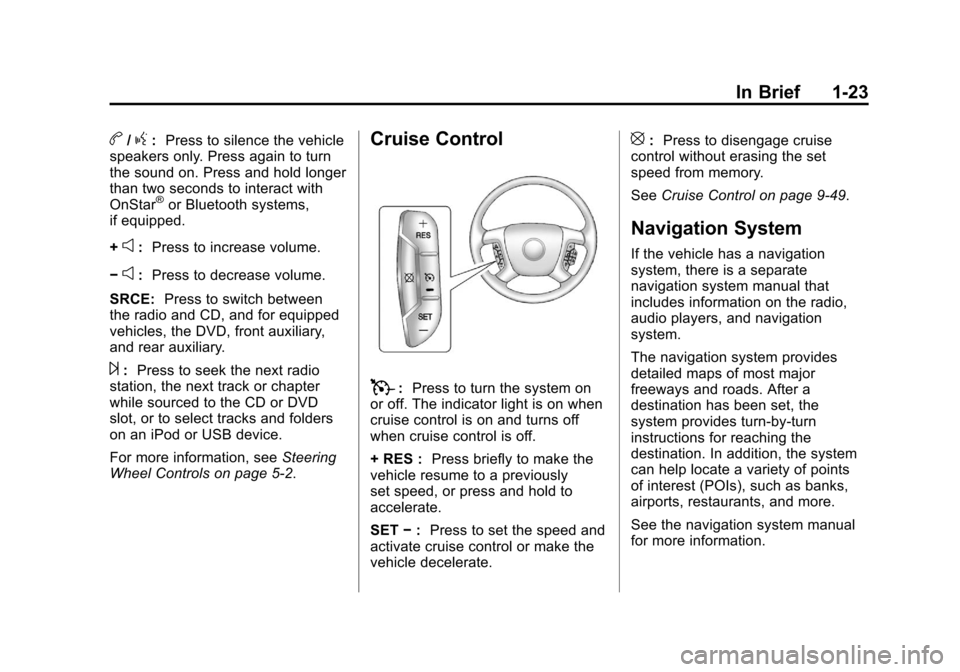
Cruise Control
T: Press to turn the system on
or off. The indicator light is on when
cruise control is on and turns off
when cruise control is off.
+ RES : Press briefly to make the
vehicle resume to a previously
set speed, or press and hold to
accelerate.
SET −: Press to set the speed and
activate cruise control or make the
vehicle decelerate.
[: Press to disengage cruise
control without erasing the set
speed from memory.
See Cruise Control on page 9‑49.
Navigation System
If the vehicle has a navigation
system, there is a separate
navigation system manual that
includes information on the radio,
audio players, and navigation
system.
The navigation system provides
detailed maps of most major
freeways and roads. After a
destination has been set, the
system provides turn-by-turn
instructions for reaching the
destination. In addition, the system
can help locate a variety of points
of interest (POIs), such as banks,
airports, restaurants, and more.
See the navigation system manual
for more information.
Page 30 of 514
Black plate (24,1)Chevrolet Tahoe/Suburban Owner Manual - 2012
1-24 In Brief
Side Blind Zone
Alert (SBZA)
If available, this feature will alert you
to vehicles located in the vehicle's
side blind zone. When the system
detects a vehicle in the side blind
zone, the SBZA display will light up
in the corresponding outside side
mirror.
The system is enabled at every
vehicle startup. It can be disabled
through the Driver Information
Center (DIC).
If the message SIDE BLIND ZONE
SYSTEM UNAVAILABLE appears
on the DIC, the system has been
disabled because the sensor is
blocked and cannot detect vehicles
in the blind zone. The sensor may
be blocked by mud, dirt, snow, ice,
slush, or even heavy rainstorms.
This message may also activate
during heavy rain or due to road
spray. The vehicle does not need
service.See
Side Blind Zone Alert (SBZA)
on page 9‑53 for more information.Rear Vision
Camera (RVC)
If available, the RVC displays a
view of the area behind the vehicle
when the vehicle is shifted into
R (Reverse). The display will appear
on either the inside rearview mirror
or navigation screen, if equipped.
To clean the camera lens, located
above the license plate, rinse it with
water and wipe it with a soft cloth.
SeeRear Vision Camera (RVC) on
page 9‑55.
Ultrasonic Parking Assist
If available, Ultrasonic Rear Parking
Assist (URPA) system uses sensors
on the rear bumper to assist with
parking and avoiding objects while
in R (Reverse). It operates at
speeds less than 8 km/h (5 mph). URPA uses audible beeps to
provide distance and system
information.
Keep the sensors on the vehicle's
rear bumper clean to ensure proper
operation.
See
Ultrasonic Parking Assist on
page 9‑51 for more information.
Power Outlets
The accessory power outlets can be
used to plug in electrical equipment,
such as a cell phone or MP3 player.
There are two under the climate
controls, one inside the center floor
console, one on the rear of the
center floor console and one
accessory power outlet in the rear
cargo area on the passenger side.
The accessory power outlets are
powered, even with the ignition
off. Continuing to use accessory
power outlets while the ignition is in
LOCK/OFF may cause the vehicle's
battery to run down.
SeePower Outlets on page 5‑8.
Page 34 of 514
Black plate (28,1)Chevrolet Tahoe/Suburban Owner Manual - 2012
1-28 In Brief
.When road and weather
conditions are appropriate,
use cruise control.
.Always follow posted speed
limits or drive more slowly when
conditions require.
.Keep vehicle tires properly
inflated.
.Combine several trips into a
single trip.
.Replace the vehicle's tires with
the same TPC Spec number
molded into the tire's sidewall
near the size.
.Follow recommended scheduled
maintenance.
Roadside Assistance
Program
U.S.:1-800-243-8872
TTY Users (U.S.): 1-888-889-2438
Canada: 1-800-268-6800
Mexico: 01-800-466-0800
As the owner of a new Chevrolet,
you are automatically enrolled in the
Roadside Assistance program.
See Roadside Assistance Program
(U.S. and Canada) on page 13‑7
or Roadside Assistance Program
(Mexico) on page 13‑9 for more
information.
Roadside Assistance and OnStar
(U.S. and Canada)
If you have an active OnStar
subscription, press the
Qbutton
and the current GPS location will
be sent to an OnStar advisor who
will assess your problem, contact
Roadside Assistance, and relay
your exact location to get the help
you need. Online Owner Center
(U.S. and Canada)
The Online Owner Center is
a complimentary service that
includes online service reminders,
vehicle maintenance tips, online
owner manual, special privileges,
and more.
Sign up today at:
www.chevyownercenter.com
(U.S.) or
www.gm.ca (Canada).
OnStar®
If equipped, this vehicle has
a comprehensive, in-vehicle
system that can connect to a live
Advisor for Emergency, Security,
Navigation, Connection, and
Diagnostic Services. See OnStar
Overview on page 14‑1 for more
information.
Page 129 of 514
Black plate (3,1)Chevrolet Tahoe/Suburban Owner Manual - 2012
Instruments and Controls 5-3
c/x(Phone On Hook):Press
to go to the previous favorite radio
station, track on a CD, or folder on
an iPod
®or USB device. Press to
reject an incoming call, or end a
current call.
Radio
To select preset or favorite radio
stations:
Press and release
worc/xto
go to the next or previous radio
station stored as a preset or
favorite.
CD/DVD
To select tracks on a CD/DVD:
Press and release
worc/xto
go to the next or previous track. Selecting Tracks on an iPod or
USB Device (Vehicles without a
Navigation System)
1. Press and hold
worc/x
while listening to a song until the
contents of the current folder
display on the radio display.
2. Press and release
worc/x
to scroll up or down the list, then
press and hold
w, or press¨to
play the highlighted track.
Navigating Folders on an iPod or
USB Device (Vehicles without a
Navigation System):
1. Press and hold
worc/x
while listening to a song until the
contents of the current folder
display on the radio display.
2. Press and hold
c/xto go
back to the previous folder list. 3. Press and release
worc/x
to scroll up or down the list.
.To select a folder,
press and hold
w, or
press
¨when the folder is
highlighted.
.To go back further in
the folder list, press and
hold
c/x.
Navigating an iPod or USB Device
on the Main Audio Screen
(Vehicles with a Navigation
System)
1. Press and release
worc/x
to select the next or previous
track within the selected
category.
2. Press and hold
worc/xto
move quickly through the tracks.
3. Press and release
¨to move up
one track within the selected
category.
Page 130 of 514
Black plate (4,1)Chevrolet Tahoe/Suburban Owner Manual - 2012
5-4 Instruments and Controls
Navigating an iPod or USB Device
on the Music Navigator Screen
(Vehicles with a Navigation
System)
1. Press and release
worc/x
to select the next or previous
track within the selected
category.
2. Press and hold
worc/xto
move quickly through the tracks
within the selected category.
3. Press and release
¨to move up
one track within the selected
category.
b/g(Mute/Push to Talk): Press
to silence the vehicle speakers only.
Press again to turn the sound on.
For vehicles with Bluetooth or
OnStar systems, press and hold for
longer than two seconds to interact
with those systems. See Bluetooth
on page 7‑47 andOnStar Overview
on page 14‑1 for more information. SRCE (Source/Voice
Recognition):
Press to switch
between the radio and CD, and for
equipped vehicles, the DVD, front
auxiliary, and rear auxiliary.
For vehicles with the navigation
system, press and hold this button
for longer than one second to
initiate voice recognition. See “Voice
Recognition” in the Navigation
System manual for more
information.
¨(Seek): Press to go to the
next radio station while in AM,
FM, or XM™.
For vehicles with or without a
navigation system:
Press
¨to go to the next track or
chapter while sourced to the CD or
DVD slot.
Press
¨to select a track or a folder
when navigating folders on an iPod
or USB device. For vehicles with a navigation
system:
1. Press and hold
¨until a beep is
heard, to place the radio into
SCAN mode. A station will play
for five seconds before moving
to the next station.
2. To stop the SCAN function, press
¨again.
While listening to a CD/DVD, press
and hold
¨to quickly move forward
through the tracks. Release to stop
on the desired track.
+
e: Press to increase volume.
−
e: Press to decrease volume.
Horn
To sound the horn, press the center
pad on the steering wheel.
Page 196 of 514
Black plate (2,1)Chevrolet Tahoe/Suburban Owner Manual - 2012
7-2 Infotainment System
.Set up the tone, speaker
adjustments, and preset radio
stations.
For more information, see Defensive
Driving on page 9‑3.
This vehicle's audio system may be
equipped with a noise reduction
system which can work improperly
if the audio amplifier, engine
calibrations, exhaust system,
microphones, radio, or speakers are
modified or replaced. This could
result in more noticeable engine
noise at certain speeds. Notice:
Contact your dealer
before adding any equipment.
Adding audio or communication
equipment could interfere with
the operation of the engine, radio,
or other systems, and could
damage them. Follow federal
rules covering mobile radio and
telephone equipment. The vehicle has Retained
Accessory Power (RAP). With RAP,
the audio system can be played
even after the ignition is turned off.
See
Retained Accessory Power
(RAP) on page 9‑26 for more
information.
Navigation/Radio System
For vehicles with a navigation radio
system, see the separate Navigation
System manual.
Page 220 of 514
Black plate (26,1)Chevrolet Tahoe/Suburban Owner Manual - 2012
7-26 Infotainment System
To exit music navigator mode, press
the softkey below the Back tab to
return to normal MP3 playback.
Using the DVD Player
The DVD player can be controlled
by the buttons on the remote
control, the RSA system, or by the
buttons on the radio faceplate. See
“Remote Control”underRear Seat
Entertainment (RSE) System on
page 7‑35 andRear Seat Audio
(RSA) System on page 7‑45 for
more information.
The DVD player is only compatible
with DVDs of the appropriate region
code printed on the jacket of
most DVDs.
The DVD slot of the radio is
compatible with most audio CDs
and CD-R/RW, DVD-Video,
DVD-Audio, DVD-R/RW, and DVD
+R/RW media, along with MP3 and
WMA formats. If an error message displays on the
video screen or the radio, see
“DVD
Display Error Messages” under
Rear Seat Entertainment (RSE)
System on page 7‑35, and “CD/DVD
Player Messages” later in this
section for more information.
Inserting a Disc
Insert a disc partway into the top
slot, label side up. The player pulls
it in and the disc should begin
playing. “Loading Disc” shows on
the radio display. At the same time,
the radio displays a softkey menu of
option(s). Some discs automatically
play the movie while others default
to the softkey menu display,
which requires the Play, Enter,
or Navigation softkeys to be
pressed, either by softkey or by
the rear seat passenger using the
remote control.
Loading a disc into the system,
depending on media type and
format, ranges from 5 to 20 seconds
for a CD, and up to 30 seconds for
a DVD.
Ejecting a Disc
ZDVD (Eject): Press and
release to eject the disc currently
playing in the top slot. A beep
sounds and Ejecting Disc displays.
If loading and reading of a disc
cannot be completed, due to
unknown format, etc., and the disc
fails to eject, press and hold for
more than five seconds to force the
disc to eject.
Playing a DVD
DVD/CD AUX (Auxiliary): Press to
cycle through DVD, CD, or Auxiliary
when listening to the radio. The
DVD/CD text tab and a message
showing the track or chapter
number will display when a disc is in
either slot. Press the DVD/CD AUX
button again and the system
automatically searches for an
auxiliary input device; see Auxiliary
Devices on page 7‑30 for more
information. If a portable audio
player is not connected, “No Aux
Input Device” displays. If a disc is in
both the DVD slot and the CD slot,
Page 222 of 514
Black plate (28,1)Chevrolet Tahoe/Suburban Owner Manual - 2012
7-28 Infotainment System
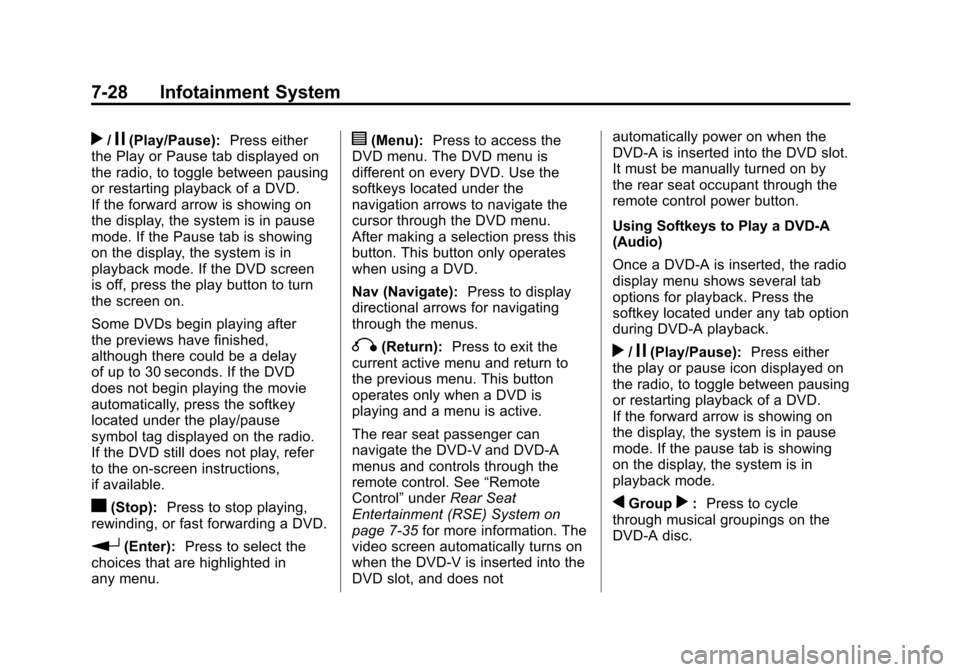
r/j(Play/Pause):Press either
the Play or Pause tab displayed on
the radio, to toggle between pausing
or restarting playback of a DVD.
If the forward arrow is showing on
the display, the system is in pause
mode. If the Pause tab is showing
on the display, the system is in
playback mode. If the DVD screen
is off, press the play button to turn
the screen on.
Some DVDs begin playing after
the previews have finished,
although there could be a delay
of up to 30 seconds. If the DVD
does not begin playing the movie
automatically, press the softkey
located under the play/pause
symbol tag displayed on the radio.
If the DVD still does not play, refer
to the on-screen instructions,
if available.
c(Stop): Press to stop playing,
rewinding, or fast forwarding a DVD.
r(Enter): Press to select the
choices that are highlighted in
any menu.
y(Menu): Press to access the
DVD menu. The DVD menu is
different on every DVD. Use the
softkeys located under the
navigation arrows to navigate the
cursor through the DVD menu.
After making a selection press this
button. This button only operates
when using a DVD.
Nav (Navigate): Press to display
directional arrows for navigating
through the menus.
q(Return): Press to exit the
current active menu and return to
the previous menu. This button
operates only when a DVD is
playing and a menu is active.
The rear seat passenger can
navigate the DVD-V and DVD-A
menus and controls through the
remote control. See “Remote
Control” underRear Seat
Entertainment (RSE) System on
page 7‑35 for more information. The
video screen automatically turns on
when the DVD-V is inserted into the
DVD slot, and does not automatically power on when the
DVD-A is inserted into the DVD slot.
It must be manually turned on by
the rear seat occupant through the
remote control power button.
Using Softkeys to Play a DVD-A
(Audio)
Once a DVD-A is inserted, the radio
display menu shows several tab
options for playback. Press the
softkey located under any tab option
during DVD-A playback.r/j(Play/Pause):
Press either
the play or pause icon displayed on
the radio, to toggle between pausing
or restarting playback of a DVD.
If the forward arrow is showing on
the display, the system is in pause
mode. If the pause tab is showing
on the display, the system is in
playback mode.
qGroupr: Press to cycle
through musical groupings on the
DVD-A disc.
Page 232 of 514
Black plate (38,1)Chevrolet Tahoe/Suburban Owner Manual - 2012
7-38 Infotainment System
The A/V jacks, located on the rear
of the floor console, allow audio
or video signals to be connected
from an auxiliary device such as
a camcorder or a video game
unit to the RSE system. Adapter
connectors or cables (not included)
may be required to connect the
auxiliary device to the A/V jacks.
Refer to the manufacturer’s
instructions for proper usage.
Power for auxiliary devices is not
supplied by the radio system.
To use the auxiliary inputs of the
RSE system, connect an external
auxiliary device to the color-coded
A/V jacks and turn both the auxiliary
device and the video screen power
on. If the video screen is in the DVD
player mode, pressing the AUX
(auxiliary) button on the remote
control switches the video screen
from the DVD player mode to the
auxiliary device. The audio of the
connected source can be listened to
over the speakers by sourcing the
radio to the auxiliary device or by
sourcing the RSA to the Rear Aux and listening with the wireless
headphones on Channel 2 or with
the wired headphones. See
“Using
the Auxiliary Input Jack” under
Auxiliary Devices on page 7‑30 for
more information about changing
the source.
How to Change the RSE Video
Screen Settings
The screen display mode (normal,
full, and zoom), screen brightness,
and setup menu language can be
changed from the on screen setup
menu. To change any feature:
1. Press the
z(display menu)
button on the remote control.
2. Use the remote control
n,q,
p,o(navigation) arrows and
the
r(enter) button to use the
setup menu.
3. Press the
zbutton again to
remove the setup menu from the
screen.
Audio Output
Audio from the DVD player or
auxiliary inputs can be heard
through the following possible
sources:
.Wireless headphones
.Vehicle speakers
.Vehicle‐wired headphone jacks
on the RSA system, if the
vehicle has this feature.
The RSE system always transmits
the audio signal to the wireless
headphones, if there is audio
available. See “Headphones” earlier
in this section for more information.
The DVD player is capable of
outputting audio to the wired
headphone jacks on the RSA
system, if the vehicle has this
feature. The DVD player can be
selected as an audio source on the
RSA system. See Rear Seat Audio
(RSA) System on page 7‑45 for
more information.