display CHEVROLET SUBURBAN 2019 Owner's Guide
[x] Cancel search | Manufacturer: CHEVROLET, Model Year: 2019, Model line: SUBURBAN, Model: CHEVROLET SUBURBAN 2019Pages: 460, PDF Size: 6.77 MB
Page 167 of 460
Chevrolet Tahoe/Suburban Owner Manual (GMNA-Localizing-U.S./Canada/
Mexico-12460269) - 2019 - CRC - 9/11/18
166 Instruments and Controls
Fuel Range :Shows the
approximate distance the vehicle
can be driven without refueling.
LOW will be displayed when the
vehicle is low on fuel. The fuel
range estimate is based on an
average of the vehicle's fuel
economy over recent driving history
and the amount of fuel remaining in
the fuel tank.
Oil Life : Shows an estimate of the
oil's remaining useful life.
If REMAINING OIL LIFE 99% is
displayed, that means 99% of the
current oil life remains.
When the remaining oil life is low,
the CHANGE ENGINE OIL SOON
message will appear on the display.
The oil should be changed as soon
as possible. See Engine Oil0309.
In addition to the engine oil life
system monitoring the oil life,
additional maintenance is
recommended in the Maintenance
Schedule. See Maintenance
Schedule 0403.
The Oil Life display must be reset
after each oil change. It will not
reset itself. Do not reset the Oil Life display at any time other than when
the oil has just been changed.
It cannot be reset accurately until
the next oil change. To reset the
engine oil life system, press and
hold
Vfor several seconds while
the Oil Life display is active. See
Engine Oil Life System 0311.
Tire Pressure : Shows the
approximate pressures of all four
tires. Tire pressure is displayed in
either kilopascal (kPa) or in pounds
per square inch (psi). If the pressure
is low, the value for that tire is
shown in amber. See Tire Pressure
Monitor System 0357 andTire
Pressure Monitor Operation 0358.
Fuel Economy : The center
displays the approximate
instantaneous fuel economy as a
number and bar graph. Displayed
above the bar graph is a running
average of fuel economy for the
most recently traveled selected
distance. Displayed below the bar
graph is the best average fuel
economy that has been achieved for
the selected distance. The selected
distance is displayed at the top of the page as
“last xxx mi/km.” Next
to the odometer, the Active Fuel
Management displays the number of
cylinders the vehicle is running on.
See Active Fuel Management
0 229.
Press
pto select the distance or
reset best value. Use
wandxto
choose the distance and press
V.
Press
wandxto select “Reset
Best Score.” Press
Vto reset the
best average fuel economy. After
reset, the momentary average fuel
economy will display.
The display provides information on
how current driving behavior affects
the running average and how well
recent driving compares to the best
that has been achieved for the
selected distance.
Timer : This display can be used as
a timer. To start the timer, press
V
while this display is active. The
display will show the amount of time
that has passed since the timer was
last reset. To stop the timer, press
V
briefly while this display is active
Page 168 of 460
Chevrolet Tahoe/Suburban Owner Manual (GMNA-Localizing-U.S./Canada/
Mexico-12460269) - 2019 - CRC - 9/11/18
Instruments and Controls 167
and the timer is running. To reset
the timer to zero, press and hold
V
while this display is active, or
press
pand select reset.
Speed Limit (If Equipped) : Shows
sign information, which comes from
a roadway database in the onboard
navigation.
Engine Hours : Shows the total
number of hours the engine has run.
Transmission Fluid
Temperature : Shows the
temperature of the automatic
transmission fluid in either degrees
Celsius (°C) or degrees
Fahrenheit (°F).
Trailer Brake (If Equipped) : On
vehicles with the Integrated Trailer
Brake Control (ITBC) system, the
trailer brake display appears in
the DIC.
TRAILER GAIN shows the trailer
gain setting. This setting can be
adjusted from 0.0 to 10.0 with either
a trailer connected or disconnected. TRAILER OUTPUT shows the
power output to the trailer anytime a
trailer with electric brakes is
connected. Output is displayed as a
bar graph. Dashes may appear in
the OUTPUT display if a trailer is
not connected.
Off Road :
Displays vehicle pitch
and roll information, road wheel
angle, and four-wheel drive (4WD)
status.
Blank Page : Shows no
information.
Head-Up Display (HUD)
{Warning
If the HUD image is too bright or
too high in your field of view, it
may take you more time to see
things you need to see when it is
dark outside. Be sure to keep the
HUD image dim and placed low in
your field of view. If equipped with HUD, some
information concerning the
operation of the vehicle is projected
onto the windshield. The image is
projected through the HUD lens on
top of the instrument panel. The
information appears as an image
focused out toward the front of the
vehicle.
Caution
If you try to use the HUD image
as a parking aid, you may
misjudge the distance and
damage your vehicle. Do not use
the HUD image as a parking aid.
The HUD information can be
displayed in various languages. The
speedometer reading and other
numerical values can be displayed
in either English or metric units.
The language selection is changed
through the radio and the units of
measurement is changed through
the instrument cluster. See Vehicle
Personalization 0172 and“Options”
under Instrument Cluster 0145.
Page 169 of 460
Chevrolet Tahoe/Suburban Owner Manual (GMNA-Localizing-U.S./Canada/
Mexico-12460269) - 2019 - CRC - 9/11/18
168 Instruments and Controls
HUD Display on the Windshield
The HUD may display some of the
following vehicle information and
vehicle messages or alerts:
. Speed
. Tachometer
. Audio
. Phone
. Navigation
. Collision Alert
. Adaptive Cruise Control and set
speed
. Lane Departure Warning/Lane
Keep Assist .
Low Fuel
Some vehicle messages or alerts
displayed in the HUD may be
cleared by using the steering wheel
controls. See Vehicle Messages
0 171.
Some information shown may not
be available on your vehicle if it is
not equipped with these features.
The HUD control is to the left of the
steering wheel.
To adjust the HUD image: 1. Adjust the driver seat.
2. Start the engine.
3. Use the following settings to adjust the HUD.
$:Press or lift to center the HUD
image. The HUD image can only be
adjusted up and down, not side
to side.
!: Press to select the display
view. Each press will change the
display view.
D: Lift and hold to brighten the
display. Press and hold to dim the
display. Continue to hold to turn the
display off.
The HUD image will automatically
dim and brighten to compensate for
outside lighting. The HUD
brightness control can also be
adjusted as needed.
The HUD image can temporarily
light up depending on the angle and
position of sunlight on the HUD
display. This is normal.
Polarized sunglasses could make
the HUD image harder to see.
Head-Up Display (HUD) Rotation
Option
This feature allows for adjusting the
angle of the HUD image.
Page 170 of 460
Chevrolet Tahoe/Suburban Owner Manual (GMNA-Localizing-U.S./Canada/
Mexico-12460269) - 2019 - CRC - 9/11/18
Instruments and Controls 169
Presspon the steering wheel
controls while Head-up Display
Rotation is highlighted to enter
Adjust Mode. Press
worxto
adjust the angle of the HUD display.
Press
Vto confirm and save the
setting. To cancel the setting, press
o. The vehicle must be in P (Park).
See Instrument Cluster 0145.
HUD Views
There are four views in the HUD.
Some vehicle information and
vehicle messages or alerts may be
displayed in any view.
Metric
English
Speed View : This display gives the
speedometer reading (in English or
metric units), speed limit, Adaptive
Cruise Control speed, Lane
Departure Warning, and vehicle
ahead indicator. Some information
only appears on vehicles that have
these features, and when they are
active.
Metric
English
Audio/Phone View : This displays
the information in the speed view
along with audio/phone information.
The current radio station, media
type, and incoming calls will be
displayed.
All HUD views may briefly display
audio information when the driver
uses the steering wheel controls to
adjust the audio settings appearing
in the instrument cluster.
Incoming phone calls appearing in
the instrument cluster may also
display in any HUD view.
Page 171 of 460
Chevrolet Tahoe/Suburban Owner Manual (GMNA-Localizing-U.S./Canada/
Mexico-12460269) - 2019 - CRC - 9/11/18
170 Instruments and Controls
Metric
English
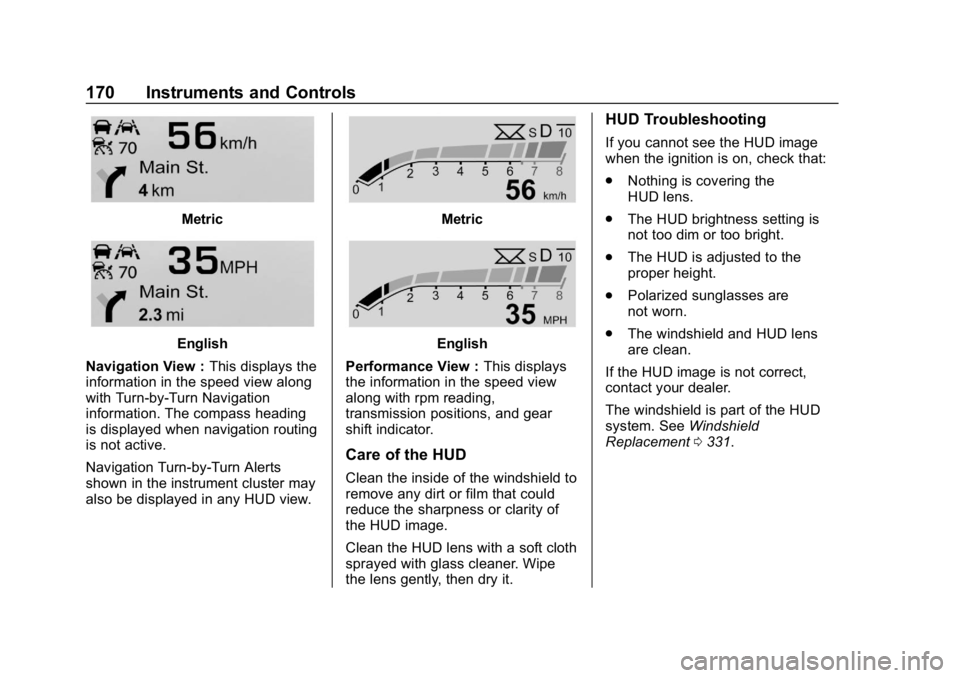
Navigation View : This displays the
information in the speed view along
with Turn-by-Turn Navigation
information. The compass heading
is displayed when navigation routing
is not active.
Navigation Turn-by-Turn Alerts
shown in the instrument cluster may
also be displayed in any HUD view.
Metric
English
Performance View : This displays
the information in the speed view
along with rpm reading,
transmission positions, and gear
shift indicator.
Care of the HUD
Clean the inside of the windshield to
remove any dirt or film that could
reduce the sharpness or clarity of
the HUD image.
Clean the HUD lens with a soft cloth
sprayed with glass cleaner. Wipe
the lens gently, then dry it.
HUD Troubleshooting
If you cannot see the HUD image
when the ignition is on, check that:
. Nothing is covering the
HUD lens.
. The HUD brightness setting is
not too dim or too bright.
. The HUD is adjusted to the
proper height.
. Polarized sunglasses are
not worn.
. The windshield and HUD lens
are clean.
If the HUD image is not correct,
contact your dealer.
The windshield is part of the HUD
system. See Windshield
Replacement 0331.
Page 172 of 460
Chevrolet Tahoe/Suburban Owner Manual (GMNA-Localizing-U.S./Canada/
Mexico-12460269) - 2019 - CRC - 9/11/18
Instruments and Controls 171
Vehicle Messages
Messages displayed on the DIC
indicate the status of the vehicle or
some action that may be needed to
correct a condition. Multiple
messages may appear one after
another.
The messages that do not require
immediate action can be
acknowledged and cleared by
pressing
V. The messages that
require immediate action cannot be
cleared until that action is
performed.
All messages should be taken
seriously; clearing the message
does not correct the problem.
If a SERVICE message appears,
see your dealer.
Follow the instructions given in the
messages. The system displays
messages regarding the following
topics:
. Service Messages
. Fluid Levels
. Vehicle Security .
Brakes
. Steering
. Ride Control Systems
. Driver Assistance Systems
. Cruise Control
. Lighting and Bulb Replacement
. Wiper/Washer Systems
. Doors and Windows
. Seat Belts
. Airbag Systems
. Engine and Transmission
. Tire Pressure
. Battery
Engine Power Messages
ENGINE POWER IS REDUCED
This message displays when the
vehicle's propulsion power is
reduced. A reduction in propulsion
power can affect the vehicle's ability
to accelerate. If this message is on, but there is no observed reduction
in performance, proceed to your
destination. The performance may
be reduced the next time the vehicle
is driven. The vehicle may be driven
while this message is on, but
maximum acceleration and speed
may be reduced. Anytime this
message stays on, or displays
repeatedly, the vehicle should be
taken to your dealer for service as
soon as possible.
Vehicle Speed Messages
SPEED LIMITED TO
XXX KM/H (MPH)
This message shows that the
vehicle speed has been limited to
the speed displayed. The limited
speed is a protection for various
propulsion and vehicle systems,
such as lubrication, thermal,
suspension, Teen Driver if
equipped, or tires.
Page 173 of 460
Chevrolet Tahoe/Suburban Owner Manual (GMNA-Localizing-U.S./Canada/
Mexico-12460269) - 2019 - CRC - 9/11/18
172 Instruments and Controls
Vehicle
Personalization
Use the audio system controls to
access the personalization menus
for customizing vehicle features.
The following are all possible
personalization features. Depending
on the vehicle, some may not be
available.
Radio Audio System Controls1. Touch the desired feature to display a list of available
options.
2. Touch to select the desired feature setting.
3. Press
oBACK on the center
stack or touch
0on the
infotainment display to return to
the previous menu or exit.
Turn the vehicle on to access the
Settings menu, then select
SETTINGS from the Home Page on
the infotainment display. Personalization Menus
The following list of menu items may
be available:
.
Time and Date
. Language
. Rear Seat Reminder
. Video Voice-Over
. Teen Driver
. Valet Mode
. Radio
. Vehicle
. Bluetooth
. Apple CarPlay
. Android Auto
. Voice
. Display
. Rear Camera
. Return to Factory Settings
. Software Information
. Wi-Fi
Detailed information for each menu
follows.
Time and Date
Manually set the time and date. See
Clock 0138.
Language
Select Language, then select from
the available language(s).
The selected language will display
on the system, and voice
recognition will reflect the selected
language.
Rear Seat Reminder
This allows for a chime and a
message when the rear door has
been opened before or during
operation of the vehicle.
Select Off or On.
Video Voice-Over
When activated, the RSI will read
aloud menu titles, menu listings,
pop-ups, alerts, and file titles from
audio and video media.
Select Off or On.
Page 174 of 460
Chevrolet Tahoe/Suburban Owner Manual (GMNA-Localizing-U.S./Canada/
Mexico-12460269) - 2019 - CRC - 9/11/18
Instruments and Controls 173
Teen Driver
See“Teen Driver” under“Settings”
in the infotainment manual.
Valet Mode
This will lock the infotainment
system and steering wheel controls.
It may also limit access to vehicle
storage locations, if equipped.
To enable valet mode:
1. Enter a four-digit code on the keypad.
2. Select Enter to go to the confirmation screen.
3. Re-enter the four-digit code.
Select Lock or Unlock to lock or
unlock the system. Touch Back to
go back to the previous menu.
Radio
Select and the following may
display:
. Manage Favorites
. Number of Favorites Shown
. Audible Touch Feedback .
Auto Volume
. Maximum Startup Volume
. Audio Cue Volume
Manage Favorites
This allows favorites to be edited.
See “Manage Favorites” in
“Settings” under“Radio” in the
infotainment manual.
Number of Favorites Shown
Select to set the number of favorites
to display.
Select the desired number or select
Auto and the infotainment system
will automatically adjust the number
of favorites shown.
Audible Touch Feedback
This allows Audible Touch
Feedback to be turned on or off.
Select Off or On.
Auto Volume
This feature adjusts the volume
based on vehicle speed and
ambient noise. Select Off, Low, Medium-Low,
Medium, Medium-High, or High.
Maximum Startup Volume
This feature sets the maximum
startup volume. If the vehicle is
started and the volume is greater
than this level, the volume is
adjusted to this level. To set the
maximum startup volume, touch +
or
−to increase or decrease.
Audio Cue Volume
This feature sets the volume of
audio files played at system startup
and shutdown.
Select On, then touch + or −to
increase or decrease the volume.
Vehicle
Select and the following may
display:
. Climate and Air Quality
. Collision/Detection Systems
. Comfort and Convenience
. Lighting
. Power Door Locks
Page 175 of 460
Chevrolet Tahoe/Suburban Owner Manual (GMNA-Localizing-U.S./Canada/
Mexico-12460269) - 2019 - CRC - 9/11/18
174 Instruments and Controls
.Remote Lock, Unlock, Start
Climate and Air Quality
Select and the following may
display:
.Auto Fan Speed
. Auto Defog
. Auto Rear Defog
Auto Fan Speed
This feature will set the auto fan
speed.
Select Low, Medium, or High.
Auto Defog
When set to On, the auto defog
comes on when the climate control
sensor detects high interior
humidity. Air will be directed to the
windshield.
Select Off or On.
Auto Rear Defog
If equipped, this feature will
automatically turn on the rear
window defogger when the vehicle
is first started in cold weather and
turn off when the vehicle is warmed. Select Off or On.
Collision/Detection Systems
Select and the following may
display:
.
Alert Type
. Forward Collision System
. Adaptive Cruise Go Notifier
. Park Assist
. Lane Change Alert
. Rear Cross Traffic Alert
. Side Blind Zone Alert
Alert Type
This setting specifies the type of
vehicle feedback provided, either a
beep or seat vibration, when you
are in danger of colliding with an
object.
Select Beeps or Safety Alert Seat.
Forward Collision System
This feature will turn on or off
Forward Collision Alert (FCA) and
Forward Automatic Braking (FAB).
The Off setting disables all FCA and
FAB functions. With the Alert and Brake setting, both FCA and FAB
are available. The Alert setting
disables FAB. See
Forward
Automatic Braking (FAB) 0267.
Select Off, Alert and Brake, or Alert.
Adaptive Cruise Go Notifier
This feature will give a reminder that
Adaptive Cruise Control provides
when it has brought the vehicle to a
complete stop behind another
stopping vehicle, and then that
vehicle drives on.
Select Off or On.
Park Assist
If equipped, this allows the feature
to be turned on or off. See
Assistance Systems for Parking or
Backing 0261.
Select Off, On, or On with Towbar
Attached.
Lane Change Alert
This allows the feature to be turned
on or off. See Lane Change Alert
(LCA) 0269.
Select Off or On.
Page 176 of 460
Chevrolet Tahoe/Suburban Owner Manual (GMNA-Localizing-U.S./Canada/
Mexico-12460269) - 2019 - CRC - 9/11/18
Instruments and Controls 175
Rear Cross Traffic Alert
This allows the feature to be turned
on or off. SeeAssistance Systems
for Parking or Backing 0261.
Select Off or On.
Side Blind Zone Alert
This allows the feature to be turned
on or off. See Side Blind Zone Alert
(SBZA) 0269.
Select Off or On.
Comfort and Convenience
Select and the following may
display:
. Auto Memory Recall
. Easy Exit Options
. Chime Volume
. Hands Free Liftgate Control
. Reverse Tilt Mirror
. Auto Mirror Folding
. Auto Wipe in Reverse Gear Auto Memory Recall
This feature automatically recalls
the previously stored 1 or 2 button
positions when the ignition is
changed from off to on or ACC/
ACCESSORY. See
Memory Seats
0 70.
Select Off or On.
Easy Exit Options
This feature automatically recalls
the previously stored Exit button
position when exiting the vehicle.
See Memory Seats 070.
Select Off or On.
Chime Volume
This allows the selection of the
chime volume level.
Touch + or −to adjust the volume.
Hands Free Liftgate Control
The liftgate may be operated with a
kicking motion under the rear
bumper. See Liftgate047.
Select Off, On-Open and Close,
or On-Open Only. Reverse Tilt Mirror
When on, the driver and/or
passenger mirrors will tilt downward
when the vehicle is shifted to
R (Reverse) to improve visibility of
the ground near the rear wheels.
See
Reverse Tilt Mirrors 059.
Select Off, On - Driver and
Passenger, On - Driver, or On -
Passenger.
Auto Mirror Folding
When on, the outside mirrors will
automatically fold or unfold when
the Remote Keyless Entry (RKE)
transmitter
QorKis pressed and
held. See Folding Mirrors 057.
Select Off or On.
Auto Wipe in Reverse Gear
When on and the front wiper is on
and wiping, the rear wiper will
automatically activate when the
vehicle is shifted to R (Reverse).
Select Off or On.