display CHEVROLET SUBURBAN 2022 Workshop Manual
[x] Cancel search | Manufacturer: CHEVROLET, Model Year: 2022, Model line: SUBURBAN, Model: CHEVROLET SUBURBAN 2022Pages: 438, PDF Size: 14.08 MB
Page 153 of 438
Chevrolet Tahoe/Suburban Owner Manual (GMNA-Localizing-U.S./Canada/
Mexico-15555985) - 2022 - CRC - 12/3/21
152 Infotainment System
Settings
Touch the Settings icon to display the
Settings menu. SeeSettings (Uplevel Radio)
0 184 or
Settings (Base Radio) 0187.
Apple CarPlay
If equipped, touch the Apple CarPlay icon to
activate Apple CarPlay after a supported
device is connected. See Apple CarPlay and
Android Auto (Base Radio) 0180 or
Apple CarPlay and Android Auto (Uplevel
Radio) 0182.
Android Auto
If equipped, touch the Android Auto icon to
activate Android Auto after a supported
device is connected. See Apple CarPlay and
Android Auto (Base Radio) 0180 or
Apple CarPlay and Android Auto (Uplevel
Radio) 0182.
Camera
If equipped, touch the Camera icon to access
the camera application. See Assistance
Systems for Parking or Backing 0256.
Shortcut Tray
For uplevel radios, the shortcut tray is left
of the display. It shows up to five
applications.
For base radios, the shortcut tray is near the
bottom of the display. It shows up to four
applications.
Infotainment Display Features
Infotainment display features show on the
display when available. When a feature is
unavailable, it may gray out. When a
feature is touched, it may highlight.
Infotainment Gestures
Use the following finger gestures to control
the infotainment system.
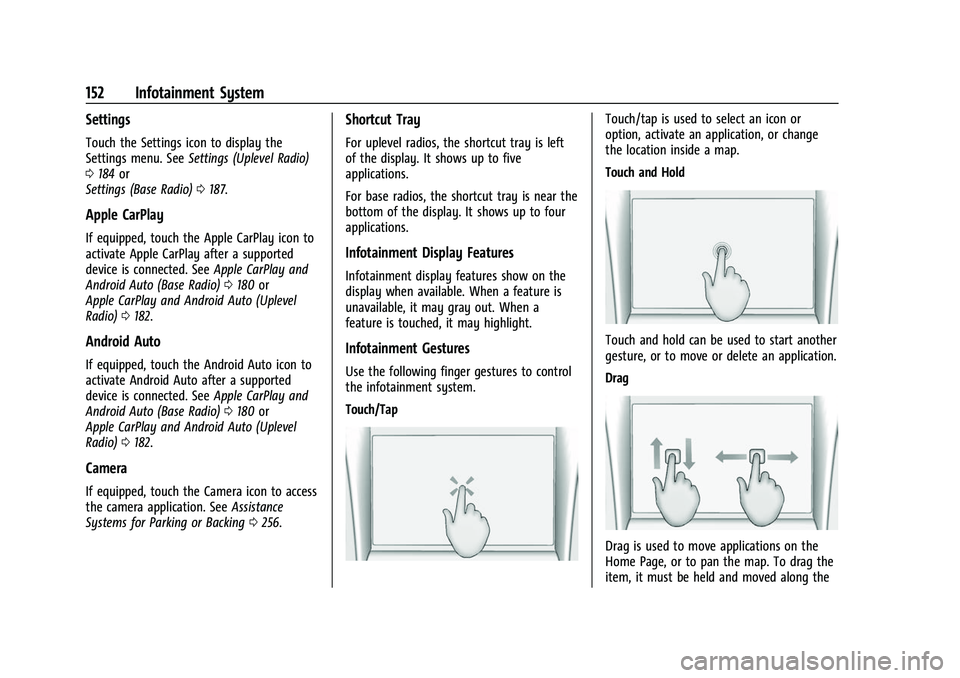
Touch/Tap
Touch/tap is used to select an icon or
option, activate an application, or change
the location inside a map.
Touch and Hold
Touch and hold can be used to start another
gesture, or to move or delete an application.
Drag
Drag is used to move applications on the
Home Page, or to pan the map. To drag the
item, it must be held and moved along the
Page 154 of 438
Chevrolet Tahoe/Suburban Owner Manual (GMNA-Localizing-U.S./Canada/
Mexico-15555985) - 2022 - CRC - 12/3/21
Infotainment System 153
display to the new location. This can be
done up, down, right, or left. This feature is
only available when vehicle is parked and
not in motion.
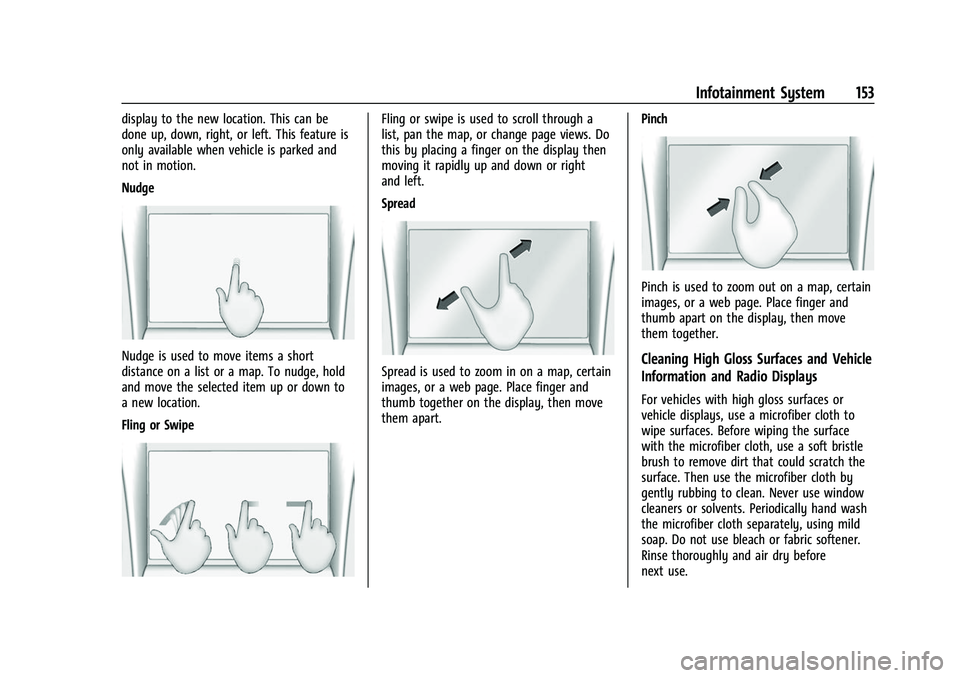
Nudge
Nudge is used to move items a short
distance on a list or a map. To nudge, hold
and move the selected item up or down to
a new location.
Fling or Swipe
Fling or swipe is used to scroll through a
list, pan the map, or change page views. Do
this by placing a finger on the display then
moving it rapidly up and down or right
and left.
Spread
Spread is used to zoom in on a map, certain
images, or a web page. Place finger and
thumb together on the display, then move
them apart.Pinch
Pinch is used to zoom out on a map, certain
images, or a web page. Place finger and
thumb apart on the display, then move
them together.
Cleaning High Gloss Surfaces and Vehicle
Information and Radio Displays
For vehicles with high gloss surfaces or
vehicle displays, use a microfiber cloth to
wipe surfaces. Before wiping the surface
with the microfiber cloth, use a soft bristle
brush to remove dirt that could scratch the
surface. Then use the microfiber cloth by
gently rubbing to clean. Never use window
cleaners or solvents. Periodically hand wash
the microfiber cloth separately, using mild
soap. Do not use bleach or fabric softener.
Rinse thoroughly and air dry before
next use.
Page 155 of 438
Chevrolet Tahoe/Suburban Owner Manual (GMNA-Localizing-U.S./Canada/
Mexico-15555985) - 2022 - CRC - 12/3/21
154 Infotainment System
Software Updates
Over-the-Air Software Updates
If equipped, see“Updates”underSettings
(Uplevel Radio) 0184 or
Settings (Base Radio) 0187 for details on
software updates.
Radio
AM-FM Radio (Base Radio)
Playing the Radio
From the Home Page, touch the Audio icon
to display the active audio source page.
Choose from a list of the three most
recently used sources listed at the left side
of the screen. Choose More to display a list
of available Sources. Examples of available
sources are AM, FM, SiriusXM (if equipped),
MyMedia, USB, AUX (if equipped), and
Bluetooth.
Infotainment System Sound Menu
From any of the audio source main pages,
touch Sound to display the following:
Equalizer : Touch to adjust Bass, Midrange,
and Treble using the controls on the
infotainment display. Fade/Balance :
Touch to adjust using the
controls on the infotainment display or by
tapping/dragging the crosshair.
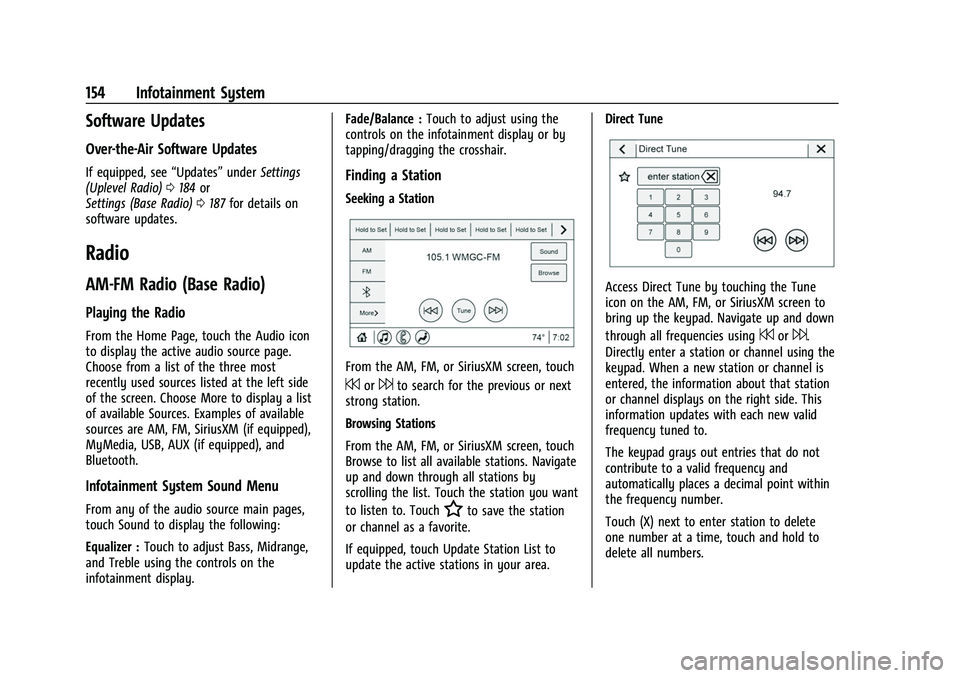
Finding a Station
Seeking a Station
From the AM, FM, or SiriusXM screen, touch
7or6to search for the previous or next
strong station.
Browsing Stations
From the AM, FM, or SiriusXM screen, touch
Browse to list all available stations. Navigate
up and down through all stations by
scrolling the list. Touch the station you want
to listen to. Touch
Hto save the station
or channel as a favorite.
If equipped, touch Update Station List to
update the active stations in your area. Direct Tune
Access Direct Tune by touching the Tune
icon on the AM, FM, or SiriusXM screen to
bring up the keypad. Navigate up and down
through all frequencies using
7or6.
Directly enter a station or channel using the
keypad. When a new station or channel is
entered, the information about that station
or channel displays on the right side. This
information updates with each new valid
frequency tuned to.
The keypad grays out entries that do not
contribute to a valid frequency and
automatically places a decimal point within
the frequency number.
Touch (X) next to enter station to delete
one number at a time, touch and hold to
delete all numbers.
Page 156 of 438
Chevrolet Tahoe/Suburban Owner Manual (GMNA-Localizing-U.S./Canada/
Mexico-15555985) - 2022 - CRC - 12/3/21
Infotainment System 155
A valid AM or FM station automatically
tunes to the new frequency but will not
close the direct tune display. When listening
to SiriusXM, touch Go after entering the
channel. Touch
Sorzat the top of the
display to exit out of Direct Tune.
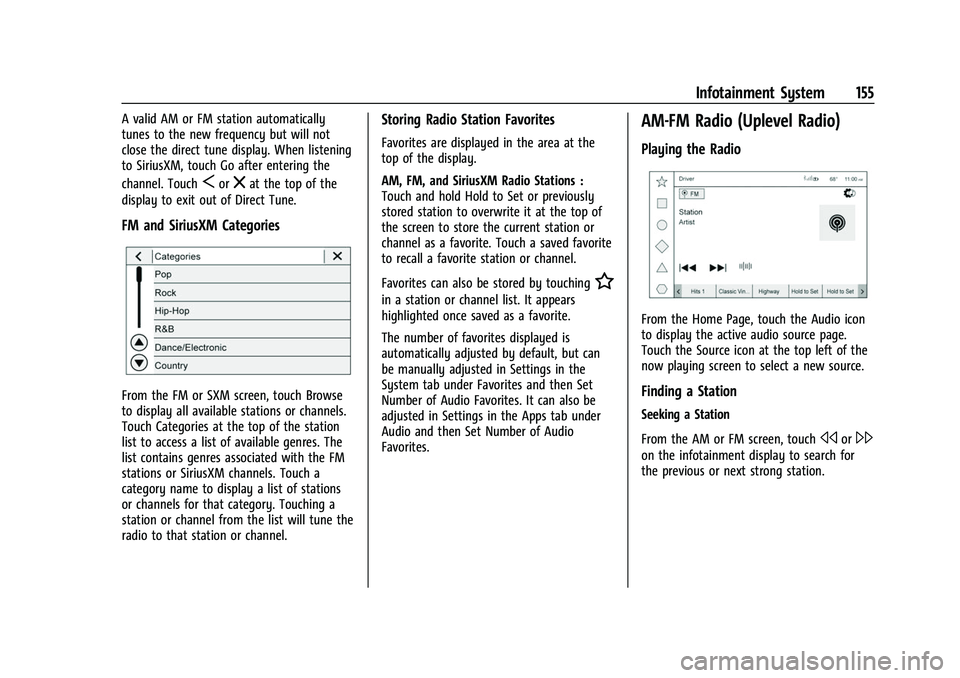
FM and SiriusXM Categories
From the FM or SXM screen, touch Browse
to display all available stations or channels.
Touch Categories at the top of the station
list to access a list of available genres. The
list contains genres associated with the FM
stations or SiriusXM channels. Touch a
category name to display a list of stations
or channels for that category. Touching a
station or channel from the list will tune the
radio to that station or channel.
Storing Radio Station Favorites
Favorites are displayed in the area at the
top of the display.
AM, FM, and SiriusXM Radio Stations :
Touch and hold Hold to Set or previously
stored station to overwrite it at the top of
the screen to store the current station or
channel as a favorite. Touch a saved favorite
to recall a favorite station or channel.
Favorites can also be stored by touching
H
in a station or channel list. It appears
highlighted once saved as a favorite.
The number of favorites displayed is
automatically adjusted by default, but can
be manually adjusted in Settings in the
System tab under Favorites and then Set
Number of Audio Favorites. It can also be
adjusted in Settings in the Apps tab under
Audio and then Set Number of Audio
Favorites.
AM-FM Radio (Uplevel Radio)
Playing the Radio
From the Home Page, touch the Audio icon
to display the active audio source page.
Touch the Source icon at the top left of the
now playing screen to select a new source.
Finding a Station
Seeking a Station
From the AM or FM screen, touch
sor\
on the infotainment display to search for
the previous or next strong station.
Page 157 of 438
Chevrolet Tahoe/Suburban Owner Manual (GMNA-Localizing-U.S./Canada/
Mexico-15555985) - 2022 - CRC - 12/3/21
156 Infotainment System
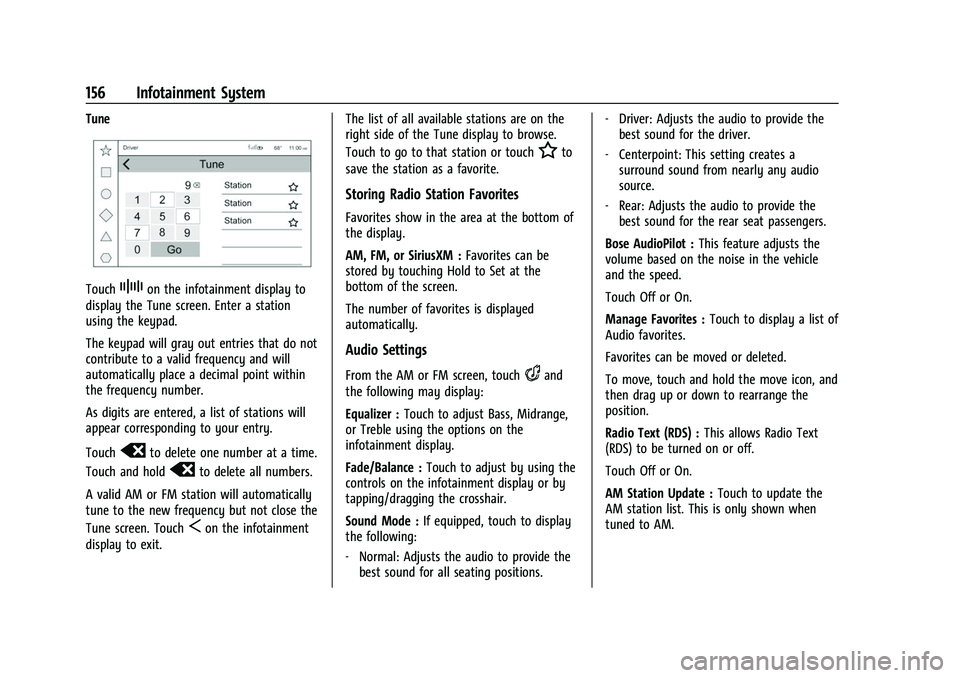
Tune
TouchZon the infotainment display to
display the Tune screen. Enter a station
using the keypad.
The keypad will gray out entries that do not
contribute to a valid frequency and will
automatically place a decimal point within
the frequency number.
As digits are entered, a list of stations will
appear corresponding to your entry.
Touch
oto delete one number at a time.
Touch and hold
oto delete all numbers.
A valid AM or FM station will automatically
tune to the new frequency but not close the
Tune screen. Touch
Son the infotainment
display to exit. The list of all available stations are on the
right side of the Tune display to browse.
Touch to go to that station or touch
Hto
save the station as a favorite.
Storing Radio Station Favorites
Favorites show in the area at the bottom of
the display.
AM, FM, or SiriusXM : Favorites can be
stored by touching Hold to Set at the
bottom of the screen.
The number of favorites is displayed
automatically.
Audio Settings
From the AM or FM screen, touchkand
the following may display:
Equalizer : Touch to adjust Bass, Midrange,
or Treble using the options on the
infotainment display.
Fade/Balance : Touch to adjust by using the
controls on the infotainment display or by
tapping/dragging the crosshair.
Sound Mode : If equipped, touch to display
the following:
‐ Normal: Adjusts the audio to provide the
best sound for all seating positions. ‐
Driver: Adjusts the audio to provide the
best sound for the driver.
‐ Centerpoint: This setting creates a
surround sound from nearly any audio
source.
‐ Rear: Adjusts the audio to provide the
best sound for the rear seat passengers.
Bose AudioPilot : This feature adjusts the
volume based on the noise in the vehicle
and the speed.
Touch Off or On.
Manage Favorites : Touch to display a list of
Audio favorites.
Favorites can be moved or deleted.
To move, touch and hold the move icon, and
then drag up or down to rearrange the
position.
Radio Text (RDS) : This allows Radio Text
(RDS) to be turned on or off.
Touch Off or On.
AM Station Update : Touch to update the
AM station list. This is only shown when
tuned to AM.
Page 158 of 438
Chevrolet Tahoe/Suburban Owner Manual (GMNA-Localizing-U.S./Canada/
Mexico-15555985) - 2022 - CRC - 12/3/21
Infotainment System 157
Radio Data System (RDS)
If equipped, RDS features are available for
use only on FM stations that broadcast RDS
information. With RDS, the radio can:
.Display a Station Name
.Display messages from radio stations.
This system relies on receiving specific
information from these stations and only
works when the information is available.
It is possible that a radio station could
broadcast incorrect information that causes
the radio features to work improperly.
When information is broadcast from a RDS
station, the station name or call letters
display on the audio screen. Radio text
supporting the currently playing broadcast
may also appear.
To turn this feature on or off, see “Audio
Settings” underAM-FM Radio (Base Radio)
0 154 orAM-FM Radio (Uplevel Radio) 0155.
Satellite Radio
SiriusXM Radio Service
If equipped, vehicles with a valid SiriusXM
radio subscription can receive SiriusXM
programming. SiriusXM radio has a wide variety of
programming and commercial-free music,
coast to coast, in digital-quality sound. In
the U.S., see www.siriusxm.com or call
1-888-601-6296. In Canada, see
www.siriusxm.ca or call 1-877-438-9677.
When SiriusXM is active, the channel name,
number, song title, and artist appear on the
display.
SiriusXM with 360L
SiriusXM with 360L interface has enhanced
in-vehicle listening experience for
subscribers. The experience now offers more
categories and system learned
recommendations toward discovering more
personalized content.
To use the full SiriusXM 360L program,
including streaming content and listening
recommendations, OnStar Connected Access
is required. Connected vehicle services vary
by model and require a complete working
electrical system, cell reception, and GPS
signal. An active connected plan is required.
Reference the SiriusXM user guide for use
and subscription information.
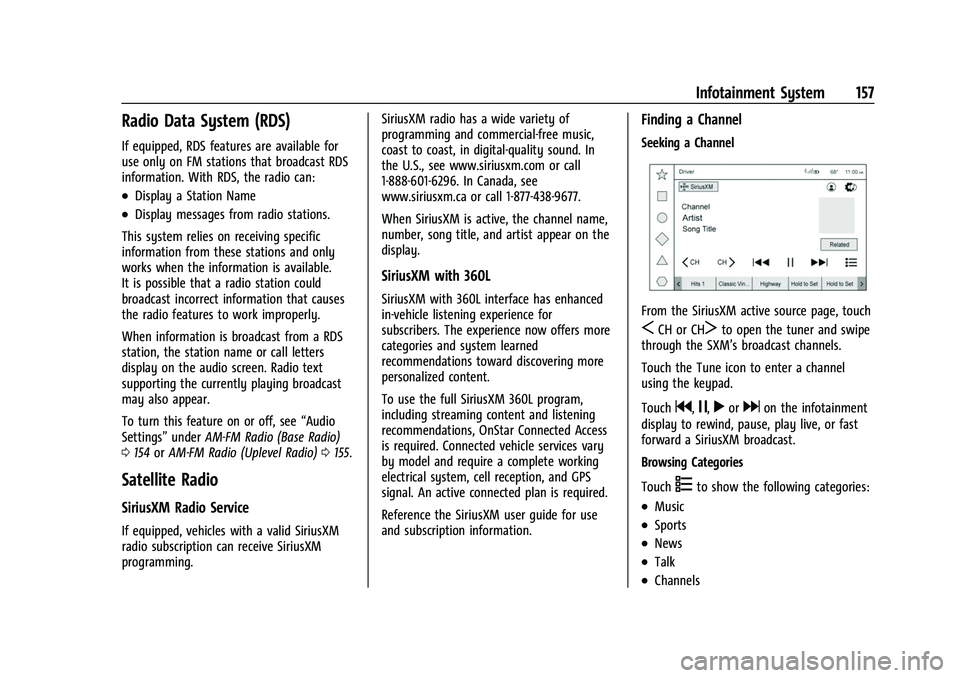
Finding a Channel
Seeking a Channel
From the SiriusXM active source page, touch
SCH or CHTto open the tuner and swipe
through the SXM’s broadcast channels.
Touch the Tune icon to enter a channel
using the keypad.
Touch
g,j,rordon the infotainment
display to rewind, pause, play live, or fast
forward a SiriusXM broadcast.
Browsing Categories
Touch
(to show the following categories:
.Music
.Sports
.News
.Talk
.Channels
Page 159 of 438
Chevrolet Tahoe/Suburban Owner Manual (GMNA-Localizing-U.S./Canada/
Mexico-15555985) - 2022 - CRC - 12/3/21
158 Infotainment System
Touching a category will show the channels
associated with that category.
Favorites
Favorites are stored by touching Hold to Set.
Favorites show in the area at the bottom of
the display.
SiriusXM Settings
From the SiriusXM source main page, touch
audio settings icon on the upper right to
display the following:
Audio Settings
Touch to adjust the audio settings. See
“Audio Settings”inAM-FM Radio (Base
Radio) 0154 or
AM-FM Radio (Uplevel Radio) 0155.
From the SiriusXM source main page, touch
the user settings icon on the upper right to
display the following:
Subscription
Select to subscribe to SiriusXM.
Your Items
Select and the following may display: Listener Settings :
Touch to start songs at
the beginning when tuning to a music
channel. Explicit content and resetting
listening history is not supported.
System Settings
Select and the following may display:
Location Services : Touch to turn Location
Services on or off.
Radio ID : Touch to show the radio id and
version.
Help & Support
Touch to contact SiriusXM.
Radio Reception
Unplug electronic devices from the accessory
power outlets if there is interference or
static in the radio.
FM
FM signals only reach about 16 to 65 km (10
to 40 mi). Although the radio has a built-in
electronic circuit that automatically works to
reduce interference, some static can occur,
especially around tall buildings or hills,
causing the sound to fade in and out.
AM
The range for most AM stations is greater
than for FM, especially at night. The longer
range can cause station frequencies to
interfere with each other. Static can also
occur when things like storms and power
lines interfere with radio reception. When
this happens, try reducing the treble on the
radio.
SiriusXM Satellite Radio Service
If equipped, SiriusXM Satellite Radio Service
provides digital radio reception. Tall
buildings or hills can interfere with satellite
radio signals, causing the sound to fade in
and out. In addition, traveling or standing
under heavy foliage, bridges, garages,
or tunnels may cause loss of the SiriusXM
signal for a period of time. Some cellular
services may interfere with SXM reception
causing loss of signal.
Mobile Device Usage
Mobile device usage, such as making or
receiving calls, charging, or just having the
mobile device on may cause static
interference in the radio. Unplug the mobile
device or turn it off if this happens.
Page 161 of 438
Chevrolet Tahoe/Suburban Owner Manual (GMNA-Localizing-U.S./Canada/
Mexico-15555985) - 2022 - CRC - 12/3/21
160 Infotainment System
g:
.Press to seek to the beginning of the
current or previous track.
d:
.Press to seek to the next track.
Shuffle : Touch the shuffle icon to play
music in random order.
USB Browse Menu
Touch anywhere between the top and
bottom menus or touch the Browse option
on the infotainment display to view the
Browse menu and the following options are
displayed near the bottom of the display:
Playlists
1. Touch to view the playlists stored on the USB.
2. Touch a playlist to view the list of all songs in that playlist.
3. Touch a song from the list to begin playback.
Supported Playlist extensions are .m3u, .pls,
and .wpl.
Artists 1. Touch to view the list of artists stored on the USB. 2. Touch an artist name to view a list of all
albums by the artist.
3. To select a song, touch All Songs or touch an album and then select a song
from the list.
Albums 1. Touch to view the albums on the USB.
2. Touch the album to view a list of all songs on the album.
3. Touch a song from the list to begin playback.
Songs 1. Touch to display a list of all songs on the USB.
2. To begin playback, touch a song from the list.
Bluetooth Audio (Base Radio)
Music may be played from a paired
Bluetooth device. See Bluetooth (Pairing and
Using a Phone for Uplevel Radio) 0173 or
Bluetooth (Overview) 0173 or
Bluetooth (Pairing and Using a Phone for
Base Radio) 0177 for help pairing a device. Volume and song selection may be
controlled by using the infotainment
controls or the mobile device. If Bluetooth is
selected and no volume is present, check the
volume setting on the infotainment system.
Music can be launched by touching
Bluetooth from the recent sources list on
the left of the display or by touching the
More option and then touching the
Bluetooth device.
To play music via Bluetooth:
1. Power on the device, and pair to connect the device.
2. Once paired, touch Audio from the Home Page, then touch Bluetooth from the
recent sources list on the left of the
display.
Bluetooth Sound Menu
See “Infotainment System Sound Menu”
under AM-FM Radio (Base Radio) 0154 or
AM-FM Radio (Uplevel Radio) 0155.
Manage Bluetooth Devices
From the Home Page: 1. Touch Audio.
2. Touch More.
3. Touch Bluetooth.
Page 162 of 438
Chevrolet Tahoe/Suburban Owner Manual (GMNA-Localizing-U.S./Canada/
Mexico-15555985) - 2022 - CRC - 12/3/21
Infotainment System 161
4. Touch Devices to add or delete devices.
When touching Bluetooth, the radio may
not be able to launch the audio player on
the connected device to start playing. When
the vehicle is not moving, use the mobile
device to begin playback.
All devices launch audio differently. When
selecting Bluetooth as a source, the radio
may show as paused on the display. Press
play on the device or touch
pon the
vehicle display to begin playback.
Browse functionality will be provided where
supported by the Bluetooth device. This
media content will not be part of the
MyMedia source mode.
Some smartphones support sending
Bluetooth music information to display on
the radio. When the radio receives this
information, it will check to see if any is
available and display it. For more
information about supported Bluetooth
features, see my.chevrolet.com/learn.
Bluetooth Audio (Uplevel Radio)
Music may be played from a connected
Bluetooth device. Volume and song selection may be
controlled by using the infotainment
controls or the mobile device. If Bluetooth is
selected and no volume is present, check the
volume setting on the infotainment system.
To play music via Bluetooth:
1. Power on the device.
2. Touch Audio on the infotainment display home page.
3. Touch Bluetooth from the Audio home page.
4. Touch Add Device if there is no device connected and follow the screen prompts
to pair the device.
Browse content from the Bluetooth device.
Use the infotainment controls to start/stop
or select previous/next track.
Manage Bluetooth Devices 1. Touch the Bluetooth App setting icon on the upper right of the page.
2. Touch Devices to switch, add, or disconnect other devices.
A Bluetooth device can only be paired when
the vehicle is parked. When touching Bluetooth Audio, a browse
screen will appear. Touch the infotainment
controls on the lower part of the display to
begin playing audio if the audio is paused.
Some smartphones support sending
Bluetooth music information to display on
the radio. When the radio receives this
information, it will check to see if any is
available and display it. For more
information about supported Bluetooth
features, visit your brand website. See
Online Owner Center
0408 for details.
See Radio Frequency Statement 0414.
Rear Seat Infotainment
Rear Seat Infotainment (RSI)
System
If equipped, the system includes two HDMI
ports, two Bluetooth headphones, and video
touchscreen displays in back of the driver
and passenger seats.
The RSI system may not operate properly
until the temperature is above −20 °C (−4 °F)
and below 55 °C (131 °F).
Page 164 of 438
Chevrolet Tahoe/Suburban Owner Manual (GMNA-Localizing-U.S./Canada/
Mexico-15555985) - 2022 - CRC - 12/3/21
Infotainment System 163
8. Touch to open the Home Screen.
Touch, swipe, or drag input to navigate
within an app.
Touching an ad will open it in a second tab.
To close the second tab, touch the first tab,
or touch the
z.
Rear Screen Settings
From the rear screen home page, touch*
to access the settings menu.
The menu may contain the following:
Screen Brightness
Select Screen Brightness. Move the bar left
or right to adjust the display brightness.
Each screen may be uniquely adjusted.
Customer Owned Bluetooth Headphones
The RSI system supports Bluetooth
headphones. Up to four Bluetooth
headphones can be paired to each REAR
SCREEN. This screen provides a list of all
Bluetooth headphones that have been paired
to the RSI system, as well as control over
their use and settings. New Bluetooth
headphones can be connected, or the
Bluetooth headphone settings can be
changed from or on this screen.To pair Bluetooth headphones to one of the
rear screens:
1. Select Bluetooth Headphones or touch
Xfrom the desired Rear Screen
Home Page.
2. Select Connect Headphones.
3. Make sure the Bluetooth headphones are in pairing mode. Once recognized by the
system, the Bluetooth headphones are
displayed on the list of Available
Headphones.
4. Select the Bluetooth headphones from the list. The headphones may need to be
unpaired from your phone before pairing
to the RSI.
5. Once a headphone is paired, touch options for that headphone to access the
menu where the headphone can be
renamed, connected, disconnected, or to
forget. Provided Bluetooth Headphones
{Warning
The headphones have a built-in
rechargeable lithium ion battery pack
that presents a serious fire hazard if
damaged, defective, or improperly used.
To avoid battery leakage and/or a
potential fire:
.Do not attempt to burn, crush, or cut
the battery
.Do not expose the battery to
environments with extremely low air
pressures or temperatures above 60 °C
(140 °F)
.Do not charge the battery at
temperatures above 45 °C (113 °F)
.Do not charge the battery if the
headphones are defective or damaged
Caution
Do not store the headphones in heat or
direct sunlight. This could damage the
headphones and repairs would not be
covered by the vehicle warranty. Storage
(Continued)