Settings CHEVROLET SUBURBAN 2023 Workshop Manual
[x] Cancel search | Manufacturer: CHEVROLET, Model Year: 2023, Model line: SUBURBAN, Model: CHEVROLET SUBURBAN 2023Pages: 443, PDF Size: 18.73 MB
Page 182 of 443
Chevrolet Tahoe/Suburban Owner Manual (GMNA-Localizing-U.S./Canada/
Mexico-16416971) - 2023 - CRC - 4/26/22
Infotainment System 181
Set up/Add keys to activate Teen Driver and
assign restrictions to the key:
Any vehicle key can be registered, up to a
maximum of eight keys. Label the key to
tell it apart from the other keys.
For a pushbutton start system:1. Start the vehicle.
2. For automatic transmissions, the vehicle must be in P (Park). For manual
transmissions, the vehicle must be
stopped with the parking brake set.
3. From the Settings menu, touch Vehicle and then Teen Driver.
4. Enter the PIN.
5. Place the remote key you wish to register in the transmitter pocket. The
key does not need to be the one that
started the vehicle. See Remote Key
Operation 08for transmitter pocket
location.
6. From the Teen Driver menu, touch Setup Keys or Add/Remove Teen Driver Keys.
.If the remote key has not previously
been registered, the option to add
the key displays. Touch Add and a
confirmation message displays. Teen Driver restrictions will be applied
whenever this remote key is used to
operate the vehicle.
.If the remote key has already been
registered, the option to remove the
key displays. If Remove is touched,
the remote key is no longer
registered. A confirmation message
displays, and Teen Driver restrictions
will not be applied if this remote key
is used to operate the vehicle.
In vehicles with a pushbutton start system,
if a Teen Driver and a non-Teen Driver key
are both present at start up, the vehicle will
recognize the non-Teen Driver key to start
the vehicle. The Teen Driver settings will not
be active.
For a keyed ignition system: 1. Start the vehicle.
2. For automatic transmissions, the vehicle must be in P (Park). For manual
transmissions, the vehicle must be
stopped with the parking brake set.
3. From the Settings menu, touch Vehicle and then Teen Driver.
4. Enter the PIN. 5. Touch Setup Keys or Add/Remove Teen
Driver Keys. The system displays
instructions for registering or
unregistering a key. A confirmation
message displays.
Manage Settings or Teen Driver Settings
Depending on the options of your vehicle,
the following menu items may be displayed:
Buckle to Drive : When turned ON, Buckle to
Drive prevents the driver from shifting out
of P (Park) for a period of time after the
brake pedal is pressed if the driver, or on
some vehicles the detected passenger, has
not buckled their seat belt. On some
vehicles, Buckle to Drive is always ON when
Teen Driver is active and is not configurable.
See Buckle To Drive 053.
Audio Volume Limit : Allows a maximum
audio volume to be set. Turn the audio
volume limit on or off. Use the arrows to
choose the maximum allowable level for the
audio volume. On some infotainment
systems, touch Set Audio Volume Limit to
choose the maximum allowable audio
volume level.
Set Audio Volume Limit : Use the arrows to
choose the maximum allowable level for the
audio volume.
Page 183 of 443
Chevrolet Tahoe/Suburban Owner Manual (GMNA-Localizing-U.S./Canada/
Mexico-16416971) - 2023 - CRC - 4/26/22
182 Infotainment System
Teen Driver Speed Limiter :Limits the
maximum speed of the vehicle. When the
speed limiter is turned on and the vehicle is
started with a Teen Driver key, the DIC
displays a message that the top speed is
limited.
On certain vehicles, when the Speed Limiter
is turned ON, the vehicle’s maximum
acceleration will be limited. The DIC will
display a message that the acceleration is
limited.
Teen Driver Speed Warning : Displays a
warning in the DIC when exceeding a
selectable speed. Turn the speed warning on
or off and choose the desired speed warning
level. The speed warning does not limit the
speed of the vehicle. On some infotainment
systems, touch Set Teen Driver Speed
Warning to set the warning speed.
Set Teen Driver Speed Warning : Choose the
desired speed warning level. The speed
warning does not limit the speed of the
vehicle.
SiriusXM Explicit Content Filter : Allows the
SiriusXM Explicit Content Filter to be turned
ON or OFF. When ON, the teen driver will
not be able to listen to SiriusXM stations that contain explicit content, and the Explicit
Content Filter selection in the Audio Settings
will be unavailable for change.
When Teen Driver is Active:
.If equipped, the radio will mute when the
driver seat belt, and in some vehicles the
front passenger seat belt, is not buckled.
The audio from any device paired to the
vehicle will also be muted.
.An object placed on the front passenger
seat, such as a briefcase, handbag,
grocery bag, laptop, or other electronic
device, could cause the passenger sensing
system to falsely sense an unbuckled
front passenger and mute the radio.
If this happens, remove the object from
the seat. See
Passenger Sensing System
0 65.
.Some safety systems, such as Automatic
Emergency Braking, if equipped, cannot
be turned off.
.The gap setting for Adaptive Cruise
Control and alert timing for Forward
Collision Alert, if equipped, cannot be
changed.
.When trying to change a safety feature
that is not configurable in Teen Driver,
the feature may be grayed out or
removed from the infotainment menu, or the DIC will display a message
indicating that Teen Driver is active and
the action is not available.
.Super Cruise, if equipped, is not available.
.Enhanced Low Fuel Warning (if equipped)
–
When the vehicle is low on fuel, the
low fuel light on the instrument cluster
flashes and the DIC low fuel warning
cannot be dismissed.
.Do not tow a trailer if equipped with
Automatic Emergency Braking.
Report Card
The vehicle owner must secure the driver’s
consent to record certain vehicle data when
the vehicle is driven with a registered Teen
Driver key. There is one Report Card per
vehicle. Data is only recorded when a
registered Teen Driver key is used to
operate the vehicle.
The Report Card data is collected from the
time Teen Driver is activated or the last
time the Report Card was reset. The
following items may be recorded:
.Distance Driven –the total distance
driven.
.Maximum Speed –the maximum vehicle
speed detected.
Page 188 of 443
Chevrolet Tahoe/Suburban Owner Manual (GMNA-Localizing-U.S./Canada/
Mexico-16416971) - 2023 - CRC - 4/25/22
Climate Controls 187
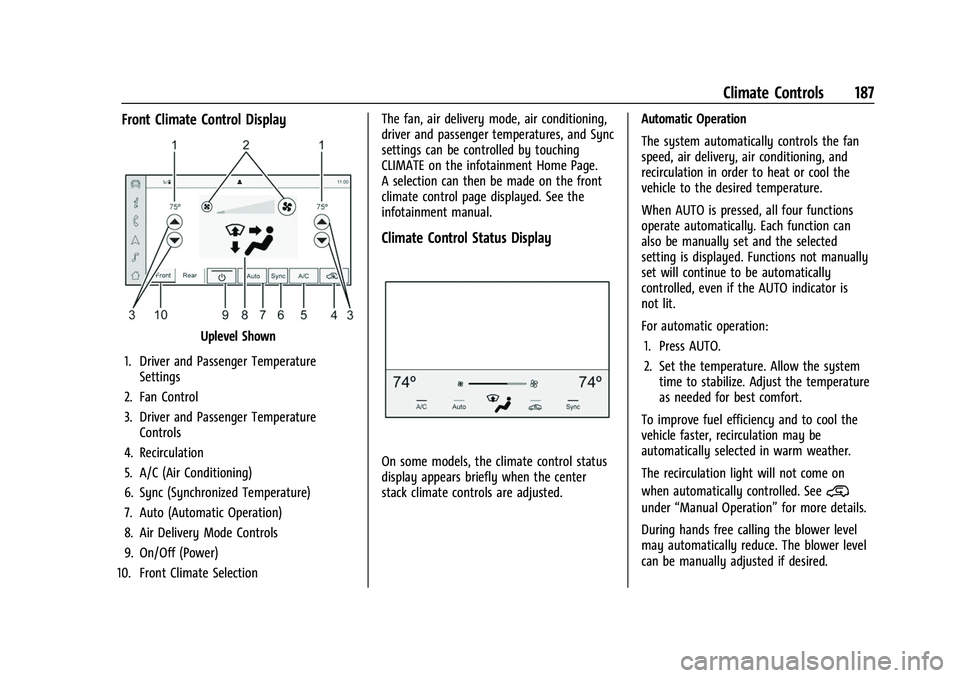
Front Climate Control Display
Uplevel Shown
1. Driver and Passenger Temperature Settings
2. Fan Control
3. Driver and Passenger Temperature Controls
4. Recirculation
5. A/C (Air Conditioning)
6. Sync (Synchronized Temperature)
7. Auto (Automatic Operation)
8. Air Delivery Mode Controls
9. On/Off (Power)
10. Front Climate Selection The fan, air delivery mode, air conditioning,
driver and passenger temperatures, and Sync
settings can be controlled by touching
CLIMATE on the infotainment Home Page.
A selection can then be made on the front
climate control page displayed. See the
infotainment manual.
Climate Control Status Display
On some models, the climate control status
display appears briefly when the center
stack climate controls are adjusted.
Automatic Operation
The system automatically controls the fan
speed, air delivery, air conditioning, and
recirculation in order to heat or cool the
vehicle to the desired temperature.
When AUTO is pressed, all four functions
operate automatically. Each function can
also be manually set and the selected
setting is displayed. Functions not manually
set will continue to be automatically
controlled, even if the AUTO indicator is
not lit.
For automatic operation:
1. Press AUTO.
2. Set the temperature. Allow the system time to stabilize. Adjust the temperature
as needed for best comfort.
To improve fuel efficiency and to cool the
vehicle faster, recirculation may be
automatically selected in warm weather.
The recirculation light will not come on
when automatically controlled. See
@
under “Manual Operation” for more details.
During hands free calling the blower level
may automatically reduce. The blower level
can be manually adjusted if desired.
Page 190 of 443
Chevrolet Tahoe/Suburban Owner Manual (GMNA-Localizing-U.S./Canada/
Mexico-16416971) - 2023 - CRC - 4/25/22
Climate Controls 189
If equipped with heated outside mirrors,
press
fto turn them on or off. SeeHeated
Mirrors 028.
Caution
Using a razor blade or sharp object to
clear the inside rear window can damage
the rear window defogger. Repairs would
not be covered by the vehicle warranty.
Do not clear the inside rear window with
sharp objects.
Remote Start Climate Control Operation : If
Equipped: When the vehicle is started
remotely, the climate control system, rear
window defog— and if equipped, heated or
ventilated seats or a heated steering wheel
— may run based on climate conditions.
When this occurs, the window defog
indicator will not light up as it does
normally. See Remote Vehicle Start 014,
Heated and Ventilated Front Seats 042, and
Heated Steering Wheel 094.
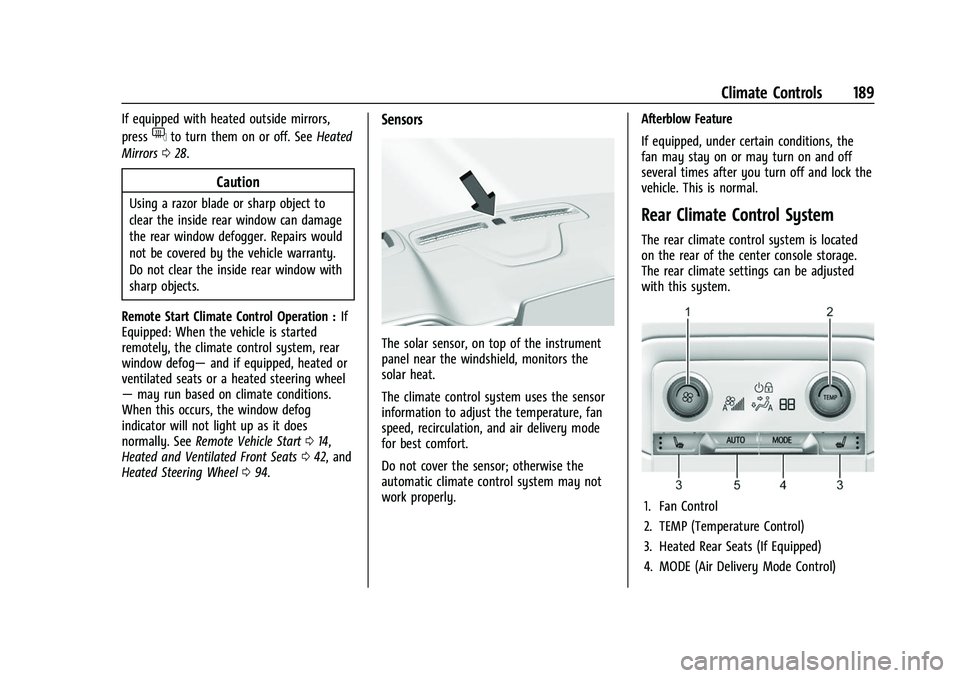
Sensors
The solar sensor, on top of the instrument
panel near the windshield, monitors the
solar heat.
The climate control system uses the sensor
information to adjust the temperature, fan
speed, recirculation, and air delivery mode
for best comfort.
Do not cover the sensor; otherwise the
automatic climate control system may not
work properly. Afterblow Feature
If equipped, under certain conditions, the
fan may stay on or may turn on and off
several times after you turn off and lock the
vehicle. This is normal.
Rear Climate Control System
The rear climate control system is located
on the rear of the center console storage.
The rear climate settings can be adjusted
with this system.
1. Fan Control
2. TEMP (Temperature Control)
3. Heated Rear Seats (If Equipped)
4. MODE (Air Delivery Mode Control)
Page 191 of 443
Chevrolet Tahoe/Suburban Owner Manual (GMNA-Localizing-U.S./Canada/
Mexico-16416971) - 2023 - CRC - 4/25/22
190 Climate Controls
5. AUTO (Automatic Operation)
If the dual automatic climate control system
rear climate control lockout feature is
locked, the rear climate control settings can
only be adjusted from the front seat.
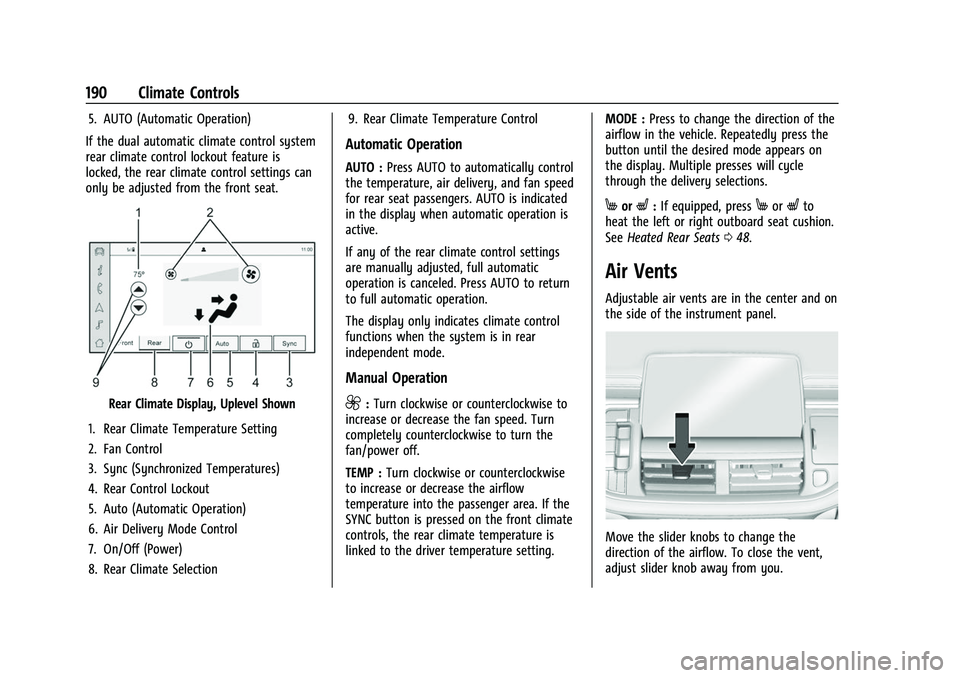
Rear Climate Display, Uplevel Shown
1. Rear Climate Temperature Setting
2. Fan Control
3. Sync (Synchronized Temperatures)
4. Rear Control Lockout
5. Auto (Automatic Operation)
6. Air Delivery Mode Control
7. On/Off (Power)
8. Rear Climate Selection 9. Rear Climate Temperature Control
Automatic Operation
AUTO :
Press AUTO to automatically control
the temperature, air delivery, and fan speed
for rear seat passengers. AUTO is indicated
in the display when automatic operation is
active.
If any of the rear climate control settings
are manually adjusted, full automatic
operation is canceled. Press AUTO to return
to full automatic operation.
The display only indicates climate control
functions when the system is in rear
independent mode.
Manual Operation
9: Turn clockwise or counterclockwise to
increase or decrease the fan speed. Turn
completely counterclockwise to turn the
fan/power off.
TEMP : Turn clockwise or counterclockwise
to increase or decrease the airflow
temperature into the passenger area. If the
SYNC button is pressed on the front climate
controls, the rear climate temperature is
linked to the driver temperature setting. MODE :
Press to change the direction of the
airflow in the vehicle. Repeatedly press the
button until the desired mode appears on
the display. Multiple presses will cycle
through the delivery selections.
MorL: If equipped, pressMorLto
heat the left or right outboard seat cushion.
See Heated Rear Seats 048.
Air Vents
Adjustable air vents are in the center and on
the side of the instrument panel.
Move the slider knobs to change the
direction of the airflow. To close the vent,
adjust slider knob away from you.
Page 196 of 443
Chevrolet Tahoe/Suburban Owner Manual (GMNA-Localizing-U.S./Canada/
Mexico-16416971) - 2023 - CRC - 5/16/22
Driving and Operating 195
Filling a Portable Fuel Container . . . . . . . 287
Trailer Towing
General Towing Information . . . . . . . . . . 288
Driving Characteristics andTowing Tips . . . . . . . . . . . . . . . . . . . . . . . . . 288
Trailer Towing . . . . . . . . . . . . . . . . . . . . . . . . . 292
Towing Equipment . . . . . . . . . . . . . . . . . . . . 296
Trailer Sway Control (TSC) . . . . . . . . . . . . . 305
Trailering App . . . . . . . . . . . . . . . . . . . . . . . . . 307
Conversions and Add-Ons
Add-On Electrical Equipment . . . . . . . . . . . 316
Driving Information
Driving for Better Fuel Economy
Driving habits can affect fuel mileage. Here
are some driving tips to get the best fuel
economy possible:
.Set the climate controls to the desired
temperature after the engine is started,
or turn them off when not required.
.Avoid fast starts and accelerate smoothly.
.Brake gradually and avoid abrupt stops.
.Avoid idling the engine for long periods
of time.
.When road and weather conditions are
appropriate, use cruise control.
.Always follow posted speed limits or
drive more slowly when conditions
require.
.Keep vehicle tires properly inflated.
.Combine several trips into a single trip.
.Replace the vehicle's tires with the
same TPC Spec number molded into the
tire's sidewall near the size.
.Follow recommended scheduled
maintenance.
Distracted Driving
Distraction comes in many forms and can
take your focus from the task of driving.
Exercise good judgment and do not let other
activities divert your attention away from
the road. Many local governments have
enacted laws regarding driver distraction.
Become familiar with the local laws in
your area.
To avoid distracted driving, keep your eyes
on the road, keep your hands on the
steering wheel, and focus your attention on
driving.
.Do not use a phone in demanding driving
situations. Use a hands-free method to
place or receive necessary phone calls.
.Watch the road. Do not read, take notes,
or look up information on phones or
other electronic devices.
.Designate a front seat passenger to
handle potential distractions.
.Become familiar with vehicle features
before driving, such as programming
favorite radio stations and adjusting
climate control and seat settings. Program
all trip information into any navigation
device prior to driving.
Page 213 of 443
Chevrolet Tahoe/Suburban Owner Manual (GMNA-Localizing-U.S./Canada/
Mexico-16416971) - 2023 - CRC - 5/16/22
212 Driving and Operating
Auto Stops may not occur and/or Auto
Starts may occur because:
.The climate control settings require the
engine to be running to cool or heat the
vehicle interior.
.The vehicle battery needs to charge.
.The vehicle battery has recently been
disconnected.
.Minimum vehicle speed has not been
reached since the last Auto Stop.
.The accelerator pedal is pressed.
.The engine or transmission is not at the
required operating temperature.
.The outside temperature is not in the
required operating range.
.The vehicle is shifted out of D (Drive) to
any gear other than P (Park).
.Certain driver modes have been selected.
SeeDriver Mode Control 0228 and
Four-Wheel Drive 0219.
.The vehicle is on a steep hill or grade.
.The driver door has been opened or the
driver seat belt has been unbuckled.
.The hood has been opened.
.The Auto Stop has reached the maximum
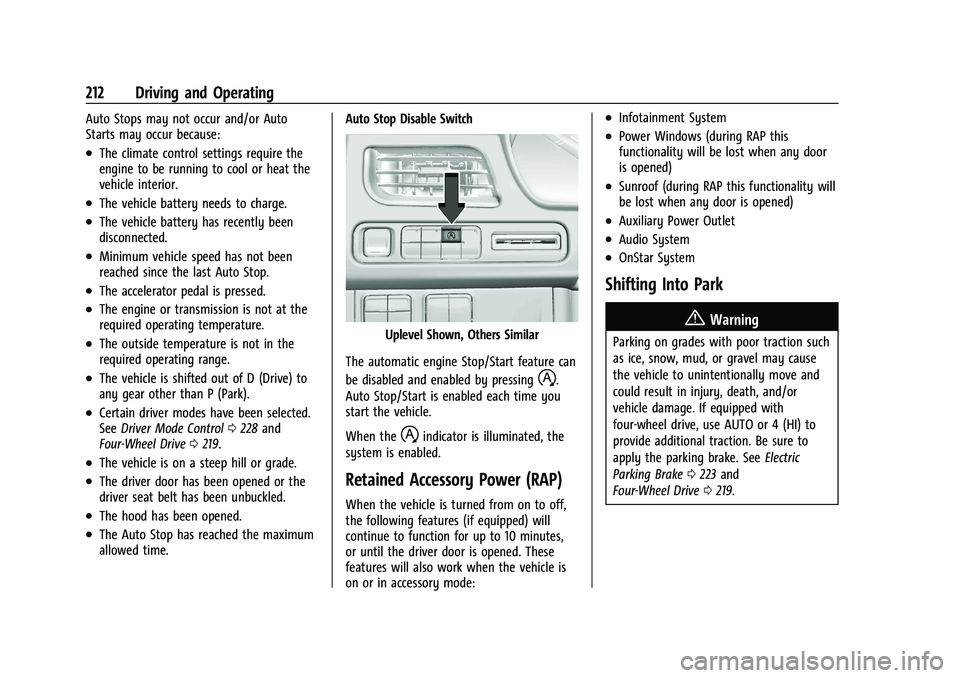
allowed time. Auto Stop Disable Switch
Uplevel Shown, Others Similar
The automatic engine Stop/Start feature can
be disabled and enabled by pressing
h.
Auto Stop/Start is enabled each time you
start the vehicle.
When the
hindicator is illuminated, the
system is enabled.
Retained Accessory Power (RAP)
When the vehicle is turned from on to off,
the following features (if equipped) will
continue to function for up to 10 minutes,
or until the driver door is opened. These
features will also work when the vehicle is
on or in accessory mode:
.Infotainment System
.Power Windows (during RAP this
functionality will be lost when any door
is opened)
.Sunroof (during RAP this functionality will
be lost when any door is opened)
.Auxiliary Power Outlet
.Audio System
.OnStar System
Shifting Into Park
{Warning
Parking on grades with poor traction such
as ice, snow, mud, or gravel may cause
the vehicle to unintentionally move and
could result in injury, death, and/or
vehicle damage. If equipped with
four-wheel drive, use AUTO or 4 (HI) to
provide additional traction. Be sure to
apply the parking brake. See Electric
Parking Brake 0223 and
Four-Wheel Drive 0219.
Page 221 of 443
Chevrolet Tahoe/Suburban Owner Manual (GMNA-Localizing-U.S./Canada/
Mexico-16416971) - 2023 - CRC - 5/16/22
220 Driving and Operating
The settings are:
N (Neutral) :Use only when the vehicle
needs to be towed. See Recreational Vehicle
Towing 0387 orTransporting a Disabled
Vehicle 0386.
2
m(Two-Wheel Drive High) : Use for driving
on most streets and highways. The front
axle is not engaged. This setting provides
the best fuel economy.
AUTO (Automatic Four-Wheel Drive) : Use
when road surface conditions are variable.
When driving in AUTO, the front axle is
engaged, and the vehicle's power is sent to
the front and rear wheels automatically
based on driving conditions. This setting
provides slightly lower fuel economy
than 2
m.
4
m(Four-Wheel Drive High) : Use this
setting when extra traction is needed, such
as when driving on snowy or icy roads,
when off-roading, or when plowing snow.
4
n(Four-Wheel Drive Low) : This setting
engages the front axle and delivers extra
torque. Choose 4
nwhen driving off-road in
deep sand, deep mud, or deep snow, and while climbing or descending steep hills.
While driving in 4
n, keep vehicle speed
below 72 km/h (45 mph).
Shifting into 4
nwill turn Traction Control
and StabiliTrak/ESC off. See Traction Control/
Electronic Stability Control 0225.
Shifts between 2
m, 4m, and AUTO
Any of these shifts can be made at normal
driving speed.
The actual 4x4 shift request is only made
after the button is released. The 4x4 graphic
will remain flashing until the shift request
has completed. A DIC message displays to
indicate that the 4x4 transfer case has been
requested to shift to the new desired state.
Once the 4x4 shift has completed, the DIC
message disappears, the 4x4 graphic stops
flashing, and the current setting is indicated.
When a shift to 2
mis completed successfully
while in P (Park), the parking brake will
engage. To resume driving, shift the
transmission to the desired gear and
manually release the parking brake or press
the accelerator pedal to begin driving. See
Electric Parking Brake 0223. If equipped, use 4
n, AUTO, or 4mto provide
additional traction when parking on a steep
grade with poor traction such as ice, snow,
mud, or gravel.
Shifting Into 4
n
1. The ignition must be on and the vehicle must be stopped or moving less than
5 km/h (3 mph) with the transmission in
N (Neutral). It is best for the vehicle to
be moving 1.6 to 3.2 km/h (1 to 2 mph).
2. Press 4
n. The actual 4x4 shift request is
only made after the button is released.
The 4x4 graphic will remain flashing
until the shift request has completed.
A DIC message displays to indicate that
the 4x4 transfer case has been requested
to shift to the new desired state.
Once the 4x4 shift has completed, the
DIC message disappears, the 4x4 graphic
stops flashing and the current setting is
indicated.
If vehicle speed is higher when shift request
occurs, a DIC message displays. Reduce
vehicle speed.
If the transmission is not in N (Neutral)
when shift request occurs, a DIC message
displays. The vehicle will allow 20 seconds
Page 223 of 443
Chevrolet Tahoe/Suburban Owner Manual (GMNA-Localizing-U.S./Canada/
Mexico-16416971) - 2023 - CRC - 5/16/22
222 Driving and Operating
Shifting Out of N (Neutral)
To shift out of N (Neutral):1. Turn the ignition on with the engine off. See Ignition Positions 0209.
2. Set the parking brake. See Electric
Parking Brake 0223.
3. Shift the transmission to N (Neutral).
4. Shift the transfer case to 2
m. Transfer
case shifts out of N (Neutral) can only be
made into 2
m. When the shift to 2mis
complete, the graphic in the instrument
cluster will stop flashing. If the transfer
case cannot complete a shift, the graphic
will return to the previously selected
setting. Single Speed Transfer Case
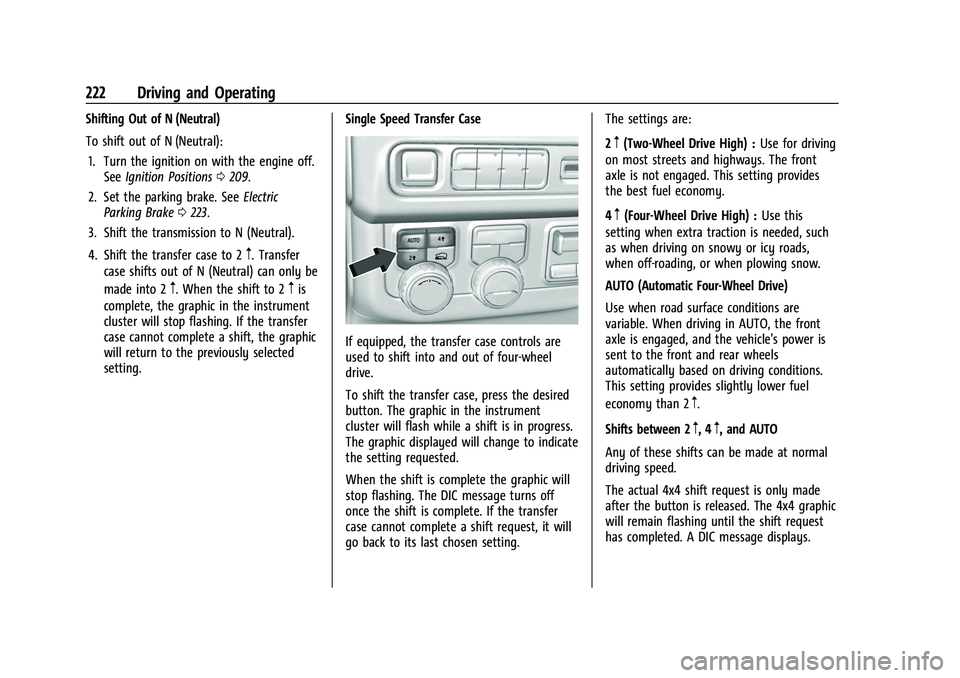
If equipped, the transfer case controls are
used to shift into and out of four-wheel
drive.
To shift the transfer case, press the desired
button. The graphic in the instrument
cluster will flash while a shift is in progress.
The graphic displayed will change to indicate
the setting requested.
When the shift is complete the graphic will
stop flashing. The DIC message turns off
once the shift is complete. If the transfer
case cannot complete a shift request, it will
go back to its last chosen setting. The settings are:
2
m(Two-Wheel Drive High) :
Use for driving
on most streets and highways. The front
axle is not engaged. This setting provides
the best fuel economy.
4
m(Four-Wheel Drive High) : Use this
setting when extra traction is needed, such
as when driving on snowy or icy roads,
when off-roading, or when plowing snow.
AUTO (Automatic Four-Wheel Drive)
Use when road surface conditions are
variable. When driving in AUTO, the front
axle is engaged, and the vehicle's power is
sent to the front and rear wheels
automatically based on driving conditions.
This setting provides slightly lower fuel
economy than 2
m.
Shifts between 2
m, 4m, and AUTO
Any of these shifts can be made at normal
driving speed.
The actual 4x4 shift request is only made
after the button is released. The 4x4 graphic
will remain flashing until the shift request
has completed. A DIC message displays.
Page 233 of 443
Chevrolet Tahoe/Suburban Owner Manual (GMNA-Localizing-U.S./Canada/
Mexico-16416971) - 2023 - CRC - 5/16/22
232 Driving and Operating
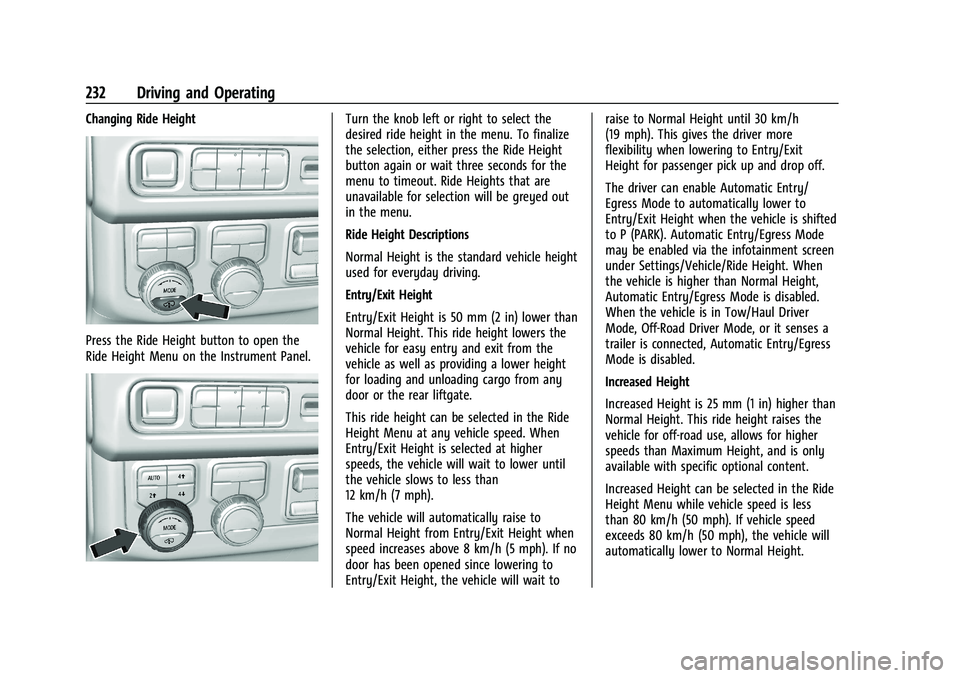
Changing Ride Height
Press the Ride Height button to open the
Ride Height Menu on the Instrument Panel.
Turn the knob left or right to select the
desired ride height in the menu. To finalize
the selection, either press the Ride Height
button again or wait three seconds for the
menu to timeout. Ride Heights that are
unavailable for selection will be greyed out
in the menu.
Ride Height Descriptions
Normal Height is the standard vehicle height
used for everyday driving.
Entry/Exit Height
Entry/Exit Height is 50 mm (2 in) lower than
Normal Height. This ride height lowers the
vehicle for easy entry and exit from the
vehicle as well as providing a lower height
for loading and unloading cargo from any
door or the rear liftgate.
This ride height can be selected in the Ride
Height Menu at any vehicle speed. When
Entry/Exit Height is selected at higher
speeds, the vehicle will wait to lower until
the vehicle slows to less than
12 km/h (7 mph).
The vehicle will automatically raise to
Normal Height from Entry/Exit Height when
speed increases above 8 km/h (5 mph). If no
door has been opened since lowering to
Entry/Exit Height, the vehicle will wait toraise to Normal Height until 30 km/h
(19 mph). This gives the driver more
flexibility when lowering to Entry/Exit
Height for passenger pick up and drop off.
The driver can enable Automatic Entry/
Egress Mode to automatically lower to
Entry/Exit Height when the vehicle is shifted
to P (PARK). Automatic Entry/Egress Mode
may be enabled via the infotainment screen
under Settings/Vehicle/Ride Height. When
the vehicle is higher than Normal Height,
Automatic Entry/Egress Mode is disabled.
When the vehicle is in Tow/Haul Driver
Mode, Off-Road Driver Mode, or it senses a
trailer is connected, Automatic Entry/Egress
Mode is disabled.
Increased Height
Increased Height is 25 mm (1 in) higher than
Normal Height. This ride height raises the
vehicle for off-road use, allows for higher
speeds than Maximum Height, and is only
available with specific optional content.
Increased Height can be selected in the Ride
Height Menu while vehicle speed is less
than 80 km/h (50 mph). If vehicle speed
exceeds 80 km/h (50 mph), the vehicle will
automatically lower to Normal Height.