USB CHEVROLET TAHOE 2010 3.G Owner's Manual
[x] Cancel search | Manufacturer: CHEVROLET, Model Year: 2010, Model line: TAHOE, Model: CHEVROLET TAHOE 2010 3.GPages: 608, PDF Size: 6.53 MB
Page 330 of 608
h(Music Navigator):Press the softkey
below
hto view and select a file on an iPod,
using the iPod's menu system. Files are sorted by:
.Playlists
.Artists
.Albums
.Genres
.Songs
.Composers
To select files:
1. Press the softkey below
h.
2. Turn
fto scroll through the list of menus.
3. Press
fto select the menu.
4. Turn
fto scroll through the folders or files in the
selected menu.
5. Press
fto select the file to be played. To skip through large lists, the five softkeys can be used
to navigate in the following order:
.First softkey, first item in the list.
.Second softkey, 1% through the list each time the
softkey is pressed.
.Third softkey, 5% through the list each time the
softkey is pressed.
.Fourth softkey, 10% through the list each time the
softkey is pressed.
.Fifth softkey, end of the list.
Repeat Functionality
To use Repeat:
Press the softkey below
"or'to select between
Repeat All and Repeat Track.
"(Repeat All): Press the softkey below"to repeat
all tracks. The tab appears lowered when Repeat All is
being used. This is the default mode when a USB
storage device or iPod is first connected.
'(Repeat Track): Press the softkey below'to
repeat one track. The tab appears raised when Repeat
Track is being used.
4-112
Page 331 of 608
Shuffle Functionality
To use Shuffle:
Press the softkey below
>,2,
Songs, Shuffle Album, or Shuffle Folder.
>(Shuffle Off): This is the default mode when a USB
storage device or iPod is first connected.
2(Shuffle All Songs / Shuffle Songs): Shuffles all
songs on the USB storage device or iPod.
<(Shuffle Album): Shuffles all songs in the current
album on an iPod.
=(Shuffle Folder): Shuffles all songs in the current
folder on a USB storage device.
XM Radio Messages
XL (Explicit Language Channels): These channels,
or any others, can be blocked at a customer's request,
by calling 1-800-852-XMXM (9696).
XM Updating: The encryption code in the receiver is
being updated, and no action is required. This process
should take no longer than 30 seconds.
No XM Signal: The system is functioning correctly, but
the vehicle is in a location that is blocking the XM™
signal. When the vehicle is moved into an open area,
the signal should return.
Loading XM: The audio system is acquiring and
processing audio and text data. No action is needed.
This message should disappear shortly.
Channel Off Air: This channel is not currently in
service. Tune in to another channel.
Channel Unauth : This channel is blocked or cannot
be received with your XM Subscription package.
4-113
Page 354 of 608
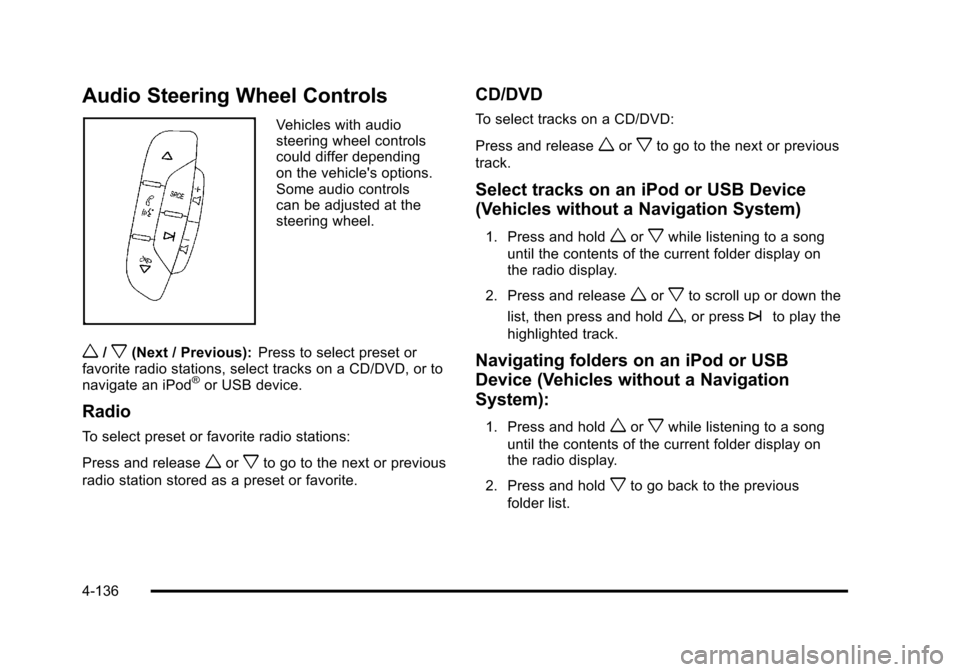
Audio Steering Wheel Controls
Vehicles with audio
steering wheel controls
could differ depending
on the vehicle's options.
Some audio controls
can be adjusted at the
steering wheel.
w/x(Next / Previous):Press to select preset or
favorite radio stations, select tracks on a CD/DVD, or to
navigate an iPod
®or USB device.
Radio
To select preset or favorite radio stations:
Press and release
worxto go to the next or previous
radio station stored as a preset or favorite.
CD/DVD
To select tracks on a CD/DVD:
Press and release
worxto go to the next or previous
track.
Select tracks on an iPod or USB Device
(Vehicles without a Navigation System)
1. Press and holdworxwhile listening to a song
until the contents of the current folder display on
the radio display.
2. Press and release
worxto scroll up or down the
list, then press and hold
w, or press¨to play the
highlighted track.
Navigating folders on an iPod or USB
Device (Vehicles without a Navigation
System):
1. Press and holdworxwhile listening to a song
until the contents of the current folder display on
the radio display.
2. Press and hold
xto go back to the previous
folder list.
4-136
Page 355 of 608
3. Press and releaseworxto scroll up or down
the list.
.To select a folder, press and holdw, or press
¨when the folder is highlighted.
.To go back further in the folder list, press and
hold
x.
Navigating an iPod or USB Device on
the Main Audio Screen (Vehicles with a
Navigation System)
Press and releaseworxto select the next or
previous track within the selected category.
Press and hold
worxto move quickly through the
tracks.
Press and release
¨to move up one track within the
selected category.
Navigating an iPod or USB Device on the
Music Navigator Screen (Vehicles with a
Navigation System)
Press and releaseworxto select the next or
previous track within the selected category.
Press and hold
worxto move quickly through the
tracks within the selected category. Press and release
¨to move up one track within the
selected category.
b g(Mute/Push to Talk): Press to silence the vehicle
speakers only. Press again to turn the sound on.
For vehicles with Bluetooth or OnStar
®systems, press
and hold for longer than two seconds to interact with
those systems. See Bluetooth
®on page 4‑114and the
OnStar Owner's Guide for more information.
c(End): Press to reject an incoming call, or end a
current call.
SRCE (Source/Voice Recognition): Press to switch
between the radio, CD, and for vehicles with, DVD, front
auxiliary, and rear auxiliary.
For vehicles with the navigation system, press and hold
this button for longer than one second to initiate voice
recognition. See “Voice Recognition” in the Navigation
System manual for more information.
¨(Seek): Press to go to the next radio station while in
AM, FM, or XM™.
For vehicles with or without a navigation system:
Press
¨to go to the next track or chapter while
sourced to the CD or DVD slot.
Press
¨to select a track or a folder when navigating
folders on an iPod or USB device.
4-137