Hud CHEVROLET TAHOE 2019 Owner's Manual
[x] Cancel search | Manufacturer: CHEVROLET, Model Year: 2019, Model line: TAHOE, Model: CHEVROLET TAHOE 2019Pages: 460, PDF Size: 6.77 MB
Page 8 of 460

Chevrolet Tahoe/Suburban Owner Manual (GMNA-Localizing-U.S./Canada/
Mexico-12460269) - 2019 - CRC - 9/11/18
In Brief 7
1.Air Vents 0199.
2. Head-Up Display (HUD) 0167
(If Equipped).
3.
gTraction Control/Electronic
Stability Control 0246.
jPower Assist Steps 052 (If
Equipped).
XPark Assist Button (If
Equipped). See Assistance
Systems for Parking or Backing
0 261.
ALane Keep Assist (LKA)
(1500 Series) 0271 (If
Equipped).
0Pedal Adjust Switch (If
Equipped). See Adjustable
Throttle and Brake Pedal
0 220.
4. Turn Signal Lever. See Turn
and Lane-Change Signals
0 187.
Windshield Wiper/Washer
0 135. 5. Favorite Switches (Out of
View). See Steering Wheel
Controls 0135.
Volume Switches (Out of View).
See Steering Wheel Controls
0 135.
6. Instrument Cluster 0145.
7. Hazard Warning Flashers
0187.
8. Shift Lever. See Automatic
Transmission 0231.
Tow/Haul Selector Button. See
Tow/Haul Mode 0238.
Range Selection Mode (If
Equipped). See Manual Mode
0 234 orManual Mode 0236.
9. Light Sensor. See Automatic
Headlamp System 0186.
10. Infotainment 0193.
11. Dual Automatic Climate Control
System 0194.
12. Heated and Ventilated Front
Seats 073 (If Equipped). 13. 110/120-Volt Power Outlet (If
Equipped). See Power Outlets
0 139.
14. Power Outlets 0139 (If
Equipped).
15. Rear Climate Control Buttons. SeeDual Automatic Climate
Control System 0194.
16. Steering Wheel Controls 0135.
17. Horn 0135.
18. Steering Wheel Adjustment
0134.
19. Hood Release. See Hood
0 303.
20. Cruise Control 0250.
Adaptive Cruise Control 0252
(If Equipped).
Forward Collision Alert (FCA)
System 0265 (If Equipped).
Heated Steering Wheel 0135
(If Equipped).
21. Trailer Brake Control Panel (If Equipped). See Towing
Equipment 0289.
Page 134 of 460
Chevrolet Tahoe/Suburban Owner Manual (GMNA-Localizing-U.S./Canada/
Mexico-12460269) - 2019 - CRC - 9/11/18
Instruments and Controls 133
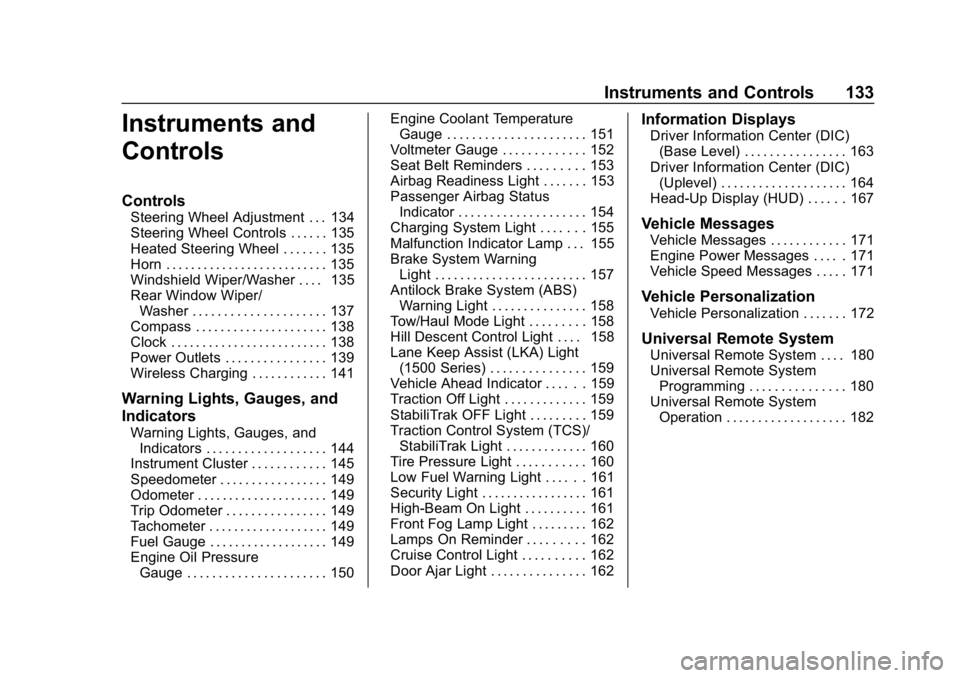
Instruments and
Controls
Controls
Steering Wheel Adjustment . . . 134
Steering Wheel Controls . . . . . . 135
Heated Steering Wheel . . . . . . . 135
Horn . . . . . . . . . . . . . . . . . . . . . . . . . . 135
Windshield Wiper/Washer . . . . 135
Rear Window Wiper/Washer . . . . . . . . . . . . . . . . . . . . . 137
Compass . . . . . . . . . . . . . . . . . . . . . 138
Clock . . . . . . . . . . . . . . . . . . . . . . . . . 138
Power Outlets . . . . . . . . . . . . . . . . 139
Wireless Charging . . . . . . . . . . . . 141
Warning Lights, Gauges, and
Indicators
Warning Lights, Gauges, and Indicators . . . . . . . . . . . . . . . . . . . 144
Instrument Cluster . . . . . . . . . . . . 145
Speedometer . . . . . . . . . . . . . . . . . 149
Odometer . . . . . . . . . . . . . . . . . . . . . 149
Trip Odometer . . . . . . . . . . . . . . . . 149
Tachometer . . . . . . . . . . . . . . . . . . . 149
Fuel Gauge . . . . . . . . . . . . . . . . . . . 149
Engine Oil Pressure
Gauge . . . . . . . . . . . . . . . . . . . . . . 150 Engine Coolant Temperature
Gauge . . . . . . . . . . . . . . . . . . . . . . 151
Voltmeter Gauge . . . . . . . . . . . . . 152
Seat Belt Reminders . . . . . . . . . 153
Airbag Readiness Light . . . . . . . 153
Passenger Airbag Status Indicator . . . . . . . . . . . . . . . . . . . . 154
Charging System Light . . . . . . . 155
Malfunction Indicator Lamp . . . 155
Brake System Warning Light . . . . . . . . . . . . . . . . . . . . . . . . 157
Antilock Brake System (ABS) Warning Light . . . . . . . . . . . . . . . 158
Tow/Haul Mode Light . . . . . . . . . 158
Hill Descent Control Light . . . . 158
Lane Keep Assist (LKA) Light (1500 Series) . . . . . . . . . . . . . . . 159
Vehicle Ahead Indicator . . . . . . 159
Traction Off Light . . . . . . . . . . . . . 159
StabiliTrak OFF Light . . . . . . . . . 159
Traction Control System (TCS)/ StabiliTrak Light . . . . . . . . . . . . . 160
Tire Pressure Light . . . . . . . . . . . 160
Low Fuel Warning Light . . . . . . 161
Security Light . . . . . . . . . . . . . . . . . 161
High-Beam On Light . . . . . . . . . . 161
Front Fog Lamp Light . . . . . . . . . 162
Lamps On Reminder . . . . . . . . . 162
Cruise Control Light . . . . . . . . . . 162
Door Ajar Light . . . . . . . . . . . . . . . 162
Information Displays
Driver Information Center (DIC) (Base Level) . . . . . . . . . . . . . . . . 163
Driver Information Center (DIC) (Uplevel) . . . . . . . . . . . . . . . . . . . . 164
Head-Up Display (HUD) . . . . . . 167
Vehicle Messages
Vehicle Messages . . . . . . . . . . . . 171
Engine Power Messages . . . . . 171
Vehicle Speed Messages . . . . . 171
Vehicle Personalization
Vehicle Personalization . . . . . . . 172
Universal Remote System
Universal Remote System . . . . 180
Universal Remote System
Programming . . . . . . . . . . . . . . . 180
Universal Remote System Operation . . . . . . . . . . . . . . . . . . . 182
Page 150 of 460
Chevrolet Tahoe/Suburban Owner Manual (GMNA-Localizing-U.S./Canada/
Mexico-12460269) - 2019 - CRC - 9/11/18
Instruments and Controls 149
be displayed in the Info app. See
“Driver Information Center (DIC)
(Uplevel)”in the Index.
Head-up Display (HUD) Rotation :
This feature allows for adjusting the
angle of the HUD image. Press
p
on the steering wheel controls while
Head-up Display Rotation is
highlighted to enter Adjust Mode.
Press
worxto adjust the angle of
the HUD display. Press
Vto confirm
and save the setting. To cancel the
setting, press
o. The vehicle must
be in P (Park).
Speed Warning : The Speed
Warning display allows the driver to
set a speed that they do not want to
exceed. To set the Speed Warning,
press
pwhen Speed Warning is
displayed, or press
Von the main
view to set the speed value. Press
worxto adjust the value. PressVto set the speed. Once the speed
is set, this feature can be turned off
by pressing
Vwhile viewing this page. If the selected speed limit is
exceeded, a pop-up warning is
displayed with a chime.
Software Information :
Press
p
while Software Information is
highlighted to display open source
software information.
Speedometer
The speedometer shows the
vehicle's speed in either kilometers
per hour (km/h) or miles per
hour (mph).
Odometer
The odometer shows how far the
vehicle has been driven, in either
kilometers or miles.
Trip Odometer
The trip odometer shows how far
the vehicle has been driven since
the trip odometer was last reset. The trip odometer is accessed and
reset through the Driver Information
Center (DIC). See
Driver
Information Center (DIC) (Base
Level) 0163 orDriver Information
Center (DIC) (Uplevel) 0164.
Tachometer
The tachometer displays the engine
speed in revolutions per
minute (rpm).
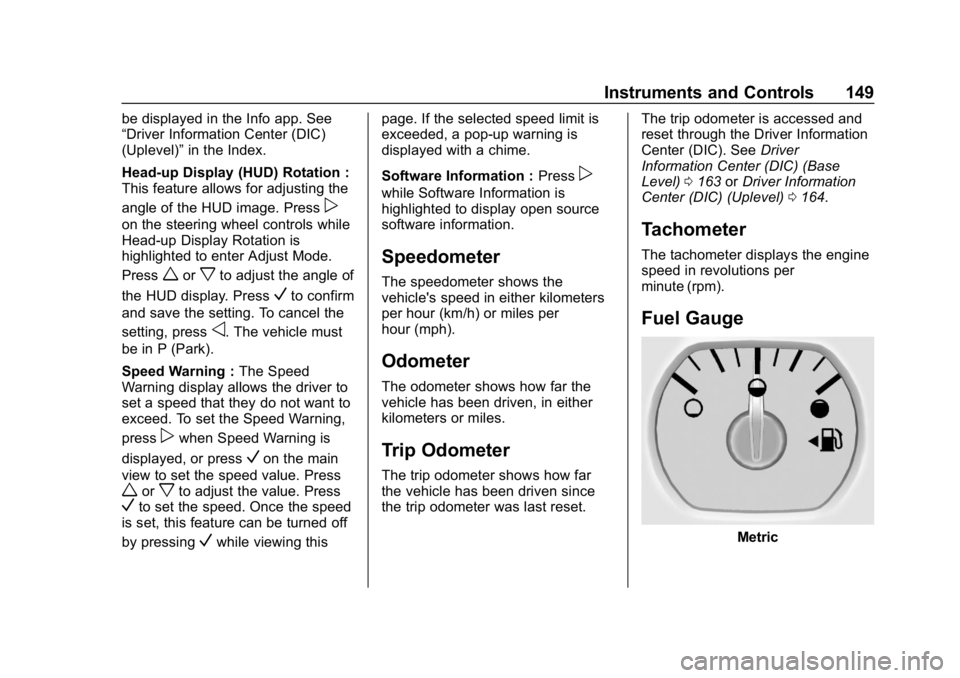
Fuel Gauge
Metric
Page 168 of 460
Chevrolet Tahoe/Suburban Owner Manual (GMNA-Localizing-U.S./Canada/
Mexico-12460269) - 2019 - CRC - 9/11/18
Instruments and Controls 167
and the timer is running. To reset
the timer to zero, press and hold
V
while this display is active, or
press
pand select reset.
Speed Limit (If Equipped) : Shows
sign information, which comes from
a roadway database in the onboard
navigation.
Engine Hours : Shows the total
number of hours the engine has run.
Transmission Fluid
Temperature : Shows the
temperature of the automatic
transmission fluid in either degrees
Celsius (°C) or degrees
Fahrenheit (°F).
Trailer Brake (If Equipped) : On
vehicles with the Integrated Trailer
Brake Control (ITBC) system, the
trailer brake display appears in
the DIC.
TRAILER GAIN shows the trailer
gain setting. This setting can be
adjusted from 0.0 to 10.0 with either
a trailer connected or disconnected. TRAILER OUTPUT shows the
power output to the trailer anytime a
trailer with electric brakes is
connected. Output is displayed as a
bar graph. Dashes may appear in
the OUTPUT display if a trailer is
not connected.
Off Road :
Displays vehicle pitch
and roll information, road wheel
angle, and four-wheel drive (4WD)
status.
Blank Page : Shows no
information.
Head-Up Display (HUD)
{Warning
If the HUD image is too bright or
too high in your field of view, it
may take you more time to see
things you need to see when it is
dark outside. Be sure to keep the
HUD image dim and placed low in
your field of view. If equipped with HUD, some
information concerning the
operation of the vehicle is projected
onto the windshield. The image is
projected through the HUD lens on
top of the instrument panel. The
information appears as an image
focused out toward the front of the
vehicle.
Caution
If you try to use the HUD image
as a parking aid, you may
misjudge the distance and
damage your vehicle. Do not use
the HUD image as a parking aid.
The HUD information can be
displayed in various languages. The
speedometer reading and other
numerical values can be displayed
in either English or metric units.
The language selection is changed
through the radio and the units of
measurement is changed through
the instrument cluster. See Vehicle
Personalization 0172 and“Options”
under Instrument Cluster 0145.
Page 169 of 460
Chevrolet Tahoe/Suburban Owner Manual (GMNA-Localizing-U.S./Canada/
Mexico-12460269) - 2019 - CRC - 9/11/18
168 Instruments and Controls
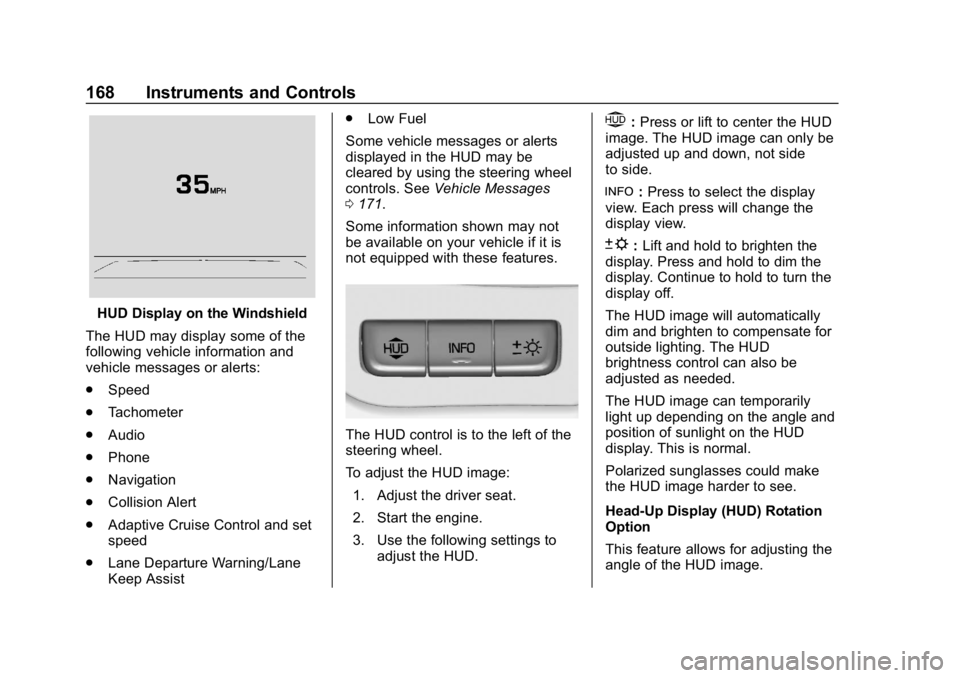
HUD Display on the Windshield
The HUD may display some of the
following vehicle information and
vehicle messages or alerts:
. Speed
. Tachometer
. Audio
. Phone
. Navigation
. Collision Alert
. Adaptive Cruise Control and set
speed
. Lane Departure Warning/Lane
Keep Assist .
Low Fuel
Some vehicle messages or alerts
displayed in the HUD may be
cleared by using the steering wheel
controls. See Vehicle Messages
0 171.
Some information shown may not
be available on your vehicle if it is
not equipped with these features.
The HUD control is to the left of the
steering wheel.
To adjust the HUD image: 1. Adjust the driver seat.
2. Start the engine.
3. Use the following settings to adjust the HUD.
$:Press or lift to center the HUD
image. The HUD image can only be
adjusted up and down, not side
to side.
!: Press to select the display
view. Each press will change the
display view.
D: Lift and hold to brighten the
display. Press and hold to dim the
display. Continue to hold to turn the
display off.
The HUD image will automatically
dim and brighten to compensate for
outside lighting. The HUD
brightness control can also be
adjusted as needed.
The HUD image can temporarily
light up depending on the angle and
position of sunlight on the HUD
display. This is normal.
Polarized sunglasses could make
the HUD image harder to see.
Head-Up Display (HUD) Rotation
Option
This feature allows for adjusting the
angle of the HUD image.
Page 170 of 460
Chevrolet Tahoe/Suburban Owner Manual (GMNA-Localizing-U.S./Canada/
Mexico-12460269) - 2019 - CRC - 9/11/18
Instruments and Controls 169
Presspon the steering wheel
controls while Head-up Display
Rotation is highlighted to enter
Adjust Mode. Press
worxto
adjust the angle of the HUD display.
Press
Vto confirm and save the
setting. To cancel the setting, press
o. The vehicle must be in P (Park).
See Instrument Cluster 0145.
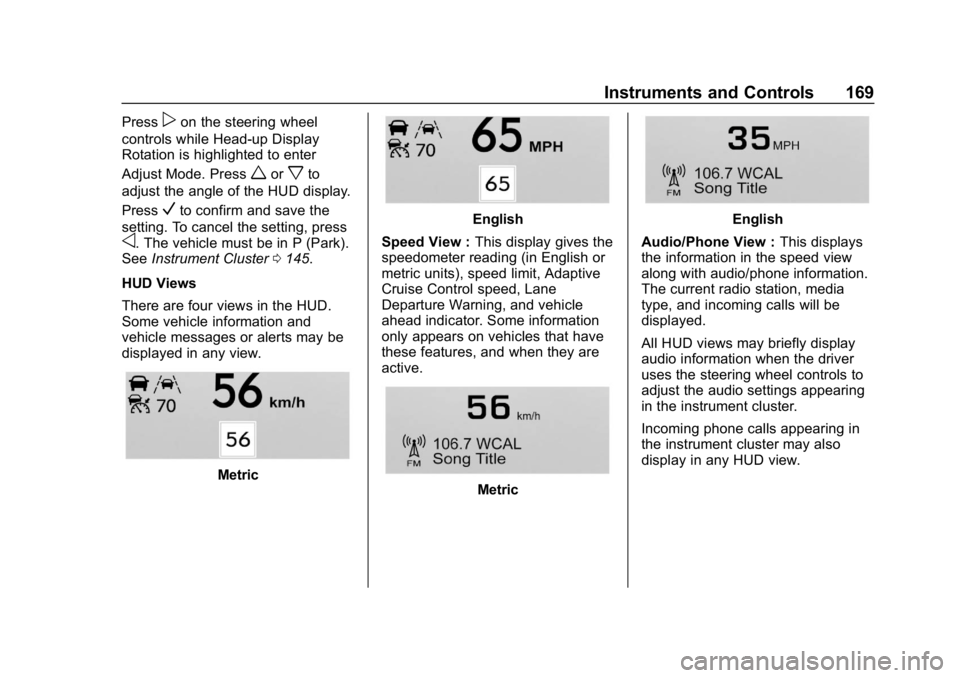
HUD Views
There are four views in the HUD.
Some vehicle information and
vehicle messages or alerts may be
displayed in any view.
Metric
English
Speed View : This display gives the
speedometer reading (in English or
metric units), speed limit, Adaptive
Cruise Control speed, Lane
Departure Warning, and vehicle
ahead indicator. Some information
only appears on vehicles that have
these features, and when they are
active.
Metric
English
Audio/Phone View : This displays
the information in the speed view
along with audio/phone information.
The current radio station, media
type, and incoming calls will be
displayed.
All HUD views may briefly display
audio information when the driver
uses the steering wheel controls to
adjust the audio settings appearing
in the instrument cluster.
Incoming phone calls appearing in
the instrument cluster may also
display in any HUD view.
Page 171 of 460
Chevrolet Tahoe/Suburban Owner Manual (GMNA-Localizing-U.S./Canada/
Mexico-12460269) - 2019 - CRC - 9/11/18
170 Instruments and Controls
Metric
English
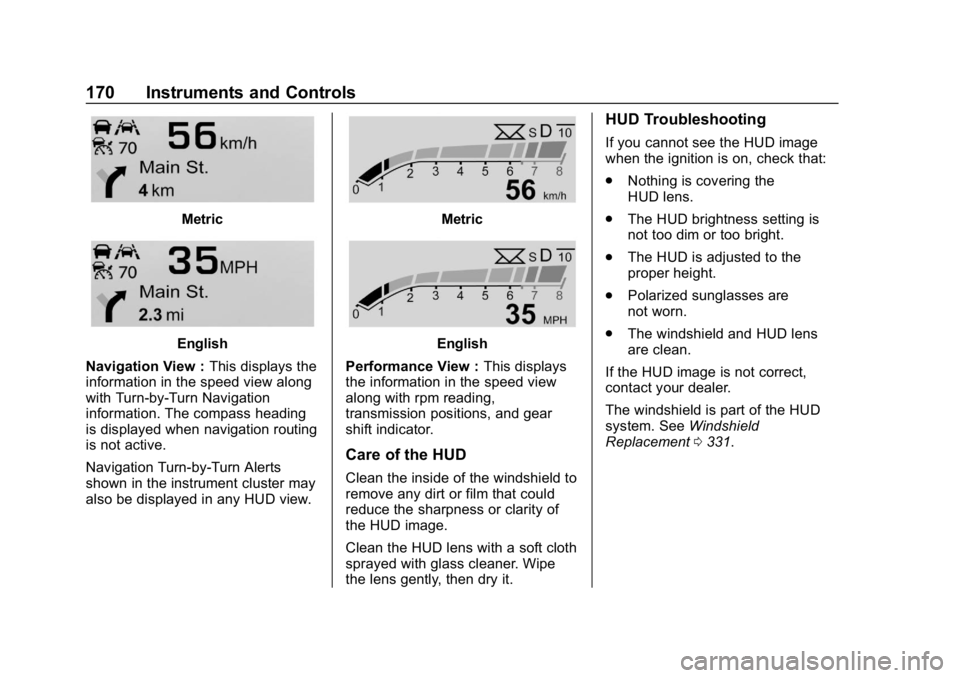
Navigation View : This displays the
information in the speed view along
with Turn-by-Turn Navigation
information. The compass heading
is displayed when navigation routing
is not active.
Navigation Turn-by-Turn Alerts
shown in the instrument cluster may
also be displayed in any HUD view.
Metric
English
Performance View : This displays
the information in the speed view
along with rpm reading,
transmission positions, and gear
shift indicator.
Care of the HUD
Clean the inside of the windshield to
remove any dirt or film that could
reduce the sharpness or clarity of
the HUD image.
Clean the HUD lens with a soft cloth
sprayed with glass cleaner. Wipe
the lens gently, then dry it.
HUD Troubleshooting
If you cannot see the HUD image
when the ignition is on, check that:
. Nothing is covering the
HUD lens.
. The HUD brightness setting is
not too dim or too bright.
. The HUD is adjusted to the
proper height.
. Polarized sunglasses are
not worn.
. The windshield and HUD lens
are clean.
If the HUD image is not correct,
contact your dealer.
The windshield is part of the HUD
system. See Windshield
Replacement 0331.
Page 258 of 460
Chevrolet Tahoe/Suburban Owner Manual (GMNA-Localizing-U.S./Canada/
Mexico-12460269) - 2019 - CRC - 9/11/18
Driving and Operating 257
Warning (Continued)
stop-and-go traffic or when a
vehicle suddenly appears due to
a vehicle ahead changing lanes.
Your vehicle may not stop and
could cause a crash. Use caution
when using ACC. Your complete
attention is always required while
driving and you should be ready
to take action and apply the
brakes.
ACC Automatically Disengages
ACC may automatically disengage
and you will need to manually apply
the brakes to slow the vehicle if:
. Your vehicle speed goes below
the minimum speed of 16 km/h
(10 mph).
. The sensors are blocked.
. The Traction Control System
(TCS) or electronic stability
control system has activated or
been disabled. .
The radar falsely reports a
blockage when driving in a
desert or remote area with no
other vehicles or roadside
objects. A DIC message may
display to indicate that ACC is
temporarily unavailable.
. There is a fault in the system.
A message will appear on the DIC
indicating that cruise is disengaging.
The ACC active symbol will turn
white when ACC is no longer active.
ACC Override
If using the accelerator pedal while
ACC is active, the ACC indicator
turns blue on the instrument cluster
and in the HUD (if equipped) to
indicate that automatic braking will
not occur. ACC will resume
operation when the accelerator
pedal is not being pressed.
{Warning
The ACC will not automatically
apply the brakes if your foot is
resting on the accelerator pedal.
You could crash into a vehicle
ahead of you.
Curves in the Road
{Warning
On curves, ACC may not detect a
vehicle ahead in your lane. You
could be startled if the vehicle
accelerates up to the set speed,
especially when following a
vehicle exiting or entering exit
ramps. You could lose control of
the vehicle or crash. Do not use
ACC while driving on an entrance
or exit ramp. Always be ready to
use the brakes if necessary.
Page 332 of 460
Chevrolet Tahoe/Suburban Owner Manual (GMNA-Localizing-U.S./Canada/
Mexico-12460269) - 2019 - CRC - 9/11/18
Vehicle Care 331
3. Push the new blade assemblysecurely in the wiper arm hook
until the release lever clicks
into place.
4. Return the wiper arm and blade assembly to the rest
position on the glass.
Glass Replacement
If the windshield or front side glass
must be replaced, see your dealer
to determine the correct
replacement glass.
Windshield Replacement
HUD System
The windshield is part of the HUD
system. If the windshield must be
replaced, get one that is designed
for HUD or the HUD image may
look out of focus.
Driver Assistance Systems
If the windshield needs to be
replaced and the vehicle is
equipped with a front camera sensor
for the Driver Assistance Systems, a
GM replacement windshield is recommended. The replacement
windshield must be installed
according to GM specifications for
proper alignment. If it is not, these
systems may not work properly, they
may display messages, or they may
not work at all. See your dealer for
proper windshield replacement.
Gas Strut(s)
This vehicle is equipped with gas
strut(s) to provide assistance in
lifting and holding open the hood/
trunk/liftgate system in full open
position.
{Warning
If the gas struts that hold open
the hood, trunk, and/or liftgate fail,
you or others could be seriously
injured. Take the vehicle to your
dealer for service immediately.
Visually inspect the gas struts for
signs of wear, cracks, or other
damage periodically. Check to
make sure the hood/trunk/liftgate
(Continued)
Warning (Continued)
is held open with enough force.
If struts are failing to hold the
hood/trunk/liftgate, do not
operate. Have the vehicle
serviced.
Caution
Do not apply tape or hang any
objects from gas struts. Also do
not push down or pull on gas
struts. This may cause damage to
the vehicle.
See Maintenance Schedule 0403.
Page 442 of 460
Chevrolet Tahoe/Suburban Owner Manual (GMNA-Localizing-U.S./Canada/
Mexico-12460269) - 2019 - CRC - 9/11/18
OnStar 441
OTHERWISE, ARISING FROM,
OUT OF OR IN CONNECTION
WITH THE SOFTWARE OR THE
USE OR OTHER DEALINGS IN
THE SOFTWARE.
Except as contained in this notice,
the name of a copyright holder shall
not be used in advertising or
otherwise to promote the sale, use
or other dealings in this Software
without prior written authorization of
the copyright holder.
unzip:
This is version 2005-Feb-10 of the
Info-ZIP copyright and license.
The definitive version of this
document should be available
at ftp://ftp.info-zip.org/pub/infozip/
license.html indefinitely.
Copyright (c) 1990-2005 Info-ZIP. All
rights reserved.
For the purposes of this copyright
and license,“Info-ZIP”is defined as
the following set of individuals:
Mark Adler, John Bush, Karl Davis,
Harald Denker, Jean-Michel Dubois,
Jean-loup Gailly, Hunter Goatley, Ed Gordon, Ian Gorman, Chris
Herborth, Dirk Haase, Greg Hartwig,
Robert Heath, Jonathan Hudson,
Paul Kienitz, David Kirschbaum,
Johnny Lee, Onno van der Linden,
Igor Mandrichenko, Steve P. Miller,
Sergio Monesi, Keith Owens,
George Petrov, Greg Roelofs, Kai
Uwe Rommel, Steve Salisbury,
Dave Smith, Steven M. Schweda,
Christian Spieler, Cosmin Truta,
Antoine Verheijen, Paul von Behren,
Rich Wales, Mike White.
This software is provided
“as is,”
without warranty of any kind,
express or implied. In no event shall
Info-ZIP or its contributors be held
liable for any direct, indirect,
incidental, special or consequential
damages arising out of the use of or
inability to use this software.
Permission is granted to anyone to
use this software for any purpose,
including commercial applications,
and to alter it and redistribute it
freely, subject to the following
restrictions: 1. Redistributions of source code
must retain the above copyright
notice, definition, disclaimer,
and this list of conditions.
2. Redistributions in binary form (compiled executables) must
reproduce the above copyright
notice, definition, disclaimer,
and this list of conditions in
documentation and/or other
materials provided with the
distribution. The sole exception
to this condition is redistribution
of a standard UnZipSFX binary
(including SFXWiz) as part of a
self-extracting archive; that is
permitted without inclusion of
this license, as long as the
normal SFX banner has not
been removed from the binary
or disabled.
3. Altered versions–including, but not limited to, ports to new
operating systems, existing
ports with new graphical
interfaces, and dynamic,
shared, or static library
versions–must be plainly
marked as such and must not