Page 136 CHEVROLET TAHOE 2021 Owner's Guide
[x] Cancel search | Manufacturer: CHEVROLET, Model Year: 2021, Model line: TAHOE, Model: CHEVROLET TAHOE 2021Pages: 433, PDF Size: 7.36 MB
Page 163 of 433
Chevrolet Tahoe/Suburban Owner Manual (GMNA-Localizing-U.S./Canada/
Mexico-13690484) - 2021 - crc - 8/17/20
162 Infotainment System
RSI Video App Front Screen
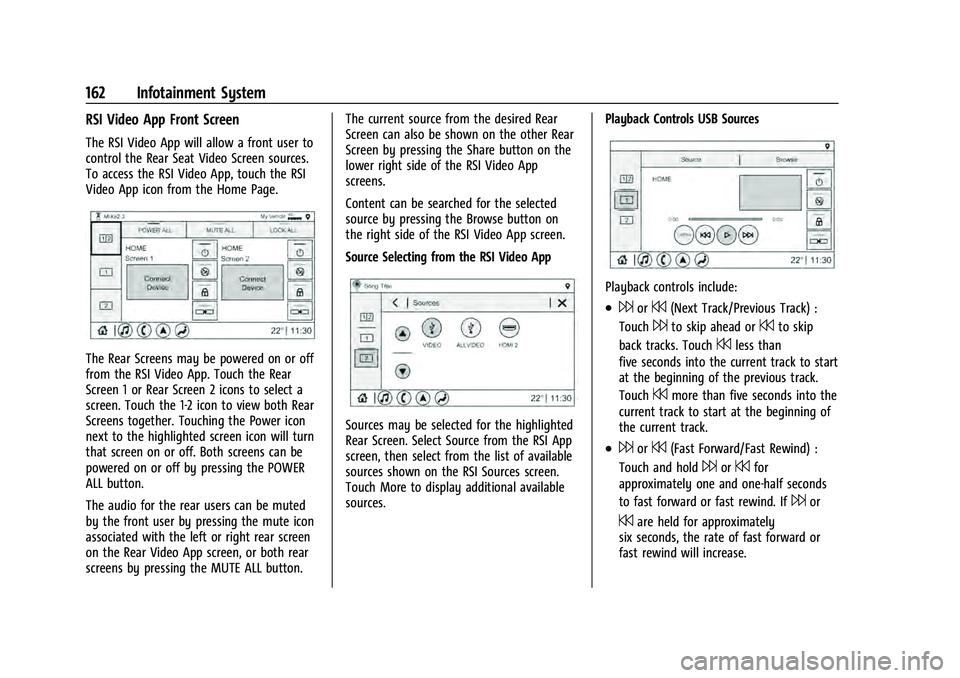
The RSI Video App will allow a front user to
control the Rear Seat Video Screen sources.
To access the RSI Video App, touch the RSI
Video App icon from the Home Page.
The Rear Screens may be powered on or off
from the RSI Video App. Touch the Rear
Screen 1 or Rear Screen 2 icons to select a
screen. Touch the 1-2 icon to view both Rear
Screens together. Touching the Power icon
next to the highlighted screen icon will turn
that screen on or off. Both screens can be
powered on or off by pressing the POWER
ALL button.
The audio for the rear users can be muted
by the front user by pressing the mute icon
associated with the left or right rear screen
on the Rear Video App screen, or both rear
screens by pressing the MUTE ALL button.The current source from the desired Rear
Screen can also be shown on the other Rear
Screen by pressing the Share button on the
lower right side of the RSI Video App
screens.
Content can be searched for the selected
source by pressing the Browse button on
the right side of the RSI Video App screen.
Source Selecting from the RSI Video App
Sources may be selected for the highlighted
Rear Screen. Select Source from the RSI App
screen, then select from the list of available
sources shown on the RSI Sources screen.
Touch More to display additional available
sources.
Playback Controls USB Sources
Playback controls include:
.6or7(Next Track/Previous Track) :
Touch
6to skip ahead or7to skip
back tracks. Touch
7less than
five seconds into the current track to start
at the beginning of the previous track.
Touch
7more than five seconds into the
current track to start at the beginning of
the current track.
.6or7(Fast Forward/Fast Rewind) :
Touch and hold
6or7for
approximately one and one-half seconds
to fast forward or fast rewind. If
6or
7are held for approximately
six seconds, the rate of fast forward or
fast rewind will increase.
Page 165 of 433
Chevrolet Tahoe/Suburban Owner Manual (GMNA-Localizing-U.S./Canada/
Mexico-13690484) - 2021 - crc - 8/17/20
164 Infotainment System
4. Replace the battery door and tighten thescrew.
Remove the batteries if the headphones will
not be used for a long time.
RSI Troubleshooting
No power : The ignition might not be on or
in ACC/ACCESSORY.
There is no sound from the headphones
with the indicator light on : If the batteries
are good, make sure the headphones are
programmed to the correct screen and on
the correct channel for the screen being
viewed.
Sometimes the wireless headphone audio
cuts out or buzzes : Check for obstructions,
low batteries, reception range, and
interference from cell phone towers or from
cellular telephone use in the vehicle. Check
that the headphones are on correctly using
the L (Left) and R (Right) on the
headphones. Check that the headphones are
positioned properly with the headband
across the top of the head.
Newer mobile phones and tablets emit
infrared light for features like face and iris
detection. This infrared light can interfere
with both the headphone operation. If your headphones experience static or dropouts,
place your mobile device away from the
rear seat displays.
I lost the headphones :
See your dealer for
assistance.
Video Distortion
Video distortion can occur when operating
cellular phones, scanners, CB radios, Global
Positioning Systems (GPS), two-way radios,
mobile faxes, or walkie talkies.
It might be necessary to turn off the video
player when operating one of these devices
in or near the vehicle.
Navigation
Using the Navigation System
If equipped, launch the Nav application by
touching the Nav icon on the Home Page or
on the shortcut tray near the bottom of the
infotainment display.
When the Nav application is launched for
the first time, a product walkthrough is
available. Use of the feature requires the
Terms and Conditions and the Privacy statement to be confirmed. If available and
signed into a profile, it is also suggested to
enable and confirm Predictive Navigation.
Predictive Navigation (If Equipped)
If Predictive Navigation is available and
confirmed, this feature learns preferences by
remembering where the vehicle has been.
It uses the locations and navigation history
to personalize routes and results.
Predictive Navigation may learn elements
such as:
.Personalized routes based on preferred
streets.
.Search results that provide best matches
at the top of the list.
.Predictive traffic.
.Local map content updating.
Predictive Navigation can also be enabled or
disabled at a later time by touching
A
(Options). While in Options, touch Settings,
then Map and Navigation Settings, and then
Predictive Navigation. See Settings0187.
Page 168 of 433
Chevrolet Tahoe/Suburban Owner Manual (GMNA-Localizing-U.S./Canada/
Mexico-13690484) - 2021 - crc - 8/17/20
Infotainment System 167
.Ask Before Rerouting (Default)–If the
system detects there is a traffic issue
ahead, it will display a pop-up with
details about the issue. Choose to reroute
or cancel the alert.
.Never Search for Better Route –The
system will not check for a better route
until one of the above options is selected.
Alert Preferences
Set alerts on or off during both inactive and
active guidance views. The following alerts
may be available:
.Road Safety Alerts –Touch to display
upcoming School Zones.
.Traffic Camera Alerts
Manage History
Touch Manage History to access the History
options:
.Clear Recent Destinations –Touch\to
clear the recent destinations.
.Clear Search History –Touch\to clear
the search history.
About
Touch to display software information,
such as:
.Telenav Terms and Conditions
.Telenav Privacy Statement
.Navigation Version
Maps
The Nav application requires a map database
to run. It is stored on an SD card that is
connected to the infotainment system. If the
map database is not available, a missing SD
card error message will be displayed.
SD Card Error Messages
The SD card only works for one unique
vehicle. The SD card must pass
authentication verification to be used for
that specific vehicle. Potential error scenarios
and messages include:
.The SD card has initialized for the first
time: “Once initialized, this SD card can
only be used for navigation in this
vehicle.”
.The SD card is not working properly: “SD
card is not functioning properly.
(Error Code).”
.The SD card is not paired with the
existing system: “This SD card is not valid
in this vehicle for navigation. See Owner’s
Manual for more detail or visit your
dealer. (Error Code).”
.The SD card has been removed from the
slot: “SD card has been removed.
(Error Code).”
Touch Continue to resume after the
initialization error message. For the other
messages, touch OK to return to the
Home Page.
Navigation Symbols
Following are the most common symbols
that may appear in the Nav application.
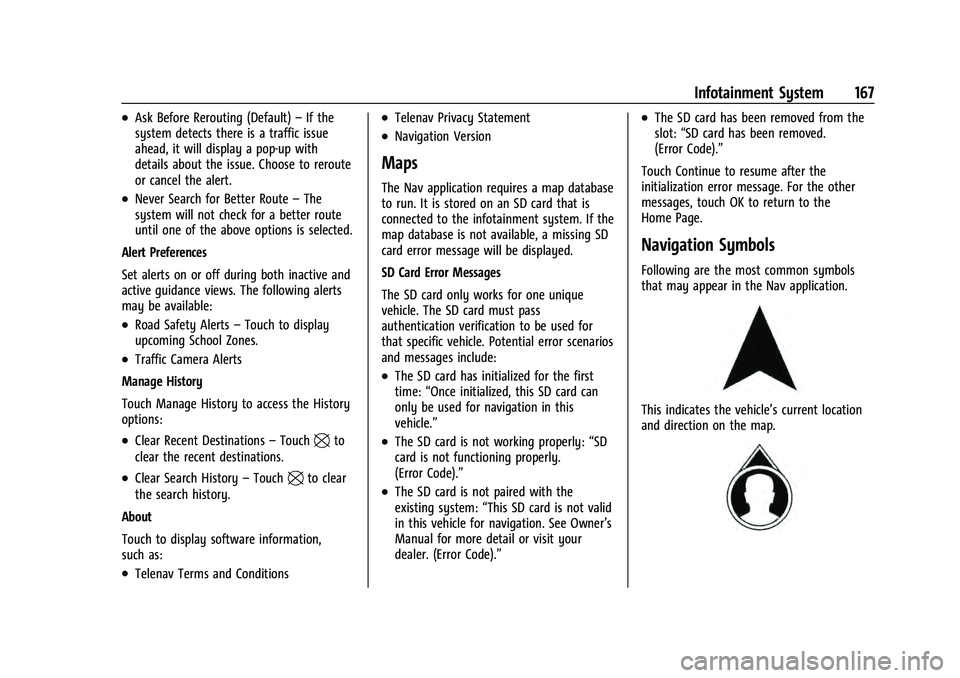
This indicates the vehicle’s current location
and direction on the map.
Page 173 of 433
Chevrolet Tahoe/Suburban Owner Manual (GMNA-Localizing-U.S./Canada/
Mexico-13690484) - 2021 - crc - 8/17/20
172 Infotainment System
Incident Reports (If Equipped)
Incident report icons, along with traffic flow
data, display on the map during both active
and inactive guidance.
End Route
Touch Cancel at the top right corner to end
active guidance and return to inactive
guidance. If active guidance is canceled
before the destination has been reached, a
pop-up option to Resume Trip will appear.
Resume Trip
The trip can be resumed if it was canceled
by touching the Resume Trip pop-up option.
If the system has determined that the
destination has been reached, either because
the arrival view displayed or the destination
has been passed, the Resume Trip option
will not appear.
Favorites
The navigation favorites can have contacts,
addresses, or POIs that have been saved
through the favorite icon on the
details view.Accessing Favorites
In the Nav application, view the Favorites
list by touching
Hin the search bar along
the top of the Nav map view. If the search
bar is closed, touch
}and selectH.
Saving Favorites
Favorites can be added from a number of
the system’s applications. Touch the
favorites icon to save content as a favorite.
Renaming Navigation Favorites 1. Touch the Settings icon on the Home Page and touch the System tab.
2. Touch Favorites to access the Manage Favorites option.
3. Touch a saved Navigation favorite to access the edit icon. Touch the edit icon
to rename the favorite.
4. Touch Save to store the renamed favorite.
Recents
TouchHto access a list of recent
destinations. Recenter Position Icon
Touch the Recenter Position arrow in the
middle of the map view to reset the map to
the current location.
Last Parked Location
The Last Parked Location is the last location
the vehicle engine was turned off. That
location is displayed in the first row of the
Recents list. Touching the last Parked
Location shows the Address Details view to
either save the address or drive to it. The
Last Parked Location can be deleted by
entering the Edit display. Once the Last
Parked Location is deleted, it no longer
appears in the Recents list, unless the
vehicle is started at that location again.
Show POI Icons
To see the POI categories, touch Options,
then touch Show on Map. Up to eight
categories of icons can be selected.
Page 174 of 433

Chevrolet Tahoe/Suburban Owner Manual (GMNA-Localizing-U.S./Canada/
Mexico-13690484) - 2021 - crc - 8/17/20
Infotainment System 173
Smart POI Icons on Map (If Equipped)
The smart POI icons such as fuel stations
and parking may appear based on time,
location, driver search behavior, driving
conditions, and vehicle conditions.
Touch a smart POI icon to open the
corresponding details:
.Left side: Name and address of the POI.
.Right side:E+ ETE (Estimated Time
Enroute.)
Smart Fuel Station Icons
Fuel station prices are shown if available for
nearby stations when the vehicle is low
on fuel.
Smart Parking Icons
When reaching a densely populated
destination and the system determines that
parking may be limited, the system will attempt to display nearby parking
destinations with pricing information,
if available.
Report an Issue Using POI Details (If
Equipped)
In the POI details page, a POI issue can be
reported if the data is not accurate or the
address is incorrect. Touch Report an Issue
near the bottom of the display to access the
issue selection page. Touch one of the
predefined issues on the selection page,
then touch Send. The system will send the
information for analysis.
Search
Touch Search on the infotainment display to
open the search display. It has a search field
entry box, quick category icon shortcuts,
recents icon, favorites icon, and keyboard.
Auto Complete
Enter a partial location in the field entry box
on the search display. Auto complete will
attempt to complete the destination based
on what is being entered. Touch the
suggested item to search.
Search While in Motion with No Front Seat
Passenger Present
The search display will not allow changes or
text input with the keyboard when the
vehicle is in motion. As a result, a display
showing three rows of the most commonly
used categories appears. Touching the search
box will activate speech recognition.
Search While in Motion with Front Seat
Passenger Present
If the system detects that the front seat
passenger is present with both driver and
passenger seat belts buckled, touching the
search icon will display an alert message
that allows the passenger to search for a
destination as if the vehicle were stopped.Connected Navigation
Connected Navigation is a subscription
service that enables certain capabilities
within the navigation system, such as
Traffic, Smart Search/Routing, and Predictive
Navigation capabilities. The system will
show an alert when the subscription is
expiring and will ask to renew the plan.
Page 175 of 433
Chevrolet Tahoe/Suburban Owner Manual (GMNA-Localizing-U.S./Canada/
Mexico-13690484) - 2021 - crc - 8/17/20
174 Infotainment System
OnStar System
With a connected plan, an OnStar Advisor
can download a destination to the vehicle or
into the built-in navigation system.
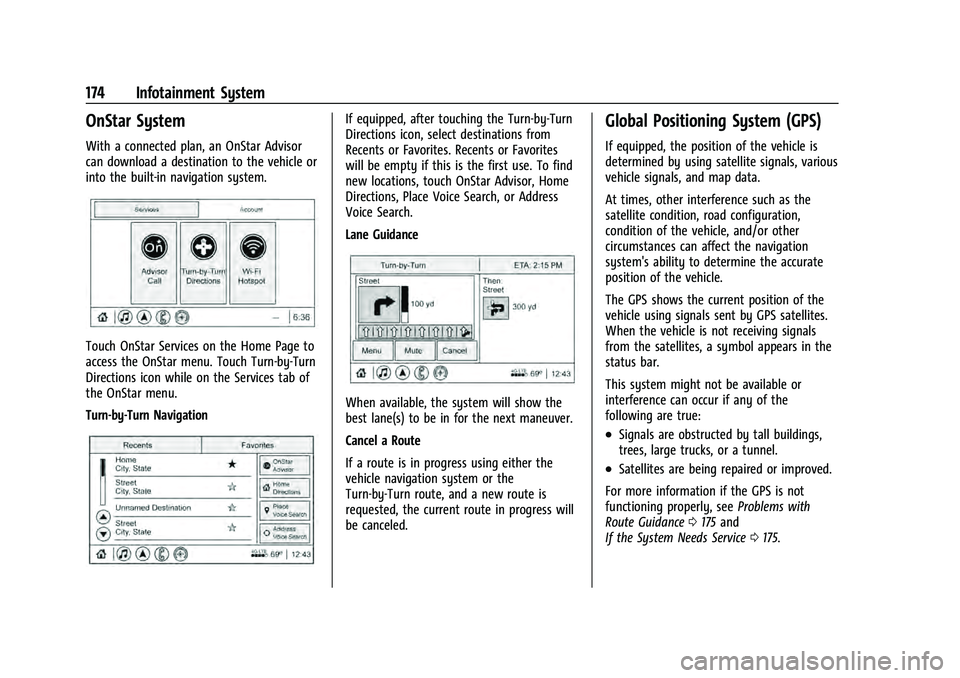
Touch OnStar Services on the Home Page to
access the OnStar menu. Touch Turn-by-Turn
Directions icon while on the Services tab of
the OnStar menu.
Turn-by-Turn Navigation
If equipped, after touching the Turn-by-Turn
Directions icon, select destinations from
Recents or Favorites. Recents or Favorites
will be empty if this is the first use. To find
new locations, touch OnStar Advisor, Home
Directions, Place Voice Search, or Address
Voice Search.
Lane Guidance
When available, the system will show the
best lane(s) to be in for the next maneuver.
Cancel a Route
If a route is in progress using either the
vehicle navigation system or the
Turn-by-Turn route, and a new route is
requested, the current route in progress will
be canceled.
Global Positioning System (GPS)
If equipped, the position of the vehicle is
determined by using satellite signals, various
vehicle signals, and map data.
At times, other interference such as the
satellite condition, road configuration,
condition of the vehicle, and/or other
circumstances can affect the navigation
system's ability to determine the accurate
position of the vehicle.
The GPS shows the current position of the
vehicle using signals sent by GPS satellites.
When the vehicle is not receiving signals
from the satellites, a symbol appears in the
status bar.
This system might not be available or
interference can occur if any of the
following are true:
.Signals are obstructed by tall buildings,
trees, large trucks, or a tunnel.
.Satellites are being repaired or improved.
For more information if the GPS is not
functioning properly, see Problems with
Route Guidance 0175 and
If the System Needs Service 0175.
Page 183 of 433
Chevrolet Tahoe/Suburban Owner Manual (GMNA-Localizing-U.S./Canada/
Mexico-13690484) - 2021 - crc - 8/17/20
182 Infotainment System
i:Press to end a call, decline a call,
or cancel an operation. Press to mute or
unmute the infotainment system when not
on a call.
Infotainment System Controls
For information about how to navigate the
menu system using the infotainment
controls, see Using the System 0145.
Audio System
When using the Bluetooth mobile device
system, sound comes through the vehicle's
front audio system speakers and overrides
the audio system. The volume level while on
a mobile device call can be adjusted by
pressing the steering wheel controls or the
volume control on the center stack. The
adjusted volume level remains in memory
for later calls. The volume cannot be
lowered beyond a certain level.
Bluetooth (Pairing and Using a
Phone)
Pairing
A Bluetooth-enabled mobile device must be
paired to the Bluetooth system and then
connected to the vehicle before it can be used. See the mobile device manufacturer's
user guide for Bluetooth functions before
pairing the device.
Pairing Information
.If no mobile device has been connected,
the Phone main page on the infotainment
display will show the Connect Phone
option. Touch this option to connect.
Another way to connect is to touch the
Phones tab at the top right of the display
and then touch Add Phone.
.A Bluetooth smartphone with music
capability can be paired to the vehicle as
a smartphone and a music player at the
same time.
.Up to 10 devices can be paired to the
Bluetooth system.
.The pairing process is disabled when the
vehicle is moving.
.Pairing only needs to be completed once,
unless the pairing information on the cell
phone changes or the cell phone is
deleted from the system.
.If multiple paired cell phones are within
range of the system, the system connects
to the paired cell phone that is set to
First to Connect. If there is no cell phone
set to First to Connect, it will link to thecell phone which was used last. To link to
a different paired cell phone, see
“Linking
to a Different Phone” later in this section.
Pairing a Phone 1. Make sure Bluetooth has been enabled on the cell phone before the pairing
process is started.
2. Touch the Phone icon on the Home Page or the phone icon on the shortcut tray
near the bottom of the display.
3. Touch Phones at the top of the infotainment display. There is also a
Connect Phones option in the middle of
the Phone display which will shortcut to
the Phone List menu.
4. Touch Add Phone.
5. Select the vehicle name shown on the infotainment display from your cell
phone’s Bluetooth Settings list.
6. Follow the instructions on the cell phone to confirm the six-digit code showing on
the infotainment display and touch Pair.
The code on the cell phone and
infotainment display will need to be
acknowledged for a successful pair.
7. Start the pairing process on the cell phone to be paired to the vehicle. See
the cell phone manufacturer's user guide
Page 184 of 433
Chevrolet Tahoe/Suburban Owner Manual (GMNA-Localizing-U.S./Canada/
Mexico-13690484) - 2021 - crc - 8/17/20
Infotainment System 183
for information on this process. Once the
cell phone is paired, it will show under
Connected.
8. If the vehicle name does not appear on your cell phone, there are a few ways to
start the pairing process over:
.Turn the cell phone off and then
back on.
.Go back to the beginning of the
Phone menus on the infotainment
display and restart the pairing
process.
.Reset the cell phone, but this step
should be done as a last effort.
9. If the cell phone prompts to accept connection or allow phone book
download, touch Always Accept and
Allow. The phone book may not be
available if not accepted.
10. Repeat Steps 1−8 to pair additional cell phones.
First to Connect Paired Phones
If multiple paired cell phones are within
range of the system, the system connects to
the paired cell phone that is set as First to
Connect. To enable a paired cell phone as
the First to Connect phone: 1. Make sure the cell phone is turned on. 2. Touch Settings, then touch System.
3. Touch Phones to access all paired and all
connected cell phones and mobile
devices.
4. Touch the information icon to the right of the cell phone to open the cell
phone’s settings menu.
5. Touch the First to Connect option, to enable the setting for that device.
Cell phones and mobile devices can be
added, removed, connected, and
disconnected. A sub-menu will display
whenever a request is made to add or
manage cell phones and mobile devices.
Secondary Phone
A cell phone can be enabled as a Secondary
Phone by touching the information icon to
the right of the paired cell phone name to
open the phone settings menu. If a cell
phone is enabled as a Secondary Phone, it
can connect simultaneously alongside
another Bluetooth mobile device. In doing
so, the Secondary Phone will be labeled as
Incoming Calls. This means the mobile
device can only receive calls. The Address
Book of a Secondary Phone will not be
available and hands-free outgoing calls
cannot be placed using this cell phone. If needed, touch the Secondary Phone while
in the Phones list to swap it into the
Outgoing and Incoming role. This role makes
it possible to place outgoing calls from the
Contacts and Recents list.
Listing All Paired and Connected Phones
1. Touch the Phone icon on the Home Page or the phone icon on the shortcut tray
near the bottom of the display.
2. Touch Phones.
Disconnecting a Connected Phone 1. Touch the Phone icon on the Home Page.
2. Touch Phones.
3. Touch the information icon next to the connected cell phone or mobile device to
show the cell phone’s or mobile device’s
information display.
4. Touch Disconnect.
Deleting a Paired Phone 1. Touch the Phone icon on the Home Page or the phone icon on the shortcut tray
near the bottom of the display.
2. Touch Phones.
Page 185 of 433

Chevrolet Tahoe/Suburban Owner Manual (GMNA-Localizing-U.S./Canada/
Mexico-13690484) - 2021 - crc - 8/17/20
184 Infotainment System
3. Touch the information icon next to theconnected cell phone to display the cell
phone’s or mobile device’s information
display.
4. Touch Forget Device.
Linking to a Different Phone
To link to a different cell phone, the new
cell phone must be in the vehicle and paired
to the Bluetooth system. 1. Touch the Phone icon on the Home Page or the phone icon on the shortcut tray
near the bottom of the display.
2. Touch Phones.
3. Touch the new cell phone to link to from the not connected phone list. See “First
to Connect Paired Phones” and
“Secondary Phone” previously in this
section.
Switching to Handset or
Handsfree Mode
To switch between handset or
handsfree mode:
.While the active call is hands-free, touch
the Handset option to switch to the
handset mode.
The mute icon will not be available or
functional while Handset mode is active.
.While the active call is on the handset,
touch the Handset option to switch to the
hands-free mode.
Making a Call Using Contacts and Recent
Calls
Calls can be made through the Bluetooth
system using personal cell phone contact
information for all cell phones that support
the Phone Book feature. Become familiar
with the cell phone settings and operation.
Verify the cell phone supports this feature.
The Contacts menu accesses the phone book
stored in the cell phone.
The Recents menu accesses the recents call
list from your cell phone.
To make a call using the Contacts menu:
1. Touch the Phone icon on the Home Page.
2. Touch Contacts.
3. The Contacts list can be searched by using the first character. Touch A-Z on
the infotainment display to scroll
through the list of names.
Touch the name to call.
4. Touch the desired contact number to call.
To make a call using the Recents menu: 1. Touch Phone on the Home Page. 2. Touch Recents.
3. Touch the name or number to call.
Making a Call Using the Keypad
To make a call by dialing the numbers:
1. Touch the Phone icon on the Home Page.
2. Touch Keypad and enter a phone number.
3. Touch
#on the infotainment display to
start dialing the number.
Searching Contacts Using the Keypad
To search for contacts using the keypad:
1. Touch the Phone icon on the Home Page.
2. Touch Keypad and enter partial phone numbers or contact names using the
digits on the keypad to search.
Results will show on the right side of the
display. Touch one to place a call.
Accepting or Declining a Call
When an incoming call is received, the
infotainment system mutes and a ring tone
is heard in the vehicle.
Accepting a Call
There are two ways to accept a call:
Page 186 of 433
Chevrolet Tahoe/Suburban Owner Manual (GMNA-Localizing-U.S./Canada/
Mexico-13690484) - 2021 - crc - 8/17/20
Infotainment System 185
.Pressgon the steering wheel controls.
.Touch Answer on the infotainment
display.
Declining a Call
There are two ways to decline a call:
.Pression the steering wheel controls.
.Touch Ignore on the infotainment display.
Call Waiting
Call waiting must be supported on the
Bluetooth cell phone and enabled by the
wireless service carrier to work.
Accepting a Call
Press
gto answer, then touch Switch on
the infotainment display.
Declining a Call
Press
ito decline, then touch Ignore on
the infotainment display
Switching Between Calls (Call Waiting
Calls Only)
To switch between calls, touch Phone on the
Home Page to display Call View. While in
Call View, touch the call information of the
call on hold to change calls.
Three-Way Calling
Three-way calling must be supported on the
Bluetooth cell phone and enabled by the
wireless service carrier to work.
To start a three-way call while in a
current call:
1. In the Call View, touch Add Call to add another call.
2. Initiate the second call by selecting from Recents, Contacts, or Keypad.
3. When the second call is active, touch the merge icon to conference the three-way
call together.
Ending a Call
.Pression the steering wheel controls.
.Touch#on the infotainment display,
next to a call, to end only that call.
Dual Tone Multi-Frequency (DTMF) Tones
The in-vehicle Bluetooth system can send
numbers during a call. This is used when
calling a menu-driven phone system. Use the
Keypad to enter the number.
Apple CarPlay and Android Auto
If equipped, Android Auto and/or Apple
CarPlay capability may be available through
a compatible smartphone. If available, the
Android Auto and Apple CarPlay icons will
change from gray to color on the Home
Page of the infotainment display.
To use Android Auto and/or Apple CarPlay:
For Wired Phone Projection
1. Download the Android Auto app to your smartphone from the Google Play store.
There is no app required for Apple
CarPlay.
2. Connect your Android phone or Apple iPhone by using the factory-provided
phone USB cable and plugging into a
USB data port. For best performance, it is
highly recommended to use the device’s
factory-provided USB cable. Aftermarket
or third-party cables may not work.
3. When the phone is first connected to activate Apple CarPlay or Android Auto,
accept the terms and conditions on both
the infotainment system and the phone.
4. Follow the instructions on the phone.