brake CHEVROLET TAHOE 2023 Repair Manual
[x] Cancel search | Manufacturer: CHEVROLET, Model Year: 2023, Model line: TAHOE, Model: CHEVROLET TAHOE 2023Pages: 443, PDF Size: 18.73 MB
Page 246 of 443
Chevrolet Tahoe/Suburban Owner Manual (GMNA-Localizing-U.S./Canada/
Mexico-16416971) - 2023 - CRC - 5/16/22
Driving and Operating 245
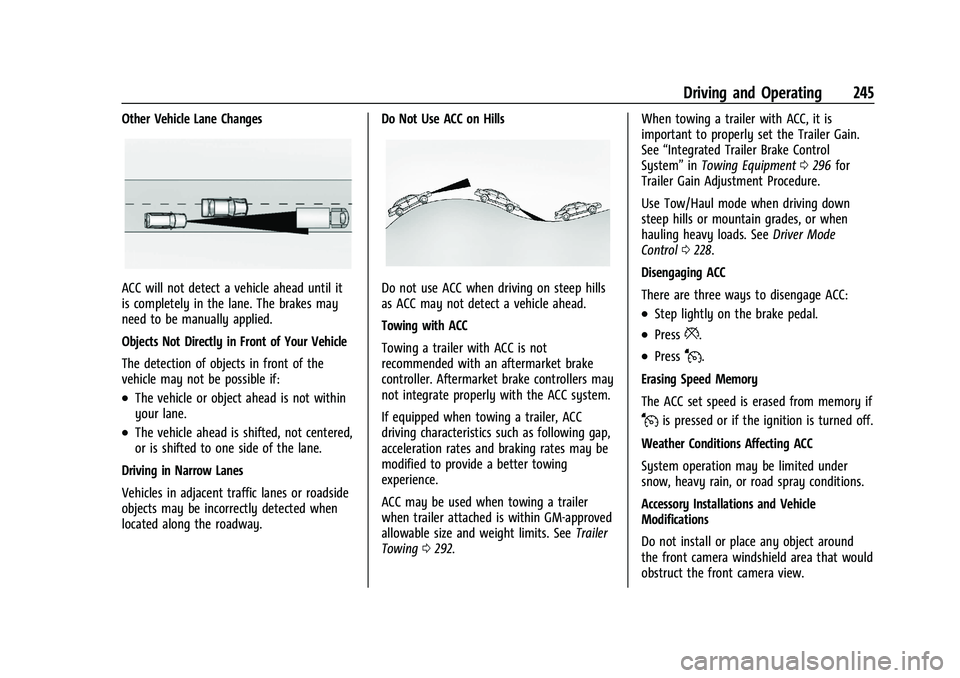
Other Vehicle Lane Changes
ACC will not detect a vehicle ahead until it
is completely in the lane. The brakes may
need to be manually applied.
Objects Not Directly in Front of Your Vehicle
The detection of objects in front of the
vehicle may not be possible if:
.The vehicle or object ahead is not within
your lane.
.The vehicle ahead is shifted, not centered,
or is shifted to one side of the lane.
Driving in Narrow Lanes
Vehicles in adjacent traffic lanes or roadside
objects may be incorrectly detected when
located along the roadway. Do Not Use ACC on Hills
Do not use ACC when driving on steep hills
as ACC may not detect a vehicle ahead.
Towing with ACC
Towing a trailer with ACC is not
recommended with an aftermarket brake
controller. Aftermarket brake controllers may
not integrate properly with the ACC system.
If equipped when towing a trailer, ACC
driving characteristics such as following gap,
acceleration rates and braking rates may be
modified to provide a better towing
experience.
ACC may be used when towing a trailer
when trailer attached is within GM-approved
allowable size and weight limits. See
Trailer
Towing 0292. When towing a trailer with ACC, it is
important to properly set the Trailer Gain.
See
“Integrated Trailer Brake Control
System” inTowing Equipment 0296 for
Trailer Gain Adjustment Procedure.
Use Tow/Haul mode when driving down
steep hills or mountain grades, or when
hauling heavy loads. See Driver Mode
Control 0228.
Disengaging ACC
There are three ways to disengage ACC:
.Step lightly on the brake pedal.
.Press*.
.PressJ.
Erasing Speed Memory
The ACC set speed is erased from memory if
Jis pressed or if the ignition is turned off.
Weather Conditions Affecting ACC
System operation may be limited under
snow, heavy rain, or road spray conditions.
Accessory Installations and Vehicle
Modifications
Do not install or place any object around
the front camera windshield area that would
obstruct the front camera view.
Page 250 of 443
Chevrolet Tahoe/Suburban Owner Manual (GMNA-Localizing-U.S./Canada/
Mexico-16416971) - 2023 - CRC - 5/16/22
Driving and Operating 249
Using Super Cruise
{Warning
To prevent serious injury or death:
.Always check that Super Cruise is
available
^before pressing].
.Only remove your hands from the
steering wheel if the steering wheel
light bar,
^, and\are green.
Super Cruise may not begin steering
immediately, even when Super Cruise
is available and
]has been pressed.
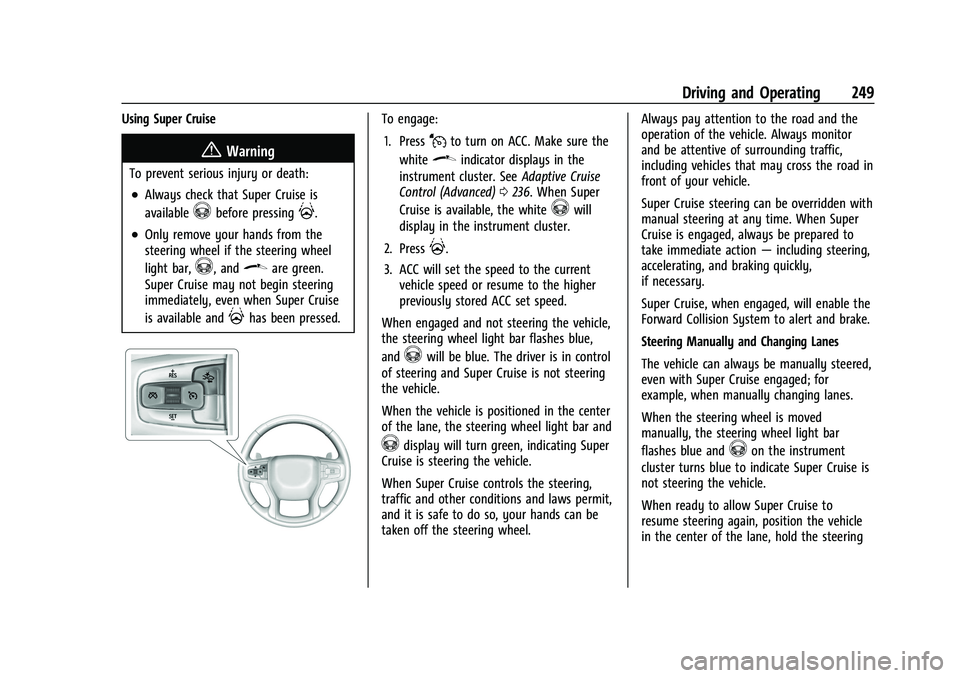
To engage:
1. Press
Jto turn on ACC. Make sure the
white
\indicator displays in the
instrument cluster. See Adaptive Cruise
Control (Advanced) 0236. When Super
Cruise is available, the white
^will
display in the instrument cluster.
2. Press
].
3. ACC will set the speed to the current vehicle speed or resume to the higher
previously stored ACC set speed.
When engaged and not steering the vehicle,
the steering wheel light bar flashes blue,
and
^will be blue. The driver is in control
of steering and Super Cruise is not steering
the vehicle.
When the vehicle is positioned in the center
of the lane, the steering wheel light bar and
^display will turn green, indicating Super
Cruise is steering the vehicle.
When Super Cruise controls the steering,
traffic and other conditions and laws permit,
and it is safe to do so, your hands can be
taken off the steering wheel. Always pay attention to the road and the
operation of the vehicle. Always monitor
and be attentive of surrounding traffic,
including vehicles that may cross the road in
front of your vehicle.
Super Cruise steering can be overridden with
manual steering at any time. When Super
Cruise is engaged, always be prepared to
take immediate action
—including steering,
accelerating, and braking quickly,
if necessary.
Super Cruise, when engaged, will enable the
Forward Collision System to alert and brake.
Steering Manually and Changing Lanes
The vehicle can always be manually steered,
even with Super Cruise engaged; for
example, when manually changing lanes.
When the steering wheel is moved
manually, the steering wheel light bar
flashes blue and^on the instrument
cluster turns blue to indicate Super Cruise is
not steering the vehicle.
When ready to allow Super Cruise to
resume steering again, position the vehicle
in the center of the lane, hold the steering
Page 253 of 443
Chevrolet Tahoe/Suburban Owner Manual (GMNA-Localizing-U.S./Canada/
Mexico-16416971) - 2023 - CRC - 5/16/22
252 Driving and Operating
Attention to the Road
{Warning
Super Cruise is a driver assistance system
and cannot accurately detect or predict
all situations. Super Cruise is not a crash
avoidance system. To prevent serious
injury or death, you must supervise the
driving task and monitor the road
conditions. You may need to respond to
traffic events by steering, braking,
or accelerating. SeeDefensive Driving
0 196. Super Cruise also cannot
determine whether you are awake,
asleep, impaired, or properly focused on
safe driving. The vehicle could crash into
other vehicles, drive out of the lane,
or drive off the road. Complete attention
is always required while driving, even
while using Super Cruise. Be prepared to
take over steering or apply the brakes at
any time.
{Warning
To prevent serious injury or death, be
alert and pay special attention when
passing highway exits, entrances, and
crossings with Super Cruise, and be ready
to take control of the vehicle when
necessary. Changes in lane markings
around exits and entrances can
momentarily cause Super Cruise to not
detect the correct lane. If this occurs,
Super Cruise may attempt steering inputs
to bring the vehicle back into the correct
lane and, in rare circumstances, could
over-correct and cause the vehicle to
momentarily cross into a lane next to
your vehicle unless you manually steer to
maintain your lane position. The Driver Attention System (DAS) on the
steering column continually monitors driver
head and eye position to estimate driver
attention to the road. The camera does not
record or share pictures, audio, or video.
Sunglasses, hats, or other types of clothing
that change the shape of the head may
interfere with camera performance. To
improve camera performance, raise or lower
the steering wheel, or change the seat
position.
Page 254 of 443
Chevrolet Tahoe/Suburban Owner Manual (GMNA-Localizing-U.S./Canada/
Mexico-16416971) - 2023 - CRC - 5/16/22
Driving and Operating 253
Pay close attention to the road ahead to avoid these three increasing alerts:First Alert
.If the steering wheel light bar flashes green, the system has detected that your head and eyes may not be
directed toward the road.
.The flashing will stop when the system detects that your head and eyes appear to be directed toward
the road.
Second Alert
.If the steering wheel light bar flashes green for too long, Super Cruise will alert the driver to take control of
steering immediately by flashing the light bar red. Also, either beeps will sound or the Safety Alert Seat will
vibrate. Touch the Settings icon on the infotainment home page. Select “Vehicle”to display the list of available
options and select “Collision/Detection Systems”.
.Take over steering, then Super Cruise will disengage.
.To re-engage Super Cruise, press]. See“Using Super Cruise” previously in this section.
Third Alert
.If the steering wheel light bar flashes red for too long, a voice command will tell you to take control of the
vehicle.
.Take control of the steering immediately; ACC and Super Cruise will disengage.
.A DIC message will indicate that Super Cruise is locked out. Super Cruise cannot be re-engaged until the vehicle
is turned off and back on again.
.Continued failure to take over steering will cause the vehicle to brake to a stop and OnStar will be called. The
brake lamps and hazard warning flashers will come on.
.Take control of the vehicle and continue driving.
Page 255 of 443
Chevrolet Tahoe/Suburban Owner Manual (GMNA-Localizing-U.S./Canada/
Mexico-16416971) - 2023 - CRC - 5/16/22
254 Driving and Operating
Stationary or Very Slow-Moving Objects;
Cross-Traffic
{Warning
Super Cruise is not a crash avoidance
system and will not steer or brake to
avoid a crash. Super Cruise does not steer
to prevent a crash with stopped or
slow-moving vehicles. You must supervise
the driving task and may need to steer
and brake to prevent a crash, especially
in stop-and-go traffic or when a vehicle
suddenly enters your lane. Always pay
attention when using Super Cruise.
Failure to do so could result in a crash
involving serious injury or death.
Curves in the Road
{Warning
The vehicle could drift out of your lane of
travel. To prevent crashes, always be
ready to manually steer. Super Cruise
may not detect your lane on curves in
the road. Super Cruise may not detect
the markings that show your lane. You
may not have time to react to a vehicle (Continued)
Warning (Continued)
in the lane next to your vehicle while on
curves in the road. Super Cruise may
hand control back to the driver more
often driving around a sharp curve while
towing a trailer.
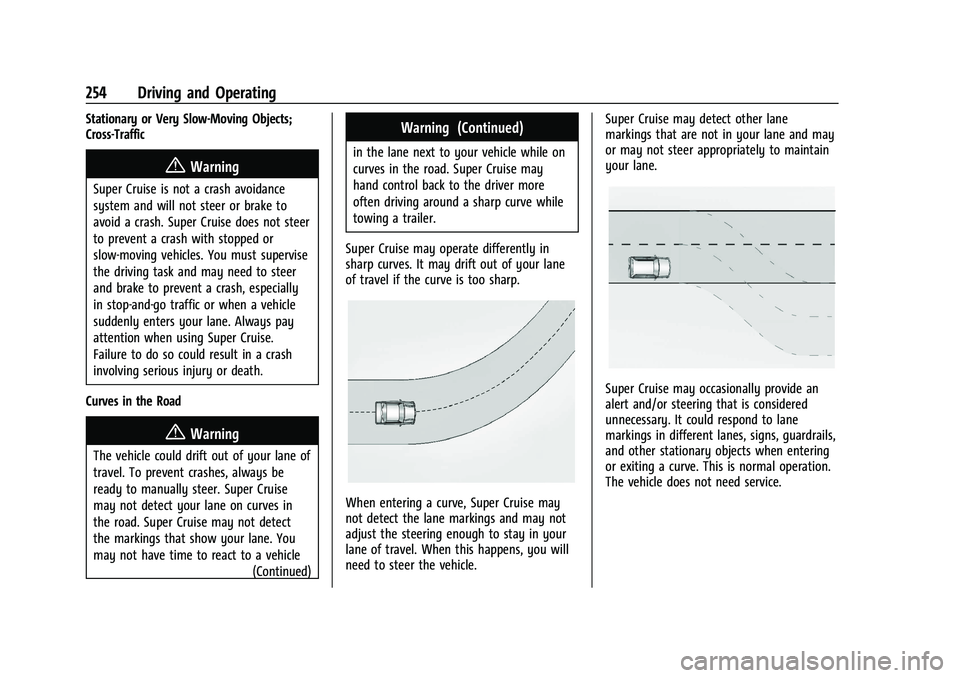
Super Cruise may operate differently in
sharp curves. It may drift out of your lane
of travel if the curve is too sharp.
When entering a curve, Super Cruise may
not detect the lane markings and may not
adjust the steering enough to stay in your
lane of travel. When this happens, you will
need to steer the vehicle. Super Cruise may detect other lane
markings that are not in your lane and may
or may not steer appropriately to maintain
your lane.
Super Cruise may occasionally provide an
alert and/or steering that is considered
unnecessary. It could respond to lane
markings in different lanes, signs, guardrails,
and other stationary objects when entering
or exiting a curve. This is normal operation.
The vehicle does not need service.
Page 256 of 443
Chevrolet Tahoe/Suburban Owner Manual (GMNA-Localizing-U.S./Canada/
Mexico-16416971) - 2023 - CRC - 5/16/22
Driving and Operating 255
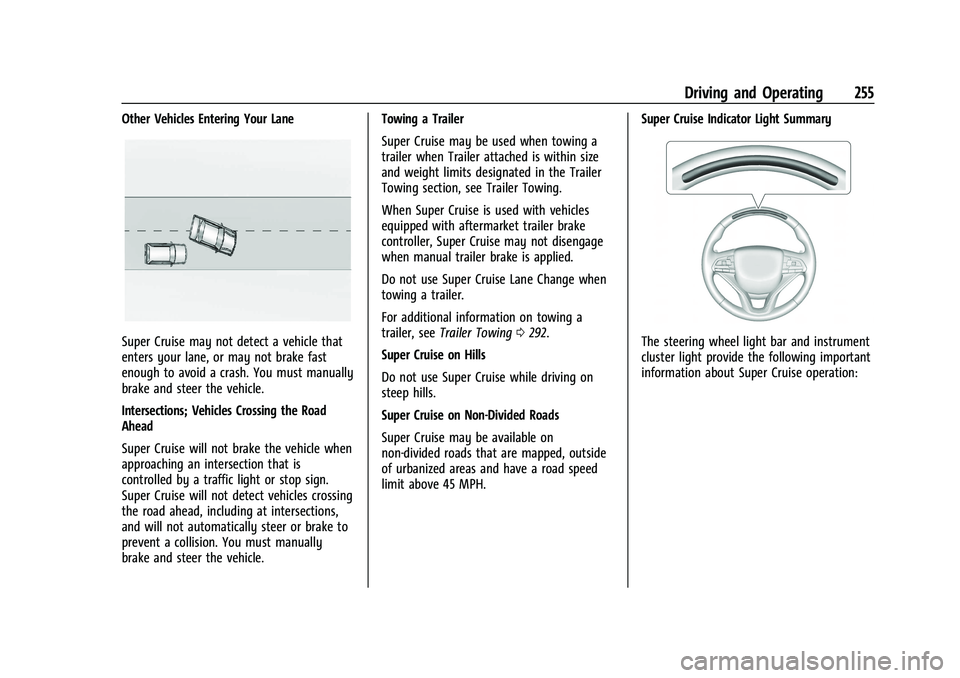
Other Vehicles Entering Your Lane
Super Cruise may not detect a vehicle that
enters your lane, or may not brake fast
enough to avoid a crash. You must manually
brake and steer the vehicle.
Intersections; Vehicles Crossing the Road
Ahead
Super Cruise will not brake the vehicle when
approaching an intersection that is
controlled by a traffic light or stop sign.
Super Cruise will not detect vehicles crossing
the road ahead, including at intersections,
and will not automatically steer or brake to
prevent a collision. You must manually
brake and steer the vehicle.Towing a Trailer
Super Cruise may be used when towing a
trailer when Trailer attached is within size
and weight limits designated in the Trailer
Towing section, see Trailer Towing.
When Super Cruise is used with vehicles
equipped with aftermarket trailer brake
controller, Super Cruise may not disengage
when manual trailer brake is applied.
Do not use Super Cruise Lane Change when
towing a trailer.
For additional information on towing a
trailer, see
Trailer Towing 0292.
Super Cruise on Hills
Do not use Super Cruise while driving on
steep hills.
Super Cruise on Non-Divided Roads
Super Cruise may be available on
non-divided roads that are mapped, outside
of urbanized areas and have a road speed
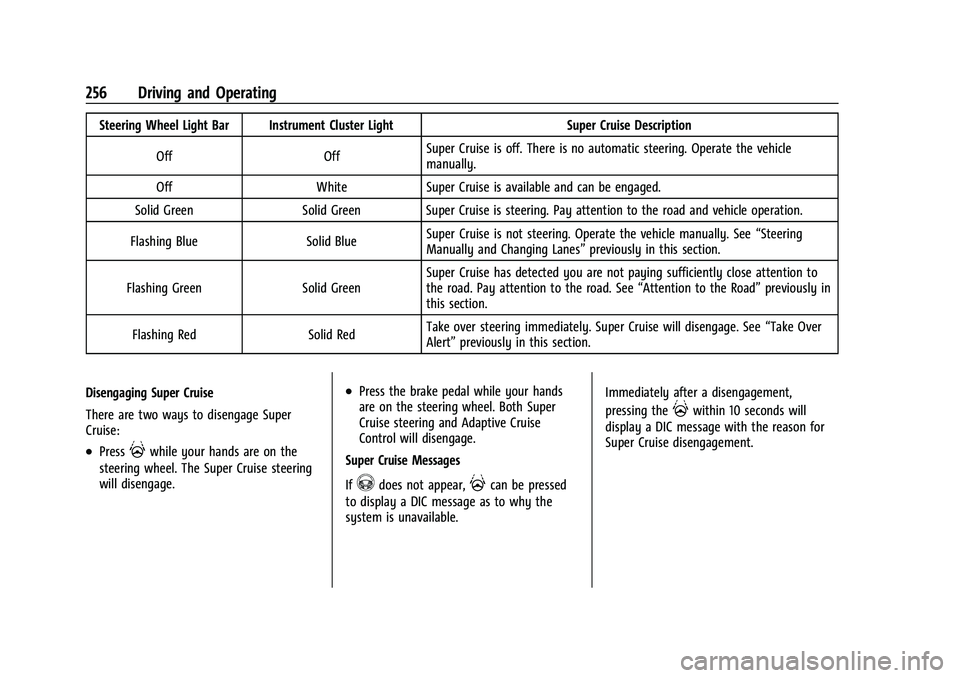
limit above 45 MPH. Super Cruise Indicator Light SummaryThe steering wheel light bar and instrument
cluster light provide the following important
information about Super Cruise operation:
Page 257 of 443
Chevrolet Tahoe/Suburban Owner Manual (GMNA-Localizing-U.S./Canada/
Mexico-16416971) - 2023 - CRC - 5/16/22
256 Driving and Operating
Steering Wheel Light Bar Instrument Cluster LightSuper Cruise Description
Off OffSuper Cruise is off. There is no automatic steering. Operate the vehicle
manually.
Off WhiteSuper Cruise is available and can be engaged.
Solid Green Solid Green Super Cruise is steering. Pay attention to the road and vehicle operation.
Flashing Blue Solid BlueSuper Cruise is not steering. Operate the vehicle manually. See
“Steering
Manually and Changing Lanes” previously in this section.
Flashing Green Solid GreenSuper Cruise has detected you are not paying sufficiently close attention to
the road. Pay attention to the road. See
“Attention to the Road”previously in
this section.
Flashing Red Solid RedTake over steering immediately. Super Cruise will disengage. See
“Take Over
Alert” previously in this section.
Disengaging Super Cruise
There are two ways to disengage Super
Cruise:
.Press]while your hands are on the
steering wheel. The Super Cruise steering
will disengage.
.Press the brake pedal while your hands
are on the steering wheel. Both Super
Cruise steering and Adaptive Cruise
Control will disengage.
Super Cruise Messages
If
^does not appear,]can be pressed
to display a DIC message as to why the
system is unavailable. Immediately after a disengagement,
pressing the
]within 10 seconds will
display a DIC message with the reason for
Super Cruise disengagement.
Page 260 of 443
Chevrolet Tahoe/Suburban Owner Manual (GMNA-Localizing-U.S./Canada/
Mexico-16416971) - 2023 - CRC - 5/16/22
Driving and Operating 259
Super Cruise Message Summary (cont'd)
Unavailable GPS Signal Lost.There is poor reception in isolated areas.
.Reception is being blocked by buildings or other large structures.
Unavailable You Have Taken Vehicle Control
.The brake pedal is being pressed.
.The Adaptive Cruise Control has been canceled or turned off.
Unavailable Sensor Blocked Clear snow, ice, dirt, or other contaminants from the front and rear
areas of the vehicle.
Unavailable Sharp Curve Some curves are too sharp to be navigated by the Super Cruise
system. Super Cruise will be available after the curve is traveled.
Unavailable Over Weight Limit Super Cruise has detected trailer is over allowable weight limit.
Unavailable Trailer Too Unstable Super Cruise has detected that trailer attached is causing unstable
condition. Check trailer and/or load.
Unavailable Trailer Too Large Trailer size (length/width) is larger than supported for Super Cruise
operation.
Unavailable Lane Too Narrow Super Cruise has detected lane width ahead is too narrow for Super
Cruise operation while towing a trailer.
Super Cruise Unavailable Super Cruise is unavailable for reasons not described in other
messages.
Super Cruise Locked Out See Owner’s Manual The driver did not take control of the vehicle when prompted by the
Super Cruise system. The Super Cruise system will be disabled until
the ignition is turned off and back on.
Page 262 of 443
Chevrolet Tahoe/Suburban Owner Manual (GMNA-Localizing-U.S./Canada/
Mexico-16416971) - 2023 - CRC - 5/16/22
Driving and Operating 261
Warning (Continued)
.Detect vehicles or objects outside the
area monitored by the system.
.Work at all driving speeds.
.Warn you or provide you with enough
time to avoid a crash.
.Work under poor visibility or bad
weather conditions.
.Work if the detection sensor is not
cleaned or is covered by ice, snow,
mud, or dirt.
.Work if the detection sensor is
covered up, such as with a sticker,
magnet, or metal plate.
.Work if the area surrounding the
detection sensor is damaged or not
properly repaired.
Complete attention is always required
while driving, and you should be ready to
take action and apply the brakes and/or
steer the vehicle to avoid crashes. Audible or Safety Alert Seat
Some driver assistance features alert the
driver of obstacles by beeping. To view
available settings for this feature, touch the
Settings icon on the infotainment home
page. Select
“Vehicle”to display the list of
available options and select “Comfort and
Convenience”.
If equipped with the Safety Alert Seat, the
driver seat cushion may provide a vibrating
pulse alert instead of beeping. To view
available settings for this feature, touch the
Settings icon on the infotainment home
page. Select “Vehicle”to display the list of
available options and select “Collision/
Detection Systems”.
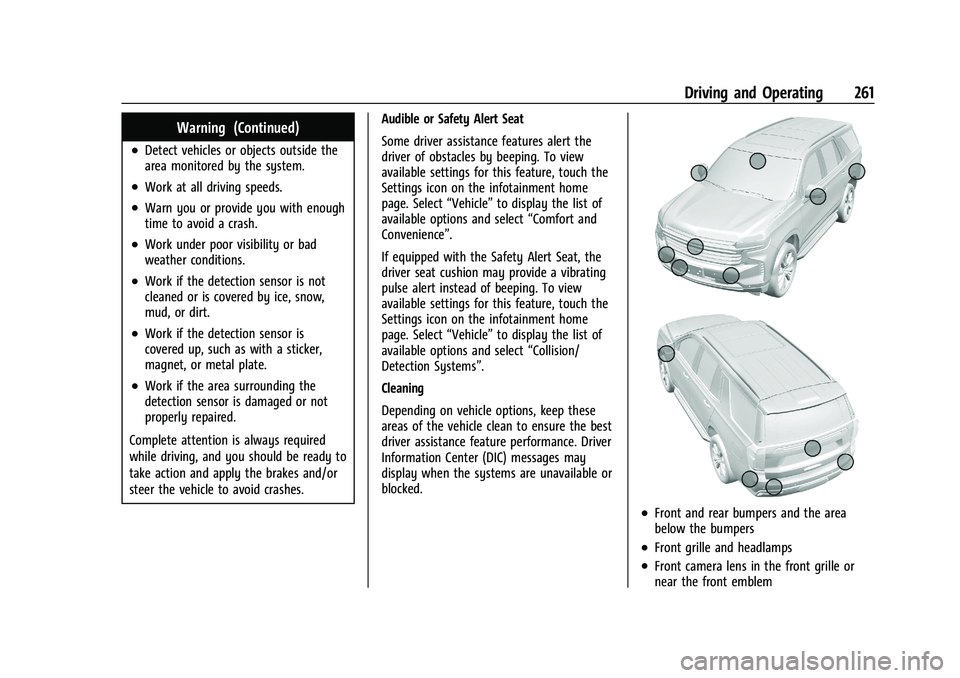
Cleaning
Depending on vehicle options, keep these
areas of the vehicle clean to ensure the best
driver assistance feature performance. Driver
Information Center (DIC) messages may
display when the systems are unavailable or
blocked.
.Front and rear bumpers and the area
below the bumpers
.Front grille and headlamps
.Front camera lens in the front grille or
near the front emblem
Page 265 of 443
Chevrolet Tahoe/Suburban Owner Manual (GMNA-Localizing-U.S./Canada/
Mexico-16416971) - 2023 - CRC - 5/16/22
264 Driving and Operating
Touch the camera view buttons along the
bottom of the infotainment display to
access each view (if equipped):
1. Front/Rear Standard View
Displays an image of the area in front
or behind the vehicle. To select, touch
Front/Rear Standard View on the
infotainment display when a camera
view is active.
When the hitch guidance is selected,
Rear Standard View will remain visible
across gear changes, otherwise the
view will toggle between Front and
Rear Standard View based on gear
position.
If equipped, the front view camera
also displays when the Park Assist
system detects an object within
30 cm (12 in).
To access this view when in a forward
gear above 12 km/h (8 mph), select
CAMERA on the infotainment display
and select Rear Standard View. The
view will close after 8 seconds and
can be closed early by selecting X,
Home or Back.
2. Front/Rear Top-Down View
Displays a front or rear overhead view
of the vehicle. To view, select Front/
Rear Top-Down View on the
infotainment display when the camera
app is active.
3. Front/Rear side View
Displays a view that shows objects
next to the front or rear sides of the
vehicle. To select, touch Front/Rear
Side View on the infotainment display
when a camera view is active. Touch
the button to toggle between front
and rear camera views. Park Assist and
RCTA overlays are not available when
Front/Rear Side View is active.
4. Hitch View
Displays a zoomed-in view of the hitch
area to assist with aligning the
vehicle’s hitch ball with the trailer
coupler and monitoring the trailer
connection. To view, select Hitch View
on the infotainment display when the
Camera App is active. To access this
view when in a forward gear above
12 km/h (8 mph), select CAMERA on
the infotainment display and select
Hitch View. The view will close after
eight seconds and can be closed earlyby selecting X, Home or Back. Shifting
into P (Park) while in this view will
automatically engage the Electric
Parking Brake (EPB).
5. Surround View
Displays an image of the area
surrounding the vehicle. Surround
View is displayed alongside the
currently selected view when below 12
kph (8 mph). Surround View is
disabled when above 12 kph (8 mph).
6. Camera App Guidance Lines
The Camera App supports three
possible guidance modes: No
Guidance, Vehicle Guidance and
Trailering Guidance. To change
guidance mode, select the appropriate
guidance icon. Depending on the
guidance mode and view selected,
different guidance lines may appear.
A grayed-out icon indicates that
guidance lines are not available.
Certain views do not support Guidance
lines.
.Standard Guidance Lines are
available in Front/Rear Standard
Views, Front/Rear Top-Down Views
and Surround View when the