light CHEVROLET TRAIL BLAZER 2006 1.G Manual Online
[x] Cancel search | Manufacturer: CHEVROLET, Model Year: 2006, Model line: TRAIL BLAZER, Model: CHEVROLET TRAIL BLAZER 2006 1.GPages: 534, PDF Size: 2.91 MB
Page 278 of 534
s(Play/Pause):Press this button to start play of a
DVD or CD. Press this button while a DVD or CD is
playing to pause it. Press this button again to continue
the play of the DVD or CD.
When the DVD is playing, press the pause button then
press the fast forward button. The DVD will continue
playing in a slow play mode. To cancel slow play mode,
press the play/pause button.
u(Next Track/Chapter):Press this button to advance
to the beginning of the next track or chapter. This
button may not work when the DVD is playing the
copyright information or the previews.
Battery Replacement
To change the batteries, do the following:
1. Remove the battery compartment door located on
the bottom of the remote control.
2. Replace the two AA batteries in the compartment.
Make sure that they are installed correctly, using
the diagram on the inside of the battery
compartment.
3. Close the battery door securely.
If the remote control is to be stored for a long period of
time, remove the batteries and keep them in a cool,
dry place.
Problem Recommended Action
No power. The ignition might not be
in on or accessory.
The parental control
button might have been
turned on. The power
indicator light will ash.
Disc will not play. The system might be off.
The parental control
button might have been
turned on. The power
indicator light will ash.
The system might be in
auxiliary mode.
The disc is upside down
or is not compatible.
The picture does not
ll the screen. There are
black borders on the top
and bottom or on both
sides or it looks
stretched out.Check the display
mode settings in the
display menu.
The disc was ejected, but
it was pulled back into the
DVD player.The disc is being stored in
the DVD player. Press the
eject button again to eject
the disc.
3-134
Page 279 of 534
Problem Recommended Action
In auxiliary mode, the
picture moves or scrolls.Check the auxiliary input
connections at both
devices.
Change the Video Format
to PAL or NTSC. See
“Stereo RCA Jacks”
previously for how to
change the video format.
The language in the audio
or on the screen is wrong.Check the audio or
language selection in the
main DVD menu.
The remote control does
not work.Check to make sure there
is no obstruction between
the remote control and the
transmitter window.
Check the batteries to
make sure they are not
dead or installed
incorrectly.
The parental control
button might have been
turned on. The power
indicator light will ash.Problem Recommended Action
After stopping the player,
I push Play but
sometimes the DVD starts
where I left off and
sometimes at the
beginning.If the stop button was
pressed one time, the
DVD player will resume
playing where the DVD
was stopped. If the stop
button was pressed two
times the DVD player will
begin to play from the
beginning of the DVD.
The auxiliary source is
running but there is no
picture or sound.Check that the DVD
player is in the auxiliary
source mode.
Check the auxiliary input
connections at both
devices.
My disc is stuck in the
player. The Load/Eject
button does not work.Turn the DVD power off,
then on, then press the
load/eject button on the
DVD player.
Do not attempt to forcibly
remove the disc from the
DVD player. This could
permanently damage the
disc and DVD player.
3-135
Page 282 of 534
SRCE (Source):Press this button to select a source:
radio, cassette tape, CD, or DVD. The inactive tape, CD,
or DVD will remain safely inside the radio for future
listening.
SEEK:Press this button to advance to the next station
or track and stay there. The display will show the
selection. This function is inactive if the front seat
passengers are listening to the same audio source.
To scan preset stations, press and hold the SEEK button
for two seconds and the radio will advance to the next
preset station. If you continue to hold the button
down, the radio will continue to advance through the
available preset stations. The display will show the
selections. This function is inactive if the front seat
passengers are listing to the radio.
When a cassette tape is playing, press the SEEK button
to go to the next selection on the tape. Press and
hold the SEEK button to go to the other side of the tape.
This function is inactive if the front seat passengers
are listening to a cassette tape.When a CD is playing, press the SEEK button to go to
the next track on the CD. This function is inactive if
the front seat passengers are listening to a CD.
When a CD is playing in the six-disc CD player, press
and hold the SEEK button for 2 seconds to go you to the
next CD, if multiple CDs are loaded. This function is
inactive if the front seat passengers are listening
toaCD.
Theft-Deterrent Feature
THEFTLOCK®is designed to discourage theft of your
vehicle’s radio. The feature works automatically by
learning a portion of the Vehicle Identication Number
(VIN). If the radio is moved to a different vehicle, it
will not operate and LOCKED will appear on the display.
When the radio and vehicle are turned off, the blinking
red light indicates that THEFTLOCK
®is armed.
With THEFTLOCK
®activated, the radio will not operate
if stolen.
3-138
Page 285 of 534
Care of the Cassette Tape Player
A tape player that is not cleaned regularly can cause
reduced sound quality, ruined cassettes, or a damaged
mechanism. Cassette tapes should be stored in their
cases away from contaminants, direct sunlight, and
extreme heat. If they are not, they may not operate
properly or may cause failure of the tape player.
The tape player should be cleaned regularly after every
50 hours of use. The radio may display CLEAN to
indicate that the tape player has been used for 50 hours
without resetting the tape clean timer. If this message
appears on the display, the cassette tape player
needs to be cleaned. It will still play tapes, but it should
be cleaned as soon as possible to prevent damage
to the tapes and player. If there is a reduction in sound
quality, try a known good cassette to see if the tape
or the tape player is at fault. If this other cassette has no
improvement in sound quality, clean the tape player.For best results, use a scrubbing action, non-abrasive
cleaning cassette with pads which scrub the tape
head as the hubs of the cleaner cassette turn. The
recommended cleaning cassette is available through
your dealer.
The broken tape detection feature of the cassette tape
player may identify the cleaning cassette as a
damaged tape, in error. To prevent the cleaning cassette
from being ejected, use the following steps:
1. Turn the ignition on.
2. Turn the radio off.
3. Press and hold the TAPE CD button for ve seconds.
READY will appear on the display and a cassette
symbol will ash for ve seconds.
4. Insert the scrubbing action cleaning cassette.
5. Eject the cleaning cassette after the manufacturer’s
recommended cleaning time.
After the cleaning cassette is ejected, the broken
tape detection feature will be active again.
3-141
Page 286 of 534
A non-scrubbing action, wet-type cleaner which uses a
cassette with a fabric belt to clean the tape head
can be used. This type of cleaning cassette will not
eject on its own. A non-scrubbing action cleaner may not
clean as thoroughly as the scrubbing type cleaner.
The use of a non-scrubbing action, dry-type cleaning
cassette is not recommended.
After the player is cleaned, press and hold the EJT
button for ve seconds to reset the CLEAN indicator.
The radio will display CLEANED to show the indicator
was reset.
Cassettes are subject to wear and the sound quality
may degrade over time. Always make sure the cassette
tape is in good condition before the tape player is
serviced.Care of Your CDs and DVDs
Handle CDs carefully. Store them in their original cases
or other protective cases and away from direct
sunlight and dust. The CD player scans the bottom
surface of the disc. If the surface of a CD is damaged,
such as cracked, broken, or scratched, the CD will
not play properly or not at all. If the surface of a CD is
soiled, take a soft, lint free cloth or dampen a clean, soft
cloth in a mild, neutral detergent solution mixed with
water, and clean it. Make sure the wiping process starts
from the center to the edge.
Do not touch the bottom side of a CD while handling it;
this could damage the surface. Pick up CDs by
grasping the outer edges or the edge of the hole and
the outer edge.
Care of the CD and DVD Player
The use of CD lens cleaners for CDs is not advised,
due to the risk of contaminating the lens of the CD optics
with lubricants internal to the CD mechanism.
3-142
Page 287 of 534
Fixed Mast Antenna
The xed mast antenna can withstand most car washes
without being damaged. If the mast should ever
become slightly bent, straighten it out by hand. If the
mast is badly bent, replace it.
Check occasionally to make sure the mast is still
tightened to the fender. If tightening is required, tighten
by hand, then with a wrench one quarter turn.
XM™ Satellite Radio Antenna
System
The XM™ Satellite Radio antenna is located on the roof
of your vehicle. Keep this antenna clear of snow and
ice build up for clear radio reception.
If your vehicle has a sunroof, the performance of the
XM™ system may be affected if the sunroof is open.
Loading items onto the roof of your vehicle can interfere
with the performance of the XM™ system. Make sure
the XM™ Satellite Radio antenna is not obstructed.
Chime Level Adjustment
The radio is used to adjust the vehicle’s chime level.
To change the volume level of the chime, press and hold
pushbutton 6 with the ignition on and the radio power
off. The volume level will change from the normal
level to loud, and LOUD CHIME will appear on the radio
display. To change back to the default or normal
setting, press and hold pushbutton 6 again. The volume
level will change from the loud level to normal, and
NORMAL CHIME will appear on the radio display.
Removing the radio and not replacing it with a factory
radio or chime module will disable vehicle chimes.
3-143
Page 294 of 534
Control of a Vehicle
You have three systems that make your vehicle go
where you want it to go. They are the brakes, the
steering, and the accelerator. All three systems
have to do their work at the places where the tires
meet the road.
Sometimes, as when you are driving on snow or ice,
it is easy to ask more of those control systems than the
tires and road can provide. That means you can lose
control of your vehicle.
Adding non-GM accessories can affect your vehicle’s
performance. SeeAccessories and Modications
on page 5-3.
Braking
SeeBrake System Warning Light on page 3-39.
Braking action involves perception time and
reaction time.
First, you have to decide to push on the brake pedal.
That is perception time. Then you have to bring up your
foot and do it. That is reaction time.Average reaction time is about three-fourths of a
second. But that is only an average. It might be less
with one driver and as long as two or three seconds or
more with another. Age, physical condition, alertness,
coordination, and eyesight all play a part. So do alcohol,
drugs, and frustration. But even in three-fourths of a
second, a vehicle moving at 60 mph (100 km/h) travels
66 feet (20 m). That could be a lot of distance in an
emergency, so keeping enough space between
your vehicle and others is important.
And, of course, actual stopping distances vary greatly
with the surface of the road, whether it is pavement
or gravel; the condition of the road, whether it is
wet, dry, or icy; tire tread; the condition of your brakes;
the weight of the vehicle; and the amount of brake
force applied.
4-6
Page 295 of 534
Avoid needless heavy braking. Some people drive
in spurts — heavy acceleration followed by heavy
braking — rather than keeping pace with traffic. This is
a mistake. Your brakes may not have time to cool
between hard stops. Your brakes will wear out much
faster if you do a lot of heavy braking. If you keep pace
with the traffic and allow realistic following distances,
you will eliminate a lot of unnecessary braking.
That means better braking and longer brake life.
If your engine ever stops while you are driving, brake
normally but do not pump your brakes. If you do,
the pedal may get harder to push down. If your engine
stops, you will still have some power brake assist.
But you will use it when you brake. Once the power
assist is used up, it may take longer to stop and
the brake pedal will be harder to push.
Adding non-GM accessories can affect your vehicle’s
performance. SeeAccessories and Modications
on page 5-3.Anti-Lock Brake System (ABS)
Your vehicle has the Anti-Lock Brake System (ABS), an
advanced electronic braking system that will help
prevent a braking skid.
When you start your engine and begin to drive away, ABS
will check itself. You may hear a momentary motor or
clicking noise while this test is going on. This is normal.
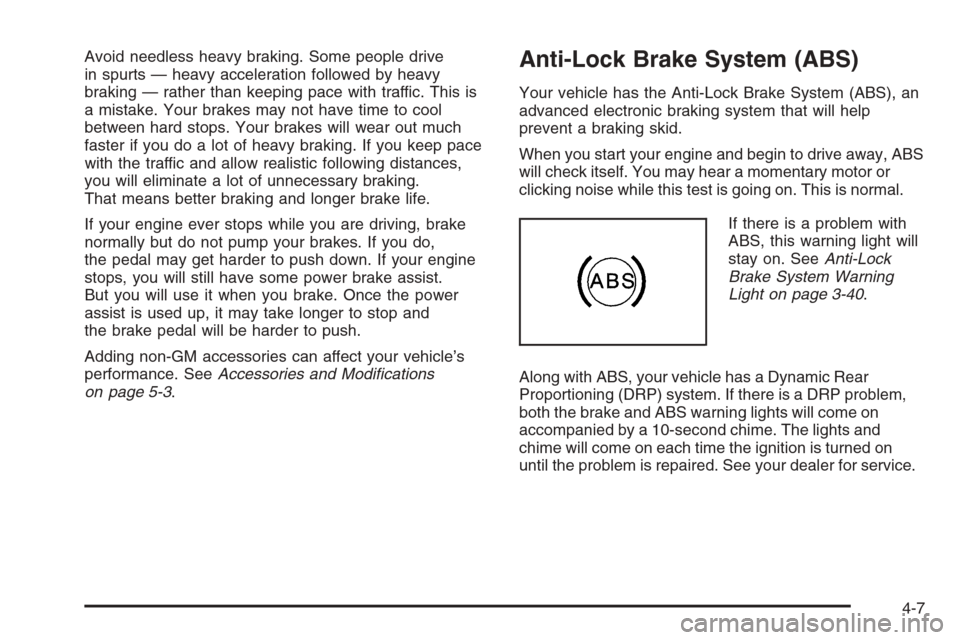
If there is a problem with
ABS, this warning light will
stay on. SeeAnti-Lock
Brake System Warning
Light on page 3-40.
Along with ABS, your vehicle has a Dynamic Rear
Proportioning (DRP) system. If there is a DRP problem,
both the brake and ABS warning lights will come on
accompanied by a 10-second chime. The lights and
chime will come on each time the ignition is turned on
until the problem is repaired. See your dealer for service.
4-7
Page 298 of 534
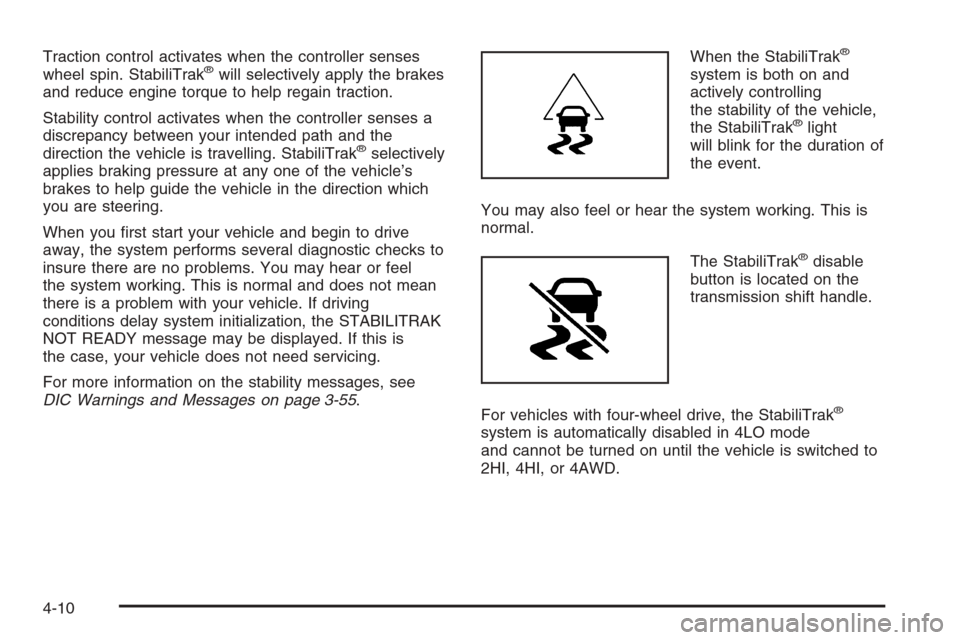
Traction control activates when the controller senses
wheel spin. StabiliTrak®will selectively apply the brakes
and reduce engine torque to help regain traction.
Stability control activates when the controller senses a
discrepancy between your intended path and the
direction the vehicle is travelling. StabiliTrak
®selectively
applies braking pressure at any one of the vehicle’s
brakes to help guide the vehicle in the direction which
you are steering.
When you rst start your vehicle and begin to drive
away, the system performs several diagnostic checks to
insure there are no problems. You may hear or feel
the system working. This is normal and does not mean
there is a problem with your vehicle. If driving
conditions delay system initialization, the STABILITRAK
NOT READY message may be displayed. If this is
the case, your vehicle does not need servicing.
For more information on the stability messages, see
DIC Warnings and Messages on page 3-55.When the StabiliTrak
®
system is both on and
actively controlling
the stability of the vehicle,
the StabiliTrak
®light
will blink for the duration of
the event.
You may also feel or hear the system working. This is
normal.
The StabiliTrak
®disable
button is located on the
transmission shift handle.
For vehicles with four-wheel drive, the StabiliTrak
®
system is automatically disabled in 4LO mode
and cannot be turned on until the vehicle is switched to
2HI, 4HI, or 4AWD.
4-10
Page 299 of 534
The StabiliTrak®system has three modes of operation:
STABILITRAK ON, TRACTION CONTROL OFF,
and STABILITRAK OFF.
STABILITRAK ON - The vehicle will default to
STABILITRAK ON every time the driver starts the
vehicle. The StabiliTrak
®light will be off and no DIC
messages will be displayed.
TRACTION CONTROL OFF - The driver can modify the
engine speed management system by momentarily
pressing the StabiliTrak
®button on the transmission shift
handle. The StabiliTrak®light will come on and
TRACTION CONTROL OFF will be displayed. For
vehicles without a DIC, the StabiliTrak
®indicator light
will come on. Momentarily pressing the StabiliTrak®
button again will return the system to the STABILITRAK
ON mode.
STABILITRAK OFF - The driver can turn off StabiliTrak
®
by pressing the StabiliTrak®button for more than
ve seconds. The StabiliTrak®light will come on and
STABILITRAK OFF will be displayed. For vehicles
without a DIC, the StabiliTrak
®indicator light will come
on. Momentarily pressing the StabiliTrak®button
again will return the system to the STABILITRAK ON
mode. See StabiliTrak
®Off below for more information.
Traction Control Off
In this mode, stability control and brake-traction control
are functional. Engine speed management will be
modied and the driven wheels can spin more freely.
This can cause the brake-traction control to activate
more frequently. If the controller detects excessive wheel
spin in this mode, the StabiliTrak
®indicator light may
blink and the STABILITRAK ACTIVE message may be
displayed to warn the driver that damage may occur
to the transfer case.
StabiliTrak®Off
In this mode, both stability control and part of the
traction control system are disabled. Your vehicle will
still have brake-traction control, but will not be able
to use the engine speed management system. You may
still hear system noises as a result of the brake-traction
control coming on. If the controller detects excessive
wheel spin in this mode, the StabiliTrak
®indicator light
may blink and the STABILITRAK ACTIVE message
may be displayed to warn the driver that damage may
occur to the transfer case.
4-11