display CHEVROLET TRAVERSE 2009 1.G User Guide
[x] Cancel search | Manufacturer: CHEVROLET, Model Year: 2009, Model line: TRAVERSE, Model: CHEVROLET TRAVERSE 2009 1.GPages: 422, PDF Size: 2.06 MB
Page 103 of 422
CAUTION (Continued)
So if you do not use proper care
before backing up, you could hit a
vehicle, child, pedestrian, bicyclist,
or pet, resulting in vehicle
damage, injury, or death. Even
though the vehicle has the RVC
system, always check carefully
before backing up by checking
behind and around the vehicle.
Vehicles Without Navigation
System
The rear vision camera system is
designed to help the driver
when backing up by displaying a
view of the area behind the vehicle.
When the key is in the ON/RUN
position and the driver shifts
the vehicle into R (Reverse), the
video image automatically appears
on the inside rear view mirror.Once the driver shifts out of
R (Reverse), the video image
automatically disappears from the
inside rear view mirror.
Turning the Rear Vision Camera
System Off or On
To turn off the rear vision camera
system, press and hold
z, located
on the inside rearview mirror,
until the left indicator light turns off.
The rear vision camera display
is now disabled.
To turn the rear vision camera
system on again, press and
hold
zuntil the left indicator light
illuminates. The rear vision
camera system display is now
enabled and the display will appear
in the mirror normally.
Vehicles With Navigation
System
The rear vision camera system is
designed to help the driver when
backing up by displaying a view
of the area behind the vehicle.
When the driver shifts the vehicle
into R (Reverse), the video image
automatically appears on the
navigation screen. Once the driver
shifts out of R (Reverse), the
navigation screen will go back to the
last screen that had been displayed,
after a delay.
Turning the Rear Vision Camera
System On or Off
To turn the rear vision camera
system on or off:
1. Shift into P (Park).
2. Press the MENU button to enter
the congure menu options, then
press the MENU hard key to
select Display or touch the
Display screen button.
Features and Controls 2-39
Page 104 of 422
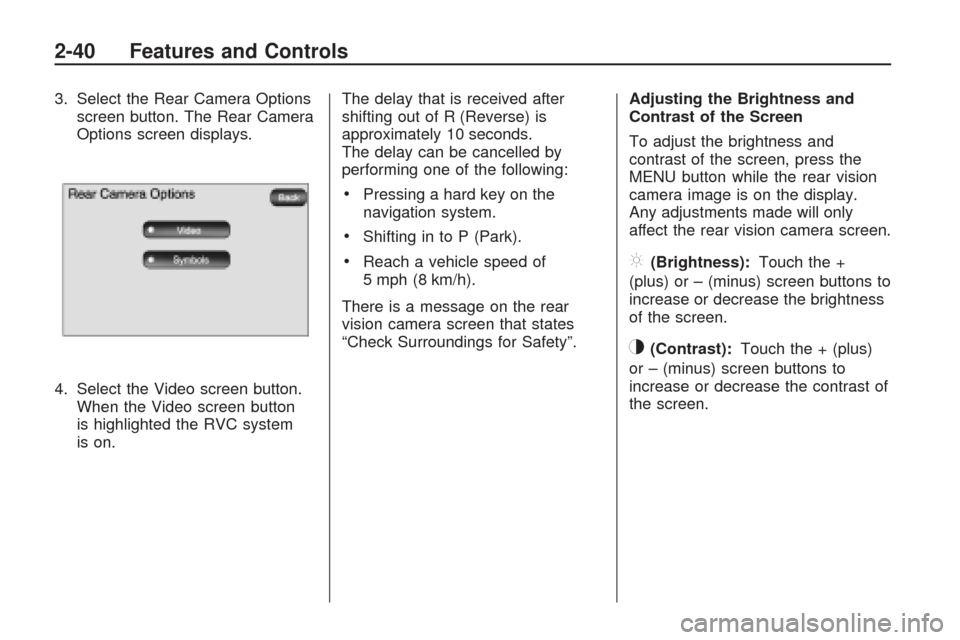
3. Select the Rear Camera Options
screen button. The Rear Camera
Options screen displays.
4. Select the Video screen button.
When the Video screen button
is highlighted the RVC system
is on.The delay that is received after
shifting out of R (Reverse) is
approximately 10 seconds.
The delay can be cancelled by
performing one of the following:
Pressing a hard key on the
navigation system.
Shifting in to P (Park).
Reach a vehicle speed of
5 mph (8 km/h).
There is a message on the rear
vision camera screen that states
“Check Surroundings for Safety”.Adjusting the Brightness and
Contrast of the Screen
To adjust the brightness and
contrast of the screen, press the
MENU button while the rear vision
camera image is on the display.
Any adjustments made will only
affect the rear vision camera screen.](Brightness):Touch the +
(plus) or – (minus) screen buttons to
increase or decrease the brightness
of the screen.
_(Contrast):Touch the + (plus)
or – (minus) screen buttons to
increase or decrease the contrast of
the screen.
2-40 Features and Controls
Page 105 of 422
Symbols
The navigation system may have a
feature that lets the driver view
symbols on the navigation screen
while using the rear vision camera.
The Ultrasonic Rear Park Assist
(URPA) system must not be disabled
to use the caution symbols. If URPA
has been disabled and the symbols
have been turned on, the Rear
Parking Assist Symbols Unavailable
error message may display. See
Ultrasonic Rear Parking Assist
(URPA) on page 2-36.
The symbols appear when an object
has been detected by the URPA
system. The symbol may cover the
object when viewing the navigation
screen.To turn the symbols on or off:
1. Make sure that URPA has not
been disabled.
2. Shift into P (Park).
3. Press the MENU hard key to
enter the congure menu
options, then press the MENU
hard key repeatedly until Display
is selected or touch the Display
screen button.
4. Select the Rear Camera Options
screen button. The Rear Camera
Options screen will display.
5. Touch the Symbols screen
button. The screen button will be
highlighted when on.Rear Vision Camera Error
Messages
Service Rear Vision Camera
System:This message can display
when the system is not receiving
information it requires from other
vehicle systems.
If any other problem occurs or if a
problem persists, see your
dealer/retailer.
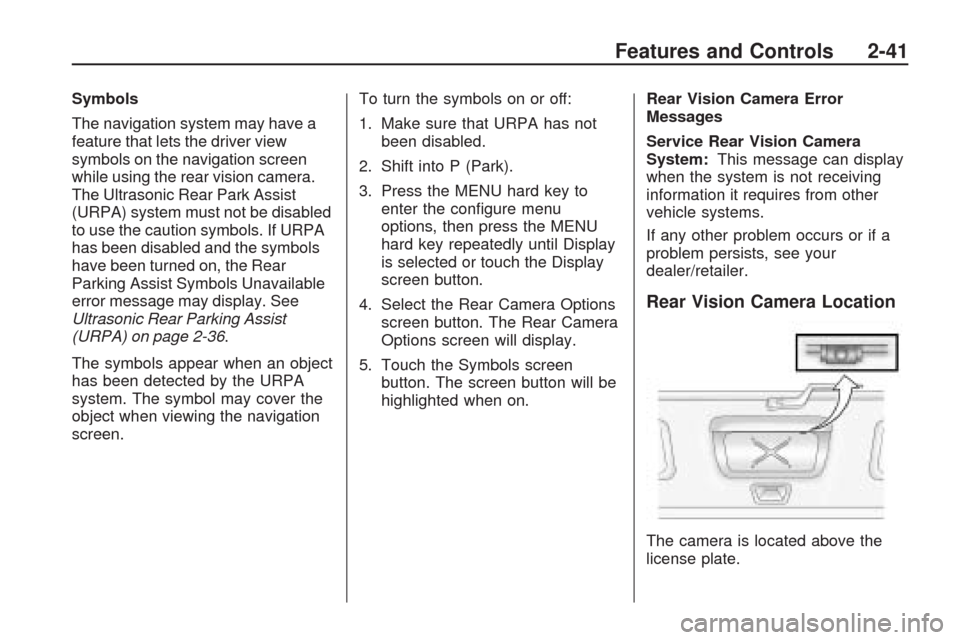
Rear Vision Camera Location
The camera is located above the
license plate.
Features and Controls 2-41
Page 106 of 422
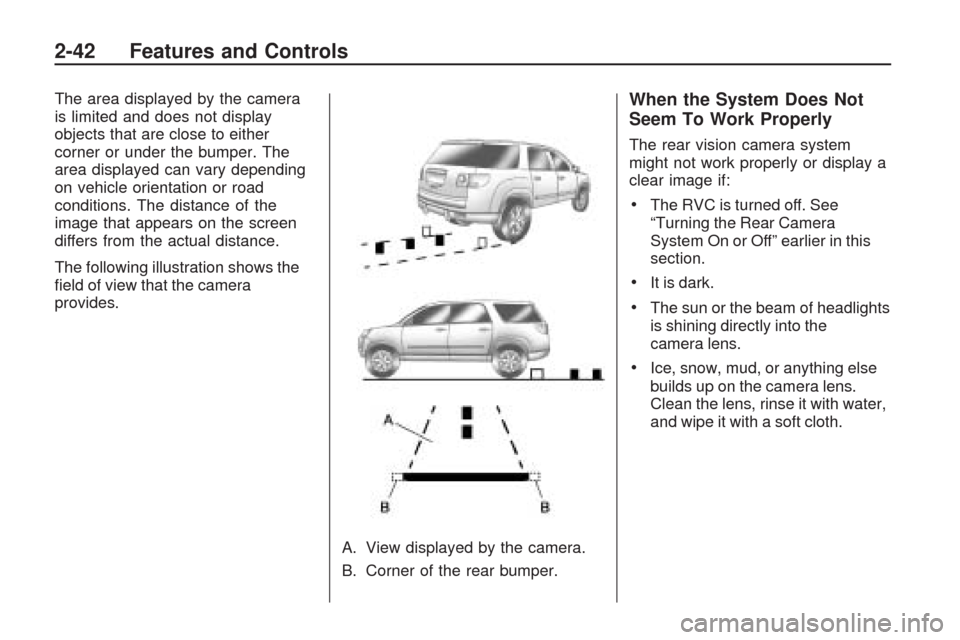
The area displayed by the camera
is limited and does not display
objects that are close to either
corner or under the bumper. The
area displayed can vary depending
on vehicle orientation or road
conditions. The distance of the
image that appears on the screen
differs from the actual distance.
The following illustration shows the
eld of view that the camera
provides.
A. View displayed by the camera.
B. Corner of the rear bumper.When the System Does Not
Seem To Work Properly
The rear vision camera system
might not work properly or display a
clear image if:
The RVC is turned off. See
“Turning the Rear Camera
System On or Off” earlier in this
section.
It is dark.
The sun or the beam of headlights
is shining directly into the
camera lens.
Ice, snow, mud, or anything else
builds up on the camera lens.
Clean the lens, rinse it with water,
and wipe it with a soft cloth.
2-42 Features and Controls
Page 107 of 422
The back of the vehicle is in an
accident, the position and
mounting angle of the camera can
change or the camera can be
affected. Be sure to have the
camera and its position and
mounting angle checked at your
dealer/retailer.
There are extreme temperature
changes.
The rear vision camera system
display in the rearview mirror may
turn off or not appear as expected
due to one of the following
conditions. If this occurs the left
indicator light on the mirror will ash.
A slow ash may indicate a
loss of video signal, or no
video signal present during the
reverse cycle.
A fast ash may indicate that the
display has been on for the
maximum allowable time during a
reverse cycle, or the display has
reached an Over Temperature
limit.
The fast ash conditions are used
to protect the video device from
high temperature conditions.
Once conditions return to normal
the device will reset and the
green indicator will stop ashing.
During any of these fault conditions,
the display will be blank and the
indicator will continue to ash as long
as the vehicle is in R (Reverse) or
until the conditions return to normal.
Pressing and holding
zwhen the
left indicator light is ashing will turn
off the video display along with
the left indicator light.
OnStar®System
OnStar uses several innovative
technologies and live advisors to
provide a wide range of safety,
security, information, and
convenience services. If the airbags
deploy, the system is designed to
make an automatic call to OnStar
Emergency advisors who can
request emergency services be sent
to your location. If the keys are
locked in the vehicle, call OnStar at
1-888-4-ONSTAR to have a signal
sent to unlock the doors. OnStar
Hands-Free Calling, including
30 trial minutes good for 60 days, is
available on most vehicles. OnStar
Turn-by-Turn Navigation service,
with one trial route, is available on
most vehicles. Press the OnStar
button to have an OnStar advisor
contact Roadside Service.
Features and Controls 2-43
Page 122 of 422
Cruise Control Light.............3-43
Highbeam On Light..............3-43
Tow/Haul Mode Light...........3-43
Fuel Gage..........................3-43
Driver Information
Center (DIC)
Driver Information
Center (DIC).....................3-44
DIC Operation and Displays
(With DIC Buttons).............3-45
DIC Operation and Displays
(Without DIC Buttons).........3-51
DIC Compass.....................3-54
DIC Warnings and
Messages.........................3-56
DIC Vehicle Customization
(With DIC Buttons).............3-65
Audio System(s)Audio System(s)..................3-73
Setting the Clock.................3-74
Radio(s).............................3-75
Using an MP3
(Radio with CD).................3-92
Using an MP3 (Radio with
CD and DVD Player)..........3-96
XM Radio Messages..........3-102Navigation/Radio System.....3-103
Bluetooth
®........................3-103
Rear Seat Entertainment
(RSE) System..................3-114
Rear Seat Audio (RSA)......3-123
Theft-Deterrent Feature.......3-125
Audio Steering Wheel
Controls..........................3-125
Radio Reception................3-126
Multi-Band Antenna............3-127
3-2 Instrument Panel
Page 128 of 422
Windshield Washer
J
(Washer Fluid):Press the
button located at the end of the
turn signal/multifunction lever, to
spray washer uid on the windshield.
The wipers clear the windshield and
either stop or return to the preset
speed. The ignition key must be in
ACC/ACCESSORY or ON/RUN for
this to work. SeeWindshield Washer
Fluid on page 5-24Windshield
Washer Fluid.
{CAUTION
In freezing weather, do not use
your washer until the windshield
is warmed. Otherwise the
washer uid can form ice on the
windshield, blocking your vision.
WASHER FLUID LOW ADD FLUID
is displayed on the Driver Information
Center (DIC) when the washer uid
is low. SeeDIC Warnings and
Messages on page 3-56.Heated Windshield Washer
For vehicles with the heated
windshield washer uid system,
it helps to clear ice, snow, tree
sap, or bugs from the windshield.
This feature only works with the
front wiper system.
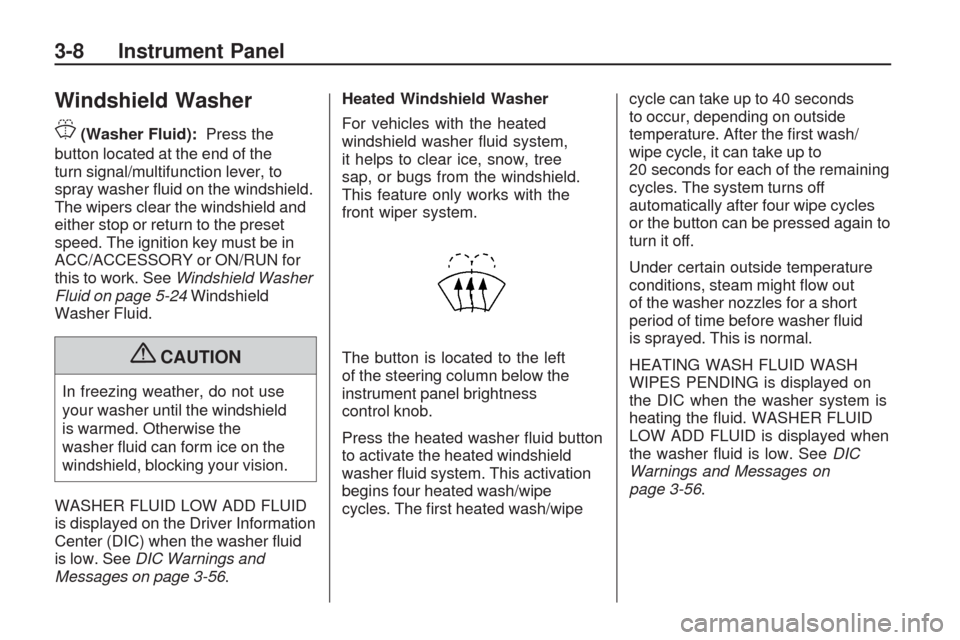
The button is located to the left
of the steering column below the
instrument panel brightness
control knob.
Press the heated washer uid button
to activate the heated windshield
washer uid system. This activation
begins four heated wash/wipe
cycles. The rst heated wash/wipecycle can take up to 40 seconds
to occur, depending on outside
temperature. After the rst wash/
wipe cycle, it can take up to
20 seconds for each of the remaining
cycles. The system turns off
automatically after four wipe cycles
or the button can be pressed again to
turn it off.
Under certain outside temperature
conditions, steam might ow out
of the washer nozzles for a short
period of time before washer uid
is sprayed. This is normal.
HEATING WASH FLUID WASH
WIPES PENDING is displayed on
the DIC when the washer system is
heating the uid. WASHER FLUID
LOW ADD FLUID is displayed when
the washer uid is low. SeeDIC
Warnings and Messages on
page 3-56.
3-8 Instrument Panel
Page 135 of 422
Delayed Entry Lighting
Delayed entry lighting illuminates
the interior for a period of time after
all the doors have been closed.
The ignition must be off for delayed
entry lighting to work. Immediately
after all the doors have been closed,
the delayed entry lighting feature
continues to work until one of
the following occurs:
The ignition is in ON/RUN.
The doors are locked.
An illumination period of about
25 seconds has elapsed.
If during the illumination period
a door is opened, the timed
illumination period is canceled
and the interior lamps remain on.
Delayed Exit Lighting
This feature illuminates the interior
for a period of time after the key
is removed from the ignition.
The ignition must be off for delayed
exit lighting to work. When the key
is removed, interior illumination
activates and remains on until one
of the following occurs:
The ignition is in ON/RUN.
The power door locks are
activated.
An illumination period of
20 seconds has elapsed.
If during the illumination period
a door is opened, the timed
illumination period will be canceled
and the interior lamps will remain
on because a door is open.
Parade Dimming
Parade mode automatically prohibits
the dimming of the instrument panel
displays during the daylight while
the headlamps are on so that the
displays are still able to be seen.
Reading Lamps
The vehicle has reading lamps that
also act as the dome lamp. Press
the button to turn them on and off.
Electric Power
Management
The vehicle has Electric Power
Management (EPM) that estimates
the battery’s temperature and state
of charge. It then adjusts the voltage
for best performance and extended
life of the battery.
Instrument Panel 3-15
Page 136 of 422
When the battery’s state of charge is
low, the voltage is raised slightly to
quickly bring the charge back up.
When the state of charge is high, the
voltage is lowered slightly to prevent
overcharging. If the vehicle has a
voltmeter gage or a voltage display
on the Driver Information Center
(DIC), you may see the voltage move
up or down. This is normal. If there is
a problem, an alert will be displayed.
The battery can be discharged at
idle if the electrical loads are very
high. This is true for all vehicles. This
is because the generator (alternator)
may not be spinning fast enough at
idle to produce all the power that is
needed for very high electrical loads.
A high electrical load occurs when
several of the following are on,
such as: headlamps, high beams,
fog lamps, rear window defogger,
climate control fan at high speed,
heated seats, engine cooling fans,
trailer loads, and loads plugged into
accessory power outlets.EPM works to prevent excessive
discharge of the battery. It does
this by balancing the generator’s
output and the vehicle’s electrical
needs. It can increase engine
idle speed to generate more power,
whenever needed. It can temporarily
reduce the power demands of
some accessories.
Normally, these actions occur
in steps or levels, without being
noticeable. In rare cases at the
highest levels of corrective action,
this action may be noticeable to the
driver. If so, a Driver Information
Center (DIC) message might be
displayed, such as BATTERY
SAVER ACTIVE, BATTERY
VOLTAGE LOW, or LOW BATTERY.
If this message is displayed, it is
recommended that the driver reduce
the electrical loads as much as
possible. SeeDIC Warnings and
Messages on page 3-56.Battery Run-Down
Protection
This feature helps prevent
the battery from being drained,
if the interior courtesy lamps,
reading/map lamps, visor vanity
lamps or trunk lamp are accidentally
left on. If any of these lamps are left
on, they automatically turn off after
10 minutes, if the ignition is off.
The lamps will not come back on
again until one of the following
occurs:
The ignition is turned on.
The exterior lamps control is
turned off, then on again.
The headlamps will timeout after
10 minutes, if they are manually
turned on with the ignition on or off.
3-16 Instrument Panel
Page 142 of 422
Dual Automatic Climate Control System
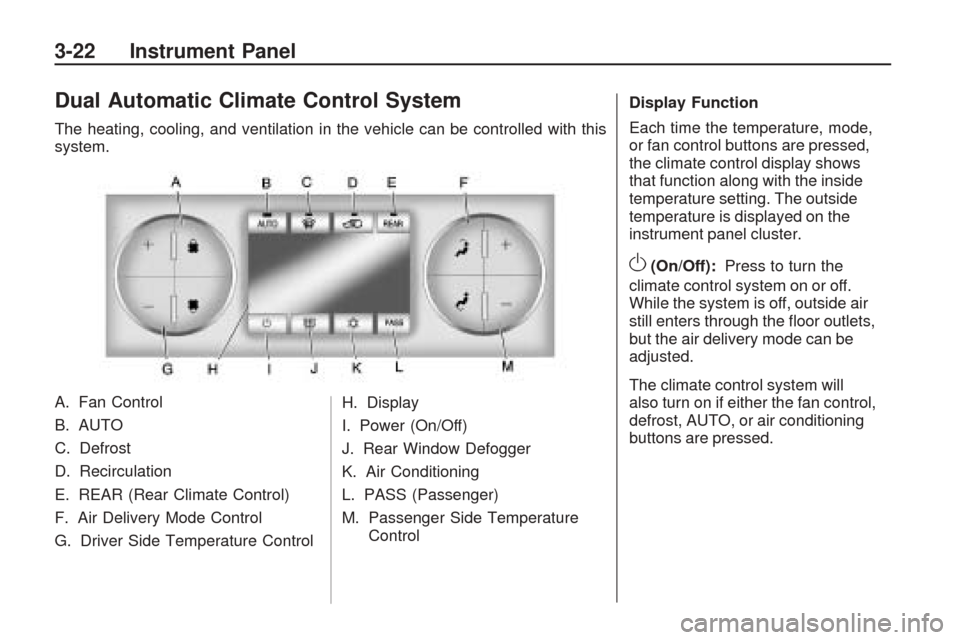
The heating, cooling, and ventilation in the vehicle can be controlled with this
system.
A. Fan Control
B. AUTO
C. Defrost
D. Recirculation
E. REAR (Rear Climate Control)
F. Air Delivery Mode Control
G. Driver Side Temperature ControlH. Display
I. Power (On/Off)
J. Rear Window Defogger
K. Air Conditioning
L. PASS (Passenger)
M. Passenger Side Temperature
Control Display Function
Each time the temperature, mode,
or fan control buttons are pressed,
the climate control display shows
that function along with the inside
temperature setting. The outside
temperature is displayed on the
instrument panel cluster.
O(On/Off):
Press to turn the
climate control system on or off.
While the system is off, outside air
still enters through the oor outlets,
but the air delivery mode can be
adjusted.
The climate control system will
also turn on if either the fan control,
defrost, AUTO, or air conditioning
buttons are pressed.
3-22 Instrument Panel