navigation system CHEVROLET TRAVERSE 2010 1.G User Guide
[x] Cancel search | Manufacturer: CHEVROLET, Model Year: 2010, Model line: TRAVERSE, Model: CHEVROLET TRAVERSE 2010 1.GPages: 448, PDF Size: 6.96 MB
Page 287 of 448
Driving and Operating 9-35
Rear Vision
Camera (RVC)
The vehicle may have a Rear Vision
Camera system. Read this entire
section before using it.
{WARNING
The Rear Vision Camera (RVC)
system does not replace driver
vision. RVC does not:
.Detect objects that are
outside the camera's field of
view, below the bumper,
or underneath the vehicle.
.Detect children, pedestrians,
bicyclists, or pets.
Do not back the vehicle by only
looking at the RVC screen, or use
the screen during longer, higher
speed backing maneuvers or
where there could be cross-traffic. (Continued)
WARNING (Continued)
Your judged distances using the
screen will differ from actual
distances.
So if you do not use proper care
before backing up, you could hit a
vehicle, child, pedestrian,
bicyclist, or pet, resulting in
vehicle damage, injury, or death.
Even though the vehicle has the
RVC system, always check
carefully before backing up by
checking behind and around the
vehicle.
Vehicles Without Navigation
System
The rear vision camera system is
designed to help the driver when
backing up by displaying a view of
the area behind the vehicle. When
the key is in the ON/RUN position
and the driver shifts the vehicle into
R (Reverse), the video image
automatically appears on the inside
rear view mirror. Once the driver
shifts out of R (Reverse), the video
image automatically disappears
from the inside rear view mirror.
Page 288 of 448
9-36 Driving and Operating
Turning the Rear Vision Camera
System Off or On
To turn off the rear vision camera
system, press and hold
z, located
on the inside rearview mirror, until
the left indicator light turns off. The
rear vision camera display is now
disabled.
To turn the rear vision camera
system on again, press and hold
z
until the left indicator light
illuminates. The rear vision camera
system display is now enabled and
the display will appear in the mirror
normally.
Vehicles With Navigation
System
The rear vision camera system is
designed to help the driver when
backing up by displaying a view of
the area behind the vehicle. When
the driver shifts the vehicle into
R (Reverse), the video image
automatically appears on the
navigation screen. Once the driver
shifts out of R (Reverse), the
navigation screen will go back to the
last screen that had been displayed,
after a delay.
Turning the Rear Vision Camera
System On or Off
To turn the rear vision camera
system on or off:
1. Shift into P (Park).
2. Press the MENU button to enter the configure menu options, then
press the MENU hard key to
select Display or touch the
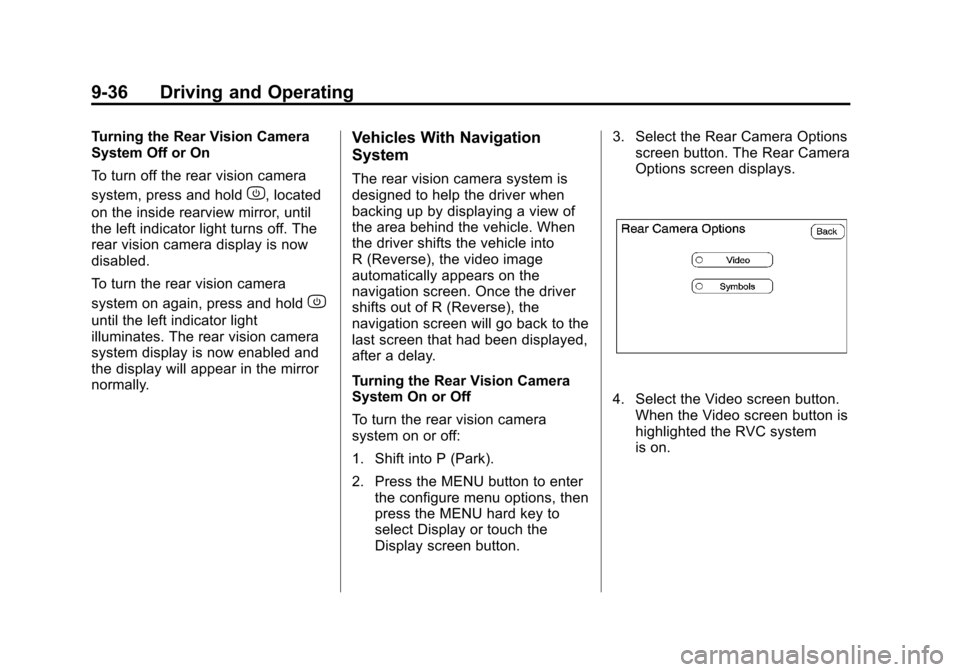
Display screen button. 3. Select the Rear Camera Options
screen button. The Rear Camera
Options screen displays.
4. Select the Video screen button.
When the Video screen button is
highlighted the RVC system
is on.
Page 289 of 448
Driving and Operating 9-37
The delay that is received after
shifting out of R (Reverse) is
approximately 10 seconds. The
delay can be cancelled by
performing one of the following:
.Pressing a hard key on the
navigation system.
.Shifting in to P (Park).
.Reach a vehicle speed of
5 mph (8 km/h).
There is a message on the rear
vision camera screen that states
“Check Surroundings for Safety”.
Adjusting the Brightness and
Contrast of the Screen
To adjust the brightness and
contrast of the screen, press the
MENU button while the rear vision
camera image is on the display. Any
adjustments made will only affect
the rear vision camera screen.
](Brightness) : Touch the
+ (plus) or –(minus) screen buttons
to increase or decrease the
brightness of the screen.
_(Contrast) : Touch the + (plus)
or –(minus) screen buttons to
increase or decrease the contrast of
the screen.
Symbols
The navigation system may have a
feature that lets the driver view
symbols on the navigation screen
while using the rear vision camera.
The Ultrasonic Rear Park Assist
(URPA) system must not be
disabled to use the caution symbols.
If URPA has been disabled and the
symbols have been turned on, the
Rear Parking Assist Symbols
Unavailable error message may
display. See Ultrasonic Parking
Assist on page 9‑33. The symbols appear when an object
has been detected by the URPA
system. The symbol may cover the
object when viewing the navigation
screen.
To turn the symbols on or off:
1. Make sure that URPA has not
been disabled.
2. Shift into P (Park).
3. Press the MENU hard key to enter the configure menu
options, then press the MENU
hard key repeatedly until Display
is selected or touch the Display
screen button.
4. Select the Rear Camera Options screen button. The Rear Camera
Options screen will display.
5. Touch the Symbols screen button. The screen button will be
highlighted when on.
Page 417 of 448
Customer Information 13-1
Customer
Information
Customer Information
Customer SatisfactionProcedure . . . . . . . . . . . . . . . . . . 13-1
Customer Assistance Offices . . . . . . . . . . . . . . . . . . . . . 13-3
Customer Assistance for Text Telephone (TTY) Users . . . . . 13-4
Online Owner Center . . . . . . . . 13-5
GM Mobility Reimbursement Program . . . . . . . . . . . . . . . . . . . . 13-6
Roadside Assistance Program . . . . . . . . . . . . . . . . . . . . 13-6
Scheduling Service Appointments . . . . . . . . . . . . . . 13-8
Courtesy Transportation Program . . . . . . . . . . . . . . . . . . . . 13-9
Collision Damage Repair . . . 13-10
Service Publications Ordering Information . . . . . . 13-13
Reporting Safety Defects
Reporting Safety Defects tothe United States
Government . . . . . . . . . . . . . . . 13-14
Reporting Safety Defects to the Canadian
Government . . . . . . . . . . . . . . . 13-14
Reporting Safety Defects to General Motors . . . . . . . . . . . 13-15
Vehicle Data Recording and
Privacy
Vehicle Data Recording andPrivacy . . . . . . . . . . . . . . . . . . . . 13-15
Event Data Recorders . . . . . . 13-16
Navigation System . . . . . . . . . 13-16
Radio Frequency Identification (RFID) . . . . . . . 13-16
Radio Frequency Statement . . . . . . . . . . . . . . . . . 13-17
Customer Information
Customer Satisfaction
Procedure
Your satisfaction and goodwill are
important to your dealer and to
Chevrolet. Normally, any concerns
with the sales transaction or the
operation of the vehicle will be
resolved by the dealer's sales or
service departments. Sometimes,
however, despite the best intentions
of all concerned, misunderstandings
can occur. If your concern has not
been resolved to your satisfaction,
the following steps should be taken:
STEP ONE: Discuss your concern
with a member of dealership
management. Normally, concerns
can be quickly resolved at that level.
If the matter has already been
reviewed with the sales, service,
or parts manager, contact the owner
of the dealership or the general
manager.
Page 432 of 448
13-16 Customer Information
This data can help provide a better
understanding of the circumstances
in which crashes and injuries occur.
Important:EDR data is recorded
by your vehicle only if a non-trivial
crash situation occurs; no data is
recorded by the EDR under normal
driving conditions and no personal
data (e.g., name, gender, age, and
crash location) is recorded.
However, other parties, such as law
enforcement, could combine the
EDR data with the type of
personally identifying data routinely
acquired during a crash
investigation.
To read data recorded by an EDR,
special equipment is required, and
access to the vehicle or the EDR is
needed. In addition to the vehicle
manufacturer, other parties, such as
law enforcement, that have the
special equipment, can read the
information if they have access to
the vehicle or the EDR. GM will not access this data or
share it with others except: with the
consent of the vehicle owner or,
if the vehicle is leased, with the
consent of the lessee; in response
to an official request of police or
similar government office; as part of
GM's defense of litigation through
the discovery process; or, as
required by law. Data that GM
collects or receives may also be
used for GM research needs or may
be made available to others for
research purposes, where a need is
shown and the data is not tied to a
specific vehicle or vehicle owner.
Navigation System
If your vehicle has a navigation
system, use of the system may
result in the storage of destinations,
addresses, telephone numbers, and
other trip information. Refer to the
navigation system operating manual
for information on stored data and
for deletion instructions.
Radio Frequency
Identification (RFID)
RFID technology is used in some
vehicles for functions such as tire
pressure monitoring and ignition
system security, as well as in
connection with conveniences such
as key fobs for remote door locking/
unlocking and starting, and
in-vehicle transmitters for garage
door openers. RFID technology in
GM vehicles does not use or record
personal information or link with any
other GM system containing
personal information.
Page 441 of 448

INDEX i-7
MessagesAirbag System . . . . . . . . . . . . . . . . 5-36
Anti-Theft Alarm System . . . . . . 5-36
Battery Voltage and
Charging . . . . . . . . . . . . . . . . . . . . 5-31
Brake System . . . . . . . . . . . . . . . . 5-31
Door Ajar . . . . . . . . . . . . . . . . . . . . . 5-31
Engine Cooling System . . . . . . . 5-32
Engine Oil . . . . . . . . . . . . . . . . . . . . 5-33
Engine Power . . . . . . . . . . . . . . . . 5-34
Fuel System . . . . . . . . . . . . . . . . . . 5-34
Key and Lock . . . . . . . . . . . . . . . . . 5-34
Lamp . . . . . . . . . . . . . . . . . . . . . . . . . 5-35
Object Detection System . . . . . 5-35
Ride Control System . . . . . . . . . . 5-35
Service Vehicle . . . . . . . . . . . . . . . 5-36
Tire . . . . . . . . . . . . . . . . . . . . . . . . . . . 5-37
Transmission . . . . . . . . . . . . . . . . . 5-38
Vehicle . . . . . . . . . . . . . . . . . . . . . . . 5-30
Vehicle Reminder . . . . . . . . . . . . . 5-38
Vehicle Speed . . . . . . . . . . . . . . . . 5-39
Washer Fluid . . . . . . . . . . . . . . . . . 5-39 Mirrors
Automatic Dimming
Rearview . . . . . . . . . . . . . . . . . . . . 2-17
Blind Spot . . . . . . . . . . . . . . . . . . . . 2-16
Convex . . . . . . . . . . . . . . . . . . . . . . . 2-15
Folding . . . . . . . . . . . . . . . . . . . . . . . 2-15
Heated . . . . . . . . . . . . . . . . . . . . . . . 2-15
Manual Rearview . . . . . . . . . . . . . 2-17
Park Tilt . . . . . . . . . . . . . . . . . . . . . . 2-17
Power . . . . . . . . . . . . . . . . . . . . . . . . 2-15
Monitor System, Tire
Pressure . . . . . . . . . . . . . . . . . . . . 10-41
MP3 . . . . . . . . . . . . . . . . . . . . . 7-21, 7-26
Multi-Band Antenna . . . . . . . . . . . . 7-11
N
Navigation System Vehicle Data Recording
and Privacy . . . . . . . . . . . . . . . 13-15
Net, Convenience . . . . . . . . . . . . . . 4-3
New Vehicle Break-In . . . . . . . . . . 9-14
O
Object Detection System Messages . . . . . . . . . . . . . . . . . . . . 5-35
Odometer . . . . . . . . . . . . . . . . . . . . . . 5-12
Off-Road Recovery . . . . . . . . . . . . . . . . . . . . . . 9-5
Oil
Engine . . . . . . . . . . . . . . . . . . . . . . . . 10-7
Engine Oil Life System . . . . . . . 10-8
Messages . . . . . . . . . . . . . . . . . . . . 5-33
Pressure Light . . . . . . . . . . . . . . . . 5-21
Older Children, Restraints . . . . . 3-39
Online Owner Center . . . . . . . . . . 13-4
OnStar
®System . . . . . . . . . . . . . . . 1-21
Operation, Infotainment System . . . . . . . . . . . . . . . . . . . . . . . . 7-2
Outlets Power . . . . . . . . . . . . . . . . . . . . . . . . . 5-8
Overheated Engine Protection
Operating Mode . . . . . . . . . . . . . 10-18
Overheating, Engine . . . . . . . . . . 10-16