Step CHEVROLET TRAVERSE 2018 User Guide
[x] Cancel search | Manufacturer: CHEVROLET, Model Year: 2018, Model line: TRAVERSE, Model: CHEVROLET TRAVERSE 2018Pages: 419, PDF Size: 5.92 MB
Page 164 of 419
Chevrolet Traverse Owner Manual (GMNA-Localizing-U.S./Canada/Mexico-
10603118) - 2018 - CRC - 1/29/18
Instruments and Controls 163
Make sure the hand-held transmitter
has a new battery for quicker and
more accurate transmission of the
radio-frequency signal.
Programming the Universal
Remote System
For questions or programming help,
see www.homelink.com/gm or call
1-800-355-3515. For calls placed
outside the U.S.A, Canada,
or Puerto Rico, international rates
will apply and may differ based on
landline or mobile phone.
Programming involves
time-sensitive actions, and may time
out causing the procedure to be
repeated.
To program up to three devices:1. Hold the end of the hand-held transmitter about 3 to 8 cm
(1 to 3 in) away from the
Universal Remote system
buttons with the indicator light
in view. The hand-held
transmitter was supplied by the
manufacturer of the garage
door opener receiver. 2. At the same time, press and
hold both the hand-held
transmitter button and one of
the three Universal Remote
system buttons to be used to
operate the garage door. Do
not release either button until
the indicator light changes from
a slow to a rapid flash. Then
release both buttons.
Some garage door openers
may require substitution of
Step 2 with the procedure
under “Radio Signals for Some
Gate Operators” later in this
section.
3. Press and hold the newly programmed Universal Remote
system button for five seconds
while watching the indicator
light and garage door
activation.
.If the indicator light stays on
continuously or the garage
door moves when the
button is pressed, then
programming is complete.
There is no need to
complete Steps 4–6. .
If the indicator light does
not come on or the garage
door does not move, a
second button press may
be required. For a second
time, press and hold the
newly programmed button
for five seconds. If the light
stays on or the garage door
moves, programming is
complete.
. If the indicator light blinks
rapidly for two seconds,
then changes to a solid light
and the garage door does
not move, continue with
programming Steps 4–6.
Page 165 of 419
Chevrolet Traverse Owner Manual (GMNA-Localizing-U.S./Canada/Mexico-
10603118) - 2018 - CRC - 1/29/18
164 Instruments and Controls
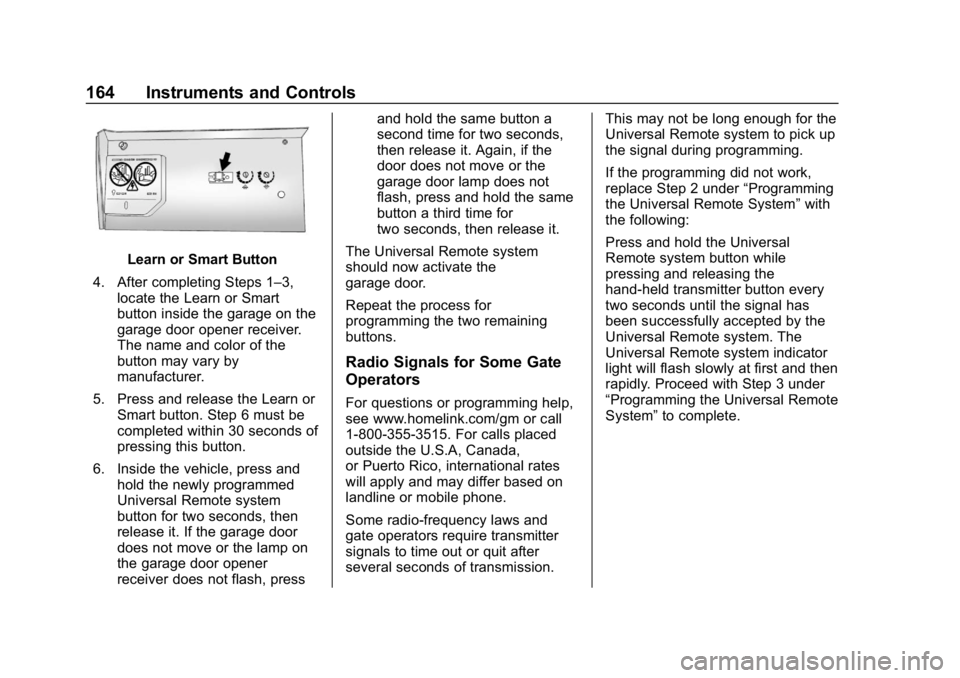
Learn or Smart Button
4. After completing Steps 1–3, locate the Learn or Smart
button inside the garage on the
garage door opener receiver.
The name and color of the
button may vary by
manufacturer.
5. Press and release the Learn or Smart button. Step 6 must be
completed within 30 seconds of
pressing this button.
6. Inside the vehicle, press and hold the newly programmed
Universal Remote system
button for two seconds, then
release it. If the garage door
does not move or the lamp on
the garage door opener
receiver does not flash, press and hold the same button a
second time for two seconds,
then release it. Again, if the
door does not move or the
garage door lamp does not
flash, press and hold the same
button a third time for
two seconds, then release it.
The Universal Remote system
should now activate the
garage door.
Repeat the process for
programming the two remaining
buttons.
Radio Signals for Some Gate
Operators
For questions or programming help,
see www.homelink.com/gm or call
1-800-355-3515. For calls placed
outside the U.S.A, Canada,
or Puerto Rico, international rates
will apply and may differ based on
landline or mobile phone.
Some radio-frequency laws and
gate operators require transmitter
signals to time out or quit after
several seconds of transmission. This may not be long enough for the
Universal Remote system to pick up
the signal during programming.
If the programming did not work,
replace Step 2 under
“Programming
the Universal Remote System” with
the following:
Press and hold the Universal
Remote system button while
pressing and releasing the
hand-held transmitter button every
two seconds until the signal has
been successfully accepted by the
Universal Remote system. The
Universal Remote system indicator
light will flash slowly at first and then
rapidly. Proceed with Step 3 under
“Programming the Universal Remote
System” to complete.
Page 166 of 419
Chevrolet Traverse Owner Manual (GMNA-Localizing-U.S./Canada/Mexico-
10603118) - 2018 - CRC - 1/29/18
Instruments and Controls 165
Universal Remote System
Operation
Using the Universal Remote
System
Press and hold the appropriate
Universal Remote system button for
at least one-half second. The
indicator light will come on while the
signal is being transmitted.
Erasing Universal Remote
System Buttons
Erase all programmed buttons when
vehicle ownership is terminated.
To erase:1. Press and hold the two outside buttons until the indicator light
begins to flash. This should
take about 10 seconds.
2. Release both buttons.
Reprogramming a Single
Universal Remote System
Button
To reprogram any of the system
buttons: 1. Press and hold any one of the buttons. Do not release the
button.
2. The indicator light will begin to flash after 20 seconds. Without
releasing the button, proceed
with Step 1 under
“Programming the Universal
Remote System.”
Page 175 of 419
Chevrolet Traverse Owner Manual (GMNA-Localizing-U.S./Canada/Mexico-
10603118) - 2018 - CRC - 1/29/18
174 Lighting
It can increase engine idle speed to
generate more power whenever
needed. It can temporarily reduce
the power demands of some
accessories.
Normally, these actions occur in
steps or levels, without being
noticeable. In rare cases at the
highest levels of corrective action,
this action may be noticeable to the
driver. If so, a DIC battery voltage
and charging message displays. It is
recommended that the driver reduce
the electrical loads as much as
possible. SeeDriver Information
Center (DIC) 0150.
Battery Power Protection
This feature helps prevent the
battery from being drained, if the
interior courtesy lamps or reading
lamps are accidentally left on. If any
of these lamps are left on, they
automatically turn off after
10 minutes, if the ignition is off. The
lamps will not come back on again
until one of the following occurs:
.
The ignition is turned on. .
The doors are closed and then
re-opened.
Exterior Lighting Battery
Saver
The exterior lamps turn off about
10 minutes after the ignition is
turned off, if the parking lamps or
headlamps have been manually left
on. This protects against draining
the battery. To restart the 10-minute
timer, turn the exterior lamp control
to the off position and then back to
the parking lamp or headlamp
position.
To keep the lamps on for more than
10 minutes, the ignition must be on
or in ACC/ACCESSORY.
Page 177 of 419
Chevrolet Traverse Owner Manual (GMNA-Localizing-U.S./Canada/Mexico-
10603118) - 2018 - CRC - 1/29/18
176 Infotainment System
The infotainment system has built-in
features intended to help avoid
distraction by disabling some
functions when driving. These
functions may gray out when they
are unavailable. Many infotainment
features are also available through
the instrument cluster and steering
wheel controls.
Before driving:
.Become familiar with the
operation, center stack controls,
and infotainment display
controls.
. Set up the audio by presetting
favorite stations, setting the
tone, and adjusting the
speakers. .
Set up phone numbers in
advance so they can be called
easily by pressing a single
control or by using a single voice
command if equipped with
Bluetooth phone capability.
. Set up your Bluetooth, CarPlay,
or Android Auto device. Some
devices will require a series of
setup steps to be taken or a
default app to be chosen prior to
using the feature. Not
completing these steps could
prevent the feature from
functioning properly.
See Defensive Driving 0209.
To play the infotainment system with
the ignition off, see Retained
Accessory Power (RAP) 0228.Theft-Deterrent Feature
The infotainment system has an
electronic security system installed
to prevent theft.
The infotainment system only works
in the vehicle in which it was first
installed, and cannot be used in
another vehicle.
Page 180 of 419
Chevrolet Traverse Owner Manual (GMNA-Localizing-U.S./Canada/Mexico-
10603118) - 2018 - CRC - 1/29/18
Infotainment System 179
Automatic Switch-Off
If the infotainment system has been
turned on after the ignition is turned
off, the system will turn off
automatically after 10 minutes.
Volume Control
O:Turn to increase or decrease.
Press when the system is on to
mute and unmute the system.
System Settings
Auto Volume
This feature automatically adjusts
the radio volume to compensate for
road and wind noise.
The level of volume compensation
can be selected, or the feature can
be turned off.
Tone Settings
The tone settings can be set for
each radio band and each audio
player source.
Custom Tone Settings
1. Touch SETTINGS on the Home Page. 2. Touch Radio.
3. Touch Tone Settings.
.Bass, Midrange, or Treble:
Touch −or +.
. Fader or Balance: Adjust
the front/rear or left/right
speakers by dragging the
dot in the vehicle image on
the screen.
4. Touch
3to go back to the
source screen.
Software Updates
Over-the-Air Software Updates
If equipped, the infotainment system
can download and install select
software updates over a wireless
connection. The system will prompt
for certain updates to be
downloaded and installed. There is
also an option to check for updates
manually. To manually check for updates,
touch SETTINGS on the Home
Page, followed by Software
Information, and then System
Update. Follow the on-screen
prompts. The steps to check for,
download and install updates may
vary by vehicle.
Downloading Over-the-Air vehicle
software updates requires Internet
connectivity, which can be accessed
through the vehicle’
s built-in OnStar
4G LTE connection, if equipped and
active. If required, data plans are
provided by a third party. Optionally,
a secure Wi-Fi hotspot such as a
compatible mobile device hotspot,
home hotspot, or public hotspot can
be used. Applicable data rates may
apply.
Page 194 of 419
Chevrolet Traverse Owner Manual (GMNA-Localizing-U.S./Canada/Mexico-
10603118) - 2018 - CRC - 1/29/18
Infotainment System 193
Pairing a Phone–SSP and No
Paired Device
When there is no paired device on
the infotainment system and Simple
Secure Pairing (SSP) is supported:
1. Press
{.
2. Touch PHONE, press
5on the
center stack, or press
gon the
steering wheel without OnStar.
3. Touch Search Device.
4. Touch the desired device to pair on the searched list
screen.
5. Touch Yes on the pop-up screen of the Bluetooth device
and infotainment system.
6. When the Bluetooth device and infotainment system are
successfully paired, the phone
screen is displayed on the
infotainment system. Pairing a Phone
–SSP and Paired
Device
When a paired device is on the
infotainment system and SSP is
supported:
1. Press
{.
2. Touch SETTINGS.
3. Touch Bluetooth, then Device Management.
4. Touch the desired device to pair. When the Bluetooth
device and infotainment system
are successfully paired,
Z/5
is displayed on the pair device
screen. If no desired device is
available go to Step 5.
5. Touch Search Device to search for the desired device.
6. Touch the desired device to pair on the searched list
screen.
7. Touch Yes on the pop-up screen of the Bluetooth device
and infotainment system. .
The connected phone is
highlighted by
5.
.
Z/5indicates the hands-free
and phone music functions are
enabled.
.
5indicates only the hands-free
function is enabled.
.
Zindicates only Bluetooth
music is enabled.
Pairing a Phone –No SSP and No
Paired Device
When there is no paired device on
the infotainment system and SSP is
not supported:
1. Press
{.
2. Touch PHONE, press
5on the
center stack, or press
gon the
steering wheel without OnStar.
3. Touch Search Device.
4. Touch the desired device to pair on the searched list
screen.
Page 195 of 419
Chevrolet Traverse Owner Manual (GMNA-Localizing-U.S./Canada/Mexico-
10603118) - 2018 - CRC - 1/29/18
194 Infotainment System
5. Input the PersonalIdentification Number (PIN)
code (default: 1234) to the
Bluetooth device. When the
Bluetooth device and
infotainment system are
successfully paired, the
PHONE screen is displayed on
the infotainment system.
When the connection fails, a failure
message is displayed on the
infotainment system.
If a Bluetooth device was previously
connected, the infotainment system
executes the auto connection.
However, if the Bluetooth setting on
the Bluetooth device is turned off, a
failure message is displayed on the
infotainment system.
Pairing a Phone –No SSP and
Paired Device
When a paired device is on the
infotainment system and SSP is not
supported:
1. Press
{.
2. Touch SETTINGS. 3. Touch Bluetooth, then Device
Management.
4. Touch the desired device to pair. When the Bluetooth
device and infotainment system
are successfully paired,
Z/5
is displayed on the pair device
screen. If no desired device is
available go to Step 5.
5. Touch Search Device to search for the desired device.
6. Touch the desired device to pair on the searched list
screen.
7. Input the Personal Identification Number (PIN)
code (default: 1234) to the
Bluetooth device. When the
Bluetooth device and
infotainment system are
successfully paired,
Z/5is
displayed on the pair device
screen.
. The connected phone is
highlighted by
5. .
Z/5indicates the hands-free
and phone music functions are
enabled.
.
5indicates only the hands-free
function is enabled.
.
Zindicates only Bluetooth
music is enabled.
Connecting a Paired Bluetooth
Device
1. Press
{.
2. Touch SETTINGS.
3. Touch Bluetooth, then Device Management.
4. Touch the device to be connected.
Checking the Bluetooth
Connection
1. Press
{.
2. Touch SETTINGS.
3. Touch Bluetooth, then Device Management.
4. The paired device will show.
Page 210 of 419
Chevrolet Traverse Owner Manual (GMNA-Localizing-U.S./Canada/Mexico-
10603118) - 2018 - CRC - 1/29/18
Driving and Operating 209
{Warning
Taking your eyes off the road too
long or too often could cause a
crash resulting in injury or death.
Focus your attention on driving.
Refer to the infotainment section for
more information on using that
system and the navigation system,
if equipped, including pairing and
using a cell phone.
Defensive Driving
Defensive driving means “always
expect the unexpected.” The first
step in driving defensively is to wear
the seat belt. See Seat Belts077.
. Assume that other road users
(pedestrians, bicyclists, and
other drivers) are going to be
careless and make mistakes.
Anticipate what they might do
and be ready.
. Allow enough following distance
between you and the driver in
front of you. .
Focus on the task of driving.
Drunk Driving
Death and injury associated with
drinking and driving is a global
tragedy.
{Warning
Drinking and then driving is very
dangerous. Your reflexes,
perceptions, attentiveness, and
judgment can be affected by even
a small amount of alcohol. You
can have a serious —or even
fatal —collision if you drive after
drinking.
Do not drink and drive or ride with
a driver who has been drinking.
Ride home in a cab; or if you are
with a group, designate a driver
who will not drink.
Control of a Vehicle
Braking, steering, and accelerating
are important factors in helping to
control a vehicle while driving.
Braking
Braking action involves perception
time and reaction time. Deciding to
push the brake pedal is perception
time. Actually doing it is
reaction time.
Average driver reaction time is
about three-quarters of a second. In
that time, a vehicle moving at
100 km/h (60 mph) travels 20 m
(66 ft), which could be a lot of
distance in an emergency.
Helpful braking tips to keep in mind
include:
. Keep enough distance between
you and the vehicle in front
of you.
. Avoid needless heavy braking.
. Keep pace with traffic.
If the engine ever stops while the
vehicle is being driven, brake
normally but do not pump the
brakes. Doing so could make the
pedal harder to push down. If the
engine stops, there will be some
power brake assist but it will be
used when the brake is applied.
Page 221 of 419
Chevrolet Traverse Owner Manual (GMNA-Localizing-U.S./Canada/Mexico-
10603118) - 2018 - CRC - 1/29/18
220 Driving and Operating
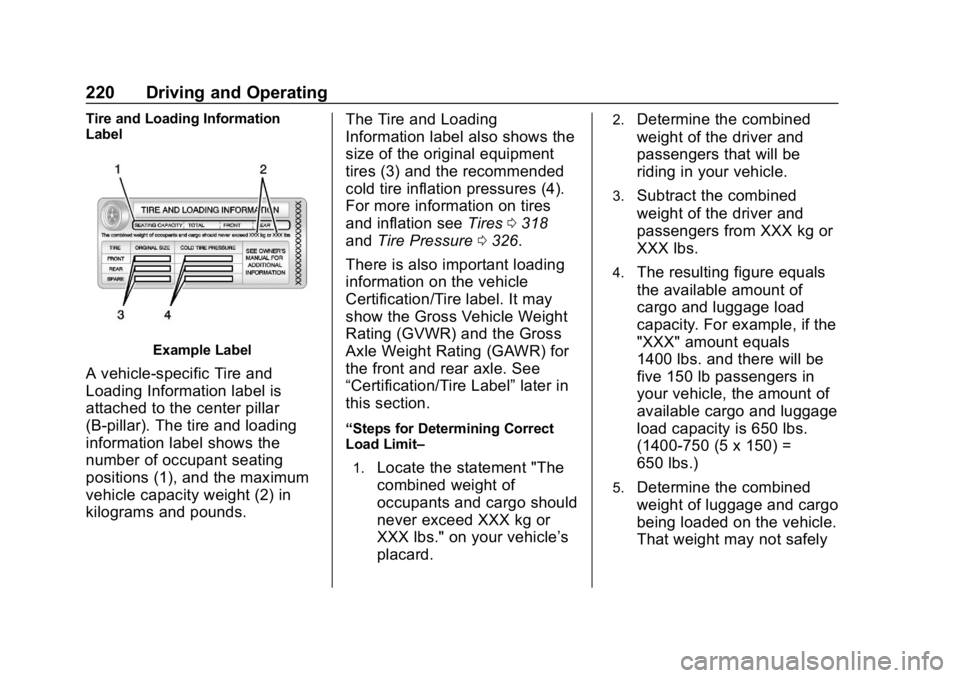
Tire and Loading Information
Label
Example Label
A vehicle-specific Tire and
Loading Information label is
attached to the center pillar
(B-pillar). The tire and loading
information label shows the
number of occupant seating
positions (1), and the maximum
vehicle capacity weight (2) in
kilograms and pounds.The Tire and Loading
Information label also shows the
size of the original equipment
tires (3) and the recommended
cold tire inflation pressures (4).
For more information on tires
and inflation see
Tires0318
and Tire Pressure 0326.
There is also important loading
information on the vehicle
Certification/Tire label. It may
show the Gross Vehicle Weight
Rating (GVWR) and the Gross
Axle Weight Rating (GAWR) for
the front and rear axle. See
“Certification/Tire Label” later in
this section.
“Steps for Determining Correct
Load Limit–
1.
Locate the statement "The
combined weight of
occupants and cargo should
never exceed XXX kg or
XXX lbs." on your vehicle’s
placard.
2.Determine the combined
weight of the driver and
passengers that will be
riding in your vehicle.
3.Subtract the combined
weight of the driver and
passengers from XXX kg or
XXX lbs.
4.The resulting figure equals
the available amount of
cargo and luggage load
capacity. For example, if the
"XXX" amount equals
1400 lbs. and there will be
five 150 lb passengers in
your vehicle, the amount of
available cargo and luggage
load capacity is 650 lbs.
(1400-750 (5 x 150) =
650 lbs.)
5.Determine the combined
weight of luggage and cargo
being loaded on the vehicle.
That weight may not safely