ECO mode CHEVROLET TRAVERSE 2019 User Guide
[x] Cancel search | Manufacturer: CHEVROLET, Model Year: 2019, Model line: TRAVERSE, Model: CHEVROLET TRAVERSE 2019Pages: 428, PDF Size: 6.28 MB
Page 102 of 428
Chevrolet Traverse Owner Manual (GMNA-Localizing-U.S./Canada/Mexico-
12146157) - 2019 - CRC - 10/31/18
Seats and Restraints 101
Warning (Continued)
front passenger seat, always
move the front passenger seat as
far back as it will go.
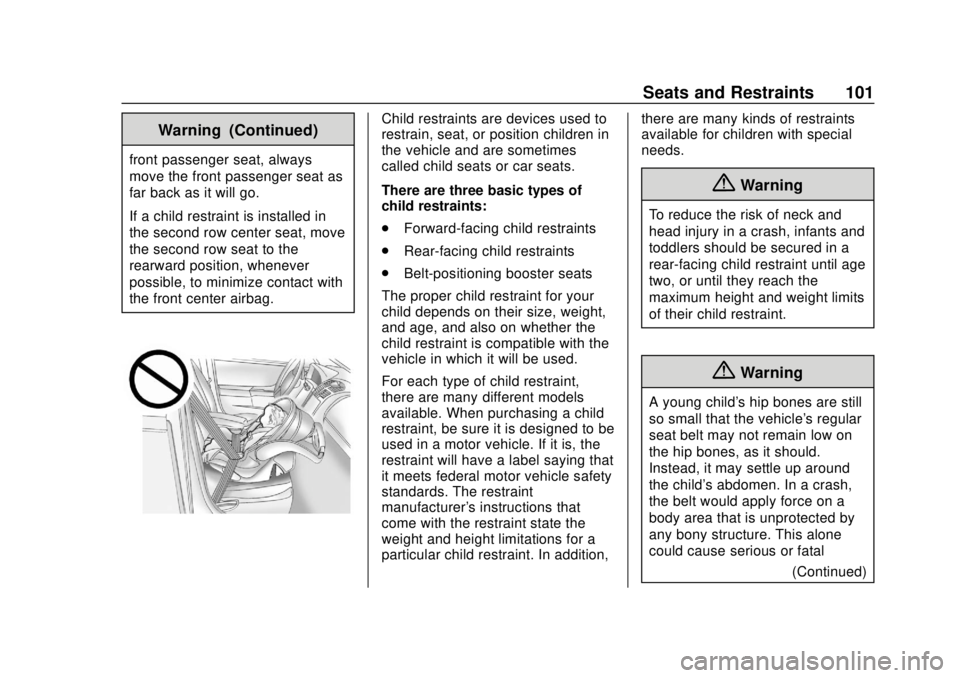
If a child restraint is installed in
the second row center seat, move
the second row seat to the
rearward position, whenever
possible, to minimize contact with
the front center airbag.
Child restraints are devices used to
restrain, seat, or position children in
the vehicle and are sometimes
called child seats or car seats.
There are three basic types of
child restraints:
.Forward-facing child restraints
. Rear-facing child restraints
. Belt-positioning booster seats
The proper child restraint for your
child depends on their size, weight,
and age, and also on whether the
child restraint is compatible with the
vehicle in which it will be used.
For each type of child restraint,
there are many different models
available. When purchasing a child
restraint, be sure it is designed to be
used in a motor vehicle. If it is, the
restraint will have a label saying that
it meets federal motor vehicle safety
standards. The restraint
manufacturer's instructions that
come with the restraint state the
weight and height limitations for a
particular child restraint. In addition, there are many kinds of restraints
available for children with special
needs.
{Warning
To reduce the risk of neck and
head injury in a crash, infants and
toddlers should be secured in a
rear-facing child restraint until age
two, or until they reach the
maximum height and weight limits
of their child restraint.
{Warning
A young child's hip bones are still
so small that the vehicle's regular
seat belt may not remain low on
the hip bones, as it should.
Instead, it may settle up around
the child's abdomen. In a crash,
the belt would apply force on a
body area that is unprotected by
any bony structure. This alone
could cause serious or fatal
(Continued)
Page 143 of 428
Chevrolet Traverse Owner Manual (GMNA-Localizing-U.S./Canada/Mexico-
12146157) - 2019 - CRC - 10/31/18
142 Instruments and Controls
If the word OFF is lit on the
passenger airbag status indicator, it
means that the passenger sensing
system has turned off the front
outboard passenger frontal airbag.
If, after several seconds, both status
indicator lights remain on, or if there
are no lights at all, there may be a
problem with the lights or the
passenger sensing system. See
your dealer for service.
{Warning
If the airbag readiness light ever
comes on and stays on, it means
that something may be wrong
with the airbag system. To help
avoid injury to yourself or others,
have the vehicle serviced right
away. SeeAirbag Readiness
Light 0141 for more information,
including important safety
information.
Charging System Light
The charging system light comes on
briefly when the ignition is turned
on, but the engine is not running, as
a check to show the light is working.
The light turns off when the engine
is started. If it does not, have the
vehicle serviced by your dealer.
If the light stays on, or comes on
while driving, there may be a
problem with the electrical charging
system. Have it checked by your
dealer. Driving while this light is on
could drain the battery.
When this light comes on, the Driver
Information Center (DIC) also
displays a message.
If a short distance must be driven
with the light on, be sure to turn off
all accessories, such as the radio
and air conditioner.
Malfunction Indicator
Lamp (Check Engine
Light)
This light is part of the vehicle’s
emission control on-board
diagnostic system. If this light is on
while the engine is running, a
malfunction has been detected and
the vehicle may require service. The
light should come on to show that it
is working when the ignition is in
Service Mode. See Ignition
Positions 0225.
Malfunctions are often indicated by
the system before any problem is
noticeable. Being aware of the light
and seeking service promptly when
it comes on may prevent damage.
Page 145 of 428
Chevrolet Traverse Owner Manual (GMNA-Localizing-U.S./Canada/Mexico-
12146157) - 2019 - CRC - 10/31/18
144 Instruments and Controls
.Poor fuel quality can cause
inefficient engine operation and
poor driveability, which may go
away once the engine is warmed
up. If this occurs, change the
fuel brand. It may require at
least one full tank of the proper
fuel to turn the light off.
See Recommended Fuel (3.6L
V6 Engine) 0272 or
Recommended Fuel (2.0L L4
Engine) 0272.
If the light remains on, see your
dealer.
Emissions Inspection and
Maintenance Programs
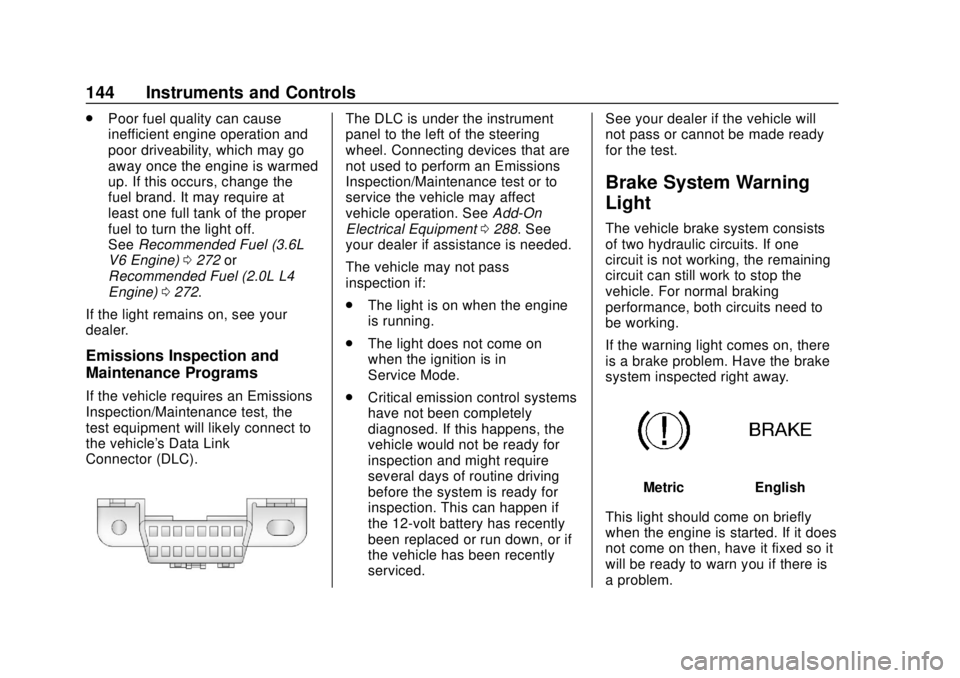
If the vehicle requires an Emissions
Inspection/Maintenance test, the
test equipment will likely connect to
the vehicle's Data Link
Connector (DLC).
The DLC is under the instrument
panel to the left of the steering
wheel. Connecting devices that are
not used to perform an Emissions
Inspection/Maintenance test or to
service the vehicle may affect
vehicle operation. See Add-On
Electrical Equipment 0288. See
your dealer if assistance is needed.
The vehicle may not pass
inspection if:
. The light is on when the engine
is running.
. The light does not come on
when the ignition is in
Service Mode.
. Critical emission control systems
have not been completely
diagnosed. If this happens, the
vehicle would not be ready for
inspection and might require
several days of routine driving
before the system is ready for
inspection. This can happen if
the 12-volt battery has recently
been replaced or run down, or if
the vehicle has been recently
serviced. See your dealer if the vehicle will
not pass or cannot be made ready
for the test.
Brake System Warning
Light
The vehicle brake system consists
of two hydraulic circuits. If one
circuit is not working, the remaining
circuit can still work to stop the
vehicle. For normal braking
performance, both circuits need to
be working.
If the warning light comes on, there
is a brake problem. Have the brake
system inspected right away.
MetricEnglish
This light should come on briefly
when the engine is started. If it does
not come on then, have it fixed so it
will be ready to warn you if there is
a problem.
Page 157 of 428
Chevrolet Traverse Owner Manual (GMNA-Localizing-U.S./Canada/Mexico-
12146157) - 2019 - CRC - 10/31/18
156 Instruments and Controls
.Wi-Fi
Each menu is detailed in the
following information.
Time and Date
Manually set the time and date. See
Clock 0129.
Rear Seat Reminder
This allows for a chime and a
message when the rear door has
been opened before or during
operation of the vehicle. See Rear
Seats 070.
Select Off or On.
Language
Select Language, then select from
the available language(s).
The selected language will display
on the system, and voice
recognition will reflect the selected
language.
Valet Mode
This will lock the infotainment
system and steering wheel controls.
It may also limit access to vehicle
storage locations (if equipped).
To enable valet mode: 1. Enter a four-digit code on the keypad.
2. Select Enter to go to the confirmation screen.
3. Re-enter the four-digit code.
Touch Lock or Unlock to lock or
unlock the system. Touch Back to
go back to the previous menu.
Teen Driver
See “Teen Driver” under“Settings”
in the infotainment manual.
Radio
Touch and the following may
display:
. Manage Favorites
. Number of Favorites Shown
. Audible Touch Feedback .
Auto Volume
. Bose Audio Pilot
. Maximum Startup Volume
Manage Favorites
This allows favorites to be edited.
See “Manage Favorites” in
“Settings” under“Radio” in the
infotainment manual.
Number of Favorites Shown
Touch to set the number of favorites
to display.
Select the desired number or select
Auto and the infotainment system
will automatically adjust the number
of favorites shown.
Audible Touch Feedback
This allows Audible Touch
Feedback to be turned on or off.
Select Off or On.
Auto Volume
This feature adjusts the volume
based on vehicle speed and
ambient noise.
Page 163 of 428
Chevrolet Traverse Owner Manual (GMNA-Localizing-U.S./Canada/Mexico-
12146157) - 2019 - CRC - 10/31/18
162 Instruments and Controls
Apple CarPlay
This feature allows Apple devices to
be connected to the infotainment
system through a USB port.
Select Off or On.
Manage Apple CarPlay Devices
Select to manage Apple devices.
Apple CarPlay must be on for this
feature to be accessed.
Android Auto
Select and the following may
display:
.Android Auto
. Manage Android Auto Devices
Android Auto
This feature allows Android devices
to be connected to the infotainment
system through a USB port.
Select Off or On.
Manage Android Auto Devices
Select to manage Android devices.
Android Auto must be on for this
feature to be accessed.
USB Auto Launch
This allows Android and Apple
CarPlay devices to automatically
connect when plugged into the
USB port.
Select Off or On.
Voice
Select and the following may
display:
. Confidence Threshold
. Prompt Length
. Audio Feedback Speed
. Display “What Can I Say?” Tips
Confidence Threshold
This feature allows the adjustment
of the sensitivity of the speech
recognition system.
Select Confirm More or
Confirm Less.
Prompt Length
This feature adjusts the voice
prompt length.
Select Short or Long. Audio Feedback Speed
This feature adjusts the audio
feedback speed.
Select Slow, Medium, or Fast.
Display
“What Can I Say?” Tips
This feature gives voice
command tips.
Select Off or On.
Display
Select and the following may
display:
. Mode
. Calibrate Touchscreen
. Turn Display Off
Mode
Select to change the display screen
for day or night driving.
Select Auto, Day, or Night.
Calibrate Touchscreen
Select to calibrate the touchscreen,
then follow the prompts.
Page 190 of 428
Chevrolet Traverse Owner Manual (GMNA-Localizing-U.S./Canada/Mexico-
12146157) - 2019 - CRC - 10/31/18
Infotainment System 189
Changing to Next/Previous Songs
.Touch
lto change to the
next song.
. Touch
gwithin five seconds of
the playback time to play the
previous song.
Returning to the Beginning of the
Current Song
Touch
gafter five seconds of the
playback time.
Scanning Forward or Backward
Touch and hold
gorlduring
playback to rewind or fast forward.
Release to resume playback at
normal speed.
Playing Songs Randomly
Touch
Zduring playback.
. ON: Plays all songs randomly.
. OFF: Returns to normal
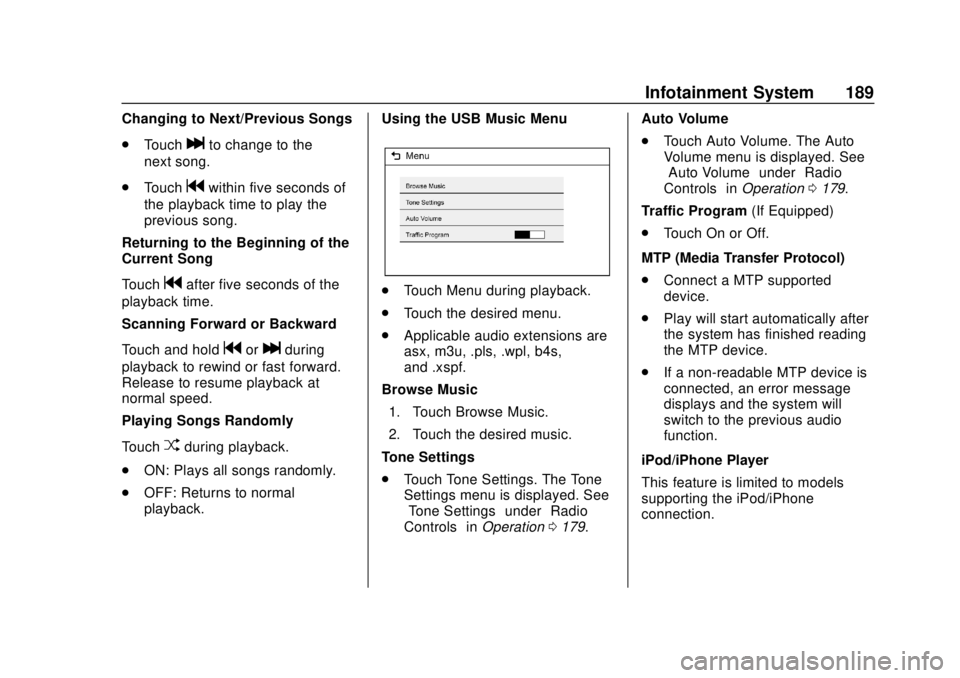
playback. Using the USB Music Menu
.
Touch Menu during playback.
. Touch the desired menu.
. Applicable audio extensions are
asx, m3u, .pls, .wpl, b4s,
and .xspf.
Browse Music 1. Touch Browse Music.
2. Touch the desired music.
Tone Settings
. Touch Tone Settings. The Tone
Settings menu is displayed. See
“Tone Settings” under“Radio
Controls” inOperation 0179. Auto Volume
.
Touch Auto Volume. The Auto
Volume menu is displayed. See
“Auto Volume” under“Radio
Controls” inOperation 0179.
Traffic Program (If Equipped)
. Touch On or Off.
MTP (Media Transfer Protocol)
. Connect a MTP supported
device.
. Play will start automatically after
the system has finished reading
the MTP device.
. If a non-readable MTP device is
connected, an error message
displays and the system will
switch to the previous audio
function.
iPod/iPhone Player
This feature is limited to models
supporting the iPod/iPhone
connection.
Page 191 of 428
Chevrolet Traverse Owner Manual (GMNA-Localizing-U.S./Canada/Mexico-
12146157) - 2019 - CRC - 10/31/18
190 Infotainment System
Playing Music from an iPod/
iPhone Player
.Connect the iPod/iPhone to the
USB port.
. Play will start from the previously
played point after the system
has finished reading the USB
device.
. If a non-readable USB device is
connected, an error message
displays and the system will
switch to the previous audio
function.
If the iPod/iPhone is already
connected:
1. Press
{.
2. Touch AUDIO.
3. Touch Source.
4. Touch iPod.
To stop the device and select
another media source, touch
Source, then select the other
source. To remove the device, select
another function, then remove the
device.
Pause
.
Touch
jto pause.
. Touch
rto resume.
Changing to Next/Previous Song
. Touch
lto change to the
next song.
. Touch
gwithin two seconds of
the playback time to play the
previous song.
Returning to the Beginning of the
Current Song
Touch
gafter two seconds of the
playback time.
Scanning Forward or Backward
Touch and hold
gorlduring
playback to rewind or fast forward.
Release to resume playback at
normal speed. Playing Songs Randomly
Touch
Zduring playback.
. ON: Plays all songs randomly.
. OFF: Returns to normal
playback.
Using the iPod Menu
. Touch Menu during playback.
. Touch the appropriate
play mode.
Browse Music 1. Touch Browse Music.
2. Touch the desired music.
Tone Settings
. Touch Tone Settings. The Tone
Settings menu is displayed. See
“Tone Settings” under“Radio
Controls” inOperation 0179.
Auto Volume
. Touch Auto Volume. The Auto
Volume menu is displayed. See
“Auto Volume” under“Radio
Controls” inOperation 0179.
Page 198 of 428
Chevrolet Traverse Owner Manual (GMNA-Localizing-U.S./Canada/Mexico-
12146157) - 2019 - CRC - 10/31/18
Infotainment System 197
Returning to the Beginning of the
Current Song
Touch
gafter two seconds of
playback time.
Search
Touch and hold
gorlto rewind
or fast forward.
Playing Music Randomly
Touch
Zduring playback. Touch
again to return to normal play.
This function may not be supported
depending on the Bluetooth device.
Do not change the track too quickly
when playing Bluetooth music.
Conditions that may occur when
playing Bluetooth music:
. It takes time to transmit data
from the Bluetooth device to the
infotainment system.
. If the cell phone or Bluetooth
device is not in the waiting
screen mode, it may not
automatically play. .
The infotainment system
transmits the order to play from
the Bluetooth device in the
Bluetooth music play mode.
If this is done in a different
mode, then the device transmits
the order to stop. Depending on
the Bluetooth device options,
this order to play/stop may take
time to activate.
. If the Bluetooth music playback
is not functioning, then check to
see if the Bluetooth device is in
the waiting screen mode.
. Sounds may be cut off during
the Bluetooth music playback.
. The infotainment system outputs
the audio from the cell phone or
Bluetooth device as it is
transmitted.
Apple CarPlay and
Android Auto
If equipped, Android Auto and/or
Apple CarPlay capability may be
available through a compatible
smartphone. If available, PROJECTION will appear on the
Home Page of the infotainment
display.
To use Android Auto or Apple
CarPlay:
1. Download the Android Auto app to your phone from the
Google Play store. No app is
required for Apple CarPlay.
2. Connect an Android phone or iPhone by using the compatible
phone USB cable and plugging
into a USB data port. For best
performance, use the device’ s
factory-provided USB cable.
Aftermarket or third-party
cables may not work.
3. When the phone is first connected to activate Apple
CarPlay or Android Auto, the
message “Device Projection
Privacy Consent” will appear.
. Select Continue to launch
Apple CarPlay or
Android Auto.
Page 202 of 428
Chevrolet Traverse Owner Manual (GMNA-Localizing-U.S./Canada/Mexico-
12146157) - 2019 - CRC - 10/31/18
Climate Controls 201
Climate Controls
Climate Control Systems
Dual Automatic ClimateControl System . . . . . . . . . . . . . 201
Rear Climate Control System . . . . . . . . . . . . . . . . . . . . . . 204
Air Vents
Air Vents . . . . . . . . . . . . . . . . . . . . . 206
Maintenance
Passenger Compartment AirFilter . . . . . . . . . . . . . . . . . . . . . . . . 207
Service . . . . . . . . . . . . . . . . . . . . . . . 207
Climate Control Systems
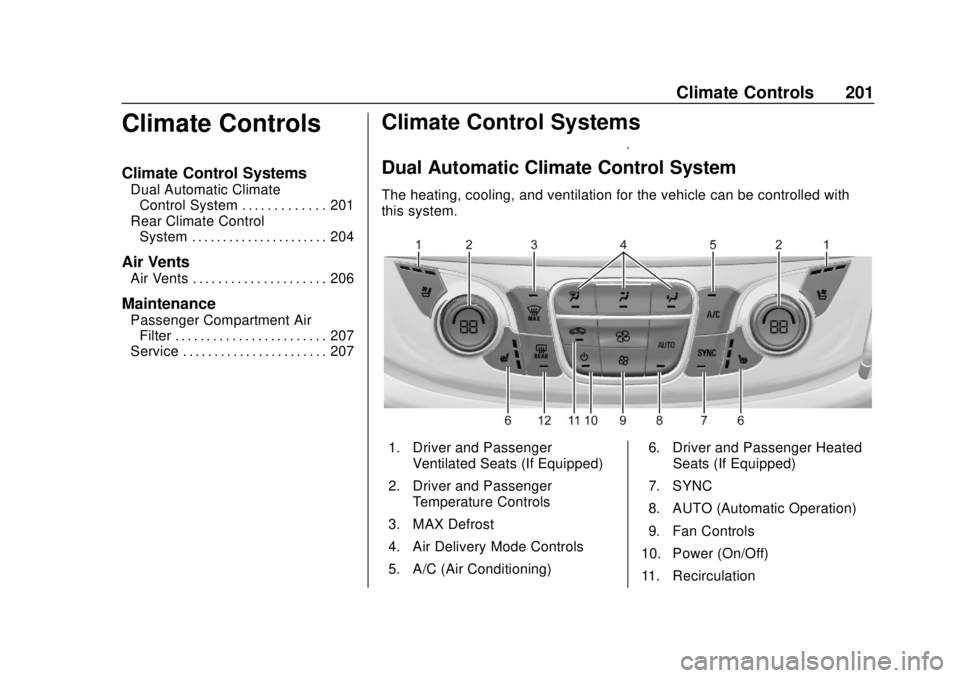
Dual Automatic Climate Control System
The heating, cooling, and ventilation for the vehicle can be controlled with
this system.
1. Driver and Passenger
Ventilated Seats (If Equipped)
2. Driver and Passenger Temperature Controls
3. MAX Defrost
4. Air Delivery Mode Controls
5. A/C (Air Conditioning) 6. Driver and Passenger Heated
Seats (If Equipped)
7. SYNC
8. AUTO (Automatic Operation)
9. Fan Controls
10. Power (On/Off)
11. Recirculation
Page 209 of 428
Chevrolet Traverse Owner Manual (GMNA-Localizing-U.S./Canada/Mexico-
12146157) - 2019 - CRC - 10/31/18
208 Driving and Operating
Driving and
Operating
Driving Information
Distracted Driving . . . . . . . . . . . . 209
Defensive Driving . . . . . . . . . . . . . 210
Drunk Driving . . . . . . . . . . . . . . . . . 210
Control of a Vehicle . . . . . . . . . . . 210
Braking . . . . . . . . . . . . . . . . . . . . . . . 210
Steering . . . . . . . . . . . . . . . . . . . . . . 211
Off-Road Recovery . . . . . . . . . . . 211
Loss of Control . . . . . . . . . . . . . . . 212
Off-Road Driving . . . . . . . . . . . . . 212
Driving on Wet Roads . . . . . . . . 217
Hill and Mountain Roads . . . . . 218
Winter Driving . . . . . . . . . . . . . . . . 218
If the Vehicle Is Stuck . . . . . . . . 220
Vehicle Load Limits . . . . . . . . . . . 220
Starting and Operating
New Vehicle Break-In . . . . . . . . . 224
Ignition Positions . . . . . . . . . . . . . 225
Starting the Engine . . . . . . . . . . . 226
Stop/Start System . . . . . . . . . . . . 227
Engine Heater . . . . . . . . . . . . . . . . 228
Retained AccessoryPower (RAP) . . . . . . . . . . . . . . . . 230
Shifting Into Park . . . . . . . . . . . . . 230 Shifting out of Park . . . . . . . . . . . 231
Parking over Things
That Burn . . . . . . . . . . . . . . . . . . . 231
Extended Parking . . . . . . . . . . . . 231
Engine Exhaust
Engine Exhaust . . . . . . . . . . . . . . 232
Running the Vehicle While Parked . . . . . . . . . . . . . . . . . . . . . . 233
Automatic Transmission
Automatic Transmission . . . . . . 233
Manual Mode . . . . . . . . . . . . . . . . . 235
Tow/Haul Mode . . . . . . . . . . . . . . . 236
Drive Systems
All-Wheel Drive . . . . . . . . . . . . . . . 237
Brakes
Antilock BrakeSystem (ABS) . . . . . . . . . . . . . . . 237
Electric Parking Brake . . . . . . . . 238
Brake Assist . . . . . . . . . . . . . . . . . . 240
Hill Start Assist (HSA) . . . . . . . . 240
Ride Control Systems
Traction Control/Electronic Stability Control . . . . . . . . . . . . . 241
Driver Mode Control . . . . . . . . . . 242
Cruise Control
Cruise Control . . . . . . . . . . . . . . . . 246
Adaptive Cruise Control . . . . . . 248
Driver Assistance Systems
Driver Assistance Systems . . . 256
Assistance Systems for Parking or Backing . . . . . . . . . . 258
Assistance Systems for Driving . . . . . . . . . . . . . . . . . . . . . . 261
Forward Collision Alert (FCA) System . . . . . . . . . . . . . . . . . . . . . . 261
Forward Automatic Braking (FAB) . . . . . . . . . . . . . . . 263
Front Pedestrian Braking (FPB) System . . . . . . . . . . . . . . . 265
Side Blind Zone Alert (SBZA) . . . . . . . . . . . . . . . . 267
Lane Change Alert (LCA) . . . . . 267
Lane Departure Warning (LDW) . . . . . . . . . . . . . 269
Lane Keep Assist (LKA) . . . . . . 269