infotainment CHEVROLET TRAVERSE 2019 User Guide
[x] Cancel search | Manufacturer: CHEVROLET, Model Year: 2019, Model line: TRAVERSE, Model: CHEVROLET TRAVERSE 2019Pages: 428, PDF Size: 6.28 MB
Page 130 of 428
Chevrolet Traverse Owner Manual (GMNA-Localizing-U.S./Canada/Mexico-
12146157) - 2019 - CRC - 10/31/18
Instruments and Controls 129
System (GPS) antenna, StabiliTrak/
Electronic Stability Control (ESC),
and vehicle speed information.
The compass system is designed to
operate for a certain number of
miles or degrees of turn before
needing a signal from the GPS
satellites. When the compass
display shows CAL, drive the
vehicle for a short distance in an
open area where it can receive a
GPS signal. The compass system
will automatically determine when a
GPS signal is restored and provide
a heading again.
Clock
Base Radio
The infotainment system controls
are used to access the time and
date settings through the menu
system. SeeOperation0179 on
how to use the menu system.
Setting the Time and Date
When Auto Set is enabled the time
cannot be manually set. 1. Press
{, then touch
SETTINGS.
2. Touch Time and Date, then Set Time or Set Date.
3. Touch + or −to adjust the
value.
4. Touch
RorQto adjust AM or
PM for 12 hour format.
5. Touch
0.
Auto Set
Auto Set requires an active OnStar
or connected service plan.
If auto set is on, the time displayed
on the clock may not update
immediately when driving into a new
time zone.
1. Press
{, then touch
SETTINGS.
2. Touch Time and Date, then Auto Set.
3. Choose from the available selections.
4. Touch
0.
Setting the 12/24 Hour Format
1. Press{, then touch
SETTINGS.
2. Touch Time and Date, then select 12h or 24h format.
3. Touch
0.
Setting the Month and Day
Format
1. Press{, then touch
SETTINGS.
2. Touch Time and Date, then Set Date Format.
3. Select DD/MM/YYYY (day/ month/year), MM/DD/YYYY
(month/day/year), or YYYY/
MM/DD (year/month/day)
format.
4. Touch
0.
Uplevel Radio
The infotainment system controls
are used to access the time and
date settings through the menu
Page 131 of 428
Chevrolet Traverse Owner Manual (GMNA-Localizing-U.S./Canada/Mexico-
12146157) - 2019 - CRC - 10/31/18
130 Instruments and Controls
system. See“Using the System”
under “Introduction” in the
infotainment manual.
To set the time:
1. Touch SETTINGS from the Home Page, then touch Time
and Date.
2. Touch Set Time and touch
«
orªto increase or decrease
hours, minutes, and AM or PM.
Touch 12–24 Hr for 12 or
24 hour clock.
3. Touch the back icon to go back to the previous menu.
Auto Set requires an active OnStar
or connected service plan.
If auto set is on, the time displayed
on the clock may not update
immediately when driving into a new
time zone.
To set the date: 1. Touch SETTINGS from the Home Page, then touch Time
and Date. 2. Touch Set Date and touch
«
orªto increase or decrease
month, day, or year.
3. Touch the back icon to go back to the previous menu.
To set the clock display: 1. Touch SETTINGS and touch Time and Date.
2. Touch Clock Display and touch Off or On to turn the clock
display off or on.
3. Touch the back icon to go back to the previous menu.
The clock settings can also be
accessed by touching the time
display, then touching Set.
Power Outlets
Power Outlets 12-Volt Direct
Current
The vehicle has two 12-volt outlets
that can be used to plug in electrical
equipment, such as a cell phone or
MP3 player. The power outlets are located:
.
On the center stack below the
climate controls.
. In the rear cargo area.
Lift the cover to access the outlet
and replace when not in use.
There are also charging only USB
ports on the rear of the center
console and in the third row
seating area.
{Warning
Power is always supplied to the
rear cargo power outlet. Do not
leave electrical equipment
plugged in when the vehicle is not
in use because the vehicle could
catch fire and cause injury or
death.
Page 134 of 428
Chevrolet Traverse Owner Manual (GMNA-Localizing-U.S./Canada/Mexico-
12146157) - 2019 - CRC - 10/31/18
Instruments and Controls 133
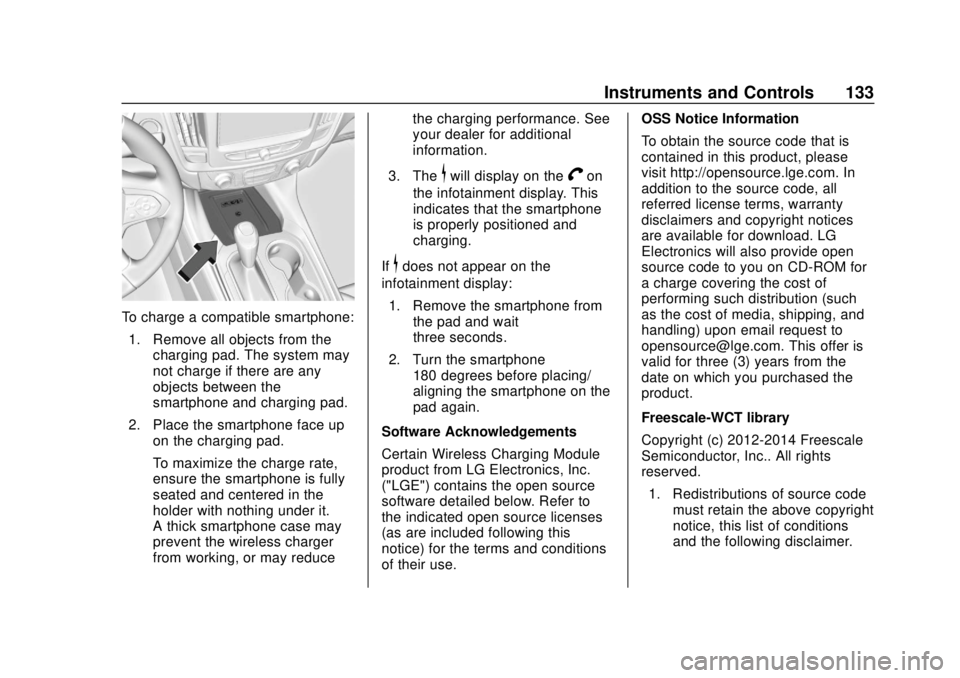
To charge a compatible smartphone:1. Remove all objects from the charging pad. The system may
not charge if there are any
objects between the
smartphone and charging pad.
2. Place the smartphone face up on the charging pad.
To maximize the charge rate,
ensure the smartphone is fully
seated and centered in the
holder with nothing under it.
A thick smartphone case may
prevent the wireless charger
from working, or may reduce the charging performance. See
your dealer for additional
information.
3. The
$will display on theVon
the infotainment display. This
indicates that the smartphone
is properly positioned and
charging.
If
$does not appear on the
infotainment display:
1. Remove the smartphone from the pad and wait
three seconds.
2. Turn the smartphone 180 degrees before placing/
aligning the smartphone on the
pad again.
Software Acknowledgements
Certain Wireless Charging Module
product from LG Electronics, Inc.
("LGE") contains the open source
software detailed below. Refer to
the indicated open source licenses
(as are included following this
notice) for the terms and conditions
of their use. OSS Notice Information
To obtain the source code that is
contained in this product, please
visit http://opensource.lge.com. In
addition to the source code, all
referred license terms, warranty
disclaimers and copyright notices
are available for download. LG
Electronics will also provide open
source code to you on CD-ROM for
a charge covering the cost of
performing such distribution (such
as the cost of media, shipping, and
handling) upon email request to
[email protected]. This offer is
valid for three (3) years from the
date on which you purchased the
product.
Freescale-WCT library
Copyright (c) 2012-2014 Freescale
Semiconductor, Inc.. All rights
reserved.
1. Redistributions of source code must retain the above copyright
notice, this list of conditions
and the following disclaimer.
Page 156 of 428
Chevrolet Traverse Owner Manual (GMNA-Localizing-U.S./Canada/Mexico-
12146157) - 2019 - CRC - 10/31/18
Instruments and Controls 155
be reduced the next time the vehicle
is driven. The vehicle may be driven
while this message is on, but
maximum acceleration and speed
may be reduced. Anytime this
message stays on, or displays
repeatedly, the vehicle should be
taken to your dealer for service as
soon as possible.
Vehicle Speed Messages
SPEED LIMITED TO
XXX KM/H (MPH)
This message shows that the
vehicle speed has been limited to
the speed displayed. The limited
speed is a protection for various
propulsion and vehicle systems,
such as lubrication, thermal,
suspension, Teen Driver if
equipped, or tires.
Vehicle
Personalization
Use the audio system controls to
access the personalization menus
for customizing vehicle features.
The following are all possible
personalization features. Depending
on the vehicle, some may not be
available.
Base Radio Audio System
Controls
{:Press to access the Home
Page Menu.
QorR: Touch to scroll through the
menus or setup items.
0: Touch to exit or return to the
previous screen or menu.
Uplevel Radio Audio System
Controls
1. Touch the desired feature to display a list of available
options.
2. Touch to select the desired feature setting. 3. Touch the back icon on the
infotainment display to return to
the previous menu or exit.
Personalization Menus
The following list of menu items may
be available:
. Time and Date
. Rear Seat Reminder
. Language
. Valet Mode
. Teen Driver
. Radio
. Vehicle
. Bluetooth
. Apple CarPlay
. Android Auto
. USB Auto Launch
. Voice
. Display
. Rear Camera
. Return to Factory Settings
. Software Information
Page 157 of 428
Chevrolet Traverse Owner Manual (GMNA-Localizing-U.S./Canada/Mexico-
12146157) - 2019 - CRC - 10/31/18
156 Instruments and Controls
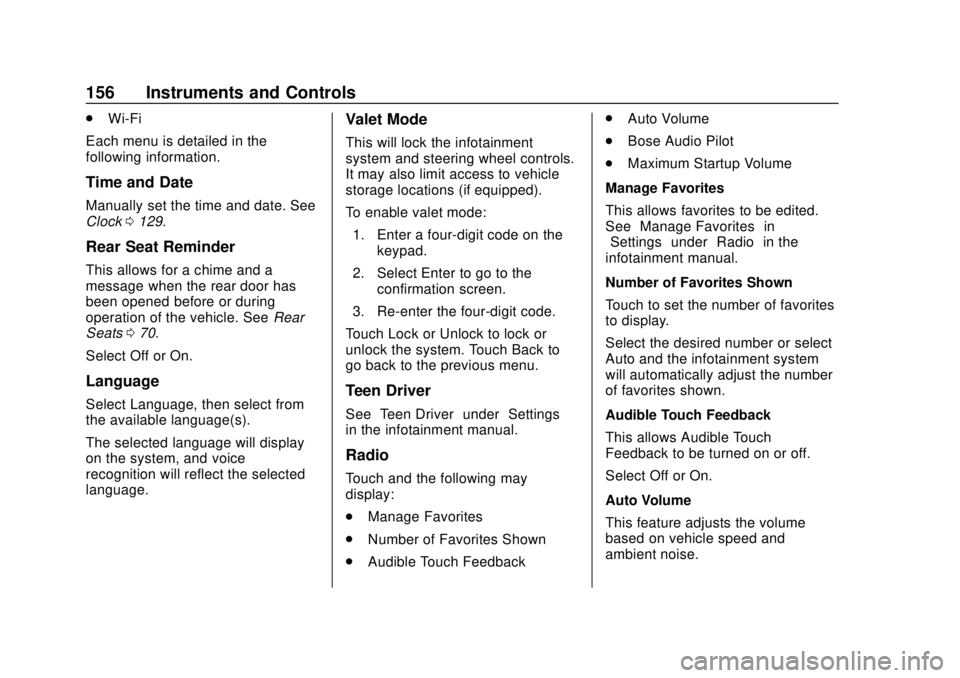
.Wi-Fi
Each menu is detailed in the
following information.
Time and Date
Manually set the time and date. See
Clock 0129.
Rear Seat Reminder
This allows for a chime and a
message when the rear door has
been opened before or during
operation of the vehicle. See Rear
Seats 070.
Select Off or On.
Language
Select Language, then select from
the available language(s).
The selected language will display
on the system, and voice
recognition will reflect the selected
language.
Valet Mode
This will lock the infotainment
system and steering wheel controls.
It may also limit access to vehicle
storage locations (if equipped).
To enable valet mode: 1. Enter a four-digit code on the keypad.
2. Select Enter to go to the confirmation screen.
3. Re-enter the four-digit code.
Touch Lock or Unlock to lock or
unlock the system. Touch Back to
go back to the previous menu.
Teen Driver
See “Teen Driver” under“Settings”
in the infotainment manual.
Radio
Touch and the following may
display:
. Manage Favorites
. Number of Favorites Shown
. Audible Touch Feedback .
Auto Volume
. Bose Audio Pilot
. Maximum Startup Volume
Manage Favorites
This allows favorites to be edited.
See “Manage Favorites” in
“Settings” under“Radio” in the
infotainment manual.
Number of Favorites Shown
Touch to set the number of favorites
to display.
Select the desired number or select
Auto and the infotainment system
will automatically adjust the number
of favorites shown.
Audible Touch Feedback
This allows Audible Touch
Feedback to be turned on or off.
Select Off or On.
Auto Volume
This feature adjusts the volume
based on vehicle speed and
ambient noise.
Page 158 of 428
Chevrolet Traverse Owner Manual (GMNA-Localizing-U.S./Canada/Mexico-
12146157) - 2019 - CRC - 10/31/18
Instruments and Controls 157
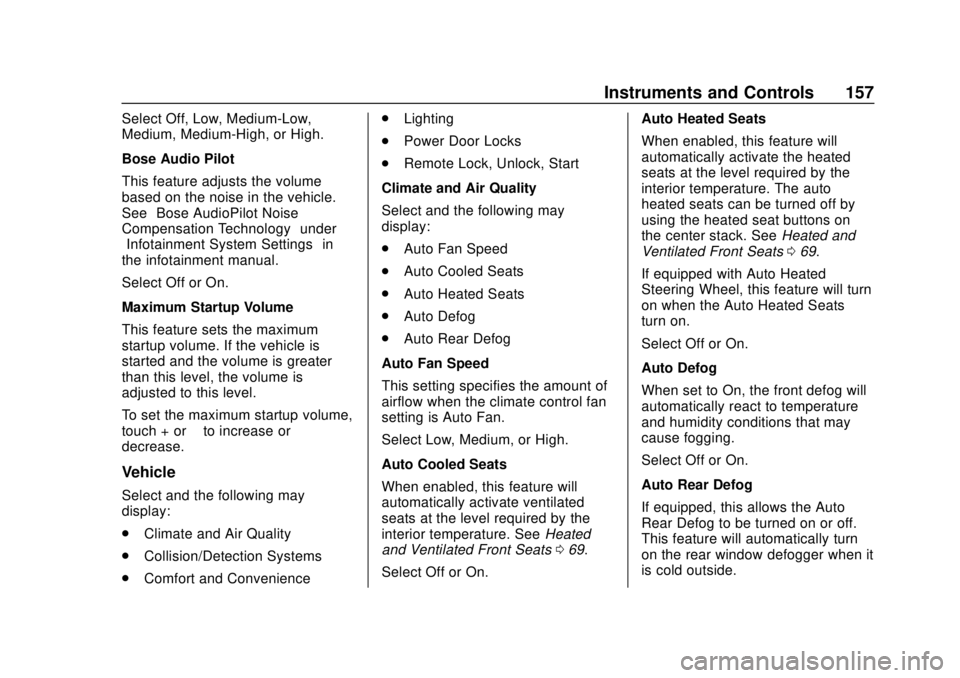
Select Off, Low, Medium-Low,
Medium, Medium-High, or High.
Bose Audio Pilot
This feature adjusts the volume
based on the noise in the vehicle.
See“Bose AudioPilot Noise
Compensation Technology” under
“Infotainment System Settings” in
the infotainment manual.
Select Off or On.
Maximum Startup Volume
This feature sets the maximum
startup volume. If the vehicle is
started and the volume is greater
than this level, the volume is
adjusted to this level.
To set the maximum startup volume,
touch + or −to increase or
decrease.
Vehicle
Select and the following may
display:
. Climate and Air Quality
. Collision/Detection Systems
. Comfort and Convenience .
Lighting
. Power Door Locks
. Remote Lock, Unlock, Start
Climate and Air Quality
Select and the following may
display:
. Auto Fan Speed
. Auto Cooled Seats
. Auto Heated Seats
. Auto Defog
. Auto Rear Defog
Auto Fan Speed
This setting specifies the amount of
airflow when the climate control fan
setting is Auto Fan.
Select Low, Medium, or High.
Auto Cooled Seats
When enabled, this feature will
automatically activate ventilated
seats at the level required by the
interior temperature. See Heated
and Ventilated Front Seats 069.
Select Off or On. Auto Heated Seats
When enabled, this feature will
automatically activate the heated
seats at the level required by the
interior temperature. The auto
heated seats can be turned off by
using the heated seat buttons on
the center stack. See
Heated and
Ventilated Front Seats 069.
If equipped with Auto Heated
Steering Wheel, this feature will turn
on when the Auto Heated Seats
turn on.
Select Off or On.
Auto Defog
When set to On, the front defog will
automatically react to temperature
and humidity conditions that may
cause fogging.
Select Off or On.
Auto Rear Defog
If equipped, this allows the Auto
Rear Defog to be turned on or off.
This feature will automatically turn
on the rear window defogger when it
is cold outside.
Page 162 of 428
Chevrolet Traverse Owner Manual (GMNA-Localizing-U.S./Canada/Mexico-
12146157) - 2019 - CRC - 10/31/18
Instruments and Controls 161
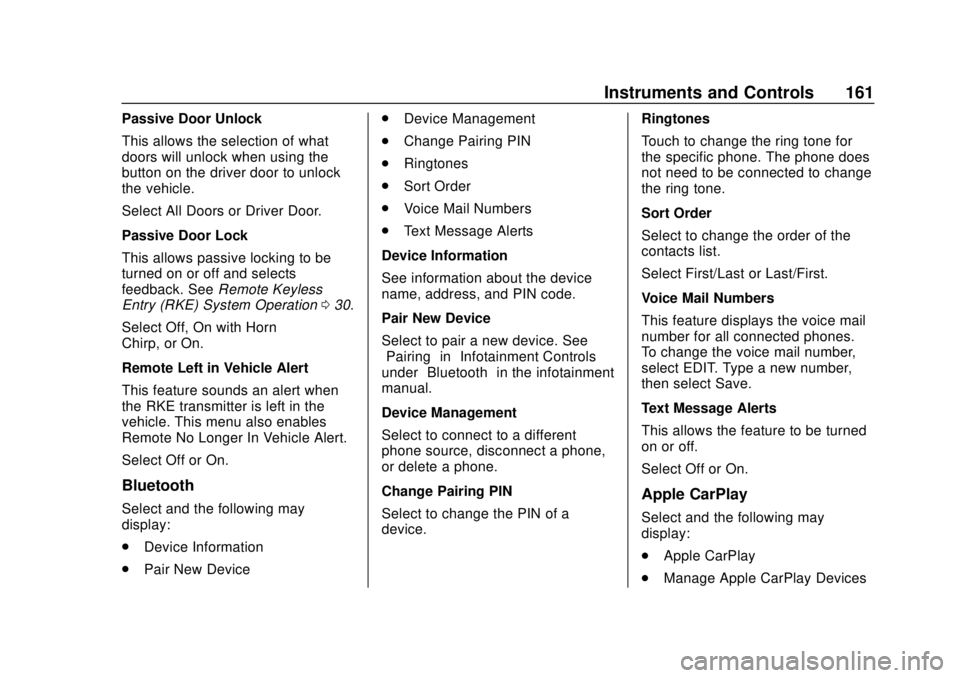
Passive Door Unlock
This allows the selection of what
doors will unlock when using the
button on the driver door to unlock
the vehicle.
Select All Doors or Driver Door.
Passive Door Lock
This allows passive locking to be
turned on or off and selects
feedback. SeeRemote Keyless
Entry (RKE) System Operation 030.
Select Off, On with Horn
Chirp, or On.
Remote Left in Vehicle Alert
This feature sounds an alert when
the RKE transmitter is left in the
vehicle. This menu also enables
Remote No Longer In Vehicle Alert.
Select Off or On.
Bluetooth
Select and the following may
display:
. Device Information
. Pair New Device .
Device Management
. Change Pairing PIN
. Ringtones
. Sort Order
. Voice Mail Numbers
. Text Message Alerts
Device Information
See information about the device
name, address, and PIN code.
Pair New Device
Select to pair a new device. See
“Pairing” in“Infotainment Controls”
under “Bluetooth” in the infotainment
manual.
Device Management
Select to connect to a different
phone source, disconnect a phone,
or delete a phone.
Change Pairing PIN
Select to change the PIN of a
device. Ringtones
Touch to change the ring tone for
the specific phone. The phone does
not need to be connected to change
the ring tone.
Sort Order
Select to change the order of the
contacts list.
Select First/Last or Last/First.
Voice Mail Numbers
This feature displays the voice mail
number for all connected phones.
To change the voice mail number,
select EDIT. Type a new number,
then select Save.
Text Message Alerts
This allows the feature to be turned
on or off.
Select Off or On.Apple CarPlay
Select and the following may
display:
.
Apple CarPlay
. Manage Apple CarPlay Devices
Page 163 of 428
Chevrolet Traverse Owner Manual (GMNA-Localizing-U.S./Canada/Mexico-
12146157) - 2019 - CRC - 10/31/18
162 Instruments and Controls
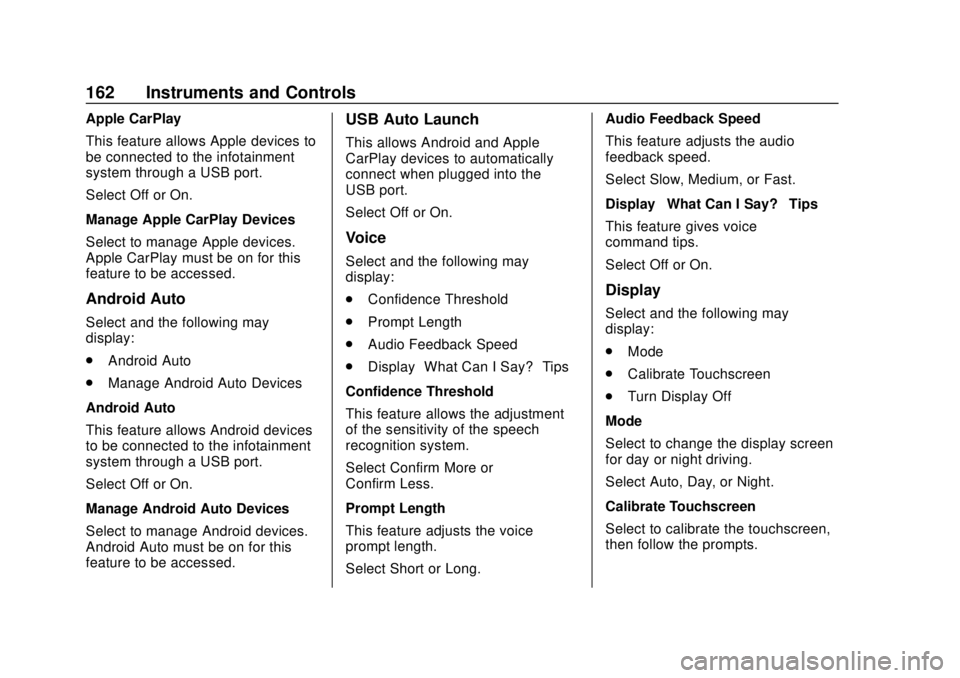
Apple CarPlay
This feature allows Apple devices to
be connected to the infotainment
system through a USB port.
Select Off or On.
Manage Apple CarPlay Devices
Select to manage Apple devices.
Apple CarPlay must be on for this
feature to be accessed.
Android Auto
Select and the following may
display:
.Android Auto
. Manage Android Auto Devices
Android Auto
This feature allows Android devices
to be connected to the infotainment
system through a USB port.
Select Off or On.
Manage Android Auto Devices
Select to manage Android devices.
Android Auto must be on for this
feature to be accessed.
USB Auto Launch
This allows Android and Apple
CarPlay devices to automatically
connect when plugged into the
USB port.
Select Off or On.
Voice
Select and the following may
display:
. Confidence Threshold
. Prompt Length
. Audio Feedback Speed
. Display “What Can I Say?” Tips
Confidence Threshold
This feature allows the adjustment
of the sensitivity of the speech
recognition system.
Select Confirm More or
Confirm Less.
Prompt Length
This feature adjusts the voice
prompt length.
Select Short or Long. Audio Feedback Speed
This feature adjusts the audio
feedback speed.
Select Slow, Medium, or Fast.
Display
“What Can I Say?” Tips
This feature gives voice
command tips.
Select Off or On.
Display
Select and the following may
display:
. Mode
. Calibrate Touchscreen
. Turn Display Off
Mode
Select to change the display screen
for day or night driving.
Select Auto, Day, or Night.
Calibrate Touchscreen
Select to calibrate the touchscreen,
then follow the prompts.
Page 164 of 428
Chevrolet Traverse Owner Manual (GMNA-Localizing-U.S./Canada/Mexico-
12146157) - 2019 - CRC - 10/31/18
Instruments and Controls 163
Turn Display Off
Select to turn the display off. Touch
anywhere on the infotainment
display area or press any controls
on the radio center stack to turn the
display on.
Rear Camera
This allows for Rear Park Assist
Symbols and Guidance Lines to be
turned off or on.
Select Off or On for the desired
feature.
SeeAssistance Systems for Parking
or Backing 0258.
Return to Factory Settings
Select and the following may
display:
.
Restore Vehicle Settings
. Clear All Private Data
. Restore Radio Settings Restore Vehicle Settings
This allows selection of restoring
vehicle settings.
Select Restore or Cancel.
Clear All Private Data
This allows selection to clear all
private information from the vehicle.
Select Delete or Cancel.
Restore Radio Settings
This allows selection to restore
radio settings.
Select Restore or Cancel.
Software Information
Touch to view or update the version
of the infotainment system software.
Wi-Fi
Select and the following may
display:
.
Wi-Fi
. Manage Wi-Fi Networks
Wi-Fi
This feature allows Wi-Fi networks
to be turned of or on.
Select Off or On.
Manage Wi-Fi Networks
Select to manage Wi-Fi networks.
Wi-Fi must be on for this feature to
be accessed.
Page 173 of 428
Chevrolet Traverse Owner Manual (GMNA-Localizing-U.S./Canada/Mexico-
12146157) - 2019 - CRC - 10/31/18
172 Lighting
Fog Lamps
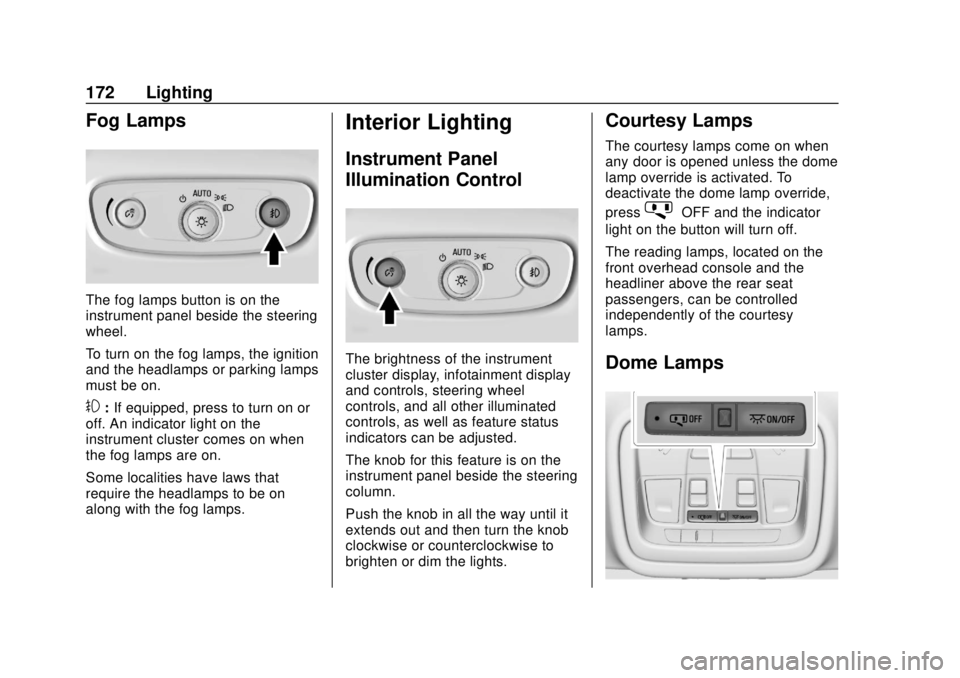
The fog lamps button is on the
instrument panel beside the steering
wheel.
To turn on the fog lamps, the ignition
and the headlamps or parking lamps
must be on.
#:If equipped, press to turn on or
off. An indicator light on the
instrument cluster comes on when
the fog lamps are on.
Some localities have laws that
require the headlamps to be on
along with the fog lamps.
Interior Lighting
Instrument Panel
Illumination Control
The brightness of the instrument
cluster display, infotainment display
and controls, steering wheel
controls, and all other illuminated
controls, as well as feature status
indicators can be adjusted.
The knob for this feature is on the
instrument panel beside the steering
column.
Push the knob in all the way until it
extends out and then turn the knob
clockwise or counterclockwise to
brighten or dim the lights.
Courtesy Lamps
The courtesy lamps come on when
any door is opened unless the dome
lamp override is activated. To
deactivate the dome lamp override,
press
jOFF and the indicator
light on the button will turn off.
The reading lamps, located on the
front overhead console and the
headliner above the rear seat
passengers, can be controlled
independently of the courtesy
lamps.
Dome Lamps