CD player CHEVROLET TRAX 2015 1.G User Guide
[x] Cancel search | Manufacturer: CHEVROLET, Model Year: 2015, Model line: TRAX, Model: CHEVROLET TRAX 2015 1.GPages: 409, PDF Size: 5.58 MB
Page 178 of 409
Black plate (19,1)Chevrolet TRAX Owner Manual (GMNA-Localizing-U.S./Canada/Mexico-
7576294) - 2015 - CRC - 2/6/15
Infotainment System 7-19
If the bottom surface of a disc is
dirty, take a soft, lint-free cloth,
or dampen a clean, soft cloth in a
mild neutral detergent solution
mixed with water, and clean it. Wipe
the disc from the center to the
outer edge.
Care of the CD Player
Do not add a label to a disc, as it
could get caught in the CD player.
If a label is needed, label the top of
the recorded disc with a
marking pen.
Do not use disc lens cleaners
because they could contaminate the
lens of the disc optics and damage
the CD player.
{Caution
If a label is added to a CD, more
than one CD is inserted into the
slot at a time, or an attempt is
made to play scratched or
damaged CDs, the CD player(Continued)
Caution (Continued)
could be damaged. While using
the CD player, use only CDs in
good condition without any label,
load one CD at a time, and keep
the CD player and the loading slot
free of foreign materials, liquids,
and debris.
Control Buttons
The buttons used to control the CD
player are:
AUX or CD/AUX:Press to use the
CD player.
SEEK
¨or©SEEK: Press to
select tracks or to fast forward or
rewind within a track.
INFO: Press to display additional
information about the current track
that may be available.
MENU/TUNE: Turn to select tracks.
Turn to enter the menu. Press to
select the menu.
Z(Eject): Press to eject the disc.
Inserting a CD
With the printed side facing up,
insert a disc into the CD slot until it
is drawn in.
Removing a CD
PressZ.
The disc is pushed out of the
CD slot.
If the disc is not removed after it is
ejected, it is pulled back in after a
few seconds.
Playing a CD or MP3 CD
Press the AUX or CD/AUX button.
If there is a disc in the player, it
begins playing.
Information about the disc and
current track is shown on the
display depending on the data
stored.
Page 183 of 409
Black plate (24,1)Chevrolet TRAX Owner Manual (GMNA-Localizing-U.S./Canada/Mexico-
7576294) - 2015 - CRC - 2/6/15
7-24 Infotainment System
For more information on USB
usage, see“Audio System” in
Pictures and Movies (Audio System)
on page 7-51 orPictures and
Movies (Picture System) on
page 7-55 orPictures and Movies
(Movie System) on page 7-57.
Auxiliary Devices
The 3.5 mm (1/8 in) AUX input jack,
if equipped, is on the front of the
infotainment system. See Overview
(Radio with Touchscreen) on
page 7-7 orOverview (AM-FM
Radio) on page 7-3 orOverview
(Radio with CD/USB) on page 7-5.
Portable devices are controlled by
using the menu system described in
Operation on page 7-8.
Radio without Touchscreen
Connect a 3.5 mm (1/8 in) cable to
the auxiliary input jack to use a
portable audio player.
The infotainment system will
automatically switch to the device
when the device is connected to the AUX input jack. Press the CD/AUX
button to switch to a device that is
already connected.
Playback of an audio device that is
connected to the 3.5 mm (1/8 in)
jack can only be controlled using
the controls on the device.
Adjusting the Volume
Turn the
O/VOL knob to adjust the
volume of the infotainment system
after the volume level has been set
on the portable audio device.
Radio with Touchscreen
The infotainment system can play
music or movies connected by the
auxiliary device.
Play will begin when the system has
finished reading the information on
the device. Playing Music
To play the music from the device,
if the device is already connected:
1. Press
D.
2. Press audio.
3. Press Source
R.
4. Press AUX/USB.
To adjust the tone settings, see
“Tone Settings” under“Radio
Controls with Touchscreen” in
Operation on page 7-8.
Page 185 of 409
Black plate (26,1)Chevrolet TRAX Owner Manual (GMNA-Localizing-U.S./Canada/Mexico-
7576294) - 2015 - CRC - 2/6/15
7-26 Infotainment System
When selecting Bluetooth audio, the
radio may not be able to launch the
audio player on the connected
device to start playing. When the
vehicle is not moving, choose the
phone to begin playback.
All devices launch audio differently.
When selecting Bluetooth audio as
a source, the radio may show as
paused on the screen. Press play
on the device to begin playback.
Some phones support sending
Bluetooth music information to
display on the radio. When the radio
receives this information, it will
check to see if any album art is
available and display it. For more
information about your phone and
supported Bluetooth features, see
www.gm.com/bluetooth.Phone
Bluetooth (Overview)
For vehicles equipped with
Bluetooth capability, the system can
interact with many cell phones,
allowing:
.Placement and receipt of calls in
a hands-free mode.
.Sharing of the cell phone’s
address book or contact list with
the vehicle.
To minimize driver distraction,
before driving, and with the vehicle
parked:
.Become familiar with the
features of the cell phone.
Organize the phone book and
contact lists clearly and delete
duplicate or rarely used entries.
If possible, program speed dial
or other shortcuts.
.Review the controls and
operation of the infotainment
system.
.Pair cell phone(s) to the vehicle.
The system may not work with
all cell phones. See “Pairing”in
this section.
.If the cell phone has voice
dialing capability, learn to use
that feature to access the
address book or contact list. See
“Voice Pass-Thru” in this
section.
.See “Storing and Deleting Phone
Numbers” in this section.
{Warning
When using a cell phone, it can
be distracting to look too long or
too often at the screen of the
phone or the infotainment system.
Taking your eyes off the road too
long or too often could cause a
crash resulting in injury or death.
Focus your attention on driving.
Vehicles with a Bluetooth system
can use a Bluetooth-capable cell
phone with a Hands-Free Profile to
Page 187 of 409
Black plate (28,1)Chevrolet TRAX Owner Manual (GMNA-Localizing-U.S./Canada/Mexico-
7576294) - 2015 - CRC - 2/6/15
7-28 Infotainment System
Pairing without Touchscreen
A Bluetooth-enabled cell phone
must be paired to the Bluetooth
system and then connected to the
vehicle before it can be used. See
your cell phone manufacturer's user
guide for Bluetooth functions before
pairing the cell phone. If a Bluetooth
phone is not connected, calls will be
made using OnStar Hands-Free
Calling, if available. See OnStar (if
equipped).
Pairing Information
.A Bluetooth phone with MP3
capability can be paired
separately to the vehicle as a
phone and an MP3 player at the
same time. This requires the
device to be paired two times;
once as a“hands-free” device
and once as an MP3 device.
.Up to five cell phones can be
paired to the Bluetooth system.
.The pairing process is disabled
when the vehicle is moving.
.Pairing only needs to be
completed once, unless the
pairing information on the cell
phone changes or the cell phone
is deleted from the system.
.Only one paired cell phone can
be connected to the Bluetooth
system at a time.
.If multiple paired cell phones are
within range of the system, the
system connects to the first
available paired cell phone in the
order that they were first paired
to the system. To link to a
different paired phone, see
“Linking to a Different Phone”
later in this section.
Pairing a Phone as a Hands-Free
Device
1. Press the CONFIG button.
2. Select Phone Settings or Bluetooth Settings.
3. Select Bluetooth. 4. Select Pair Device
(Hands-Free). A four-digit
Personal Identification Number
(PIN) appears on the display.
The PIN is used is Step 6.
5. Start the pairing process on the cell phone to be paired to the
vehicle. See the cell phone
manufacturer's user guide for
information on this process.
6. Locate the device named “Your
Vehicle” in the list on the cell
phone. Follow the instructions
on the cell phone to enter the
PIN provided in Step 4. After the
PIN is successfully entered, the
system prompts you to provide a
name for the paired cell phone.
This name will be used to
indicate which phones are
paired and connected to the
vehicle. The system responds
with “
successfully paired” after the
pairing process is complete.
7. Repeat Steps 1−6 to pair additional phones.
Page 190 of 409
Black plate (31,1)Chevrolet TRAX Owner Manual (GMNA-Localizing-U.S./Canada/Mexico-
7576294) - 2015 - CRC - 2/6/15
Infotainment System 7-31
5. To add more callers to theconference call, repeat Steps 1
−4. The number of callers that
can be added is limited by your
wireless service carrier.
Ending a Call
Turn or press the MENU/TUNE
knob and select Hang Up.
Muting a Call
To Mute a Call
Turn or press the MENU/TUNE
knob and select Mute Call.
To Cancel Mute
Turn or press the MENU/TUNE
knob and select Mute Call.
Dual Tone Multi-Frequency
(DTMF) Tones
The in-vehicle Bluetooth system can
send numbers during a call. This is
used when calling a menu-driven
phone system.
1. Turn or press the MENU/TUNEknob and select Enter Number. 2. Enter the character sequence.
Pairing with Touchscreen
A Bluetooth-enabled cell phone
must be paired to the Bluetooth
system and then connected to the
vehicle before it can be used. See
your cell phone manufacturer's user
guide for Bluetooth functions before
pairing the cell phone. If a Bluetooth
phone is not connected, calls will be
made using OnStar Hands-Free
Calling, if available. See OnStar (if
equipped).
Pairing Information
.A Bluetooth phone with MP3
capability cannot be paired to
the vehicle as a phone and an
MP3 player at the same time.
.Up to five cell phones can be
paired to the Bluetooth system.
.The pairing process is disabled
when the vehicle is moving.
.Pairing only needs to be
completed once, unless the
pairing information on the cell
phone changes or the cell phone
is deleted from the system.
.Only one paired cell phone can
be connected to the Bluetooth
system at a time.
.If multiple paired cell phones are
within range of the system, the
system connects to the first
available paired cell phone in the
order that they were first paired
to the system. To link to a
different paired phone, see
“Linking to a Different Phone”
later in this section.
When the Bluetooth device and
infotainment system are
successfully paired, the phone book
is downloaded automatically.
However, the phone book may not
be downloaded automatically
according to the type of the phone.
In this case, proceed with the
phonebook download on phone.
Page 194 of 409
Black plate (35,1)Chevrolet TRAX Owner Manual (GMNA-Localizing-U.S./Canada/Mexico-
7576294) - 2015 - CRC - 2/6/15
Infotainment System 7-35
Bluetooth music, connect the
Bluetooth phone to the
infotainment system.
.If the Bluetooth device is
disconnected while playing
phone music, the music is
discontinued. The audio
streaming function may not be
supported in some Bluetooth
phones. Only one function can
be used at a time between the
Bluetooth hands-free or Phone
music function. For example,
if you convert to the Bluetooth
hands-free while playing Phone
music, the music is
discontinued. Playing music from
the car is not possible when
there are no music files stored in
the cell phone.
.For Bluetooth music to play, the
music must be played at least
once from the music player
mode of the cell phone or
Bluetooth device after
connecting as a stereo headset.
After being played at least once,
the music player willautomatically play upon entering
play mode, and it will
automatically stop when the
music player mode ends. If the
cell phone or Bluetooth device is
not in the waiting screen mode,
some devices may not
automatically play in Bluetooth
music play mode.
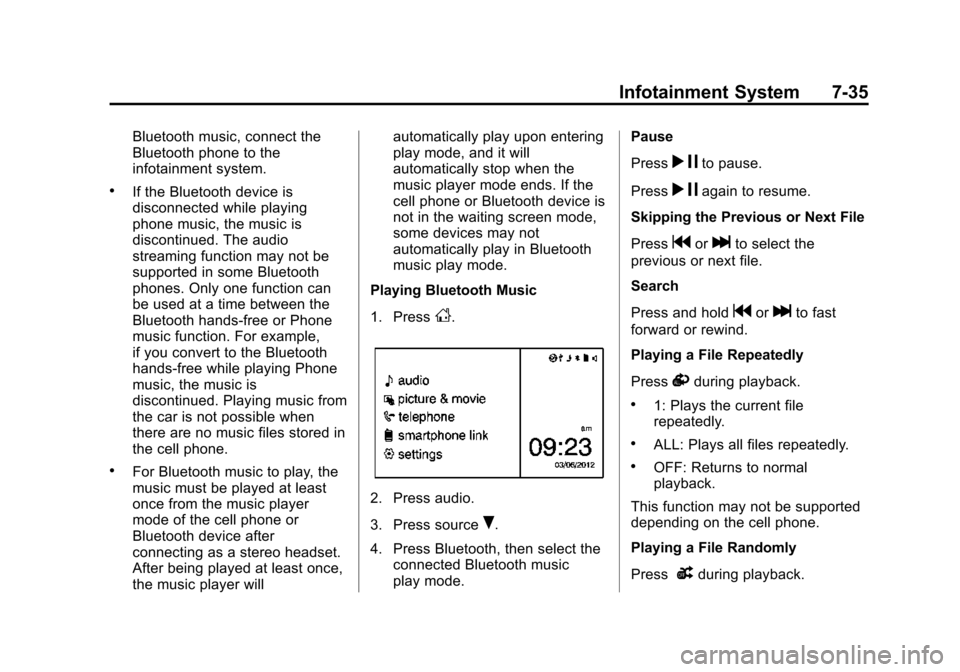
Playing Bluetooth Music
1. Press
D.
2. Press audio.
3. Press source
R.
4. Press Bluetooth, then select the connected Bluetooth music
play mode. Pause
Press
r
jto pause.
Press
r jagain to resume.
Skipping the Previous or Next File
Press
gorlto select the
previous or next file.
Search
Press and hold
gorlto fast
forward or rewind.
Playing a File Repeatedly
Press
vduring playback.
.1: Plays the current file
repeatedly.
.ALL: Plays all files repeatedly.
.OFF: Returns to normal
playback.
This function may not be supported
depending on the cell phone.
Playing a File Randomly
Press
uduring playback.
Page 195 of 409
Black plate (36,1)Chevrolet TRAX Owner Manual (GMNA-Localizing-U.S./Canada/Mexico-
7576294) - 2015 - CRC - 2/6/15
7-36 Infotainment System
.NO: Plays all files repeatedly.
.OFF: Returns to normal
playback.
This function may not be supported
depending on the cell phone.
Do not change the track too quickly
when playing Bluetooth music.
Conditions that may occur when
playing Bluetooth music:
.It takes some time to transmit
data from the cell phone to the
infotainment system.
.If the cell phone or Bluetooth
device is not in the waiting
screen mode, it may not
automatically play despite being
carried out from the Bluetooth
music play mode.
.The infotainment system
transmits the order to play from
the cell phone in the Bluetooth
music play mode. If this is done
in a different mode, then the
device transmits the order to
stop. Depending on the cell phone’s options, this order to
play/stop may take time to
activate.
.If the Bluetooth music playback
is not functioning, then check to
see if the cell phone is in the
waiting screen mode.
.Sounds may be cut off during
the Bluetooth music playback.
.The infotainment system outputs
the audio from the cell phone or
Bluetooth device as it is
transmitted.
Bluetooth (Voice
Recognition)
Using Voice Recognition
To use voice recognition, pressb/
gon the steering wheel. Use the
commands below for the various
voice features. For additional
information, say "Help" while you
are in a voice recognition menu.
Pairing
A Bluetooth-enabled cell phone
must be paired to the Bluetooth
system and then connected to the
vehicle before it can be used. See
your cell phone manufacturer's user
guide for Bluetooth functions before
pairing the cell phone. If a Bluetooth
phone is not connected, calls will be
made using OnStar Hands-Free
Calling, if available. See OnStar (if
equipped).
Pairing Information
.A Bluetooth phone with MP3
capability can be paired to the
vehicle as a phone and an MP3
player at the same time.
.Up to five cell phones can be
paired to the Bluetooth system.
.The pairing process is disabled
when the vehicle is moving.
.Pairing only needs to be
completed once, unless the
pairing information on the cell
phone changes or the cell phone
is deleted from the system.
Page 212 of 409
Black plate (53,1)Chevrolet TRAX Owner Manual (GMNA-Localizing-U.S./Canada/Mexico-
7576294) - 2015 - CRC - 2/6/15
Infotainment System 7-53
.Refer to the table for the
classification items related to the
search function provided by the
iPod/iPhone.
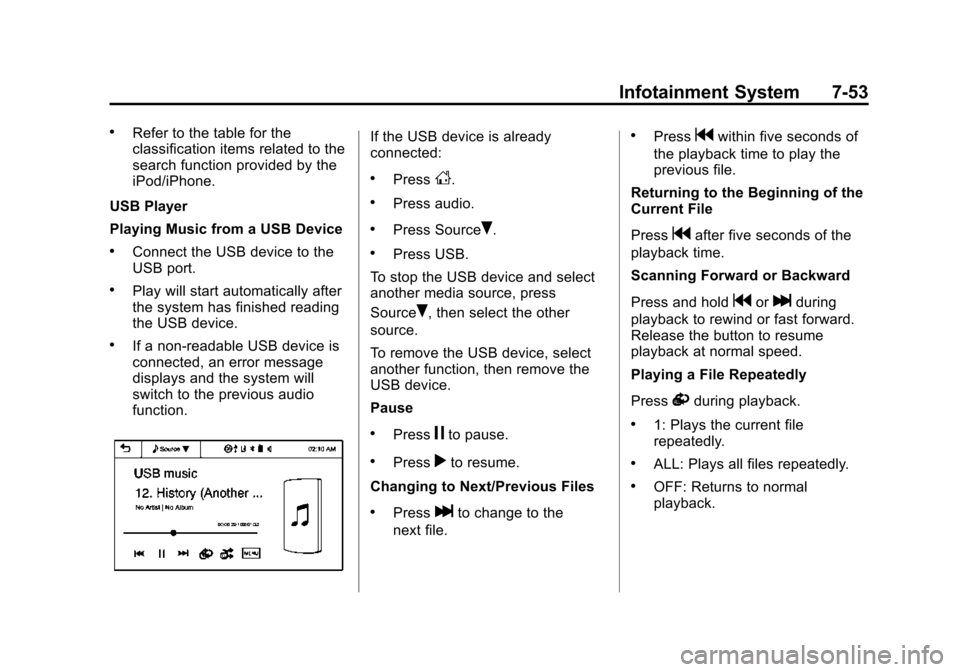
USB Player
Playing Music from a USB Device
.Connect the USB device to the
USB port.
.Play will start automatically after
the system has finished reading
the USB device.
.If a non-readable USB device is
connected, an error message
displays and the system will
switch to the previous audio
function.
If the USB device is already
connected:
.PressD.
.Press audio.
.Press SourceR.
.Press USB.
To stop the USB device and select
another media source, press
Source
R, then select the other
source.
To remove the USB device, select
another function, then remove the
USB device.
Pause
.Pressjto pause.
.Pressrto resume.
Changing to Next/Previous Files
.Presslto change to the
next file.
.Pressgwithin five seconds of
the playback time to play the
previous file.
Returning to the Beginning of the
Current File
Press
gafter five seconds of the
playback time.
Scanning Forward or Backward
Press and hold
gorlduring
playback to rewind or fast forward.
Release the button to resume
playback at normal speed.
Playing a File Repeatedly
Press
vduring playback.
.1: Plays the current file
repeatedly.
.ALL: Plays all files repeatedly.
.OFF: Returns to normal
playback.
Page 213 of 409
Black plate (54,1)Chevrolet TRAX Owner Manual (GMNA-Localizing-U.S./Canada/Mexico-
7576294) - 2015 - CRC - 2/6/15
7-54 Infotainment System
Playing a File Randomly
Press
uduring playback.
.ON: Plays all files randomly.
.OFF: Returns to normal
playback.
Viewing Information on the
Currently Playing File
Press the title during playback to
display information about the current
file playing.
.The information displayed
includes the title, file name,
folder name, and artist/album
saved with the song.
.Incorrect information cannot be
modified or corrected on the
infotainment system.
.The information for songs
expressed in special symbols or
in unavailable languages may be
displayed as “
u.”
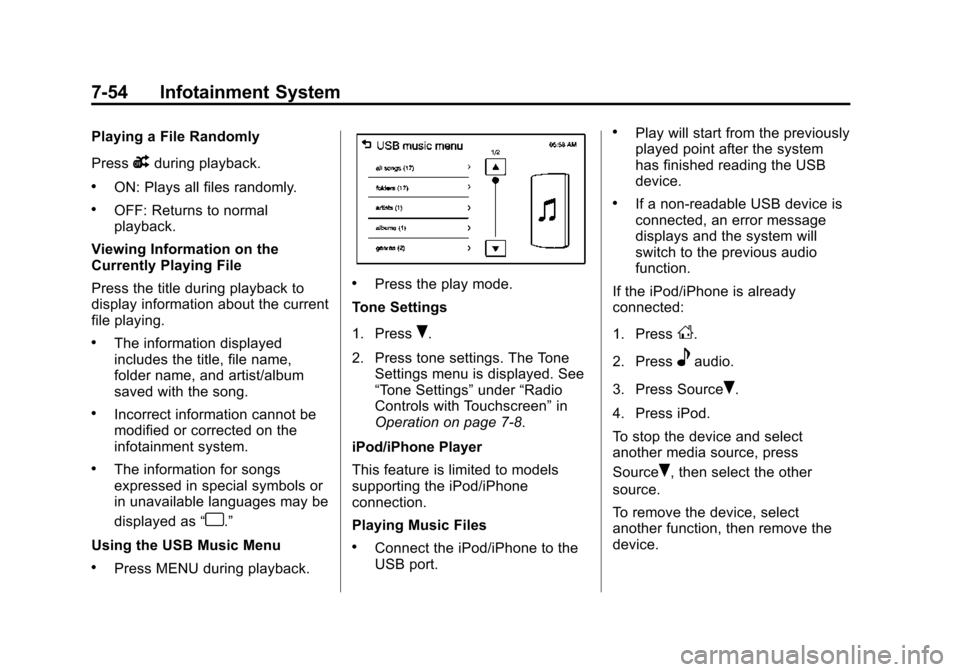
Using the USB Music Menu
.Press MENU during playback.
.Press the play mode.
Tone Settings
1. Press
R.
2. Press tone settings. The Tone Settings menu is displayed. See
“Tone Settings” under“Radio
Controls with Touchscreen” in
Operation on page 7-8.
iPod/iPhone Player
This feature is limited to models
supporting the iPod/iPhone
connection.
Playing Music Files
.Connect the iPod/iPhone to the
USB port.
.Play will start from the previously
played point after the system
has finished reading the USB
device.
.If a non-readable USB device is
connected, an error message
displays and the system will
switch to the previous audio
function.
If the iPod/iPhone is already
connected:
1. Press
D.
2. Press
eaudio.
3. Press Source
R.
4. Press iPod.
To stop the device and select
another media source, press
Source
R, then select the other
source.
To remove the device, select
another function, then remove the
device.
Page 398 of 409

Black plate (1,1)Chevrolet TRAX Owner Manual (GMNA-Localizing-U.S./Canada/Mexico-
7576294) - 2015 - CRC - 2/6/15
INDEX i-1
A
About Driving the Vehicle . . . . . . . . . iv
Accessories andModifications . . . . . . . . . . . . . . . . . 10-3
Accessory Power . . . . . . . . . . . . . . 9-19
Add-On Electrical Equipment . . . . . . . . . . . . . . . . . . . 9-44
Additional Information OnStar
®. . . . . . . . . . . . . . . . . . . . . . 14-6
Additional Maintenance and Care . . . . . . . . . . . . . . . . . . . . . 11-8
Adjustments Lumbar, Front Seats . . . . . . . . . . . 3-5
Air Cleaner/Filter, Engine . . . . . 10-13
Air Filter, Passenger Compartment . . . . . . . . . . . . . . . . . 8-5
Air Intake . . . . . . . . . . . . . . . . . . . . . . . 8-5
Air Vents . . . . . . . . . . . . . . . . . . . . . . . 8-4
Airbag System Check . . . . . . . . . . . . . . . . . . . . . . . . 3-42
How Does an Airbag
Restrain? . . . . . . . . . . . . . . . . . . . 3-34
Passenger Sensing System . . . . . . . . . . . . . . . . . . . . . . 3-36 Airbag System (cont'd)
What Makes an Airbag
Inflate? . . . . . . . . . . . . . . . . . . . . . . 3-34
What Will You See after an
Airbag Inflates? . . . . . . . . . . . . . 3-35
When Should an Airbag Inflate? . . . . . . . . 3-32, 3-33
Where Are the Airbags? . . . . . . . . . . . . . . 3-30, 3-31
Airbags Adding Equipment to theVehicle . . . . . . . . . . . . . . . . . . . . . . 3-41
Passenger Status Indicator . . . 5-12
Readiness Light . . . . . . . . . . . . . . 5-12
Servicing Airbag-Equipped Vehicles . . . . . . . . . . . . . . . . . . . . . 3-40
System Check . . . . . . . . . . 3-26, 3-28
Alarm
Vehicle Security . . . . . . . . . . . . . . 2-10
All-Season Tires . . . . . . . . . . . . . . 10-42
All-Wheel Drive . . . . . . . . . 9-28, 10-25
AM-FM Radio . . . . . . . . . . . . . . . . . . 7-11
Antenna Multi-band . . . . . . . . . . . . . . . . . . . . 7-18 Antilock Brake
System (ABS) . . . . . . . . . . . . . . . . 9-29
Warning Light . . . . . . . . . . . . . . . . . 5-17
Appearance Care Exterior . . . . . . . . . . . . . . . . . . . . . 10-74
Interior . . . . . . . . . . . . . . . . . . . . . . 10-79
Armrest
Front Seat . . . . . . . . . . . . . . . . . . . . . 3-6
Rear Seat . . . . . . . . . . . . . . . . . . . . 3-12
Assistance Program, Roadside . . . . . . . . . . . . . . . . . . . . . 13-5
Audio Bluetooth . . . . . . . . . . . . . . . . . . . . . 7-25
Audio Players . . . . . . . . . . . . . . . . . 7-18 CD . . . . . . . . . . . . . . . . . . . . . . . . . . . 7-18
Audio System
Fixed Mast Antenna . . . . . . . . . . 7-18
Radio Reception . . . . . . . . . . . . . . 7-17
Theft-Deterrent Feature . . . . . . . . 7-2
Automatic Door Locks . . . . . . . . . . . . . . . . . . . . 2-8
Headlamp System . . . . . . . . . . . . . 6-3
Transmission . . . . . . . . . . . . . . . . . 9-23
Transmission Fluid . . . . . . . . . 10-13