audio CHEVROLET TRAX 2015 1.G User Guide
[x] Cancel search | Manufacturer: CHEVROLET, Model Year: 2015, Model line: TRAX, Model: CHEVROLET TRAX 2015 1.GPages: 409, PDF Size: 5.58 MB
Page 161 of 409
Black plate (2,1)Chevrolet TRAX Owner Manual (GMNA-Localizing-U.S./Canada/Mexico-
7576294) - 2015 - CRC - 2/6/15
7-2 Infotainment System
features are also available through
the instrument cluster and steering
wheel controls.
Before driving:
.Become familiar with the
operation, faceplate buttons, and
screen buttons.
.Set up the audio by presetting
favorite stations, setting the
tone, and adjusting the
speakers.
.Set up phone numbers in
advance so they can be called
easily by pressing a single
button or by using a single voice
command if equipped with
Bluetooth phone capability.
See Defensive Driving on page 9-3
To play the infotainment system with
the ignition off, see Retained
Accessory Power (RAP) on
page 9-19.Theft-Deterrent Feature
The infotainment system has an
electronic security system installed
to prevent theft.
The infotainment system only works
in the vehicle in which it was first
installed, and cannot be used in
another vehicle.
Page 162 of 409
Black plate (3,1)Chevrolet TRAX Owner Manual (GMNA-Localizing-U.S./Canada/Mexico-
7576294) - 2015 - CRC - 2/6/15
Infotainment System 7-3
Overview (AM-FM Radio)
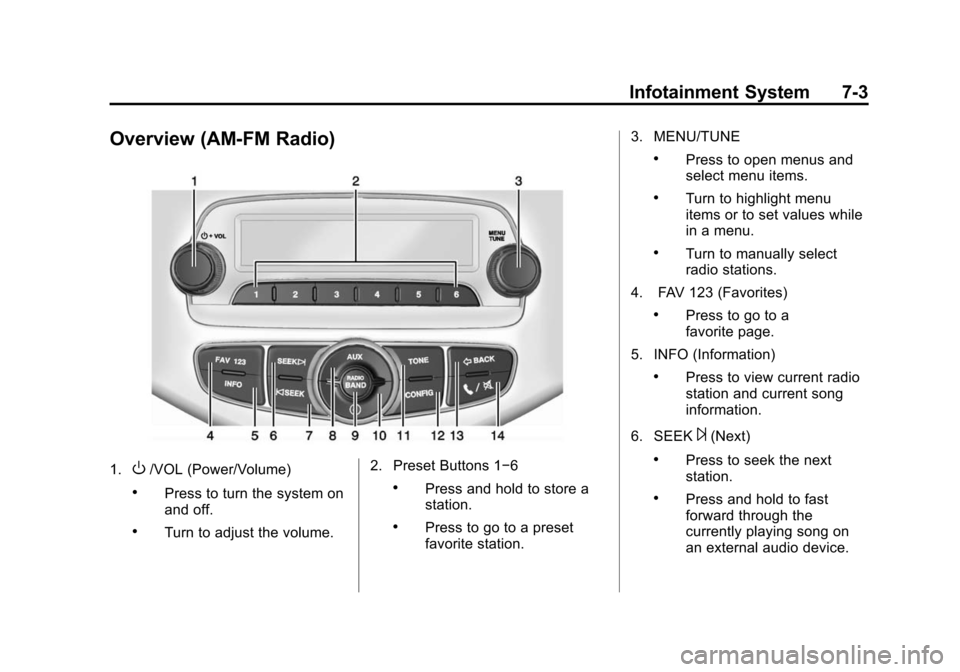
1.O/VOL (Power/Volume)
.Press to turn the system on
and off.
.Turn to adjust the volume.2. Preset Buttons 1−6
.Press and hold to store a
station.
.Press to go to a preset
favorite station.3. MENU/TUNE
.Press to open menus and
select menu items.
.Turn to highlight menu
items or to set values while
in a menu.
.Turn to manually select
radio stations.
4. FAV 123 (Favorites)
.Press to go to a
favorite page.
5. INFO (Information)
.Press to view current radio
station and current song
information.
6. SEEK
¨(Next)
.Press to seek the next
station.
.Press and hold to fast
forward through the
currently playing song on
an external audio device.
Page 163 of 409

Black plate (4,1)Chevrolet TRAX Owner Manual (GMNA-Localizing-U.S./Canada/Mexico-
7576294) - 2015 - CRC - 2/6/15
7-4 Infotainment System
7.©SEEK (Previous)
.Press to seek the previous
station.
.Press and hold to reverse
through the currently
playing song on an external
audio device.
8. AUX (Auxiliary)
.Press to access the
auxiliary input device.
9. RADIO/BAND
.Press to select AM, FM,
or band.
.Press to select the radio
when listening to a different
audio source.
10.
H(Clock)
.Press to enter the Time
and Date Settings menu.
11. TONE
.Press to open the
Tone menu. 12. CONFIG (Configuration)
.Press to open the System
Configuration menu.
13.
/BACK
.Press to go to the
previous screen.
.Press to cancel entered
content.
14.
5/>(Phone/Mute)
.Press to open the Phone
main menu.
.Press to mute the audio
system.
Page 165 of 409

Black plate (6,1)Chevrolet TRAX Owner Manual (GMNA-Localizing-U.S./Canada/Mexico-
7576294) - 2015 - CRC - 2/6/15
7-6 Infotainment System
7. INFO (Information)
.Radio: Shows available
information about the
current station.
.CD: Shows available
information about the
current track.
8. CD Slot
9. SEEK
¨
.Radio: Seeks the next
station.
.CD: Selects the next track
or fast forwards within a
track.
10.
©SEEK
.Radio: Seeks the previous
station.
.CD: Selects the previous
track or rewinds within a
track.
11. CD/AUX
.Selects the CD player or
an external audio source. 12. RADIO/BAND
.Changes the band while
listening to the radio.
.Selects the radio when
listening to a different
audio source.
13.
H(Clock Menu)
.Opens the Clock menu.
14. TONE
.Opens the Tone menu.
15. CONFIG (Configuration)
.Opens the
Configuration menu.
16.
/BACK
.Menu: Moves one
level back.
.Character Input: Deletes
the last character.
17.
5/>(Phone/Mute)
.Opens the Phone menu.
.Mutes the audio system.
Page 166 of 409
Black plate (7,1)Chevrolet TRAX Owner Manual (GMNA-Localizing-U.S./Canada/Mexico-
7576294) - 2015 - CRC - 2/6/15
Infotainment System 7-7
Overview (Radio with Touchscreen)
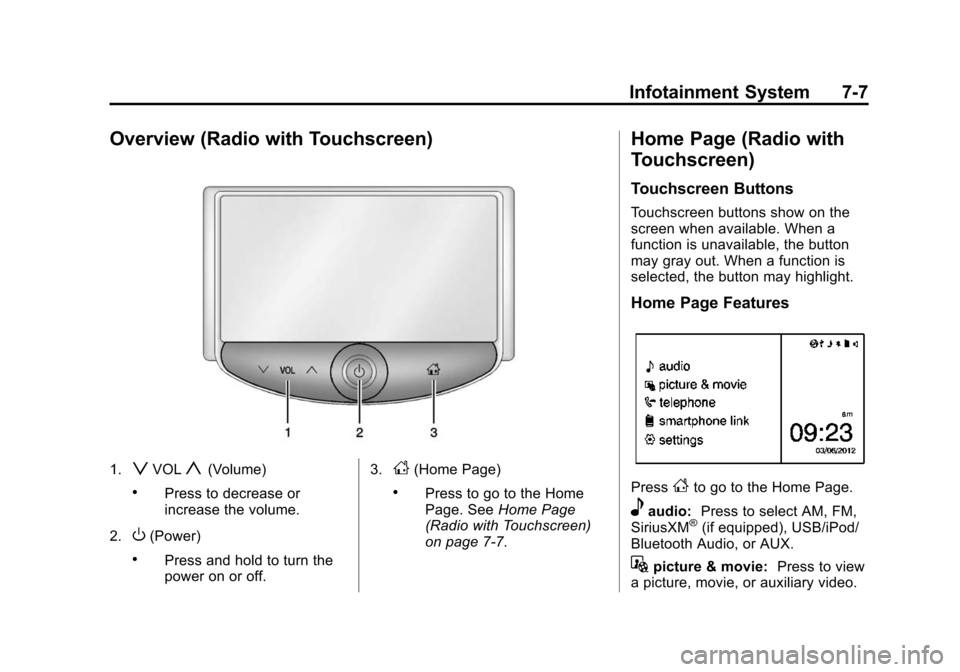
1.zVOLy(Volume)
.Press to decrease or
increase the volume.
2.
O(Power)
.Press and hold to turn the
power on or off. 3.
D(Home Page)
.Press to go to the Home
Page. See
Home Page
(Radio with Touchscreen)
on page 7-7.
Home Page (Radio with
Touchscreen)
Touchscreen Buttons
Touchscreen buttons show on the
screen when available. When a
function is unavailable, the button
may gray out. When a function is
selected, the button may highlight.
Home Page Features
PressFto go to the Home Page.
eaudio: Press to select AM, FM,
SiriusXM®(if equipped), USB/iPod/
Bluetooth Audio, or AUX.
Gpicture & movie: Press to view
a picture, movie, or auxiliary video.
Page 168 of 409
Black plate (9,1)Chevrolet TRAX Owner Manual (GMNA-Localizing-U.S./Canada/Mexico-
7576294) - 2015 - CRC - 2/6/15
Infotainment System 7-9
/BACK:
Press to:
.Exit a menu.
.Go back to the previous menu
screen.
.Delete the last character in a
sequence.
.Press and hold to delete the
entire character sequence.
Submenus
An arrow on the right-hand edge of
the menu indicates that it has a
submenu with other options.
Audio Settings
The audio settings can be set for
each radio band and each audio
player source.
Adjusting the Bass, Midrange,
Treble, Fader, and Balance
1. Press the TONE button.
2. Turn the MENU/TUNE knob to the desired tone. 3. Press the MENU/TUNE knob to
select the desired tone.
4. Turn the MENU/TUNE knob to adjust the desired tone.
5. Press the MENU/TUNE knob to save the setting.
Press the
/BACK button to go
back to the Tone Settings menu.
Adjusting the EQ (Equalizer)
1. Press the TONE button.
2. Turn the MENU/TUNE knob to EQ.
3. Press the MENU/TUNE knob.
Turn the MENU/TUNE knob to
select one of the following, then
press the MENU/TUNE knob to
select it.
.OFF
.Pop
.Rock
.Classical
.Talk
.Country
Press the
/BACK button to go
back to the Tone Settings menu.
System Settings
Configuring the Number of
Favorite Pages
Up to six favorite pages can be
saved, and each page can store up
to six radio stations.
To configure the number of available
favorite pages:
1. Press the CONFIG button.
2. Select Radio Settings.
3. Select Radio Favorites.
4. Select the number of available favorite pages to display.
5. Press the
/BACK button to go
back to the System
Configuration menu.
Page 170 of 409
Black plate (11,1)Chevrolet TRAX Owner Manual (GMNA-Localizing-U.S./Canada/Mexico-
7576294) - 2015 - CRC - 2/6/15
Infotainment System 7-11
Audio Settings
The audio settings can be set for
each radio band and each audio
player source.
Tone Settings:Press menu, then
tone settings from the AM or
FM menu.
.EQ (Equalizer): PressSorTto
select a sound style or turn off
the sound style. When in tone
settings, Manual and Talk may
be the only settings available
depending on the sound system.
.Bass, Mid (Midrange), or Treble:
Press −or + to change the
desired sound style from −12
to +12.
.Fader or Balance: Adjust the
front/rear or left/right speakers
by dragging the dot in the
vehicle image on the screen.
.Reset: Restore the settings back
to default settings.
Press OK to exit Tone Settings.
Radio
AM-FM Radio
Playing the Radio without
Touchscreen
Audio Source Menu
O/VOL (Power/Volume): Press to
turn the system on and off. Turn to
increase or decrease the volume.
MENU/TUNE: Turn to change the
radio station.
RADIO/BAND: Press to select AM
and FM.
INFO: Press to display additional
information that may be available for
the current song.
FAV 123: Press to open the
favorites list and select a
favorite page.
Preset Buttons 1–6: Press to
select preset stations.
Radio Broadcast Data
System (RBDS)
RBDS is a service by FM stations
that makes it easier to find radio
stations with fault-free reception.
RBDS stations are indicated by the
program name instead of the
broadcasting frequency.
View RBDS Broadcast
Information
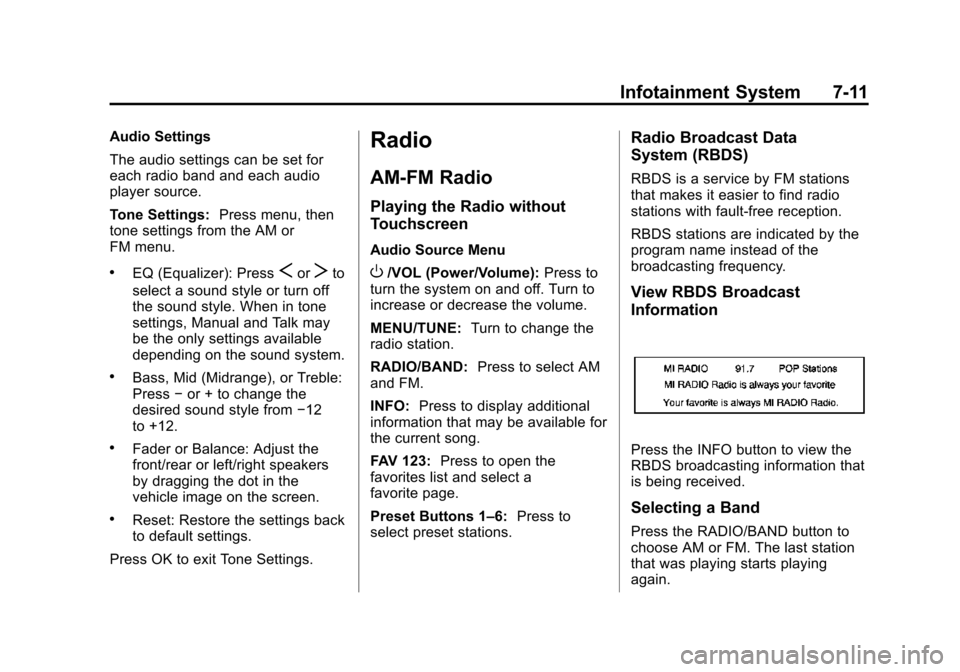
Press the INFO button to view the
RBDS broadcasting information that
is being received.
Selecting a Band
Press the RADIO/BAND button to
choose AM or FM. The last station
that was playing starts playing
again.
Page 171 of 409
Black plate (12,1)Chevrolet TRAX Owner Manual (GMNA-Localizing-U.S./Canada/Mexico-
7576294) - 2015 - CRC - 2/6/15
7-12 Infotainment System
Selecting an Auxiliary Device
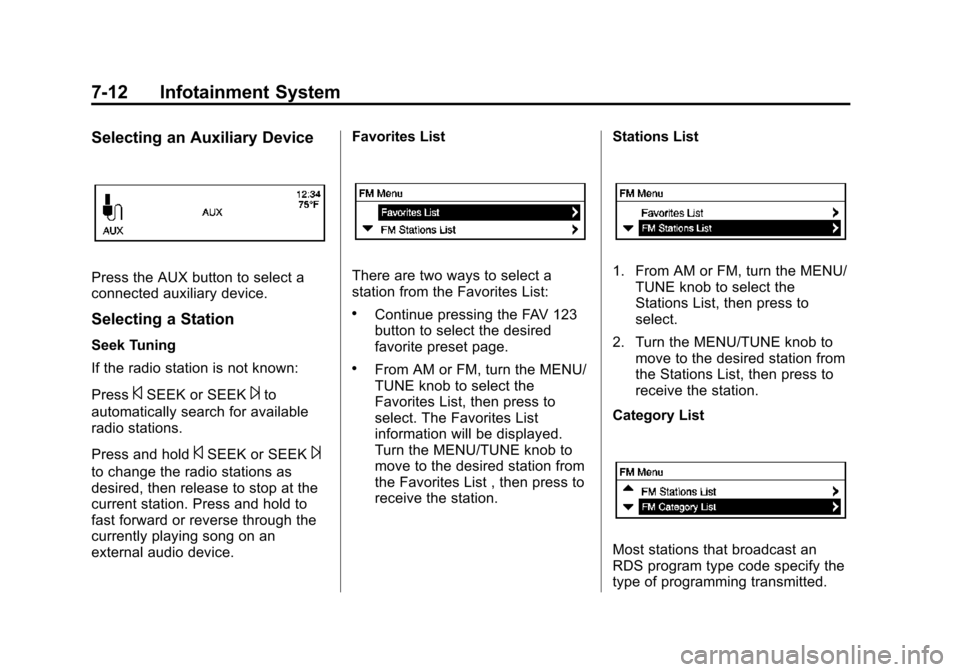
Press the AUX button to select a
connected auxiliary device.
Selecting a Station
Seek Tuning
If the radio station is not known:
Press
©SEEK or SEEK¨to
automatically search for available
radio stations.
Press and hold
©SEEK or SEEK¨
to change the radio stations as
desired, then release to stop at the
current station. Press and hold to
fast forward or reverse through the
currently playing song on an
external audio device. Favorites List
There are two ways to select a
station from the Favorites List:
.Continue pressing the FAV 123
button to select the desired
favorite preset page.
.From AM or FM, turn the MENU/
TUNE knob to select the
Favorites List, then press to
select. The Favorites List
information will be displayed.
Turn the MENU/TUNE knob to
move to the desired station from
the Favorites List , then press to
receive the station.
Stations List
1. From AM or FM, turn the MENU/
TUNE knob to select the
Stations List, then press to
select.
2. Turn the MENU/TUNE knob to move to the desired station from
the Stations List, then press to
receive the station.
Category List
Most stations that broadcast an
RDS program type code specify the
type of programming transmitted.
Page 172 of 409
Black plate (13,1)Chevrolet TRAX Owner Manual (GMNA-Localizing-U.S./Canada/Mexico-
7576294) - 2015 - CRC - 2/6/15
Infotainment System 7-13
Some stations change the program
type code depending on the
content. The system stores the RDS
stations sorted by program type in
the FM category list.
To search for a programming type
determined by station:
1. From FM, turn the MENU/TUNEknob to select FM Category List,
then press the MENU/
TUNE knob.
2. Turn the MENU/TUNE knob to move to the desired station, then
press the MENU TUNE knob to
receive the selected
broadcasting channel.
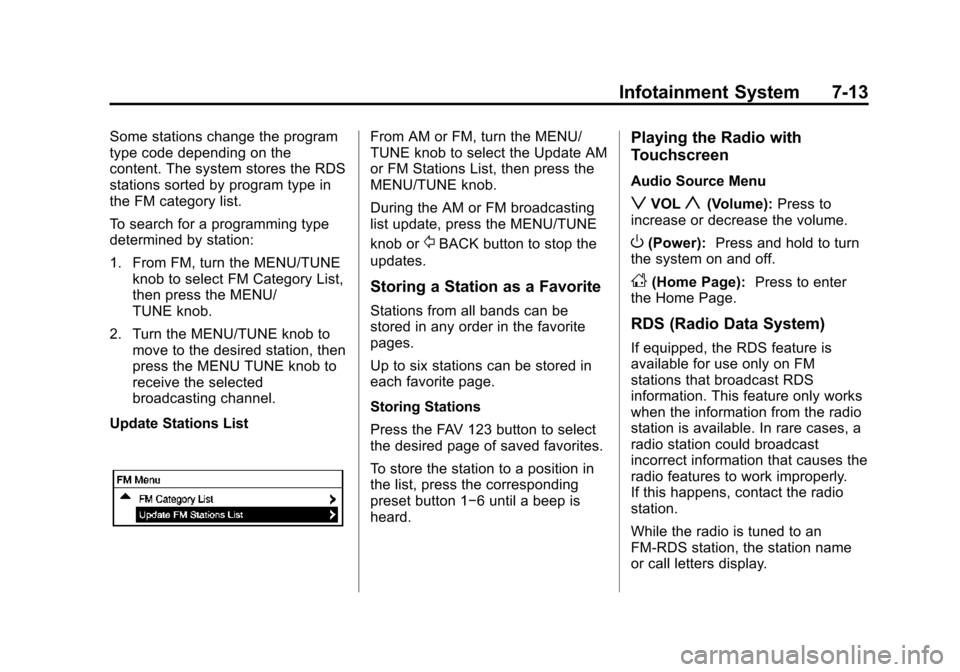
Update Stations ListFrom AM or FM, turn the MENU/
TUNE knob to select the Update AM
or FM Stations List, then press the
MENU/TUNE knob.
During the AM or FM broadcasting
list update, press the MENU/TUNE
knob or
/BACK button to stop the
updates.
Storing a Station as a Favorite
Stations from all bands can be
stored in any order in the favorite
pages.
Up to six stations can be stored in
each favorite page.
Storing Stations
Press the FAV 123 button to select
the desired page of saved favorites.
To store the station to a position in
the list, press the corresponding
preset button 1−6 until a beep is
heard.
Playing the Radio with
Touchscreen
Audio Source Menu
zVOLy(Volume): Press to
increase or decrease the volume.
O(Power): Press and hold to turn
the system on and off.
D(Home Page): Press to enter
the Home Page.
RDS (Radio Data System)
If equipped, the RDS feature is
available for use only on FM
stations that broadcast RDS
information. This feature only works
when the information from the radio
station is available. In rare cases, a
radio station could broadcast
incorrect information that causes the
radio features to work improperly.
If this happens, contact the radio
station.
While the radio is tuned to an
FM-RDS station, the station name
or call letters display.
Page 173 of 409
Black plate (14,1)Chevrolet TRAX Owner Manual (GMNA-Localizing-U.S./Canada/Mexico-
7576294) - 2015 - CRC - 2/6/15
7-14 Infotainment System
Selecting a Band
PressD, audio, then SourceRto
choose AM, FM, or SiriusXM®,
if equipped. The last station that
was playing starts playing again.
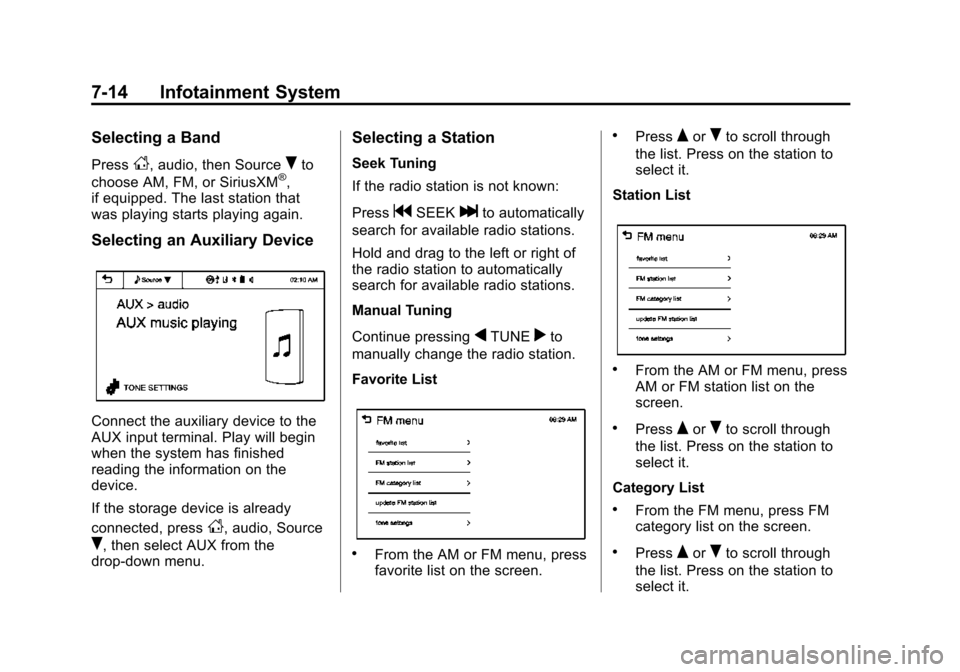
Selecting an Auxiliary Device
Connect the auxiliary device to the
AUX input terminal. Play will begin
when the system has finished
reading the information on the
device.
If the storage device is already
connected, press
D, audio, Source
R, then select AUX from the
drop-down menu.
Selecting a Station
Seek Tuning
If the radio station is not known:
Press
gSEEKlto automatically
search for available radio stations.
Hold and drag to the left or right of
the radio station to automatically
search for available radio stations.
Manual Tuning
Continue pressing
qTUNErto
manually change the radio station.
Favorite List
.From the AM or FM menu, press
favorite list on the screen.
.PressQorRto scroll through
the list. Press on the station to
select it.
Station List
.From the AM or FM menu, press
AM or FM station list on the
screen.
.PressQorRto scroll through
the list. Press on the station to
select it.
Category List
.From the FM menu, press FM
category list on the screen.
.PressQorRto scroll through
the list. Press on the station to
select it.