buttons CHEVROLET TRAX 2015 1.G User Guide
[x] Cancel search | Manufacturer: CHEVROLET, Model Year: 2015, Model line: TRAX, Model: CHEVROLET TRAX 2015 1.GPages: 409, PDF Size: 5.58 MB
Page 167 of 409
Black plate (8,1)Chevrolet TRAX Owner Manual (GMNA-Localizing-U.S./Canada/Mexico-
7576294) - 2015 - CRC - 2/6/15
7-8 Infotainment System
7telephone:Press to activate
the phone features (if equipped).
See Bluetooth (Voice Recognition)
on page 7-36 orBluetooth
(Infotainment Controls) on
page 7-27 orBluetooth (Overview)
on page 7-26.
^smartphone link: Press to listen
to Pandora®(if equipped), Stitcher®,
or available application. See
Smartphone Link (Overview) on
page 7-45 orSmartphone Link
(Pandora) on page 7-47 or
Smartphone Link (Stitcher) on
page 7-49.
8settings: Press to access the
Personalization menu. See Vehicle
Personalization on page 5-28.
Operation
Radio Controls without
Touchscreen
The infotainment system is operated
by using the pushbuttons,
multifunction knobs, and menus
shown on the display.
Turning the System On or Off
O/VOL (Power/Volume): Press to
turn the radio on and off.
Automatic Switch-Off
If the infotainment system has been
turned on after the ignition is turned
off, the system will turn off
automatically after 10 minutes.
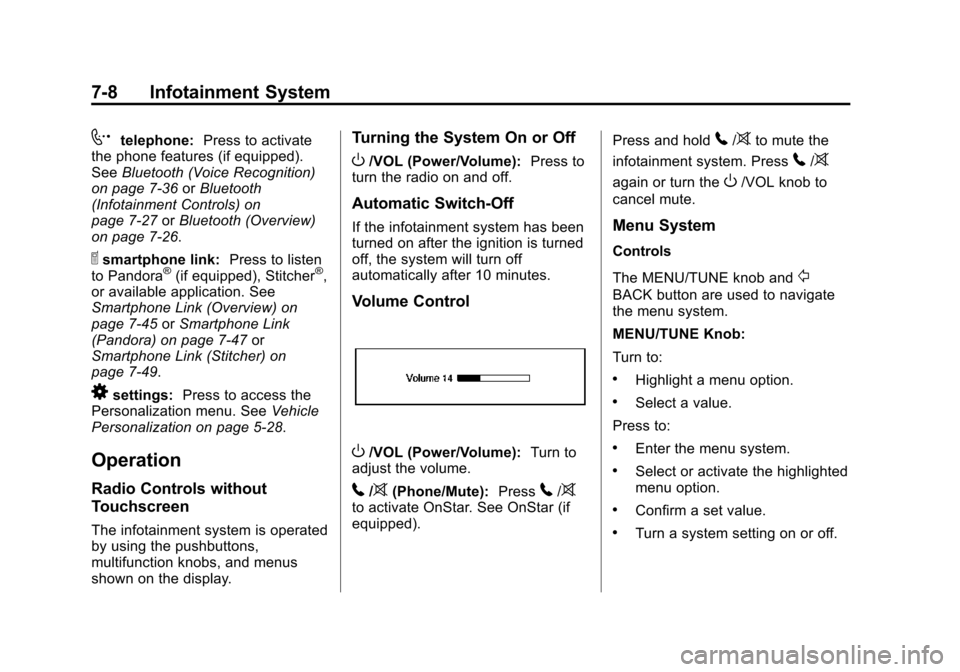
Volume Control
O/VOL (Power/Volume): Turn to
adjust the volume.
5/>(Phone/Mute): Press5/>to activate OnStar. See OnStar (if
equipped). Press and hold
5/>to mute the
infotainment system. Press
5/>
again or turn theO/VOL knob to
cancel mute.
Menu System
Controls
The MENU/TUNE knob and
/
BACK button are used to navigate
the menu system.
MENU/TUNE Knob:
Turn to:
.Highlight a menu option.
.Select a value.
Press to:
.Enter the menu system.
.Select or activate the highlighted
menu option.
.Confirm a set value.
.Turn a system setting on or off.
Page 169 of 409
Black plate (10,1)Chevrolet TRAX Owner Manual (GMNA-Localizing-U.S./Canada/Mexico-
7576294) - 2015 - CRC - 2/6/15
7-10 Infotainment System
Auto Volume
This feature automatically adjusts
the radio volume to compensate for
road and wind noise.
The level of volume compensation
can be selected, or the feature can
be turned off.
1. Press the CONFIG button.
2. Select Radio Settings.
3. Select Auto Volume.
4. Select the setting.
5. Press the
/BACK button to go
back to the System
Configuration menu.
Radio Controls with
Touchscreen
The infotainment system is operated
by using the pushbuttons, menus
shown on the display, and steering
wheel controls.
Turning the System On or Off
O(Power): Press and hold to turn
the radio on and off. Automatic Switch-Off
If the infotainment system has been
turned on after the ignition is turned
off, the system will turn off
automatically after 10 minutes.
Volume Control
zVOLy(Volume):
Press to
increase or decrease the volume or
press the volume bar.
>(Mute): PresszVOLy, then
press
>to mute and unmute the
system.
System Settings
Auto Volume
This feature automatically adjusts
the radio volume to compensate for
road and wind noise.
The level of volume compensation
can be selected, or the feature can
be turned off.
1. Press
D.
2. Select Settings.
3. Select Radio Settings. 4. Select Auto Volume.
5. Select the setting by pressing
S
orT.
6. Press the
4screen button to
go back to the System
Configuration menu.
Auto Store (AS)
This feature automatically stores the
stations with the strongest
reception.
To store or update the stations,
press and hold the AS screen
button.
To listen to a auto stored station:
1. Select AM or FM.
2. Press the AS screen button.
3. Press
SorTrepeatedly to
select the desired AS page.
4. Press the desired preset station screen button.
Page 170 of 409
Black plate (11,1)Chevrolet TRAX Owner Manual (GMNA-Localizing-U.S./Canada/Mexico-
7576294) - 2015 - CRC - 2/6/15
Infotainment System 7-11
Audio Settings
The audio settings can be set for
each radio band and each audio
player source.
Tone Settings:Press menu, then
tone settings from the AM or
FM menu.
.EQ (Equalizer): PressSorTto
select a sound style or turn off
the sound style. When in tone
settings, Manual and Talk may
be the only settings available
depending on the sound system.
.Bass, Mid (Midrange), or Treble:
Press −or + to change the
desired sound style from −12
to +12.
.Fader or Balance: Adjust the
front/rear or left/right speakers
by dragging the dot in the
vehicle image on the screen.
.Reset: Restore the settings back
to default settings.
Press OK to exit Tone Settings.
Radio
AM-FM Radio
Playing the Radio without
Touchscreen
Audio Source Menu
O/VOL (Power/Volume): Press to
turn the system on and off. Turn to
increase or decrease the volume.
MENU/TUNE: Turn to change the
radio station.
RADIO/BAND: Press to select AM
and FM.
INFO: Press to display additional
information that may be available for
the current song.
FAV 123: Press to open the
favorites list and select a
favorite page.
Preset Buttons 1–6: Press to
select preset stations.
Radio Broadcast Data
System (RBDS)
RBDS is a service by FM stations
that makes it easier to find radio
stations with fault-free reception.
RBDS stations are indicated by the
program name instead of the
broadcasting frequency.
View RBDS Broadcast
Information
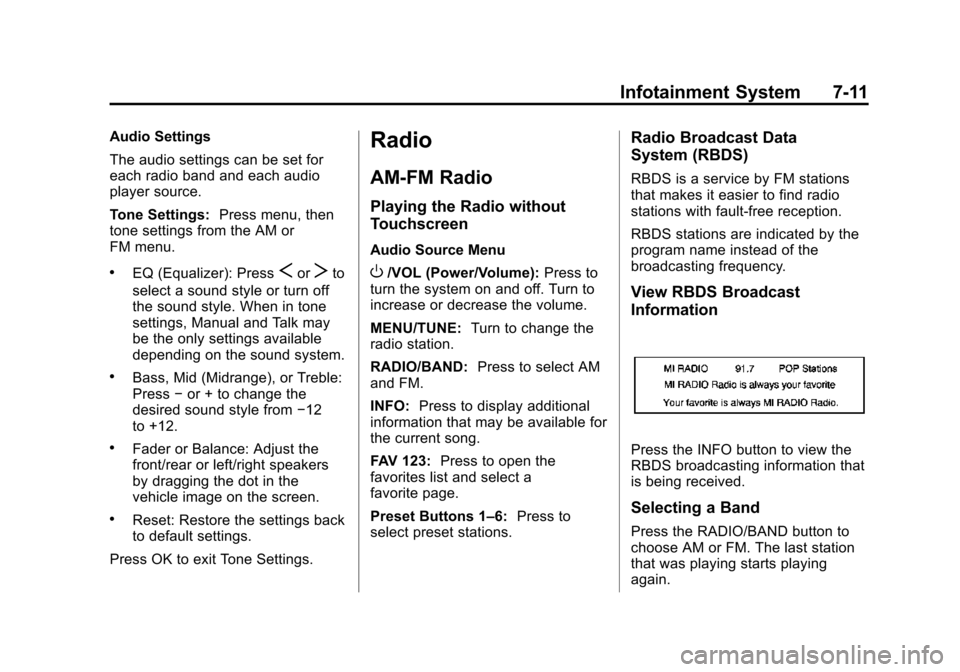
Press the INFO button to view the
RBDS broadcasting information that
is being received.
Selecting a Band
Press the RADIO/BAND button to
choose AM or FM. The last station
that was playing starts playing
again.
Page 174 of 409
Black plate (15,1)Chevrolet TRAX Owner Manual (GMNA-Localizing-U.S./Canada/Mexico-
7576294) - 2015 - CRC - 2/6/15
Infotainment System 7-15
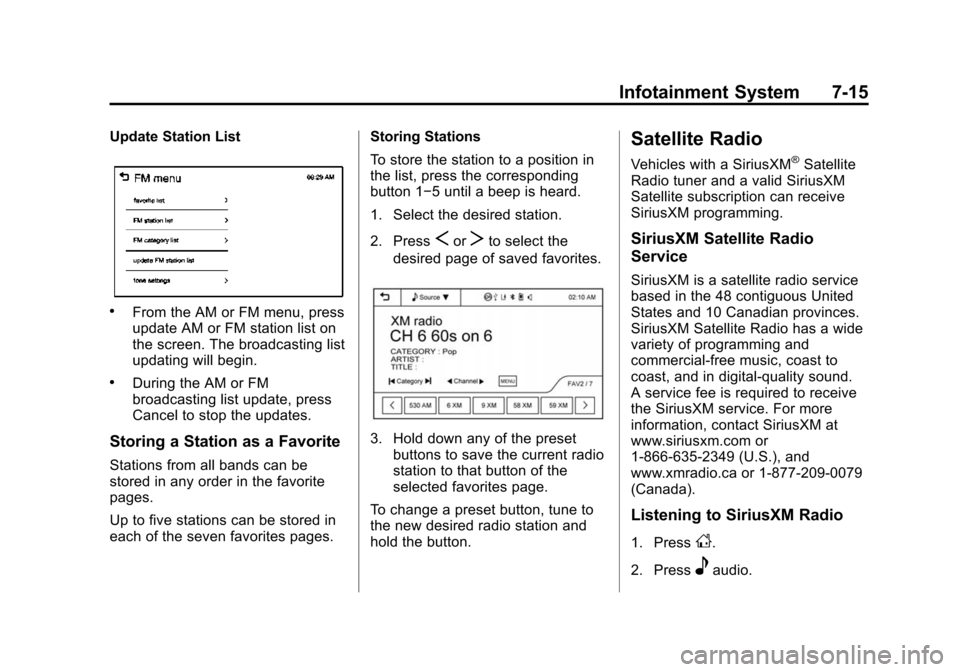
Update Station List
.From the AM or FM menu, press
update AM or FM station list on
the screen. The broadcasting list
updating will begin.
.During the AM or FM
broadcasting list update, press
Cancel to stop the updates.
Storing a Station as a Favorite
Stations from all bands can be
stored in any order in the favorite
pages.
Up to five stations can be stored in
each of the seven favorites pages.Storing Stations
To store the station to a position in
the list, press the corresponding
button 1−5 until a beep is heard.
1. Select the desired station.
2. Press
SorTto select the
desired page of saved favorites.
3. Hold down any of the preset buttons to save the current radio
station to that button of the
selected favorites page.
To change a preset button, tune to
the new desired radio station and
hold the button.
Satellite Radio
Vehicles with a SiriusXM®Satellite
Radio tuner and a valid SiriusXM
Satellite subscription can receive
SiriusXM programming.
SiriusXM Satellite Radio
Service
SiriusXM is a satellite radio service
based in the 48 contiguous United
States and 10 Canadian provinces.
SiriusXM Satellite Radio has a wide
variety of programming and
commercial-free music, coast to
coast, and in digital-quality sound.
A service fee is required to receive
the SiriusXM service. For more
information, contact SiriusXM at
www.siriusxm.com or
1-866-635-2349 (U.S.), and
www.xmradio.ca or 1-877-209-0079
(Canada).
Listening to SiriusXM Radio
1. PressD.
2. Press
eaudio.
Page 175 of 409
Black plate (16,1)Chevrolet TRAX Owner Manual (GMNA-Localizing-U.S./Canada/Mexico-
7576294) - 2015 - CRC - 2/6/15
7-16 Infotainment System
3. Press SourceR.
4. From the drop-down menu, press XM and the most recent
listened to SiriusXM channel will
display.
Press
4to return to the
HOME menu.
Selecting a Category
Continue pressingqCategoryr
and the previous or next category
will be selected.
Selecting a Channel
PressqChannelrand the
previous or next channel will be
selected within the same category.
Press and hold
qChannelrto
jump four channels backward or
forward in the same category, then
release the button at the desired
channel.
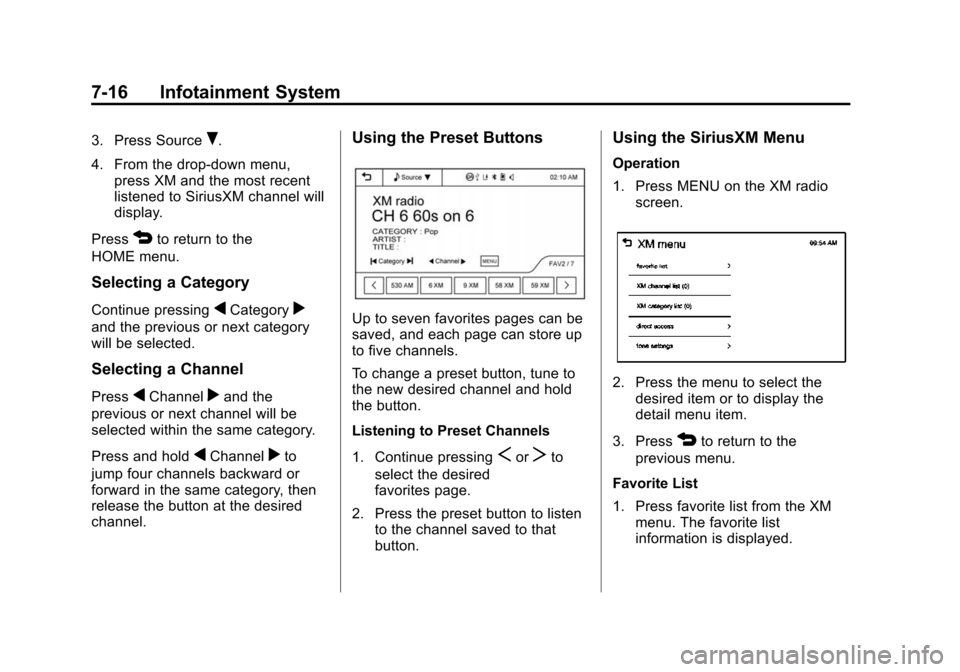
Using the Preset Buttons
Up to seven favorites pages can be
saved, and each page can store up
to five channels.
To change a preset button, tune to
the new desired channel and hold
the button.
Listening to Preset Channels
1. Continue pressing
SorTto
select the desired
favorites page.
2. Press the preset button to listen to the channel saved to that
button.
Using the SiriusXM Menu
Operation
1. Press MENU on the XM radioscreen.
2. Press the menu to select thedesired item or to display the
detail menu item.
3. Press
4to return to the
previous menu.
Favorite List
1. Press favorite list from the XM menu. The favorite list
information is displayed.
Page 178 of 409
Black plate (19,1)Chevrolet TRAX Owner Manual (GMNA-Localizing-U.S./Canada/Mexico-
7576294) - 2015 - CRC - 2/6/15
Infotainment System 7-19
If the bottom surface of a disc is
dirty, take a soft, lint-free cloth,
or dampen a clean, soft cloth in a
mild neutral detergent solution
mixed with water, and clean it. Wipe
the disc from the center to the
outer edge.
Care of the CD Player
Do not add a label to a disc, as it
could get caught in the CD player.
If a label is needed, label the top of
the recorded disc with a
marking pen.
Do not use disc lens cleaners
because they could contaminate the
lens of the disc optics and damage
the CD player.
{Caution
If a label is added to a CD, more
than one CD is inserted into the
slot at a time, or an attempt is
made to play scratched or
damaged CDs, the CD player(Continued)
Caution (Continued)
could be damaged. While using
the CD player, use only CDs in
good condition without any label,
load one CD at a time, and keep
the CD player and the loading slot
free of foreign materials, liquids,
and debris.
Control Buttons
The buttons used to control the CD
player are:
AUX or CD/AUX:Press to use the
CD player.
SEEK
¨or©SEEK: Press to
select tracks or to fast forward or
rewind within a track.
INFO: Press to display additional
information about the current track
that may be available.
MENU/TUNE: Turn to select tracks.
Turn to enter the menu. Press to
select the menu.
Z(Eject): Press to eject the disc.
Inserting a CD
With the printed side facing up,
insert a disc into the CD slot until it
is drawn in.
Removing a CD
PressZ.
The disc is pushed out of the
CD slot.
If the disc is not removed after it is
ejected, it is pulled back in after a
few seconds.
Playing a CD or MP3 CD
Press the AUX or CD/AUX button.
If there is a disc in the player, it
begins playing.
Information about the disc and
current track is shown on the
display depending on the data
stored.
Page 179 of 409
Black plate (20,1)Chevrolet TRAX Owner Manual (GMNA-Localizing-U.S./Canada/Mexico-
7576294) - 2015 - CRC - 2/6/15
7-20 Infotainment System
Selecting a CD Track
Using the control buttons:
.Press SEEK¨or©SEEK to
select the next or previous track.
.Turn the MENU/TUNE knob.
Using the CD Menu:
1. Turn the MENU/TUNE knob.
2. Select Tracks List.
3. Select the track.
Playing Tracks in Random Order
Turn the MENU/TUNE knob and set
Shuffle Songs to On.
Fast Forward and Rewind
Press and hold SEEK
¨or©SEEK
to fast forward or rewind within the
current track.
Selecting an MP3 Track
Using the control buttons:
.Press SEEK¨or©SEEK to
select the next or previous track.
.Turn the MENU/TUNE knob. Using the CD Menu:
1. Turn the MENU/TUNE knob.
2. Select Playlists/Folders.
3. Select the playlist or folder.
4. Select the track.
Searching for MP3 Tracks
The search feature may take some
time to display the information after
reading the disc due to the amount
of information stored on the disc.
FM automatically plays while the
disc is being read.
Tracks can be searched by:
.Playlists
.Artists
.Albums
.Song Titles
.Genres
.Folder View
To search for tracks:
1. Turn the MENU/TUNE knob.
2. Select Search. 3. Select: Playlists, Artists, Albums,
Song Titles, Genres,
or Folder View.
4. Select the track.
USB Port
The USB port is in the storage area
to the right of the infotainment
system. See Overview (Radio with
Touchscreen) on page 7-7 or
Overview (AM-FM Radio) on
page 7-3 orOverview (Radio with
CD/USB) on page 7-5.
Portable devices are controlled by
using the menu system described in
Operation on page 7-8.
Radio without Touchscreen
If equipped with a USB port, the
following devices may be connected
and controlled by the infotainment
system:
.iPods
.PlaysForSure Devices (PFDs)
.USB Drives
Page 186 of 409
Black plate (27,1)Chevrolet TRAX Owner Manual (GMNA-Localizing-U.S./Canada/Mexico-
7576294) - 2015 - CRC - 2/6/15
Infotainment System 7-27
make and receive phone calls. The
infotainment system and voice
recognition are used to control the
system. The system can be used
while in ON/RUN or ACC/
ACCESSORY. The range of the
Bluetooth system can be up to 9.1 m
(30 ft). Not all phones support all
functions and not all phones work
with the Bluetooth system. See
www.gm.com/bluetooth for more
information about compatible
phones.
Bluetooth Controls
Use the buttons located on the
infotainment system and the
steering wheel to operate the
Bluetooth system.
Steering Wheel Controls
b/g(Press to Talk):Press to
answer incoming calls, confirm
system information, and start voice
recognition.
$/i(Mute/End Call): Press to
end a call, reject a call, or cancel an
operation. Infotainment System Controls
If equipped, the infotainment system
allows certain controls to be
selected on the infotainment display.
For information about how to
navigate the menu system using the
infotainment controls, see
Operation
on page 7-8.
5/>(Phone): Press to enter the
Phone main menu.
Voice Recognition
The voice recognition system uses
commands to control the system
and dial phone numbers.
Noise: The system may not
recognize voice commands if there
is too much background noise. Do
not point the center air vents directly
upward.
When to Speak: A tone sounds to
indicate that the system is ready for
a voice command. Wait for the tone
and then speak.
How to Speak: Speak clearly in a
calm and natural voice.
Audio System
When using the Bluetooth system,
sound comes through the vehicle's
front audio system speakers and
overrides the audio system. Use the
O/VOL knob during a call to
change the volume level. The
adjusted volume level remains in
memory for later calls. The system
maintains a minimum volume level.
Other Information
The Bluetooth®word mark and
logos are owned by the Bluetooth®
SIG, Inc. and any use of such marks
by General Motors is under license.
Other trademarks and trade names
are those of their respective owners.
See Radio Frequency Statement on
page 13-11.
Bluetooth (Infotainment
Controls)
For information about how to
navigate the menu system using the
infotainment controls, see Operation
on page 7-8.
Page 202 of 409
Black plate (43,1)Chevrolet TRAX Owner Manual (GMNA-Localizing-U.S./Canada/Mexico-
7576294) - 2015 - CRC - 2/6/15
Infotainment System 7-43
Hands-Free Phone Controls
Use the buttons on the infotainment
system and the steering wheel to
operate the Hands-Free Phone
system.
Steering Wheel Controls
Steering wheel controls can be
used to:
.Answer incoming calls.
.Confirm system information.
.End a call.
.Decline a call.
.Cancel an operation.
.Make outgoing calls using the
call list.
b/g(Press to Talk):Press to
answer incoming calls and to
confirm system information. Press
and hold for two to three seconds to
access the call list.
$/i(Mute/End Call): Press to
end a call, decline a call, or cancel
an operation. Making a Call by Entering a Phone
Number
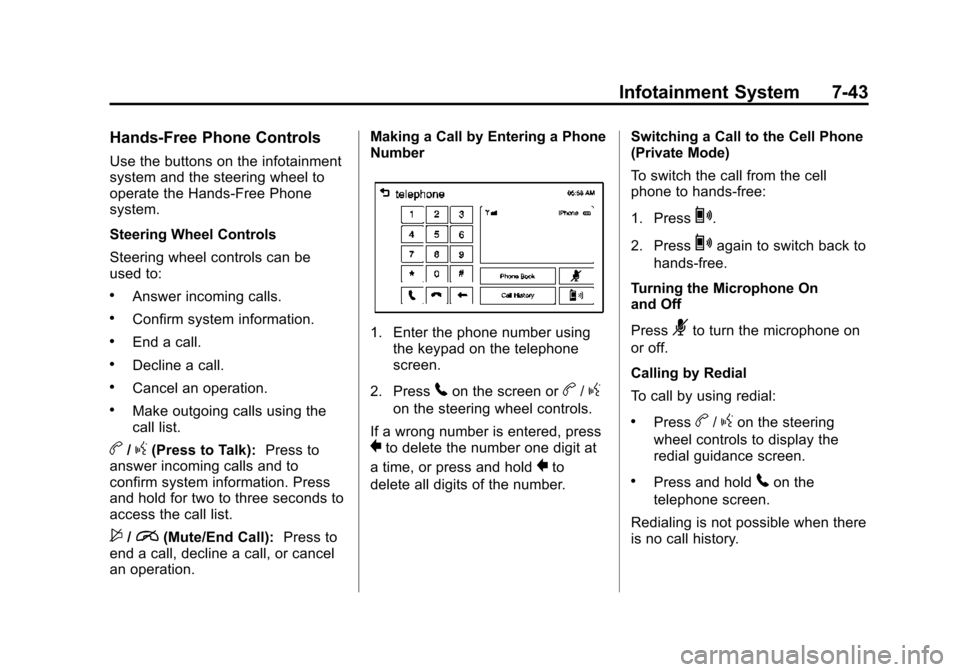
1. Enter the phone number using
the keypad on the telephone
screen.
2. Press
5on the screen orb/g
on the steering wheel controls.
If a wrong number is entered, press
}to delete the number one digit at
a time, or press and hold
}to
delete all digits of the number. Switching a Call to the Cell Phone
(Private Mode)
To switch the call from the cell
phone to hands-free:
1. Press
0.
2. Press
0again to switch back to
hands-free.
Turning the Microphone On
and Off
Press
3to turn the microphone on
or off.
Calling by Redial
To call by using redial:
.Pressb/gon the steering
wheel controls to display the
redial guidance screen.
.Press and hold5on the
telephone screen.
Redialing is not possible when there
is no call history.
Page 388 of 409
Black plate (1,1)Chevrolet TRAX Owner Manual (GMNA-Localizing-U.S./Canada/Mexico-
7576294) - 2015 - CRC - 2/6/15
OnStar 14-1
OnStar
OnStar Overview
OnStar Overview . . . . . . . . . . . . 14-1
OnStar Services
Emergency . . . . . . . . . . . . . . . . . . 14-2
Security . . . . . . . . . . . . . . . . . . . . . . 14-3
Navigation . . . . . . . . . . . . . . . . . . . 14-3
Connections . . . . . . . . . . . . . . . . . 14-4
Vehicle Diagnostics . . . . . . . . . . 14-6
OnStar Additional Information
OnStar AdditionalInformation . . . . . . . . . . . . . . . . . 14-6
OnStar Overview
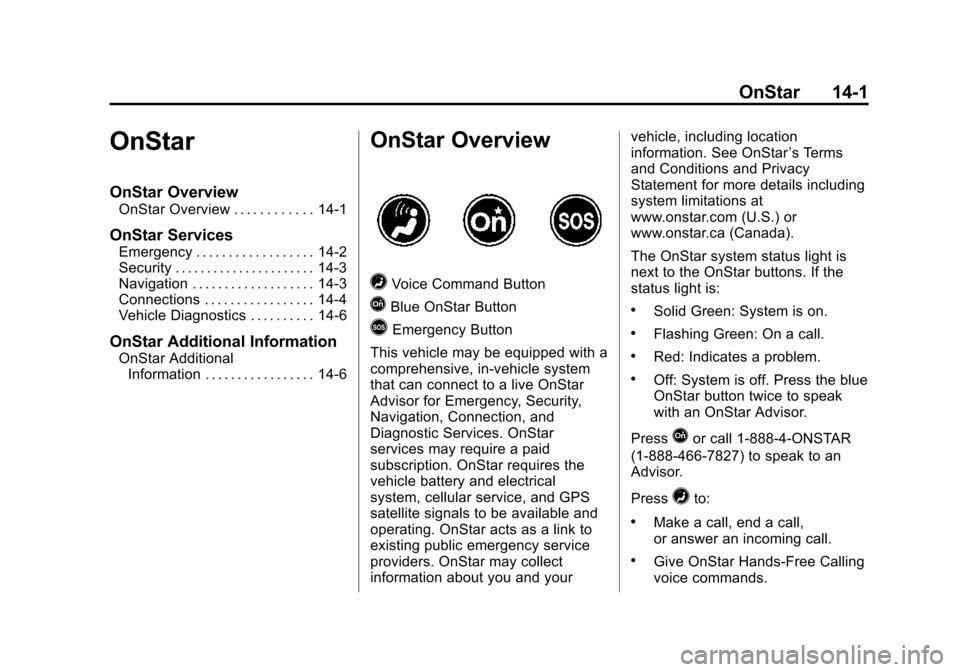
=Voice Command Button
QBlue OnStar Button
>Emergency Button
This vehicle may be equipped with a
comprehensive, in-vehicle system
that can connect to a live OnStar
Advisor for Emergency, Security,
Navigation, Connection, and
Diagnostic Services. OnStar
services may require a paid
subscription. OnStar requires the
vehicle battery and electrical
system, cellular service, and GPS
satellite signals to be available and
operating. OnStar acts as a link to
existing public emergency service
providers. OnStar may collect
information about you and your vehicle, including location
information. See OnStar
’s Terms
and Conditions and Privacy
Statement for more details including
system limitations at
www.onstar.com (U.S.) or
www.onstar.ca (Canada).
The OnStar system status light is
next to the OnStar buttons. If the
status light is:
.Solid Green: System is on.
.Flashing Green: On a call.
.Red: Indicates a problem.
.Off: System is off. Press the blue
OnStar button twice to speak
with an OnStar Advisor.
Press
Qor call 1-888-4-ONSTAR
(1-888-466-7827) to speak to an
Advisor.
Press
=to:
.Make a call, end a call,
or answer an incoming call.
.Give OnStar Hands-Free Calling
voice commands.