display CHEVROLET TRAX 2015 1.G User Guide
[x] Cancel search | Manufacturer: CHEVROLET, Model Year: 2015, Model line: TRAX, Model: CHEVROLET TRAX 2015 1.GPages: 409, PDF Size: 5.58 MB
Page 139 of 409
Black plate (24,1)Chevrolet TRAX Owner Manual (GMNA-Localizing-U.S./Canada/Mexico-
7576294) - 2015 - CRC - 2/6/15
5-24 Instruments and Controls
DIC Menu Items
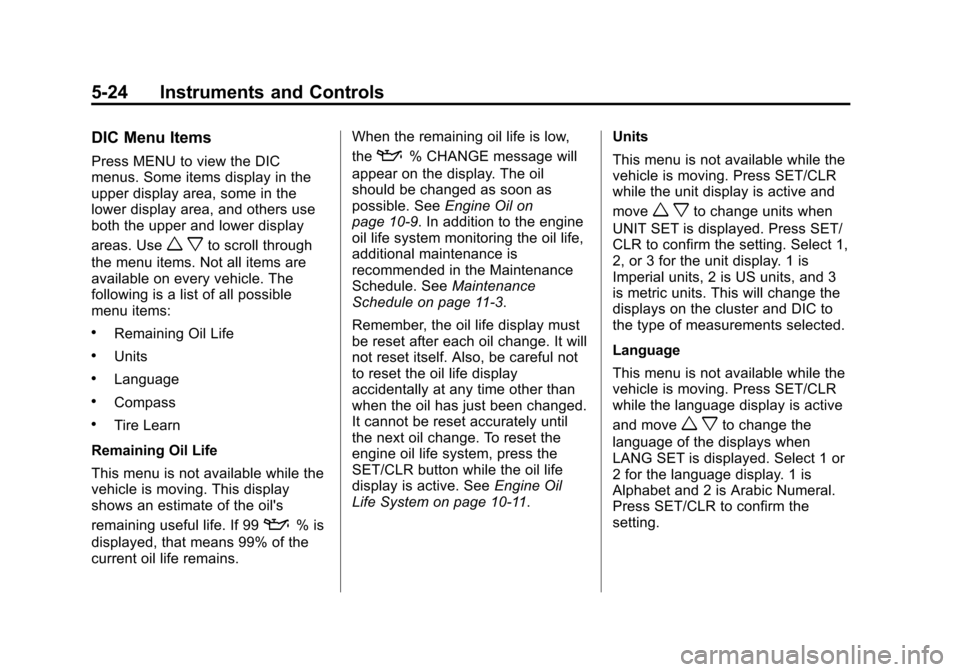
Press MENU to view the DIC
menus. Some items display in the
upper display area, some in the
lower display area, and others use
both the upper and lower display
areas. Use
w xto scroll through
the menu items. Not all items are
available on every vehicle. The
following is a list of all possible
menu items:
.Remaining Oil Life
.Units
.Language
.Compass
.Tire Learn
Remaining Oil Life
This menu is not available while the
vehicle is moving. This display
shows an estimate of the oil's
remaining useful life. If 99
:% is
displayed, that means 99% of the
current oil life remains. When the remaining oil life is low,
the
:% CHANGE message will
appear on the display. The oil
should be changed as soon as
possible. See Engine Oil on
page 10-9. In addition to the engine
oil life system monitoring the oil life,
additional maintenance is
recommended in the Maintenance
Schedule. See Maintenance
Schedule on page 11-3.
Remember, the oil life display must
be reset after each oil change. It will
not reset itself. Also, be careful not
to reset the oil life display
accidentally at any time other than
when the oil has just been changed.
It cannot be reset accurately until
the next oil change. To reset the
engine oil life system, press the
SET/CLR button while the oil life
display is active. See Engine Oil
Life System on page 10-11. Units
This menu is not available while the
vehicle is moving. Press SET/CLR
while the unit display is active and
move
w xto change units when
UNIT SET is displayed. Press SET/
CLR to confirm the setting. Select 1,
2, or 3 for the unit display. 1 is
Imperial units, 2 is US units, and 3
is metric units. This will change the
displays on the cluster and DIC to
the type of measurements selected.
Language
This menu is not available while the
vehicle is moving. Press SET/CLR
while the language display is active
and move
w xto change the
language of the displays when
LANG SET is displayed. Select 1 or
2 for the language display. 1 is
Alphabet and 2 is Arabic Numeral.
Press SET/CLR to confirm the
setting.
Page 140 of 409
Black plate (25,1)Chevrolet TRAX Owner Manual (GMNA-Localizing-U.S./Canada/Mexico-
7576294) - 2015 - CRC - 2/6/15
Instruments and Controls 5-25
Compass
SeeCompass on page 5-4 for
information on setting the compass.
Tire Learn
This display allows for matching of
the TPMS sensors. See Tire
Pressure Monitor System on
page 10-50 andTire Pressure
Monitor Operation on page 10-51.Vehicle Messages
DIC messages display when the
status of the vehicle has changed
and action may be needed to
correct the condition. Multiple
messages appear one after another.
Press any of the DIC buttons on the
turn signal lever to acknowledge
and clear them from the display.
More urgent messages cannot be
cleared from the DIC display. All
messages should be taken
seriously. Clearing messages will
not correct the problem.
Vehicle messages appear as code
numbers.
25: Left Front Turn Indicator Failure
26: Left Rear Turn Indicator Failure 27:
Right Front Turn Indicator
Failure
28: Right Rear Turn Indicator
Failure
73: Service All Wheel Drive System
84: Engine Power Is Reduced
89: Service Vehicle Soon
125: Compass Calibrating —Drive
in Circles
173: All Wheel Drive Off
Engine Oil Messages
:
% CHANGE
This message displays when the
engine oil needs to be changed.
When changing the engine oil, be
sure to reset the Oil Life System.
See Engine Oil Life System on
page 10-11, Engine Oil on
page 10-9, and Maintenance
Schedule on page 11-3.
Page 141 of 409
Black plate (26,1)Chevrolet TRAX Owner Manual (GMNA-Localizing-U.S./Canada/Mexico-
7576294) - 2015 - CRC - 2/6/15
5-26 Instruments and Controls
Tire Messages
LF XX, RF XX, LR XX,
or RR XX
A message displays when the tire
pressure is low. It shows the
location of the low tire and the
approximate pressure of the low tire.
If a tire pressure message appears,
stop as soon as you can. Inflate the
tires by adding air until the tire
pressure is equal to the values
shown on the Tire and Loading
Information label. SeeTires on
page 10-41, Vehicle Load Limits on
page 9-10, and Tire Pressure on
page 10-48.
Trip Computer
The trip computer is located in the
Driver Information Center (DIC).
It provides the driver with driving
information such as average speed,
fuel range, average fuel economy,
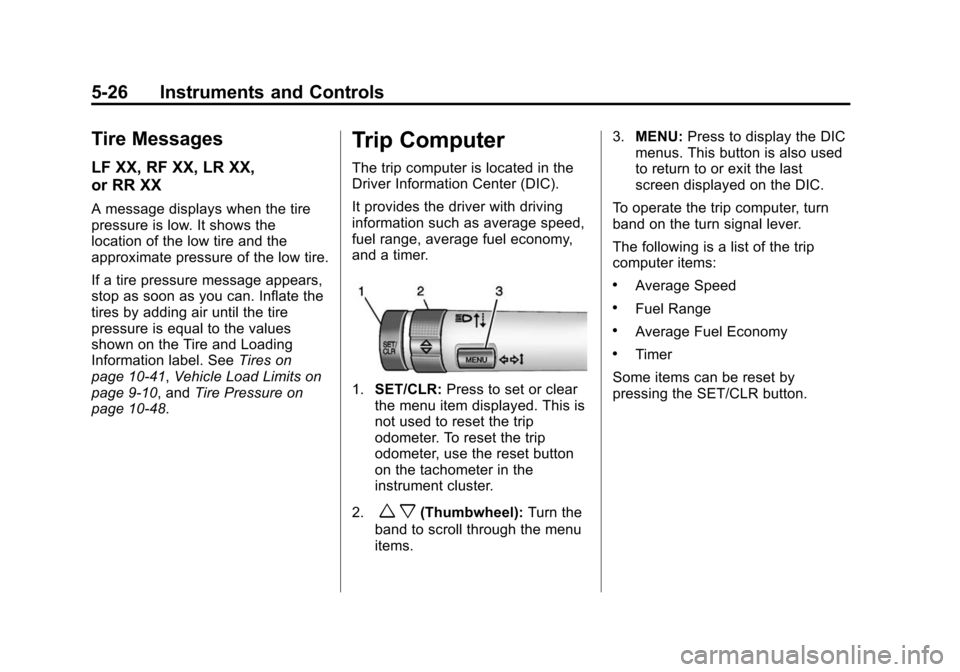
and a timer.
1. SET/CLR: Press to set or clear
the menu item displayed. This is
not used to reset the trip
odometer. To reset the trip
odometer, use the reset button
on the tachometer in the
instrument cluster.
2.
w x(Thumbwheel): Turn the
band to scroll through the menu
items. 3.
MENU: Press to display the DIC
menus. This button is also used
to return to or exit the last
screen displayed on the DIC.
To operate the trip computer, turn
band on the turn signal lever.
The following is a list of the trip
computer items:
.Average Speed
.Fuel Range
.Average Fuel Economy
.Timer
Some items can be reset by
pressing the SET/CLR button.
Page 142 of 409
Black plate (27,1)Chevrolet TRAX Owner Manual (GMNA-Localizing-U.S./Canada/Mexico-
7576294) - 2015 - CRC - 2/6/15
Instruments and Controls 5-27
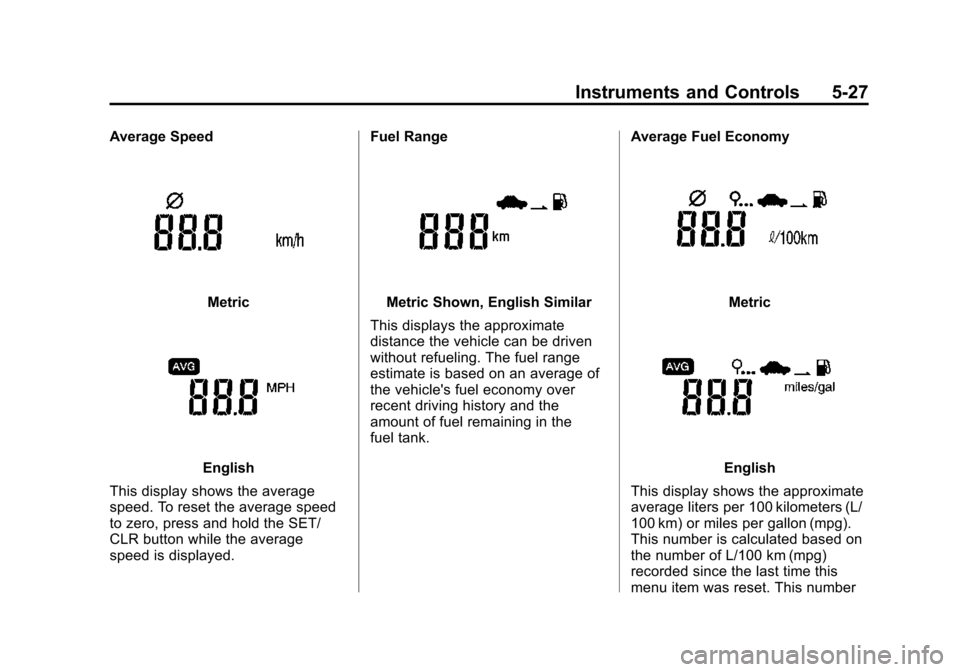
Average Speed
Metric
English
This display shows the average
speed. To reset the average speed
to zero, press and hold the SET/
CLR button while the average
speed is displayed. Fuel Range
Metric Shown, English Similar
This displays the approximate
distance the vehicle can be driven
without refueling. The fuel range
estimate is based on an average of
the vehicle's fuel economy over
recent driving history and the
amount of fuel remaining in the
fuel tank. Average Fuel EconomyMetric
English
This display shows the approximate
average liters per 100 kilometers (L/
100 km) or miles per gallon (mpg).
This number is calculated based on
the number of L/100 km (mpg)
recorded since the last time this
menu item was reset. This number
Page 143 of 409
Black plate (28,1)Chevrolet TRAX Owner Manual (GMNA-Localizing-U.S./Canada/Mexico-
7576294) - 2015 - CRC - 2/6/15
5-28 Instruments and Controls
reflects only the approximate
average fuel economy that the
vehicle has right now, and will
change as driving conditions
change. To reset the average fuel
economy, press and hold the SET/
CLR button while the average fuel
economy is displayed.Timer
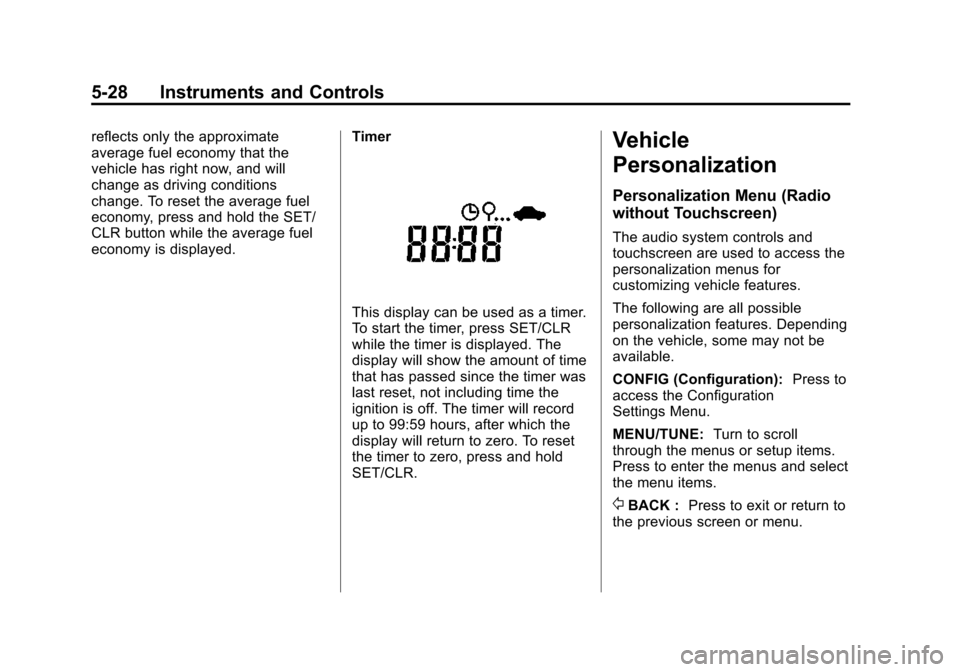
This display can be used as a timer.
To start the timer, press SET/CLR
while the timer is displayed. The
display will show the amount of time
that has passed since the timer was
last reset, not including time the
ignition is off. The timer will record
up to 99:59 hours, after which the
display will return to zero. To reset
the timer to zero, press and hold
SET/CLR.
Vehicle
Personalization
Personalization Menu (Radio
without Touchscreen)
The audio system controls and
touchscreen are used to access the
personalization menus for
customizing vehicle features.
The following are all possible
personalization features. Depending
on the vehicle, some may not be
available.
CONFIG (Configuration):
Press to
access the Configuration
Settings Menu.
MENU/TUNE: Turn to scroll
through the menus or setup items.
Press to enter the menus and select
the menu items.
/BACK : Press to exit or return to
the previous screen or menu.
Page 144 of 409
Black plate (29,1)Chevrolet TRAX Owner Manual (GMNA-Localizing-U.S./Canada/Mexico-
7576294) - 2015 - CRC - 2/6/15
Instruments and Controls 5-29
To access a menu:
1. Press the CONFIG button.
2. Turn the MENU/TUNE knob toselect the desired menu.
3. Press the MENU/TUNE knob.
Settings menus and functions may
vary depending on vehicle options.
Press the CONFIG button and the
following list of menu items may be
available:
.Languages
.Time and Date Settings
.Radio Settings
.Bluetooth Settings
.Vehicle Settings
Languages
Select Language, then select from
the available language(s).
Time and Date Settings
See “Setting the Time and Date” in
“Radio without Touchscreen” under
Clock on page 5-5.
Radio Settings
Select the Radio Settings menu and
the following may be displayed:
.Auto Volume
.Maximum Startup Volume
.Radio Favorites
Auto Volume
The auto volume feature
automatically adjusts the radio
volume to compensate for road and
wind noise as the vehicle speeds up
or slows down, so that the volume
level is consistent.
Select the desired value.
Maximum Startup Volume
Select this to manually set the
startup volume of the radio.
Select the desired value.
Radio Favorites
This feature allows for the manual
setting of the number of favorite
pages.
Select the desired number.
Bluetooth Settings
Select and the following may
display:
.Bluetooth
.Return to Factory Settings
Bluetooth
Select and the following may
display:
.Activation
.Device List
.Pair Device
.Change Bluetooth Code
Activation
When on, the system will allow a
Bluetooth device to connect.
Select On or Off.
Device List
This allows the management of a
Bluetooth device.
Select Connect, Separate,
or Delete.
Page 145 of 409
Black plate (30,1)Chevrolet TRAX Owner Manual (GMNA-Localizing-U.S./Canada/Mexico-
7576294) - 2015 - CRC - 2/6/15
5-30 Instruments and Controls
Pair Device
This allows the pairing of a new
Bluetooth device. See“Infotainment
Controls” inBluetooth (Voice
Recognition) on page 7-36 or
Bluetooth (Infotainment Controls) on
page 7-27 orBluetooth (Overview)
on page 7-26.
Change Bluetooth Code
This allows the code to be manually
changed or set.
Return to Factory Settings
Select to return all of the vehicle
personalization to the default
settings.
Select Yes or No.
Vehicle Settings
Select and the following may
display:
.Comfort and Convenience
.Collision/Detection Systems
.Lighting
.Power Door Locks
.Remote Lock, Unlock, Start
.Return to Factory Settings
Comfort and Convenience
Select and the following may
display:
.Chime Volume
.Auto Wipe in Reverse Gear
Chime Volume
This allows this feature to be
changed.
Select Normal or High.
Auto Wipe in Reverse Gear
This allows this feature to be turned
on or off. When on, and the front
wipers are on, the rear window
wiper will turn on automatically
when the vehicle is shifted into
R (Reverse).
Select On or Off.
Collision/Detection Systems
If equipped, select and the following
may display:
.Park Assist
Park Assist
This allows this feature to be turned
on or off.
Select On or Off.
Lighting
Select and the following may
display:
.Exit Lighting
Exit Lighting
This allows the selection of how
long the exterior lamps stay on
when leaving the vehicle and it is
dark outside.
Select the desired time.
Page 146 of 409
Black plate (31,1)Chevrolet TRAX Owner Manual (GMNA-Localizing-U.S./Canada/Mexico-
7576294) - 2015 - CRC - 2/6/15
Instruments and Controls 5-31
Power Door Locks
Select and the following may
display:
.Auto Door Unlock
.Unlocked Door Anti Lock Out
.Delayed Door Lock
Auto Door Unlock
This allows selection of which of the
doors will automatically unlock when
the vehicle is shifted into P (Park).
Select All Doors, Driver Door, or Off.
Unlocked Door Anti Lock Out
When on, this feature will keep the
driver door from locking when the
door is open. If Off is selected, the
Delayed Door Lock menu will be
available and the door will lock as
programmed through this menu.
Select On or Off.
Delayed Door Lock
When on, this feature will delay the
locking of the doors after the last
door is closed. Select On or Off.
Remote Lock, Unlock, Start
Select and the following may
display:
.Remote Unlock Light Feedback
.Remote Lock Feedback
.Remote Door Unlock
Remote Unlock Light Feedback
When on, the exterior lamps will
flash when unlocking the vehicle
with the Remote Keyless Entry
(RKE) transmitter.
Select Flash Lights or Lights Off.
Remote Lock Feedback
This allows the selection of what
type of feedback is given when
pressing
Qon the RKE transmitter.
Select from Lights and Horn, Lights
Only, Horn Only, or Off. Remote Door Unlock
This allows selection of which doors
will unlock when pressing
Kon the
RKE transmitter.
When set to Driver Door, the driver
door will unlock the first time
Kis
pressed and all doors will unlock
when the button is pressed a
second time. When set to All Doors,
all of the doors will unlock at the first
press of
K.
Select from Driver Door or All
Doors.
Personalization Menu (Radio
with Touchscreen)
Settings can be made with the
ignition on and the vehicle not
moving.
The following are all possible
personalization features. Depending
on the vehicle, some may not be
available.
D(Home): Press to access the
Home Page Menu.
Page 147 of 409
Black plate (32,1)Chevrolet TRAX Owner Manual (GMNA-Localizing-U.S./Canada/Mexico-
7576294) - 2015 - CRC - 2/6/15
5-32 Instruments and Controls
QorR:Press to scroll through the
menus or setup items.
4: Press to exit or return to the
previous screen or menu.
To access the menu:
1. Press
D.
2. Press Settings.
3. Press the desired setting.
Press the menu item to select it.
Each of the menus is detailed in the
following information.
Settings menus and functions may
vary depending on vehicle options.
The following may be available:
.Time & Date Settings
.Radio Settings
.Connection Settings
.Vehicle Settings
.Language
.Text Scroll
.Touch Beep Volume
.Max Startup Volume
.System Version
.DivX®VOD
Time & Date Settings
See “Setting the Time and Date” in
“Radio with Touchscreen” under
Clock on page 5-5.
Radio Settings
Select and the following may
display:
.Auto Volume
.Radio Favorites
.Radio Tune Bar
.Radio Text
.XM Categories
.Radio Factory Settings
Auto Volume
The auto volume feature
automatically adjusts the radio
volume according to vehicle speed.
Select Off, Low, Medium, or High. Radio Favorites
This feature allows for the manually
setting of the number of favorite
pages.
Select 1-5.
Radio Tune Bar
This feature allows for the station
tune bar to be viewed on the
screen.
Select On or Off.
Radio Text
This feature allows text to be viewed
on the screen.
Select On or Off.
XM Categories
This feature allows the selection of
XM categories.
Radio Factory Settings
Select to restore the radio values to
the factory settings.
Page 148 of 409
Black plate (33,1)Chevrolet TRAX Owner Manual (GMNA-Localizing-U.S./Canada/Mexico-
7576294) - 2015 - CRC - 2/6/15
Instruments and Controls 5-33
Connection Settings
Select and the following may
display:
.Bluetooth Settings
.Change Ringtone
.Ringtone Volume
Bluetooth Settings
Select and the following may
display:
.Pair Device
.Change PIN Code
.Discoverable
.Device Info
Pair Device
This allows for a device to be
connected, disconnected,
or deleted.
Select the desire option.
Change PIN Code
This allows to manually change or
set a device Personal Identification
Number (PIN) code. Discoverable
This allows a connection from a
Bluetooth phone.
Select On or Off.
Device info
This allows the device information to
be checked.
Change Ringtone
This allows the selection of a
ringtone.
Select the desired ringtone.
Ringtone Volume
This allows the selection of a
ringtone volume.
Select the desired ringtone volume.
Vehicle Settings
Select and the following may
display:
.Climate & Air quality
.Comfort & Convenience
.Collision/Detection
.Lighting
.Power Door Locks
.Lock, Unlock Settings
.Rear Camera Option
.Vehicle Factory Settings
Climate & Air Quality
Select and the following may
display:
.Remote Start Heated Seats
Remote Start Heated Seats
When on, this feature will turn the
heated seats on when using the
remote start on cold days.
Select On or Off.
Comfort and Convenience
Select and the following may
display:
.Chime Volume
.Auto Wipe in Reverse Gear