reset CHEVROLET TRAX 2015 1.G User Guide
[x] Cancel search | Manufacturer: CHEVROLET, Model Year: 2015, Model line: TRAX, Model: CHEVROLET TRAX 2015 1.GPages: 409, PDF Size: 5.58 MB
Page 140 of 409
Black plate (25,1)Chevrolet TRAX Owner Manual (GMNA-Localizing-U.S./Canada/Mexico-
7576294) - 2015 - CRC - 2/6/15
Instruments and Controls 5-25
Compass
SeeCompass on page 5-4 for
information on setting the compass.
Tire Learn
This display allows for matching of
the TPMS sensors. See Tire
Pressure Monitor System on
page 10-50 andTire Pressure
Monitor Operation on page 10-51.Vehicle Messages
DIC messages display when the
status of the vehicle has changed
and action may be needed to
correct the condition. Multiple
messages appear one after another.
Press any of the DIC buttons on the
turn signal lever to acknowledge
and clear them from the display.
More urgent messages cannot be
cleared from the DIC display. All
messages should be taken
seriously. Clearing messages will
not correct the problem.
Vehicle messages appear as code
numbers.
25: Left Front Turn Indicator Failure
26: Left Rear Turn Indicator Failure 27:
Right Front Turn Indicator
Failure
28: Right Rear Turn Indicator
Failure
73: Service All Wheel Drive System
84: Engine Power Is Reduced
89: Service Vehicle Soon
125: Compass Calibrating —Drive
in Circles
173: All Wheel Drive Off
Engine Oil Messages
:
% CHANGE
This message displays when the
engine oil needs to be changed.
When changing the engine oil, be
sure to reset the Oil Life System.
See Engine Oil Life System on
page 10-11, Engine Oil on
page 10-9, and Maintenance
Schedule on page 11-3.
Page 141 of 409
Black plate (26,1)Chevrolet TRAX Owner Manual (GMNA-Localizing-U.S./Canada/Mexico-
7576294) - 2015 - CRC - 2/6/15
5-26 Instruments and Controls
Tire Messages
LF XX, RF XX, LR XX,
or RR XX
A message displays when the tire
pressure is low. It shows the
location of the low tire and the
approximate pressure of the low tire.
If a tire pressure message appears,
stop as soon as you can. Inflate the
tires by adding air until the tire
pressure is equal to the values
shown on the Tire and Loading
Information label. SeeTires on
page 10-41, Vehicle Load Limits on
page 9-10, and Tire Pressure on
page 10-48.
Trip Computer
The trip computer is located in the
Driver Information Center (DIC).
It provides the driver with driving
information such as average speed,
fuel range, average fuel economy,
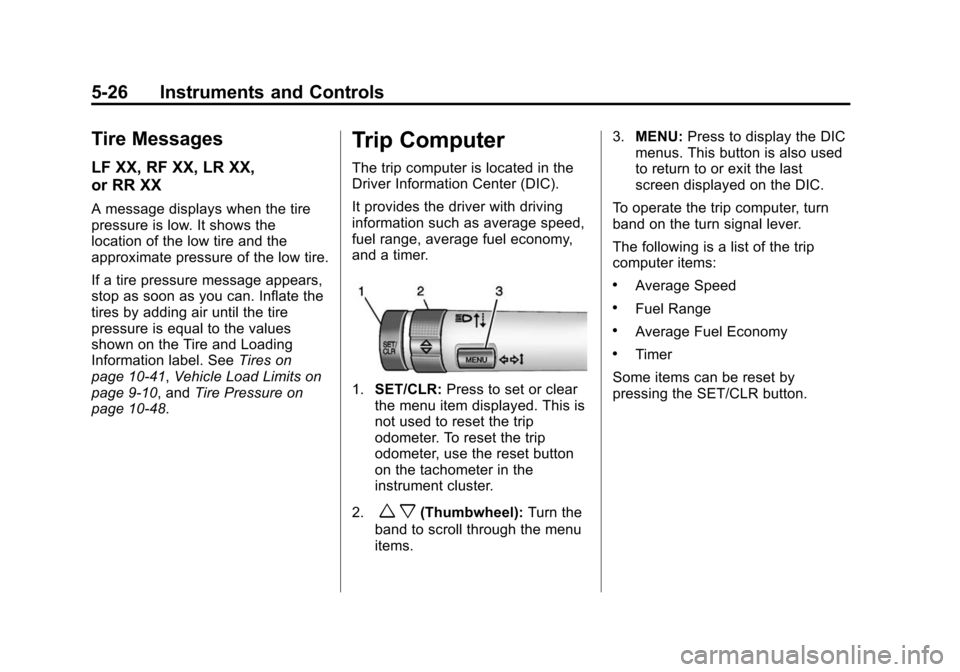
and a timer.
1. SET/CLR: Press to set or clear
the menu item displayed. This is
not used to reset the trip
odometer. To reset the trip
odometer, use the reset button
on the tachometer in the
instrument cluster.
2.
w x(Thumbwheel): Turn the
band to scroll through the menu
items. 3.
MENU: Press to display the DIC
menus. This button is also used
to return to or exit the last
screen displayed on the DIC.
To operate the trip computer, turn
band on the turn signal lever.
The following is a list of the trip
computer items:
.Average Speed
.Fuel Range
.Average Fuel Economy
.Timer
Some items can be reset by
pressing the SET/CLR button.
Page 142 of 409
Black plate (27,1)Chevrolet TRAX Owner Manual (GMNA-Localizing-U.S./Canada/Mexico-
7576294) - 2015 - CRC - 2/6/15
Instruments and Controls 5-27
Average Speed
Metric
English
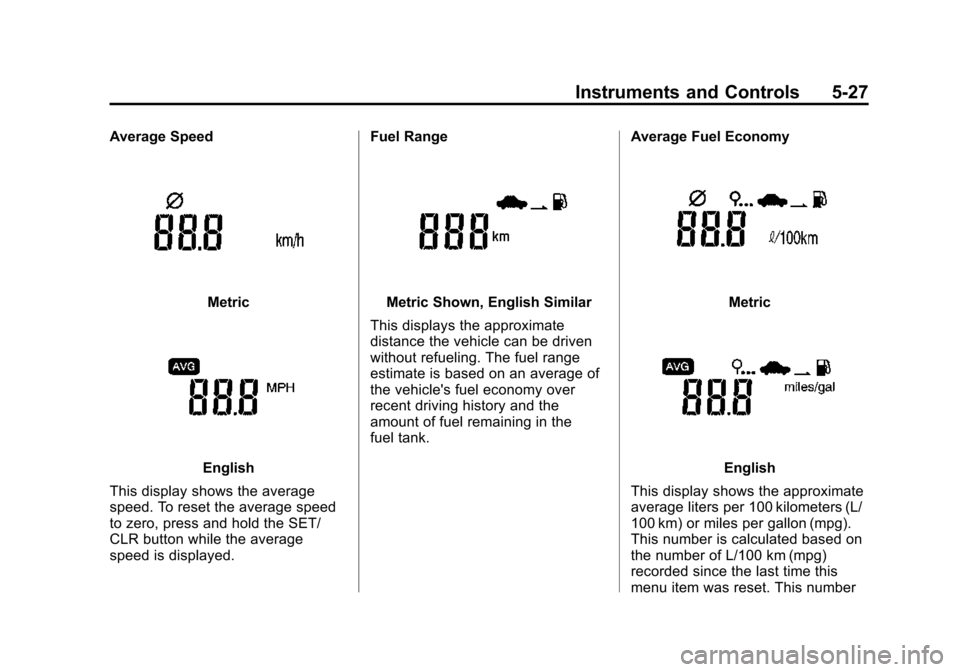
This display shows the average
speed. To reset the average speed
to zero, press and hold the SET/
CLR button while the average
speed is displayed. Fuel Range
Metric Shown, English Similar
This displays the approximate
distance the vehicle can be driven
without refueling. The fuel range
estimate is based on an average of
the vehicle's fuel economy over
recent driving history and the
amount of fuel remaining in the
fuel tank. Average Fuel EconomyMetric
English
This display shows the approximate
average liters per 100 kilometers (L/
100 km) or miles per gallon (mpg).
This number is calculated based on
the number of L/100 km (mpg)
recorded since the last time this
menu item was reset. This number
Page 143 of 409
Black plate (28,1)Chevrolet TRAX Owner Manual (GMNA-Localizing-U.S./Canada/Mexico-
7576294) - 2015 - CRC - 2/6/15
5-28 Instruments and Controls
reflects only the approximate
average fuel economy that the
vehicle has right now, and will
change as driving conditions
change. To reset the average fuel
economy, press and hold the SET/
CLR button while the average fuel
economy is displayed.Timer
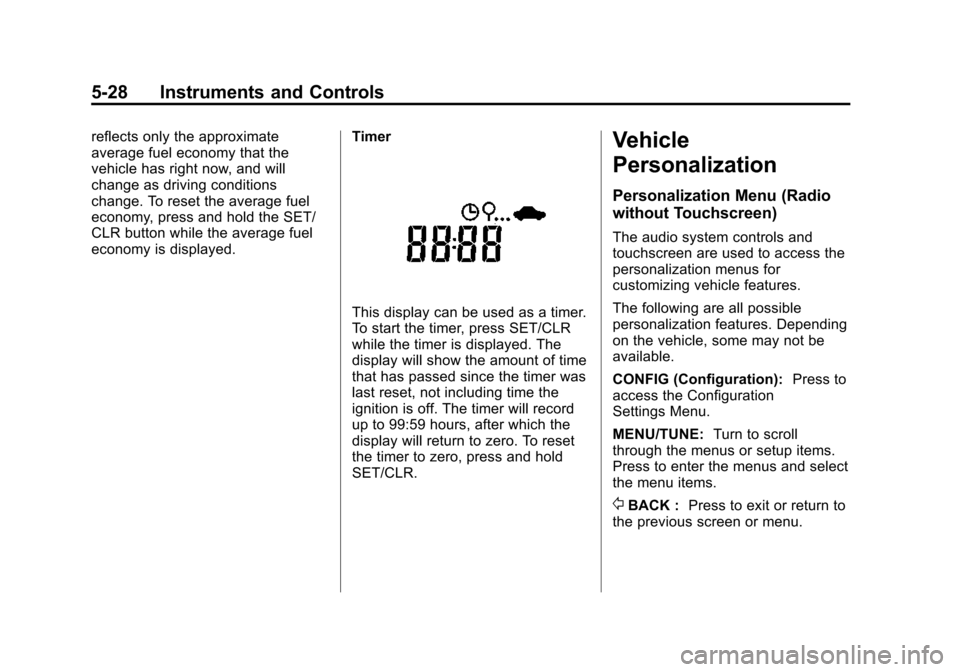
This display can be used as a timer.
To start the timer, press SET/CLR
while the timer is displayed. The
display will show the amount of time
that has passed since the timer was
last reset, not including time the
ignition is off. The timer will record
up to 99:59 hours, after which the
display will return to zero. To reset
the timer to zero, press and hold
SET/CLR.
Vehicle
Personalization
Personalization Menu (Radio
without Touchscreen)
The audio system controls and
touchscreen are used to access the
personalization menus for
customizing vehicle features.
The following are all possible
personalization features. Depending
on the vehicle, some may not be
available.
CONFIG (Configuration):
Press to
access the Configuration
Settings Menu.
MENU/TUNE: Turn to scroll
through the menus or setup items.
Press to enter the menus and select
the menu items.
/BACK : Press to exit or return to
the previous screen or menu.
Page 161 of 409
Black plate (2,1)Chevrolet TRAX Owner Manual (GMNA-Localizing-U.S./Canada/Mexico-
7576294) - 2015 - CRC - 2/6/15
7-2 Infotainment System
features are also available through
the instrument cluster and steering
wheel controls.
Before driving:
.Become familiar with the
operation, faceplate buttons, and
screen buttons.
.Set up the audio by presetting
favorite stations, setting the
tone, and adjusting the
speakers.
.Set up phone numbers in
advance so they can be called
easily by pressing a single
button or by using a single voice
command if equipped with
Bluetooth phone capability.
See Defensive Driving on page 9-3
To play the infotainment system with
the ignition off, see Retained
Accessory Power (RAP) on
page 9-19.Theft-Deterrent Feature
The infotainment system has an
electronic security system installed
to prevent theft.
The infotainment system only works
in the vehicle in which it was first
installed, and cannot be used in
another vehicle.
Page 162 of 409
Black plate (3,1)Chevrolet TRAX Owner Manual (GMNA-Localizing-U.S./Canada/Mexico-
7576294) - 2015 - CRC - 2/6/15
Infotainment System 7-3
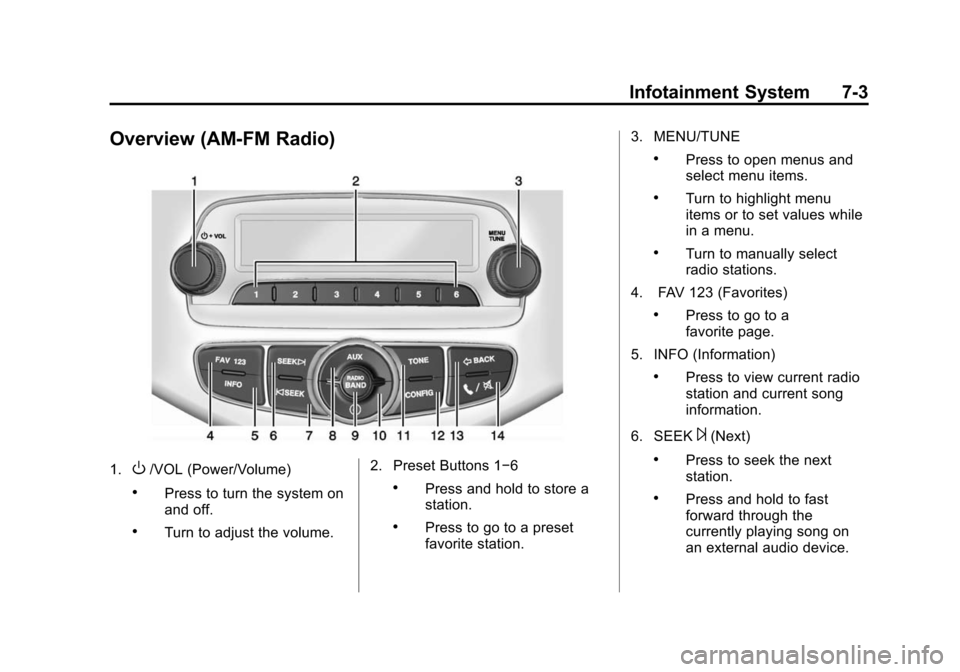
Overview (AM-FM Radio)
1.O/VOL (Power/Volume)
.Press to turn the system on
and off.
.Turn to adjust the volume.2. Preset Buttons 1−6
.Press and hold to store a
station.
.Press to go to a preset
favorite station.3. MENU/TUNE
.Press to open menus and
select menu items.
.Turn to highlight menu
items or to set values while
in a menu.
.Turn to manually select
radio stations.
4. FAV 123 (Favorites)
.Press to go to a
favorite page.
5. INFO (Information)
.Press to view current radio
station and current song
information.
6. SEEK
¨(Next)
.Press to seek the next
station.
.Press and hold to fast
forward through the
currently playing song on
an external audio device.
Page 164 of 409
Black plate (5,1)Chevrolet TRAX Owner Manual (GMNA-Localizing-U.S./Canada/Mexico-
7576294) - 2015 - CRC - 2/6/15
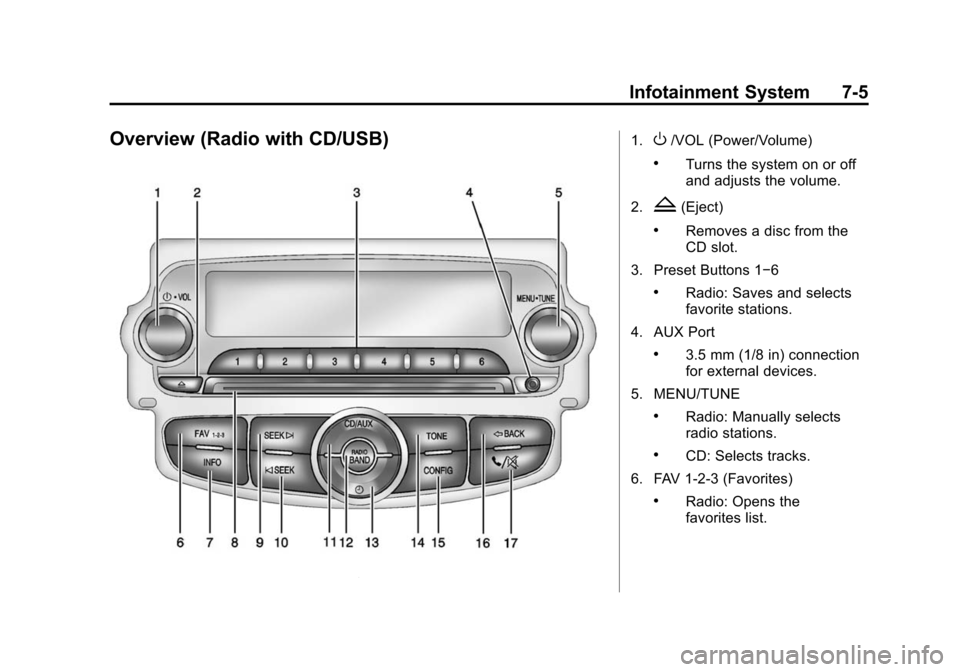
Infotainment System 7-5
Overview (Radio with CD/USB)1.O/VOL (Power/Volume)
.Turns the system on or off
and adjusts the volume.
2.
Z(Eject)
.Removes a disc from the
CD slot.
3. Preset Buttons 1−6
.Radio: Saves and selects
favorite stations.
4. AUX Port
.3.5 mm (1/8 in) connection
for external devices.
5. MENU/TUNE
.Radio: Manually selects
radio stations.
.CD: Selects tracks.
6. FAV 1-2-3 (Favorites)
.Radio: Opens the
favorites list.
Page 169 of 409
Black plate (10,1)Chevrolet TRAX Owner Manual (GMNA-Localizing-U.S./Canada/Mexico-
7576294) - 2015 - CRC - 2/6/15
7-10 Infotainment System
Auto Volume
This feature automatically adjusts
the radio volume to compensate for
road and wind noise.
The level of volume compensation
can be selected, or the feature can
be turned off.
1. Press the CONFIG button.
2. Select Radio Settings.
3. Select Auto Volume.
4. Select the setting.
5. Press the
/BACK button to go
back to the System
Configuration menu.
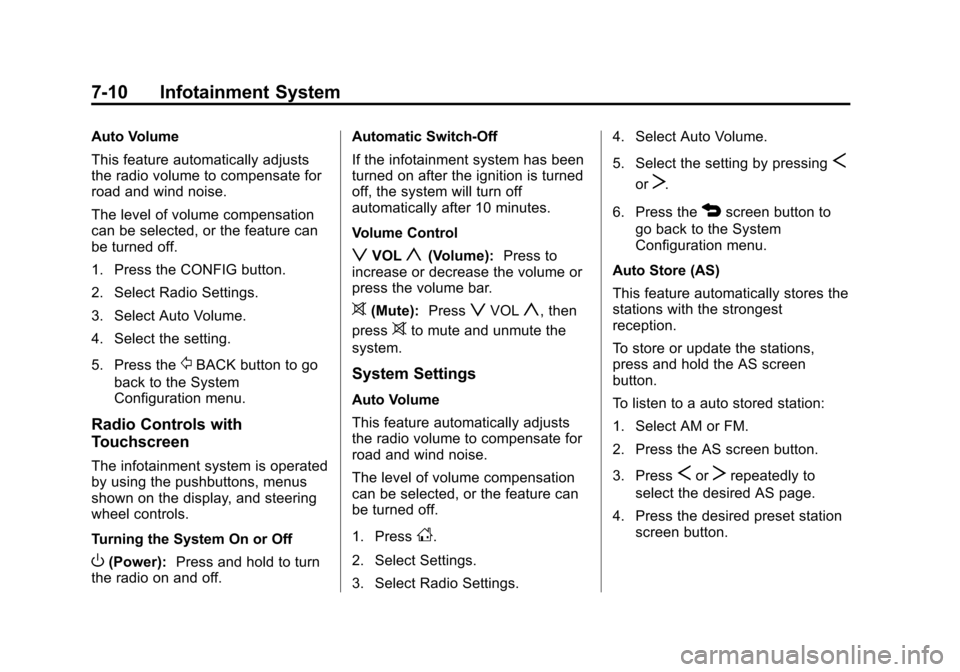
Radio Controls with
Touchscreen
The infotainment system is operated
by using the pushbuttons, menus
shown on the display, and steering
wheel controls.
Turning the System On or Off
O(Power): Press and hold to turn
the radio on and off. Automatic Switch-Off
If the infotainment system has been
turned on after the ignition is turned
off, the system will turn off
automatically after 10 minutes.
Volume Control
zVOLy(Volume):
Press to
increase or decrease the volume or
press the volume bar.
>(Mute): PresszVOLy, then
press
>to mute and unmute the
system.
System Settings
Auto Volume
This feature automatically adjusts
the radio volume to compensate for
road and wind noise.
The level of volume compensation
can be selected, or the feature can
be turned off.
1. Press
D.
2. Select Settings.
3. Select Radio Settings. 4. Select Auto Volume.
5. Select the setting by pressing
S
orT.
6. Press the
4screen button to
go back to the System
Configuration menu.
Auto Store (AS)
This feature automatically stores the
stations with the strongest
reception.
To store or update the stations,
press and hold the AS screen
button.
To listen to a auto stored station:
1. Select AM or FM.
2. Press the AS screen button.
3. Press
SorTrepeatedly to
select the desired AS page.
4. Press the desired preset station screen button.
Page 170 of 409
Black plate (11,1)Chevrolet TRAX Owner Manual (GMNA-Localizing-U.S./Canada/Mexico-
7576294) - 2015 - CRC - 2/6/15
Infotainment System 7-11
Audio Settings
The audio settings can be set for
each radio band and each audio
player source.
Tone Settings:Press menu, then
tone settings from the AM or
FM menu.
.EQ (Equalizer): PressSorTto
select a sound style or turn off
the sound style. When in tone
settings, Manual and Talk may
be the only settings available
depending on the sound system.
.Bass, Mid (Midrange), or Treble:
Press −or + to change the
desired sound style from −12
to +12.
.Fader or Balance: Adjust the
front/rear or left/right speakers
by dragging the dot in the
vehicle image on the screen.
.Reset: Restore the settings back
to default settings.
Press OK to exit Tone Settings.
Radio
AM-FM Radio
Playing the Radio without
Touchscreen
Audio Source Menu
O/VOL (Power/Volume): Press to
turn the system on and off. Turn to
increase or decrease the volume.
MENU/TUNE: Turn to change the
radio station.
RADIO/BAND: Press to select AM
and FM.
INFO: Press to display additional
information that may be available for
the current song.
FAV 123: Press to open the
favorites list and select a
favorite page.
Preset Buttons 1–6: Press to
select preset stations.
Radio Broadcast Data
System (RBDS)
RBDS is a service by FM stations
that makes it easier to find radio
stations with fault-free reception.
RBDS stations are indicated by the
program name instead of the
broadcasting frequency.
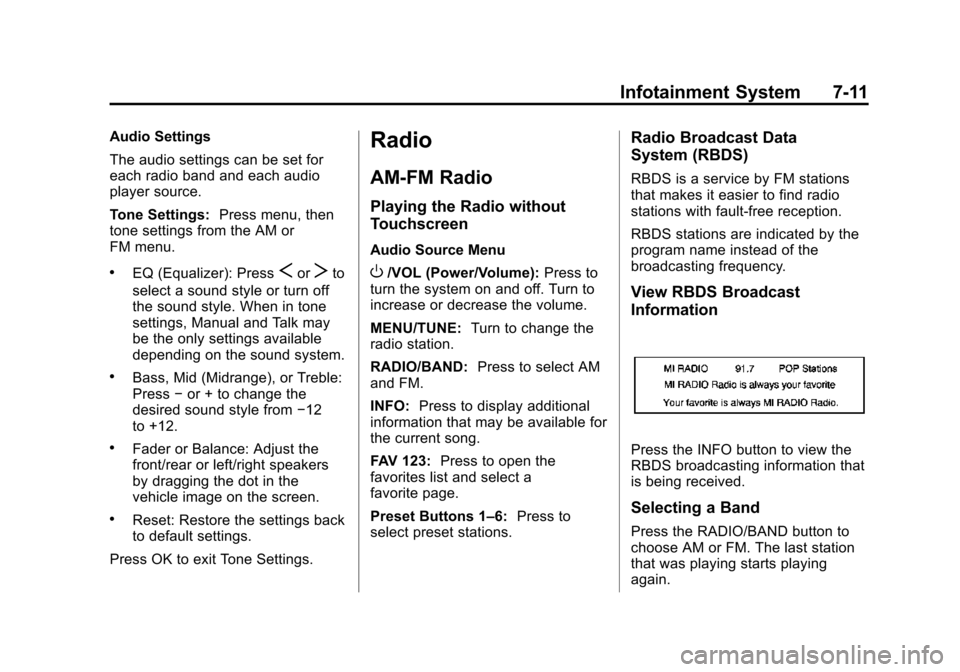
View RBDS Broadcast
Information
Press the INFO button to view the
RBDS broadcasting information that
is being received.
Selecting a Band
Press the RADIO/BAND button to
choose AM or FM. The last station
that was playing starts playing
again.
Page 171 of 409
Black plate (12,1)Chevrolet TRAX Owner Manual (GMNA-Localizing-U.S./Canada/Mexico-
7576294) - 2015 - CRC - 2/6/15
7-12 Infotainment System
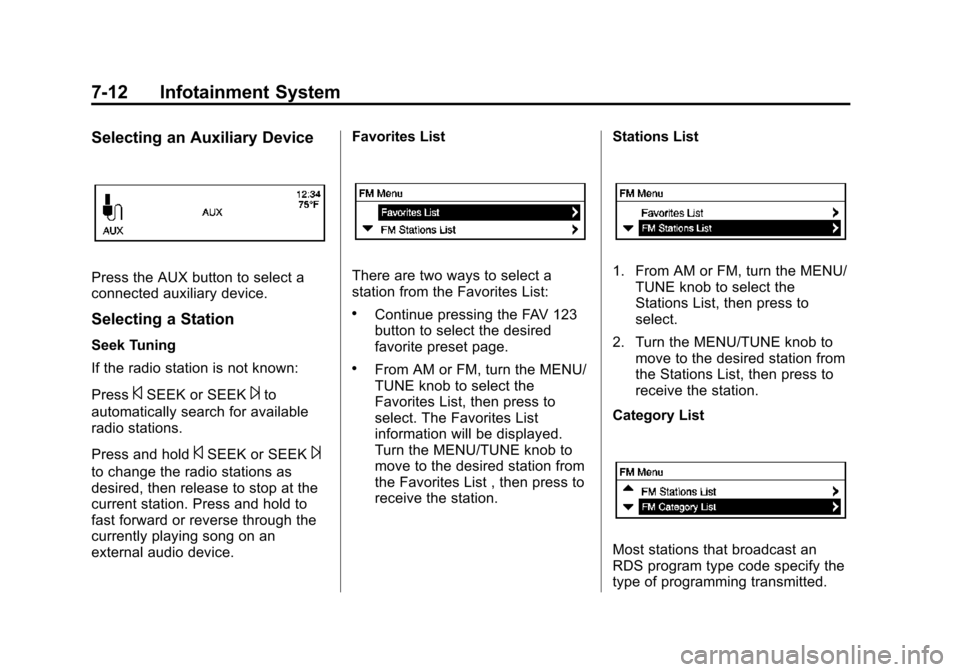
Selecting an Auxiliary Device
Press the AUX button to select a
connected auxiliary device.
Selecting a Station
Seek Tuning
If the radio station is not known:
Press
©SEEK or SEEK¨to
automatically search for available
radio stations.
Press and hold
©SEEK or SEEK¨
to change the radio stations as
desired, then release to stop at the
current station. Press and hold to
fast forward or reverse through the
currently playing song on an
external audio device. Favorites List
There are two ways to select a
station from the Favorites List:
.Continue pressing the FAV 123
button to select the desired
favorite preset page.
.From AM or FM, turn the MENU/
TUNE knob to select the
Favorites List, then press to
select. The Favorites List
information will be displayed.
Turn the MENU/TUNE knob to
move to the desired station from
the Favorites List , then press to
receive the station.
Stations List
1. From AM or FM, turn the MENU/
TUNE knob to select the
Stations List, then press to
select.
2. Turn the MENU/TUNE knob to move to the desired station from
the Stations List, then press to
receive the station.
Category List
Most stations that broadcast an
RDS program type code specify the
type of programming transmitted.