ESP CHEVROLET TRAX 2015 1.G Owners Manual
[x] Cancel search | Manufacturer: CHEVROLET, Model Year: 2015, Model line: TRAX, Model: CHEVROLET TRAX 2015 1.GPages: 409, PDF Size: 5.58 MB
Page 22 of 409
Black plate (15,1)Chevrolet TRAX Owner Manual (GMNA-Localizing-U.S./Canada/Mexico-
7576294) - 2015 - CRC - 2/6/15
In Brief 1-15
Vehicle Features
Radio(s)
Radio Controls without
Touchscreen
O/VOL:Press to turn the system
on and off. Turn to increase or
decrease the volume.
RADIO/BAND: Press to select AM,
FM, or SiriusXM
®(if equipped).
©Seek¨: Press to seek the
previous or next station.
Buttons 1−6: Press to save and
select favorite stations.
INFO: Press to view current radio
information.
For more information about these
and other radio features, see
Operation on page 7-8.
Storing a Favorite Station
Stations from all bands can be
stored in the favorite lists in any
order. Up to six stations can be stored in each favorite page and the
number of available favorite pages
can be set.
To store the station to a position in
the list, press the corresponding
button 1−6 until a beep is heard.
See
“Storing a Station as a
Favorite” inAM-FM Radio on
page 7-11.
Radio Controls with
Touchscreen
Audio Source Menu
zVOLy: Press to increase or
decrease the volume.
O: Press and hold to turn the
system on and off.
D: Press to enter the Home Page.
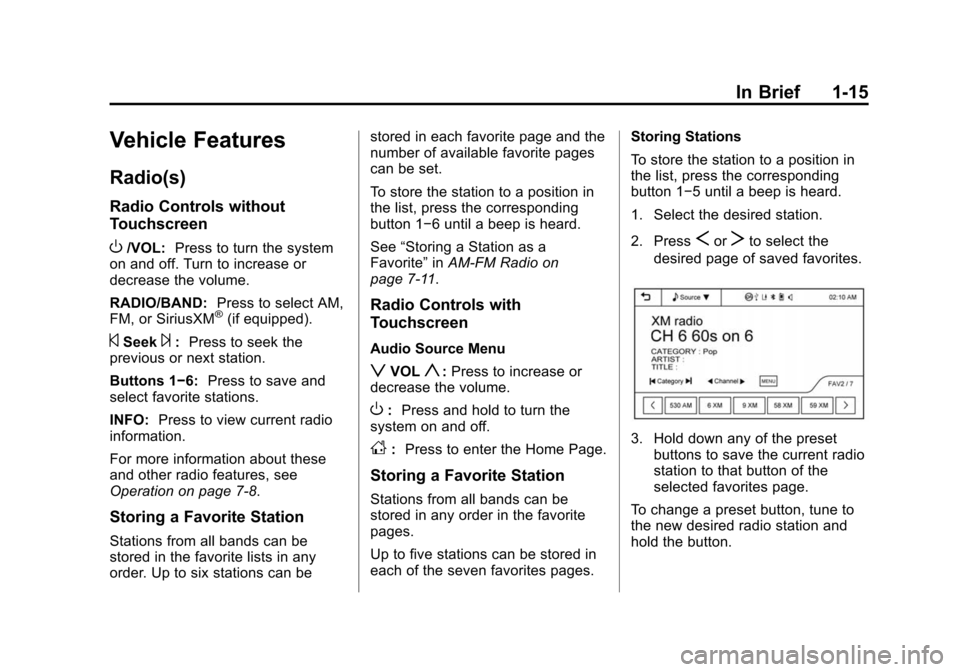
Storing a Favorite Station
Stations from all bands can be
stored in any order in the favorite
pages.
Up to five stations can be stored in
each of the seven favorites pages. Storing Stations
To store the station to a position in
the list, press the corresponding
button 1−5 until a beep is heard.
1. Select the desired station.
2. Press
SorTto select the
desired page of saved favorites.
3. Hold down any of the preset buttons to save the current radio
station to that button of the
selected favorites page.
To change a preset button, tune to
the new desired radio station and
hold the button.
Page 36 of 409
Black plate (7,1)Chevrolet TRAX Owner Manual (GMNA-Localizing-U.S./Canada/Mexico-
7576294) - 2015 - CRC - 2/6/15
Keys, Doors, and Windows 2-7
.Two remote vehicle starts, or a
single remote start with an
extension, have already
been used.
.The vehicle is not in P (Park).
Door Locks
{Warning
Unlocked doors can be
dangerous.
.Passengers, especially
children, can easily open the
doors and fall out of a moving
vehicle. When a door is
locked, the handle will not
open it. The chance of being
thrown out of the vehicle in a
crash is increased if the
doors are not locked. So, all
passengers should wear
safety belts properly and the
doors should be locked
whenever the vehicle is
driven.(Continued)
Warning (Continued)
.Young children who get into
unlocked vehicles may be
unable to get out. A child can
be overcome by extreme heat
and can suffer permanent
injuries or even death from
heat stroke. Always lock the
vehicle whenever leaving it.
.Outsiders can easily enter
through an unlocked door
when you slow down or stop
the vehicle. Locking the doors
can help prevent this from
happening.
To lock or unlock a door manually:
.From the inside, to lock the door,
use the lock knob on the top of
the door panel.
.From the outside, turn the key
toward the front or rear of the
vehicle, or press
KorQon the
Remote Keyless Entry (RKE)
transmitter.
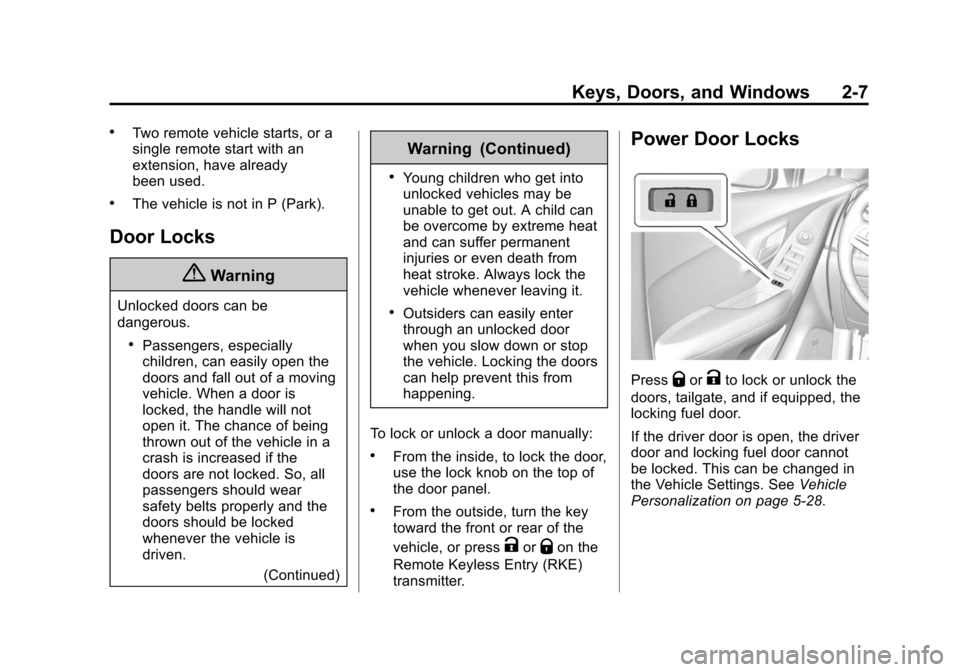
Power Door Locks
PressQorKto lock or unlock the
doors, tailgate, and if equipped, the
locking fuel door.
If the driver door is open, the driver
door and locking fuel door cannot
be locked. This can be changed in
the Vehicle Settings. See Vehicle
Personalization on page 5-28.
Page 43 of 409
Black plate (14,1)Chevrolet TRAX Owner Manual (GMNA-Localizing-U.S./Canada/Mexico-
7576294) - 2015 - CRC - 2/6/15
2-14 Keys, Doors, and Windows
Windows
{Warning
Never leave a child, a helpless
adult, or a pet alone in a vehicle,
especially with the windows
closed in warm or hot weather.
They can be overcome by the
extreme heat and suffer
permanent injuries or even death
from heat stroke.
The vehicle aerodynamics are
designed to improve fuel economy
performance. This may result in a
pulsing sound when either rear
window is down and the front
windows are up. To reduce the
sound, open either a front window
or the sunroof, if equipped.
Power Windows
{Warning
Children could be seriously
injured or killed if caught in the
path of a closing window. Never
leave keys in a vehicle with
children. When there are children
in the rear seat, use the window
lockout button to prevent
operation of the windows. See
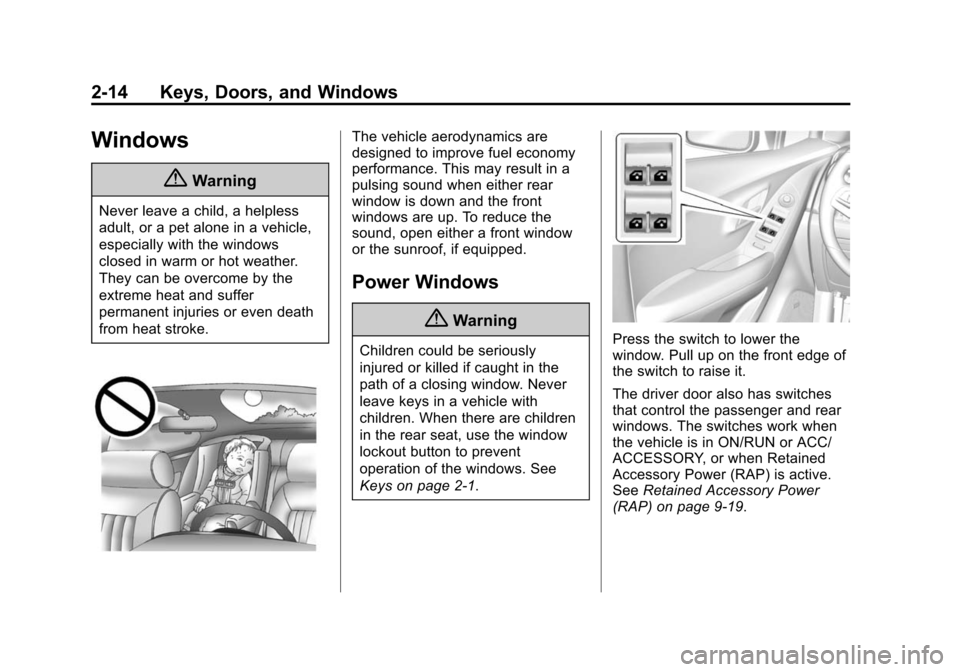
Keys on page 2-1.Press the switch to lower the
window. Pull up on the front edge of
the switch to raise it.
The driver door also has switches
that control the passenger and rear
windows. The switches work when
the vehicle is in ON/RUN or ACC/
ACCESSORY, or when Retained
Accessory Power (RAP) is active.
SeeRetained Accessory Power
(RAP) on page 9-19.
Page 52 of 409
Black plate (7,1)Chevrolet TRAX Owner Manual (GMNA-Localizing-U.S./Canada/Mexico-
7576294) - 2015 - CRC - 2/6/15
Seats and Restraints 3-7
Heated Front Seats
{Warning
If you cannot feel temperature
change or pain to the skin, the
seat heater may cause burns. To
reduce the risk of burns, people
with such a condition should use
care when using the seat heater,
especially for long periods of
time. Do not place anything on
the seat that insulates against
heat, such as a blanket, cushion,
cover, or similar item. This may
cause the seat heater to
overheat. An overheated seat
heater may cause a burn or may
damage the seat.
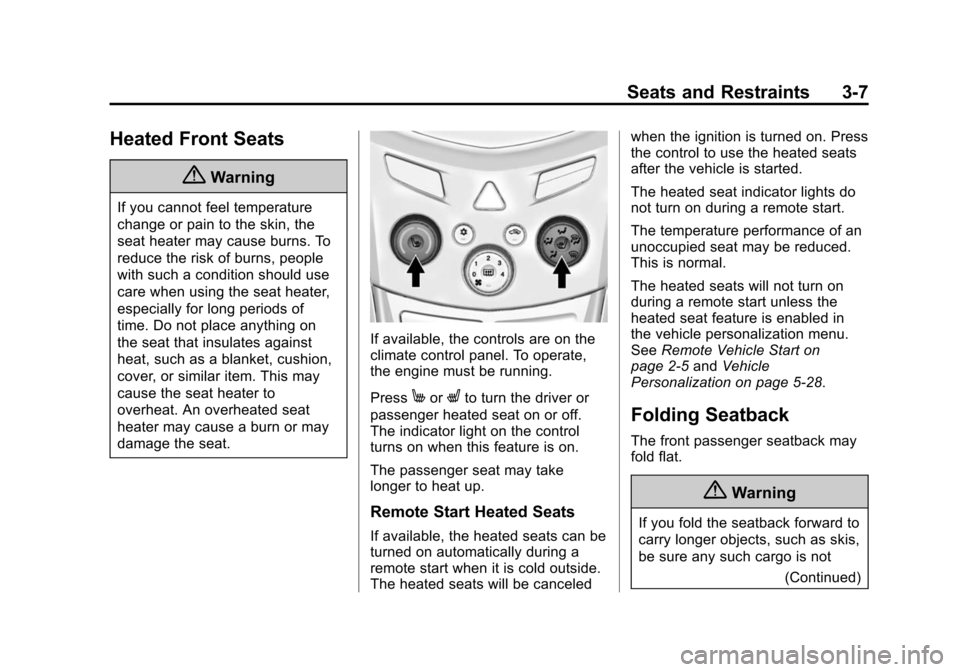
If available, the controls are on the
climate control panel. To operate,
the engine must be running.
Press
MorLto turn the driver or
passenger heated seat on or off.
The indicator light on the control
turns on when this feature is on.
The passenger seat may take
longer to heat up.
Remote Start Heated Seats
If available, the heated seats can be
turned on automatically during a
remote start when it is cold outside.
The heated seats will be canceled when the ignition is turned on. Press
the control to use the heated seats
after the vehicle is started.
The heated seat indicator lights do
not turn on during a remote start.
The temperature performance of an
unoccupied seat may be reduced.
This is normal.
The heated seats will not turn on
during a remote start unless the
heated seat feature is enabled in
the vehicle personalization menu.
See
Remote Vehicle Start on
page 2-5 andVehicle
Personalization on page 5-28.
Folding Seatback
The front passenger seatback may
fold flat.
{Warning
If you fold the seatback forward to
carry longer objects, such as skis,
be sure any such cargo is not
(Continued)
Page 172 of 409
Black plate (13,1)Chevrolet TRAX Owner Manual (GMNA-Localizing-U.S./Canada/Mexico-
7576294) - 2015 - CRC - 2/6/15
Infotainment System 7-13
Some stations change the program
type code depending on the
content. The system stores the RDS
stations sorted by program type in
the FM category list.
To search for a programming type
determined by station:
1. From FM, turn the MENU/TUNEknob to select FM Category List,
then press the MENU/
TUNE knob.
2. Turn the MENU/TUNE knob to move to the desired station, then
press the MENU TUNE knob to
receive the selected
broadcasting channel.
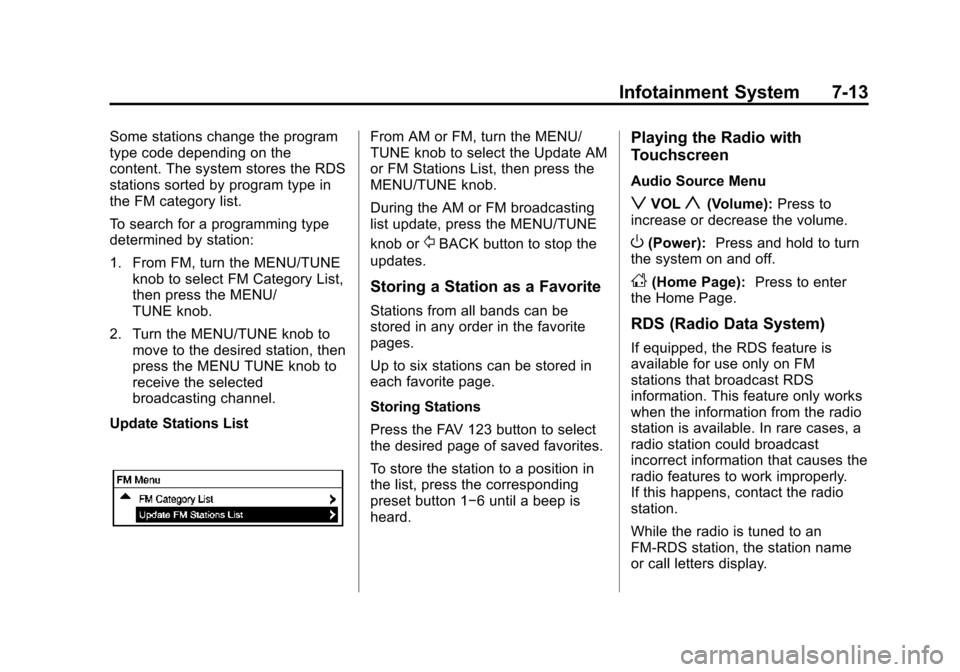
Update Stations ListFrom AM or FM, turn the MENU/
TUNE knob to select the Update AM
or FM Stations List, then press the
MENU/TUNE knob.
During the AM or FM broadcasting
list update, press the MENU/TUNE
knob or
/BACK button to stop the
updates.
Storing a Station as a Favorite
Stations from all bands can be
stored in any order in the favorite
pages.
Up to six stations can be stored in
each favorite page.
Storing Stations
Press the FAV 123 button to select
the desired page of saved favorites.
To store the station to a position in
the list, press the corresponding
preset button 1−6 until a beep is
heard.
Playing the Radio with
Touchscreen
Audio Source Menu
zVOLy(Volume): Press to
increase or decrease the volume.
O(Power): Press and hold to turn
the system on and off.
D(Home Page): Press to enter
the Home Page.
RDS (Radio Data System)
If equipped, the RDS feature is
available for use only on FM
stations that broadcast RDS
information. This feature only works
when the information from the radio
station is available. In rare cases, a
radio station could broadcast
incorrect information that causes the
radio features to work improperly.
If this happens, contact the radio
station.
While the radio is tuned to an
FM-RDS station, the station name
or call letters display.
Page 174 of 409
Black plate (15,1)Chevrolet TRAX Owner Manual (GMNA-Localizing-U.S./Canada/Mexico-
7576294) - 2015 - CRC - 2/6/15
Infotainment System 7-15
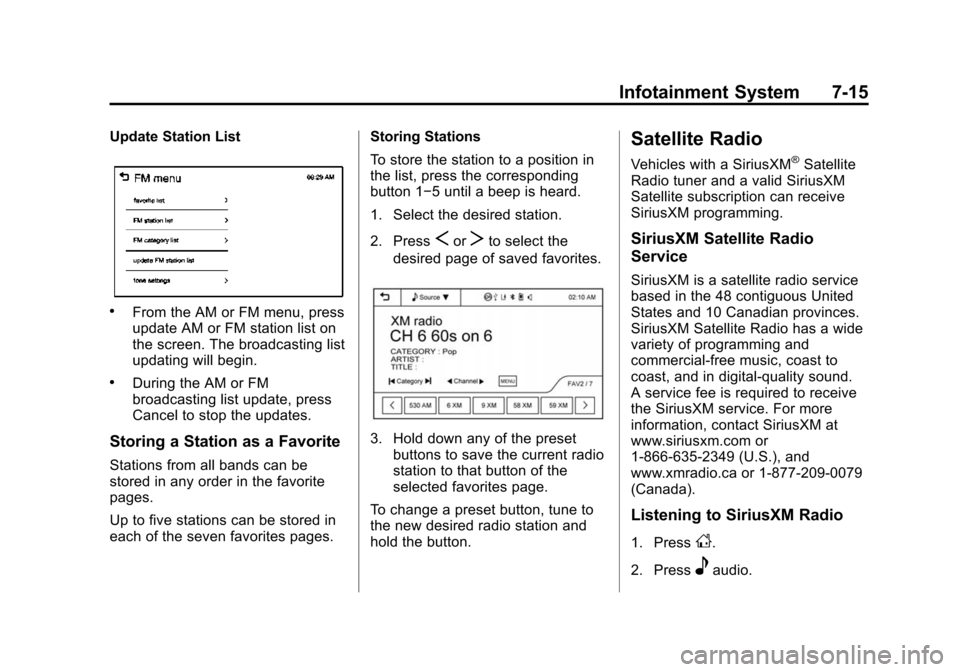
Update Station List
.From the AM or FM menu, press
update AM or FM station list on
the screen. The broadcasting list
updating will begin.
.During the AM or FM
broadcasting list update, press
Cancel to stop the updates.
Storing a Station as a Favorite
Stations from all bands can be
stored in any order in the favorite
pages.
Up to five stations can be stored in
each of the seven favorites pages.Storing Stations
To store the station to a position in
the list, press the corresponding
button 1−5 until a beep is heard.
1. Select the desired station.
2. Press
SorTto select the
desired page of saved favorites.
3. Hold down any of the preset buttons to save the current radio
station to that button of the
selected favorites page.
To change a preset button, tune to
the new desired radio station and
hold the button.
Satellite Radio
Vehicles with a SiriusXM®Satellite
Radio tuner and a valid SiriusXM
Satellite subscription can receive
SiriusXM programming.
SiriusXM Satellite Radio
Service
SiriusXM is a satellite radio service
based in the 48 contiguous United
States and 10 Canadian provinces.
SiriusXM Satellite Radio has a wide
variety of programming and
commercial-free music, coast to
coast, and in digital-quality sound.
A service fee is required to receive
the SiriusXM service. For more
information, contact SiriusXM at
www.siriusxm.com or
1-866-635-2349 (U.S.), and
www.xmradio.ca or 1-877-209-0079
(Canada).
Listening to SiriusXM Radio
1. PressD.
2. Press
eaudio.
Page 176 of 409
Black plate (17,1)Chevrolet TRAX Owner Manual (GMNA-Localizing-U.S./Canada/Mexico-
7576294) - 2015 - CRC - 2/6/15
Infotainment System 7-17
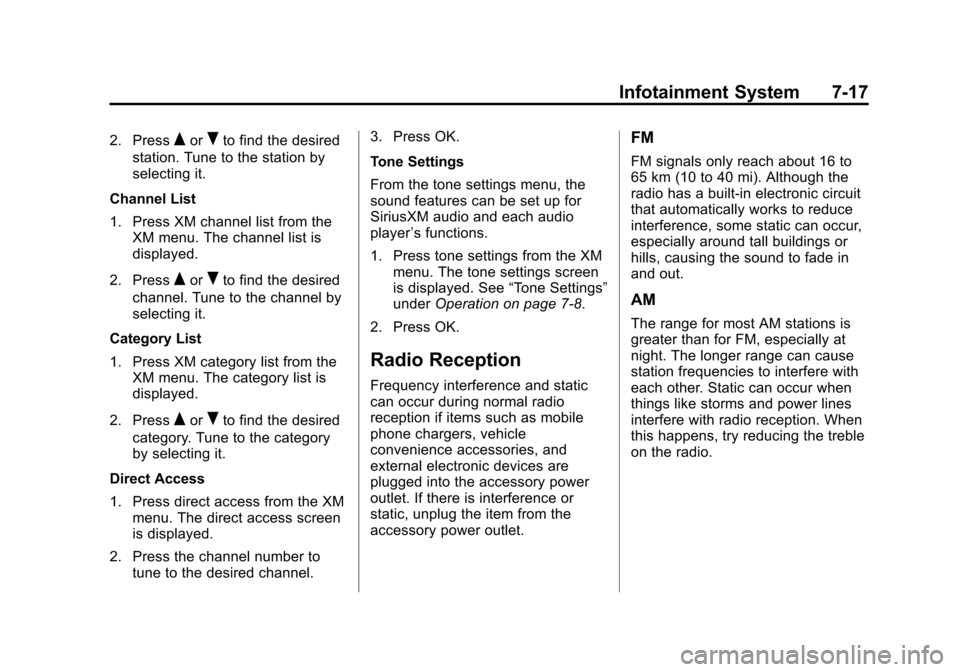
2. PressQorRto find the desired
station. Tune to the station by
selecting it.
Channel List
1. Press XM channel list from the XM menu. The channel list is
displayed.
2. Press
QorRto find the desired
channel. Tune to the channel by
selecting it.
Category List
1. Press XM category list from the XM menu. The category list is
displayed.
2. Press
QorRto find the desired
category. Tune to the category
by selecting it.
Direct Access
1. Press direct access from the XM menu. The direct access screen
is displayed.
2. Press the channel number to tune to the desired channel. 3. Press OK.
Tone Settings
From the tone settings menu, the
sound features can be set up for
SiriusXM audio and each audio
player
’s functions.
1. Press tone settings from the XM menu. The tone settings screen
is displayed. See “Tone Settings”
under Operation on page 7-8.
2. Press OK.
Radio Reception
Frequency interference and static
can occur during normal radio
reception if items such as mobile
phone chargers, vehicle
convenience accessories, and
external electronic devices are
plugged into the accessory power
outlet. If there is interference or
static, unplug the item from the
accessory power outlet.
FM
FM signals only reach about 16 to
65 km (10 to 40 mi). Although the
radio has a built-in electronic circuit
that automatically works to reduce
interference, some static can occur,
especially around tall buildings or
hills, causing the sound to fade in
and out.
AM
The range for most AM stations is
greater than for FM, especially at
night. The longer range can cause
station frequencies to interfere with
each other. Static can occur when
things like storms and power lines
interfere with radio reception. When
this happens, try reducing the treble
on the radio.
Page 186 of 409
Black plate (27,1)Chevrolet TRAX Owner Manual (GMNA-Localizing-U.S./Canada/Mexico-
7576294) - 2015 - CRC - 2/6/15
Infotainment System 7-27
make and receive phone calls. The
infotainment system and voice
recognition are used to control the
system. The system can be used
while in ON/RUN or ACC/
ACCESSORY. The range of the
Bluetooth system can be up to 9.1 m
(30 ft). Not all phones support all
functions and not all phones work
with the Bluetooth system. See
www.gm.com/bluetooth for more
information about compatible
phones.
Bluetooth Controls
Use the buttons located on the
infotainment system and the
steering wheel to operate the
Bluetooth system.
Steering Wheel Controls
b/g(Press to Talk):Press to
answer incoming calls, confirm
system information, and start voice
recognition.
$/i(Mute/End Call): Press to
end a call, reject a call, or cancel an
operation. Infotainment System Controls
If equipped, the infotainment system
allows certain controls to be
selected on the infotainment display.
For information about how to
navigate the menu system using the
infotainment controls, see
Operation
on page 7-8.
5/>(Phone): Press to enter the
Phone main menu.
Voice Recognition
The voice recognition system uses
commands to control the system
and dial phone numbers.
Noise: The system may not
recognize voice commands if there
is too much background noise. Do
not point the center air vents directly
upward.
When to Speak: A tone sounds to
indicate that the system is ready for
a voice command. Wait for the tone
and then speak.
How to Speak: Speak clearly in a
calm and natural voice.
Audio System
When using the Bluetooth system,
sound comes through the vehicle's
front audio system speakers and
overrides the audio system. Use the
O/VOL knob during a call to
change the volume level. The
adjusted volume level remains in
memory for later calls. The system
maintains a minimum volume level.
Other Information
The Bluetooth®word mark and
logos are owned by the Bluetooth®
SIG, Inc. and any use of such marks
by General Motors is under license.
Other trademarks and trade names
are those of their respective owners.
See Radio Frequency Statement on
page 13-11.
Bluetooth (Infotainment
Controls)
For information about how to
navigate the menu system using the
infotainment controls, see Operation
on page 7-8.
Page 187 of 409
Black plate (28,1)Chevrolet TRAX Owner Manual (GMNA-Localizing-U.S./Canada/Mexico-
7576294) - 2015 - CRC - 2/6/15
7-28 Infotainment System
Pairing without Touchscreen
A Bluetooth-enabled cell phone
must be paired to the Bluetooth
system and then connected to the
vehicle before it can be used. See
your cell phone manufacturer's user
guide for Bluetooth functions before
pairing the cell phone. If a Bluetooth
phone is not connected, calls will be
made using OnStar Hands-Free
Calling, if available. See OnStar (if
equipped).
Pairing Information
.A Bluetooth phone with MP3
capability can be paired
separately to the vehicle as a
phone and an MP3 player at the
same time. This requires the
device to be paired two times;
once as a“hands-free” device
and once as an MP3 device.
.Up to five cell phones can be
paired to the Bluetooth system.
.The pairing process is disabled
when the vehicle is moving.
.Pairing only needs to be
completed once, unless the
pairing information on the cell
phone changes or the cell phone
is deleted from the system.
.Only one paired cell phone can
be connected to the Bluetooth
system at a time.
.If multiple paired cell phones are
within range of the system, the
system connects to the first
available paired cell phone in the
order that they were first paired
to the system. To link to a
different paired phone, see
“Linking to a Different Phone”
later in this section.
Pairing a Phone as a Hands-Free
Device
1. Press the CONFIG button.
2. Select Phone Settings or Bluetooth Settings.
3. Select Bluetooth. 4. Select Pair Device
(Hands-Free). A four-digit
Personal Identification Number
(PIN) appears on the display.
The PIN is used is Step 6.
5. Start the pairing process on the cell phone to be paired to the
vehicle. See the cell phone
manufacturer's user guide for
information on this process.
6. Locate the device named “Your
Vehicle” in the list on the cell
phone. Follow the instructions
on the cell phone to enter the
PIN provided in Step 4. After the
PIN is successfully entered, the
system prompts you to provide a
name for the paired cell phone.
This name will be used to
indicate which phones are
paired and connected to the
vehicle. The system responds
with “
successfully paired” after the
pairing process is complete.
7. Repeat Steps 1−6 to pair additional phones.
Page 195 of 409
Black plate (36,1)Chevrolet TRAX Owner Manual (GMNA-Localizing-U.S./Canada/Mexico-
7576294) - 2015 - CRC - 2/6/15
7-36 Infotainment System
.NO: Plays all files repeatedly.
.OFF: Returns to normal
playback.
This function may not be supported
depending on the cell phone.
Do not change the track too quickly
when playing Bluetooth music.
Conditions that may occur when
playing Bluetooth music:
.It takes some time to transmit
data from the cell phone to the
infotainment system.
.If the cell phone or Bluetooth
device is not in the waiting
screen mode, it may not
automatically play despite being
carried out from the Bluetooth
music play mode.
.The infotainment system
transmits the order to play from
the cell phone in the Bluetooth
music play mode. If this is done
in a different mode, then the
device transmits the order to
stop. Depending on the cell phone’s options, this order to
play/stop may take time to
activate.
.If the Bluetooth music playback
is not functioning, then check to
see if the cell phone is in the
waiting screen mode.
.Sounds may be cut off during
the Bluetooth music playback.
.The infotainment system outputs
the audio from the cell phone or
Bluetooth device as it is
transmitted.
Bluetooth (Voice
Recognition)
Using Voice Recognition
To use voice recognition, pressb/
gon the steering wheel. Use the
commands below for the various
voice features. For additional
information, say "Help" while you
are in a voice recognition menu.
Pairing
A Bluetooth-enabled cell phone
must be paired to the Bluetooth
system and then connected to the
vehicle before it can be used. See
your cell phone manufacturer's user
guide for Bluetooth functions before
pairing the cell phone. If a Bluetooth
phone is not connected, calls will be
made using OnStar Hands-Free
Calling, if available. See OnStar (if
equipped).
Pairing Information
.A Bluetooth phone with MP3
capability can be paired to the
vehicle as a phone and an MP3
player at the same time.
.Up to five cell phones can be
paired to the Bluetooth system.
.The pairing process is disabled
when the vehicle is moving.
.Pairing only needs to be
completed once, unless the
pairing information on the cell
phone changes or the cell phone
is deleted from the system.