Turn CHEVROLET TRAX 2016 1.G Owners Manual
[x] Cancel search | Manufacturer: CHEVROLET, Model Year: 2016, Model line: TRAX, Model: CHEVROLET TRAX 2016 1.GPages: 358, PDF Size: 5.07 MB
Page 149 of 358
Chevrolet TRAX Owner Manual (GMNA-Localizing-U.S./Canada/Mexico-
9159371) - 2016 - crc - 5/21/15
148 Infotainment System
Radio without Touchscreen
If equipped with a USB port, the
following devices may be connected
and controlled by the infotainment
system:
.iPods
. PlaysForSure Devices (PFDs)
. USB Drives
. Zunes
®
Not all iPods, PFDs, USB Drives,
and Zunes are compatible with the
infotainment system.
Connecting and Controlling
an iPod®
Not all iPods can be controlled by
the infotainment system.
Connecting an iPod
Connect the iPod to the USB port.
Searching for a Track
Tracks can be searched for by:
.Playlists
. Artists
. Albums .
Song Titles
. Podcasts
. Genres
. Audiobooks
. Composers
To search for tracks:
1. Turn the MENU/TUNE knob.
2. Select Search.
3. Select: Playlists, Artists, Albums, Song Titles, Podcasts,
Genres, Audiobooks,
or Composers.
4. Select the track.
Shuffle
Turn the MENU/TUNE knob and set
Shuffle Songs (Random) to On or
Off, then press the
/BACK button
to return to the main screen.
On : Plays tracks in the current
folder in random order.
Off : Plays tracks in the current
folder in sequential order. Repeat
Turn the MENU/TUNE knob and set
Repeat to On or Off, then press the
/BACK button to return to the main
screen.
On : Repeats the current track.
Off : Playback starts from the
beginning of the current track after
the last track finishes.
Connecting and Controlling a
PlaysForSure Device (PFD)
or Zune
Connecting a PFD or Zune
Connect the PFD or Zune to the
USB port.
Searching for a Track
Tracks can be searched for by:
. Playlists
. Artists
. Albums
. Song Titles
. Podcasts
. Genres
Page 150 of 358
Chevrolet TRAX Owner Manual (GMNA-Localizing-U.S./Canada/Mexico-
9159371) - 2016 - crc - 5/21/15
Infotainment System 149
To search for tracks:1. Turn the MENU/TUNE knob.
2. Select Search.
3. Select: Playlists, Artists, Albums, Song Titles, Podcasts,
or Genres.
4. Select the track.
Shuffle Functionality
Turn the MENU/TUNE knob and set
Shuffle Songs (Random) to On
or Off.
On : Plays current tracks in random
order.
Off : Plays current tracks in
sequential order.
Repeat Functionality
Turn the MENU/TUNE knob and set
Repeat to On or Off.
Repeat On : Repeats the current
track.
Repeat Off : Playback starts from
the beginning of the current track
after the last track finishes.Connecting and Controlling a
USB Drive
The infotainment system can only
play back .mp3 and .wma files from
a USB drive.
Only the first 2,500 songs are
recognized on the device.
When a device is not supported, the
message “No supported data found.
You can safely disconnect the
device” appears.
Connecting a USB Drive
Connect the USB drive to the
USB port.
Searching for a Track
It is normal for the search feature to
take some time to display the
information after reading the device
due to the amount of information
stored.
Files that do not have any meta
data stored in the ID3 tag display as
Unknown.
Tracks can be searched for by:
. Playlists* .
Artists
. Albums
. Song Titles
. Genres
. Folder View
*This only displays if a playlist is
found on the device.
To search for tracks: 1. Turn the MENU/TUNE knob.
2. Select Search.
3. Select: Playlists, Artists, Albums, Song Titles, Genres,
or Folder View.
4. Select the track.
Shuffle Functionality
Turn the MENU/TUNE knob and set
Shuffle Songs (Random) to On
or Off.
On : Plays current tracks in random
order.
Off : Plays current tracks in
sequential order.
Page 151 of 358
Chevrolet TRAX Owner Manual (GMNA-Localizing-U.S./Canada/Mexico-
9159371) - 2016 - crc - 5/21/15
150 Infotainment System
Repeat Functionality
Turn the MENU/TUNE knob and set
Repeat to On or Off.
Repeat On :Repeats the current
track.
Repeat Off : Playback starts from
the beginning of the current track
after the last track finishes.
Radio with Touchscreen
The infotainment system can play
music or movies by connecting an
auxiliary device to the USB port.
USB Support
USB Supported Devices
. USB Flash Drives
. Portable USB Hard Drives
. 2G-5G iPod nano
®
.1G-3G iPod touch®
.120GB/160GB iPod classic®
.
3G/3GS/4/4S iPhone®
Not all iPods and USB drives are
compatible with the USB port. Make sure the iPod has the latest
firmware from Apple
®for proper
operation. iPod firmware can be
updated using the latest iTunes
®
application. See www.apple.com/
itunes.
For help with identifying your iPod,
go to www.apple.com/support.
The USB port can play both lower
and upper case .mp3, .wma, .ogg,
and .wav files stored on a USB
storage device.
USB Supported File and Folder
Structure
The Infotainment system supports:
. Up to 2,500 folders.
. Up to 10 folders in depth.
. Up to 2,500 music files.
. Up to 2,500 photo files.
. Up to 250 movie files.
. ID3 Tag (versions 1.0/1.1/2.2/
2.3/2.4).
. FAT16.
. FAT32.
. exFAT.
Connecting a USB Storage
Device or iPod/iPhone
To connect a USB storage device,
connect the device to the USB port.
To connect an iPod/iPhone, connect
one end of the device’ s cable to the
iPod/iPhone and the other end to
the USB port.
The iPod/iPhone charges while it is
connected to the vehicle if the
vehicle is in the ACC/ACCESSORY
or ON/RUN position. When the
vehicle is turned off, the iPod/
iPhone automatically powers off and
will not charge or draw power from
the vehicle's battery.
For more information on USB
usage, see “Audio System” in
Pictures and Movies (Picture
System) 0181 orPictures and
Movies (Movie System) 0182 or
Pictures and Movies (Audio System)
0 175.
Page 152 of 358
Chevrolet TRAX Owner Manual (GMNA-Localizing-U.S./Canada/Mexico-
9159371) - 2016 - crc - 5/21/15
Infotainment System 151
Auxiliary Devices
The 3.5 mm (1/8 in) AUX input jack,
if equipped, is on the front of the
infotainment system. SeeOverview
(Radio with Touchscreen) 0135 or
Overview (AM-FM Radio) 0131 or
Overview (Radio with CD/USB)
0 133.
Portable devices are controlled by
using the menu system described in
Operation 0136.
Radio without Touchscreen
Connect a 3.5 mm (1/8 in) cable to
the auxiliary input jack to use a
portable audio player.
The infotainment system will
automatically switch to the device
when the device is connected to the
AUX input jack. Press the CD/AUX
button to switch to a device that is
already connected.
Playback of an audio device that is
connected to the 3.5 mm (1/8 in)
jack can only be controlled using
the controls on the device. Adjusting the Volume
Turn the
O/VOL knob to adjust the
volume of the infotainment system
after the volume level has been set
on the portable audio device.
Radio with Touchscreen
The infotainment system can play
music or movies connected by the
auxiliary device.
Play will begin when the system has
finished reading the information on
the device.
Playing Music
To play the music from the device,
if the device is already connected:
1. Press
D. 2. Press audio.
3. Press Source
R.
4. Press AUX/USB.
To adjust the tone settings, see
“Tone Settings” under“Radio
Controls with Touchscreen” in
Operation 0136.
Playing Movies
Movies are not available while
driving.
If the USB storage device is already
connected:
1. Press
D.
2. Press picture and movie.
3. Press Source
R.
4. Press USB (Movie).
For iPod/iPhone, connect the iPod/
iPhone to the AUX input terminal by
using the AUX cable for iPod/
iPhone to play movie files.
Page 157 of 358
Chevrolet TRAX Owner Manual (GMNA-Localizing-U.S./Canada/Mexico-
9159371) - 2016 - crc - 5/21/15
156 Infotainment System
3. Select Bluetooth.
4. Select Device List.
5. Select the new phone to link toand follow the on-screen
prompts.
If delete is selected, the
highlighted phone will be
deleted.
Making a Call Using
Phone Book
For cell phones that support the
phone book feature, the Bluetooth
system can use the contacts stored
on your cell phone to make calls.
See your cell phone's owner's guide
or contact your wireless provider to
find out if this feature is supported
by your phone.
When a cell phone supports the
phone book feature, the Phone
Book and Call Lists menus are
automatically available.
The Phone Book menu allows you
to access the phone book stored in
the cell phone to make a call. The Call Lists menu allows you to
access the phone numbers from the
Incoming Calls, Outgoing Calls, and
Missed Calls menus on your cell
phone to make a call.
To make a call using the Phone
Book menu:
1. Press
5/>once or twice
(depending on the radio).
2. Select Phone Book.
3. Search through the list by selecting the letter group the
phone book entry begins with,
or press the MENU/TUNE
button to scroll through the
entire list of names/numbers in
the phone book.
4. Select the name or number you want to call.
To make a call using the Call
Lists menu:
1. Press
5/>once or twice
(depending on the radio).
2. Select Call Lists. 3. Select the Incoming Calls,
Outgoing Calls, or Missed
Calls list.
4. Select the name or number you want to call.
Making a Call
To make a call:
1. Press
5/>once or twice
(depending on the radio).
2. Enter the character sequence.
3. Select Call to start dialing the number.
Accepting or Declining a Call
When an incoming call is received,
the infotainment system mutes and
a ring tone is heard in the vehicle.
Accepting a Call
Turn the MENU/TUNE knob to
“Answer” and press the MENU/
TUNE knob to accept the call.
Declining a Call
Turn the MENU/TUNE knob to
“Decline” and press the MENU/
TUNE knob to decline the call.
Page 158 of 358
Chevrolet TRAX Owner Manual (GMNA-Localizing-U.S./Canada/Mexico-
9159371) - 2016 - crc - 5/21/15
Infotainment System 157
Call Waiting
Call waiting must be supported on
the Bluetooth phone and enabled by
the wireless service carrier to work.
Accepting a Call
Turn the MENU/TUNE knob to
“Answer”and press the MENU/
TUNE knob to accept the call.
Declining a Call
Turn the MENU/TUNE knob to
“Decline” and press the MENU/
TUNE knob to decline the call.
Switching Between Calls (Call
Waiting Calls Only)
To switch between calls:
1. Turn or press the MENU/ TUNE knob.
2. Select Switch Call from the menu.
Conference Calling
Conference calling and three-way
calling must be supported on the
Bluetooth phone and enabled by the
wireless service carrier to work. To start a conference while in a
current call:
1. Turn or press the MENU/ TUNE knob.
2. Select Enter Number.
3. Enter the character sequence then select Call.
4. After the call has been placed, turn or press the MENU/TUNE
knob and choose Merge Calls.
5. To add more callers to the conference call, repeat Steps 1
−4. The number of callers that
can be added is limited by your
wireless service carrier.
Ending a Call
Turn or press the MENU/TUNE
knob and select Hang Up.
Muting a Call
To Mute a Call
Turn or press the MENU/TUNE
knob and select Mute Call.
To Cancel Mute
Turn or press the MENU/TUNE
knob and select Mute Call.
Dual Tone Multi-Frequency
(DTMF) Tones
The in-vehicle Bluetooth system can
send numbers during a call. This is
used when calling a menu-driven
phone system.
1. Turn or press the MENU/TUNE knob and select Enter Number.
2. Enter the character sequence.
Pairing with Touchscreen
A Bluetooth-enabled cell phone
must be paired to the Bluetooth
system and then connected to the
vehicle before it can be used. See
your cell phone manufacturer's user
guide for Bluetooth functions before
pairing the cell phone. If a Bluetooth
phone is not connected, calls will be
made using OnStar Hands-Free
Calling, if available. See OnStar
Overview 0337.
Pairing Information
. A Bluetooth phone with MP3
capability cannot be paired to
the vehicle as a phone and an
MP3 player at the same time.
Page 160 of 358
Chevrolet TRAX Owner Manual (GMNA-Localizing-U.S./Canada/Mexico-
9159371) - 2016 - crc - 5/21/15
Infotainment System 159
6. Press Search BluetoothDevice.
7. Press the desired device to pair on the searched list
screen.
8. Press Yes on the pop-up screen of the Bluetooth device
and infotainment system.
9. When the Bluetooth device and infotainment system are
successfully paired,
5 7is
displayed on the "pair device"
screen.
. The connected phone is
highlighted by
5.
. The
5 7indicates the
hands-free and phone music
function are enabled.
. The
7indicates only
hands-free function is enabled.
. The
5indicates only Bluetooth
music is enabled. Pairing a Phone
When there is no paired device on
the infotainment system and the
SSP is not supported:
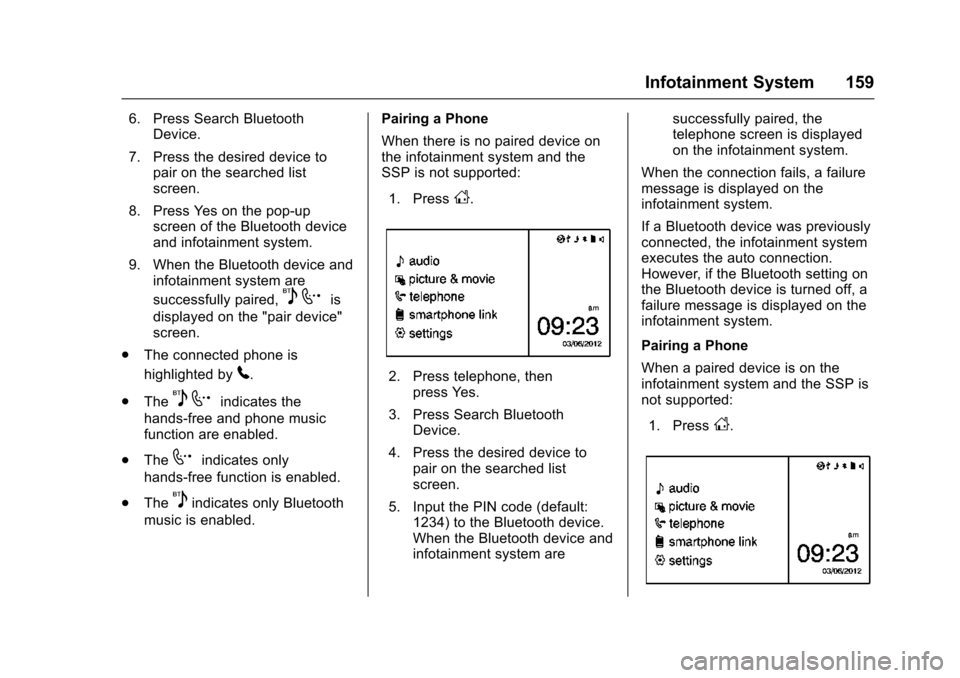
1. Press
D.
2. Press telephone, then press Yes.
3. Press Search Bluetooth Device.
4. Press the desired device to pair on the searched list
screen.
5. Input the PIN code (default: 1234) to the Bluetooth device.
When the Bluetooth device and
infotainment system are successfully paired, the
telephone screen is displayed
on the infotainment system.
When the connection fails, a failure
message is displayed on the
infotainment system.
If a Bluetooth device was previously
connected, the infotainment system
executes the auto connection.
However, if the Bluetooth setting on
the Bluetooth device is turned off, a
failure message is displayed on the
infotainment system.
Pairing a Phone
When a paired device is on the
infotainment system and the SSP is
not supported:
1. Press
D.
Page 163 of 358
Chevrolet TRAX Owner Manual (GMNA-Localizing-U.S./Canada/Mexico-
9159371) - 2016 - crc - 5/21/15
162 Infotainment System
Playing a File Repeatedly
Press
vduring playback.
. 1: Plays the current file
repeatedly.
. ALL: Plays all files repeatedly.
. OFF: Returns to normal
playback.
This function may not be supported
depending on the cell phone.
Playing a File Randomly
Press
uduring playback.
. NO: Plays all files repeatedly.
. OFF: Returns to normal
playback.
This function may not be supported
depending on the cell phone.
Do not change the track too quickly
when playing Bluetooth music.
Conditions that may occur when
playing Bluetooth music:
. It takes some time to transmit
data from the cell phone to the
infotainment system. .
If the cell phone or Bluetooth
device is not in the waiting
screen mode, it may not
automatically play despite being
carried out from the Bluetooth
music play mode.
. The infotainment system
transmits the order to play from
the cell phone in the Bluetooth
music play mode. If this is done
in a different mode, then the
device transmits the order to
stop. Depending on the cell
phone’s options, this order to
play/stop may take time to
activate.
. If the Bluetooth music playback
is not functioning, then check to
see if the cell phone is in the
waiting screen mode.
. Sounds may be cut off during
the Bluetooth music playback.
. The infotainment system outputs
the audio from the cell phone or
Bluetooth device as it is
transmitted.
Bluetooth (Voice
Recognition)
Using Voice Recognition
To use voice recognition, pressb/
gon the steering wheel. Use the
commands below for the various
voice features. For additional
information, say "Help" while you
are in a voice recognition menu.
Pairing
A Bluetooth-enabled cell phone
must be paired to the Bluetooth
system and then connected to the
vehicle before it can be used. See
your cell phone manufacturer's user
guide for Bluetooth functions before
pairing the cell phone. If a Bluetooth
phone is not connected, calls will be
made using OnStar Hands-Free
Calling, if available. See OnStar (if
equipped).
Pairing Information
. A Bluetooth phone with MP3
capability can be paired to the
vehicle as a phone and an MP3
player at the same time.
Page 167 of 358
Chevrolet TRAX Owner Manual (GMNA-Localizing-U.S./Canada/Mexico-
9159371) - 2016 - crc - 5/21/15
166 Infotainment System
Using the“Digit Dial” Command
The digit dial command allows a
phone number to be dialed by
entering the digits one at a time.
After each digit is entered, the
system repeats back the digit it
heard followed by a tone.
If an unwanted number is
recognized by the system, say
“Clear” at any time to clear the last
number.
To hear all of the numbers
recognized by the system, say
“Verify” at any time.
1. Press
b/g. The system
responds “Ready,”followed by
a tone.
2. Say “Digit Dial.”
3. Say each digit, one at a time, that you want to dial. After
each digit is entered, the
system repeats back the digit it
heard followed by a tone. After
the last digit has been entered,
say “Dial.” Once connected, the person called
will be heard through the audio
speakers.
Using the
“Re-dial”Command
1. Press
b/g. The system
responds “Ready,”followed by
a tone.
2. After the tone, say “Re-dial.”
The system dials the last
number called from the
connected cell phone.
Once connected, the person called
will be heard through the audio
speakers.
Receiving a Call
When an incoming call is received,
the audio system mutes and a ring
tone is heard in the vehicle.
. Press
b/gto answer the call.
. Press
$/ito ignore a call.
Call Waiting
Call waiting must be supported on
the cell phone and enabled by the
wireless service carrier.
.Press
b/gto answer an
incoming call when another call
is active. The original call is
placed on hold.
. Press
b/gagain to return to
the original call.
. To ignore the incoming call, no
action is required.
. Press
$/ito disconnect the
current call and switch to the call
on hold.
Three-Way Calling (If
Equipped)
Three-way calling must be
supported on the cell phone and
enabled by the wireless service
carrier.
1. While on a call, press
b/g.
2. Say “Three-way call.”
Page 168 of 358
Chevrolet TRAX Owner Manual (GMNA-Localizing-U.S./Canada/Mexico-
9159371) - 2016 - crc - 5/21/15
Infotainment System 167
3. Use the dial or call commandto dial the number of the third
party to be called.
4. Once the call is connected, press
b/gto link all callers
together.
Ending a Call
Press$/ito end a call.
Muting a Call
During a call, all sounds from inside
the vehicle can be muted so that the
person on the other end of the call
cannot hear them.
To mute a call, press
b/g, and
then say “Mute Call.”
To cancel mute, press
b/g, and
then say “Un-mute Call.”
Transferring a Call
Audio can be transferred between
the Bluetooth system and the cell
phone.
The cell phone must be paired and
connected with the Bluetooth
system before a call can be transferred. The connection process
can take up to two minutes after the
ignition is turned to ON/RUN.
To Transfer Audio from the
Bluetooth System to a Cell Phone
During a call with the audio in the
vehicle:
1. Press
b/g.
2. Say “Transfer Call.”
To Transfer Audio to the Bluetooth
System from a Cell Phone
During a call with the audio on the
cell phone, press
b/g. The audio
transfers to the vehicle. If the audio
does not transfer to the vehicle, use
the audio transfer feature on the cell
phone. See the cell phone
manufacturer's user guide.
Voice Pass-Thru
Voice pass-thru allows access to the
voice recognition commands on the
cell phone. See the cell phone
manufacturer's user guide to see if
the cell phone supports this feature. To access contacts stored in the cell
phone:
1. Press
b/g. The system
responds “Ready,”followed by
a tone.
2. Say “Bluetooth.” This command
can be skipped.
3. Say “Voice.”The system
responds “OK, accessing
The cell phone's normal prompt
messages will go through their cycle
according to the phone's operating
instructions.
Dual Tone Multi-Frequency
(DTMF) Tones (If Equipped)
The Bluetooth system can send
numbers and the numbers stored as
name tags during a call. You can
use this feature when calling a
menu-driven phone system.
Account numbers can also be
stored for use.