audio CHEVROLET TRAX 2016 1.G User Guide
[x] Cancel search | Manufacturer: CHEVROLET, Model Year: 2016, Model line: TRAX, Model: CHEVROLET TRAX 2016 1.GPages: 358, PDF Size: 5.07 MB
Page 133 of 358

Chevrolet TRAX Owner Manual (GMNA-Localizing-U.S./Canada/Mexico-
9159371) - 2016 - crc - 5/21/15
132 Infotainment System
7. TONE.Press to open the
Tone menu.
8.
H(Clock)
. Press to enter the Time and
Date Settings menu.
9. RADIO/BAND .Press to select AM, FM,
or band.
. Press to select the radio
when listening to a different
audio source.
10. AUX (Auxiliary) .Press to access the
auxiliary input device.
11.
©SEEK (Previous)
. Press to seek the previous
station.
. Press and hold to reverse
through the currently
playing song on an external
audio device. 12. SEEK
¨(Next)
. Press to seek the next
station.
. Press and hold to fast
forward through the
currently playing song on
an external audio device.
13. INFO (Information) .Press to view current radio
station and current song
information.
14. FAV 123 (Favorites) .Press to go to a
favorite page.
Page 134 of 358
Chevrolet TRAX Owner Manual (GMNA-Localizing-U.S./Canada/Mexico-
9159371) - 2016 - crc - 5/21/15
Infotainment System 133
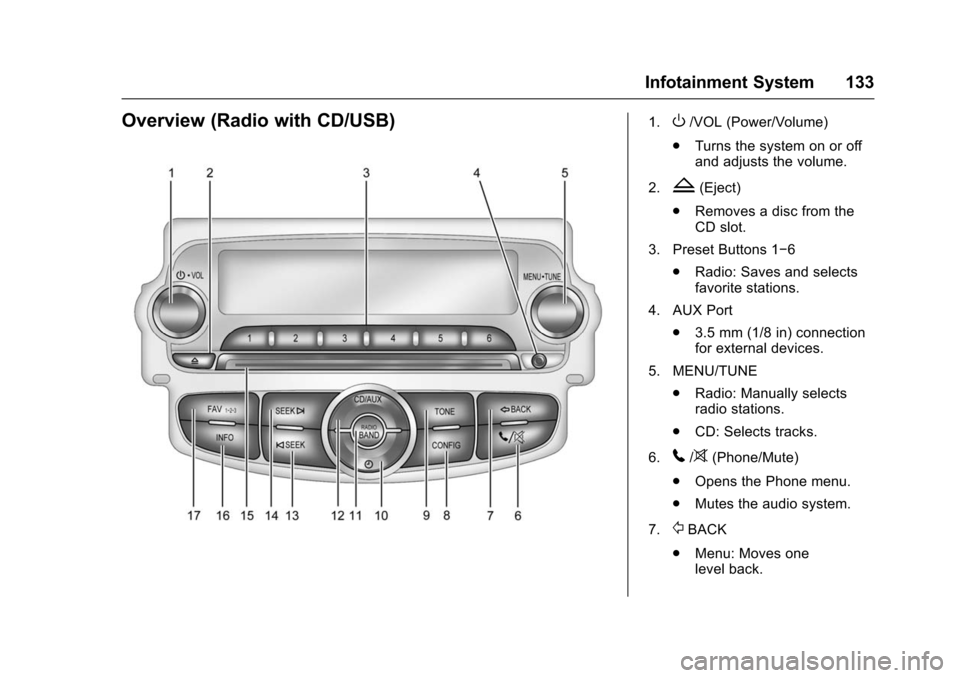
Overview (Radio with CD/USB)1.O/VOL (Power/Volume)
. Turns the system on or off
and adjusts the volume.
2.
Z(Eject)
. Removes a disc from the
CD slot.
3. Preset Buttons 1−6 .Radio: Saves and selects
favorite stations.
4. AUX Port .3.5 mm (1/8 in) connection
for external devices.
5. MENU/TUNE .Radio: Manually selects
radio stations.
. CD: Selects tracks.
6.
5/>(Phone/Mute)
. Opens the Phone menu.
. Mutes the audio system.
7.
/BACK
. Menu: Moves one
level back.
Page 135 of 358

Chevrolet TRAX Owner Manual (GMNA-Localizing-U.S./Canada/Mexico-
9159371) - 2016 - crc - 5/21/15
134 Infotainment System
.Character Input: Deletes
the last character.
8. CONFIG (Configuration) .Opens the
Configuration menu.
9. TONE .Opens the Tone menu.
10.
H(Clock Menu)
. Opens the Clock menu.
11. RADIO/BAND .Changes the band while
listening to the radio.
. Selects the radio when
listening to a different audio
source.
12. CD/AUX .Selects the CD player or an
external audio source.
13.
©SEEK
. Radio: Seeks the previous
station.
. CD: Selects the previous
track or rewinds within a
track. 14. SEEK
¨
.
Radio: Seeks the next
station.
. CD: Selects the next track
or fast forwards within a
track.
15. CD Slot
16. INFO (Information) .Radio: Shows available
information about the
current station.
. CD: Shows available
information about the
current track.
17. FAV 1-2-3 (Favorites) .Radio: Opens the
favorites list.
Page 136 of 358
Chevrolet TRAX Owner Manual (GMNA-Localizing-U.S./Canada/Mexico-
9159371) - 2016 - crc - 5/21/15
Infotainment System 135
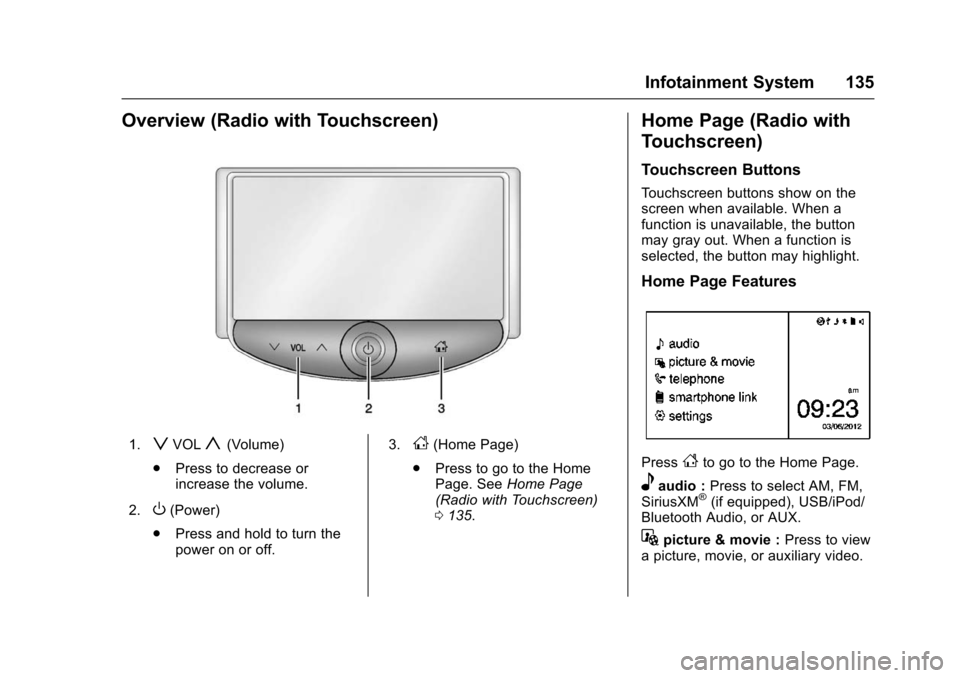
Overview (Radio with Touchscreen)
1.zVOLy(Volume)
. Press to decrease or
increase the volume.
2.
O(Power)
. Press and hold to turn the
power on or off. 3.
D(Home Page)
. Press to go to the Home
Page. See Home Page
(Radio with Touchscreen)
0 135.
Home Page (Radio with
Touchscreen)
Touchscreen Buttons
Touchscreen buttons show on the
screen when available. When a
function is unavailable, the button
may gray out. When a function is
selected, the button may highlight.
Home Page Features
PressFto go to the Home Page.
eaudio : Press to select AM, FM,
SiriusXM®(if equipped), USB/iPod/
Bluetooth Audio, or AUX.
Gpicture & movie : Press to view
a picture, movie, or auxiliary video.
Page 138 of 358
Chevrolet TRAX Owner Manual (GMNA-Localizing-U.S./Canada/Mexico-
9159371) - 2016 - crc - 5/21/15
Infotainment System 137
.Press and hold to delete the
entire character sequence.
Submenus
An arrow on the right-hand edge of
the menu indicates that it has a
submenu with other options.
Audio Settings
The audio settings can be set for
each radio band and each audio
player source.
Adjusting the Bass, Midrange,
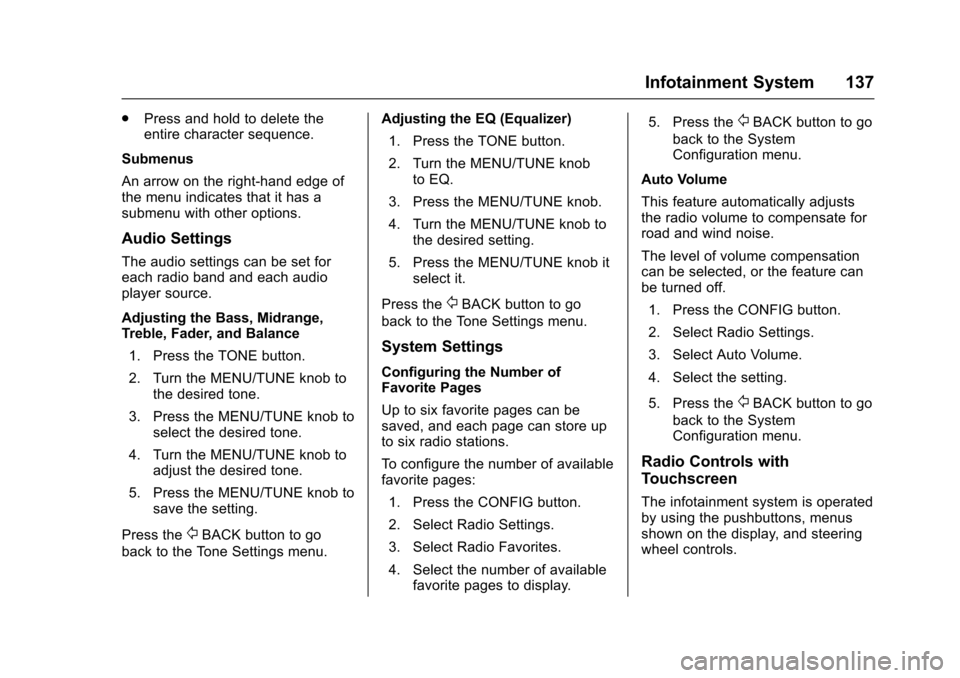
Treble, Fader, and Balance 1. Press the TONE button.
2. Turn the MENU/TUNE knob to the desired tone.
3. Press the MENU/TUNE knob to select the desired tone.
4. Turn the MENU/TUNE knob to adjust the desired tone.
5. Press the MENU/TUNE knob to save the setting.
Press the
/BACK button to go
back to the Tone Settings menu. Adjusting the EQ (Equalizer)
1. Press the TONE button.
2. Turn the MENU/TUNE knob to EQ.
3. Press the MENU/TUNE knob.
4. Turn the MENU/TUNE knob to the desired setting.
5. Press the MENU/TUNE knob it select it.
Press the
/BACK button to go
back to the Tone Settings menu.
System Settings
Configuring the Number of
Favorite Pages
Up to six favorite pages can be
saved, and each page can store up
to six radio stations.
To configure the number of available
favorite pages:
1. Press the CONFIG button.
2. Select Radio Settings.
3. Select Radio Favorites.
4. Select the number of available favorite pages to display. 5. Press the
/BACK button to go
back to the System
Configuration menu.
Auto Volume
This feature automatically adjusts
the radio volume to compensate for
road and wind noise.
The level of volume compensation
can be selected, or the feature can
be turned off. 1. Press the CONFIG button.
2. Select Radio Settings.
3. Select Auto Volume.
4. Select the setting.
5. Press the
/BACK button to go
back to the System
Configuration menu.
Radio Controls with
Touchscreen
The infotainment system is operated
by using the pushbuttons, menus
shown on the display, and steering
wheel controls.
Page 139 of 358
Chevrolet TRAX Owner Manual (GMNA-Localizing-U.S./Canada/Mexico-
9159371) - 2016 - crc - 5/21/15
138 Infotainment System
Turning the System On or Off
O(Power) :Press and hold to turn
the radio on and off.
Automatic Switch-Off
If the infotainment system has been
turned on after the ignition is turned
off, the system will turn off
automatically after 10 minutes.
Volume Control
zVOLy(Volume) : Press to
increase or decrease the volume or
press the volume bar.
>(Mute) : PresszVOLy, then
press
>to mute and unmute the
system.
System Settings
Auto Volume
This feature automatically adjusts
the radio volume to compensate for
road and wind noise.
The level of volume compensation
can be selected, or the feature can
be turned off.
1. Press
D. 2. Select Settings.
3. Select Radio Settings.
4. Select Auto Volume.
5. Select the setting by
pressing
SorT.
6. Press the
4screen button to
go back to the System
Configuration menu.
Auto Store (AS)
This feature automatically stores the
stations with the strongest
reception.
To store or update the stations,
press and hold the AS screen
button.
To listen to an auto stored station: 1. Select AM or FM.
2. Press the AS screen button.
3. Press
SorTrepeatedly to
select the desired AS page.
4. Press the desired preset station screen button. Audio Settings
The audio settings can be set for
each radio band and each audio
player source.
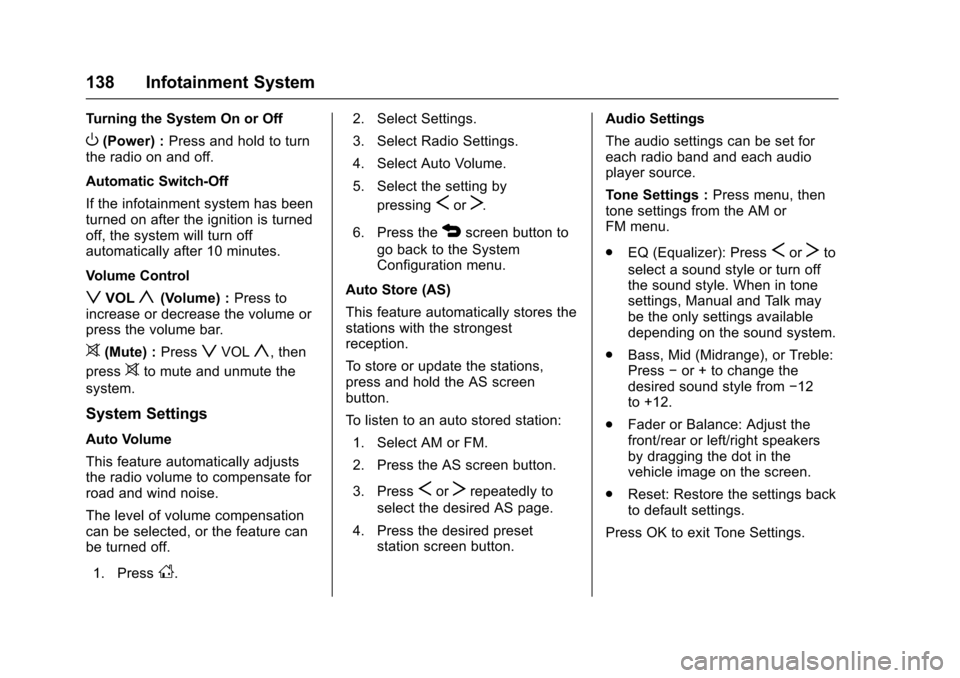
Tone Settings :
Press menu, then
tone settings from the AM or
FM menu.
. EQ (Equalizer): Press
SorTto
select a sound style or turn off
the sound style. When in tone
settings, Manual and Talk may
be the only settings available
depending on the sound system.
. Bass, Mid (Midrange), or Treble:
Press −or + to change the
desired sound style from −12
to +12.
. Fader or Balance: Adjust the
front/rear or left/right speakers
by dragging the dot in the
vehicle image on the screen.
. Reset: Restore the settings back
to default settings.
Press OK to exit Tone Settings.
Page 140 of 358
Chevrolet TRAX Owner Manual (GMNA-Localizing-U.S./Canada/Mexico-
9159371) - 2016 - crc - 5/21/15
Infotainment System 139
Radio
AM-FM Radio
Playing the Radio without
Touchscreen
Audio Source Menu
O/VOL (Power/Volume):Press to
turn the system on and off. Turn to
increase or decrease the volume.
MENU/TUNE : Turn to change the
radio station.
RADIO/BAND : Press to select AM
and FM.
INFO : Press to display additional
information that may be available for
the current song.
FAV 123 : Press to open the
favorites list and select a
favorite page.
Preset Buttons 1–6 : Press to
select preset stations.
Radio Broadcast Data
System (RBDS)
RBDS is a service by FM stations
that makes it easier to find radio
stations with fault-free reception.
RBDS stations are indicated by the
program name instead of the
broadcasting frequency.
View RBDS Broadcast
Information
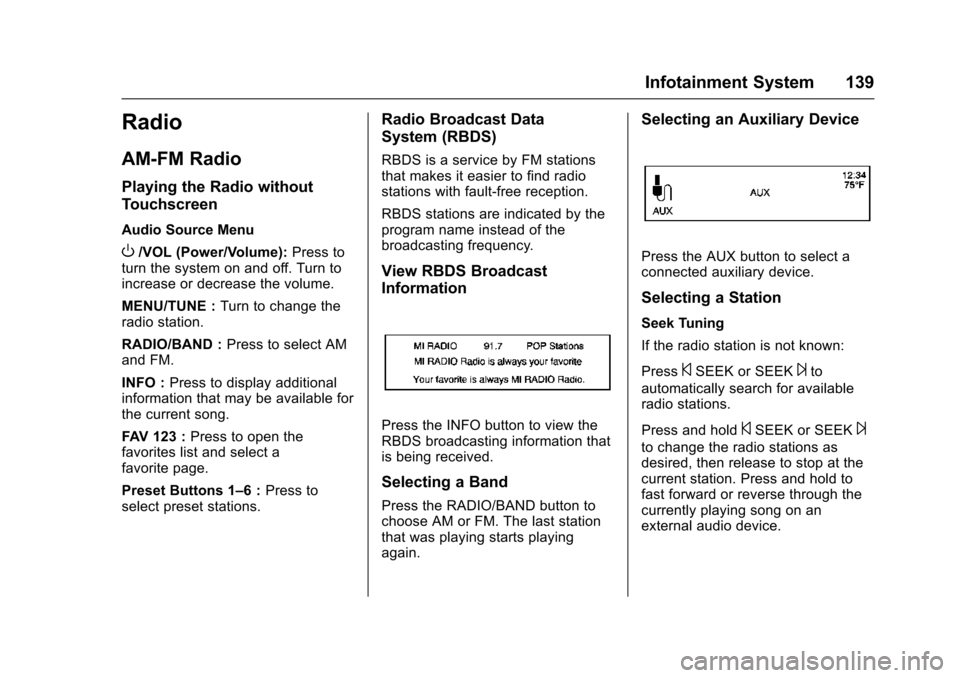
Press the INFO button to view the
RBDS broadcasting information that
is being received.
Selecting a Band
Press the RADIO/BAND button to
choose AM or FM. The last station
that was playing starts playing
again.
Selecting an Auxiliary Device
Press the AUX button to select a
connected auxiliary device.
Selecting a Station
Seek Tuning
If the radio station is not known:
Press
©SEEK or SEEK¨to
automatically search for available
radio stations.
Press and hold
©SEEK or SEEK¨
to change the radio stations as
desired, then release to stop at the
current station. Press and hold to
fast forward or reverse through the
currently playing song on an
external audio device.
Page 142 of 358
Chevrolet TRAX Owner Manual (GMNA-Localizing-U.S./Canada/Mexico-
9159371) - 2016 - crc - 5/21/15
Infotainment System 141
During the AM or FM broadcasting
list update, press the MENU/TUNE
knob or
/BACK button to stop the
updates.
Storing a Station as a Favorite
Stations from all bands can be
stored in any order in the favorite
pages.
Up to six stations can be stored in
each favorite page.
Storing Stations
Press the FAV 123 button to select
the desired page of saved favorites.
To store the station to a position in
the list, press the corresponding
preset button 1−6 until a beep is
heard.
Playing the Radio with
Touchscreen
Audio Source Menu
zVOLy(Volume): Press to
increase or decrease the volume.
O(Power) : Press and hold to turn
the system on and off.
D(Home Page) : Press to enter
the Home Page.
RDS (Radio Data System)
If equipped, the RDS feature is
available for use only on FM
stations that broadcast RDS
information. This feature only works
when the information from the radio
station is available. In rare cases, a
radio station could broadcast
incorrect information that causes the
radio features to work improperly.
If this happens, contact the radio
station.
While the radio is tuned to an
FM-RDS station, the station name
or call letters display.
Selecting a Band
PressD, audio, then SourceRto
choose AM, FM, or SiriusXM®,
if equipped. The last station that
was playing starts playing again.
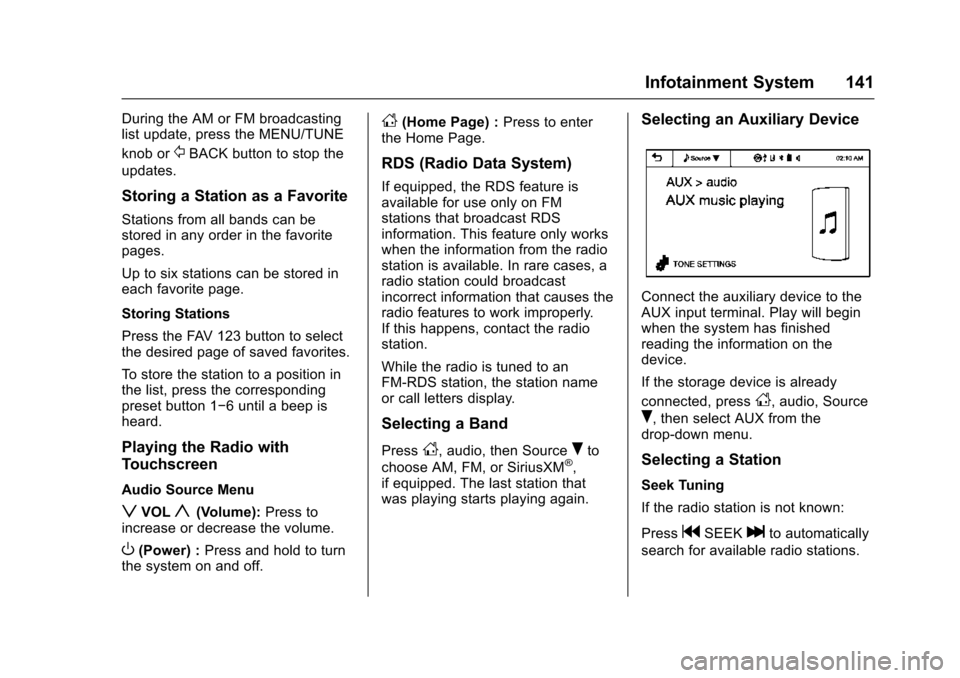
Selecting an Auxiliary Device
Connect the auxiliary device to the
AUX input terminal. Play will begin
when the system has finished
reading the information on the
device.
If the storage device is already
connected, press
D, audio, Source
R, then select AUX from the
drop-down menu.
Selecting a Station
Seek Tuning
If the radio station is not known:
Press
gSEEKlto automatically
search for available radio stations.
Page 144 of 358
Chevrolet TRAX Owner Manual (GMNA-Localizing-U.S./Canada/Mexico-
9159371) - 2016 - crc - 5/21/15
Infotainment System 143
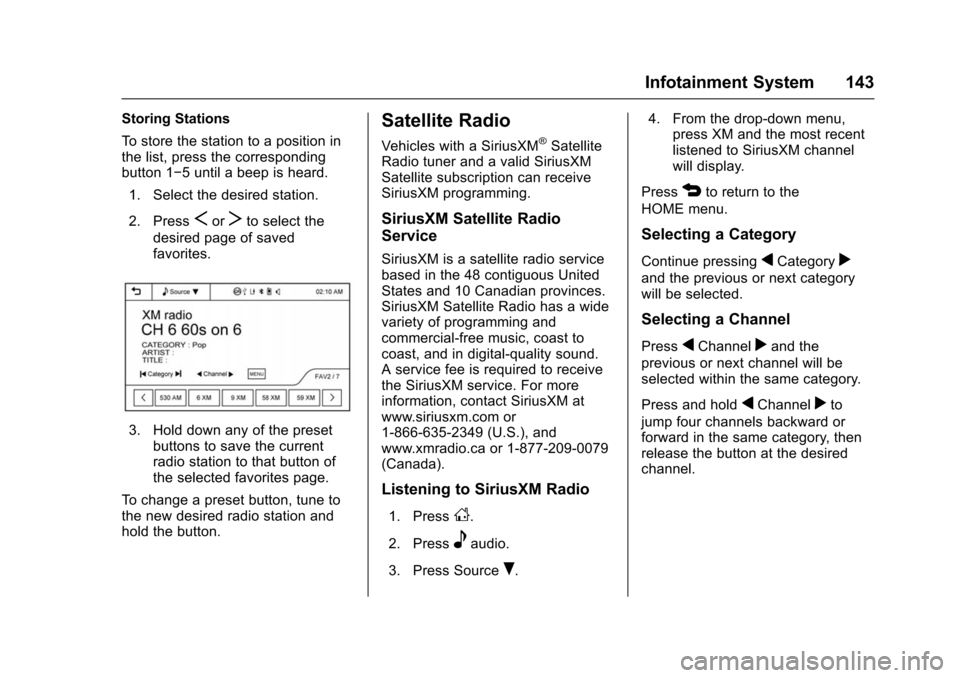
Storing Stations
To store the station to a position in
the list, press the corresponding
button 1−5 until a beep is heard.1. Select the desired station.
2. Press
SorTto select the
desired page of saved
favorites.
3. Hold down any of the preset buttons to save the current
radio station to that button of
the selected favorites page.
To change a preset button, tune to
the new desired radio station and
hold the button.
Satellite Radio
Vehicles with a SiriusXM®Satellite
Radio tuner and a valid SiriusXM
Satellite subscription can receive
SiriusXM programming.
SiriusXM Satellite Radio
Service
SiriusXM is a satellite radio service
based in the 48 contiguous United
States and 10 Canadian provinces.
SiriusXM Satellite Radio has a wide
variety of programming and
commercial-free music, coast to
coast, and in digital-quality sound.
A service fee is required to receive
the SiriusXM service. For more
information, contact SiriusXM at
www.siriusxm.com or
1-866-635-2349 (U.S.), and
www.xmradio.ca or 1-877-209-0079
(Canada).
Listening to SiriusXM Radio
1. PressD.
2. Press
eaudio.
3. Press Source
R. 4. From the drop-down menu,
press XM and the most recent
listened to SiriusXM channel
will display.
Press
4to return to the
HOME menu.
Selecting a Category
Continue pressingqCategoryr
and the previous or next category
will be selected.
Selecting a Channel
PressqChannelrand the
previous or next channel will be
selected within the same category.
Press and hold
qChannelrto
jump four channels backward or
forward in the same category, then
release the button at the desired
channel.
Page 146 of 358
Chevrolet TRAX Owner Manual (GMNA-Localizing-U.S./Canada/Mexico-
9159371) - 2016 - crc - 5/21/15
Infotainment System 145
Tone Settings
From the tone settings menu, the
sound features can be set up for
SiriusXM audio and each audio
player’s functions.
1. Press tone settings from the XM menu. The tone settings
screen is displayed. See “Tone
Settings” underOperation
0 136.
2. Press OK.
Radio Reception
Frequency interference and static
can occur during normal radio
reception if items such as mobile
phone chargers, vehicle
convenience accessories, and
external electronic devices are
plugged into the accessory power
outlet. If there is interference or
static, unplug the item from the
accessory power outlet.
FM
FM signals only reach about 16 to
65 km (10 to 40 mi). Although the
radio has a built-in electronic circuit
that automatically works to reduce interference, some static can occur,
especially around tall buildings or
hills, causing the sound to fade in
and out.
AM
The range for most AM stations is
greater than for FM, especially at
night. The longer range can cause
station frequencies to interfere with
each other. Static can occur when
things like storms and power lines
interfere with radio reception. When
this happens, try reducing the treble
on the radio.
SiriusXM®Satellite Radio
Service
SiriusXM Satellite Radio Service
gives digital radio reception from
coast to coast in the 48 contiguous
United States, and in Canada. Just
as with FM, tall buildings or hills can
interfere with satellite radio signals,
causing the sound to fade in and
out. In addition, traveling or standing
under heavy foliage, bridges,
garages, or tunnels may cause loss
of the SiriusXM signal for a period
of time.
Cellular Phone Usage
Cellular phone usage can cause
interference with the vehicle's radio.
Fixed Mast Antenna
The AM-FM antenna is located on
the roof of the vehicle.
Driving through an automatic car
wash without removing the antenna
could damage it.
To remove the antenna, turn it
counterclockwise. To replace the
antenna, turn it clockwise until hand
tightened.
Multi-Band Antenna
If equipped, the multi-band antenna
is on the roof of the vehicle. The
antenna is used for the AM-FM
radio, OnStar, the SiriusXM Satellite
Radio Service System, and GPS
(Global Positioning System), if the
vehicle has these features. Keep
the antenna clear of obstructions for
clear reception.