display CHEVROLET TRAX 2016 1.G Owner's Manual
[x] Cancel search | Manufacturer: CHEVROLET, Model Year: 2016, Model line: TRAX, Model: CHEVROLET TRAX 2016 1.GPages: 358, PDF Size: 5.07 MB
Page 121 of 358
Chevrolet TRAX Owner Manual (GMNA-Localizing-U.S./Canada/Mexico-
9159371) - 2016 - crc - 5/21/15
120 Instruments and Controls
Delayed Door Lock
When on, this feature will delay the
locking of the doors until
five seconds after the last door is
closed. Three chimes will signal that
delayed locking is in use. Pressing
either
QorKon the RKE
transmitter twice will override the
delayed locking feature and
immediately lock all of the doors.
Select On or Off.
Lock, Unlock Settings
Select and the following may
display:
. Remote Unlock Light Feedback
. Remote Lock Light & Horn
Feedback
. Remote Door Unlock
Remote Unlock Light Feedback
When on, the exterior lamps will
flash when unlocking the vehicle
with the RKE transmitter.
Select Flash Lights or Lights Off. Remote Lock Light & Horn
Feedback
This allows selection of what type of
feedback is given when pressing
Q
on the RKE transmitter.
Select Lights Only, Lights & Horn,
Horn Only, or Off.
Remote Door Unlock
This allows selection of which doors
will unlock when pressing
Kon the
RKE transmitter.
When set to Driver Door, the driver
door will unlock the first time
Kis
pressed and all doors will unlock
when the button is pressed a
second time. When set to All Doors,
all of the doors will unlock at the first
press of
K.
Select All Doors or Driver Door.
Rear Camera Option
Select and the following may
display:
. Symbols
. Guidelines Symbols
This feature will turn on the park
assist symbols in the rear camera
display. See
Rear Vision Camera
(RVC) 0222.
Select On or Off.
Guidelines
This feature will turn on the
guidelines in the rear camera
display. See Rear Vision Camera
(RVC) 0222.
Select On or Off.
Vehicle Factory Settings
This feature will turn the vehicle
personalization to the default
settings.
Select Yes or No.Language
Select language, then select from
the available language(s).
Text Scroll
This allows this feature to be turned
on or off. When on, if there is long
text displayed on the audio screen,
Page 122 of 358
Chevrolet TRAX Owner Manual (GMNA-Localizing-U.S./Canada/Mexico-
9159371) - 2016 - crc - 5/21/15
Instruments and Controls 121
the text is scrolled. When off, the
text is scrolled once and displayed
in truncated form.
Select On or Off.
Touch Beep Volume
This allows this feature to be turned
on or off. When on, a beep will be
heard when pressing the screen.
When off, the beep is canceled.
Select On or Off.
Max Startup Volume
This allows the startup volume of
the infotainment system to be set.
Press
SorTto select the desired
volume from 9–21.
System Version
Select to view the version of the
infotainment system.
DivX®VOD
Press DivX®VOD when highlighted.
. DIVX VIDEO: DivX
®is a digital
video format created by DivX,
LLC, a subsidiary of Rovi
Corporation. This is an official DivX Certified
®device that plays
DivX video. See divx.com for
more information and software
tools on how to convert files into
DivX videos.
. DIVX VIDEO-ON DEMAND: This
DivX Certified
®device must be
registered in order to play
purchased DivX
Video-on-Demand (VOD)
movies. To obtain a registration
code, locate the DivX VOD
section in the device setup
menu. See vod.divx.com for
more information on how to
complete the registration.
Page 127 of 358
Chevrolet TRAX Owner Manual (GMNA-Localizing-U.S./Canada/Mexico-
9159371) - 2016 - crc - 5/21/15
126 Lighting
Interior Lighting
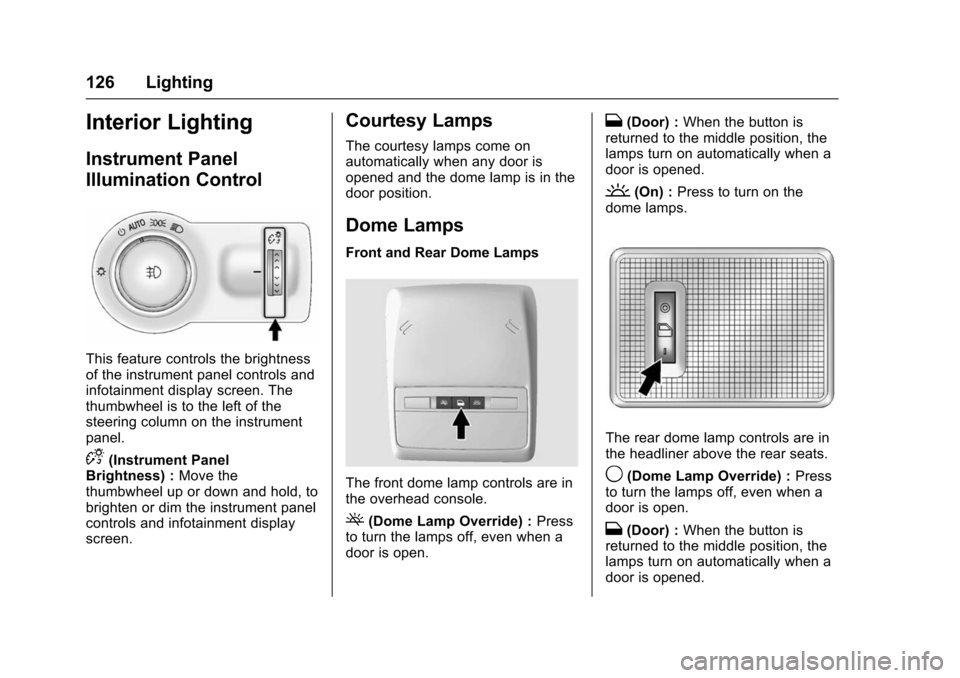
Instrument Panel
Illumination Control
This feature controls the brightness
of the instrument panel controls and
infotainment display screen. The
thumbwheel is to the left of the
steering column on the instrument
panel.
D(Instrument Panel
Brightness) : Move the
thumbwheel up or down and hold, to
brighten or dim the instrument panel
controls and infotainment display
screen.
Courtesy Lamps
The courtesy lamps come on
automatically when any door is
opened and the dome lamp is in the
door position.
Dome Lamps
Front and Rear Dome Lamps
The front dome lamp controls are in
the overhead console.
((Dome Lamp Override) : Press
to turn the lamps off, even when a
door is open.
H(Door) : When the button is
returned to the middle position, the
lamps turn on automatically when a
door is opened.
'(On) : Press to turn on the
dome lamps.
The rear dome lamp controls are in
the headliner above the rear seats.
9(Dome Lamp Override) : Press
to turn the lamps off, even when a
door is open.
H(Door) : When the button is
returned to the middle position, the
lamps turn on automatically when a
door is opened.
Page 128 of 358
Chevrolet TRAX Owner Manual (GMNA-Localizing-U.S./Canada/Mexico-
9159371) - 2016 - crc - 5/21/15
Lighting 127
R(On) :Press to turn on the dome
lamps.
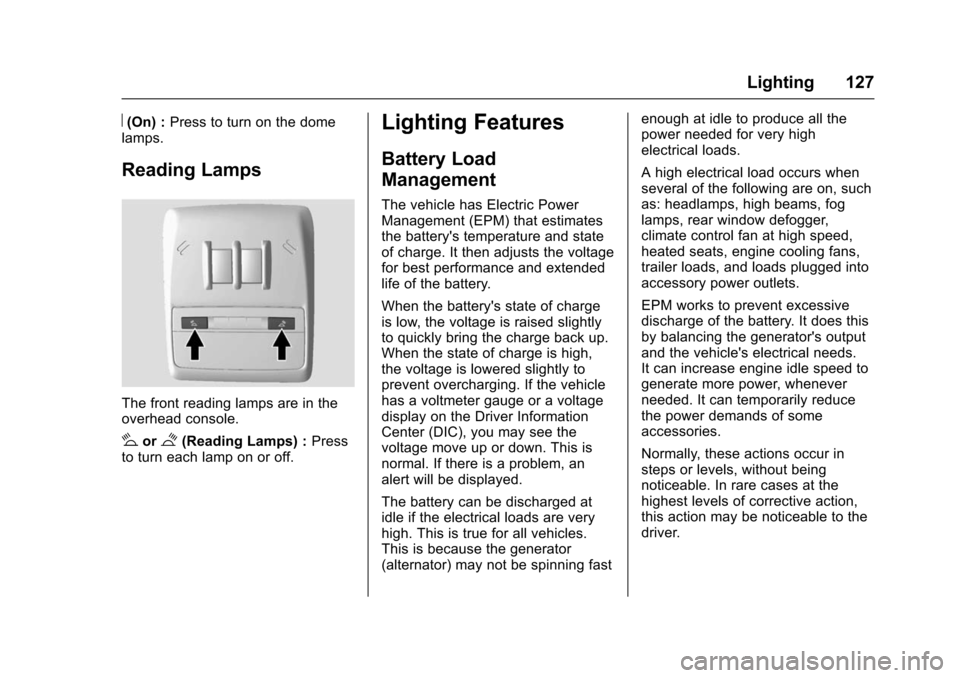
Reading Lamps
The front reading lamps are in the
overhead console.
#or$(Reading Lamps) : Press
to turn each lamp on or off.
Lighting Features
Battery Load
Management
The vehicle has Electric Power
Management (EPM) that estimates
the battery's temperature and state
of charge. It then adjusts the voltage
for best performance and extended
life of the battery.
When the battery's state of charge
is low, the voltage is raised slightly
to quickly bring the charge back up.
When the state of charge is high,
the voltage is lowered slightly to
prevent overcharging. If the vehicle
has a voltmeter gauge or a voltage
display on the Driver Information
Center (DIC), you may see the
voltage move up or down. This is
normal. If there is a problem, an
alert will be displayed.
The battery can be discharged at
idle if the electrical loads are very
high. This is true for all vehicles.
This is because the generator
(alternator) may not be spinning fast enough at idle to produce all the
power needed for very high
electrical loads.
A high electrical load occurs when
several of the following are on, such
as: headlamps, high beams, fog
lamps, rear window defogger,
climate control fan at high speed,
heated seats, engine cooling fans,
trailer loads, and loads plugged into
accessory power outlets.
EPM works to prevent excessive
discharge of the battery. It does this
by balancing the generator's output
and the vehicle's electrical needs.
It can increase engine idle speed to
generate more power, whenever
needed. It can temporarily reduce
the power demands of some
accessories.
Normally, these actions occur in
steps or levels, without being
noticeable. In rare cases at the
highest levels of corrective action,
this action may be noticeable to the
driver.
Page 130 of 358
Chevrolet TRAX Owner Manual (GMNA-Localizing-U.S./Canada/Mexico-
9159371) - 2016 - crc - 5/21/15
Infotainment System 129
Infotainment
System
Introduction
Infotainment . . . . . . . . . . . . . . . . . . 129
Theft-Deterrent Feature . . . . . . 130
Overview (AM-FM Radio) . . . . . 131
Overview (Radio withCD/USB) . . . . . . . . . . . . . . . . . . . . 133
Overview (Radio with Touchscreen) . . . . . . . . . . . . . . . 135
Home Page (Radio with Touchscreen) . . . . . . . . . . . . . . . 135
Operation . . . . . . . . . . . . . . . . . . . . . 136
Radio
AM-FM Radio . . . . . . . . . . . . . . . . 139
Satellite Radio . . . . . . . . . . . . . . . . 143
Radio Reception . . . . . . . . . . . . . . 145
Fixed Mast Antenna . . . . . . . . . . 145
Multi-Band Antenna . . . . . . . . . . 145
Audio Players
CD Player . . . . . . . . . . . . . . . . . . . . 146
USB Port . . . . . . . . . . . . . . . . . . . . . 147
Auxiliary Devices . . . . . . . . . . . . . 151
Bluetooth Audio . . . . . . . . . . . . . . 152
Phone
Bluetooth (Overview) . . . . . . . . . 153
Bluetooth (Infotainment Controls) . . . . . . . . . . . . . . . . . . . . 154
Bluetooth (Voice Recognition) . . . . . . . . . . . . . . . . 162
Hands-Free Phone . . . . . . . . . . . 168
Downloadable Applications
Smartphone Link (Overview) . . . . . . . . . . . . . . . . . . 170
Smartphone Link (Pandora) . . . . . . . . . . . . . . . . . . . 172
Smartphone Link (Stitcher) . . . 174
Bluetooth Phone/Devices
Pictures and Movies (Audio System) . . . . . . . . . . . . . . . . . . . . . 175
Pictures and Movies (Picture System) . . . . . . . . . . . . . . . . . . . . . 181
Pictures and Movies (Movie System) . . . . . . . . . . . . . . . . . . . . . 182
Trademarks and License
Agreements
Trademarks and LicenseAgreements . . . . . . . . . . . . . . . . . 184
Introduction
Infotainment
Read the following pages to
become familiar with these features.
{Warning
Taking your eyes off the road for
too long or too often while using
any infotainment feature can
cause a crash. You or others
could be injured or killed. Do not
give extended attention to
infotainment tasks while driving.
Limit your glances at the vehicle
displays and focus your attention
on driving. Use voice commands
whenever possible.
The infotainment system has built-in
features intended to help avoid
distraction by disabling some
functions when driving. These
functions may gray out when they
are unavailable. Many infotainment
Page 137 of 358
Chevrolet TRAX Owner Manual (GMNA-Localizing-U.S./Canada/Mexico-
9159371) - 2016 - crc - 5/21/15
136 Infotainment System
7telephone :Press to activate
the phone features (if equipped).
See Bluetooth (Voice Recognition)
0 162 orBluetooth (Overview) 0153
or Bluetooth (Infotainment Controls)
0 154.
^smartphone link : Press to listen
to Pandora®(if equipped), Stitcher®,
or available application. See
Smartphone Link (Overview) 0170
or Smartphone Link (Pandora)
0 172 orSmartphone Link (Stitcher)
0 174.
8settings : Press to access the
Personalization menu. See Vehicle
Personalization 0114.
Operation
Radio Controls without
Touchscreen
The infotainment system is operated
by using the pushbuttons,
multifunction knobs, and menus
shown on the display.
Turning the System On or Off
O/VOL (Power/Volume) : Press to
turn the radio on and off.
Automatic Switch-Off
If the infotainment system has been
turned on after the ignition is turned
off, the system will turn off
automatically after 10 minutes.
Volume Control
O/VOL (Power/Volume) : Turn to
adjust the volume.
5/>(Phone/Mute) : Press5/>to
activate OnStar. See OnStar
Overview 0337.
Press and hold
5/>to mute the
infotainment system. Press
5/>
again or turn theO/VOL knob to
cancel mute.
Menu System
Controls
The MENU/TUNE knob and
/
BACK button are used to navigate
the menu system.
MENU/TUNE Knob:
Turn to:
. Highlight a menu option.
. Select a value.
Press to:
. Enter the menu system.
. Select or activate the highlighted
menu option.
. Confirm a set value.
. Turn a system setting on or off.
/BACK:
Press to:
. Exit a menu.
. Go back to the previous menu
screen.
. Delete the last character in a
sequence.
Page 138 of 358
Chevrolet TRAX Owner Manual (GMNA-Localizing-U.S./Canada/Mexico-
9159371) - 2016 - crc - 5/21/15
Infotainment System 137
.Press and hold to delete the
entire character sequence.
Submenus
An arrow on the right-hand edge of
the menu indicates that it has a
submenu with other options.
Audio Settings
The audio settings can be set for
each radio band and each audio
player source.
Adjusting the Bass, Midrange,
Treble, Fader, and Balance 1. Press the TONE button.
2. Turn the MENU/TUNE knob to the desired tone.
3. Press the MENU/TUNE knob to select the desired tone.
4. Turn the MENU/TUNE knob to adjust the desired tone.
5. Press the MENU/TUNE knob to save the setting.
Press the
/BACK button to go
back to the Tone Settings menu. Adjusting the EQ (Equalizer)
1. Press the TONE button.
2. Turn the MENU/TUNE knob to EQ.
3. Press the MENU/TUNE knob.
4. Turn the MENU/TUNE knob to the desired setting.
5. Press the MENU/TUNE knob it select it.
Press the
/BACK button to go
back to the Tone Settings menu.
System Settings
Configuring the Number of
Favorite Pages
Up to six favorite pages can be
saved, and each page can store up
to six radio stations.
To configure the number of available
favorite pages:
1. Press the CONFIG button.
2. Select Radio Settings.
3. Select Radio Favorites.
4. Select the number of available favorite pages to display. 5. Press the
/BACK button to go
back to the System
Configuration menu.
Auto Volume
This feature automatically adjusts
the radio volume to compensate for
road and wind noise.
The level of volume compensation
can be selected, or the feature can
be turned off. 1. Press the CONFIG button.
2. Select Radio Settings.
3. Select Auto Volume.
4. Select the setting.
5. Press the
/BACK button to go
back to the System
Configuration menu.
Radio Controls with
Touchscreen
The infotainment system is operated
by using the pushbuttons, menus
shown on the display, and steering
wheel controls.
Page 140 of 358
Chevrolet TRAX Owner Manual (GMNA-Localizing-U.S./Canada/Mexico-
9159371) - 2016 - crc - 5/21/15
Infotainment System 139
Radio
AM-FM Radio
Playing the Radio without
Touchscreen
Audio Source Menu
O/VOL (Power/Volume):Press to
turn the system on and off. Turn to
increase or decrease the volume.
MENU/TUNE : Turn to change the
radio station.
RADIO/BAND : Press to select AM
and FM.
INFO : Press to display additional
information that may be available for
the current song.
FAV 123 : Press to open the
favorites list and select a
favorite page.
Preset Buttons 1–6 : Press to
select preset stations.
Radio Broadcast Data
System (RBDS)
RBDS is a service by FM stations
that makes it easier to find radio
stations with fault-free reception.
RBDS stations are indicated by the
program name instead of the
broadcasting frequency.
View RBDS Broadcast
Information
Press the INFO button to view the
RBDS broadcasting information that
is being received.
Selecting a Band
Press the RADIO/BAND button to
choose AM or FM. The last station
that was playing starts playing
again.
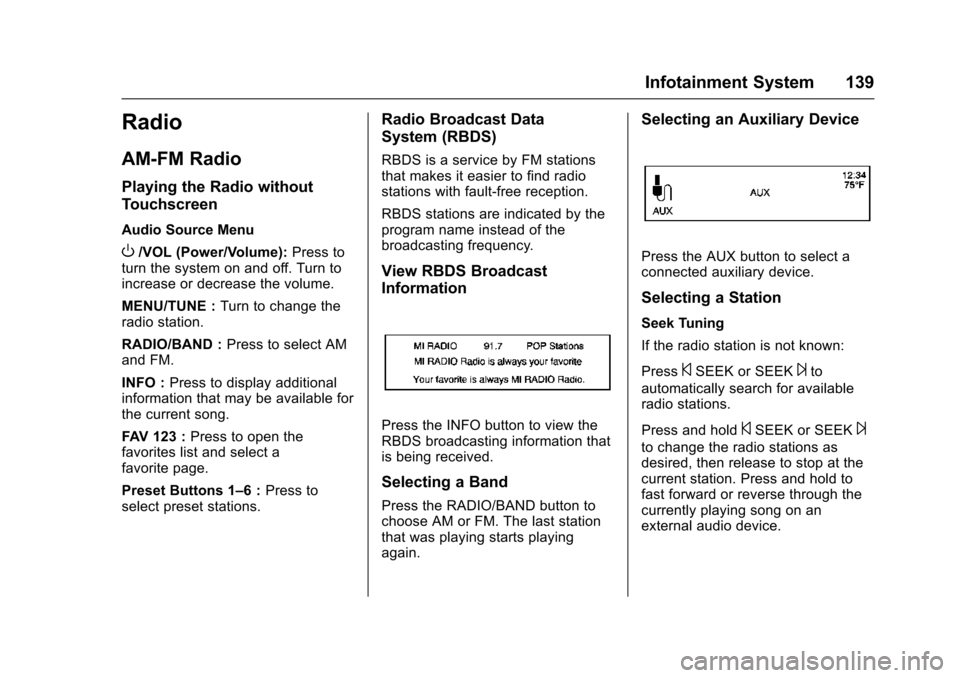
Selecting an Auxiliary Device
Press the AUX button to select a
connected auxiliary device.
Selecting a Station
Seek Tuning
If the radio station is not known:
Press
©SEEK or SEEK¨to
automatically search for available
radio stations.
Press and hold
©SEEK or SEEK¨
to change the radio stations as
desired, then release to stop at the
current station. Press and hold to
fast forward or reverse through the
currently playing song on an
external audio device.
Page 141 of 358
Chevrolet TRAX Owner Manual (GMNA-Localizing-U.S./Canada/Mexico-
9159371) - 2016 - crc - 5/21/15
140 Infotainment System
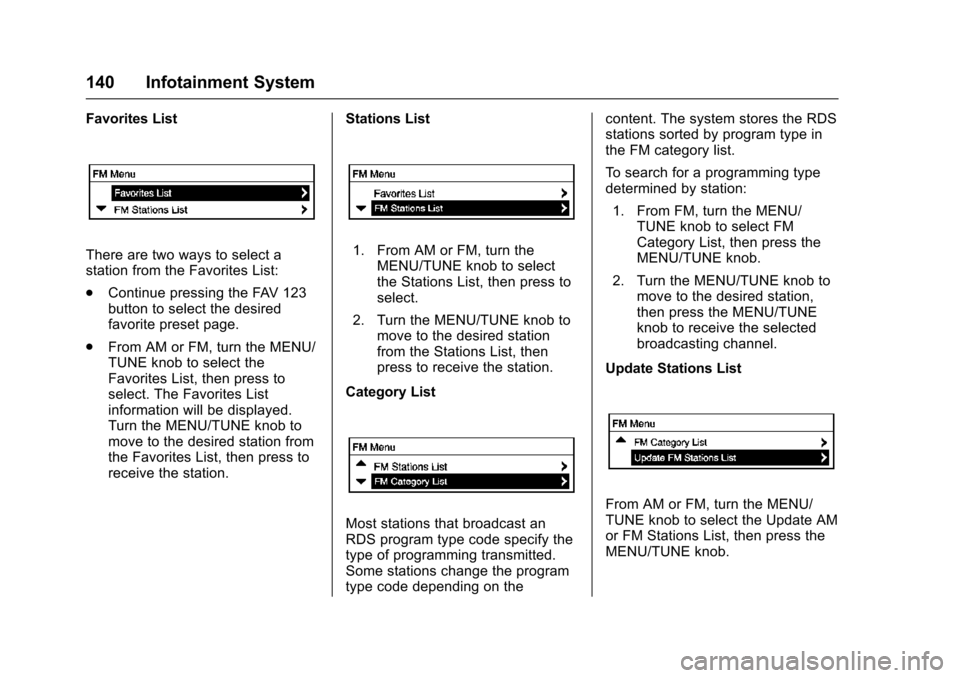
Favorites List
There are two ways to select a
station from the Favorites List:
.Continue pressing the FAV 123
button to select the desired
favorite preset page.
. From AM or FM, turn the MENU/
TUNE knob to select the
Favorites List, then press to
select. The Favorites List
information will be displayed.
Turn the MENU/TUNE knob to
move to the desired station from
the Favorites List, then press to
receive the station. Stations List1. From AM or FM, turn the
MENU/TUNE knob to select
the Stations List, then press to
select.
2. Turn the MENU/TUNE knob to move to the desired station
from the Stations List, then
press to receive the station.
Category List
Most stations that broadcast an
RDS program type code specify the
type of programming transmitted.
Some stations change the program
type code depending on the content. The system stores the RDS
stations sorted by program type in
the FM category list.
To search for a programming type
determined by station:
1. From FM, turn the MENU/ TUNE knob to select FM
Category List, then press the
MENU/TUNE knob.
2. Turn the MENU/TUNE knob to move to the desired station,
then press the MENU/TUNE
knob to receive the selected
broadcasting channel.
Update Stations List
From AM or FM, turn the MENU/
TUNE knob to select the Update AM
or FM Stations List, then press the
MENU/TUNE knob.
Page 142 of 358
Chevrolet TRAX Owner Manual (GMNA-Localizing-U.S./Canada/Mexico-
9159371) - 2016 - crc - 5/21/15
Infotainment System 141
During the AM or FM broadcasting
list update, press the MENU/TUNE
knob or
/BACK button to stop the
updates.
Storing a Station as a Favorite
Stations from all bands can be
stored in any order in the favorite
pages.
Up to six stations can be stored in
each favorite page.
Storing Stations
Press the FAV 123 button to select
the desired page of saved favorites.
To store the station to a position in
the list, press the corresponding
preset button 1−6 until a beep is
heard.
Playing the Radio with
Touchscreen
Audio Source Menu
zVOLy(Volume): Press to
increase or decrease the volume.
O(Power) : Press and hold to turn
the system on and off.
D(Home Page) : Press to enter
the Home Page.
RDS (Radio Data System)
If equipped, the RDS feature is
available for use only on FM
stations that broadcast RDS
information. This feature only works
when the information from the radio
station is available. In rare cases, a
radio station could broadcast
incorrect information that causes the
radio features to work improperly.
If this happens, contact the radio
station.
While the radio is tuned to an
FM-RDS station, the station name
or call letters display.
Selecting a Band
PressD, audio, then SourceRto
choose AM, FM, or SiriusXM®,
if equipped. The last station that
was playing starts playing again.
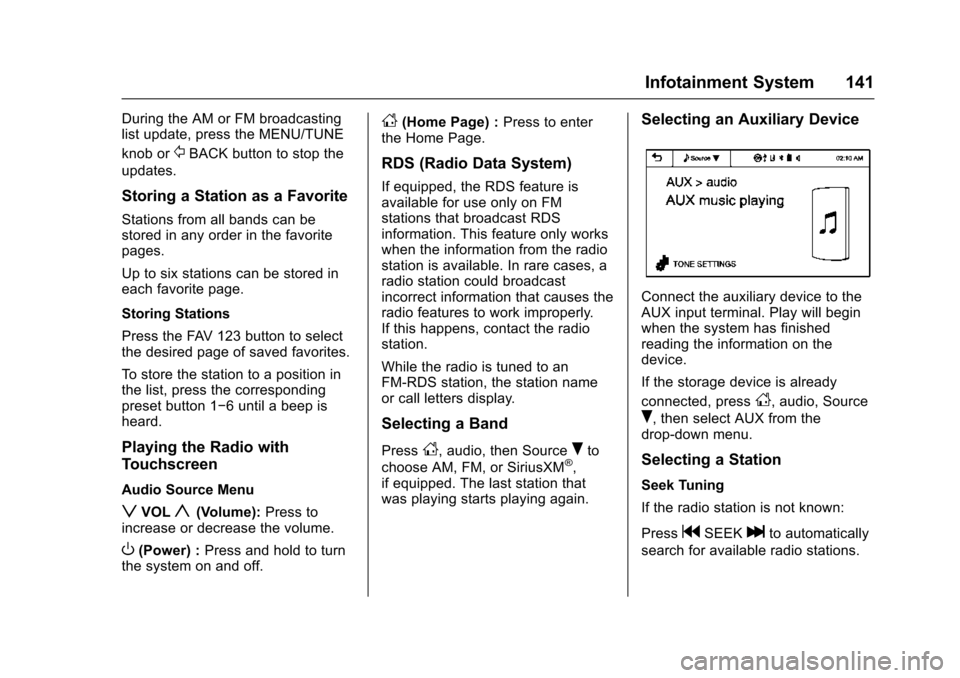
Selecting an Auxiliary Device
Connect the auxiliary device to the
AUX input terminal. Play will begin
when the system has finished
reading the information on the
device.
If the storage device is already
connected, press
D, audio, Source
R, then select AUX from the
drop-down menu.
Selecting a Station
Seek Tuning
If the radio station is not known:
Press
gSEEKlto automatically
search for available radio stations.