display CHEVROLET TRAX 2016 1.G Workshop Manual
[x] Cancel search | Manufacturer: CHEVROLET, Model Year: 2016, Model line: TRAX, Model: CHEVROLET TRAX 2016 1.GPages: 358, PDF Size: 5.07 MB
Page 178 of 358
Chevrolet TRAX Owner Manual (GMNA-Localizing-U.S./Canada/Mexico-
9159371) - 2016 - crc - 5/21/15
Infotainment System 177
supported, but will only display
up to 2,500 files on the screen in
alphabetical order.
. Some iPod/iPhone product
models may not support the
connectivity or functionality of
this product.
. Only connect the iPod/iPhone
with connection cables
supported by iPod/iPhone
products. Other connection
cables cannot be used.
. The iPod/iPhone may be
damaged if it is connected to the
vehicle with the ignition on.
When not in use, disconnect the
iPod/iPhone.
. When the iPod/iPhone is
connected to the USB port by
using the iPod/iPhone cable, the
Bluetooth music is not
supported.
. Connect the iPod/iPhone to the
USB port by using the iPod/
iPhone cable to play the music
files. When the iPod/iPhone is
connected to the AUX input terminal, the music file will play,
but can’t be controlled by the
infotainment system.
. The iPod/iPhone playback
functions and the information
displayed may be different when
played on the infotainment
system.
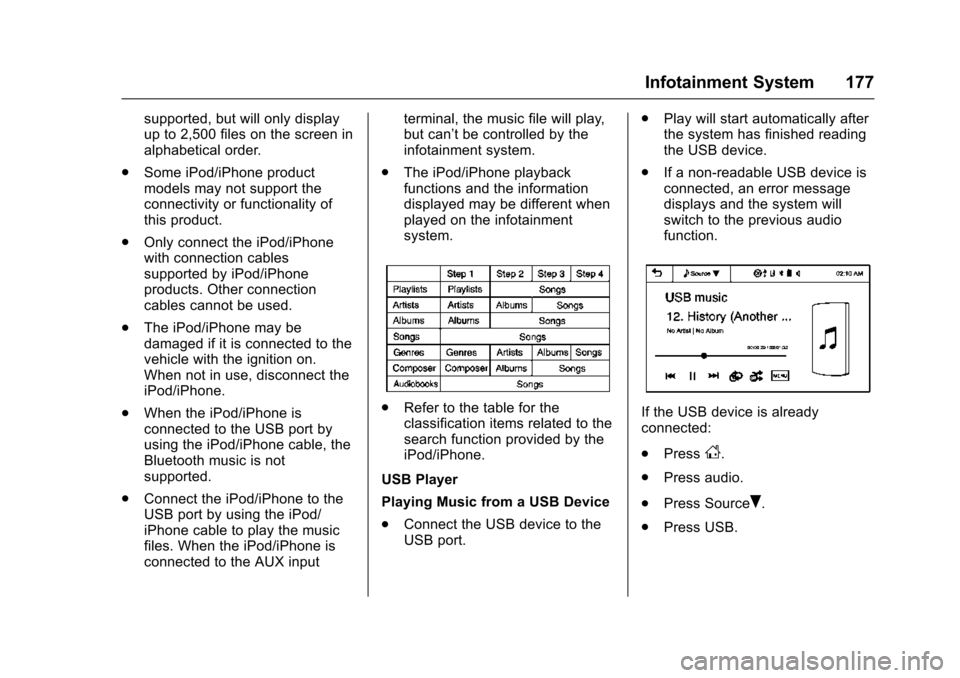
.Refer to the table for the
classification items related to the
search function provided by the
iPod/iPhone.
USB Player
Playing Music from a USB Device
. Connect the USB device to the
USB port. .
Play will start automatically after
the system has finished reading
the USB device.
. If a non-readable USB device is
connected, an error message
displays and the system will
switch to the previous audio
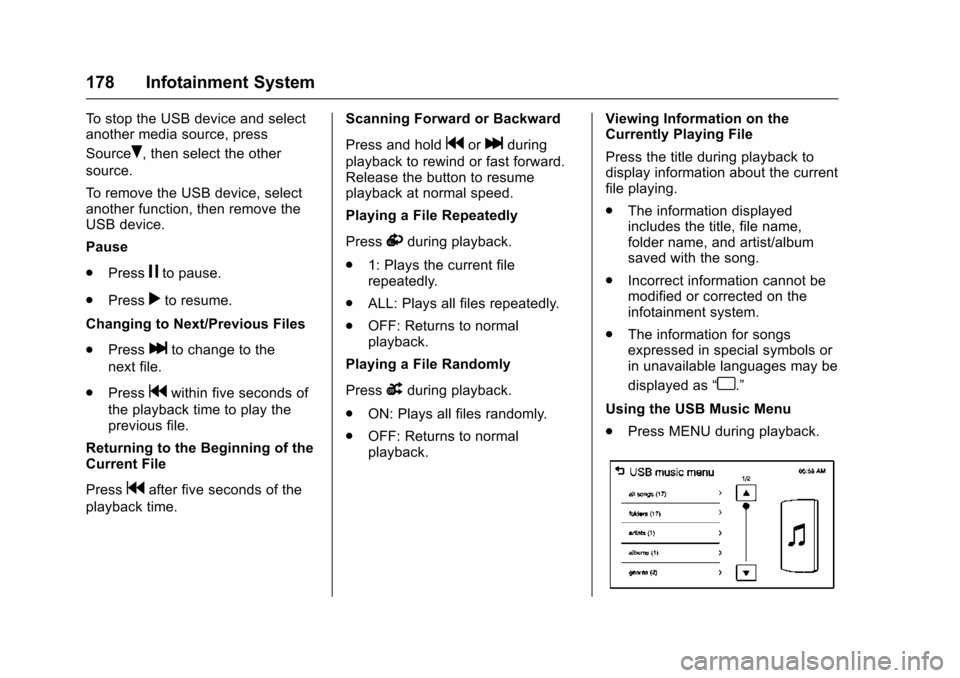
function.If the USB device is already
connected:
.Press
D.
. Press audio.
. Press Source
R.
. Press USB.
Page 179 of 358
Chevrolet TRAX Owner Manual (GMNA-Localizing-U.S./Canada/Mexico-
9159371) - 2016 - crc - 5/21/15
178 Infotainment System
To stop the USB device and select
another media source, press
Source
R, then select the other
source.
To remove the USB device, select
another function, then remove the
USB device.
Pause
. Press
jto pause.
. Press
rto resume.
Changing to Next/Previous Files
. Press
lto change to the
next file.
. Press
gwithin five seconds of
the playback time to play the
previous file.
Returning to the Beginning of the
Current File
Press
gafter five seconds of the
playback time. Scanning Forward or Backward
Press and hold
gorlduring
playback to rewind or fast forward.
Release the button to resume
playback at normal speed.
Playing a File Repeatedly
Press
vduring playback.
. 1: Plays the current file
repeatedly.
. ALL: Plays all files repeatedly.
. OFF: Returns to normal
playback.
Playing a File Randomly
Press
uduring playback.
. ON: Plays all files randomly.
. OFF: Returns to normal
playback. Viewing Information on the
Currently Playing File
Press the title during playback to
display information about the current
file playing.
.
The information displayed
includes the title, file name,
folder name, and artist/album
saved with the song.
. Incorrect information cannot be
modified or corrected on the
infotainment system.
. The information for songs
expressed in special symbols or
in unavailable languages may be
displayed as “u.”
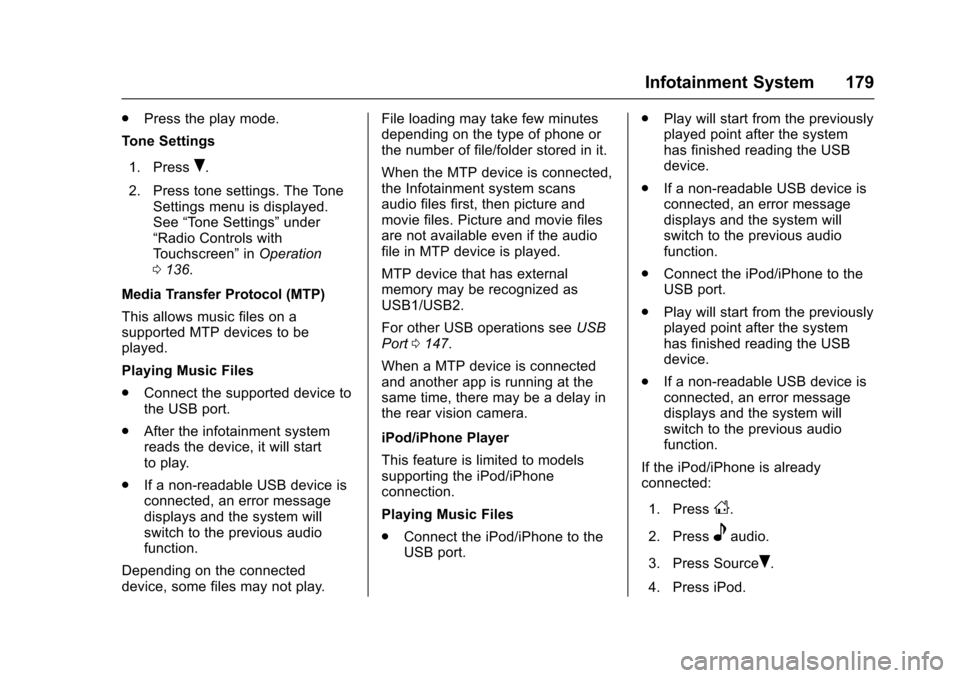
Using the USB Music Menu
. Press MENU during playback.
Page 180 of 358
Chevrolet TRAX Owner Manual (GMNA-Localizing-U.S./Canada/Mexico-
9159371) - 2016 - crc - 5/21/15
Infotainment System 179
.Press the play mode.
Tone Settings
1. Press
R.
2. Press tone settings. The Tone Settings menu is displayed.
See “Tone Settings” under
“Radio Controls with
Touchscreen” inOperation
0 136.
Media Transfer Protocol (MTP)
This allows music files on a
supported MTP devices to be
played.
Playing Music Files
. Connect the supported device to
the USB port.
. After the infotainment system
reads the device, it will start
to play.
. If a non-readable USB device is
connected, an error message
displays and the system will
switch to the previous audio
function.
Depending on the connected
device, some files may not play. File loading may take few minutes
depending on the type of phone or
the number of file/folder stored in it.
When the MTP device is connected,
the Infotainment system scans
audio files first, then picture and
movie files. Picture and movie files
are not available even if the audio
file in MTP device is played.
MTP device that has external
memory may be recognized as
USB1/USB2.
For other USB operations see
USB
Port 0147.
When a MTP device is connected
and another app is running at the
same time, there may be a delay in
the rear vision camera.
iPod/iPhone Player
This feature is limited to models
supporting the iPod/iPhone
connection.
Playing Music Files
. Connect the iPod/iPhone to the
USB port. .
Play will start from the previously
played point after the system
has finished reading the USB
device.
. If a non-readable USB device is
connected, an error message
displays and the system will
switch to the previous audio
function.
. Connect the iPod/iPhone to the
USB port.
. Play will start from the previously
played point after the system
has finished reading the USB
device.
. If a non-readable USB device is
connected, an error message
displays and the system will
switch to the previous audio
function.
If the iPod/iPhone is already
connected:
1. Press
D.
2. Press
eaudio.
3. Press Source
R.
4. Press iPod.
Page 181 of 358
Chevrolet TRAX Owner Manual (GMNA-Localizing-U.S./Canada/Mexico-
9159371) - 2016 - crc - 5/21/15
180 Infotainment System
To stop the device and select
another media source, press
Source
R, then select the other
source.
To remove the device, select
another function, then remove the
device.
Pause
. Press
jto pause.
. Press
rto resume.
Changing to Next/Previous Song
. Press
lto change to the
next song.
. Press
gwithin two seconds of
the playback time to play the
previous file.
Returning to the Beginning of the
Current File
Press
gafter two seconds of the
playback time. Scanning Forward or Backward
Press and hold
gorlduring
playback to rewind or fast forward.
Release the button to resume
playback at normal speed.
Playing a File Repeatedly
Press
vduring playback.
. 1: Plays the current file
repeatedly.
. ALL: Plays all files repeatedly.
. OFF: Returns to normal
playback.
Playing a File Randomly
Press
uduring playback.
. NO: Plays all files randomly.
. OFF: Returns to normal
playback. Viewing Information on the
Currently Playing Song
Press the title during playback to
display information about the current
song playing.
.
The information displayed
includes the title, file name,
folder name, and artist/album
saved with the song.
. Incorrect information cannot be
modified or corrected on the
infotainment system.
. The information for songs
expressed in special symbols or
in unavailable languages may be
displayed as “u.”
Using the iPod Menu
. Press MENU during playback.
. Press the appropriate
play mode.
Tone Settings
1. Press
Ron the iPod menu.
2. Press tone settings. The tone settings menu is displayed.
See “Tone Settings” under
Page 183 of 358
Chevrolet TRAX Owner Manual (GMNA-Localizing-U.S./Canada/Mexico-
9159371) - 2016 - crc - 5/21/15
182 Infotainment System
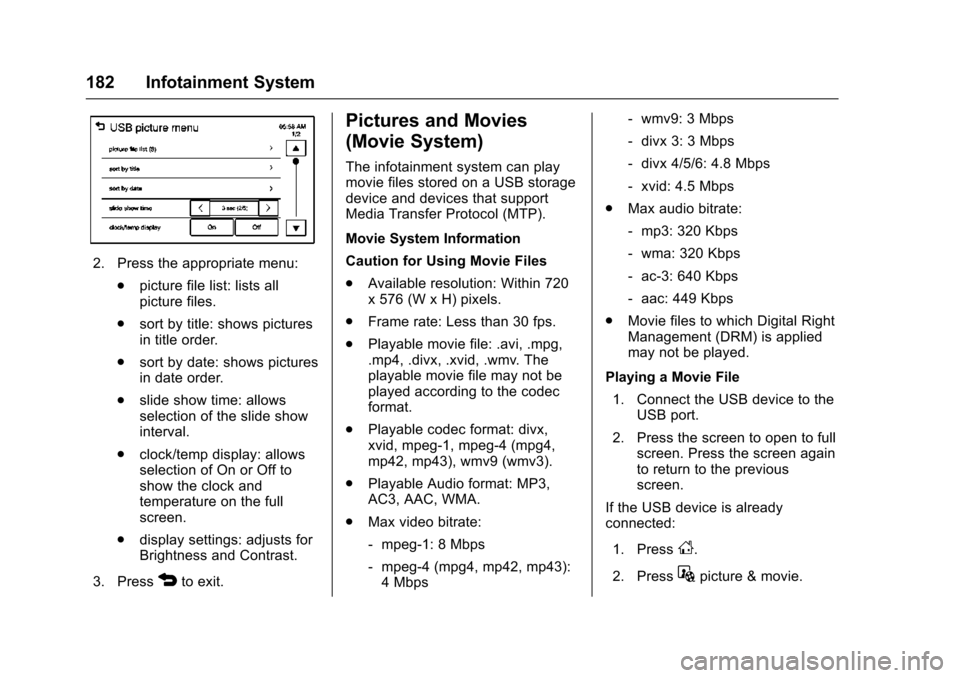
2. Press the appropriate menu:.picture file list: lists all
picture files.
. sort by title: shows pictures
in title order.
. sort by date: shows pictures
in date order.
. slide show time: allows
selection of the slide show
interval.
. clock/temp display: allows
selection of On or Off to
show the clock and
temperature on the full
screen.
. display settings: adjusts for
Brightness and Contrast.
3. Press
4to exit.
Pictures and Movies
(Movie System)
The infotainment system can play
movie files stored on a USB storage
device and devices that support
Media Transfer Protocol (MTP).
Movie System Information
Caution for Using Movie Files
. Available resolution: Within 720
x 576 (W x H) pixels.
. Frame rate: Less than 30 fps.
. Playable movie file: .avi, .mpg,
.mp4, .divx, .xvid, .wmv. The
playable movie file may not be
played according to the codec
format.
. Playable codec format: divx,
xvid, mpeg-1, mpeg-4 (mpg4,
mp42, mp43), wmv9 (wmv3).
. Playable Audio format: MP3,
AC3, AAC, WMA.
. Max video bitrate:
‐mpeg-1: 8 Mbps
‐ mpeg-4 (mpg4, mp42, mp43):
4 Mbps ‐
wmv9: 3 Mbps
‐ divx 3: 3 Mbps
‐ divx 4/5/6: 4.8 Mbps
‐ xvid: 4.5 Mbps
. Max audio bitrate:
‐mp3: 320 Kbps
‐ wma: 320 Kbps
‐ ac-3: 640 Kbps
‐ aac: 449 Kbps
. Movie files to which Digital Right
Management (DRM) is applied
may not be played.
Playing a Movie File 1. Connect the USB device to the USB port.
2. Press the screen to open to full screen. Press the screen again
to return to the previous
screen.
If the USB device is already
connected:
1. Press
D.
2. Press
Gpicture & movie.
Page 184 of 358
Chevrolet TRAX Owner Manual (GMNA-Localizing-U.S./Canada/Mexico-
9159371) - 2016 - crc - 5/21/15
Infotainment System 183
3. Press SourceR.
4. Press USB movie.
Movie is not available while driving.
Viewing a Slide Show
From the picture screen, press
z.
. The slide show will start to play.
. Press the screen to cancel the
slide show during the slide show
playback.
. The last played audio source will
play as background music
during the slide show playback.
Pause
. Press
jto pause.
. Press
rto resume.
Changing to Next/Previous Movie
. Press
uto change to the
next file.
. Press
twithin five seconds of
the playback time to play the
previous file. Returning to the Beginning of the
Current Movie
Press
tafter five seconds of the
playback time.
Scanning Forward or Backward
Press and hold
toruduring
playback to rewind or fast forward.
Release the button to resume
playback at normal speed.
Viewing Full Screen
Press
tfrom the movie screen.
Press
tagain to return to the
previous screen.
Using the USB Movie Menu
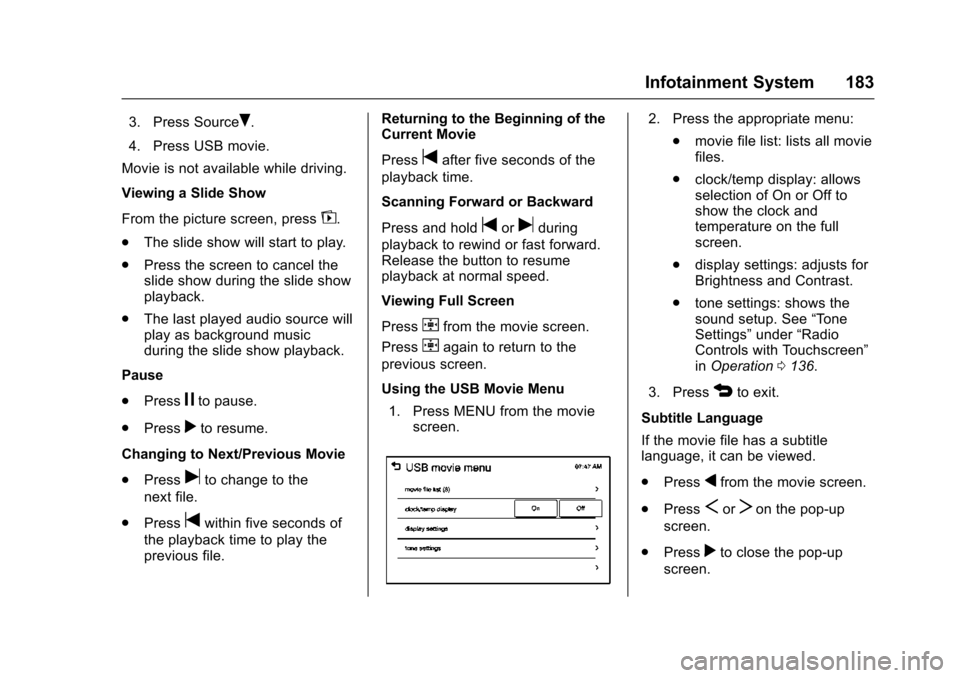
1. Press MENU from the movie screen.
2. Press the appropriate menu:
.movie file list: lists all movie
files.
. clock/temp display: allows
selection of On or Off to
show the clock and
temperature on the full
screen.
. display settings: adjusts for
Brightness and Contrast.
. tone settings: shows the
sound setup. See “Tone
Settings” under“Radio
Controls with Touchscreen”
in Operation 0136.
3. Press
4to exit.
Subtitle Language
If the movie file has a subtitle
language, it can be viewed.
. Press
qfrom the movie screen.
. Press
SorTon the pop-up
screen.
. Press
rto close the pop-up
screen.
Page 205 of 358
Chevrolet TRAX Owner Manual (GMNA-Localizing-U.S./Canada/Mexico-
9159371) - 2016 - crc - 5/21/15
204 Driving and Operating
If the vehicle must be shut off in an
emergency:1. Brake using a firm and steady pressure. Do not pump the
brakes repeatedly. This may
deplete power assist, requiring
increased brake pedal force.
2. Shift the vehicle to N (Neutral). This can be done while the
vehicle is moving. After shifting
to N (Neutral), firmly apply the
brakes and steer the vehicle to
a safe location.
3. Come to a complete stop. Shift to P (Park) with an automatic
transmission, or Neutral with a
manual transmission. Turn the
ignition to LOCK/OFF.
4. Set the parking brake. See Parking Brake 0217.
{Warning
Turning off the vehicle while
moving may cause loss of power
assist in the brake and steering
(Continued)
Warning (Continued)
systems and disable the airbags.
While driving, only shut the
vehicle off in an emergency.
If the vehicle cannot be pulled over,
and must be shut off while driving,
turn the ignition to ACC/
ACCESSORY.
Caution
Using a tool to force the key to
turn in the ignition could cause
damage to the switch or break the
key. Use the correct key, make
sure it is all the way in, and turn it
only with your hand. If the key
cannot be turned by hand, see
your dealer.
1 (ACC/ACCESSORY) : This is the
position in which you can operate
things like the radio and the
windshield wipers when the engine
is off. 2 (ON/RUN) :
This position can be
used to operate the electrical
accessories and to display some
instrument cluster warning and
indicator lights. This position can
also be used for service and
diagnostics, and to verify the proper
operation of the malfunction
indicator lamp as may be required
for emission inspection purposes.
The switch stays in this position
when the engine is running.
If you leave the key in the ACC/
ACCESSORY or ON/RUN position
with the engine off, the battery could
be drained. You may not be able to
start the vehicle if the battery is
allowed to drain for an extended
period of time.
3 (START) : This is the position that
starts the engine. When the engine
starts, release the key. The ignition
switch returns to ON/RUN for
driving.
A warning tone will sound when the
driver door is opened, the ignition is
in ACC/ACCESSORY or LOCK/
Page 214 of 358
Chevrolet TRAX Owner Manual (GMNA-Localizing-U.S./Canada/Mexico-
9159371) - 2016 - crc - 5/21/15
Driving and Operating 213
Caution
If the vehicle accelerates slowly,
or does not shift gears, the
transmission could be damaged.
Have the vehicle serviced
right away.
Manual Mode
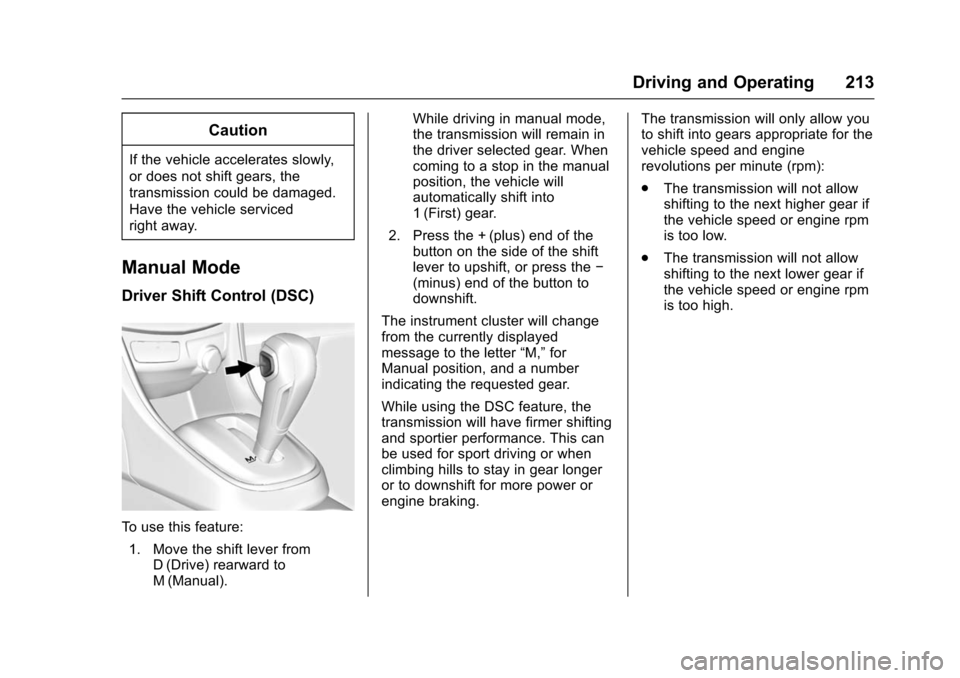
Driver Shift Control (DSC)
To use this feature:1. Move the shift lever from D (Drive) rearward to
M (Manual). While driving in manual mode,
the transmission will remain in
the driver selected gear. When
coming to a stop in the manual
position, the vehicle will
automatically shift into
1 (First) gear.
2. Press the + (plus) end of the button on the side of the shift
lever to upshift, or press the −
(minus) end of the button to
downshift.
The instrument cluster will change
from the currently displayed
message to the letter “M,”for
Manual position, and a number
indicating the requested gear.
While using the DSC feature, the
transmission will have firmer shifting
and sportier performance. This can
be used for sport driving or when
climbing hills to stay in gear longer
or to downshift for more power or
engine braking. The transmission will only allow you
to shift into gears appropriate for the
vehicle speed and engine
revolutions per minute (rpm):
.
The transmission will not allow
shifting to the next higher gear if
the vehicle speed or engine rpm
is too low.
. The transmission will not allow
shifting to the next lower gear if
the vehicle speed or engine rpm
is too high.
Page 217 of 358
Chevrolet TRAX Owner Manual (GMNA-Localizing-U.S./Canada/Mexico-
9159371) - 2016 - crc - 5/21/15
216 Driving and Operating
Drive Systems
All-Wheel Drive
If equipped, this feature transfers
engine power, as required, to all
four wheels. It is fully automatic ,
and adjusts itself as needed for road
conditions.
When using a compact spare tire on
an All-Wheel Drive (AWD) vehicle,
the system automatically detects the
compact spare and disables AWD to
protect the system. A Driver
Information Center (DIC) message
will display on the instrument
cluster. SeeVehicle Messages
0 111. To restore AWD operation
and prevent excessive wear on the
system, replace the compact spare
with a full-size tire as soon as
possible. See Compact Spare Tire
0 291.
AWD will be disabled and the
message will display if there is
excessive wheel spin. When the
system cools down, AWD will be
restored.
Brakes
Antilock Brake
System (ABS)
ABS (If Equipped) is an advanced
electronic braking system that helps
prevent a braking skid.
When the vehicle begins to drive
away, ABS checks itself.
A momentary motor or clicking noise
might be heard while this test is
going on, and it might even be
noticed that the brake pedal moves
a little. This is normal.
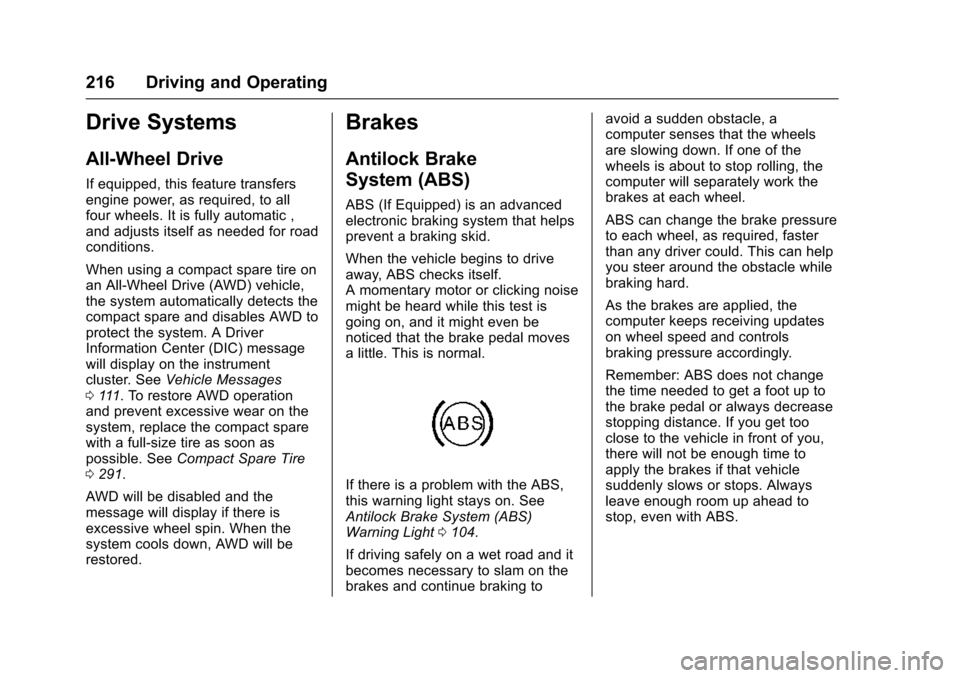
If there is a problem with the ABS,
this warning light stays on. See
Antilock Brake System (ABS)
Warning Light 0104.
If driving safely on a wet road and it
becomes necessary to slam on the
brakes and continue braking to avoid a sudden obstacle, a
computer senses that the wheels
are slowing down. If one of the
wheels is about to stop rolling, the
computer will separately work the
brakes at each wheel.
ABS can change the brake pressure
to each wheel, as required, faster
than any driver could. This can help
you steer around the obstacle while
braking hard.
As the brakes are applied, the
computer keeps receiving updates
on wheel speed and controls
braking pressure accordingly.
Remember: ABS does not change
the time needed to get a foot up to
the brake pedal or always decrease
stopping distance. If you get too
close to the vehicle in front of you,
there will not be enough time to
apply the brakes if that vehicle
suddenly slows or stops. Always
leave enough room up ahead to
stop, even with ABS.
Page 220 of 358
Chevrolet TRAX Owner Manual (GMNA-Localizing-U.S./Canada/Mexico-
9159371) - 2016 - crc - 5/21/15
Driving and Operating 219
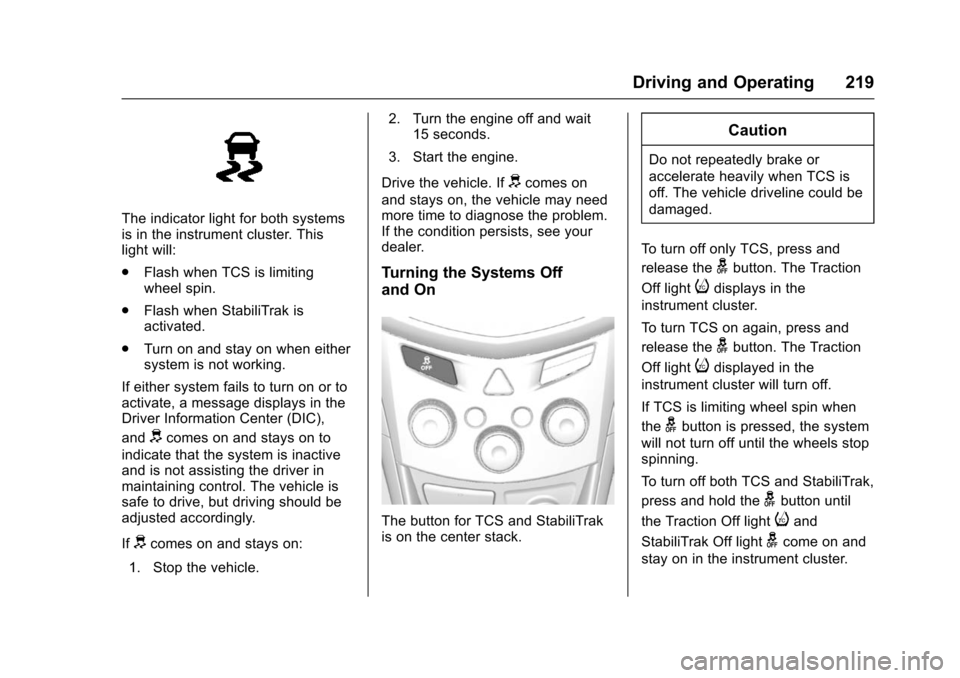
The indicator light for both systems
is in the instrument cluster. This
light will:
.Flash when TCS is limiting
wheel spin.
. Flash when StabiliTrak is
activated.
. Turn on and stay on when either
system is not working.
If either system fails to turn on or to
activate, a message displays in the
Driver Information Center (DIC),
and
dcomes on and stays on to
indicate that the system is inactive
and is not assisting the driver in
maintaining control. The vehicle is
safe to drive, but driving should be
adjusted accordingly.
If
dcomes on and stays on:
1. Stop the vehicle. 2. Turn the engine off and wait
15 seconds.
3. Start the engine.
Drive the vehicle. If
dcomes on
and stays on, the vehicle may need
more time to diagnose the problem.
If the condition persists, see your
dealer.
Turning the Systems Off
and On
The button for TCS and StabiliTrak
is on the center stack.
Caution
Do not repeatedly brake or
accelerate heavily when TCS is
off. The vehicle driveline could be
damaged.
To turn off only TCS, press and
release the
gbutton. The Traction
Off light
idisplays in the
instrument cluster.
To turn TCS on again, press and
release the
gbutton. The Traction
Off light
idisplayed in the
instrument cluster will turn off.
If TCS is limiting wheel spin when
the
gbutton is pressed, the system
will not turn off until the wheels stop
spinning.
To turn off both TCS and StabiliTrak,
press and hold the
gbutton until
the Traction Off light
iand
StabiliTrak Off light
gcome on and
stay on in the instrument cluster.