ECU CHEVROLET TRAX 2018 Service Manual
[x] Cancel search | Manufacturer: CHEVROLET, Model Year: 2018, Model line: TRAX, Model: CHEVROLET TRAX 2018Pages: 366, PDF Size: 5.44 MB
Page 245 of 366
Chevrolet TRAX Owner Manual (GMNA-Localizing-U.S./Canada/Mexico-
11354406) - 2018 - crc - 10/12/17
244 Vehicle Care
Caution
If the pressure cap is not tightly
installed, coolant loss and engine
damage may occur. Be sure the
cap is properly and tightly
secured.
Engine Overheating
The vehicle has an indicator to warn
of the engine overheating. See
Engine Coolant Temperature
Warning Light0124.
If the decision is made not to lift the
hood when this warning appears,
get service help right away. See
Roadside Assistance Program
0 331.
If the decision is made to lift the
hood, make sure the vehicle is
parked on a level surface.
Then check to see if the engine
cooling fan is running. If the engine
is overheating, the fan should be
running. If it is not, do not continue
to run the engine. Have the vehicle
serviced.
Caution
Do not run the engine if there is a
leak in the engine cooling system.
This can cause a loss of all
coolant and can damage the
system and vehicle. Have any
leaks fixed right away.
If Steam Is Coming from the
Engine Compartment
{Warning
Steam and scalding liquids from a
hot cooling system are under
pressure. Turning the pressure
cap, even a little, can cause them
to come out at high speed and
you could be burned. Never turn
the cap when the cooling system,
including the pressure cap, is hot.
Wait for the cooling system and
pressure cap to cool.
If No Steam Is Coming from
the Engine Compartment
If an engine overheat warning is
displayed but no steam can be seen
or heard, the problem may not be
too serious. Sometimes the engine
can get a little too hot when the
vehicle:
. Climbs a long hill on a hot day
. Stops after high-speed driving
. Idles for long periods in traffic
If the overheat warning is displayed
with no sign of steam: 1. Turn the air conditioning off.
2. Turn the heater on to the highest temperature and to the
highest fan speed. Open the
windows as necessary.
3. When it is safe to do so, pull off the road, shift to P (Park) or
N (Neutral) for an automatic
transmission or Neutral for a
manual transmission, and let
the engine idle.
Page 253 of 366
Chevrolet TRAX Owner Manual (GMNA-Localizing-U.S./Canada/Mexico-
11354406) - 2018 - crc - 10/12/17
252 Vehicle Care
2. Press the release button on thetop side of the wiper and pull
the wiper blade out of the end
of the wiper arm.
3. Install the wiper blade connector by sliding into the
end of the wiper arm until the
button on the wiper blade clicks
into place with the wiper arm.
4. Place the wiper arm with the wiper blade in place back on
the windshield.
Caution
Damage may occur if the wiper
blades are not in contact with the
windshield before turning on the
wiper system.
Rear Wiper Blade Replacement
The rear wiper blade and wiper arm
have a cover for protection. The
cover must be removed before the
wiper blade can be replaced. To remove the cover:
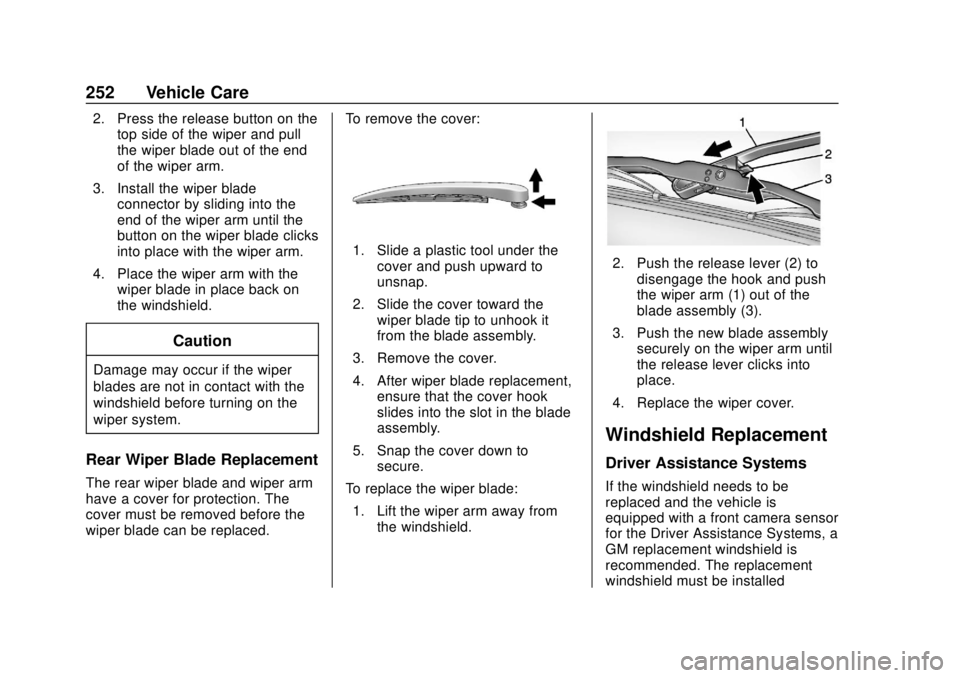
1. Slide a plastic tool under the
cover and push upward to
unsnap.
2. Slide the cover toward the wiper blade tip to unhook it
from the blade assembly.
3. Remove the cover.
4. After wiper blade replacement, ensure that the cover hook
slides into the slot in the blade
assembly.
5. Snap the cover down to secure.
To replace the wiper blade:
1. Lift the wiper arm away from the windshield.2. Push the release lever (2) todisengage the hook and push
the wiper arm (1) out of the
blade assembly (3).
3. Push the new blade assembly securely on the wiper arm until
the release lever clicks into
place.
4. Replace the wiper cover.
Windshield Replacement
Driver Assistance Systems
If the windshield needs to be
replaced and the vehicle is
equipped with a front camera sensor
for the Driver Assistance Systems, a
GM replacement windshield is
recommended. The replacement
windshield must be installed
Page 298 of 366
Chevrolet TRAX Owner Manual (GMNA-Localizing-U.S./Canada/Mexico-
11354406) - 2018 - crc - 10/12/17
Vehicle Care 297
6. Connect the other end of thered positive (+) cable to the
positive (+) terminal of the good
battery.
7. Connect one end of the black negative (–) cable to the
negative (–) terminal of the
good battery.
8. Connect the other end of the black negative (–) cable to the
negative (–) grounding point for
the discharged battery.
9. Start the engine in the vehicle with the good battery and run
the engine at idle speed for at
least four minutes.
10. Try to start the vehicle that had the dead battery. If it will not
start after a few tries, it
probably needs service.
Caution
If the jumper cables are
connected or removed in the
wrong order, electrical shorting
(Continued)
Caution (Continued)
may occur and damage the
vehicle. The repairs would not be
covered by the vehicle warranty.
Always connect and remove the
jumper cables in the correct order,
making sure that the cables do
not touch each other or other
metal.
Jumper Cable Removal
Reverse the sequence exactly when
removing the jumper cables.
After starting the disabled vehicle
and removing the jumper cables,
allow it to idle for several minutes.
Towing the Vehicle
Caution
Incorrectly towing a disabled
vehicle may cause damage. The
damage would not be covered by
the vehicle warranty.
Do not lash or hook to
suspension components. Use the
proper straps around the tires to
secure the vehicle.
Have the vehicle towed on a flatbed
car carrier or a wheel lift tow truck.
If a wheel lift tow truck is used, the
drive wheels cannot contact the
road while the vehicle is being
towed. A wheel dolly must be used
to lift all drive wheels off the ground.
Page 301 of 366
Chevrolet TRAX Owner Manual (GMNA-Localizing-U.S./Canada/Mexico-
11354406) - 2018 - crc - 10/12/17
300 Vehicle Care
Dolly Towing
(Front-Wheel-Drive
Vehicles Only)
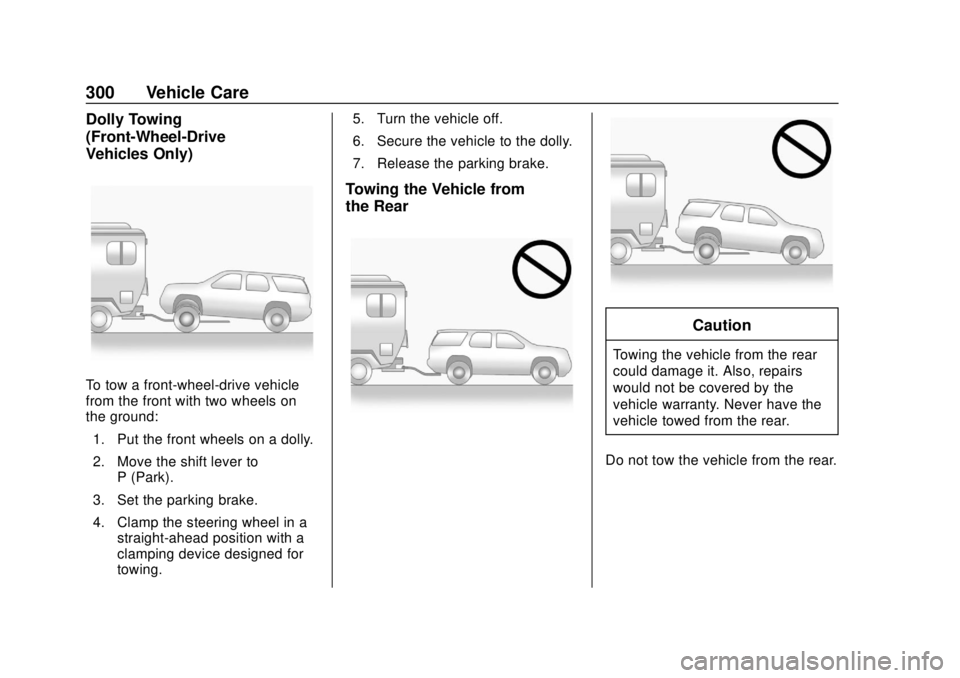
To tow a front-wheel-drive vehicle
from the front with two wheels on
the ground:1. Put the front wheels on a dolly.
2. Move the shift lever to P (Park).
3. Set the parking brake.
4. Clamp the steering wheel in a straight-ahead position with a
clamping device designed for
towing. 5. Turn the vehicle off.
6. Secure the vehicle to the dolly.
7. Release the parking brake.
Towing the Vehicle from
the Rear
Caution
Towing the vehicle from the rear
could damage it. Also, repairs
would not be covered by the
vehicle warranty. Never have the
vehicle towed from the rear.
Do not tow the vehicle from the rear.
Page 310 of 366
Chevrolet TRAX Owner Manual (GMNA-Localizing-U.S./Canada/Mexico-
11354406) - 2018 - crc - 10/12/17
Vehicle Care 309
.Do not use a floor mat if the
vehicle is not equipped with a
floor mat retainer on the driver
side floor.
. Use the floor mat with the
correct side up. Do not turn
it over.
. Do not place anything on top of
the driver side floor mat.
. Use only a single floor mat on
the driver side.
. Do not place one floor mat on
top of another.
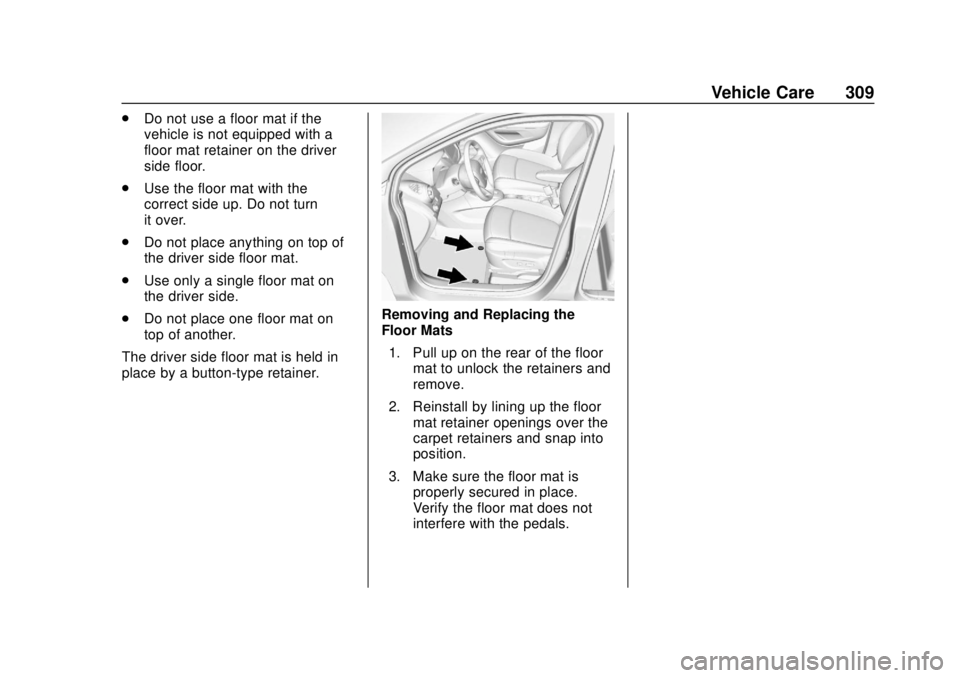
The driver side floor mat is held in
place by a button-type retainer.
Removing and Replacing the
Floor Mats 1. Pull up on the rear of the floor mat to unlock the retainers and
remove.
2. Reinstall by lining up the floor mat retainer openings over the
carpet retainers and snap into
position.
3. Make sure the floor mat is properly secured in place.
Verify the floor mat does not
interfere with the pedals.
Page 333 of 366
Chevrolet TRAX Owner Manual (GMNA-Localizing-U.S./Canada/Mexico-
11354406) - 2018 - crc - 10/12/17
332 Customer Information
Roadside Assistance is not a part of
the New Vehicle Limited Warranty.
General Motors North America and
Chevrolet reserve the right to make
any changes or discontinue the
Roadside Assistance program at
any time without notification.
General Motors North America and
Chevrolet reserve the right to limit
services or payment to an owner or
driver if they decide the claims are
made too often, or the same type of
claim is made many times.
Services Provided
.Emergency Fuel Delivery:
Delivery of enough fuel for the
vehicle to get to the nearest
service station.
. Lock-Out Service: Service to
unlock the vehicle if you are
locked out. A remote unlock may
be available if you have OnStar.
For security reasons, the driver
must present identification
before this service is given.
. Emergency Tow from a Public
Road or Highway: Tow to the
nearest Chevrolet dealer for warranty service, or if the vehicle
was in a crash and cannot be
driven. Assistance is not given
when the vehicle is stuck in the
sand, mud, or snow.
. Flat Tire Change: Service to
change a flat tire with the spare
tire. The spare tire, if equipped,
must be in good condition and
properly inflated. It is the owner's
responsibility for the repair or
replacement of the tire if it is not
covered by the warranty.
. Battery Jump Start: Service to
jump start a dead battery.
. Trip Interruption Benefits and
Assistance: If your trip is
interrupted due to a warranty
event, incidental expenses may
be reimbursed within the
Powertrain warranty period.
Items considered are reasonable
and customary hotel, meals,
rental car, or a vehicle being
delivered back to the customer,
up to 500 miles.
Services Not Included in
Roadside Assistance
. Impound towing caused by
violation of any laws
. Legal fines
. Mounting, dismounting,
or changing of snow tires,
chains, or other traction devices
Service is not provided if a vehicle
is in an area that is not accessible
to the service vehicle or is not a
regularly traveled or maintained
public road, which includes ice and
winter roads. Off-road use is not
covered.
Services Specific to
Canadian-Purchased Vehicles
. Fuel Delivery: Reimbursement
is up to 7 liters. If available,
diesel fuel delivery may be
restricted. Propane and other
fuels are not provided through
this service.
. Lock-Out Service: Vehicle
registration is required.
Page 342 of 366
Chevrolet TRAX Owner Manual (GMNA-Localizing-U.S./Canada/Mexico-
11354406) - 2018 - crc - 10/12/17
OnStar 341
OnStar
OnStar Overview
OnStar Overview . . . . . . . . . . . . . 341
OnStar Services
Emergency . . . . . . . . . . . . . . . . . . . 342
Security . . . . . . . . . . . . . . . . . . . . . . 343
Navigation . . . . . . . . . . . . . . . . . . . . 343
Connections . . . . . . . . . . . . . . . . . . 344
Diagnostics . . . . . . . . . . . . . . . . . . . 346
OnStar Additional Information
OnStar AdditionalInformation . . . . . . . . . . . . . . . . . . 347
OnStar Overview
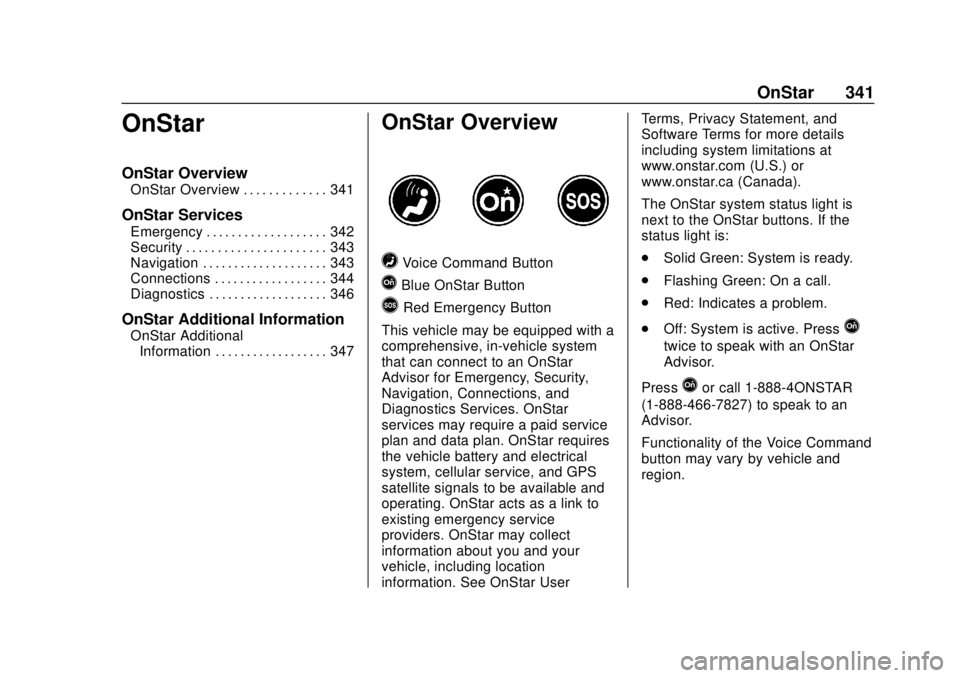
=Voice Command Button
QBlue OnStar Button
>Red Emergency Button
This vehicle may be equipped with a
comprehensive, in-vehicle system
that can connect to an OnStar
Advisor for Emergency, Security,
Navigation, Connections, and
Diagnostics Services. OnStar
services may require a paid service
plan and data plan. OnStar requires
the vehicle battery and electrical
system, cellular service, and GPS
satellite signals to be available and
operating. OnStar acts as a link to
existing emergency service
providers. OnStar may collect
information about you and your
vehicle, including location
information. See OnStar User Terms, Privacy Statement, and
Software Terms for more details
including system limitations at
www.onstar.com (U.S.) or
www.onstar.ca (Canada).
The OnStar system status light is
next to the OnStar buttons. If the
status light is:
.
Solid Green: System is ready.
. Flashing Green: On a call.
. Red: Indicates a problem.
. Off: System is active. Press
Q
twice to speak with an OnStar
Advisor.
Press
Qor call 1-888-4ONSTAR
(1-888-466-7827) to speak to an
Advisor.
Functionality of the Voice Command
button may vary by vehicle and
region.
Page 344 of 366
Chevrolet TRAX Owner Manual (GMNA-Localizing-U.S./Canada/Mexico-
11354406) - 2018 - crc - 10/12/17
OnStar 343
Security
If equipped, OnStar provides these
services:
.With Stolen Vehicle Assistance,
OnStar Advisors can use GPS to
pinpoint the vehicle and help
authorities quickly recover it.
. With Remote Ignition Block,
if equipped, OnStar can block
the engine from being restarted.
. With Stolen Vehicle Slowdown,
if equipped, OnStar can work
with law enforcement to
gradually slow the vehicle down.
Theft Alarm Notification
If equipped, if the doors are locked
and the vehicle alarm sounds, a
notification by text, e-mail, or phone
call will be sent. If the vehicle is
stolen, an OnStar Advisor can work
with authorities to recover the
vehicle.
Navigation
OnStar navigation requires a
specific OnStar service plan.
Press
Qto receive Turn-by-Turn
directions or have them sent to the
vehicle’s navigation screen,
if equipped.
Turn-by-Turn Navigation
1. PressQto connect to an
Advisor.
2. Request directions to be downloaded to the vehicle.
3. Follow the voice-guided commands.
Using Voice Commands
During a Planned Route
Functionality of the Voice Command
button may vary by vehicle and
region. For some vehicles, press
=
to open the OnStar app on the
infotainment display. For other
vehicles press
=as follows. Cancel Route
1. Press
=. System responds:
“OnStar ready,” then a tone.
2. Say “Cancel route.” System
responds: “Do you want to
cancel directions?”
3. Say “Yes.”System responds:
“OK, request completed, thank
you, goodbye.”
Route Preview
1. Press
=. System responds:
“OnStar ready,” then a tone.
2. Say “Route preview.” System
responds with the next three
maneuvers.
Repeat
1. Press
=. System responds:
“OnStar ready,” then a tone.
2. Say “Repeat.” System
responds with the last direction
given, then responds with
“OnStar ready,” then a tone.
Page 345 of 366
Chevrolet TRAX Owner Manual (GMNA-Localizing-U.S./Canada/Mexico-
11354406) - 2018 - crc - 10/12/17
344 OnStar
Get My Destination1. Press
=. System responds:
“OnStar ready,” then a tone.
2. Say “Get my destination.”
System responds with the
address and distance to the
destination, then responds with
“OnStar ready,” then a tone.
Send Destination to Vehicle
Directions can be sent to the
vehicle’s navigation screen,
if equipped.
Press
Q, then ask the Advisor to
download directions to the vehicle’s
navigation system, if equipped. After
the call ends, the navigation screen
will provide prompts to begin driving
directions. Routes that are sent to
the navigation screen can only be
canceled through the navigation
system.
See www.onstar.com (U.S.) or
www.onstar.ca (Canada).
Connections
The following OnStar services help
with staying connected.
For coverage maps, see
www.onstar.com (U.S.) or
www.onstar.ca (Canada).
Ensuring Security
. Change the default passwords
for the Wi-Fi hotspot and
myChevrolet mobile application.
Make these passwords different
from each other and use a
combination of letters, numbers,
and symbols to increase the
security.
. Change the default name of the
SSID (Service Set Identifier).
This is your network’s name that
is visible to other wireless
devices. Choose a unique name
and avoid family names or
vehicle descriptions.
OnStar Wi-Fi Hotspot (If Equipped)
The vehicle may have a built-in
Wi-Fi hotspot that provides access
to the Internet and web content at 4G LTE speed. Up to seven mobile
devices can be connected. A data
plan is required. Use the in-vehicle
controls only when it is safe to
do so.
1. To retrieve Wi-Fi hotspot information, press
=to open
the OnStar app on the
infotainment display, then
select Wi-Fi Hotspot. On some
vehicles, touch Wi-Fi or Wi-Fi
Settings on the screen.
2. The Wi-Fi settings will display the Wi-Fi hotspot name (SSID),
password, and on some
vehicles, the connection type
(no Internet connection, 3G,
4G, 4G LTE), and signal quality
(poor, good, excellent).
3. To change the SSID or password, press
Qor call
1-888-4ONSTAR to connect
with an Advisor. On some
vehicles, the SSID and
password can be changed in
the Wi-Fi Hotspot menu.
Page 351 of 366
Chevrolet TRAX Owner Manual (GMNA-Localizing-U.S./Canada/Mexico-
11354406) - 2018 - crc - 10/12/17
350 OnStar
equipment may interfere with the
operation of the OnStar system and
cause it to not operate.
Vehicle Software Updates
OnStar or GM may remotely deliver
software updates or changes to the
vehicle without further notice or
consent. These updates or changes
may enhance or maintain safety,
security, or the operation of the
vehicle or the vehicle systems.
Software updates or changes may
affect or erase data or settings that
are stored in the vehicle, such as
OnStar Hands-Free Calling name
tags, saved navigation destinations,
or pre-set radio stations. Neither
OnStar nor GM is responsible for
any affected or erased data or
settings. These updates or changes
may also collect personal
information. Such collection is
described in the OnStar privacy
statement or separately disclosed at
the time of installation. These
updates or changes may also cause
a system to automatically
communicate with GM servers to
collect information about vehiclesystem status, identify whether
updates or changes are available,
or deliver updates or changes. An
active OnStar agreement constitutes
consent to these software updates
or changes and agreement that
either OnStar or GM may remotely
deliver them to the vehicle.
Privacy
The complete OnStar Privacy
Statement may be found at
www.onstar.com (U.S.),
or www.onstar.ca (Canada). We
recommend that you review it. If you
have any questions, call
1-888-4ONSTAR (1-888-466-7827)
or press
Qto speak with an
Advisor. Users of wireless
communications are cautioned that
the privacy of any information sent
via wireless cellular communications
cannot be assured. Third parties
may unlawfully intercept or access
transmissions and private
communications without consent.
OnStar - Software
Acknowledgements
Certain OnStar components include
libcurl and unzip software and other
third party software. Below are the
notices and licenses associated with
libcurl and unzip and for other third
party software please see http://
opensource.lge.com/index
www.onstar.com/us/en/
libcurl:
COPYRIGHT AND PERMISSION
NOTICE
Copyright (c) 1996 - 2010, Daniel
Stenberg,
All rights reserved.
Permission to use, copy, modify,
and distribute this software for any
purpose with or without fee is
hereby granted, provided that the
above copyright notice and this
permission notice appear in all
copies.
THE SOFTWARE IS PROVIDED
“AS IS,” WITHOUT WARRANTY OF
ANY KIND, EXPRESS OR