USB port CHEVROLET TRAX 2018 Owner's Manual
[x] Cancel search | Manufacturer: CHEVROLET, Model Year: 2018, Model line: TRAX, Model: CHEVROLET TRAX 2018Pages: 366, PDF Size: 5.44 MB
Page 8 of 366

Chevrolet TRAX Owner Manual (GMNA-Localizing-U.S./Canada/Mexico-
11354406) - 2018 - crc - 10/12/17
In Brief 7
1.Air Vents 0173.
2. Turn Signal Lever. See Turn
and Lane-Change Signals
0 141.
Headlamp High/Low-Beam
Changer 0139.
3. Instrument Cluster 0113.
4. Windshield Wiper/Washer
0109.
Rear Window Wiper/Washer
0 110.
5. Light Sensor. See Automatic
Headlamp System 0140.
6. Introduction 0145.
7. Lane Departure Warning
(LDW) 0219 (If Equipped).
8. Hazard Warning Flashers
0140.
9. Passenger Seat Belt Reminder Light. See Seat Belt Reminders
0 116.
10. Shift Lever. SeeAutomatic Transmission
0 200 orManual Transmission
0 203. 11.
Parking Brake 0206.
12. USB Port 0153.
13. Climate Control Systems
0171.
14. Traction Control/Electronic Stabilty Control Button. See
Traction Control/Electronic
Stability Control 0208.
15. Ignition Positions (Key Access)
0190 orIgnition Positions
(Keyless Access) 0188.
16. Steering Wheel Controls 0108.
17. Horn 0109.
18. Steering Wheel Adjustment
0108.
19. Cruise Control 0210 (If
Equipped).
Forward Collision Alert (FCA)
System 0216 (If Equipped).
20. Instrument Panel Storage
0103 (If Equipped).
21. Data Link Connector (DLC) (Out of View). See Malfunction
Indicator Lamp (Check Engine
Light) 0118. 22. Hood Release. See
Hood
0 229.
23. Exterior Lamp Controls 0138.
Instrument Panel Illumination
Control 0141.
Front Fog Lamps 0141 (If
Equipped).
Page 21 of 366
Chevrolet TRAX Owner Manual (GMNA-Localizing-U.S./Canada/Mexico-
11354406) - 2018 - crc - 10/12/17
20 In Brief
SiriusXM Satellite Radio
Service
SiriusXM is a satellite radio service
based in the 48 contiguous United
States and 10 Canadian provinces.
SiriusXM satellite radio has a wide
variety of programming and
commercial-free music, coast to
coast, and in digital-quality sound.
A fee is required to receive the
SiriusXM service.
Refer to:
.www.siriusxm.com or call
1-888-601-6296 (U.S.).
. www.siriusxm.ca or call
1-877-438-9677 (Canada).
See Satellite Radio 0152.
Portable Audio Devices
This vehicle has a 3.5 mm (1/8 in)
auxiliary input and two USB ports on
the center stack. External devices
such as iPods, MP3 players, and
USB storage devices may be
connected.
See Auxiliary Jack 0156 andUSB
Port 0153.
Bluetooth
The Bluetooth system allows users
with a Bluetooth-enabled cell phone
to make and receive hands-free
calls using the vehicle audio system
and controls.
The Bluetooth-enabled cell phone
must be paired with the in-vehicle
Bluetooth system before it can be
used in the vehicle. Not all phones
will support all functions.
See Bluetooth (Overview) 0159 or
Bluetooth (Pairing and Using the
Phone) 0160.
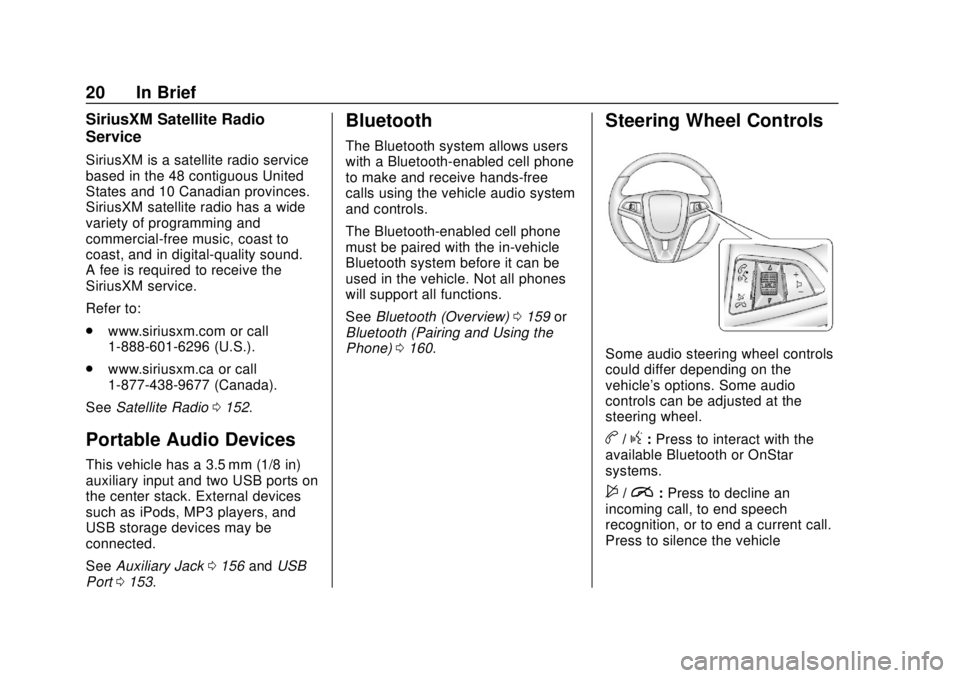
Steering Wheel Controls
Some audio steering wheel controls
could differ depending on the
vehicle's options. Some audio
controls can be adjusted at the
steering wheel.
b/g:Press to interact with the
available Bluetooth or OnStar
systems.
$/i: Press to decline an
incoming call, to end speech
recognition, or to end a current call.
Press to silence the vehicle
Page 146 of 366
Chevrolet TRAX Owner Manual (GMNA-Localizing-U.S./Canada/Mexico-
11354406) - 2018 - crc - 10/17/17
Infotainment System 145
Infotainment
System
Introduction
Introduction . . . . . . . . . . . . . . . . . . . 145
Overview . . . . . . . . . . . . . . . . . . . . . 146
Using the System . . . . . . . . . . . . 148
Radio
AM-FM Radio . . . . . . . . . . . . . . . . 150
Satellite Radio . . . . . . . . . . . . . . . . 152
Radio Reception . . . . . . . . . . . . . . 152
Backglass Antenna . . . . . . . . . . . 152
Multi-Band Antenna . . . . . . . . . . 153
Audio Players
Avoiding Untrusted MediaDevices . . . . . . . . . . . . . . . . . . . . . 153
USB Port . . . . . . . . . . . . . . . . . . . . . 153
Auxiliary Jack . . . . . . . . . . . . . . . . 156
Bluetooth Audio . . . . . . . . . . . . . . 157
OnStar System
OnStar System . . . . . . . . . . . . . . . 158
Phone
Bluetooth (Overview) . . . . . . . . . 159
Bluetooth (Pairing and Using the Phone) . . . . . . . . . . . . . . . . . . 160 Apple CarPlay and
Android Auto . . . . . . . . . . . . . . . . 164
Settings
Settings . . . . . . . . . . . . . . . . . . . . . . 166
Trademarks and License
Agreements
Trademarks and LicenseAgreements . . . . . . . . . . . . . . . . . 169
Introduction
Read the following pages to
become familiar with the features.
{Warning
Taking your eyes off the road for
too long or too often while using
any infotainment feature can
cause a crash. You or others
could be injured or killed. Do not
give extended attention to
infotainment tasks while driving.
Limit your glances at the vehicle
displays and focus your attention
on driving. Use voice commands
whenever possible.
The infotainment system has built-in
features intended to help avoid
distraction by disabling some
functions when driving. These
functions may gray out when they
are unavailable. Many infotainment
features are also available through
the instrument cluster and steering
wheel controls.
Page 149 of 366
Chevrolet TRAX Owner Manual (GMNA-Localizing-U.S./Canada/Mexico-
11354406) - 2018 - crc - 10/17/17
148 Infotainment System
4.d
.Radio: Press and release to
fast seek the next strongest
station or channel.
. USB/Music/Pictures: Press
to go to the next content.
Press and hold to fast
forward.
5.
5
. Press and release to
access the phone screen,
answer an incoming call,
or access the device home
screen.
Home Page
The Home Page is where
application icons are accessed.
Some features are disabled when
the vehicle is moving.
Slide a finger left/right across the
screen to access the pages of
icons. Managing Home Page Icons
1. Touch and hold any of the Home Page icons to edit
that icon.
2. Drag the icon to a new location on the Home Page.
Using the System
Infotainment Display Icons
Infotainment display icons show on
the screen when available. When a
function is unavailable, the icon may
gray out. When a function is
selected, the icon may highlight.
Audio
Touch the Audio icon to display the
active audio source page. Examples
of available sources are AM, FM,
SXM, MyMedia, USB, and AUX.
Phone
Touch the Phone icon to display the
Phone main page. See Bluetooth
(Pairing and Using the Phone)
0 160.
Settings
Touch the Settings icon to display
the Settings menu. See Settings
0 166.
Apple CarPlay
Touch the Apple CarPlay icon to
activate Apple CarPlay (if equipped)
after a supported device is
connected. See Apple CarPlay and
Android Auto 0164.
Android Auto
Touch the Android Auto icon to
activate Android Auto (if equipped)
after a supported device is
connected. See Apple CarPlay and
Android Auto 0164.
OnStar Services
If equipped, touch the OnStar
Services icon to display the OnStar
Services and Account pages. See
OnStar Overview 0341.
Shortcut Tray
The shortcut tray is at the bottom of
the screen. It displays three
applications.
Page 154 of 366
Chevrolet TRAX Owner Manual (GMNA-Localizing-U.S./Canada/Mexico-
11354406) - 2018 - crc - 10/17/17
Infotainment System 153
Caution
Using a razor blade or sharp
object to clear the inside rear
window can damage the rear
window antenna and/or the rear
window defogger. Repairs would
not be covered by the vehicle
warranty. Do not clear the inside
rear window with sharp objects.
Caution
Do not apply aftermarket glass
tinting with metallic film. The
metallic film in some tinting
materials will interfere with or
distort the incoming radio
reception. Any damage caused to
the backglass antenna due to
metallic tinting materials will not
be covered by the vehicle
warranty.
Multi-Band Antenna
The roof antenna is for OnStar,
SiriusXM Satellite Radio (U.S. and
Canada only), GPS (Global
Positioning System), and DSRC
(Dedicated Short Range
Communications). Keep clear of
obstructions for clear reception.
If the vehicle has a sunroof, and it is
open, reception can also be
affected.
Audio Players
Avoiding Untrusted Media
Devices
When using media devices such as
CDs, DVDs, Blu-ray Discs, SD
cards, USB devices, and mobile
devices, consider the source.
Untrusted media devices could
contain files that affect system
operation or performance. Avoid use
if the content or origin cannot be
trusted.
USB Port
Audio stored on a USB device may
be listened to.
This vehicle has two USB ports in
the center stack. These ports are for
data and charging.
Playing from a USB
A USB mass storage device can be
connected to the USB port.
Page 155 of 366
Chevrolet TRAX Owner Manual (GMNA-Localizing-U.S./Canada/Mexico-
11354406) - 2018 - crc - 10/17/17
154 Infotainment System
Audio extensions supported by the
USB are:
.FLAC
. MP3
. WMA
. AAC
. OGG
. 3GPP
My Media Library
My Media is only available when
more than one indexed device is
connected. It allows access to
content from all indexed media
sources. My Media will show as an
available source in the
Source page.
USB MP3 Player and USB Drives
The USB MP3 players and USB
drives connected must comply with
the USB Mass Storage Class
specification (USB MSC).
To play a USB device: 1. Connect the USB. 2. Touch Audio from the
Home Page.
3. Touch More and select the USB device.
Use the following when playing an
active USB source:
p: Touch to play the current media
source.
j: Touch to pause playback of the
current media source.
7:
. Touch to seek to the beginning
of the current or previous track.
. Touch and hold to reverse
quickly through playback.
Release to return to playing
speed. Elapsed time displays.
6:
. Touch to seek to the next track.
. Touch and hold to advance
quickly through playback.
Release to return to playing
speed. Elapsed time displays.
Shuffle : Touch the shuffle icon to
play music in random order. USB Sound Menu
See
“Infotainment System Sound
Menu” underAM-FM Radio 0150.
USB Browse Menu
When a list of songs, albums,
artists, or other types of media
display, the icons
w,x, and A-Z
appear on the left side. Select A-Z
to view a screen that will show all
letters of the alphabet and select the
letter to go to.
Touch
worxto move the list up
and down.
Touch Browse and the following
may display:
Playlists:
Supported Playlist extensions are:
m3u, pls, and wpl.
1. Touch to view the playlists stored on the USB.
2. Select a playlist to view the list of all songs in that playlist.
3. Select a song from the list to begin playback.
Page 156 of 366
Chevrolet TRAX Owner Manual (GMNA-Localizing-U.S./Canada/Mexico-
11354406) - 2018 - crc - 10/17/17
Infotainment System 155
Artists:1. Touch to view the list of artists stored on the USB.
2. Select an artist name to view a list of all albums by the artist.
3. To select a song, press All Songs or press an album and
then select a song from the list.
Songs:
1. Touch to display a list of all songs on the USB.
2. To begin playback, select a song from the list.
Albums: 1. Touch to view the albums on the USB.
2. Select the album to view a list of all songs on the album.
3. Select a song from the list to begin playback. Genres:
1. Touch to view the genres on the USB.
2. Select a genre to view a list of artists.
3. Select an artist to view albums by that artist.
4. Select an album to view songs on the album.
5. Select a song to start playback.
iTunes Radio: Touch to view iTunes
Radio on the iPhone to get a list of
stations.
Compilations: Touch to view the
Compilations on the USB.
Composers:
1. Touch to view the composers on the USB.
2. Select a Composer to view a list of albums by that
composer.
3. Select an album or all songs to view a list of songs.
4. Select a song from the list to begin playback. Folders:
1. Touch to view the directories on the USB.
2. Select a folder to view a list of all files.
3. Select a file from the list to begin playback.
Podcasts: Touch to view the
podcasts on the USB and get a list
of podcast episodes.
Audiobooks:
1. Touch to view the audiobooks stored on the device.
2. Select an audiobook to get a list of chapters.
3. Select the chapter from the list to begin playback.
File System and Naming
File systems supported by the
USB are:
. FAT32
. NTFS
. HFS+
Page 157 of 366
Chevrolet TRAX Owner Manual (GMNA-Localizing-U.S./Canada/Mexico-
11354406) - 2018 - crc - 10/17/17
156 Infotainment System
The songs, artists, albums, and
genres are taken from the file’s
song information and are only
displayed if present. The radio
displays the file name as the track
name if the song information is not
available.
Supported Apple Devices
To view supported devices, see
my.chevrolet.com/learn.
Storing and Recalling Media
Favorites
To store media favorites, touch
Browse to display a list of media
types.
Select from one of the following
Browse options to save a favorite:
Playlists :Touch
Hnext to any
playlist to store the playlist as a
favorite. Touch a screen icon in the
favorite area to recall a favorite
playlist. The first song in the playlist
begins to play.
Artists : Touch
Hnext to any artist
to store the artist as a favorite.
Touch a screen icon in the favorite area to recall a favorite artist. The
first song in the artist list begins
to play.
Songs :
Touch
Hnext to any song
to store the song as a favorite.
Touch a screen icon in the favorite
area to recall a favorite song.
Albums : Touch
Hnext to any
album to store the album as a
favorite. Touch a screen icon in the
favorite area to recall a favorite
album. The first song in the album
list begins to play.
Genres : Touch
Hnext to any
genre to store the genre as a
favorite. Touch a screen icon in the
favorite area to recall a favorite
genre. The first song of the genre
begins to play.
Podcasts : Touch
Hnext to any
podcast to store the podcast as a
favorite. Touch a screen icon in the
favorite area to recall a favorite
podcast. The podcast begins
to play. Audiobooks :
Touch
Hnext to
any audiobook to store the
audiobook as a favorite. Touch a
screen icon in the favorite area to
recall a favorite audiobook. The first
chapter in the audiobook begins
to play.
Media Playback and Mute
USB playback will be paused if the
system is muted. If the steering
wheel mute control is pressed
again, playback will resume.
If the source is changed while in
mute, playback resumes and audio
will unmute.
Auxiliary Jack
This vehicle has an auxiliary input
jack in the center stack. Possible
auxiliary audio sources include:
. Laptop computer
. Audio music player
Page 166 of 366
Chevrolet TRAX Owner Manual (GMNA-Localizing-U.S./Canada/Mexico-
11354406) - 2018 - crc - 10/17/17
Infotainment System 165
To use Android Auto and/or Apple
CarPlay:1. Download the Android Auto app to your smartphone from
the Google Play store. There is
no app required for Apple
CarPlay.
2. Connect your Android smartphone or Apple iPhone
by using the compatible phone
USB cable and plugging into a
USB data port. For best
performance, use the device’ s
factory-provided USB cable.
Aftermarket or third-party
cables may not work.
3. When the phone is first connected to activate Apple
CarPlay or Android Auto, the
message “Device Projection
Privacy Consent” will appear.
. Touch Continue to launch
Apple CarPlay or
Android Auto.
. Touch Disable to remove
Apple CarPlay and Android
Auto capability from the vehicle Settings menu.
Other functions may
still work.
The Android Auto and Apple
CarPlay icons on the Home Page
will illuminate depending on the
smartphone. Android Auto and/or
Apple CarPlay may automatically
launch upon USB connection. If not,
touch the Android Auto or Apple
CarPlay icon on the Home Page to
launch.
Press
{on the center stack to
return to the Home Page.
For further information on how to set
up Android Auto and Apple CarPlay
in the vehicle, see my.chevrolet.com
or see Customer Assistance Offices
0 329.
Android Auto is provided by Google
and is subject to Google’s terms
and privacy policy. Apple CarPlay is
provided by Apple and is subject to
Apple’ s terms and privacy policy.
Data plan rates apply. For Android
Auto support see https://
support.google.com/androidauto.
For Apple CarPlay support see www.apple.com/ios/carplay/. Apple
or Google may change or suspend
availability at any time. Android
Auto, Android, Google, Google Play,
and other marks are trademarks of
Google Inc.; Apple CarPlay is a
trademark of Apple Inc.
Press
{on the center stack to exit
Android Auto or Apple CarPlay. To
enter back into Android Auto or
Apple CarPlay, press and hold {on
the center stack.
Apple CarPlay and Android Auto
can be disabled from the
Infotainment system. To do this,
touch Home, Settings, and then
touch the Apps tab along the top of
the display. Use the On/Off toggled
to turn off Apple CarPlay or
Android Auto.
Page 361 of 366

Chevrolet TRAX Owner Manual (GMNA-Localizing-U.S./Canada/Mexico-
11354406) - 2018 - crc - 10/12/17
360 Index
Overheating, Engine . . . . . . . . . . . . 244
Overview . . . . . . . . . . . . . . . . . . . . . . . 146
Owner Manual Indicator . . . . . . . . 120
P
ParkShifting Into . . . . . . . . . . . . . . . . . . . 196
Shifting Out of . . . . . . . . . . . . . . . . 197
Parking . . . . . . . . . . . . . . . . . . . . . . . . . 198 Brake . . . . . . . . . . . . . . . . . . . . . . . . . 206
Brake and P (Park)Mechanism Check . . . . . . . . . . 251
Extended . . . . . . . . . . . . . . . . . . . . . 198
Over Things That Burn . . . . . . . 198
Ultrasonic Sensor Light . . . . . . . 123
Parking Assist . . . . . . . . . . . . . . . . . . 215
Passenger Airbag Status Indicator . . . . . . . . . . . . . . . . . . . . . . 117
Passenger Compartment Air Filter . . . . . . . . . . . . . . . . . . . . . . . . . . 174
Passenger Sensing System . . . . . 78
Perchlorate Materials
Requirements, California . . . . . . 228
Personalization Vehicle . . . . . . . . . . . . . . . . . . . . . . . 134
Phone
Apple CarPlay andAndroid Auto . . . . . . . . . . . . . . . . 164 Phone (cont'd)
Bluetooth . . . . . . . . . . . . . . . . 159, 160
Port USB . . . . . . . . . . . . . . . . . . . . . . . . . . 153
Power Door Locks . . . . . . . . . . . . . . . . . . . . . 42
Mirrors . . . . . . . . . . . . . . . . . . . . . . . . . . 49
Outlets . . . . . . . . . . . . . . . . . . . . . . . . 111
Protection, Battery . . . . . . . . . . . . 144
Reduced Engine Light . . . . . . . . 126
Retained Accessory (RAP) . . . 195
Seat Adjustment . . . . . . . . . . . . . . . . 58
Steering Fluid . . . . . . . . . . . . . . . . . 245
Windows . . . . . . . . . . . . . . . . . . . . . . . 51
Power Steering Warning Lights . . . . . . . . . . . . . . . . . . . . . . . . . 122
Pregnancy, Using Seat Belts . . . . 70
Privacy Vehicle Data Recording . . . . . . . 339
Program Courtesy Transportation . . . . . . 333
Proposition 65 Warning,
California . . . . . . . . . . . .227, 249, 294,
Back Cover
R
RadioAM-FM . . . . . . . . . . . . . . . . . . . . . . . 150
Satellite . . . . . . . . . . . . . . . . . . . . . . . 152
Radio Frequency Statement . . . . 337
Radio Reception . . . . . . . . . . . . . . . . 152
Reading Lamps . . . . . . . . . . . . . . . . . 142
Rear Seat Armrest . . . . . . . . . . . . . . . 65
Rear Seats . . . . . . . . . . . . . . . . . . . . . . 62
Rear Vision Camera (RVC) . . . . . 212
Rear Window Washer/Wiper . . . . 110
Rearview Mirrors . . . . . . . . . . . . . . . . 50
Automatic Dimming . . . . . . . . . . . . . 50
Reclining Seatbacks . . . . . . . . . . . . . 59
Recommended Fluids and
Lubricants . . . . . . . . . . . . . . . . . . . . . 321
Records Maintenance . . . . . . . . . . . . . . . . . . 323
Recreational Vehicle Towing . . . . 298
Reduced Engine Power Light . . . 126
Reimbursement Program,
GM Mobility . . . . . . . . . . . . . . . . . . . 331
Remote Keyless Entry (RKE) System . . . . . . . . . . . . . . 31, 34
Remote Vehicle Start . . . . . . . . . . . . 39
Replacement Parts Airbags . . . . . . . . . . . . . . . . . . . . . . . . . 83
Maintenance . . . . . . . . . . . . . . . . . . 322