steering CHEVROLET TRAX 2021 Owner's Guide
[x] Cancel search | Manufacturer: CHEVROLET, Model Year: 2021, Model line: TRAX, Model: CHEVROLET TRAX 2021Pages: 280, PDF Size: 8.76 MB
Page 113 of 280
Chevrolet TRAX Owner Manual (GMNA-Localizing-U.S./Canada-14609828) -
2021 - CRC - 8/21/20
112 Infotainment System
Supported Apple Devices
To view supported devices, see
my.chevrolet.com/learn.
Storing and Recalling Media Favorites
To store media favorites, touch Browse to
display a list of media types.
Select from one of the following Browse
options to save a favorite:
Playlists :Touch
Hnext to any playlist to
store the playlist as a favorite. Touch a
screen icon in the favorite area to recall a
favorite playlist. The first song in the
playlist begins to play.
Artists : Touch
Hnext to any artist to
store the artist as a favorite. Touch a screen
icon in the favorite area to recall a favorite
artist. The first song in the artist list begins
to play.
Songs : Touch
Hnext to any song to store
the song as a favorite. Touch a screen icon
in the favorite area to recall a favorite song.
Albums : Touch
Hnext to any album to
store the album as a favorite. Touch a
screen icon in the favorite area to recall a
favorite album. The first song in the album
list begins to play. Genres :
Touch
Hnext to any genre to
store the genre as a favorite. Touch a screen
icon in the favorite area to recall a favorite
genre. The first song of the genre begins
to play.
Audiobooks : Touch
Hnext to any
audiobook to store the audiobook as a
favorite. Touch a screen icon in the favorite
area to recall a favorite audiobook. The first
chapter in the audiobook begins to play.
Media Playback and Mute
USB playback will be paused if the system is
muted. If the steering wheel mute control is
pressed again, playback will resume.
If the source is changed while in mute,
playback resumes and audio will unmute.
Auxiliary Jack
This vehicle has an auxiliary input jack in
the center stack. Possible auxiliary audio
sources include:
.Laptop computer
.Audio music player
This jack is not an audio output. Do not
plug headphones into the auxiliary input
jack. Set up an auxiliary device while the
vehicle is parked. Connect a 3.5 mm (1/8 in) cable from the
auxiliary device to the auxiliary input jack.
When a device is connected, the system can
play audio from the device over the vehicle
speakers.
If an auxiliary device has already been
connected, but a different source is currently
active, touch More and select AUX to make
the source active.
Shuffle and Browse are not available in the
AUX source menu.
Bluetooth Audio
Music may be played from a paired
Bluetooth device. See
“Pairing”under
Bluetooth (Overview) 0114 or
Bluetooth (Pairing and Using the Phone)
0 115.
Volume and song selection may be
controlled by using the infotainment
controls or the phone/device. If Bluetooth is
selected and no volume is present, check the
volume setting on both your phone/device
and the infotainment system.
Music can be launched by touching
Bluetooth from the recent sources list on
the left of the screen or touch More and
select the Bluetooth device.
Page 115 of 280
Chevrolet TRAX Owner Manual (GMNA-Localizing-U.S./Canada-14609828) -
2021 - CRC - 8/21/20
114 Infotainment System
Advisor Call
Selecting Advisor Call is the same as
pressing
Qor calling 1-888- 4ONSTAR
(1-888-466-7827). The X option in the upper
right corner of the screen does not end the
call, but returns to the previous display.
Turn-by-Turn Directions
With a connected plan, an OnStar Advisor
can download a destination to the vehicle or
its embedded navigation system,
if equipped. Touch Turn-by-Turn Directions
from the main page of the OnStar app and
follow the display prompts. A destination
transfer from OnStar will show the detail
view of the destination when it is
transferred from OnStar to the Navigation
application. Touch OK to go back to the
previous menu. An ABS and Guidance or
Navigation Add-On Plan is required. See
www.onstar.com for a coverage map.
Services vary by model. Map coverage is
available in the United States, Puerto Rico,
and Canada.
Wi-Fi Hotspot
Touch to display the Settings page, which
shows the configurations for the vehicle
hotspot and allows them to be changed. For more information, see www.onstar.com.Phone
Bluetooth (Overview)
The Bluetooth-capable system can interact
with many cell phones, allowing:
.Placement and receipt of calls in a
hands-free mode.
.Sharing of the cell phone’s address book
or contact list with the vehicle.
To minimize driver distraction, before
driving, and with the vehicle parked:
.Become familiar with the features of the
cell phone. Organize the phone book and
contact lists clearly and delete duplicate
or rarely used entries. If possible,
program speed dial or other shortcuts.
.Review the controls and operation of the
infotainment system.
.Pair cell phone(s) to the vehicle. The
system may not work with all cell
phones. See “Pairing”later in this section.
Vehicles with a Bluetooth system can use a
Bluetooth-capable cell phone with a
Hands-Free Profile to make and receive
phone calls. The infotainment system and
voice recognition are used to control the system. The system can be used while the
ignition is on or in ACC/ACCESSORY. The
range of the Bluetooth system can be up to
9.1 m (30 ft). Not all phones support all
functions and not all phones work with the
Bluetooth system. See
www.my.chevrolet.com for more information
about compatible phones.
Controls
Use the buttons on the infotainment system
and the steering wheel to operate the
Bluetooth system.
Steering Wheel Controls
See
Steering Wheel Controls 0105.
Infotainment System Controls
For information about how to navigate the
menu system using the infotainment
controls, see Overview0103.
PHONE : Touch the PHONE icon on the
Home Page to enter the phone main menu.
Audio System
When using the Bluetooth phone system,
sound comes through the vehicle's front
audio system speakers and overrides the
audio system. The volume level while on a
phone call can be adjusted by pressing the
Page 116 of 280
Chevrolet TRAX Owner Manual (GMNA-Localizing-U.S./Canada-14609828) -
2021 - CRC - 8/21/20
Infotainment System 115
steering wheel controls or touching the
volume control on the center stack. The
adjusted volume level remains in memory
for later calls. The volume cannot be
lowered beyond a certain level.
Bluetooth (Pairing and Using the
Phone)
Pairing
A Bluetooth-enabled cell phone must be
paired to the Bluetooth system and then
connected to the vehicle before it can be
used. See the cell phone manufacturer's user
guide for Bluetooth functions before pairing
the cell phone.
Pairing Information
.A Bluetooth phone with music capability
can be paired to the vehicle as a phone
and a music player at the same time.
.Up to 10 devices can be paired to the
Bluetooth system.
.The pairing process is disabled when the
vehicle is moving.
.Pairing only needs to be completed once,
unless the pairing information on the cell
phone changes or the cell phone is
deleted from the system.
.If multiple paired cell phones are within
range of the system, the system connects
to the paired cell phone that is set to
First to Connect. If there is no phone set
to First to Connect, it will link to the
device which was used last. To link to a
different paired phone, see“Linking to a
Different Phone” later in this section.
Pairing a Phone 1. Make sure Bluetooth has been enabled on the cell phone before pairing is
started.
2. Touch the PHONE icon on the Home Page or the phone shortcut on the
applications tray at the bottom of the
screen.
3. Touch Phone at the top of the infotainment display. There may also be
an Add option in the middle of the
Phone screen. Touching this Add Phone
option will shortcut to the Phone
List menu.
4. Touch Add Phone.
5. Select the vehicle name shown on the infotainment display from your phone’s
Bluetooth Settings list. 6. Follow the instructions on the cell phone
to confirm the six-digit code shown on
the infotainment display and touch Pair.
7. Start the pairing process on the cell phone to be paired to the vehicle. See
the cell phone manufacturer's user guide
for information on this process. Once the
cell phone is paired, it will show under
Connected.
8. If the vehicle does not appear on your phone, there are a few ways to start the
pairing process over:
.Turn the phone off and then back on.
.Go back to the beginning of the
Phone menus on the infotainment
display and restart the pairing
process.
.Reset the phone, but this step should
be done as a last effort.
9. If the phone prompts to accept connection or allow phone book
download, select Always Accept and
Allow. The phone book may not be
available if not accepted.
10. Repeat Steps 1−8 to pair additional phones.
Page 118 of 280
Chevrolet TRAX Owner Manual (GMNA-Localizing-U.S./Canada-14609828) -
2021 - CRC - 8/21/20
Infotainment System 117
Making a Call Using Contacts and Recent
Calls
Calls can be made through the Bluetooth
system using personal cell phone contact
information for all cell phones that support
the Phone Book feature. Become familiar
with the cell phone settings and operation.
Verify the cell phone supports this feature.
The Contacts menu accesses the phone book
stored in the cell phone.
The Recents menu accesses the recents call
list from your cell phone.
To make a call using the Contacts menu:1. Touch Phone on the Home Page.
2. Touch Contacts.
3. The Contacts list can be searched by using the first character. Touch A-Z on
the infotainment display to scroll
through the list of names.
Select the name to call.
4. Select the desired contact number to call.
To make a call using the Recents menu: 1. Touch Phone on the Home Page.
2. Touch Recents.
3. Touch the name or number to call.
Making a Call Using the Keypad
To make a call by dialing the numbers:1. Touch Phone on the Home Page.
2. Touch Keypad and enter a phone number.
3. Touch
#to start dialing the number.
Searching Contacts Using the Keypad
To search for contacts using the keypad: 1. Touch Phone on the Home Page.
2. Touch Keypad and enter partial phone numbers or contact names using the
digits on the keypad to search.
Results will show on the right side of the
screen. Touch one to place a call.
Accepting or Declining a Call
When an incoming call is received, the
infotainment system mutes and a ring tone
is heard in the vehicle.
Accepting a Call
There are three ways to accept a call:
.Pressgon the steering wheel controls.
.Touch Answer on the infotainment
display.
.Select Answer on the instrument cluster
using the select control.
Declining a Call
There are three ways to decline a call:
.Pression the steering wheel controls.
.Touch Ignore on the infotainment display.
.Select Ignore on the instrument cluster
using the select control.
Call Waiting
Call waiting must be supported on the
Bluetooth cell phone and enabled by the
wireless service carrier to work.
Accepting a Call
There are three ways to accept a
call-waiting call:
.Pressgon the steering wheel controls.
.Touch Switch on the infotainment display.
.Select Switch on the instrument cluster
using the select control.
Declining a Call
There are three ways to decline a
call-waiting call:
.Pression the steering wheel controls.
.Touch Ignore on the infotainment display.
Page 119 of 280
Chevrolet TRAX Owner Manual (GMNA-Localizing-U.S./Canada-14609828) -
2021 - CRC - 8/21/20
118 Infotainment System
.Select Ignore on the instrument cluster
using the select control.
Switching Between Calls (Call Waiting
Calls Only)
To switch between calls, press the phone
icon on the Home Page to display the Call
View. While in Call View, touch the call
information of the call on hold to change
calls.
Three-Way Calling
Three-way calling must be supported on the
Bluetooth phone and enabled by the
wireless service carrier to work.
To start a three-way call while in a
current call: 1. In the Call View, select Add Call to add another call.
2. Initiate the second call by selecting from Recents, Contacts, or Keypad.
3. When the second call is active, press the merge icon to conference the three-way
call together.
Ending a Call
.Pression the steering wheel controls.
.Touchbnext to a call to end only
that call.
.Select End on the instrument cluster using
the select control.
Dual Tone Multi-Frequency (DTMF) Tones
The in-vehicle Bluetooth system can send
numbers during a call. This is used when
calling a menu-driven phone system. Use the
Keypad to enter the number.
Apple CarPlay and Android Auto
If equipped, Android Auto and/or Apple
CarPlay capability may be available through
a compatible smartphone. If available, the
Android Auto and Apple CarPlay icons will
appear on the Home Page of the
infotainment display.
To use Android Auto and/or Apple CarPlay:
1. Download the Android Auto app to your smartphone from the Google Play store.
There is no app required for Apple
CarPlay.
2. Connect your Android smartphone or Apple iPhone by using the compatible
phone USB cable and plugging into a
USB data port. For best performance, use
the device’s factory-provided USB cable.
Aftermarket or third-party cables may
not work. 3. When the phone is first connected to
activate Apple CarPlay or Android Auto,
the message “Device Projection Privacy
Consent” will appear.
.Touch Continue to launch Apple
CarPlay or Android Auto.
.Touch Disable to remove Apple
CarPlay and Android Auto capability
from the vehicle Settings menu.
Other functions may still work.
The Android Auto and Apple CarPlay icons
on the Home Page will illuminate depending
on the smartphone. Android Auto and/or
Apple CarPlay may automatically launch
upon USB connection. If not, touch the
Android Auto or Apple CarPlay icon on the
Home Page to launch.
Press
{on the center stack to return to the
Home Page.
For further information on how to set up
Android Auto and Apple CarPlay in the
vehicle, see my.chevrolet.com or see
Customer Assistance Offices 0251.
Android Auto is provided by Google and is
subject to Google’s terms and privacy policy.
Apple CarPlay is provided by Apple and is
subject to Apple’s terms and privacy policy.
Data plan rates apply. For Android Auto
Page 128 of 280
Chevrolet TRAX Owner Manual (GMNA-Localizing-U.S./Canada-14609828) -
2021 - CRC - 8/21/20
Driving and Operating 127
Driving and Operating
Driving Information
Driver Behavior . . . . . . . . . . . . . . . . . . . . . . . . 128
Driving Environment . . . . . . . . . . . . . . . . . . . 128
Vehicle Design . . . . . . . . . . . . . . . . . . . . . . . . . 128
Driving for Better Fuel Economy . . . . . . . 128
Distracted Driving . . . . . . . . . . . . . . . . . . . . . 128
Defensive Driving . . . . . . . . . . . . . . . . . . . . . . 129
Impaired Driving . . . . . . . . . . . . . . . . . . . . . . . 129
Control of a Vehicle . . . . . . . . . . . . . . . . . . . 129
Braking . . . . . . . . . . . . . . . . . . . . . . . . . . . . . . . . 130
Steering . . . . . . . . . . . . . . . . . . . . . . . . . . . . . . . 130
Off-Road Recovery . . . . . . . . . . . . . . . . . . . . . 131
Loss of Control . . . . . . . . . . . . . . . . . . . . . . . . . 131
Driving on Wet Roads . . . . . . . . . . . . . . . . . . 131
Hill and Mountain Roads . . . . . . . . . . . . . . 132
Winter Driving . . . . . . . . . . . . . . . . . . . . . . . . . 133
If the Vehicle Is Stuck . . . . . . . . . . . . . . . . . . 133
Vehicle Load Limits . . . . . . . . . . . . . . . . . . . . 134
Starting and Operating
New Vehicle Break-In . . . . . . . . . . . . . . . . . . 137
Ignition Positions (Key Access) . . . . . . . . . 138
Ignition Positions (Keyless Access) . . . . . 139
Starting the Engine . . . . . . . . . . . . . . . . . . . . 141
Winter Cover . . . . . . . . . . . . . . . . . . . . . . . . . . 142
Engine Heater . . . . . . . . . . . . . . . . . . . . . . . . . 143
Retained Accessory Power (RAP) . . . . . . . 145
Shifting Into Park . . . . . . . . . . . . . . . . . . . . . . 145Shifting out of Park . . . . . . . . . . . . . . . . . . . 146
Parking over Things That Burn . . . . . . . . . 147
Extended Parking (Keyless Access) . . . . . 147
Engine Exhaust
Engine Exhaust . . . . . . . . . . . . . . . . . . . . . . . . 147
Running the Vehicle While Parked . . . . . 148
Automatic Transmission
Automatic Transmission . . . . . . . . . . . . . . . 148
Manual Mode . . . . . . . . . . . . . . . . . . . . . . . . . 149
Drive Systems
All-Wheel Drive . . . . . . . . . . . . . . . . . . . . . . . . 150
Brakes
Antilock Brake System (ABS) . . . . . . . . . . . 150
Parking Brake . . . . . . . . . . . . . . . . . . . . . . . . . . 151
Brake Assist . . . . . . . . . . . . . . . . . . . . . . . . . . . . 151
Hill Start Assist (HSA) . . . . . . . . . . . . . . . . . . 152
Ride Control Systems
Traction Control/Electronic Stability
Control . . . . . . . . . . . . . . . . . . . . . . . . . . . . . . . 152
Cruise Control
Cruise Control . . . . . . . . . . . . . . . . . . . . . . . . . . 153
Driver Assistance Systems
Driver Assistance Systems . . . . . . . . . . . . . 155
Rear Vision Camera (RVC) . . . . . . . . . . . . . . 157
Park Assist . . . . . . . . . . . . . . . . . . . . . . . . . . . . . 158 Side Blind Zone Alert (SBZA) . . . . . . . . . . . 159
Fuel
Top Tier Fuel . . . . . . . . . . . . . . . . . . . . . . . . . . 160
Recommended Fuel . . . . . . . . . . . . . . . . . . . 160
Prohibited Fuels . . . . . . . . . . . . . . . . . . . . . . . . 161
Fuels in Foreign Countries . . . . . . . . . . . . . 161
Fuel Additives . . . . . . . . . . . . . . . . . . . . . . . . . . 161
Filling the Tank (Capless Fuel Fill) . . . . . . 161
Filling the Tank (Capped Fuel Fill) . . . . . . 163
Filling a Portable Fuel Container . . . . . . . 164
Trailer Towing
General Towing Information . . . . . . . . . . . 164
Conversions and Add-Ons
Add-On Electrical Equipment . . . . . . . . . . . 164
Page 130 of 280
Chevrolet TRAX Owner Manual (GMNA-Localizing-U.S./Canada-14609828) -
2021 - CRC - 8/21/20
Driving and Operating 129
enacted laws regarding driver distraction.
Become familiar with the local laws in
your area.
To avoid distracted driving, keep your eyes
on the road, keep your hands on the
steering wheel, and focus your attention on
driving.
.Do not use a phone in demanding driving
situations. Use a hands-free method to
place or receive necessary phone calls.
.Watch the road. Do not read, take notes,
or look up information on phones or
other electronic devices.
.Designate a front seat passenger to
handle potential distractions.
.Become familiar with vehicle features
before driving, such as programming
favorite radio stations and adjusting
climate control and seat settings. Program
all trip information into any navigation
device prior to driving.
.Wait until the vehicle is parked to
retrieve items that have fallen to the
floor.
.Stop or park the vehicle to tend to
children.
.Keep pets in an appropriate carrier or
restraint.
.Avoid stressful conversations while
driving, whether with a passenger or on a
cell phone.
{Warning
Taking your eyes off the road too long or
too often could cause a crash resulting in
injury or death. Focus your attention on
driving.
Refer to the infotainment section for more
information on using that system and the
navigation system, if equipped, including
pairing and using a cell phone.
Defensive Driving
Defensive driving means “always expect the
unexpected.” The first step in driving
defensively is to wear the seat belt. See
Seat Belts 038.
.Assume that other road users
(pedestrians, bicyclists, and other drivers)
are going to be careless and make
mistakes. Anticipate what they may do
and be ready.
.Allow enough following distance between
you and the driver in front of you.
.Focus on the task of driving.
Impaired Driving
Death and injury associated with impaired
driving is a global tragedy.
{Warning
Drinking alcohol or taking drugs and then
driving is very dangerous. Your reflexes,
perceptions, attentiveness, and judgment
can be affected by even a small amount
of alcohol or drugs. You can have a
serious —or even fatal —collision if you
drive after drinking or taking drugs.
Do not drive while under the influence of
alcohol or drugs, or ride with a driver
who has been drinking or is impaired by
drugs. Find alternate transportation
home; or if you are with a group,
designate a driver who will remain sober.
Control of a Vehicle
Braking, steering, and accelerating are
important factors in helping to control a
vehicle while driving.
Page 131 of 280

Chevrolet TRAX Owner Manual (GMNA-Localizing-U.S./Canada-14609828) -
2021 - CRC - 8/21/20
130 Driving and Operating
Braking
Braking action involves perception time and
reaction time. Deciding to push the brake
pedal is perception time. Actually doing it is
reaction time.
Average driver reaction time is about
three-quarters of a second. In that time, a
vehicle moving at 100 km/h (60 mph) travels
20 m (66 ft), which could be a lot of
distance in an emergency.
Helpful braking tips to keep in mind include:
.Keep enough distance between you and
the vehicle in front of you.
.Avoid needless heavy braking.
.Keep pace with traffic.
If the engine ever stops while the vehicle is
being driven, brake normally but do not
pump the brakes. Doing so could make the
pedal harder to push down. If the engine
stops, there will be some power brake assist
but it will be used when the brake is
applied. Once the power assist is used up, it
can take longer to stop and the brake pedal
will be harder to push.
Steering
Caution
To avoid damage to the steering system,
do not drive over curbs, parking barriers,
or similar objects at speeds greater than
3 km/h (1 mph). Use care when driving
over other objects such as lane dividers
and speed bumps. Damage caused by
misuse of the vehicle is not covered by
the vehicle warranty.
Electric Power Steering
The vehicle has electric power steering.
It does not have power steering fluid.
Regular maintenance is not required. If power steering assist is lost due to a
system malfunction, the vehicle can be
steered, but may require increased effort.
If the steering assist is used for an extended
period of time while the vehicle is not
moving, power assist may be reduced.
If the steering wheel is turned until it
reaches the end of its travel and is held
against that position for an extended period
of time, power steering assist may be
reduced.
Normal use of the power steering assist
should return when the system cools down.
See your dealer if there is a problem.
Curve Tips
.Take curves at a reasonable speed.
.Reduce speed before entering a curve.
.Maintain a reasonable steady speed
through the curve.
.Wait until the vehicle is out of the curve
before accelerating gently into the
straightaway.
Steering in Emergencies
.There are some situations when steering
around a problem may be more effective
than braking.
Page 132 of 280
Chevrolet TRAX Owner Manual (GMNA-Localizing-U.S./Canada-14609828) -
2021 - CRC - 8/21/20
Driving and Operating 131
.Holding both sides of the steering wheel
allows you to turn 180 degrees without
removing a hand.
.The Antilock Brake System (ABS) allows
steering while braking.
Off-Road Recovery
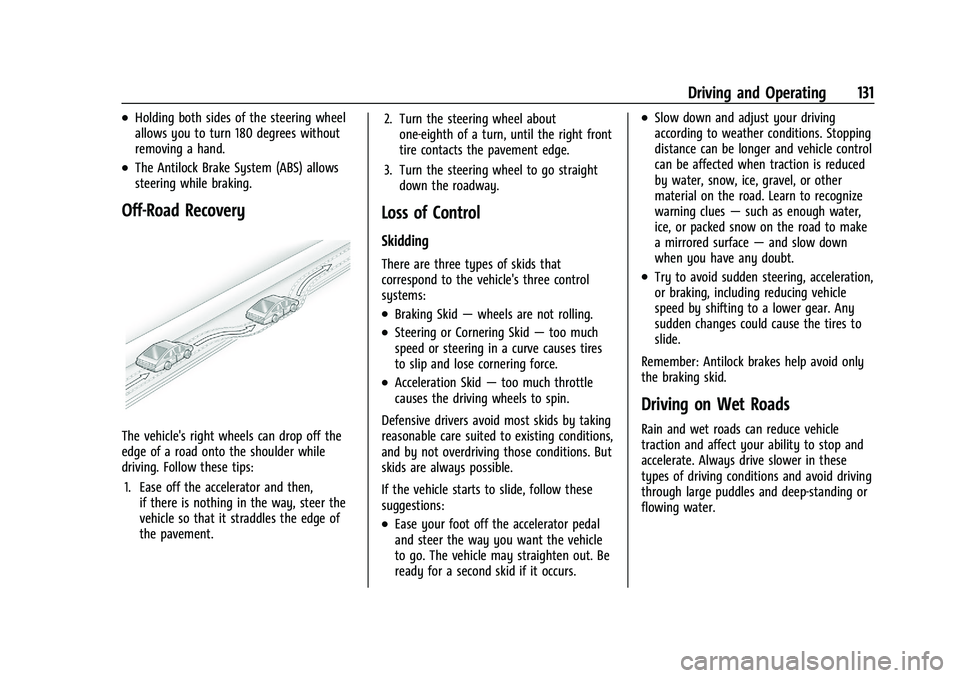
The vehicle's right wheels can drop off the
edge of a road onto the shoulder while
driving. Follow these tips:1. Ease off the accelerator and then, if there is nothing in the way, steer the
vehicle so that it straddles the edge of
the pavement. 2. Turn the steering wheel about
one-eighth of a turn, until the right front
tire contacts the pavement edge.
3. Turn the steering wheel to go straight down the roadway.
Loss of Control
Skidding
There are three types of skids that
correspond to the vehicle's three control
systems:
.Braking Skid —wheels are not rolling.
.Steering or Cornering Skid —too much
speed or steering in a curve causes tires
to slip and lose cornering force.
.Acceleration Skid —too much throttle
causes the driving wheels to spin.
Defensive drivers avoid most skids by taking
reasonable care suited to existing conditions,
and by not overdriving those conditions. But
skids are always possible.
If the vehicle starts to slide, follow these
suggestions:
.Ease your foot off the accelerator pedal
and steer the way you want the vehicle
to go. The vehicle may straighten out. Be
ready for a second skid if it occurs.
.Slow down and adjust your driving
according to weather conditions. Stopping
distance can be longer and vehicle control
can be affected when traction is reduced
by water, snow, ice, gravel, or other
material on the road. Learn to recognize
warning clues —such as enough water,
ice, or packed snow on the road to make
a mirrored surface —and slow down
when you have any doubt.
.Try to avoid sudden steering, acceleration,
or braking, including reducing vehicle
speed by shifting to a lower gear. Any
sudden changes could cause the tires to
slide.
Remember: Antilock brakes help avoid only
the braking skid.
Driving on Wet Roads
Rain and wet roads can reduce vehicle
traction and affect your ability to stop and
accelerate. Always drive slower in these
types of driving conditions and avoid driving
through large puddles and deep-standing or
flowing water.
Page 133 of 280
Chevrolet TRAX Owner Manual (GMNA-Localizing-U.S./Canada-14609828) -
2021 - CRC - 8/21/20
132 Driving and Operating
{Warning
Wet brakes can cause crashes. They
might not work as well in a quick stop
and could cause pulling to one side. You
could lose control of the vehicle.
After driving through a large puddle of
water or a car/vehicle wash, lightly apply
the brake pedal until the brakes work
normally.
Flowing or rushing water creates strong
forces. Driving through flowing water
could cause the vehicle to be carried
away. If this happens, you and other
vehicle occupants could drown. Do not
ignore police warnings and be very
cautious about trying to drive through
flowing water.
Hydroplaning
Hydroplaning is dangerous. Water can build
up under the vehicle's tires so they actually
ride on the water. This can happen if the
road is wet enough and you are going fast
enough. When the vehicle is hydroplaning, it
has little or no contact with the road.There is no hard and fast rule about
hydroplaning. The best advice is to slow
down when the road is wet.
Other Rainy Weather Tips
Besides slowing down, other wet weather
driving tips include:
.Allow extra following distance.
.Pass with caution.
.Keep windshield wiping equipment in
good shape.
.Keep the windshield washer fluid reservoir
filled.
.Have good tires with proper tread depth.
See
Tires 0199.
.Turn off cruise control.
Hill and Mountain Roads
Driving on steep hills or through mountains
is different than driving on flat or rolling
terrain. Tips include:
.Keep the vehicle serviced and in good
shape.
.Check all fluid levels and brakes, tires,
cooling system, and transmission.
.Shift to a lower gear when going down
steep or long hills.
{Warning
Using the brakes to slow the vehicle on a
long downhill slope can cause brake
overheating, can reduce brake
performance, and could result in a loss of
braking. Shift the transmission to a lower
gear to let the engine assist the brakes
on a steep downhill slope.
{Warning
Coasting downhill in N (Neutral) or with
the ignition off is dangerous. This can
cause overheating of the brakes and loss
of steering assist. Always have the engine
running and the vehicle in gear.
.Drive at speeds that keep the vehicle in
its own lane. Do not swing wide or cross
the center line.
.Be alert on top of hills; something could
be in your lane (e.g., stalled car, crash).
.Pay attention to special road signs (e.g.,
falling rocks area, winding roads, long
grades, passing or no-passing zones) and
take appropriate action.