ECU CHEVROLET TRAX 2021 Service Manual
[x] Cancel search | Manufacturer: CHEVROLET, Model Year: 2021, Model line: TRAX, Model: CHEVROLET TRAX 2021Pages: 280, PDF Size: 8.76 MB
Page 224 of 280

Chevrolet TRAX Owner Manual (GMNA-Localizing-U.S./Canada-14609828) -
2021 - CRC - 8/21/20
Vehicle Care 223
7. Connect one end of the blacknegative (–) cable to the negative (–)
terminal of the good battery.
8. Connect the other end of the black negative (–) cable to the negative (–)
grounding point for the discharged
battery.
9. Start the engine in the vehicle with the good battery and run the engine at idle
speed for at least four minutes.
10. Try to start the vehicle that had the dead battery. If it will not start after a
few tries, it probably needs service.
Caution
If the jumper cables are connected or
removed in the wrong order, electrical
shorting may occur and damage the
vehicle. The repairs would not be covered
by the vehicle warranty. Always connect
and remove the jumper cables in the
correct order, making sure that the cables
do not touch each other or other metal.
Jumper Cable Removal
Reverse the sequence exactly when
removing the jumper cables. After starting the disabled vehicle and
removing the jumper cables, allow it to idle
for several minutes.
Towing the Vehicle
Caution
Incorrectly towing a disabled vehicle may
cause damage. The damage would not be
covered by the vehicle warranty. Do not
lash or hook to suspension components.
Use the proper straps around the tires to
secure the vehicle. Do not drag a locked
wheel/tire. Use tire skates or dollies
under any locked wheel/tire while
loading the vehicle. Do not use a sling
type lift to tow the vehicle. This could
damage the vehicle.
Caution
Improper use of the tow eye can damage
the vehicle. If equipped, use the tow eye
to load a disabled vehicle onto a flatbed
tow truck from a flat road surface, or to
move the vehicle a short distance. Use
(Continued)
Caution (Continued)
caution and low speeds. The transmission
must be in (N) Neutral when moving the
vehicle.
GM recommends a flatbed tow truck to
transport a disabled vehicle. Use ramps to
help reduce approach angles, if necessary.
A towed vehicle should have its drive wheels
off the ground. Contact Roadside Assistance
or a professional towing service if the
disabled vehicle must be towed.
If the vehicle is equipped with a tow eye,
only use the tow eye to pull the vehicle
onto a flatbed or car carrier from a flat road
surface. Do not use the tow eye to pull the
vehicle from snow, mud, or sand.
Page 227 of 280
Chevrolet TRAX Owner Manual (GMNA-Localizing-U.S./Canada-14609828) -
2021 - CRC - 8/21/20
226 Vehicle Care
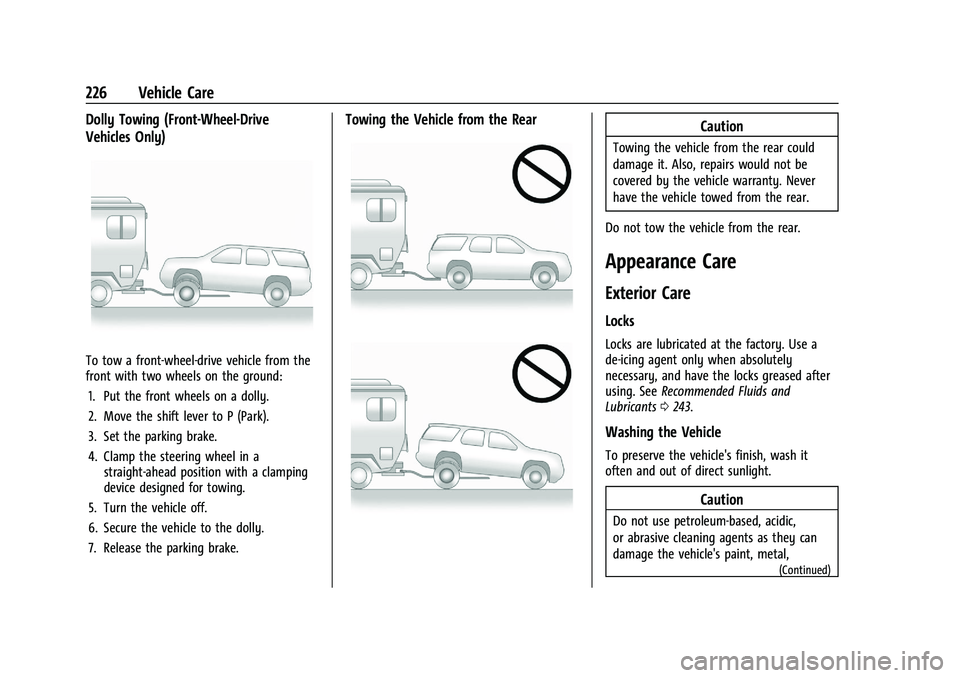
Dolly Towing (Front-Wheel-Drive
Vehicles Only)
To tow a front-wheel-drive vehicle from the
front with two wheels on the ground:1. Put the front wheels on a dolly.
2. Move the shift lever to P (Park).
3. Set the parking brake.
4. Clamp the steering wheel in a straight-ahead position with a clamping
device designed for towing.
5. Turn the vehicle off.
6. Secure the vehicle to the dolly.
7. Release the parking brake.
Towing the Vehicle from the RearCaution
Towing the vehicle from the rear could
damage it. Also, repairs would not be
covered by the vehicle warranty. Never
have the vehicle towed from the rear.
Do not tow the vehicle from the rear.
Appearance Care
Exterior Care
Locks
Locks are lubricated at the factory. Use a
de-icing agent only when absolutely
necessary, and have the locks greased after
using. See Recommended Fluids and
Lubricants 0243.
Washing the Vehicle
To preserve the vehicle's finish, wash it
often and out of direct sunlight.
Caution
Do not use petroleum-based, acidic,
or abrasive cleaning agents as they can
damage the vehicle's paint, metal,
(Continued)
Page 234 of 280
Chevrolet TRAX Owner Manual (GMNA-Localizing-U.S./Canada-14609828) -
2021 - CRC - 8/21/20
Vehicle Care 233
Warning (Continued)
cause a crash and injury. Make sure the
floor mat does not interfere with the
pedals.
Use the following guidelines for proper floor
mat usage.
.The original equipment floor mats were
designed for your vehicle. If the floor
mats need replacing, it is recommended
that GM certified floor mats be
purchased. Non-GM floor mats may not
fit properly and may interfere with the
accelerator or brake pedal. Always check
that the floor mats do not interfere with
the pedals.
.Do not use a floor mat if the vehicle is
not equipped with a floor mat retainer on
the driver side floor.
.Use the floor mat with the correct side
up. Do not turn it over.
.Do not place anything on top of the
driver side floor mat.
.Use only a single floor mat on the
driver side.
.Do not place one floor mat on top of
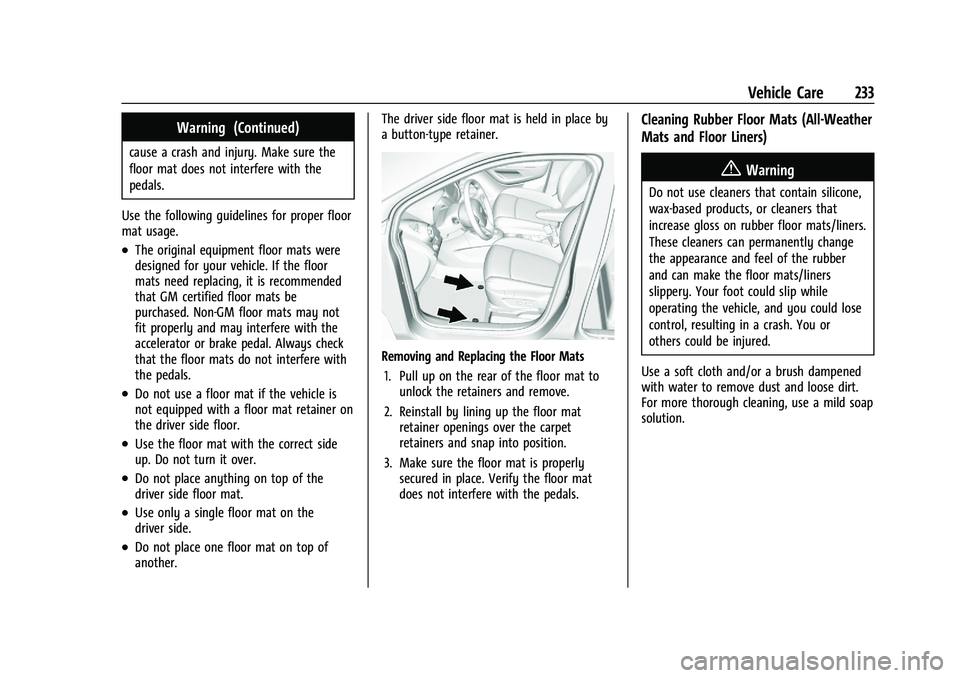
another. The driver side floor mat is held in place by
a button-type retainer.
Removing and Replacing the Floor Mats
1. Pull up on the rear of the floor mat to unlock the retainers and remove.
2. Reinstall by lining up the floor mat retainer openings over the carpet
retainers and snap into position.
3. Make sure the floor mat is properly secured in place. Verify the floor mat
does not interfere with the pedals.
Cleaning Rubber Floor Mats (All-Weather
Mats and Floor Liners)
{Warning
Do not use cleaners that contain silicone,
wax-based products, or cleaners that
increase gloss on rubber floor mats/liners.
These cleaners can permanently change
the appearance and feel of the rubber
and can make the floor mats/liners
slippery. Your foot could slip while
operating the vehicle, and you could lose
control, resulting in a crash. You or
others could be injured.
Use a soft cloth and/or a brush dampened
with water to remove dust and loose dirt.
For more thorough cleaning, use a mild soap
solution.
Page 251 of 280
Chevrolet TRAX Owner Manual (GMNA-Localizing-U.S./Canada-14609828) -
2021 - CRC - 8/21/20
250 Customer Information
Customer Information
Customer Information
Customer Satisfaction Procedure . . . . . . 250
Customer Assistance Offices . . . . . . . . . . . 251
Customer Assistance for Text Telephone(TTY) Users . . . . . . . . . . . . . . . . . . . . . . . . . . 252
Online Owner Center . . . . . . . . . . . . . . . . . . 252
GM Mobility Reimbursement Program . . . . . . . . . . . . . . . . . . . . . . . . . . . . . 252
Roadside Assistance Program . . . . . . . . . . 253
Scheduling Service Appointments . . . . . . 254
Courtesy Transportation Program . . . . . 254
Collision Damage Repair . . . . . . . . . . . . . . . 255
Publication Ordering Information . . . . . . 257
Radio Frequency Statement . . . . . . . . . . . 257
Reporting Safety Defects
Reporting Safety Defects to the United States Government . . . . . . . . . . . . . . . . . . 258
Reporting Safety Defects to the Canadian Government . . . . . . . . . . . . . . . 258
Reporting Safety Defects to General Motors . . . . . . . . . . . . . . . . . . . . . . . . . . . . . . 259
Vehicle Data Recording and Privacy
Vehicle Data Recording and Privacy . . . 259
Cybersecurity . . . . . . . . . . . . . . . . . . . . . . . . . . 259
Event Data Recorders . . . . . . . . . . . . . . . . . . 259
OnStar . . . . . . . . . . . . . . . . . . . . . . . . . . . . . . . . 260
Customer Information
Customer Satisfaction Procedure
Your satisfaction and goodwill are important
to your dealer and to Chevrolet. Normally,
any concerns with the sales transaction or
the operation of the vehicle will be resolved
by your dealer's sales or service
departments. Sometimes, however, despite
the best intentions of all concerned,
misunderstandings can occur. If your concern
has not been resolved to your satisfaction,
the following steps should be taken:
STEP ONE : Discuss your concern with a
member of dealership management.
Normally, concerns can be quickly resolved
at that level. If the matter has already been
reviewed with the sales, service, or parts
manager, contact the owner of your
dealership or the general manager.
STEP TWO : If after contacting a member of
dealership management, it appears your
concern cannot be resolved by your
dealership without further help, in the U.S.,
call the Chevrolet Customer Assistance
Center at 1-800-222-1020. In Canada, call
General Motors of Canada Customer Care
Centre at 1-800-263-3777 (English),
or 1-800-263-7854 (French). We encourage you to call the toll-free
number in order to give your inquiry
prompt attention. Have the following
information available to give the Customer
Assistance representative:
.Vehicle Identification Number (VIN). This is
available from the vehicle registration or
title, or the plate at the top left of the
instrument panel and visible through the
windshield.
.Dealership name and location.
.Vehicle delivery date and present mileage.
When contacting Chevrolet, remember that
your concern will likely be resolved at a
dealer's facility. That is why we suggest
following Step One first.
STEP THREE —U.S. Owners : Both General
Motors and your dealer are committed to
making sure you are completely satisfied
with your new vehicle. However, if you
continue to remain unsatisfied after
following the procedure outlined in
Steps One and Two, you can file with the
Better Business Bureau (BBB) Auto Line
Program to enforce your rights.
The BBB Auto Line Program is an
out-of-court program administered by BBB
National Programs, Inc. to settle automotive
Page 254 of 280

Chevrolet TRAX Owner Manual (GMNA-Localizing-U.S./Canada-14609828) -
2021 - CRC - 8/21/20
Customer Information 253
adaptive equipment required for the vehicle,
such as hand controls or a wheelchair/
scooter lift for the vehicle.
To learn about the GM Mobility program,
see www.gmmobility.com or call the GM
Mobility Assistance Center at 1-800-323-9935.
Text Telephone (TTY) users, call
1-800-833-9935.
General Motors of Canada also has a
Mobility program. See www.gm.ca, or call
1-800-GM-DRIVE (800-463-7483) for details.
TTY users call 1-800-263-3830.
Roadside Assistance Program
For U.S.-purchased vehicles, call
1-800-243-8872. (Text Telephone (TTY):
1-888-889-2438.)
For Canadian-purchased vehicles, call
1-800-268-6800.
Service is available 24 hours a day, 365 days
a year.
Calling for Assistance
When calling Roadside Assistance, have the
following information ready:
.Your name, home address, and home
telephone number
.Telephone number of your location
.Location of the vehicle
.Model, year, color, and license plate
number of the vehicle
.Odometer reading, Vehicle Identification
Number (VIN), and delivery date of the
vehicle
.Description of the problem
Coverage
Services are provided for the duration of the
vehicle’s powertrain warranty.
In the U.S., anyone driving the vehicle is
covered. In Canada, a person driving the
vehicle without permission from the owner
is not covered.
Roadside Assistance is not a part of the New
Vehicle Limited Warranty. General Motors
North America and Chevrolet reserve the
right to make any changes or discontinue
the Roadside Assistance program at any
time without notification.
General Motors North America and Chevrolet
reserve the right to limit services or
payment to an owner or driver if they
decide the claims are made too often, or the
same type of claim is made many times.
Services Provided
.Emergency Fuel Delivery:Delivery of
enough fuel for the vehicle to get to the
nearest service station.
.Lock-Out Service: Service to unlock the
vehicle if you are locked out. A remote
unlock may be available if you have
OnStar. For security reasons, the driver
must present identification before this
service is given.
.Emergency Tow from a Public Road or
Highway: Tow to the nearest Chevrolet
dealer for warranty service, or if the
vehicle was in a crash and cannot be
driven. Assistance is not given when the
vehicle is stuck in the sand, mud,
or snow.
.Flat Tire Change: Service to change a flat
tire with the spare tire. The spare tire,
if equipped, must be in good condition
and properly inflated. It is the owner's
responsibility for the repair or
replacement of the tire if it is not covered
by the warranty.
.Battery Jump Start: Service to jump start
a dead battery.
.Trip Interruption Benefits and Assistance:
If your trip is interrupted due to a
warranty event, incidental expenses may
Page 260 of 280

Chevrolet TRAX Owner Manual (GMNA-Localizing-U.S./Canada-14609828) -
2021 - CRC - 8/21/20
Customer Information 259
Reporting Safety Defects to
General Motors
In addition to notifying NHTSA (or Transport
Canada) in a situation like this, notify
General Motors.
In the U.S., call 1-800-222-1020, or write:
Chevrolet Motor Division
Chevrolet Customer Assistance Center
P.O. Box 33170
Detroit, MI 48232-5170
In Canada, call 1-800-263-3777 (English) or
1-800-263-7854 (French), or write:
General Motors of Canada Company
Customer Care Centre, Mail Code:
CA1-163-005
1908 Colonel Sam Drive
Oshawa, Ontario L1H 8P7
In Mexico, call 800-466-0811 or
800-508-0000.
In other Central America and Caribbean
Countries, call 52-555-901-2369.
Vehicle Data Recording and
Privacy
The vehicle has a number of computers that
record information about the vehicle’s
performance and how it is driven or used.
For example, the vehicle uses computer
modules to monitor and control engine and
transmission performance, to monitor the
conditions for airbag deployment and
deploy them in a crash, and, if equipped, to
provide antilock braking to help the driver
control the vehicle. These modules may
store data to help the dealer technician
service the vehicle or to help GM improve
safety or features. Some modules may also
store data about how the vehicle is
operated, such as rate of fuel consumption
or average speed. These modules may retain
personal preferences, such as radio presets,
seat positions, and temperature settings.
Cybersecurity
GM collects information about the use of
your vehicle including operational and safety
related information. We collect this
information to provide, evaluate, improve,
and troubleshoot our products and services
and to develop new products and services.The protection of vehicle electronics systems
and customer data from unauthorized
outside electronic access or control is
important to GM. GM maintains appropriate
security standards, practices, guidelines and
controls aimed at defending the vehicle and
the vehicle service ecosystem against
unauthorized electronic access, detecting
possible malicious activity in related
networks, and responding to suspected
cybersecurity incidents in a timely,
coordinated and effective manner. Security
incidents could impact your safety or
compromise your private data. To minimize
security risks, please do not connect your
vehicle electronic systems to unauthorized
devices or connect your vehicle to any
unknown or untrusted networks (such as
Bluetooth, WIFI or similar technology). In
the event you suspect any security incident
impacting your data or the safe operation of
your vehicle, please stop operating your
vehicle and contact your dealer.Event Data Recorders
This vehicle is equipped with an event data
recorder (EDR). The main purpose of an EDR
is to record, in certain crash or near
crash-like situations, such as an air bag
deployment or hitting a road obstacle, data
Page 262 of 280
Chevrolet TRAX Owner Manual (GMNA-Localizing-U.S./Canada-14609828) -
2021 - CRC - 8/21/20
OnStar 261
OnStar
OnStar Overview
OnStar Overview . . . . . . . . . . . . . . . . . . . . . . 261
OnStar Services
Emergency . . . . . . . . . . . . . . . . . . . . . . . . . . . . 262
Security . . . . . . . . . . . . . . . . . . . . . . . . . . . . . . . 262
OnStar Additional Information
OnStar Additional Information . . . . . . . . . 262
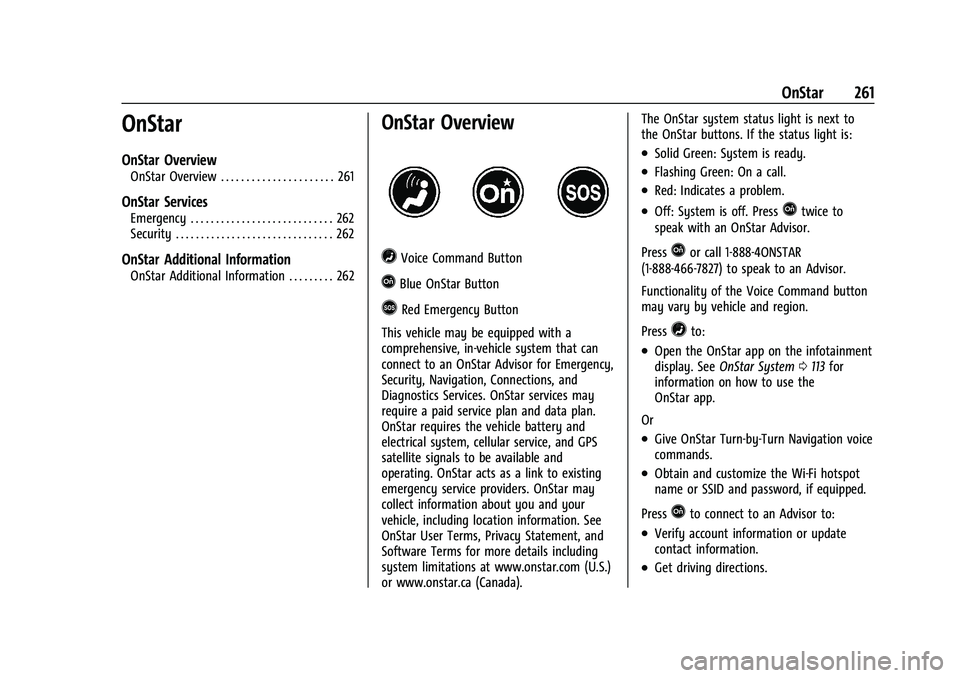
OnStar Overview
=Voice Command Button
QBlue OnStar Button
>Red Emergency Button
This vehicle may be equipped with a
comprehensive, in-vehicle system that can
connect to an OnStar Advisor for Emergency,
Security, Navigation, Connections, and
Diagnostics Services. OnStar services may
require a paid service plan and data plan.
OnStar requires the vehicle battery and
electrical system, cellular service, and GPS
satellite signals to be available and
operating. OnStar acts as a link to existing
emergency service providers. OnStar may
collect information about you and your
vehicle, including location information. See
OnStar User Terms, Privacy Statement, and
Software Terms for more details including
system limitations at www.onstar.com (U.S.)
or www.onstar.ca (Canada). The OnStar system status light is next to
the OnStar buttons. If the status light is:
.Solid Green: System is ready.
.Flashing Green: On a call.
.Red: Indicates a problem.
.Off: System is off. PressQtwice to
speak with an OnStar Advisor.
Press
Qor call 1-888-4ONSTAR
(1-888-466-7827) to speak to an Advisor.
Functionality of the Voice Command button
may vary by vehicle and region.
Press
=to:
.Open the OnStar app on the infotainment
display. See OnStar System 0113 for
information on how to use the
OnStar app.
Or
.Give OnStar Turn-by-Turn Navigation voice
commands.
.Obtain and customize the Wi-Fi hotspot
name or SSID and password, if equipped.
Press
Qto connect to an Advisor to:
.Verify account information or update
contact information.
.Get driving directions.
Page 263 of 280

Chevrolet TRAX Owner Manual (GMNA-Localizing-U.S./Canada-14609828) -
2021 - CRC - 8/21/20
262 OnStar
.Receive a Diagnostic check of the vehicle's
key operating systems.
.Receive Roadside Assistance.
.Manage Wi-Fi Settings, if equipped.
Press
>to get a priority connection to an
OnStar Advisor available 24/7 to:
.Get help for an emergency.
.Be a Good Samaritan or respond to an
AMBER Alert.
.Get assistance in severe weather or other
crisis situations and find evacuation
routes.
OnStar Services
Emergency
Emergency Services require an active safety
and security plan. With Automatic Crash
Response, built-in sensors can automatically
alert a specially trained OnStar Advisor who
is immediately connected in to the vehicle
to help.
Press
>for a priority connection to an
OnStar Advisor who can contact emergency
service providers, direct them to your exact
location, and relay important information. With OnStar Crisis Assist, specially trained
Advisors are available 24 hours a day, 7 days
a week, to provide a central point of
contact, assistance, and information during a
crisis.
With Roadside Assistance, Advisors can
locate a nearby service provider to help with
a flat tire, a battery jump, or an empty
gas tank.
Security
If equipped, OnStar provides these services:
.With Stolen Vehicle Assistance, OnStar
Advisors can use GPS to pinpoint the
vehicle and help authorities quickly
recover it.
.With Remote Ignition Block, if equipped,
OnStar can block the engine from being
restarted.
.With Stolen Vehicle Slowdown,
if equipped, OnStar can work with law
enforcement to gradually slow the
vehicle down.
Theft Alarm Notification
If equipped, if the doors are locked and the
vehicle alarm sounds, a notification by text,
e-mail, or phone call will be sent. If the
vehicle is stolen, an OnStar Advisor can work
with authorities to recover the vehicle.
OnStar Additional
Information
In-Vehicle Audio Messages
Audio messages may play important
information at the following times:
.Prior to vehicle purchase. PressQto set
up an account.
.After change in ownership and at
90 days.
Transferring Service
PressQto request account transfer
eligibility information. The Advisor can
cancel or change account information.
Selling/Transferring the Vehicle
Call 1-888-4ONSTAR (1-888-466-7827)
immediately to terminate your OnStar or
connected services if the vehicle is disposed
of, sold, transferred, or if the lease ends.
Page 265 of 280

Chevrolet TRAX Owner Manual (GMNA-Localizing-U.S./Canada-14609828) -
2021 - CRC - 8/21/20
264 OnStar
Languages
The vehicle can be programmed to respond
in multiple languages. Press
Qand ask for
an Advisor. Advisors are available in English,
Spanish, and French. Available languages
may vary by country.
Potential Issues
OnStar cannot perform Remote Door Unlock
or Stolen Vehicle Assistance after the vehicle
has been off continuously for 10 days
without an ignition cycle. If the vehicle has
not been started for 10 days, OnStar can
contact Roadside Assistance or a locksmith
to help gain access to the vehicle.
Global Positioning System (GPS)
.Obstruction of the GPS can occur in a
large city with tall buildings; in parking
garages; around airports; in tunnels and
underpasses; or in an area with very
dense trees. If GPS signals are not
available, the OnStar system should still
operate to call OnStar. However, OnStar
could have difficulty identifying the exact
location.
.In emergency situations, OnStar can use
the last stored GPS location to send to
emergency responders. A temporary loss of GPS can cause loss of
the ability to send a Turn-by-Turn
Navigation route. The Advisor may give a
verbal route or may ask for a call back after
the vehicle is driven into an open area.
Cellular and GPS Antennas
Cellular reception is required for OnStar to
send remote signals to the vehicle. Do not
place items over or near the antenna to
prevent blocking cellular and GPS signal
reception.
Unable to Connect to OnStar Message
If there is limited cellular coverage or the
cellular network has reached maximum
capacity, this message may come on. Press
Qto try the call again or try again after
driving a few miles into another
cellular area.
Vehicle and Power Issues
OnStar services require a vehicle electrical
system, wireless service, and GPS satellite
technologies to be available and operating
for features to function properly. These
systems may not operate if the battery is
discharged or disconnected.
Add-on Electrical Equipment
The OnStar system is integrated into the
electrical architecture of the vehicle. Do not
add any electrical equipment. See Add-On
Electrical Equipment 0164. Added electrical
equipment may interfere with the operation
of the OnStar system and cause it to not
operate.
Vehicle Software Updates
OnStar or GM may remotely deliver
software updates or changes to the vehicle
without further notice or consent. These
updates or changes may enhance or
maintain safety, security, or the operation
of the vehicle or the vehicle systems.
Software updates or changes may affect or
erase data or settings that are stored in the
vehicle, such as saved navigation
destinations or pre-set radio stations.
Neither OnStar nor GM is responsible for
any affected or erased data or settings.
These updates or changes may also collect
personal information. Such collection is
described in the OnStar privacy statement or
separately disclosed at the time of
installation. These updates or changes may
also cause a system to automatically
communicate with GM servers to collect
information about vehicle system status,
Page 268 of 280
Chevrolet TRAX Owner Manual (GMNA-Localizing-U.S./Canada-14609828) -
2021 - CRC - 8/21/20
Connected Services 267
PressQ, then ask the Advisor to download
directions to the vehicle’s navigation system,
if equipped. After the call ends, the
navigation screen will provide prompts to
begin driving directions. Routes that are sent
to the navigation screen can only be
canceled through the navigation system.
See www.onstar.com (U.S.) or www.onstar.ca
(Canada).
Connections
The following services help with staying
connected.
For coverage maps, see www.onstar.com
(U.S.) or www.onstar.ca (Canada).
Ensuring Security
.Change the default passwords for the
Wi-Fi hotspot and myChevrolet mobile
application. Make these passwords
different from each other and use a
combination of letters and numbers to
increase the security.
.Change the default name of the SSID
(Service Set Identifier). This is your
network’s name that is visible to other
wireless devices. Choose a unique name
and avoid family names or vehicle
descriptions. Wi-Fi Hotspot (If Equipped)
The vehicle may have a built-in Wi-Fi
hotspot that provides access to the Internet
and web content at 4G LTE speed. Up to
seven mobile devices can be connected.
A data plan is required. Use the in-vehicle
controls only when it is safe to do so.
1. To retrieve Wi-Fi hotspot information, press
=to open the OnStar app on the
infotainment display, then select Wi-Fi
Hotspot. On some vehicles, touch Wi-Fi
or Wi-Fi Settings on the screen.
2. The Wi-Fi settings will display the Wi-Fi hotspot name (SSID), password, and on
some vehicles, the connection type (no
Internet connection, 3G, 4G, 4G LTE), and
signal quality (poor, good, excellent). The
LTE icon shows connection to Wi-Fi. It is
possible that the icon may not illuminate
even though the vehicle has an active
connection.
3. To change the SSID or password, press
Qor call 1-888-4ONSTAR to connect
with an Advisor. On some vehicles, the
SSID and password can be changed in
the Wi-Fi Hotspot menu. After initial set-up, your vehicle’s Wi-Fi
hotspot will connect automatically to your
mobile devices. Manage data usage by
turning Wi-Fi on or off on your mobile
device, using the myChevrolet mobile app,
or by contacting an OnStar Advisor. On
some vehicles, Wi-Fi can also be managed
from the Wi-Fi Hotspot menu.
MyChevrolet Mobile App (If Available)
Download the myChevrolet mobile app to
compatible Apple and Android smartphones.
Chevrolet users can access the following
services from a smartphone:
.Remotely start/stop the vehicle,
if factory-equipped.
.Lock/unlock doors, if equipped with
automatic locks.
.Activate the horn and lamps.
.Check the vehicle’s fuel level, oil life,
or tire pressure, if factory-equipped with
the Tire Pressure Monitor System.
.Send destinations to the vehicle.
.Locate the vehicle on a map (U.S.
market only).
.Turn the vehicle's Wi-Fi hotspot on/off,
manage settings, and monitor data
consumption, if equipped.
.Locate a dealer and schedule service.