wheel CHEVROLET TRAX 2022 User Guide
[x] Cancel search | Manufacturer: CHEVROLET, Model Year: 2022, Model line: TRAX, Model: CHEVROLET TRAX 2022Pages: 280, PDF Size: 12.13 MB
Page 85 of 280
Chevrolet TRAX Owner Manual (GMNA-Localizing-U.S./Canada-15498927) -
2022 - CRC - 5/27/21
84 Instruments and Controls
Caution (Continued)
lead to costly repairs not covered by the
vehicle warranty. This could also affect
the vehicle’s ability to pass an Emissions
Inspection/Maintenance test. See
Accessories and Modifications0168.
If the light is flashing : A malfunction has
been detected that could damage the
emission control system and increase vehicle
emissions. Diagnosis and service may be
required.
To help prevent damage, reduce vehicle
speed and avoid hard accelerations and
uphill grades.
If the light continues to flash, find a safe
place to park. Turn the vehicle off and wait
at least 10 seconds before restarting the
engine. If the light is still flashing, follow
the previous guidelines and see your dealer
for service as soon as possible.
If the light is on steady : A malfunction has
been detected. Diagnosis and service may be
required. Check the following:.If fuel has been added to the vehicle
using the capless funnel adapter, make
sure that it has been removed. See
“Filling the Tank with a Portable Gas Can”
under
Filling the Tank 0164. The
diagnostic system can detect if the
adapter has been left installed in the
vehicle, allowing fuel to evaporate into
the atmosphere. A few driving trips with
the adapter removed may turn off the
light.
.Poor fuel quality can cause inefficient
engine operation and poor drivability,
which may go away once the engine is
warmed up. If this occurs, change the fuel
brand. It may require at least one full
tank of the proper fuel to turn the light
off. See Recommended Fuel 0163.
If the light remains on, see your dealer.
Emissions Inspection and Maintenance
Programs
If the vehicle requires an Emissions
Inspection/Maintenance test, the test
equipment will likely connect to the
vehicle's Data Link Connector (DLC).
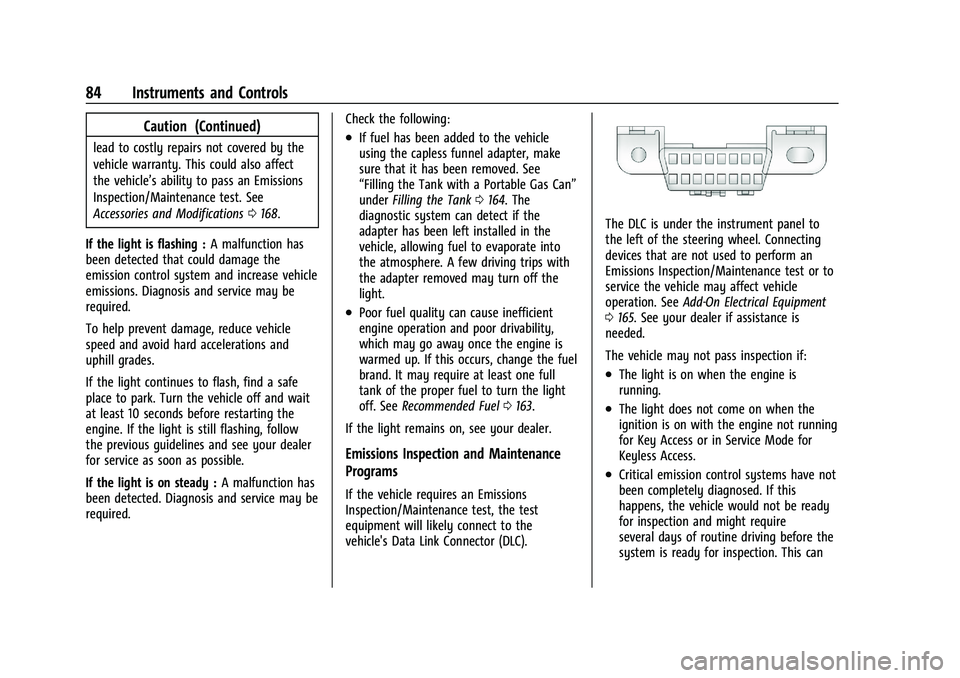
The DLC is under the instrument panel to
the left of the steering wheel. Connecting
devices that are not used to perform an
Emissions Inspection/Maintenance test or to
service the vehicle may affect vehicle
operation. See Add-On Electrical Equipment
0 165. See your dealer if assistance is
needed.
The vehicle may not pass inspection if:
.The light is on when the engine is
running.
.The light does not come on when the
ignition is on with the engine not running
for Key Access or in Service Mode for
Keyless Access.
.Critical emission control systems have not
been completely diagnosed. If this
happens, the vehicle would not be ready
for inspection and might require
several days of routine driving before the
system is ready for inspection. This can
Page 87 of 280
Chevrolet TRAX Owner Manual (GMNA-Localizing-U.S./Canada-15498927) -
2022 - CRC - 5/27/21
86 Instruments and Controls
If the light comes on while driving, safely
stop as soon as it is possible and turn off
the vehicle. Then turn on the vehicle again
to reset the system.
If the ABS warning light stays on, or comes
on again while driving, the vehicle needs
service. A chime may also sound when the
light stays on.
If the ABS warning light is the only light on,
the vehicle has regular brakes, but ABS is
not functioning.
If both the ABS warning light and the brake
system warning light are on, ABS is not
functioning and there is a problem with the
regular brakes. See your dealer for service.
SeeBrake System Warning Light 085.
Power Steering Warning Light
This light comes on briefly when the
ignition is turned on as a check to show it is
working. If it does not come on have the vehicle
serviced by your dealer.
If this light stays on, or comes on while
driving, the system may not be working.
If this happens, see your dealer for service.
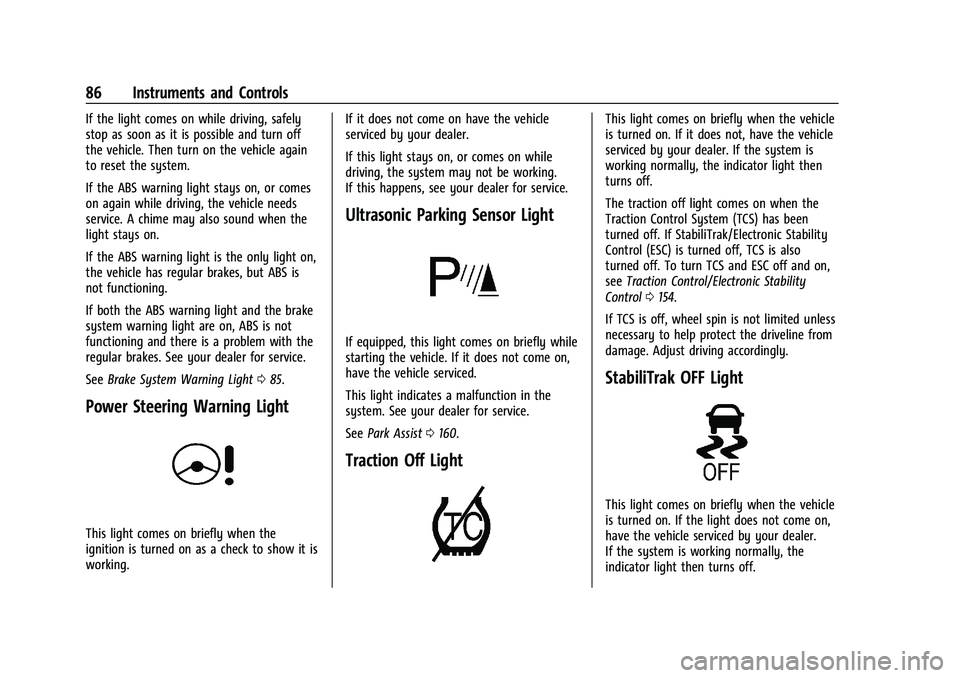
Ultrasonic Parking Sensor Light
If equipped, this light comes on briefly while
starting the vehicle. If it does not come on,
have the vehicle serviced.
This light indicates a malfunction in the
system. See your dealer for service.
See
Park Assist 0160.
Traction Off Light
This light comes on briefly when the vehicle
is turned on. If it does not, have the vehicle
serviced by your dealer. If the system is
working normally, the indicator light then
turns off.
The traction off light comes on when the
Traction Control System (TCS) has been
turned off. If StabiliTrak/Electronic Stability
Control (ESC) is turned off, TCS is also
turned off. To turn TCS and ESC off and on,
see Traction Control/Electronic Stability
Control 0154.
If TCS is off, wheel spin is not limited unless
necessary to help protect the driveline from
damage. Adjust driving accordingly.
StabiliTrak OFF Light
This light comes on briefly when the vehicle
is turned on. If the light does not come on,
have the vehicle serviced by your dealer.
If the system is working normally, the
indicator light then turns off.
Page 96 of 280
Chevrolet TRAX Owner Manual (GMNA-Localizing-U.S./Canada-15498927) -
2022 - CRC - 5/27/21
Instruments and Controls 95
Valet Mode
This will lock the infotainment system and
steering wheel controls. It may also limit
access to vehicle storage locations,
if equipped.
To enable valet mode:1. Enter a four-digit code on the keypad.
2. Touch Enter to go to the confirmation screen.
3. Re-enter the four-digit code.
Touch Lock or Unlock to lock or unlock the
system. Touch Back to go back to the
previous menu.
Page 103 of 280
Chevrolet TRAX Owner Manual (GMNA-Localizing-U.S./Canada-15498927) -
2022 - CRC - 5/27/21
102 Infotainment System
Infotainment System
Introduction
Introduction . . . . . . . . . . . . . . . . . . . . . . . . . . . 102
Overview . . . . . . . . . . . . . . . . . . . . . . . . . . . . . . 103
Steering Wheel Controls . . . . . . . . . . . . . . . 104
Using the System . . . . . . . . . . . . . . . . . . . . . 105
Radio
AM-FM Radio . . . . . . . . . . . . . . . . . . . . . . . . . . 106
Satellite Radio . . . . . . . . . . . . . . . . . . . . . . . . . 108
Radio Reception . . . . . . . . . . . . . . . . . . . . . . . 108
Multi-Band Antenna . . . . . . . . . . . . . . . . . . . 109
Audio Players
Avoiding Untrusted Media Devices . . . . 109
USB Port . . . . . . . . . . . . . . . . . . . . . . . . . . . . . . 109
Auxiliary Jack . . . . . . . . . . . . . . . . . . . . . . . . . . 112
Bluetooth Audio . . . . . . . . . . . . . . . . . . . . . . . 112
Phone
Bluetooth (Overview) . . . . . . . . . . . . . . . . . . 113
Bluetooth (Pairing and Using thePhone) . . . . . . . . . . . . . . . . . . . . . . . . . . . . . . . 113
Apple CarPlay and Android Auto . . . . . . . 117
Settings
Settings . . . . . . . . . . . . . . . . . . . . . . . . . . . . . . . . 118
Teen Driver . . . . . . . . . . . . . . . . . . . . . . . . . . . . 120
Trademarks and License Agreements
Trademarks and License Agreements . . . 123
Introduction
Read the following pages to become familiar
with the features.
{Warning
Taking your eyes off the road for too
long or too often while using any
infotainment feature can cause a crash.
You or others could be injured or killed.
Do not give extended attention to
infotainment tasks while driving. Limit
your glances at the vehicle displays and
focus your attention on driving. Use voice
commands whenever possible.
The infotainment system has built-in
features intended to help avoid distraction
by disabling some features when driving.
These features may gray out when they are
unavailable. Many infotainment features are
also available through the instrument cluster
and steering wheel controls.
Before driving:
.Become familiar with the operation,
center stack controls, steering wheel
controls, and infotainment display.
Page 104 of 280
Chevrolet TRAX Owner Manual (GMNA-Localizing-U.S./Canada-15498927) -
2022 - CRC - 5/27/21
Infotainment System 103
.Set up the audio by presetting favorite
stations, setting the tone, and adjusting
the speakers.
.Set up phone numbers in advance so they
can be called easily by pressing a single
control or by using a single voice
command.
See Distracted Driving 0130.
Active Noise Cancellation (ANC)
If equipped, ANC reduces engine noise in the
vehicle’s interior. ANC requires the
factory-installed audio system, radio,
speakers, amplifier (if equipped), induction
system, and exhaust system to work
properly. Deactivation is required by your
dealer if related aftermarket equipment is
installed.
Overview
Customer Assistance
Assistance is available to help with Bluetooth pairing, other mobile device interface, and
operation support of the infotainment system. See Customer Assistance Offices0251.
Infotainment System
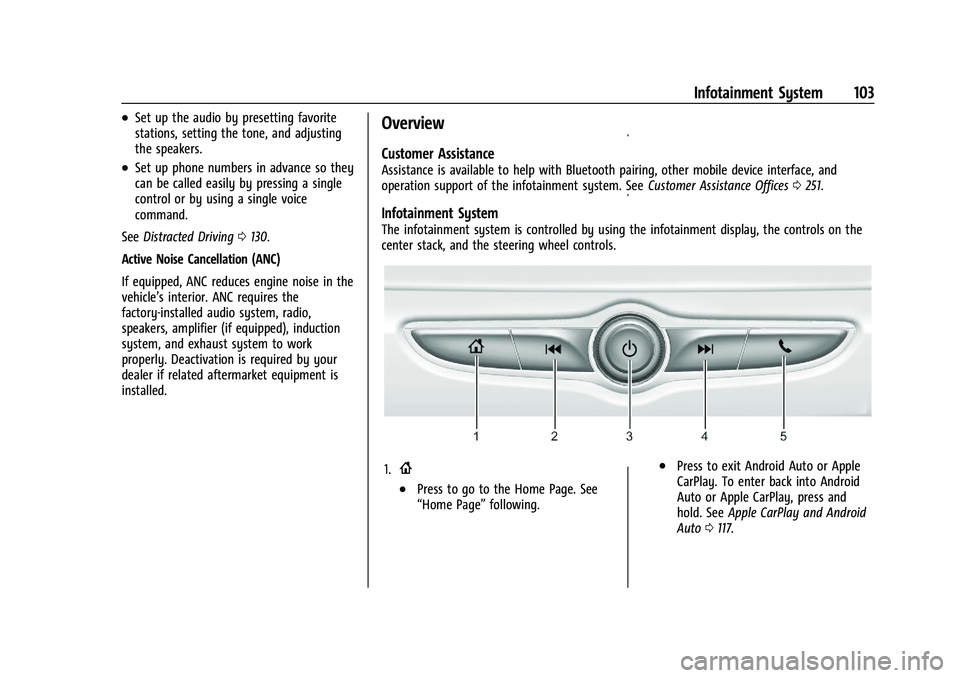
The infotainment system is controlled by using the infotainment display, the controls on the
center stack, and the steering wheel controls.
1.{
.Press to go to the Home Page. See
“Home Page” following.
.Press to exit Android Auto or Apple
CarPlay. To enter back into Android
Auto or Apple CarPlay, press and
hold. SeeApple CarPlay and Android
Auto 0117.
Page 105 of 280
Chevrolet TRAX Owner Manual (GMNA-Localizing-U.S./Canada-15498927) -
2022 - CRC - 5/27/21
104 Infotainment System
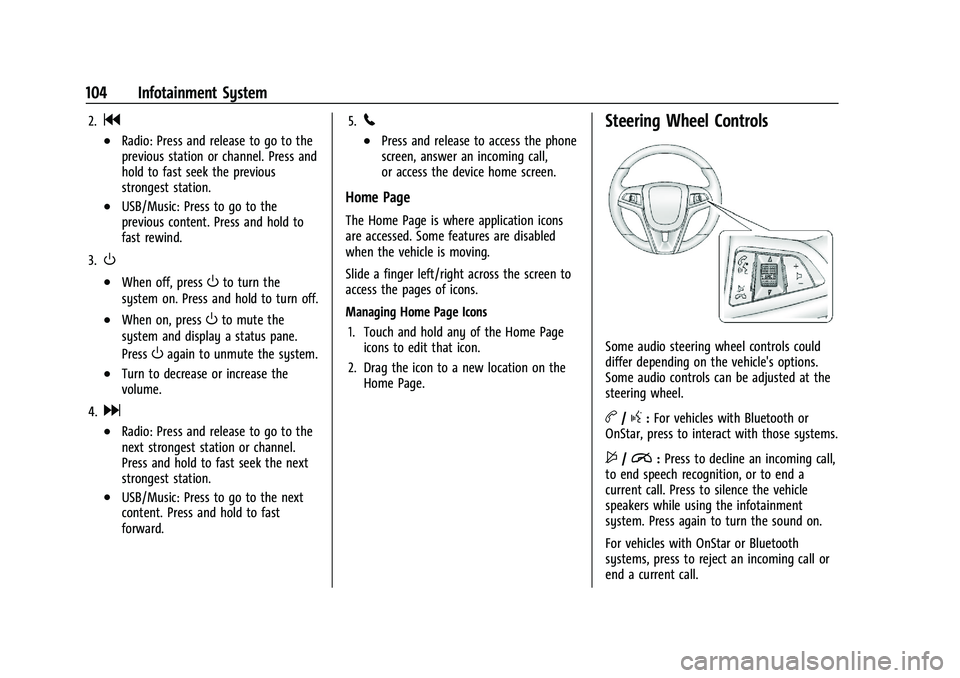
2.g
.Radio: Press and release to go to the
previous station or channel. Press and
hold to fast seek the previous
strongest station.
.USB/Music: Press to go to the
previous content. Press and hold to
fast rewind.
3.
O
.When off, pressOto turn the
system on. Press and hold to turn off.
.When on, pressOto mute the
system and display a status pane.
Press
Oagain to unmute the system.
.Turn to decrease or increase the
volume.
4.
d
.Radio: Press and release to go to the
next strongest station or channel.
Press and hold to fast seek the next
strongest station.
.USB/Music: Press to go to the next
content. Press and hold to fast
forward. 5.
5
.Press and release to access the phone
screen, answer an incoming call,
or access the device home screen.
Home Page
The Home Page is where application icons
are accessed. Some features are disabled
when the vehicle is moving.
Slide a finger left/right across the screen to
access the pages of icons.
Managing Home Page Icons
1. Touch and hold any of the Home Page icons to edit that icon.
2. Drag the icon to a new location on the Home Page.
Steering Wheel Controls
Some audio steering wheel controls could
differ depending on the vehicle's options.
Some audio controls can be adjusted at the
steering wheel.
b/g:For vehicles with Bluetooth or
OnStar, press to interact with those systems.
$/i: Press to decline an incoming call,
to end speech recognition, or to end a
current call. Press to silence the vehicle
speakers while using the infotainment
system. Press again to turn the sound on.
For vehicles with OnStar or Bluetooth
systems, press to reject an incoming call or
end a current call.
Page 112 of 280
Chevrolet TRAX Owner Manual (GMNA-Localizing-U.S./Canada-15498927) -
2022 - CRC - 5/27/21
Infotainment System 111
4. Select a song from the list to beginplayback.
Folders: 1. Touch to view the directories on the USB.
2. Select a folder to view a list of all files.
3. Select a file from the list to begin playback.
Podcasts: Touch to view the podcasts on the
USB and get a list of podcast episodes.
Audiobooks:
1. Touch to view the audiobooks stored on the device.
2. Select an audiobook to get a list of chapters.
3. Select the chapter from the list to begin playback.
File System and Naming
File systems supported by the USB are:
.FAT32
.NTFS
.HFS+ The songs, artists, albums, and genres are
taken from the file’s song information and
are only displayed if present. The radio
displays the file name as the track name if
the song information is not available.
Supported Apple Devices
To view supported devices, see
my.chevrolet.com/learn.
Storing and Recalling Media Favorites
To store media favorites, touch Browse to
display a list of media types.
Select from one of the following Browse
options to save a favorite:
Playlists :
Touch
Hnext to any playlist to
store the playlist as a favorite. Touch a
screen icon in the favorite area to recall a
favorite playlist. The first song in the
playlist begins to play.
Artists : Touch
Hnext to any artist to
store the artist as a favorite. Touch a screen
icon in the favorite area to recall a favorite
artist. The first song in the artist list begins
to play.
Songs : Touch
Hnext to any song to store
the song as a favorite. Touch a screen icon
in the favorite area to recall a favorite song. Albums :
Touch
Hnext to any album to
store the album as a favorite. Touch a
screen icon in the favorite area to recall a
favorite album. The first song in the album
list begins to play.
Genres : Touch
Hnext to any genre to
store the genre as a favorite. Touch a screen
icon in the favorite area to recall a favorite
genre. The first song of the genre begins
to play.
Audiobooks : Touch
Hnext to any
audiobook to store the audiobook as a
favorite. Touch a screen icon in the favorite
area to recall a favorite audiobook. The first
chapter in the audiobook begins to play.
Media Playback and Mute
USB playback will be paused if the system is
muted. If the steering wheel mute control is
pressed again, playback will resume.
If the source is changed while in mute,
playback resumes and audio will unmute.
Page 114 of 280
Chevrolet TRAX Owner Manual (GMNA-Localizing-U.S./Canada-15498927) -
2022 - CRC - 5/27/21
Infotainment System 113
Phone
Bluetooth (Overview)
The Bluetooth-capable system can interact
with many cell phones, allowing:
.Placement and receipt of calls in a
hands-free mode.
.Sharing of the cell phone’s address book
or contact list with the vehicle.
To minimize driver distraction, before
driving, and with the vehicle parked:
.Become familiar with the features of the
cell phone. Organize the phone book and
contact lists clearly and delete duplicate
or rarely used entries. If possible,
program speed dial or other shortcuts.
.Review the controls and operation of the
infotainment system.
.Pair cell phone(s) to the vehicle. The
system may not work with all cell
phones. See “Pairing”later in this section.
Vehicles with a Bluetooth system can use a
Bluetooth-capable cell phone with a
Hands-Free Profile to make and receive
phone calls. The infotainment system and
voice recognition are used to control the
system. The system can be used while the
ignition is on or in ACC/ACCESSORY. The range of the Bluetooth system can be up to
9.1 m (30 ft). Not all phones support all
functions and not all phones work with the
Bluetooth system. See
www.my.chevrolet.com for more information
about compatible phones.
Controls
Use the buttons on the infotainment system
and the steering wheel to operate the
Bluetooth system.
Steering Wheel Controls
See
Steering Wheel Controls 0104.
Infotainment System Controls
For information about how to navigate the
menu system using the infotainment
controls, see Overview0103.
PHONE : Touch the PHONE icon on the
Home Page to enter the phone main menu.
Audio System
When using the Bluetooth phone system,
sound comes through the vehicle's front
audio system speakers and overrides the
audio system. The volume level while on a
phone call can be adjusted by pressing the
steering wheel controls or touching the
volume control on the center stack. The adjusted volume level remains in memory
for later calls. The volume cannot be
lowered beyond a certain level.
Bluetooth (Pairing and Using the
Phone)
Pairing
A Bluetooth-enabled cell phone must be
paired to the Bluetooth system and then
connected to the vehicle before it can be
used. See the cell phone manufacturer's user
guide for Bluetooth functions before pairing
the cell phone.
Pairing Information
.A Bluetooth phone with music capability
can be paired to the vehicle as a phone
and a music player at the same time.
.Up to 10 devices can be paired to the
Bluetooth system.
.The pairing process is disabled when the
vehicle is moving.
.Pairing only needs to be completed once,
unless the pairing information on the cell
phone changes or the cell phone is
deleted from the system.
Page 117 of 280
Chevrolet TRAX Owner Manual (GMNA-Localizing-U.S./Canada-15498927) -
2022 - CRC - 5/27/21
116 Infotainment System
Making a Call Using the Keypad
To make a call by dialing the numbers:1. Touch Phone on the Home Page.
2. Touch Keypad and enter a phone number.
3. Touch
#to start dialing the number.
Searching Contacts Using the Keypad
To search for contacts using the keypad: 1. Touch Phone on the Home Page.
2. Touch Keypad and enter partial phone numbers or contact names using the
digits on the keypad to search.
Results will show on the right side of the
screen. Touch one to place a call.
Accepting or Declining a Call
When an incoming call is received, the
infotainment system mutes and a ring tone
is heard in the vehicle.
Accepting a Call
There are three ways to accept a call:
.Pressgon the steering wheel controls.
.Touch Answer on the infotainment
display.
.Select Answer on the instrument cluster
using the select control.
Declining a Call
There are three ways to decline a call:
.Pression the steering wheel controls.
.Touch Ignore on the infotainment display.
.Select Ignore on the instrument cluster
using the select control.
Call Waiting
Call waiting must be supported on the
Bluetooth cell phone and enabled by the
wireless service carrier to work.
Accepting a Call
There are three ways to accept a
call-waiting call:
.Pressgon the steering wheel controls.
.Touch Switch on the infotainment display.
.Select Switch on the instrument cluster
using the select control.
Declining a Call
There are three ways to decline a
call-waiting call:
.Pression the steering wheel controls.
.Touch Ignore on the infotainment display.
.Select Ignore on the instrument cluster
using the select control.
Switching Between Calls (Call Waiting
Calls Only)
To switch between calls, press the phone
icon on the Home Page to display the Call
View. While in Call View, touch the call
information of the call on hold to change
calls.
Three-Way Calling
Three-way calling must be supported on the
Bluetooth phone and enabled by the
wireless service carrier to work.
To start a three-way call while in a
current call: 1. In the Call View, select Add Call to add another call.
2. Initiate the second call by selecting from Recents, Contacts, or Keypad.
3. When the second call is active, press the merge icon to conference the three-way
call together.
Ending a Call
.Pression the steering wheel controls.
.Touchbnext to a call to end only
that call.
Page 124 of 280
Chevrolet TRAX Owner Manual (GMNA-Localizing-U.S./Canada-15498927) -
2022 - CRC - 5/27/21
Infotainment System 123
.Traction Control–the number of times
the Traction Control System activated to
reduce wheel spin or loss of traction.
.Stability Control –the number of events
which required the use of electronic
stability control.
.Antilock Braking System Active –The
number of Antilock Brake System
activations.
.Tailgating Alerts (if equipped) –the
number of times the driver was alerted
for following a vehicle ahead too closely.
Report Card Data
Cumulative Data is saved for all trips until
the Report Card is reset or until the
maximum count is exceeded. If the
maximum count is exceeded for a Report
Card line item, that item will no longer be
updated in the Report Card until it is reset.
Each item will report a maximum of
1,000 counts. The distance driven will report
a maximum of 64,374 km (40,000 mi). To delete Report Card data, do one of the
following:
.From the Report Card display, touch
Reset.
.Touch Clear All Teen Keys and PIN from
the Teen Driver menu. This will also
unregister any Teen Driver keys and
delete the PIN.
Forgotten PIN
See your dealer to reset the PIN.
Trademarks and License
Agreements
FCC Information
See Radio Frequency Statement 0257.
Bluetooth
The Bluetooth word mark and logos are
owned by the Bluetooth
®SIG, Inc. and any
use of such marks by General Motors is
under license. Other trademarks and trade
names are those of their respective owners.
"Made for iPod," and "Made for iPhone,"
mean that an electronic accessory has been
designed to connect specifically to iPod or
iPhone, respectively, and has been certified
by the developer to meet Apple
performance standards. Apple is not
responsible for the operation of this device
or its compliance with safety and regulatory
standards. Please note that the use of this
accessory with iPod or iPhone may affect
wireless performance. iPhone, iPod, iPod
classic, iPod nano, iPod shuffle, and iPod
touch are trademarks of Apple Inc.,
registered in the U.S. and other countries.