buttons CHEVROLET UPLANDER 2006 Owner's Guide
[x] Cancel search | Manufacturer: CHEVROLET, Model Year: 2006, Model line: UPLANDER, Model: CHEVROLET UPLANDER 2006Pages: 458, PDF Size: 3.19 MB
Page 253 of 458
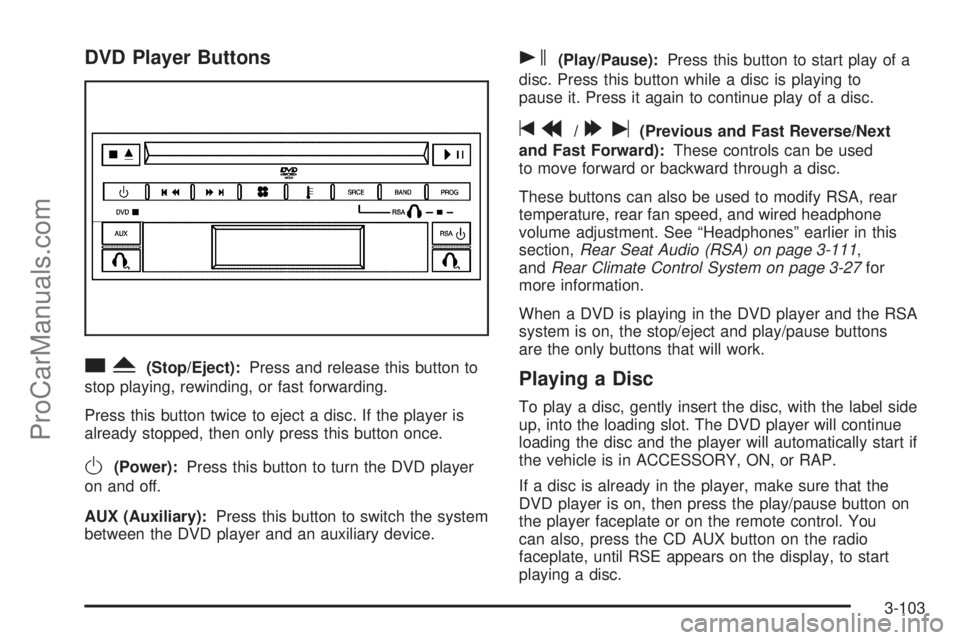
DVD Player Buttons
cY(Stop/Eject):Press and release this button to
stop playing, rewinding, or fast forwarding.
Press this button twice to eject a disc. If the player is
already stopped, then only press this button once.
O(Power):Press this button to turn the DVD player
on and off.
AUX (Auxiliary):Press this button to switch the system
between the DVD player and an auxiliary device.
s(Play/Pause):Press this button to start play of a
disc. Press this button while a disc is playing to
pause it. Press it again to continue play of a disc.
tr/[u(Previous and Fast Reverse/Next
and Fast Forward):These controls can be used
to move forward or backward through a disc.
These buttons can also be used to modify RSA, rear
temperature, rear fan speed, and wired headphone
volume adjustment. See “Headphones” earlier in this
section,Rear Seat Audio (RSA) on page 3-111,
andRear Climate Control System on page 3-27for
more information.
When a DVD is playing in the DVD player and the RSA
system is on, the stop/eject and play/pause buttons
are the only buttons that will work.
Playing a Disc
To play a disc, gently insert the disc, with the label side
up, into the loading slot. The DVD player will continue
loading the disc and the player will automatically start if
the vehicle is in ACCESSORY, ON, or RAP.
If a disc is already in the player, make sure that the
DVD player is on, then press the play/pause button on
the player faceplate or on the remote control. You
can also, press the CD AUX button on the radio
faceplate, until RSE appears on the display, to start
playing a disc.
3-103
ProCarManuals.com
Page 255 of 458
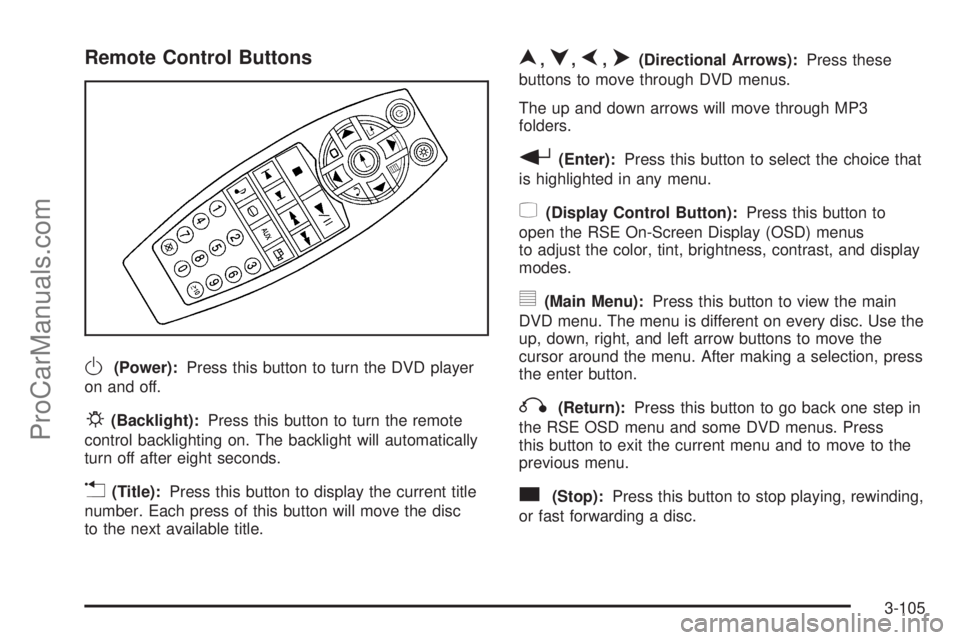
Remote Control Buttons
O(Power):Press this button to turn the DVD player
on and off.
P(Backlight):Press this button to turn the remote
control backlighting on. The backlight will automatically
turn off after eight seconds.
v(Title):Press this button to display the current title
number. Each press of this button will move the disc
to the next available title.
n,q,p,o(Directional Arrows):Press these
buttons to move through DVD menus.
The up and down arrows will move through MP3
folders.
r(Enter):Press this button to select the choice that
is highlighted in any menu.
z(Display Control Button):Press this button to
open the RSE On-Screen Display (OSD) menus
to adjust the color, tint, brightness, contrast, and display
modes.
y(Main Menu):Press this button to view the main
DVD menu. The menu is different on every disc. Use the
up, down, right, and left arrow buttons to move the
cursor around the menu. After making a selection, press
the enter button.
q(Return):Press this button to go back one step in
the RSE OSD menu and some DVD menus. Press
this button to exit the current menu and to move to the
previous menu.
c(Stop):Press this button to stop playing, rewinding,
or fast forwarding a disc.
3-105
ProCarManuals.com
Page 259 of 458
Problem Recommended Action
The remote control does
not work.Point the remote control
directly at the face of the
DVD unit. The batteries
could be weak or put in
wrong. The parental
control button might have
been pressed, the power
indicator lights will ash.
How do I get subtitles on
or off?Press the subtitle button
on the remote control to
select subtitle option or go
to the DVDs main menu
and follow the screen
prompts.
The auxiliary source is
running but there is no
picture or sound.Press and release the
AUX button on the remote
control or the DVD player
to get to auxiliary input.
Check to make sure that
the auxiliary source is
connected to the inputs
properly.
The audio or video skips
or jumps.The DVD could be dirty or
scratched. Try cleaning
the disc.Problem Recommended Action
The fast forward, fast
reverse, previous, and
next functions do
not work.Some commands that do
one thing for DVDs will
not always work or
perform the same function
for audio, audio discs, or
games. These functions
may also be disabled
when the DVD is playing
the copyright information
or the previews. When
RSA is on, these buttons
control RSA functions.
My disc is stuck in the
player. The eject button
does not work.Press the eject button on
the DVD player. Turn the
ignition off, then on again,
then press the eject
button on the DVD player.
Do not attempt to force or
remove the disc from the
player. If the problem
persists, return to your
GM dealer for further
assistance.
I lost the remote control
and/or the headphones.Contact your GM dealer
for assistance.
Sometimes the wireless
headphone audio cuts out
or buzzes for a moment,
then it comes back.This could be caused by
interference from cell
towers or by using the
cellular telephone or other
radio transmitter devices
in the vehicle.
3-109
ProCarManuals.com
Page 261 of 458
DVD Distortion
There may be an experience with video distortion when
operating cellular phones, scanners, CB radios,
Global Position Systems (GPS)*, two-way radios, mobile
fax, or walkie talkies.
It may be necessary to turn off the DVD player when
operating one of these devices in or near the vehicle.
*Excludes the OnStar
®System.
Cleaning the DVD Player
When cleaning the outside DVD faceplate and buttons,
use only a clean cloth dampened with clean water.
Cleaning the Video Screen
When cleaning the video screen, use only a clean cloth
dampened with clean water. Use care when directly
touching or cleaning the screen, as damage may result.
Rear Seat Audio (RSA)
If your vehicle has rear seat audio (RSA), this feature
allows rear seat passengers to listen to and control any of
the following audio sources: AM/FM tuner, front CD
player, and XM™ Satellite Radio Service (if equipped).
However, the rear seat passengers can only control the
sources that the front seat passengers are not listening
to. For example, rear seat passengers may listen to a CD
in the front radio and control it while the driver listens to
the radio through the front speakers. The rear seat
passengers have control of the volume for each set of
headphones.
The front seat audio controls always have priority over
the RSA controls. If the front seat passengers switch
the source for the main radio to a remote source,
the RSA will not be able to control the remote source.
You can operate the RSA when the main radio is off.
The DVD or auxiliary device will always be available on
channel (CHA or CH1) of the wireless headphones.
All other RSA sources are available on CHB or CH2 of
the wireless headphones, as well as the wired
headphones. If the RSA is off, the wired headphones
will provide DVD or auxiliary device audio. The rear seat
passengers will not be able to listen to XM, on CHB
or CH2, if the front passenger is listening to a DVD or
auxiliary device.
3-111
ProCarManuals.com
Page 263 of 458
When a CD is playing in the single CD player, press this
button to select the next track. This function is inactive if
the front seat passengers are listening to a CD.
When a CD is playing in the six-disc CD changer, press
this button to select the next CD, if multiple CDs are
loaded. This function is inactive if the front seat
passengers are listening to a CD.
SRCE (Source):Press this button to switch between
playing the AM/FM tuner, front CD player, and XM™
Satellite Radio Service (if equipped). If one of the
sources are not loaded, the system will skip over the
source when this button is pressed.
X(Headphone):Press the right or the left headphone
button to enable volume control of the wired headphone
connected to the corresponding jack. Press the right
and left arrow buttons to change the volume.
rj(Parental Control):This button is located behind
the video screen, below the auxiliary jacks. Press this
button while using RSA, or when a DVD or CD is playing
to blank the video screen and to mute the audio. The
power indicator lights on the DVD player will ash.Turning on the parental control will also disable all other
button operations from the remote control and the
DVD player, except for the eject button. Press this
button again to restore operation of the RSA, DVD
player, and remote control.
This button may also be used to turn the DVD player
power on and automatically resume play if the vehicle is
on and a disc is in the player. If no disc is in the
player then the system will power up in auxiliary mode.
Theft-Deterrent Feature
THEFTLOCK®is designed to discourage theft of your
vehicle’s radio. The feature works automatically by
learning a portion of the Vehicle Identication Number
(VIN). If the radio is moved to a different vehicle, it
will not operate and LOCKED will appear on the display.
With THEFTLOCK
®activated, the radio will not
operate if stolen.
3-113
ProCarManuals.com
Page 264 of 458
Audio Steering Wheel Controls
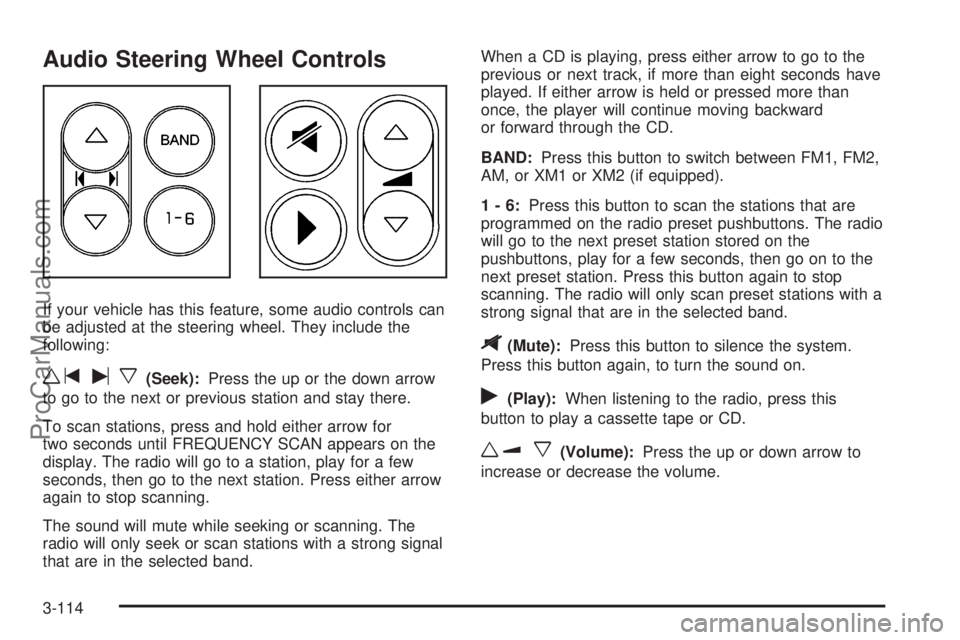
If your vehicle has this feature, some audio controls can
be adjusted at the steering wheel. They include the
following:
wtux(Seek):Press the up or the down arrow
to go to the next or previous station and stay there.
To scan stations, press and hold either arrow for
two seconds until FREQUENCY SCAN appears on the
display. The radio will go to a station, play for a few
seconds, then go to the next station. Press either arrow
again to stop scanning.
The sound will mute while seeking or scanning. The
radio will only seek or scan stations with a strong signal
that are in the selected band.When a CD is playing, press either arrow to go to the
previous or next track, if more than eight seconds have
played. If either arrow is held or pressed more than
once, the player will continue moving backward
or forward through the CD.
BAND:Press this button to switch between FM1, FM2,
AM, or XM1 or XM2 (if equipped).
1-6:Press this button to scan the stations that are
programmed on the radio preset pushbuttons. The radio
will go to the next preset station stored on the
pushbuttons, play for a few seconds, then go on to the
next preset station. Press this button again to stop
scanning. The radio will only scan preset stations with a
strong signal that are in the selected band.
$(Mute):Press this button to silence the system.
Press this button again, to turn the sound on.
r(Play):When listening to the radio, press this
button to play a cassette tape or CD.
wux(Volume):Press the up or down arrow to
increase or decrease the volume.
3-114
ProCarManuals.com
Page 396 of 458
Appearance Care
Cleaning the Inside of Your Vehicle
Your vehicle’s interior will continue to look its best if
it is cleaned often. Although not always visible, dust and
dirt can accumulate on your upholstery. Dirt can
damage carpet, fabric, leather, and plastic surfaces.
Regular vacuuming is recommended to remove particles
from your upholstery. It is important to keep your
upholstery from becoming and remaining heavily soiled.
Soils should be removed as quickly as possible. Your
vehicle’s interior may experience extremes of heat
that could cause stains to set rapidly.
Lighter colored interiors may require more frequent
cleaning. Use care because newspapers and garments
that transfer color to your home furnishings may also
transfer color to your vehicle’s interior.
When cleaning your vehicle’s interior, only use cleaners
specically designed for the surfaces being cleaned.
Permanent damage may result from using cleaners on
surfaces for which they were not intended. Use glass
cleaner only on glass. Remove any accidental over-spray
from other surfaces immediately. To prevent over-spray,
apply cleaner directly to the cleaning cloth.Notice:If you use abrasive cleaners when cleaning
glass surfaces on your vehicle, you could scratch
the glass and/or cause damage to the rear window
defogger. When cleaning the glass on your
vehicle, use only a soft cloth and glass cleaner.
Many cleaners contain solvents that may become
concentrated in your vehicle’s breathing space. Before
using cleaners, read and adhere to all safety
instructions on the label. While cleaning your vehicle’s
interior, maintain adequate ventilation by opening
your vehicle’s doors and windows.
Dust may be removed from small buttons and knobs
using a small brush with soft bristles.
Your GM dealer has a product for cleaning your
vehicle’s glass. Should it become necessary, you can
also obtain a product from your GM dealer to remove
odors from your vehicle’s upholstery.
Do not clean your vehicle using the following cleaners
or techniques:
Never use a knife or any other sharp object to
remove a soil from any interior surface.
Never use a stiff brush. It can cause damage to
your vehicle’s interior surfaces.
Never apply heavy pressure or rub aggressively
with a cleaning cloth. Use of heavy pressure
can damage your interior and does not improve the
effectiveness of soil removal.
5-84
ProCarManuals.com