ECO mode CHEVROLET UPLANDER 2007 1.G Owner's Manual
[x] Cancel search | Manufacturer: CHEVROLET, Model Year: 2007, Model line: UPLANDER, Model: CHEVROLET UPLANDER 2007 1.GPages: 592, PDF Size: 3.04 MB
Page 323 of 592
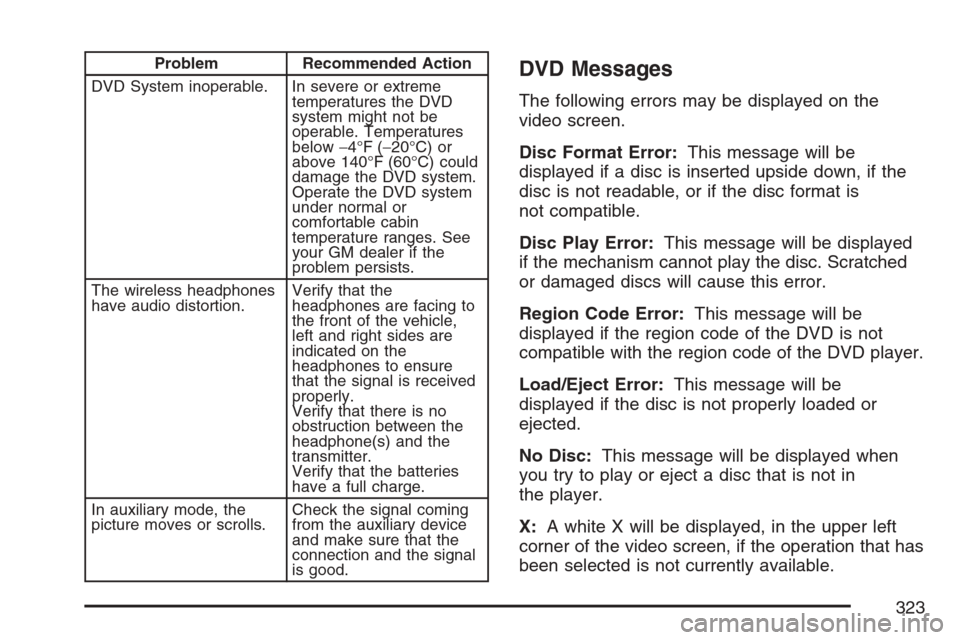
Problem Recommended Action
DVD System inoperable. In severe or extreme
temperatures the DVD
system might not be
operable. Temperatures
below−4°F (−20°C) or
above 140°F (60°C) could
damage the DVD system.
Operate the DVD system
under normal or
comfortable cabin
temperature ranges. See
your GM dealer if the
problem persists.
The wireless headphones
have audio distortion.Verify that the
headphones are facing to
the front of the vehicle,
left and right sides are
indicated on the
headphones to ensure
that the signal is received
properly.
Verify that there is no
obstruction between the
headphone(s) and the
transmitter.
Verify that the batteries
have a full charge.
In auxiliary mode, the
picture moves or scrolls.Check the signal coming
from the auxiliary device
and make sure that the
connection and the signal
is good.DVD Messages
The following errors may be displayed on the
video screen.
Disc Format Error:This message will be
displayed if a disc is inserted upside down, if the
disc is not readable, or if the disc format is
not compatible.
Disc Play Error:This message will be displayed
if the mechanism cannot play the disc. Scratched
or damaged discs will cause this error.
Region Code Error:This message will be
displayed if the region code of the DVD is not
compatible with the region code of the DVD player.
Load/Eject Error:This message will be
displayed if the disc is not properly loaded or
ejected.
No Disc:This message will be displayed when
you try to play or eject a disc that is not in
the player.
X:A white X will be displayed, in the upper left
corner of the video screen, if the operation that has
been selected is not currently available.
323
Page 333 of 592
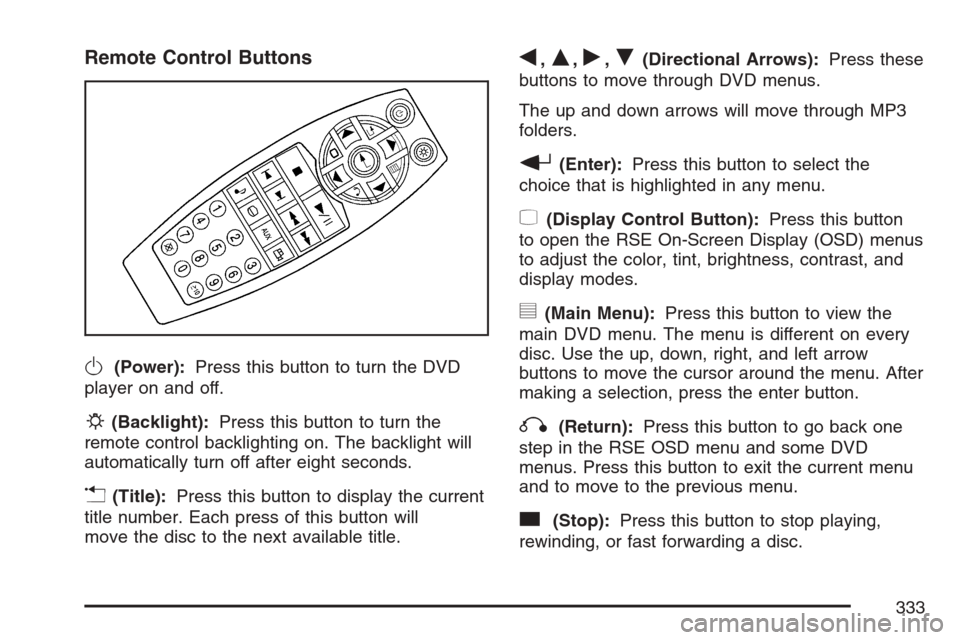
Remote Control Buttons
O(Power):Press this button to turn the DVD
player on and off.
P(Backlight):Press this button to turn the
remote control backlighting on. The backlight will
automatically turn off after eight seconds.
v(Title):Press this button to display the current
title number. Each press of this button will
move the disc to the next available title.
q,Q,r,R(Directional Arrows):Press these
buttons to move through DVD menus.
The up and down arrows will move through MP3
folders.
r(Enter):Press this button to select the
choice that is highlighted in any menu.
z(Display Control Button):Press this button
to open the RSE On-Screen Display (OSD) menus
to adjust the color, tint, brightness, contrast, and
display modes.
y(Main Menu):Press this button to view the
main DVD menu. The menu is different on every
disc. Use the up, down, right, and left arrow
buttons to move the cursor around the menu. After
making a selection, press the enter button.
q(Return):Press this button to go back one
step in the RSE OSD menu and some DVD
menus. Press this button to exit the current menu
and to move to the previous menu.
c(Stop):Press this button to stop playing,
rewinding, or fast forwarding a disc.
333
Page 336 of 592
Battery Replacement
To change the remote control batteries, do the
following:
1. Slide the battery door, located on the back of
the remote control, down.
2. Replace the two batteries in the compartment.
Make sure that they are installed correctly,
using the diagram on the inside of the battery
compartment.
3. Close the battery door.
If the remote control is to be stored for a long
period of time, remove the batteries and keep them
in a cool, dry place.
Tips and Troubleshooting Chart
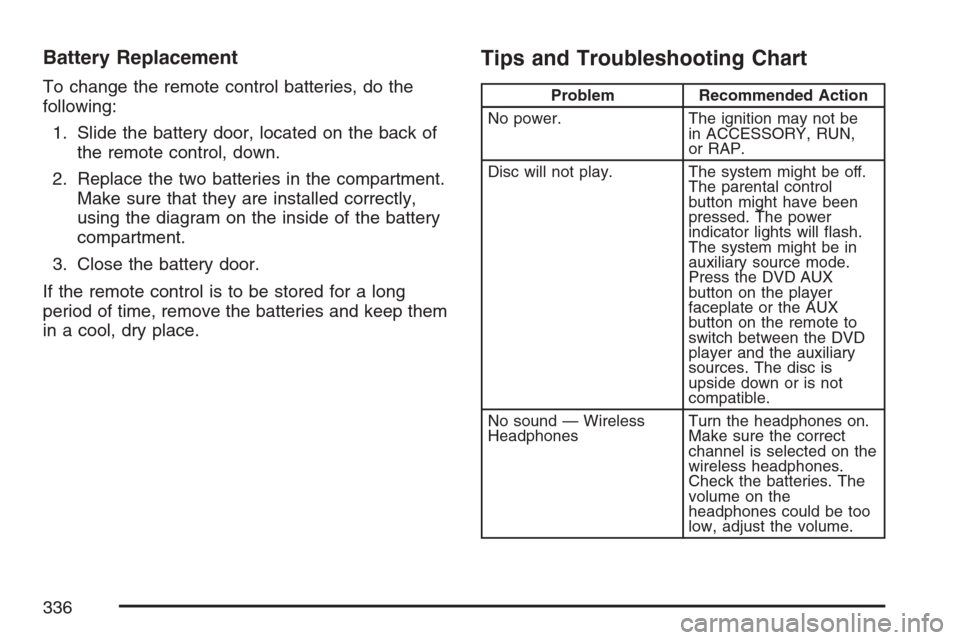
Problem Recommended Action
No power. The ignition may not be
in ACCESSORY, RUN,
or RAP.
Disc will not play. The system might be off.
The parental control
button might have been
pressed. The power
indicator lights will ash.
The system might be in
auxiliary source mode.
Press the DVD AUX
button on the player
faceplate or the AUX
button on the remote to
switch between the DVD
player and the auxiliary
sources. The disc is
upside down or is not
compatible.
No sound — Wireless
HeadphonesTurn the headphones on.
Make sure the correct
channel is selected on the
wireless headphones.
Check the batteries. The
volume on the
headphones could be too
low, adjust the volume.
336
Page 337 of 592
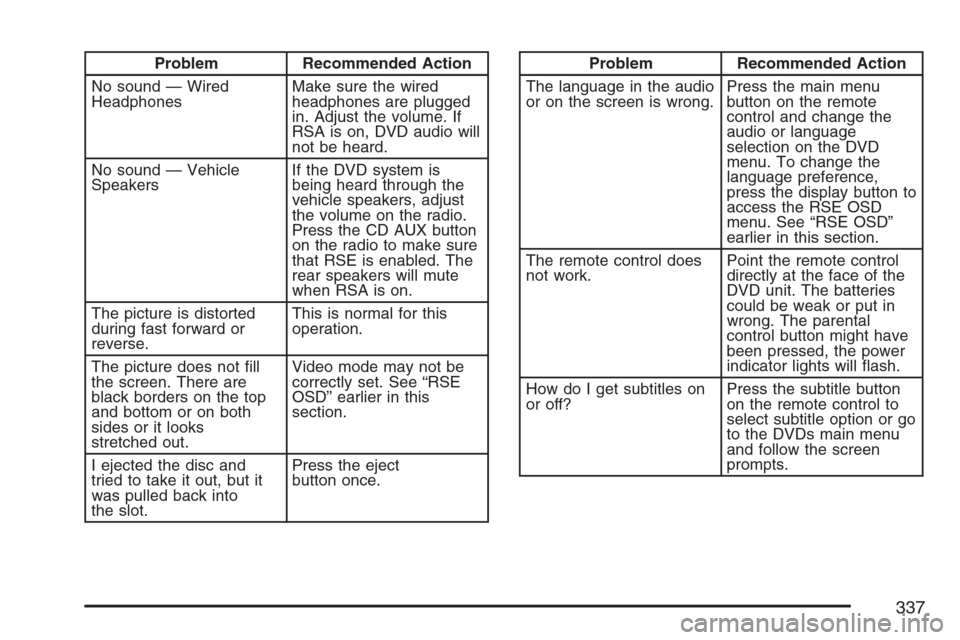
Problem Recommended Action
No sound — Wired
HeadphonesMake sure the wired
headphones are plugged
in. Adjust the volume. If
RSA is on, DVD audio will
not be heard.
No sound — Vehicle
SpeakersIf the DVD system is
being heard through the
vehicle speakers, adjust
the volume on the radio.
Press the CD AUX button
on the radio to make sure
that RSE is enabled. The
rear speakers will mute
when RSA is on.
The picture is distorted
during fast forward or
reverse.This is normal for this
operation.
The picture does not ll
the screen. There are
black borders on the top
and bottom or on both
sides or it looks
stretched out.Video mode may not be
correctly set. See “RSE
OSD” earlier in this
section.
I ejected the disc and
tried to take it out, but it
was pulled back into
the slot.Press the eject
button once.Problem Recommended Action
The language in the audio
or on the screen is wrong.Press the main menu
button on the remote
control and change the
audio or language
selection on the DVD
menu. To change the
language preference,
press the display button to
access the RSE OSD
menu. See “RSE OSD”
earlier in this section.
The remote control does
not work.Point the remote control
directly at the face of the
DVD unit. The batteries
could be weak or put in
wrong. The parental
control button might have
been pressed, the power
indicator lights will ash.
How do I get subtitles on
or off?Press the subtitle button
on the remote control to
select subtitle option or go
to the DVDs main menu
and follow the screen
prompts.
337
Page 339 of 592
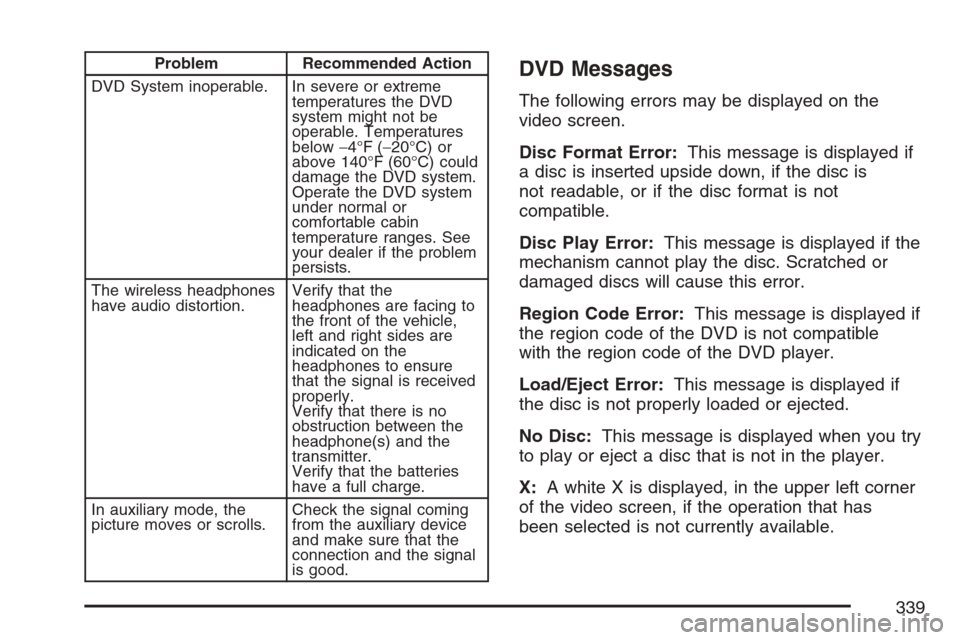
Problem Recommended Action
DVD System inoperable. In severe or extreme
temperatures the DVD
system might not be
operable. Temperatures
below−4°F (−20°C) or
above 140°F (60°C) could
damage the DVD system.
Operate the DVD system
under normal or
comfortable cabin
temperature ranges. See
your dealer if the problem
persists.
The wireless headphones
have audio distortion.Verify that the
headphones are facing to
the front of the vehicle,
left and right sides are
indicated on the
headphones to ensure
that the signal is received
properly.
Verify that there is no
obstruction between the
headphone(s) and the
transmitter.
Verify that the batteries
have a full charge.
In auxiliary mode, the
picture moves or scrolls.Check the signal coming
from the auxiliary device
and make sure that the
connection and the signal
is good.DVD Messages
The following errors may be displayed on the
video screen.
Disc Format Error:This message is displayed if
a disc is inserted upside down, if the disc is
not readable, or if the disc format is not
compatible.
Disc Play Error:This message is displayed if the
mechanism cannot play the disc. Scratched or
damaged discs will cause this error.
Region Code Error:This message is displayed if
the region code of the DVD is not compatible
with the region code of the DVD player.
Load/Eject Error:This message is displayed if
the disc is not properly loaded or ejected.
No Disc:This message is displayed when you try
to play or eject a disc that is not in the player.
X:A white X is displayed, in the upper left corner
of the video screen, if the operation that has
been selected is not currently available.
339
Page 351 of 592
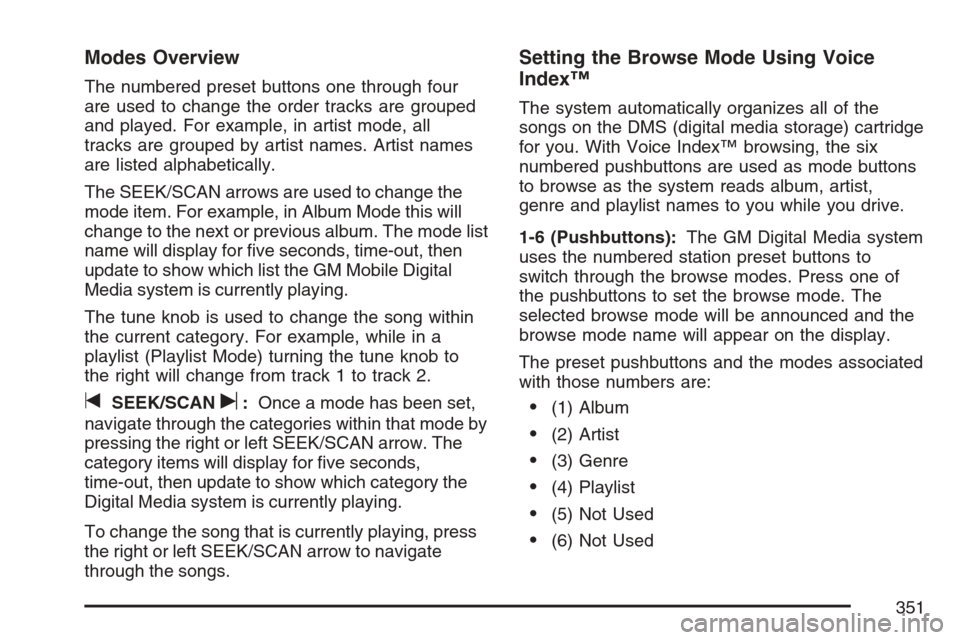
Modes Overview
The numbered preset buttons one through four
are used to change the order tracks are grouped
and played. For example, in artist mode, all
tracks are grouped by artist names. Artist names
are listed alphabetically.
The SEEK/SCAN arrows are used to change the
mode item. For example, in Album Mode this will
change to the next or previous album. The mode list
name will display for ve seconds, time-out, then
update to show which list the GM Mobile Digital
Media system is currently playing.
The tune knob is used to change the song within
the current category. For example, while in a
playlist (Playlist Mode) turning the tune knob to
the right will change from track 1 to track 2.
tSEEK/SCANu:Once a mode has been set,
navigate through the categories within that mode by
pressing the right or left SEEK/SCAN arrow. The
category items will display for ve seconds,
time-out, then update to show which category the
Digital Media system is currently playing.
To change the song that is currently playing, press
the right or left SEEK/SCAN arrow to navigate
through the songs.
Setting the Browse Mode Using Voice
Index™
The system automatically organizes all of the
songs on the DMS (digital media storage) cartridge
for you. With Voice Index™ browsing, the six
numbered pushbuttons are used as mode buttons
to browse as the system reads album, artist,
genre and playlist names to you while you drive.
1-6 (Pushbuttons):The GM Digital Media system
uses the numbered station preset buttons to
switch through the browse modes. Press one of
the pushbuttons to set the browse mode. The
selected browse mode will be announced and the
browse mode name will appear on the display.
The preset pushbuttons and the modes associated
with those numbers are:
(1) Album
(2) Artist
(3) Genre
(4) Playlist
(5) Not Used
(6) Not Used
351
Page 352 of 592
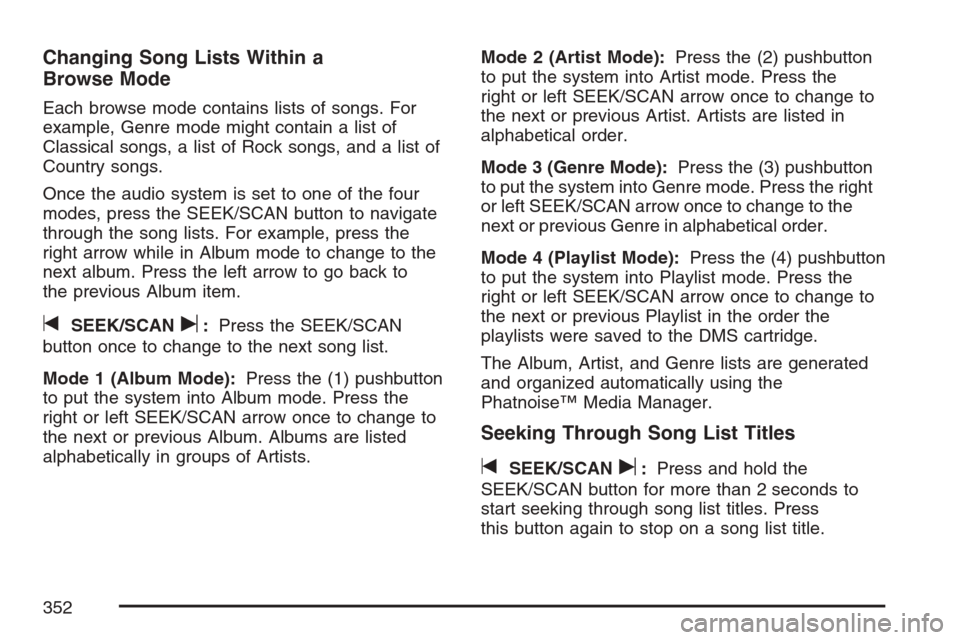
Changing Song Lists Within a
Browse Mode
Each browse mode contains lists of songs. For
example, Genre mode might contain a list of
Classical songs, a list of Rock songs, and a list of
Country songs.
Once the audio system is set to one of the four
modes, press the SEEK/SCAN button to navigate
through the song lists. For example, press the
right arrow while in Album mode to change to the
next album. Press the left arrow to go back to
the previous Album item.
tSEEK/SCANu:Press the SEEK/SCAN
button once to change to the next song list.
Mode 1 (Album Mode):Press the (1) pushbutton
to put the system into Album mode. Press the
right or left SEEK/SCAN arrow once to change to
the next or previous Album. Albums are listed
alphabetically in groups of Artists.Mode 2 (Artist Mode):Press the (2) pushbutton
to put the system into Artist mode. Press the
right or left SEEK/SCAN arrow once to change to
the next or previous Artist. Artists are listed in
alphabetical order.
Mode 3 (Genre Mode):Press the (3) pushbutton
to put the system into Genre mode. Press the right
or left SEEK/SCAN arrow once to change to the
next or previous Genre in alphabetical order.
Mode 4 (Playlist Mode):Press the (4) pushbutton
to put the system into Playlist mode. Press the
right or left SEEK/SCAN arrow once to change to
the next or previous Playlist in the order the
playlists were saved to the DMS cartridge.
The Album, Artist, and Genre lists are generated
and organized automatically using the
Phatnoise™ Media Manager.
Seeking Through Song List Titles
tSEEK/SCANu:Press and hold the
SEEK/SCAN button for more than 2 seconds to
start seeking through song list titles. Press
this button again to stop on a song list title.
352
Page 361 of 592
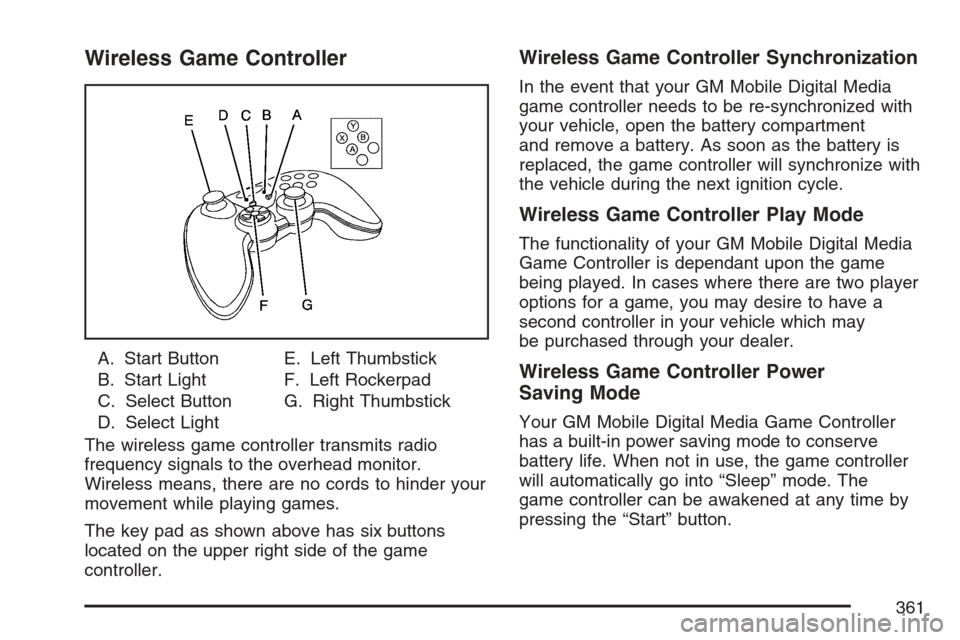
Wireless Game Controller
A. Start Button
B. Start Light
C. Select Button
D. Select LightE. Left Thumbstick
F. Left Rockerpad
G. Right Thumbstick
The wireless game controller transmits radio
frequency signals to the overhead monitor.
Wireless means, there are no cords to hinder your
movement while playing games.
The key pad as shown above has six buttons
located on the upper right side of the game
controller.
Wireless Game Controller Synchronization
In the event that your GM Mobile Digital Media
game controller needs to be re-synchronized with
your vehicle, open the battery compartment
and remove a battery. As soon as the battery is
replaced, the game controller will synchronize with
the vehicle during the next ignition cycle.
Wireless Game Controller Play Mode
The functionality of your GM Mobile Digital Media
Game Controller is dependant upon the game
being played. In cases where there are two player
options for a game, you may desire to have a
second controller in your vehicle which may
be purchased through your dealer.
Wireless Game Controller Power
Saving Mode
Your GM Mobile Digital Media Game Controller
has a built-in power saving mode to conserve
battery life. When not in use, the game controller
will automatically go into “Sleep” mode. The
game controller can be awakened at any time by
pressing the “Start” button.
361
Page 364 of 592
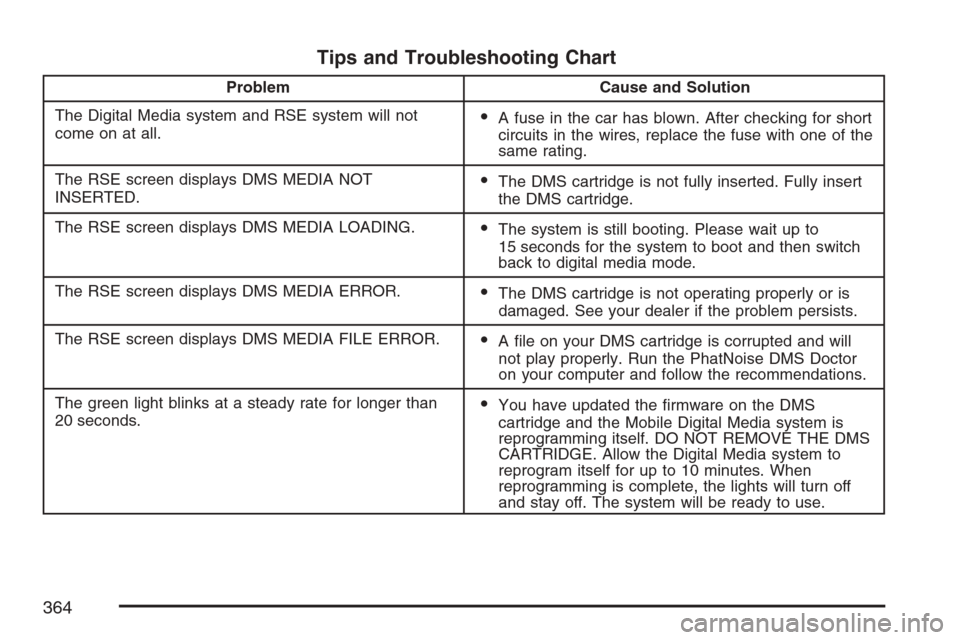
Tips and Troubleshooting Chart
Problem Cause and Solution
The Digital Media system and RSE system will not
come on at all.
A fuse in the car has blown. After checking for short
circuits in the wires, replace the fuse with one of the
same rating.
The RSE screen displays DMS MEDIA NOT
INSERTED.
The DMS cartridge is not fully inserted. Fully insert
the DMS cartridge.
The RSE screen displays DMS MEDIA LOADING.
The system is still booting. Please wait up to
15 seconds for the system to boot and then switch
back to digital media mode.
The RSE screen displays DMS MEDIA ERROR.
The DMS cartridge is not operating properly or is
damaged. See your dealer if the problem persists.
The RSE screen displays DMS MEDIA FILE ERROR.
A le on your DMS cartridge is corrupted and will
not play properly. Run the PhatNoise DMS Doctor
on your computer and follow the recommendations.
The green light blinks at a steady rate for longer than
20 seconds.
You have updated the rmware on the DMS
cartridge and the Mobile Digital Media system is
reprogramming itself. DO NOT REMOVE THE DMS
CARTRIDGE. Allow the Digital Media system to
reprogram itself for up to 10 minutes. When
reprogramming is complete, the lights will turn off
and stay off. The system will be ready to use.
364
Page 483 of 592
Intended Outboard Sidewall:The side of an
asymmetrical tire, that must always face outward
when mounted on a vehicle.
Kilopascal (kPa):The metric unit for air pressure.
Light Truck (LT-Metric) Tire:A tire used on
light duty trucks and some multipurpose passenger
vehicles.
Load Index:An assigned number ranging
from 1 to 279 that corresponds to the load carrying
capacity of a tire.
Maximum Ination Pressure:The maximum air
pressure to which a cold tire may be inated.
The maximum air pressure is molded onto
the sidewall.
Maximum Load Rating:The load rating for a tire
at the maximum permissible ination pressure
for that tire.
Maximum Loaded Vehicle Weight:The sum of
curb weight, accessory weight, vehicle capacity
weight, and production options weight.Normal Occupant Weight:The number of
occupants a vehicle is designed to seat multiplied
by 150 lbs (68 kg). SeeLoading Your Vehicle
on page 404.
Occupant Distribution:Designated seating
positions.
Outward Facing Sidewall:The side of an
asymmetrical tire that has a particular side that
faces outward when mounted on a vehicle.
The side of the tire that contains a whitewall, bears
white lettering, or bears manufacturer, brand,
and/or model name molding that is higher
or deeper than the same moldings on the other
sidewall of the tire.
Passenger (P-Metric) Tire:A tire used on
passenger cars and some light duty trucks and
multipurpose vehicles.
Recommended Ination Pressure:Vehicle
manufacturer’s recommended tire ination
pressure as shown on the tire placard. See
Ination - Tire Pressure on page 485andLoading
Your Vehicle on page 404.
483