ECO mode CHEVROLET UPLANDER 2007 1.G User Guide
[x] Cancel search | Manufacturer: CHEVROLET, Model Year: 2007, Model line: UPLANDER, Model: CHEVROLET UPLANDER 2007 1.GPages: 592, PDF Size: 3.04 MB
Page 253 of 592
Oil Life
Press the information button until OIL LIFE
displays. This mode shows an estimate of the oil’s
remaining useful life. If you see OIL LIFE 99%
on the display, that means 99% of the current oil
life remains. The engine oil life system will
alert you to change your oil on a schedule
consistent with your driving conditions.
When the remaining oil life is low, the CHANGE
OIL SOON message will appear on the display.
You should change your oil as soon as possible.
SeeEngine Oil on page 439. In addition to the
engine oil life system monitoring the oil life,
additional maintenance is recommended in the
Maintenance Schedule in this manual. See
Scheduled Maintenance on page 539for more
information.
Remember, you must reset the OIL LIFE yourself
after each oil change. It will not reset itself.
Also, be careful not to reset the OIL LIFE
accidentally at any time other than when the oil
has just been changed. It cannot be reset
accurately until the next oil change. To reset the
engine oil life system, seeEngine Oil Life
System on page 442. The display will show 100%
when the system is reset.
Menu Button Items
q
(Menu):Press this button to scroll through the
following items:
Units
Press the menu button until UNITS displays. This
mode allows you to select between English or
Metric units of measurement. Once in this mode,
press the set/reset button to select between
ENGLISH or METRIC.
Language
Press the menu button until the language screen
displays. This mode allows you to select the
language in which the DIC messages will appear.
Once in this mode, press the set/reset button
to select among the following choices:
English
Francais (French)
Espanol (Spanish)
253
Page 256 of 592
5. To start the compass calibration, press and
hold the set/reset button until CALIBRATION
BEGUN DRIVE UNTIL DONE appears in
the DIC display.
6. Drive the vehicle slowly in a circle two times
to activate the compass.
When the calibration is complete, the DIC will
display CALIBRATION FINISHED.
7. If the message CAL appears in the DIC, you
must manually put the compass into the
calibration mode again. Repeat
Steps 1 through 6.
DIC Warnings and Messages
Messages are displayed on the DIC to notify the
driver that the status of the vehicle has changed
and that some action may be needed by the driver
to correct the condition. Multiple messages may
appear one after another.
Some messages may not require immediate
action, but you can press any of the DIC buttons
to acknowledge that you received the message
and clear it from the DIC display.Some messages cannot be cleared from the DIC
display because they are more urgent. These
messages require action before they can be
cleared.
If there are any active warning messages when
the vehicle is turned off, two chimes sound and the
DIC goes into a reminder mode. The reminder
mode displays any active message. If there
are multiple messages, the DIC displays each
message for ve seconds. After each active
message is displayed once, the reminder mode
turns off.
You should take any messages that appear on the
display seriously and remember that clearing
the messages will only make the messages
disappear, not correct the problem.
The following are the possible messages that can
be displayed and some information about them.
256
Page 267 of 592
REDUCED ENGINE POWER
This message displays when the vehicle’s engine
power is reduced. This happens when driving
conditions, such as climbing a steep hill, make the
transaxle overwork in a gear that may cause
damage to the vehicle’s engine or transaxle.
Reduced engine power can affect the vehicle’s
ability to accelerate.
This message displays and a chime sounds only
when the ignition is in RUN. Press any of the
DIC buttons to acknowledge this message and to
clear it from the screen.
This message continues to display for two seconds
if it has not been acknowledged when the engine is
turned off. It also re-displays for two seconds if the
message has been acknowledged, but the
condition still exists when the engine is turned off.
If the condition still exists, the message re-appears
when the engine is turned on.
REDUCED POWER STOP WHEN SAFE
This message displays when your vehicle is in
an overheated engine operating mode. This
operating mode allows your vehicle to be driven to
a safe place in an emergency. In this mode,
you will notice a signicant loss in power and
engine performance. SeeOverheated Engine
Protection Operating Mode on page 453for more
information. Anytime this message is on, the
vehicle should be taken to your dealer for service
as soon as possible.
This message displays and a chime sounds only
when the ignition is in RUN. Press any of the
DIC buttons to acknowledge this message and to
clear it from the screen.
This message continues to display for two seconds
if it has not been acknowledged when the engine is
turned off. It also re-displays for two seconds if the
message has been acknowledged, but the
condition still exists when the engine is turned off.
If the condition still exists, the message re-appears
when the engine is turned on.
267
Page 276 of 592
Entering the Personal Program Menu
1. Turn the ignition on and place the vehicle
in PARK (P).
To avoid excessive drain on the battery, it is
recommended that the headlamps are
turned off.
2. Press the menu button until PERSONAL
PROGRAM displays.
If the vehicle is not in PARK (P), PERSONAL
PROGRAM ONLY IN PARK will display.
If the vehicle is not able to enter the personal
program menu, PERSONAL PROGRAM
NOT AVAILABLE will display.
3. Press the set/reset button to begin.
4. The DIC will then display an instruction
screen.
Press the menu button to display the modes
that are available to program.
Press the set/reset button to change the
setting of each mode.
Customization Menu Items
The following are customization features that allow
you to program settings to the vehicle:
FACTORY DEFAULTS
This feature allows you to set all of the
customization and personalization features back to
their factory default settings.
Press the menu button until FACTORY
DEFAULTS appears on the DIC display. Press the
set/reset button to scroll through the following
choices:
NO (default):The customization and
personalization features will not be set to their
factory default settings.
YES:The customization and personalization
features will be set to their factory default settings.
If YES is selected, the keys will need to be
personalized again to be recognized as key 1 or 2.
See “PERSONALIZE KEY” later in this section
for more information.
Choose one of the available settings and press
the menu button while it is displayed on the DIC to
select it and move on to the next feature.
276
Page 287 of 592
XM™ Satellite Radio Service
XM™ is a satellite radio service that is based in
the 48 contiguous United States and Canada.
XM™ offers a large variety of coast-to-coast
channels including music, news, sports, talk,
traffic/weather (U.S. subscribers), and children’s
programming. XM™ provides digital quality
audio and text information that includes song title
and artist name. A service fee is required in
order to receive the XM™ service. For more
information, contact XM™; In the U.S. at
www.xmradio.com or call 1-800-852-XMXM (9696)
or in Canada at www.xmradio.ca or call
1-877-GET-XMSR (438-9677).
Playing the Radio
Top Knob (Power/Volume):Press this knob to
turn the system on and off. Turn this knob
clockwise or counterclockwise to increase or to
decrease the volume.
4(Information):For RDS, press this button to
change what appears on the display while
using RDS. The display options are station name,
RDS station frequency, PTY (program type),
and the name of the program (if available).
For XM™ (if equipped), press the information
button while in XM™ mode to retrieve four different
categories of information related to the current
song or channel: Artist, Song Title, Category
or PTY, Channel Number/Channel Name.
To change the default on the display, press the
information button until you see the desired
display, then hold the button for two seconds. The
radio produces one beep and the selected
display becomes the default.
287
Page 299 of 592
BAND:Press this button to listen to the radio
when a CD is playing. The inactive CD(s)
will remain safely inside the radio for future
listening.
CD AUX (Auxiliary):Press this button to play a
CD when listening to the radio. CD appears on the
display when a CD is in the player. If your
system has a remote playback device, pressing
this button a second time allows the remote device
to play.
AUTO EQ (Automatic Equalization):Press
AUTO EQ to select the equalization setting while
playing a CD. The equalization is stored
whenever a CD is played. For more information on
AUTO EQ, see “AUTO EQ” listed previously in
this section.
Playing an MP3 CD-R Disc
Your vehicle’s radio system may have the MP3
feature. If it has this feature, it is capable of playing
an MP3 CD-R disc. For more information on
how to play an MP3 CD-R disc, seeUsing an MP3
on page 301later in this section.
UsingR(Song List) Mode (Single CD,
MP3, and Six-Disc CD)
This feature is capable of saving 20 track
selections. To save tracks into the song list
feature, perform the following steps:
1. Turn the CD player on and load it with at least
one CD.
2. Check to see that the CD player is not in
song list mode. S-LIST (sound list) should
not appear on the display. If S-LIST is present,
press the song list button to turn it off.
3. Select the desired CD by pressing the
numbered pushbutton and then use the SEEK
right arrow or turn the tune knob to locate
the track to be saved. The track begins
to play.
4. Press and hold the song list button to save
the track into memory. When song list is
pressed, one beep will sound. ADDED SONG
will appear on the display.
5. Repeat Steps 3 and 4 for saving other
selections.
SONGLIST FULL appears on the display if you try
to save more than 20 selections.
299
Page 300 of 592
To play the song list, press the song list button.
The recorded tracks begins to play in the
order they were saved.
Seek through the song list by using the SEEK
arrows. Seeking past the last saved track returns
to the rst saved track.
To delete tracks from the song list, perform the
following steps:
1. Turn the CD player on.
2. Press the song list button to turn song list on.
S-LIST appears on the display.
3. Press either SEEK arrow or turn the tune
knob to select the desired track to be
deleted.
4. Press and hold the song list button for
two seconds. Release the button when
SONG REMOVED appears on the display.
After a track has been deleted, the remaining
tracks are moved up the list. When another track
is added to the song list, the track is added to
the end of the list.To delete the entire song list, perform the following
steps:
1. Turn the CD player on.
2. Press the song list button to turn song list on.
S-LIST appears on the display.
3. Press and hold the song list button for more
than four seconds. One beep will sound.
SONGLIST EMPTY appears on the display
indicating the song list has been deleted.
If a CD is ejected, and the song list contains
saved tracks from that CD, those tracks are
automatically deleted from the song list. Any tracks
saved to the song list again are added to the
bottom of the list.
To end song list mode, press the song list button.
One beep will sound and S-LIST will be removed
from the display.
300
Page 303 of 592
No Folder
When the CD contains only compressed les, the
les will be located under the root folder. The
next and previous folder functions will not function
on a CD that was recorded without folders or
playlists. When displaying the name of the folder
the radio displays ROOT.
When the CD contains only playlists and
compressed audio les, but no folders, all les are
located under the root folder. The folder down and
the folder up buttons search playlists (Px) rst and
then go to the root folder. When the radio displays
the name of the folder the radio displays ROOT.
Order of Play
Tracks are played in the following order:
Play begins from the rst track in the rst
playlist and continues sequentially through
all tracks in each playlist. When the last track
of the last playlist has played, play continues
from the rst track of the rst playlist.
If the CD does not contain any playlists, then
play begins from the rst track under the root
directory. When all tracks from the root
directory have played, play continues from
les according to their numerical listing. After
playing the last track from the last folder,
play begins again at the rst track of the rst
folder or root directory.
When play enters a new folder, the display does
not automatically show the new folder name unless
you have chosen the folder mode as the default
display. See the information button later in
this section for more information. The new track
name appears on the display.
File System and Naming
The song name that displays is the song name
that is contained in the ID3 tag. If the song name
is not present in the ID3 tag, then the radio
displays the le name without the extension
(such as .mp3) as the track name.
Track names longer than 32 characters or four
pages are shortened. Parts of words on the
last page of text and the extension of the lename
will not display.
303
Page 320 of 592
To use the RSE OSD menu when using a CD or
an MP3, do the following:
Make sure that a CD or an MP3 is loaded in the
RSE system and that the system is not in auxiliary,
then press the display button on the remote control.
Once the menu is on the screen, use the directional
arrows and the enter button to navigate the screen.
This menu will let you select default preferences for
language and playback settings. To exit this menu,
press the display or the return button on the remote
control or wait for the menu to time out.
Battery Replacement
To change the remote control batteries, do the
following:
1. Slide the battery door, located on the back of
the remote control, down.
2. Replace the two AA batteries in the
compartment. Make sure that they are
installed correctly, using the diagram on the
inside of the battery compartment.
3. Close the battery door.
If the remote control is to be stored for a long
period of time, remove the batteries and keep them
in a cool, dry place.
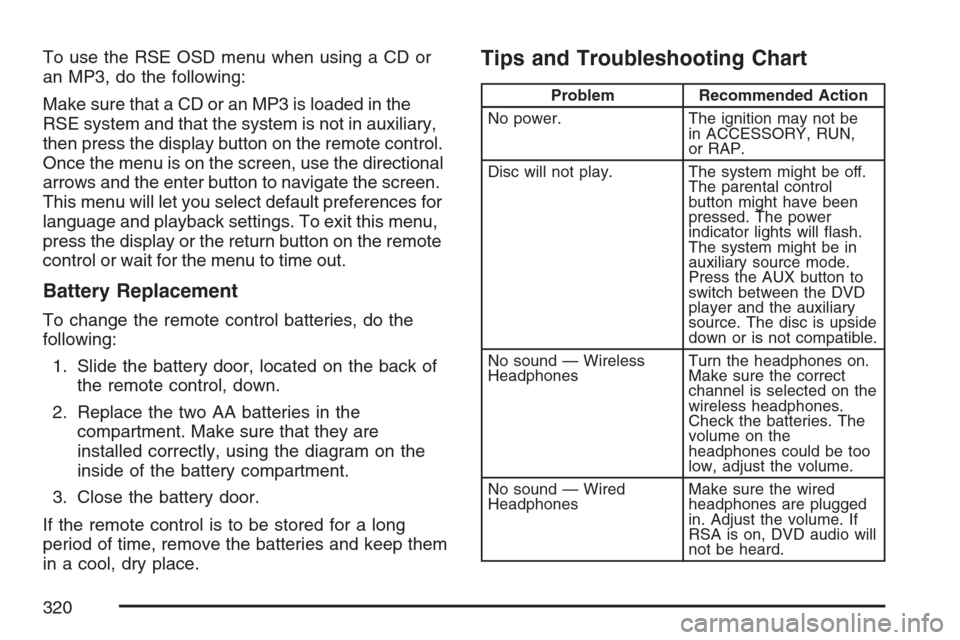
Tips and Troubleshooting Chart
Problem Recommended Action
No power. The ignition may not be
in ACCESSORY, RUN,
or RAP.
Disc will not play. The system might be off.
The parental control
button might have been
pressed. The power
indicator lights will ash.
The system might be in
auxiliary source mode.
Press the AUX button to
switch between the DVD
player and the auxiliary
source. The disc is upside
down or is not compatible.
No sound — Wireless
HeadphonesTurn the headphones on.
Make sure the correct
channel is selected on the
wireless headphones.
Check the batteries. The
volume on the
headphones could be too
low, adjust the volume.
No sound — Wired
HeadphonesMake sure the wired
headphones are plugged
in. Adjust the volume. If
RSA is on, DVD audio will
not be heard.
320
Page 321 of 592
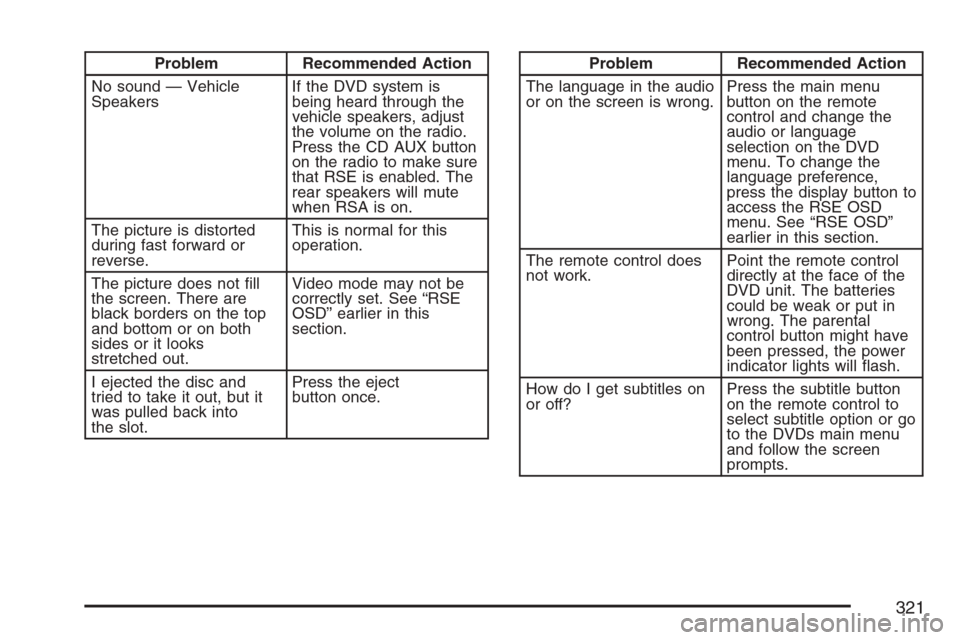
Problem Recommended Action
No sound — Vehicle
SpeakersIf the DVD system is
being heard through the
vehicle speakers, adjust
the volume on the radio.
Press the CD AUX button
on the radio to make sure
that RSE is enabled. The
rear speakers will mute
when RSA is on.
The picture is distorted
during fast forward or
reverse.This is normal for this
operation.
The picture does not ll
the screen. There are
black borders on the top
and bottom or on both
sides or it looks
stretched out.Video mode may not be
correctly set. See “RSE
OSD” earlier in this
section.
I ejected the disc and
tried to take it out, but it
was pulled back into
the slot.Press the eject
button once.Problem Recommended Action
The language in the audio
or on the screen is wrong.Press the main menu
button on the remote
control and change the
audio or language
selection on the DVD
menu. To change the
language preference,
press the display button to
access the RSE OSD
menu. See “RSE OSD”
earlier in this section.
The remote control does
not work.Point the remote control
directly at the face of the
DVD unit. The batteries
could be weak or put in
wrong. The parental
control button might have
been pressed, the power
indicator lights will ash.
How do I get subtitles on
or off?Press the subtitle button
on the remote control to
select subtitle option or go
to the DVDs main menu
and follow the screen
prompts.
321